AI Action helps you create a comprehensive conversation without too much effort. AI Action is used to interpret user input smartly. It uses one of the AI providers to achieve that. This action plays with two modes:
Message mode: In message mode, it processes the input and continues the flow depending on the result.
Input mode: In the input mode, it will stop the flow and wait for input. After the input is received from the user, it will process the input and continue the flow depending on the result.
The AI Action will only process text messages. In the case of a linked clicked message, it will do nothing, and in the case of other types, it will fall back.
In the case of the text message, the AI processor will behave with the next step in the order as follows:
It checks a user input match in global keywords, and if the match exists, it will continue the flow without waiting for the connection specified in that global keyword.
It predicts the user input. If there is a matched intent and the prediction threshold is above the action threshold, it will use its connection and continue the flow without waiting. If the prediction threshold is under the action threshold, the action will fall back.
It falls back if it can not catch a match. In that case, if the fallback count is defined, it will keep sending the local or global error message until the count is finished, at which point it will continue the flow to the fallback connection.
Defining a delay for this action will delay the prediction process, which will delay the flow to the next module.
To use AI Action in your flows, follow the steps below:
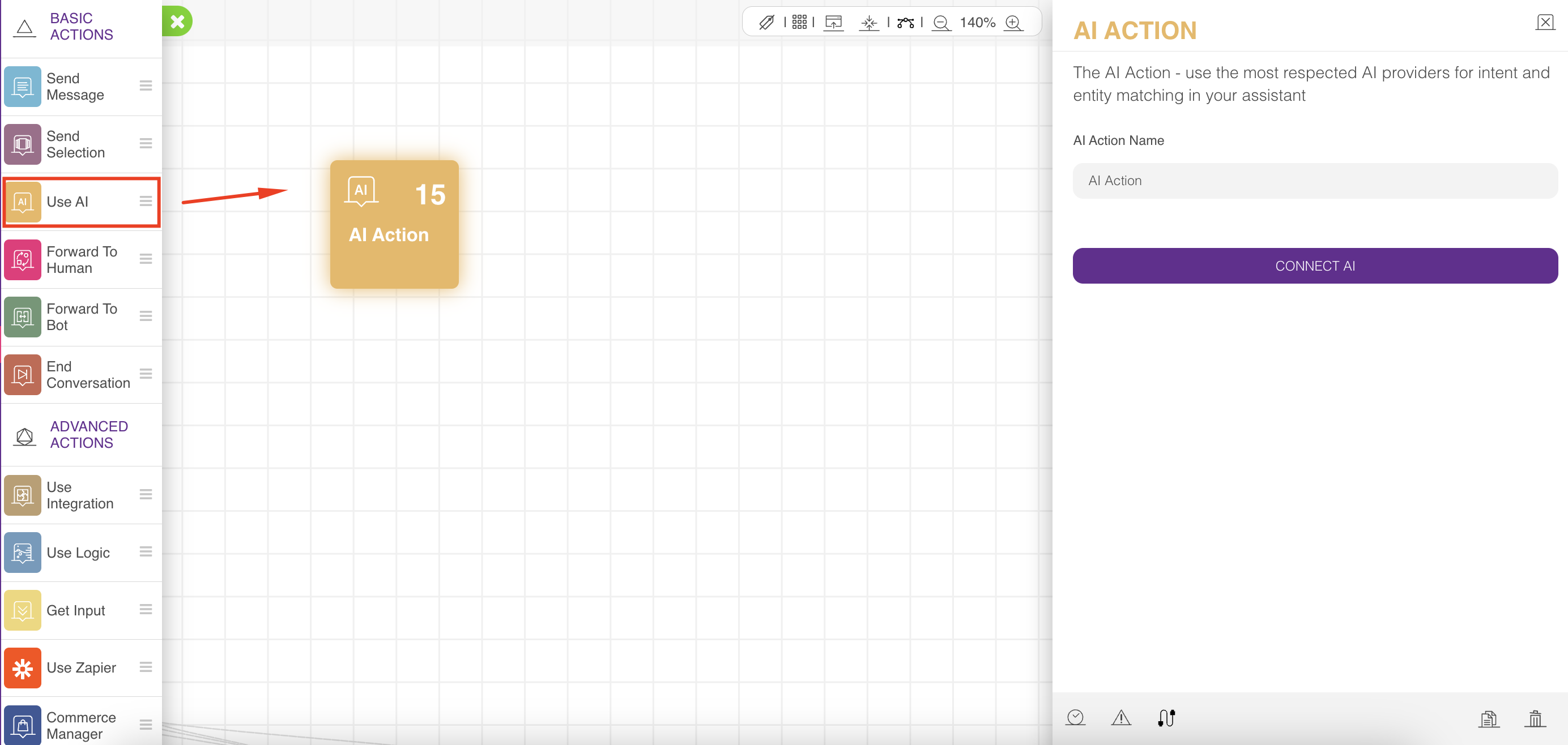
Drag and drop the "Use AI Action" from the Basic Actions menu to your canvas or click on it.
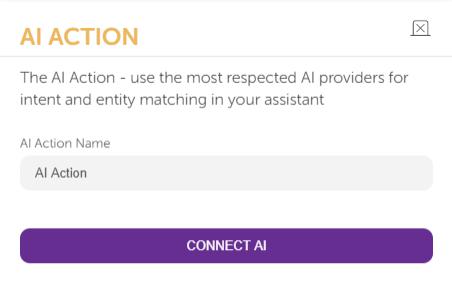
The AI Action supports four AI providers: Google DialogFlow, IBM Watson, CLU, and Microsoft LUIS. Connect a provider, and the page will fill up with details.
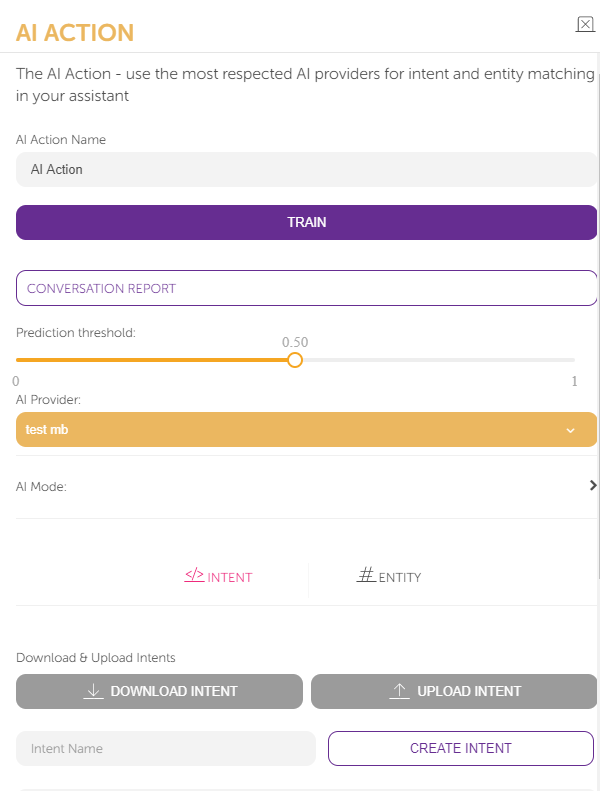
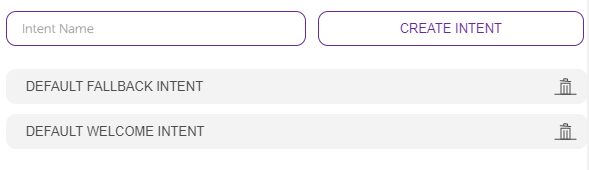
Intent refers to the purpose of the conversation; it represents the customer’s reason for contacting the assistant. To create an intent, name the intent and click the Create Intent button.

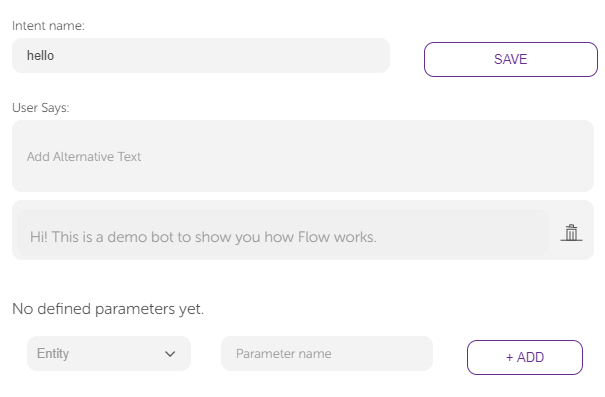
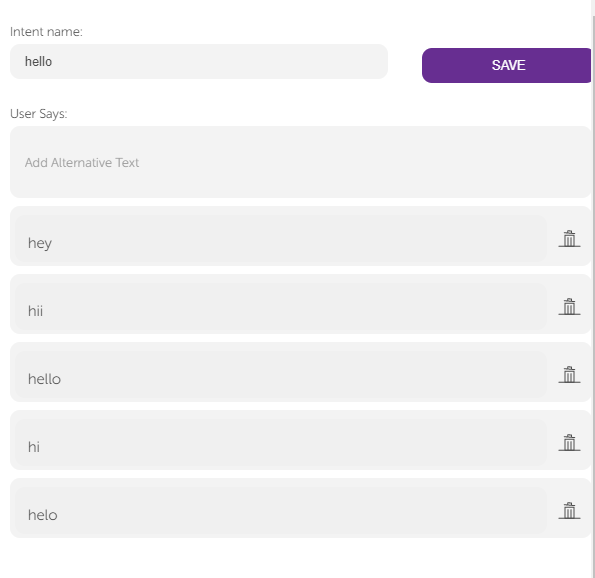
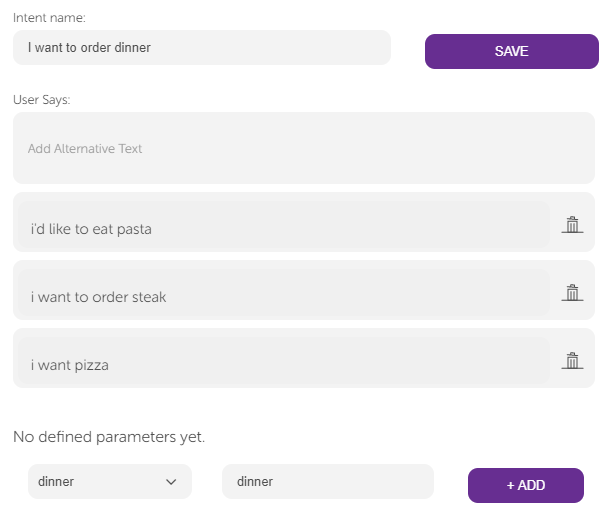
When users click on this intent, they see the section where they can feed it. Under the title “User Says”, you can give alternative versions of the same purpose. It is a simple rephrasing process. Whatever you add to the "User Says" part is added to this intent and can all be linked somewhere in the flow simultaneously.
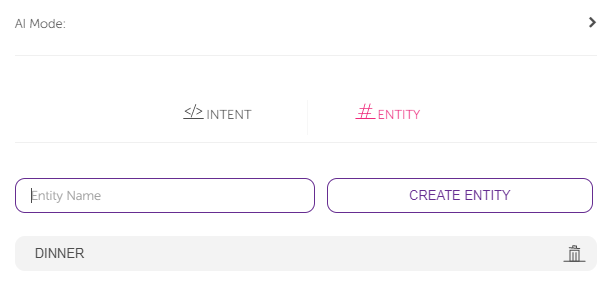
An entity is the information you are trying to extract from the conversation.
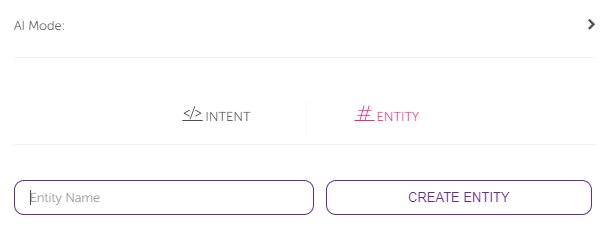
For example, if you create an entity and name it “dinner”, this is a general name for the types of dinners you would like to cover.
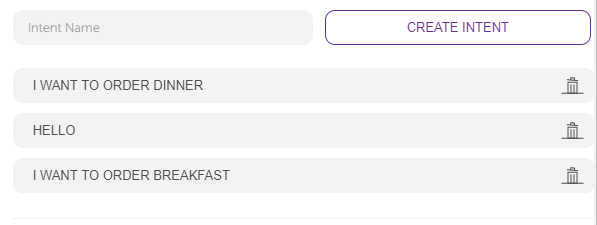
On the intents, click on the intent relevant to "dinner". Here, you can understand that this user in the conversation wants to order dinner. At the same time, you understand what they want to order specifically.
On the defined parameters part, select “dinner” as an entity and give the parameter name "dinner" again.
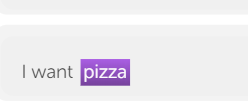
After adding dinner as an entity for this intent, double-click on steak, pizza, and pasta to connect these words to the entity “dinner”.
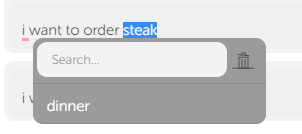
Now, these words join the entity "dinner".
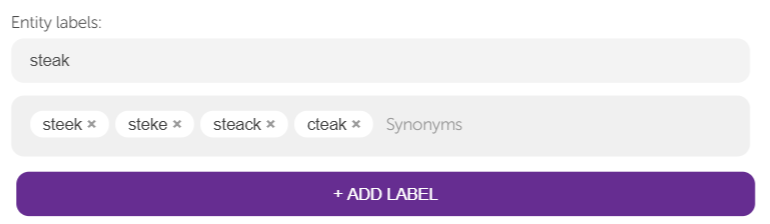
To define typos and understand the user even when they do not spell the word correctly, you should click on the entity "dinner" and add these types of dinner as a label. In the synonyms part, it is possible to give synonyms and typos.
The prediction threshold shows the percentage of what the user says that matches the defined intents. 1 represents a 100% match, and 0.5 shows a 50% match. Configure this number to determine the power of your AI.

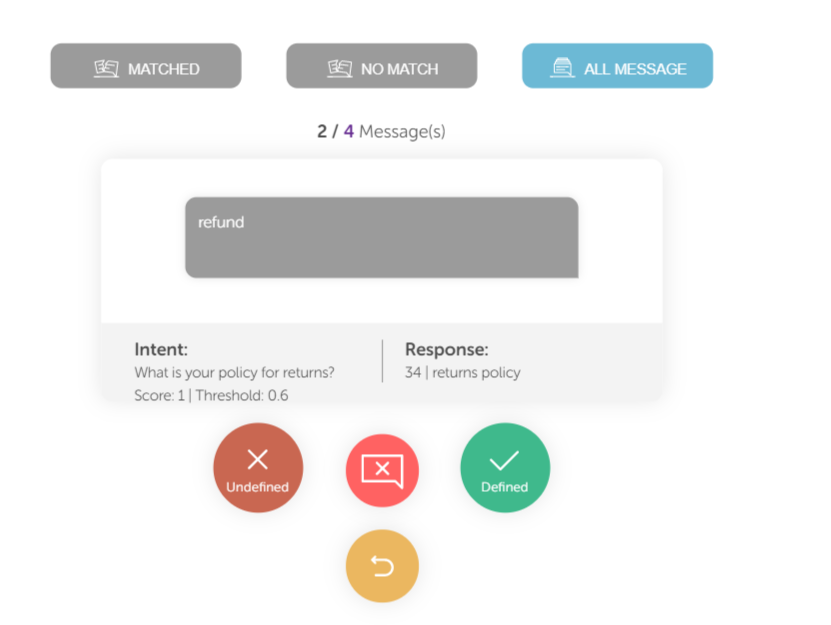
Conversation Report is an analysis page where the user can track the conversations, see what the user says, and how the chatbot responds.
.png)
Now, it is possible to track what the user said and which intent is matched with how much similarity. You can also add intents using the customer's input and make other changes to improve AI.