You cannot make any changes to External Platform Integrations without having either an Administrator or an Editor with PII access in InOne. Refer to User Roles for further information.
This guide aims to explain the steps you should complete to export your Stripo email templates to Insider One's email template library:
Generating Insider One API key
Before exporting your Stripo email templates, you should get an API key from Insider One's InOne panel.
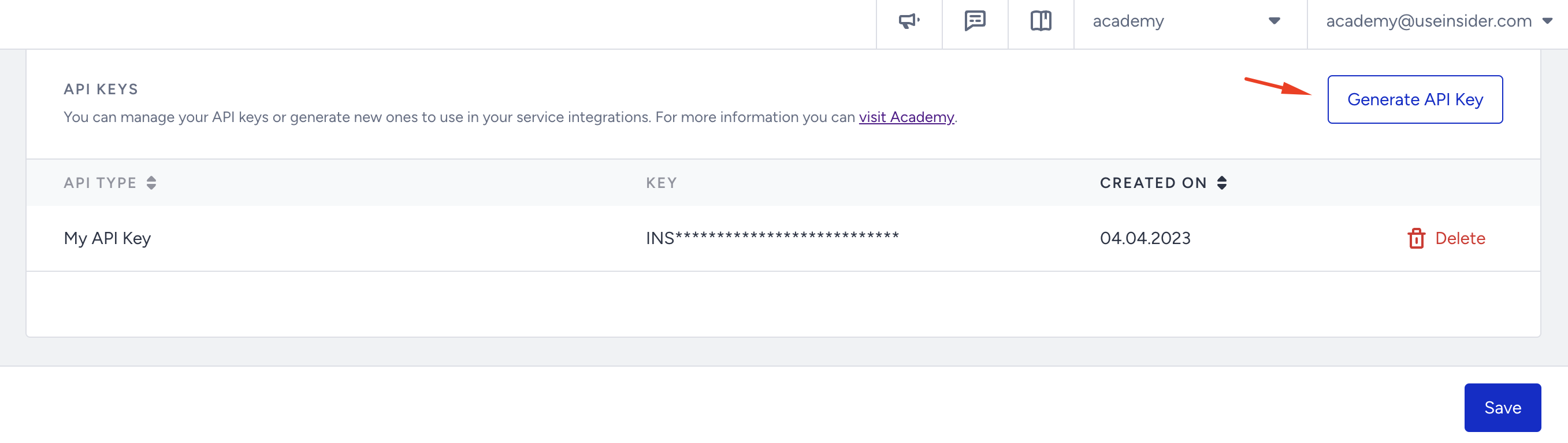
Go to InOne > InOne Settings > Integration Settings > API Keys, and click the Generate API Key button.
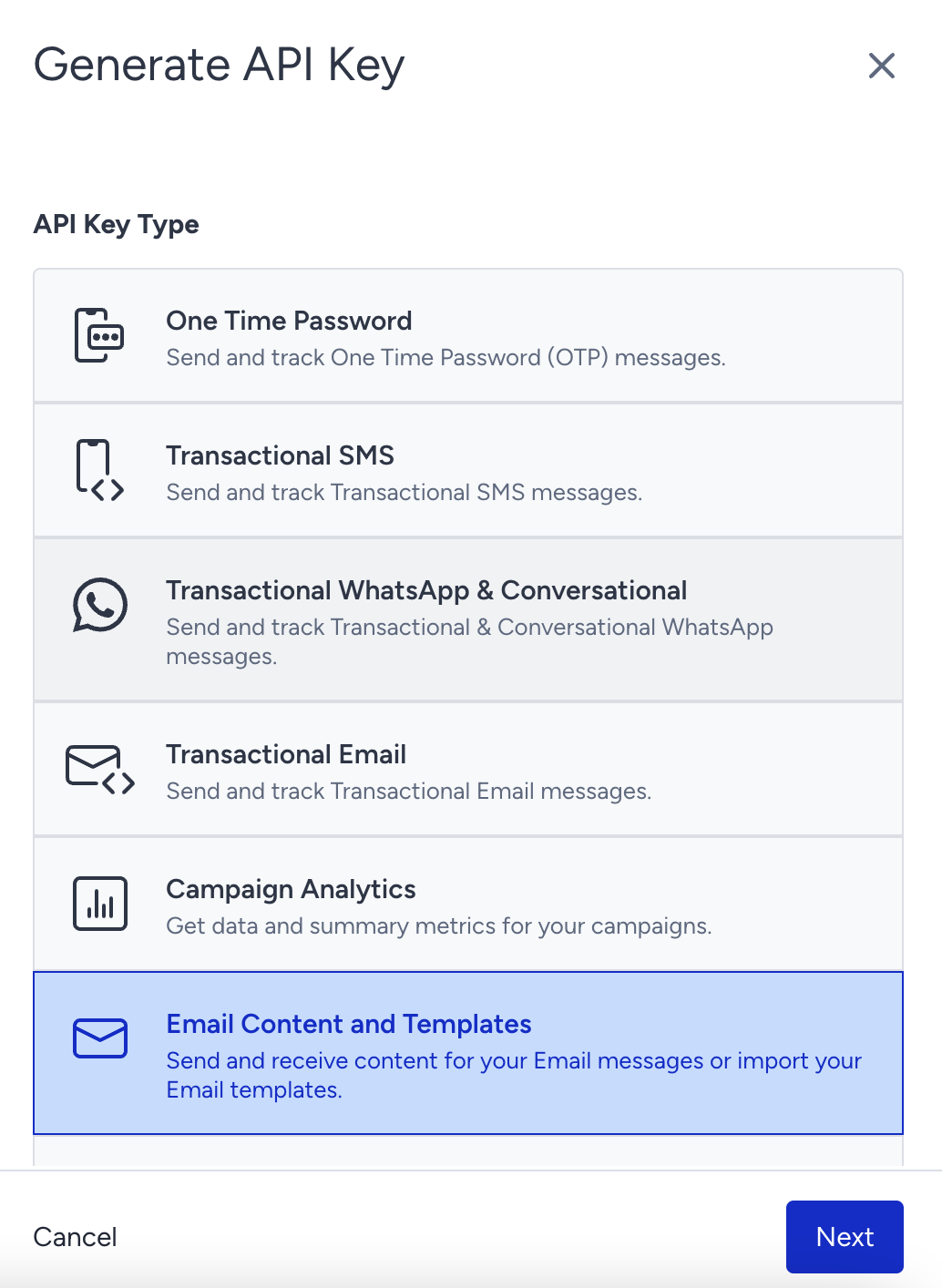
Select the Email Content and Templates key and click the Next button.
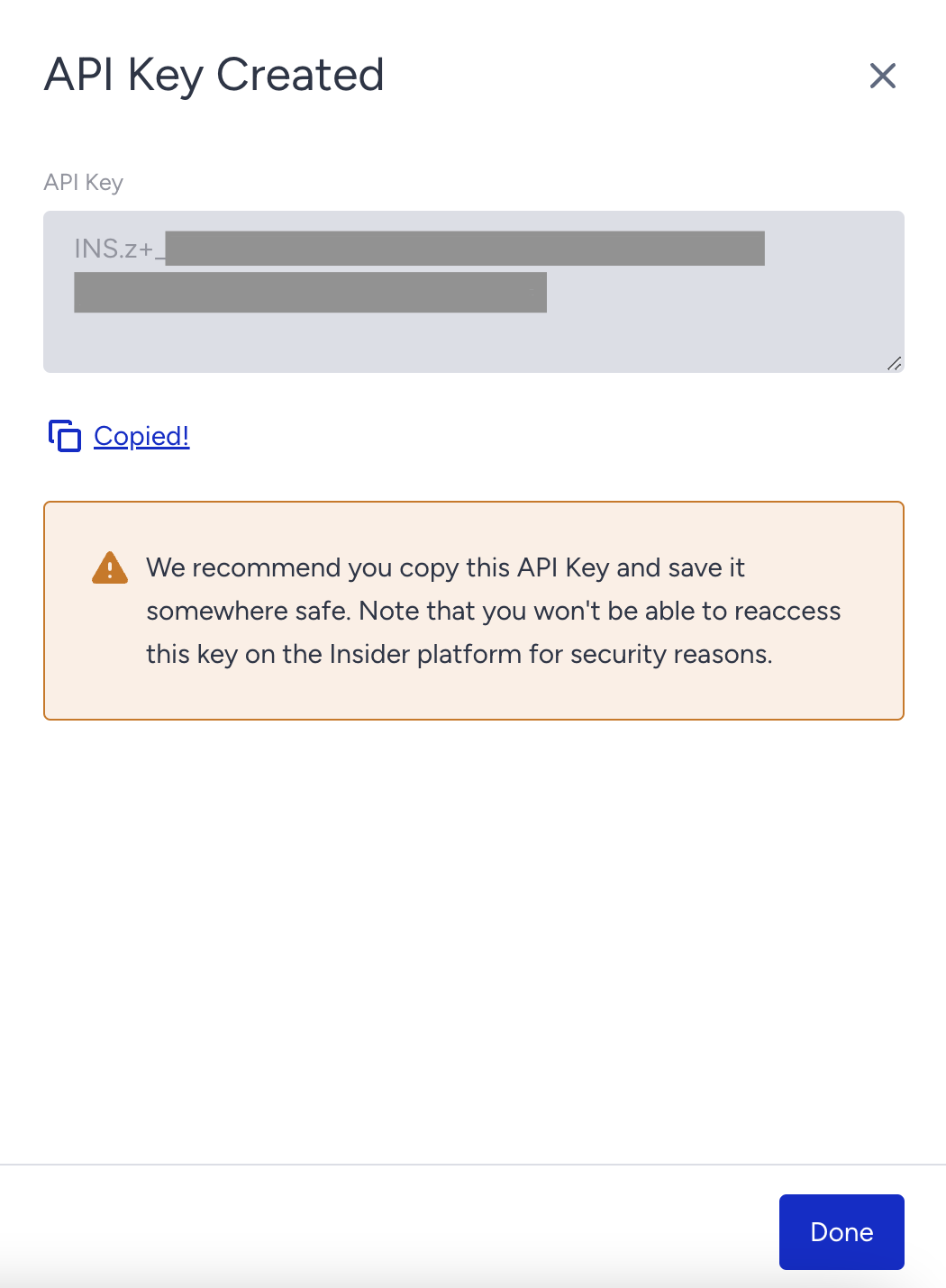
Click the Copy button to save your API Key for your Stripo account in the next steps.
Export Stripo templates
Once you get your API Key:
Go to your Stripo account, open the email template you want to migrate to Insider One, and click the Export button.
.png)
Choose Useinsider from the options.
.png)
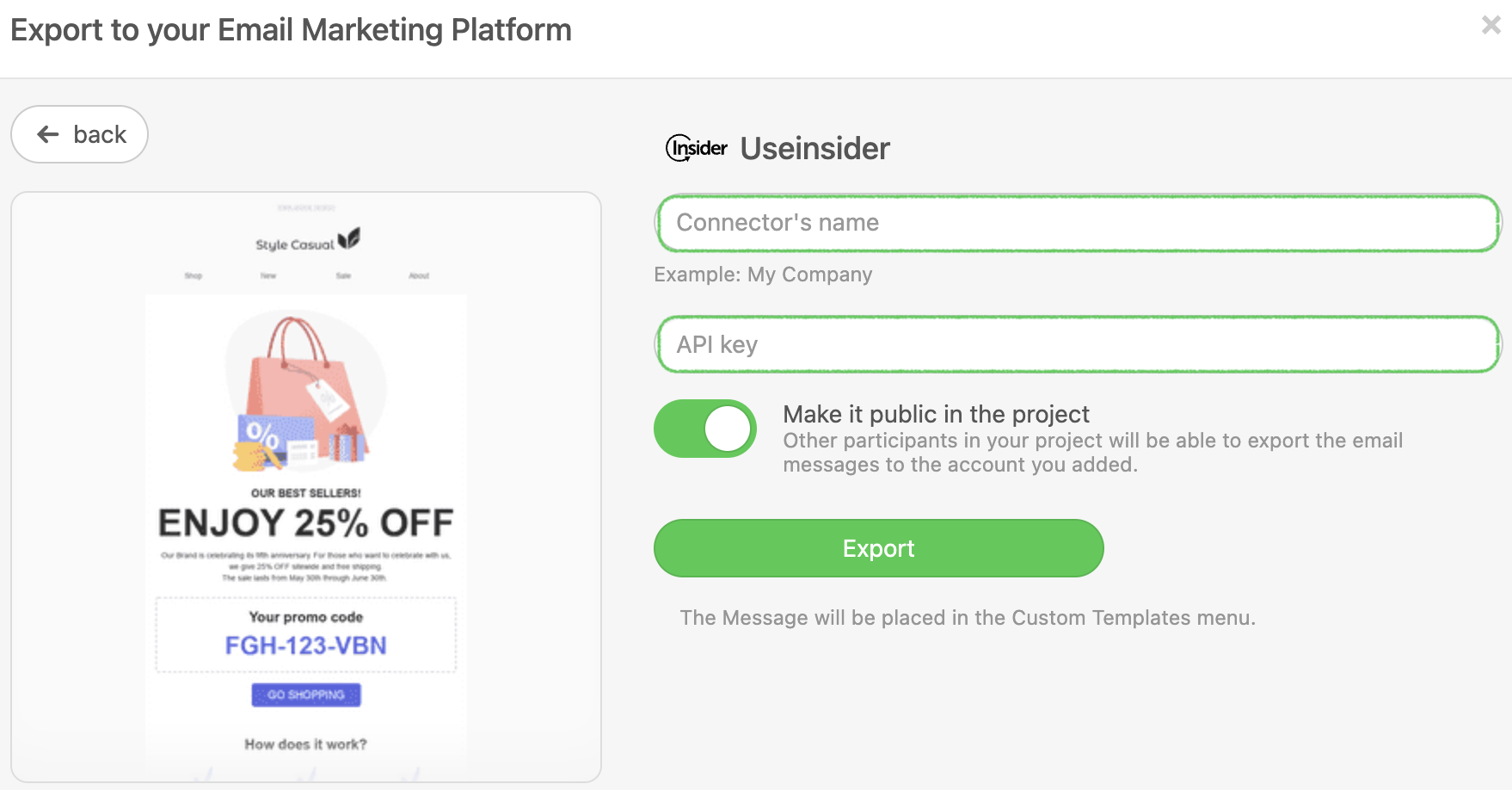
Enter a name for your connector and the API key you saved from Insider One's InOne panel, and click the Export button.
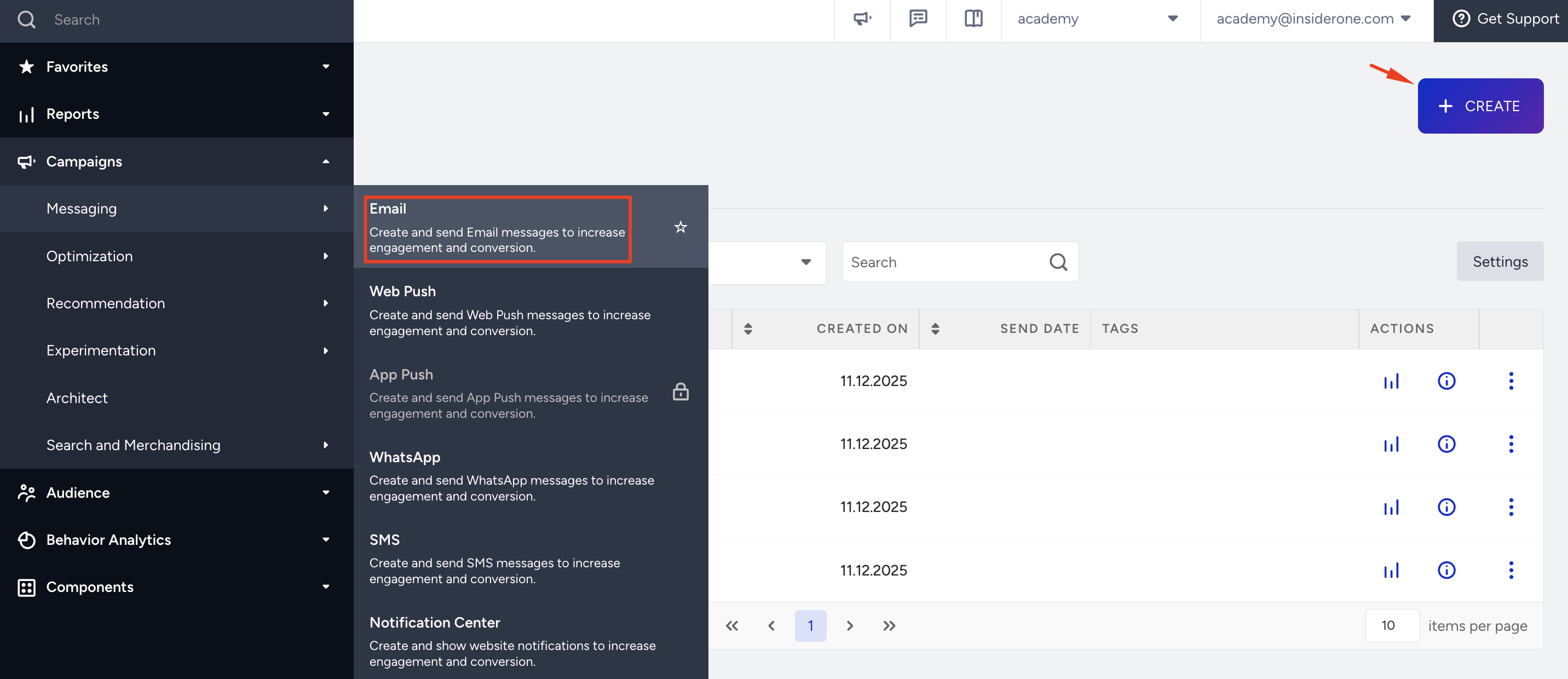
To find your migrated email templates, go to InOne > Campaigns > Messaging > Email and click the Create button to create a new campaign.
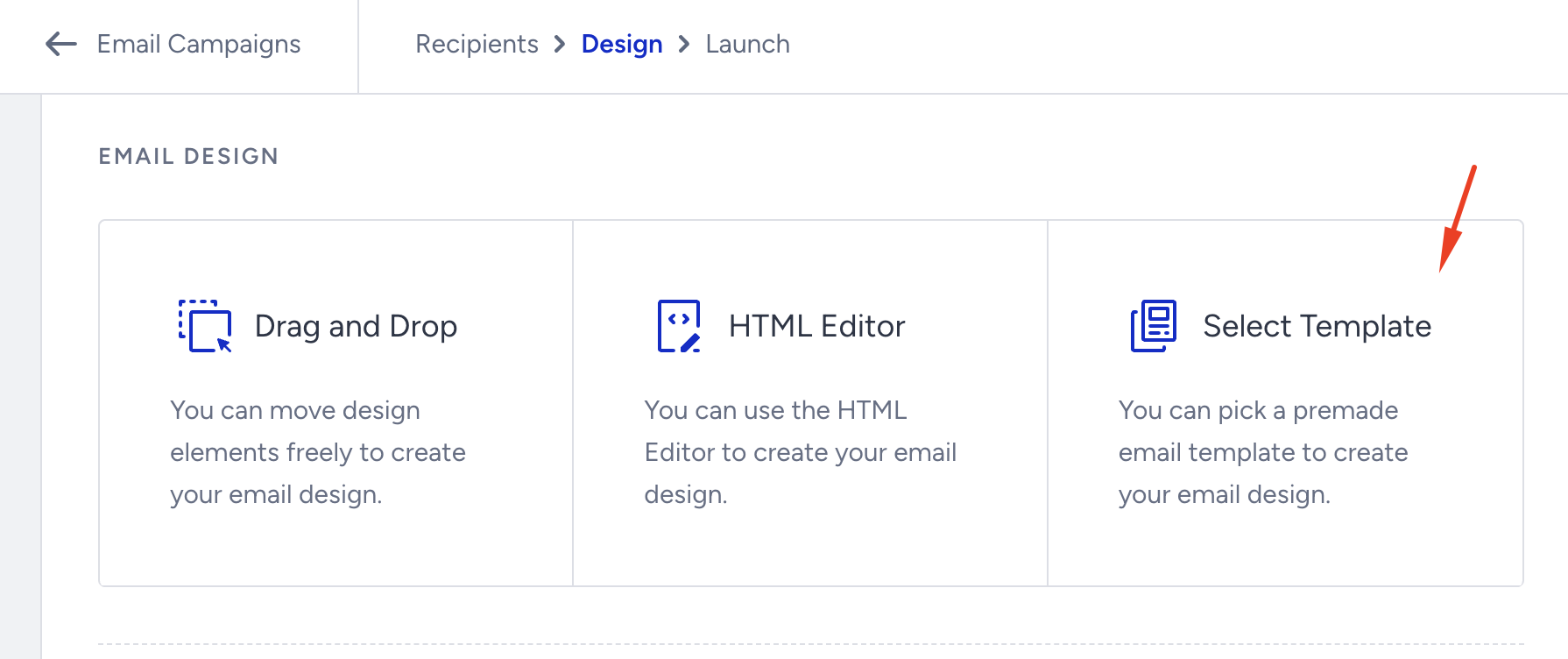
Go to the Design step of your campaign and click the Select Template option.
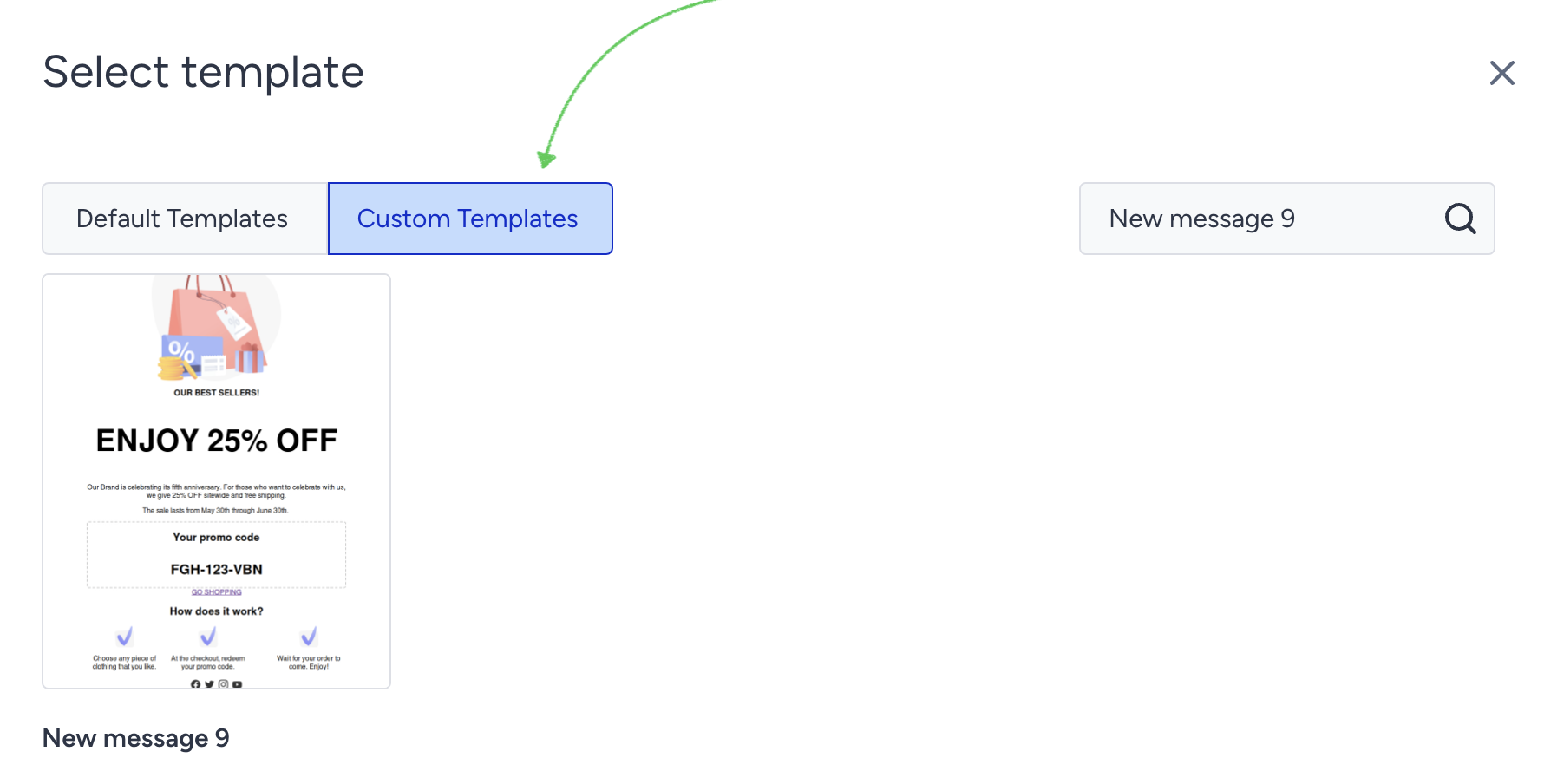
You can view your migrated Stripo templates by the same name under Custom Templates.
Once you select it for your email campaign, you can edit it using the Drag & Drop Editor tools.