The Integrate via JavaScript SDK campaign allows you to deliver personalized product or content recommendations by embedding them directly into your website’s source code, rather than using Insider One’s visual drag-and-drop widget.
This approach provides full control over rendering and styling, enabling recommendations to blend seamlessly into custom layouts and complex page structures. It is best suited for teams that require high-fidelity, native integrations without compromising personalization or performance.
Business value of high-fidelity integration
Using the JavaScript SDK offers several strategic advantages:
Consistent Brand Experience
Because rendering is fully controlled by your frontend code, recommendations visually match your site’s design system.
Improved Performance
Direct SDK integration minimizes load times and improves page performance. Faster experiences support better SEO outcomes, lower bounce rates, and higher engagement.
Maximum Layout Flexibility
This method supports complex or non-standard layouts, including custom landing pages, dynamic templates, or embedded recommendation areas outside traditional product grids.
Higher Conversion Potential
Native-looking, fast-loading recommendations increase click-through rates (CTR) and can positively impact Average Order Value (AOV).
Step-by-Step: Create a JavaScript SDK Campaign
Follow the steps below to configure a new JavaScript SDK based Web Smart Recommender campaign and prepare it for technical implementation.
1. Start a new campaign
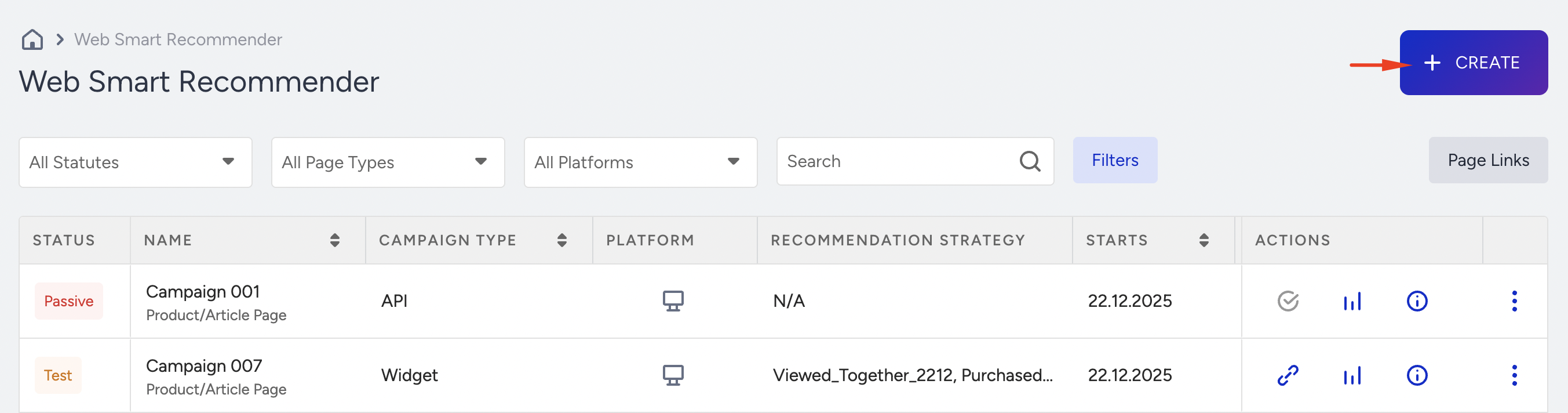
Navigate to the Smart Recommender listing page and click the Create button to launch the setup flow.
2. Configure Strategy, Testing, and Display Logic
This step ensures the campaign is optimized and measurable.
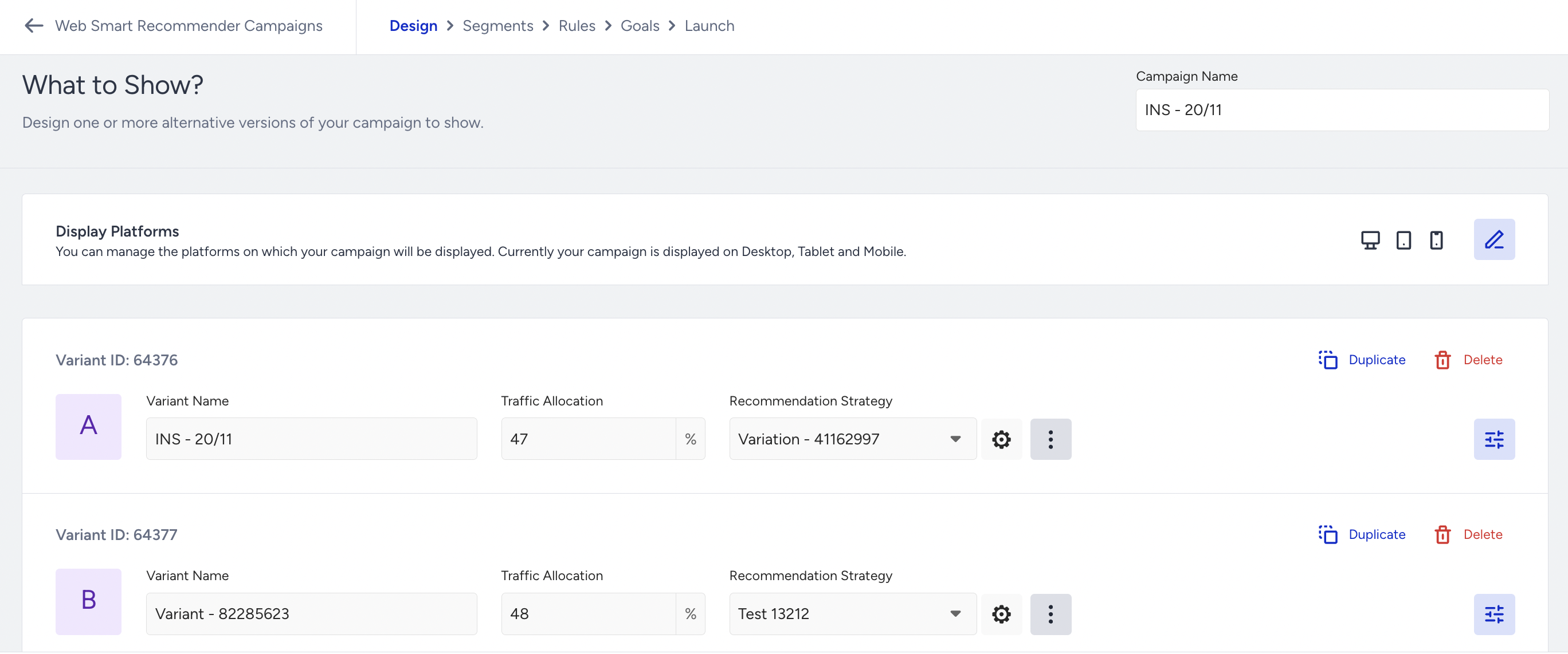
A/B testing setup
Define the number of variants (for example, Variant A, Variant B, Control).
Strategy assignment
Assign a recommendation strategy to each variant (excluding the Control Group).
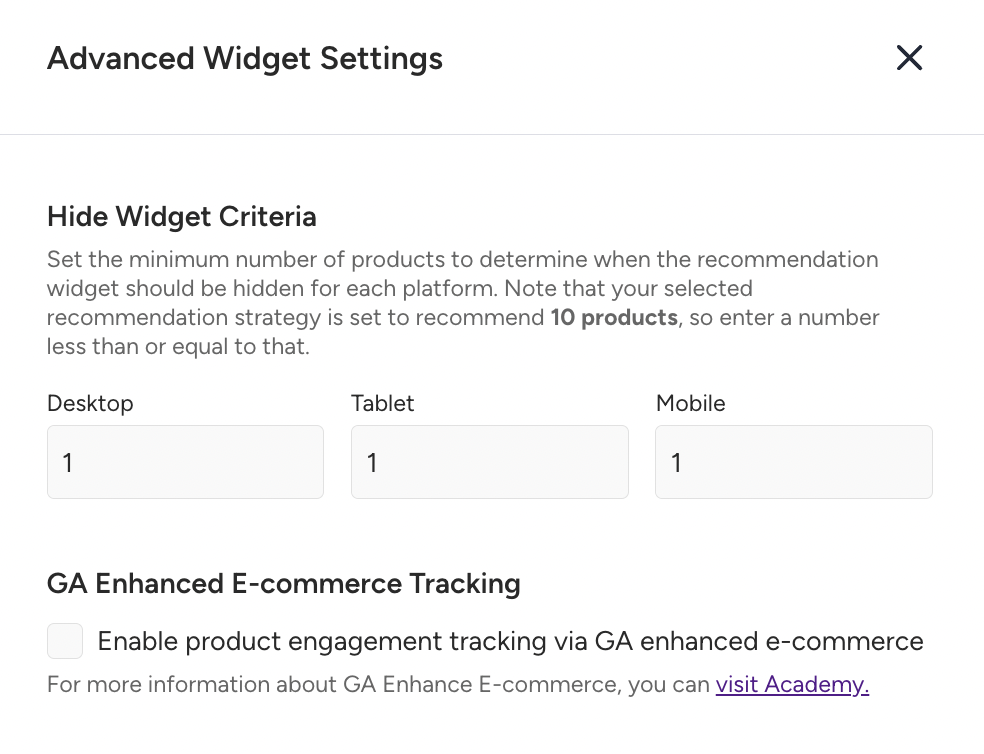
Minimum display thresholds
Under the Advanced Widget Settings, set the minimum number of products required for the recommendation block to render on Desktop, Tablet, and Mobile. If the engine returns fewer items, the block is hidden automatically.
GA4 tracking
Under the Advanced Widget Settings, enable GA4 tracking to capture impressions, clicks, and conversions in your analytics tools.
3. Choose the campaign type
In the campaign type selection modal, choose Integrate via JavaScript SDK.
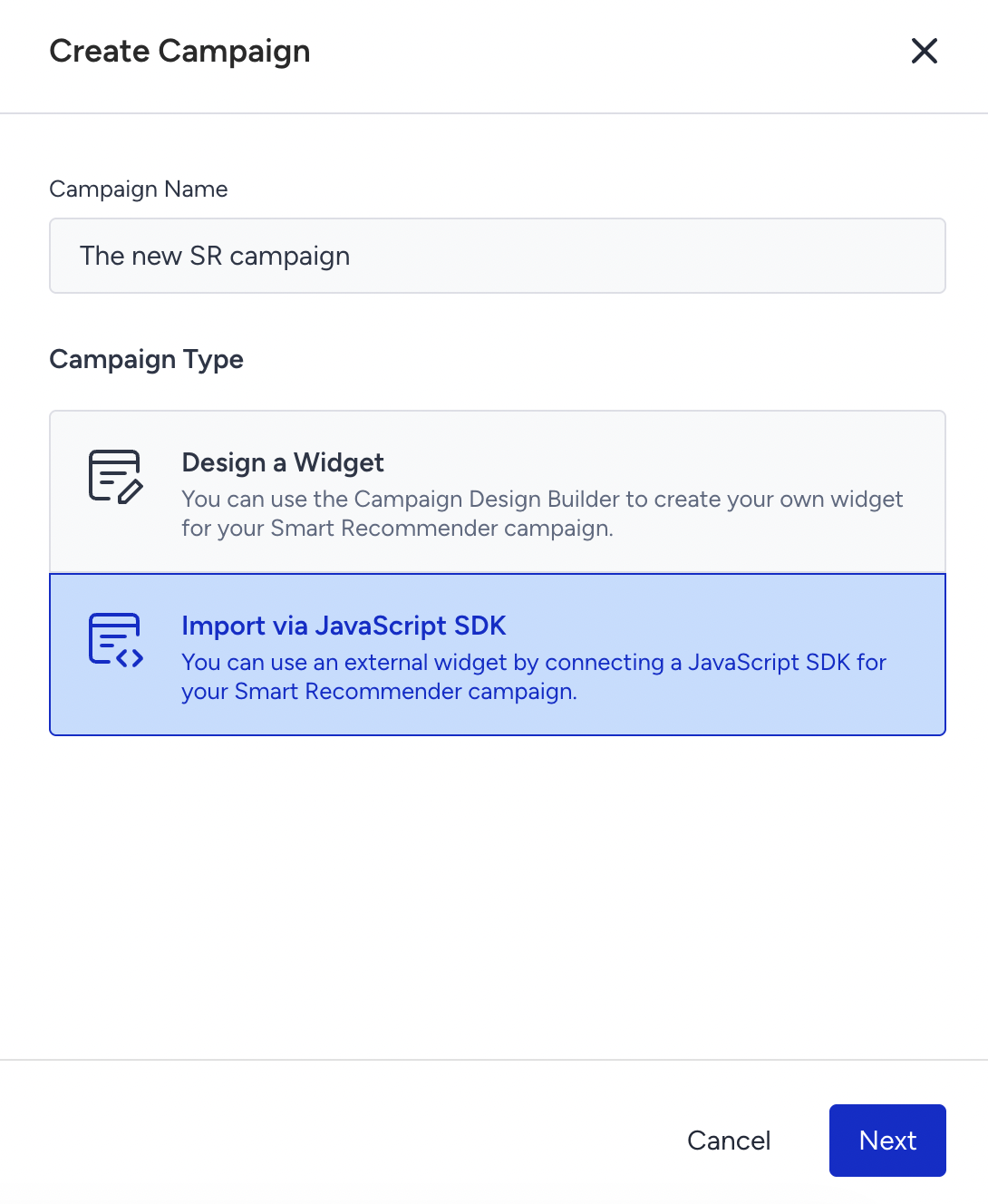
This indicates that the final front-end styling of your campaign will be handled entirely by your development team.
4. Define Targeting, Audience, and Goals
Configure who sees the recommendations and how success is measured.
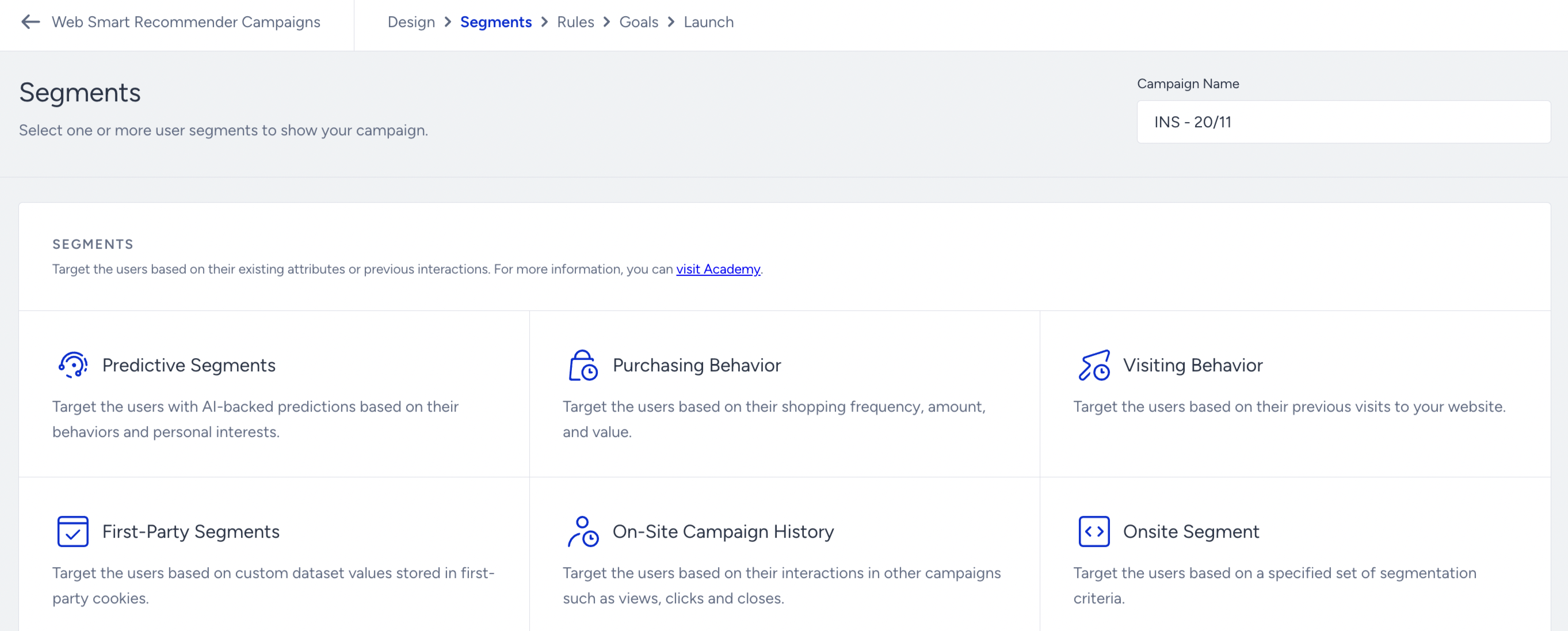
Audience Segmentation
Select the target audience (for example, First-Time Visitors or High-Value Customers).
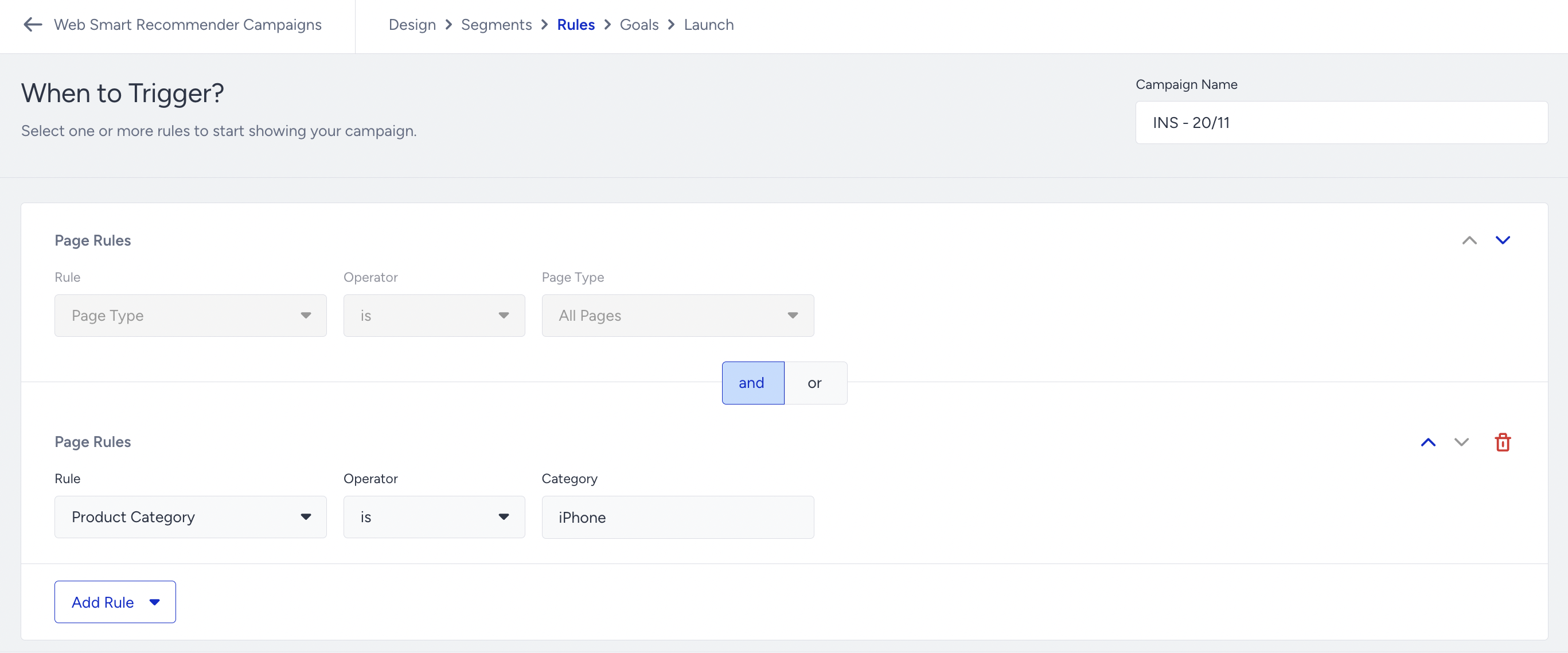
Placement
Choose the generic page context in which the code will be inserted (e.g., Product Page or Cart Page).
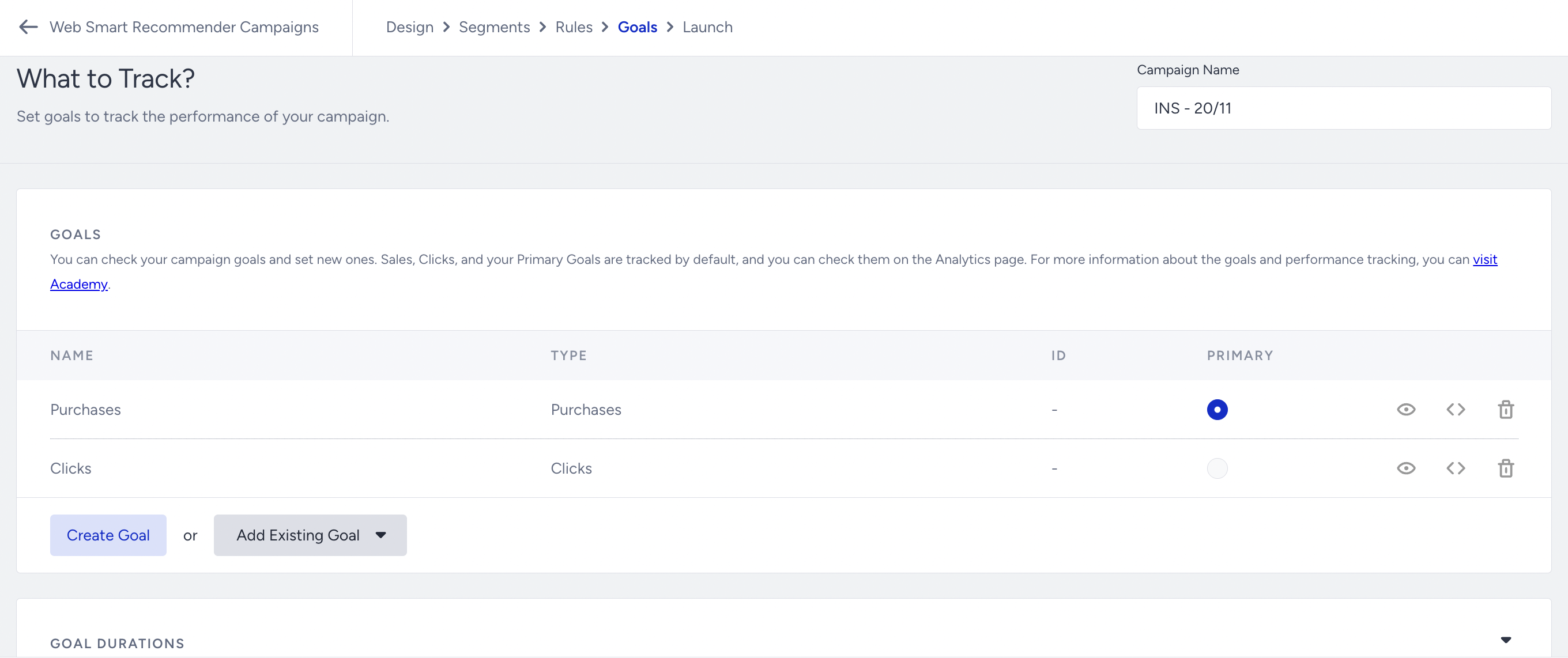
Success Goal
Define the primary Goal (e.g., Increase AOV or Boost Clicks) that the Smart Recommender will optimize toward.
5. Obtain Code and Launch
Finalize the campaign and prepare for deployment.
Copy the integration code
Once saved, the Smart Recommender automatically generates a unique code snippet (Campaign ID). Copy this piece of code.
Handoff to Development Team
Provide this unique Campaign ID and the technical integration guide to your development team for implementation.
Test and launch
After implementation, validate the setup using the Test Smart Recommender Campaign tool before activating the campaign.
Best practices for campaign success
Align strategy with page context
Use contextual algorithms (for example, Viewed Together) on Product Pages, and generic algorithms (for example, Best Sellers) on Homepage or discovery pages.
A/B test recommendation logic
Focus testing on strategy performance, not just visual design, to identify the highest-revenue configuration.
Optimize the post-click experience
Ensure landing pages load quickly and present clear product information. Even strong recommendations underperform if the destination page is suboptimal.
Extend beyond products
This method can also be used for content recommendations, such as promoting webinars or premium resources within blog pages.
Troubleshooting and quick checks
If recommendations do not appear or behave unexpectedly, review the following:
Issue: Recommendations do not appear
Resolution: Verify that the full JavaScript SDK snippet is correctly inserted and that the container element is not hidden by CSS.
Issue: Recommendations appear generic
Resolution: Check page context mapping and audience conditions. For new users, the system may temporarily fall back to generic algorithms.
Issue: Visual issues (layout, sizing, styling)
Resolution: Styling is fully controlled by your frontend code. Review custom CSS or component logic applied by your development team.
You have now completed the strategic configuration of a JavaScript SDK–based Smart Recommender campaign. The final step is technical implementation by your development team using the generated Campaign ID and integration guide.