This guide covers the standards and best practices for JavaScript code written in Insider One campaign customizations. Whether you are writing code for the first time or reviewing an existing implementation, following these guidelines helps keep campaigns readable, maintainable, and safe to hand off between developers.
Insider One provides its own code library with DOM and event utilities that follow a jQuery-like usage style in some areas. If a method you need is not available in the Insider One library, plain JavaScript is the appropriate fallback.
Edit Campaign Code in Onsite Campaigns
You can make campaign-specific customizations using CSS and JavaScript. You can define HTML markup within the JavaScript code.
Navigate to the campaign's Edit section.
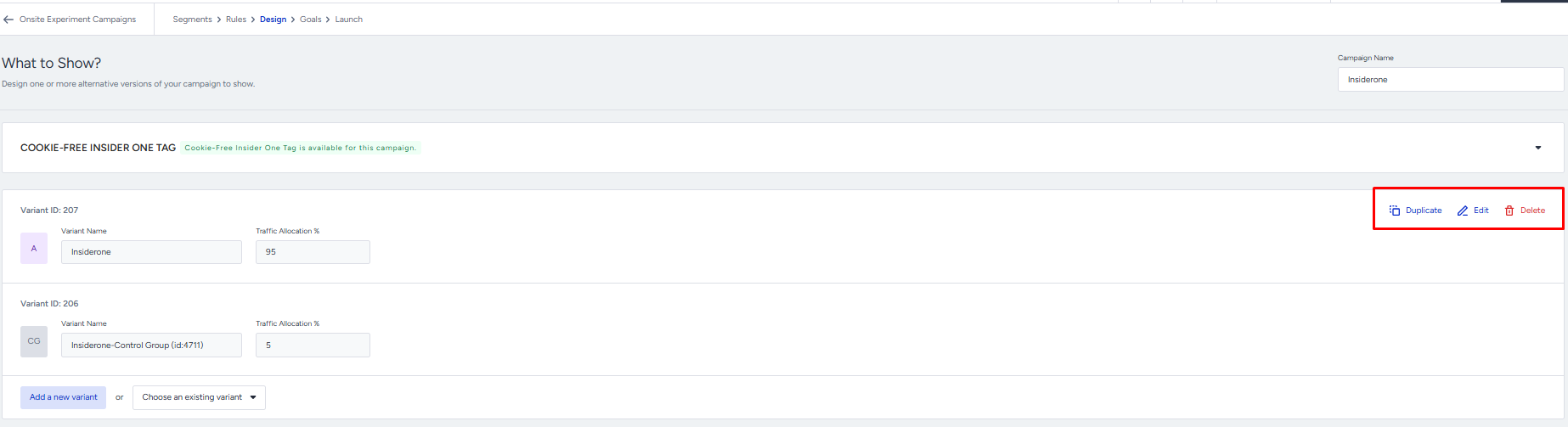
After opening the Edit section, click the <> icon to edit the CSS or JavaScript code.

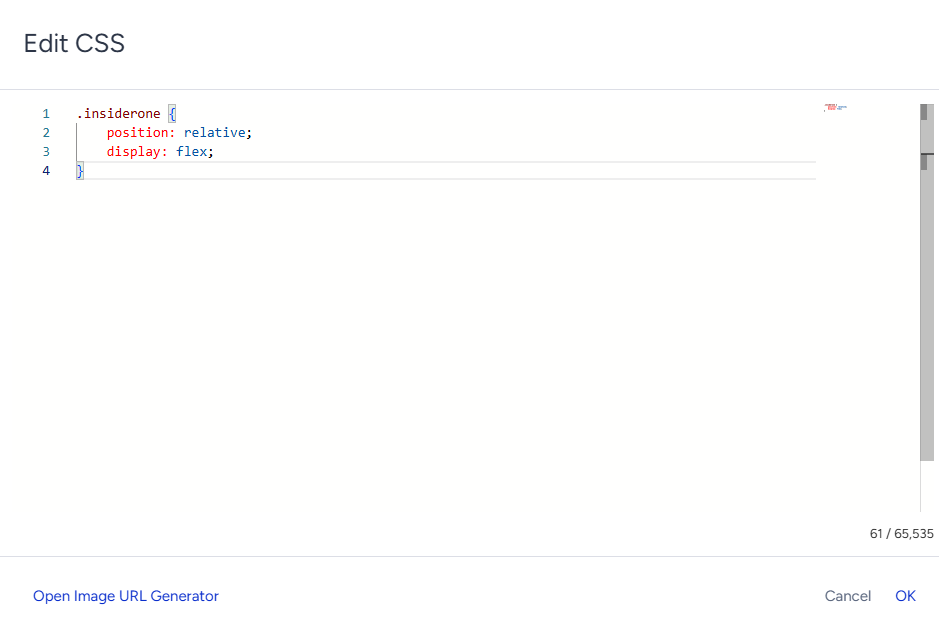
You can add custom CSS here, as shown in the example below.
You can add custom JavaScript here, similar to the example below.
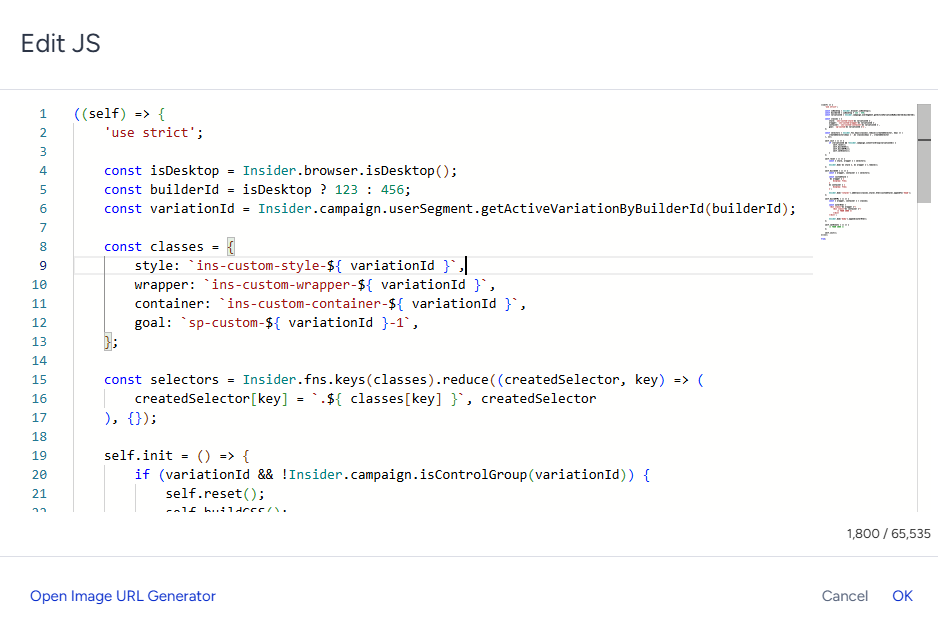
Every campaign has a unique variationId that must be included in your code. This ID is used to scope selectors, storage keys, and event listeners to the specific variation, preventing conflicts between campaigns running on the same page.
1. Element selection
Use Insider.dom() for all DOM operations
Insider.dom() provides safe, consistent DOM access across all supported browsers and environments. Raw browser APIs like document.querySelector or document.getElementById, and jQuery's $(), should not be used in campaign code.
const $closeButton = Insider.dom('.ins-close-btn');
const $wrapper = Insider.dom('.ins-campaign-wrapper');
Store all selectors in a selectors object
Defining all CSS selectors in a single selectors object at the top of the file makes them easy to find, update, and reuse across functions.
const selectors = {
    wrapper: '.ins-campaign-wrapper',
    closeButton: '.ins-close-btn',
    productCard: '.ins-product-card',
};

const renderCampaign = () => {
Insider.dom(selectors.wrapper).text();
};
Check existence before manipulating
Before reading from or modifying a DOM element, it's worth verifying that it exists on the page. Not every campaign element is present on every page variant, and operating on a missing element causes the campaign to silently do nothing.
const $closeButton = Insider.dom(selectors.closeButton);

if ($closeButton.exists()) {
    const node = $closeButton.getNode();
}
Prefix all custom CSS classes with ins-
Every CSS class created for the campaign should start with ins-. This prevents naming conflicts with the site's existing styles. When styling a site element, add a new ins- class to it rather than writing rules that target the site's original class names.
Insider.dom('.product-card').addClass('ins-highlighted-card');.ins-highlighted-card { border: 2px solid red; }Prefix DOM variables with $
Variables that hold a reference to a DOM element can be prefixed with $ to make them visually distinct from plain data variables at a glance.
const productName = 'iPhone 15';
const $productCard = Insider.dom('.ins-product-card');
Select elements from a shared ancestor
When a related element needs to be reached, selecting from a known shared ancestor is more reliable than walking up the DOM tree with repeated .parent() calls. A long parent chain breaks silently if the site's HTML structure changes.
const $card = Insider.dom(event.currentTarget).closest(selectors.productCard);
const $addToCartButton = $card.find(selectors.addToCartButton);
2. Goal Definitions
Before writing any campaign logic, it helps to map out all the interactions you want to track. Each user action corresponds to a numeric goal ID defined in the campaign settings. These IDs tell Insider One which interactions to count for reporting and optimization.
Goal types
Insider One provides two ways to track goals in campaign code. Which one to use depends on what you want to measure.
Sp custom Goal
Insider One's default metrics are tracked automatically when the correct class is present on the element. Adding the sp-custom-${variationId}-1 class to a clickable element is enough for Insider One to detect interactions and report them in the panel. No additional panel configuration is needed.
Example usage:
((self) => {
    'use strict';

    const isDesktop = Insider.browser.isDesktop();
    const builderId = isDesktop ? 123 : 456;
    const variationId = Insider.campaign.userSegment.getActiveVariationByBuilderId(builderId);

    const classes = {
        wrapper: `ins-custom-wrapper-${ variationId }`,
        goal: `sp-custom-${ variationId }-1`,
    };

    self.buildHTML = () => {
        const { wrapper, goal } = classes;

        const outerHtml =`<div class="${ wrapper } ${ goal }"></div>`;

        Insider.dom('body').append(outerHtml);
    };

    self.init();
})({});
Custom Goal
When you need to track something beyond the default metrics, for example, a click on a specific close button or a particular step in a flow, a Custom Goal gives you that control.
Custom Goals are created in the InOne panel first, and the generated ID is then referenced in the code. This allows you to define exactly which interaction to measure and when to count it.
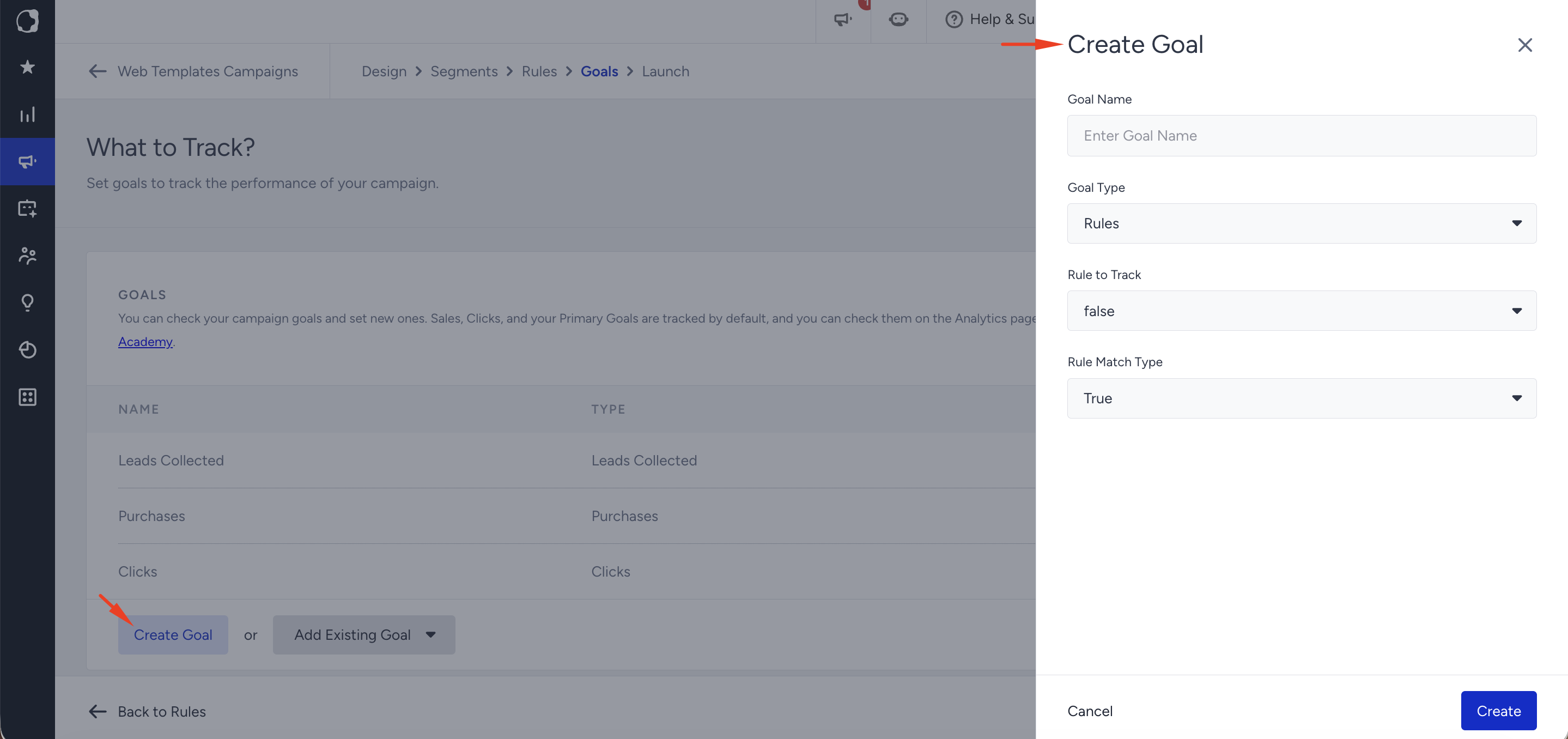
To create a Custom Goal, navigate to the Goals step of the relevant campaign and click Create Goal. On the configuration screen, complete the following steps in order:
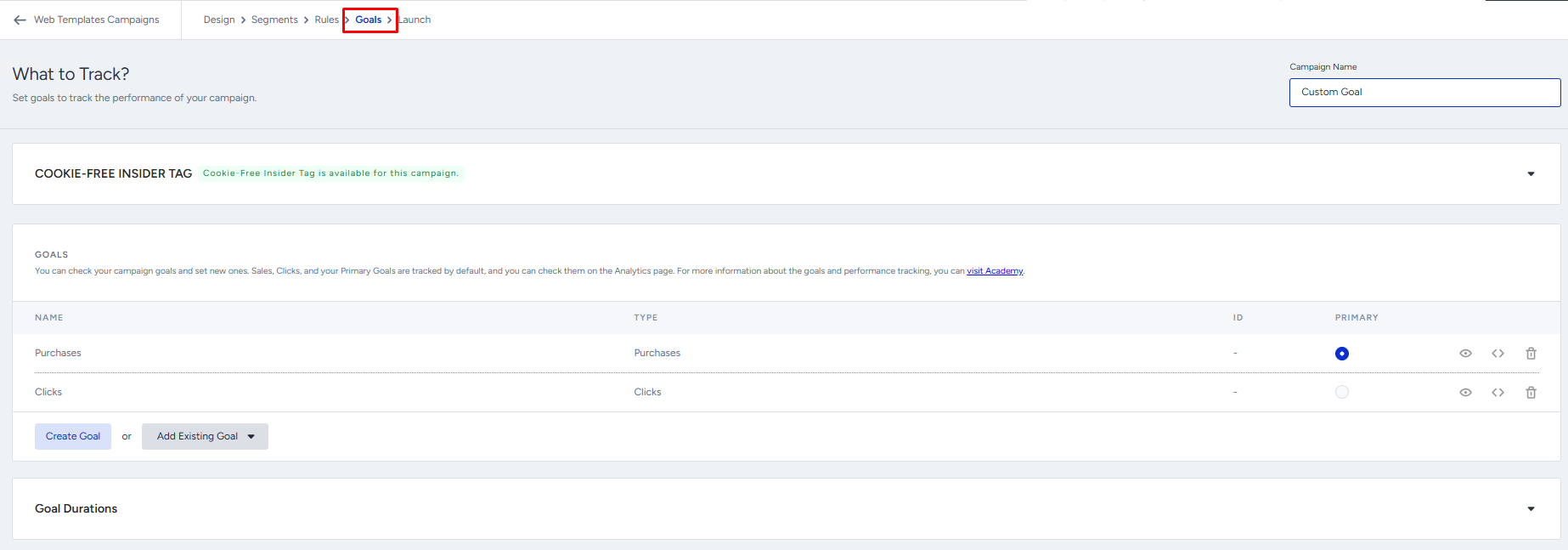
Enter a descriptive Goal Name.
Set Goal Type to Rules.
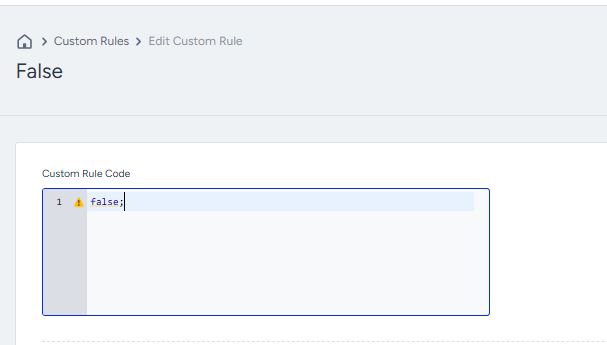
In the Rule to Track field, select false. If this option is not listed, open the Custom Rule tab and manually enter false.
Leave Rule Match Type set to true.
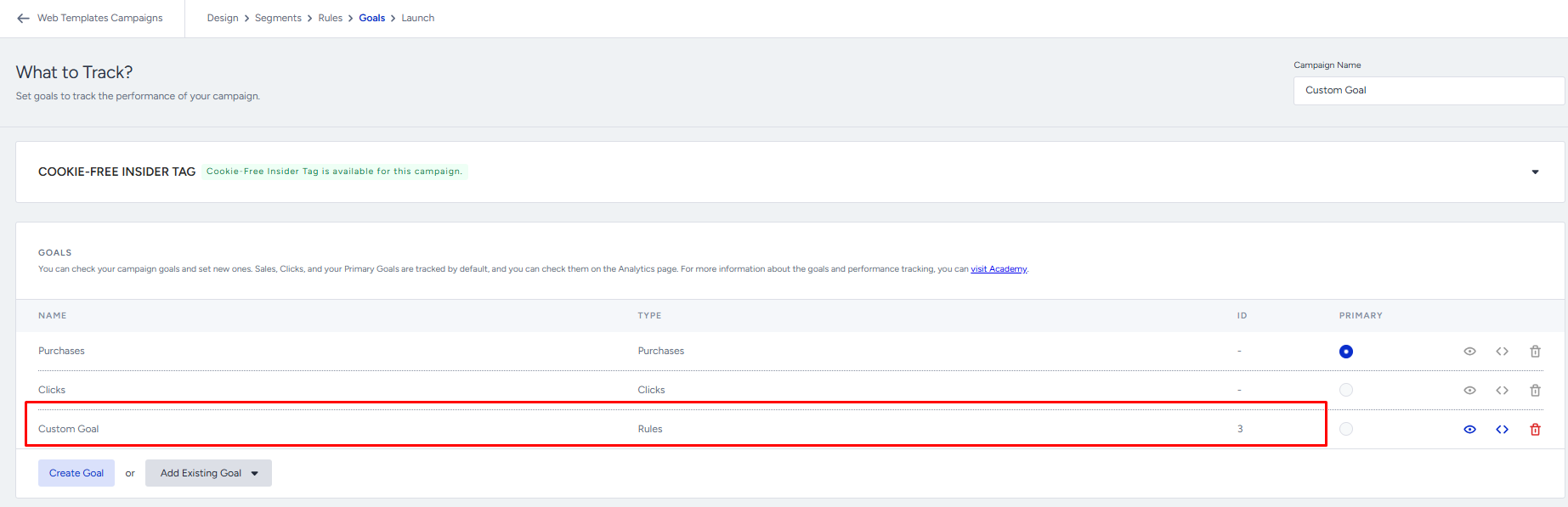
Once the goal is saved, copy the generated ID and add it to the relevant section in your code.
For advanced goal configurations involving control groups, open a support ticket to contact the Insider One team.
Using Goal IDs in Code
Keeping all goal IDs in a single goalIds object at the top of the file makes them easy to find and update. If an ID changes, there is one place to update it rather than searching through the entire codebase.
const goalIds = {
    'Add to Cart': 110,
    'View Details': 111,
    'Subscribe': 112,
};

Insider.eventManager.once(`click.send:custom:goal:${variationId}`, '.ins-btn-subscribe', () => {
    Insider.utils.opt.sendCustomGoal(builderId, goalIds['Subscribe'], true);
});
Rules:
Goal IDs should be obtained from the campaign settings before writing any code.
Keys should be descriptive and reflect the element's purpose.
Even for single-goal campaigns, a goalIds object is preferred over a bare variable. It keeps the structure consistent and makes it straightforward to add more goals later.
3. Inject HTML into the Page
Building the HTML as a string in a dedicated function before injecting it keeps the code readable and easy to update. Mixing HTML construction with the injection call makes both harder to follow.
const buildBannerHtml = () => {
    return `
        <div class="ins-banner">
            <p class="ins-banner-title">${config.title}</p>
            <button class="ins-close-btn">X</button>
        </div>
    `;
};

Insider.dom('body').append(buildBannerHtml());
Choose where to inject
Method | When to use |
|---|---|
Insider.dom('body').append(html) | Overlays, popups, and sticky bars that sit above the page |
Insider.dom(selector).prepend(html) | Add content at the beginning of a container |
Insider.dom(selector).append(html) | Add content at the end of a container |
Insider.dom(selector).before(html) | Insert immediately before a specific element |
Insider.dom(selector).after(html) | Insert immediately after a specific element |
Insider.dom('body').append(buildPopupHtml());

Insider.dom(selectors.productGrid).before(buildBannerHtml());

Insider.dom(selectors.navMenu).append(buildNavItemHtml());
4. Wait for Elements
On many sites, especially single-page applications and pages that load content dynamically, the element your campaign targets may not exist in the DOM when your code first runs. Trying to select or manipulate an element that isn't there yet causes the campaign to silently do nothing.
Use Insider.dom(selector).onElementLoaded(callback) to wait until the element appears before running your logic.
Insider.dom(selectors.productTitle).onElementLoaded(() => {
    Insider.dom(selectors.productTitle).text(config.customTitle);
});
Set a timeout
You can pass a timeout (in milliseconds) as the second argument. If the element does not appear within that time, the callback is not called. This prevents the campaign from waiting indefinitely on pages where the element fails to load.
Insider.dom(selectors.productTitle).onElementLoaded(() => {
    renderCampaign();
}, 5000);
What not to use instead
The three patterns below all share the same problem: they run continuously and never stop on their own.
setInterval: Runs a function on a fixed interval for the entire lifetime of the page. Even after the element appears and the work is done, it keeps running.
setTimeout (recursive): Calls itself repeatedly until a condition is met, but if the condition is never set or the cleanup is missing, it runs forever.
MutationObserver: Watches the entire DOM for changes indefinitely. You should not use it.
Use onElementLoaded instead:
Insider.dom(selectors.banner).onElementLoaded(() => {
    renderBanner();
}, 5000);
Rules:
Always use onElementLoaded when targeting elements that are rendered by JavaScript after the initial page load.
Set a reasonable timeout — 3000 to 5000ms covers most cases.
Do not nest multiple onElementLoaded calls unless each genuinely depends on the previous element being present.
5. Single Page Applications (SPA) & Route Changes
On SPA sites, the page does not fully reload when the user navigates. Campaign code runs once on the first load and is not automatically re-evaluated when the route changes. This means a campaign can keep appearing on a non-target page or fail to appear after an in-app navigation. Always make campaigns route-aware.
Recheck the target condition for route changes by listening to history navigation events (pushState / replaceState / popstate) rather than assuming a single-page load.
On every route change, clean up the previous render with self.reset() before deciding whether to build again. Never leave orphaned DOM, listeners, or timers behind.
Re-validate the current URL/path against the campaign target on each change; do not trust the URL captured at first load.
Guard against double execution: a route change can fire more than once, so make build logic safe to call repeatedly (check .exists() / a storage or state flag before injecting).
Do not:
Assume the campaign only needs to run once on load.
Poll the DOM/URL with setInterval to detect navigation; instead, react to navigation events.
6. Config Pattern
Campaigns often contain content that varies: translated text, different images for different devices, and seasonal copy. Keeping all of these values in a single config object at the top of the file means any update is a one-line change, not a search through the entire codebase.
Basic config
const config = {
    titleText: 'Discover our new collection',
    buttonText: 'Shop now',
    buttonLink: 'https://example.com/collection',
    imageUrl: 'https://cdn.example.com/banner.png',
};
Language-based config
On multilingual sites, Insider.systemRules.call('getLang') returns the active language code. Defining a fallback language ensures the campaign still renders correctly if the returned value is unexpected.
const configData = {
    en_US: {
        titleText: 'Discover our new collection',
        buttonText: 'Shop now',
    },

    tr_TR: {
        titleText: 'Yeni koleksiyonumuzu keşfedin',
        buttonText: 'Alışverişe başla',
    },
};

const currentLanguage = Insider.systemRules.call('getLang') ?? 'en_US';
const config = configData[currentLanguage] ?? configData['en_US'];
Device-based config
When the campaign has different layouts or content for desktop and mobile, organizing the config by device key keeps everything in one place and makes the distinction clear.
const configData = {
    web: {
        bannerImage: 'https://cdn.example.com/desktop-banner.png',
        titleText: 'Discover our new collection',
    },

    mobile: {
        bannerImage: 'https://cdn.example.com/mobile-banner.png',
        titleText: 'New collection',
    },
};

const isDesktop = Insider.browser.isDesktop();
const config = isDesktop ? configData.web : configData.mobile;
Device detection
Insider.browser.isMobile() and Insider.browser.isDesktop() are the correct way to detect the device type. Avoid window.innerWidth, matchMedia(), or any manual screen-size check, since these can produce inconsistent results across environments.
const isMobile = Insider.browser.isMobile();
const isDesktop = Insider.browser.isDesktop();
const config = isDesktop ? configData.web : configData.mobile;
Rules:
All hardcoded values (texts, URLs, image links, color codes) belong in config, not inside functions.
Define a fallback value when reading the language or device from the environment, in case the returned value is unexpected.
7. Local & Session Storage
Insider One provides local and session storage methods for persisting state between page loads. Common use cases include tracking whether a campaign has already been shown or remembering that a user dismissed a pop-up.
Local storage
Local storage persists until explicitly cleared, and is scoped to a single domain.
Insider.storage.localStorage.set('ins-banner-shown', true);

const hasSeenBanner = Insider.storage.localStorage.get('ins-banner-shown');
Session storage
Session storage is cleared when the browser tab is closed.
Insider.storage.session.set({ name: 'ins-banner-shown', value: true });

const hasSeenBanner = Insider.storage.session.get('ins-banner-shown');
When to use which
Local Storage | Session Storage | |
|---|---|---|
Persists until cleared | Yes | Until the tab is closed |
Works across subdomains | No | No |
Set expiry date | No | No |
Best for | Session flags, one-time shows | Within-session state |
Key naming convention
All storage keys must use the ins- prefix followed by a descriptive name in kebab-case.
Insider.storage.localStorage.set('ins-welcome-banner-shown', true);Show-once pattern
A common pattern is to check whether the campaign has already been shown before rendering, and set the flag immediately after.
const hasBeenShown = Insider.storage.localStorage.get('ins-welcome-banner-shown');

if (!hasBeenShown) {
    renderCampaign();
    Insider.storage.localStorage.set('ins-welcome-banner-shown', true);
}
8. Event Handling
Always use Insider.eventManager
Insider.eventManager handles event namespacing, cleanup, and cross-browser compatibility automatically. Binding events with raw addEventListener or jQuery's .on() / .off() bypasses these safeguards.
Insider.eventManager.once(`click.send:custom:goal:${variationId}`, selectors.closeButton, () => {
    Insider.dom(selectors.wrapper).remove();
});
Handle multiple elements with a single listener
When multiple elements each trigger a different goal, a single listener on the parent container is cleaner than registering one listener per element. The clicked element can be identified with event.currentTarget.
Insider.eventManager.once(`click.send:custom:goal:${variationId}`, selectors.wrapper, (event) => {
    const goalId = goalIds[Insider.dom(event.currentTarget).attr('title')];

    if (goalId) {
        Insider.utils.opt.sendCustomGoal(builderId, goalId, true);
    }
});
Each clickable element should have a title attribute whose value matches a key in the goalIds object:
<div class="ins-card" title="Add to Cart">...</div>
<div class="ins-card" title="View Details">...</div>
Use throttle or debounce for continuous events
Events like scroll, resize, touchmove, and mousemove fire continuously while the user interacts with the page. Wrapping the callback in a throttle or debounce keeps the execution rate at a manageable level and avoids unnecessary load on the page.
Insider.eventManager.once('scroll', window, Insider.fns.throttle(() => {
    checkScrollPosition();
}, 100));
Mobile event considerations
On mobile devices, click events can feel delayed. Browsers typically wait around 300ms before firing to detect double-taps. For interactive elements where responsiveness matters, consider using touch-specific events instead.
touchend
const isMobile = Insider.browser.isMobile();
const eventName = isMobile ? 'touchend' : 'click';

Insider.eventManager.once(`${eventName}.send:custom:goal:${variationId}`, selectors.closeButton, () => {
    Insider.dom(selectors.wrapper).remove();
});
pointerup
Fires when any pointer input (touch, mouse, or stylus) is released. Useful for writing a single handler that works across both touch and mouse without branching by device type.
Insider.eventManager.once('pointerup', selectors.closeButton, () => {
    Insider.dom(selectors.wrapper).remove();
});
pointerdown
Fires as soon as the pointer makes contact with the screen, before the user lifts their finger. Use this when the earliest possible response is needed, such as starting an animation on touch.
Insider.eventManager.once('pointerdown', selectors.playButton, () => {
    startAnimation();
});
When to use which:
Event | When to use |
|---|---|
click | Default for desktop interactions. On mobile, consider pairing it with a touch event for better responsiveness. |
touchend | Mobile-only replacement for click when speed matters |
pointerup | Single handler for both touch and mouse; equivalent to click-release |
pointerdown | When you need the earliest possible trigger on contact |
Touch interactions should always be tested on a real mobile device. Browser DevTools touch emulation does not accurately replicate all mobile event behaviors.
9. Async requests
When the campaign needs to fetch external data, Insider.request.get() is the right tool for the job. Defining both a success and an error handler ensures that failures are caught and handled gracefully rather than silently ignored.
Insider.request.get({
    url: 'https://api.example.com/products',
    headers: {
        'Content-Type': 'application/json',
        'Authorization': 'Bearer your-token',
    },
    body: JSON.stringify({
        category: 'electronics',
    }),
    success(response) {
        const products = response?.data ?? [];

        renderProducts(products);
    },
    error(error) {
        Insider.logger.log(`Product fetch failed: ${error}`);
    },
    parse: true,
});
Rules:
Setting parse: true is recommended when the response is JSON.
Optional chaining (?.) and nullish coalescing (??) are useful when reading response fields, as the shape of an API response can change.
Errors should be logged with Insider.logger.log() rather than console.log().
10. Send data to Analytics (dataLayer & Third Parties)
Campaigns often push events to GA / window.dataLayer or another analytics tool (impressions, clicks, the image or content shown). Because multiple campaigns can run on the same page, unscoped analytics code is a frequent source of wrong or duplicated data.
Scope every selector you read values from with the campaign variationId, exactly like the Element Selection rules. Reading a shared class, such as .ins-popup-image, without the variationId can pick up another campaign’s element and send the wrong value.
// Bad — shared selector, may read another campaign's element

const src = Insider.dom('.ins-popup-image').attr('src');
// Good — scoped to this campaign
const src = Insider.dom.ins-popup-image-${variationId}).attr('src');Push only after the element/value is ready. Use onElementLoaded so you never read a value before it exists.
Send each event once. A re-render, an SPA route change, or multiple matching elements can fire the same push twice; guard with a flag so that a given event is pushed only once.
if (!self.pushed) {
  window.dataLayer.push({ event: 'INSIDER_IMAGE', label: src });
  self.pushed = true;
}
Validate the value before sending; never push undefined/null (refer to Safe Value Access).
Do not:
Reuse the same non-unique selector across duplicated campaigns.
Push an event before confirming the source element exists.
11. Advanced
Cross-campaign coordination & Custom Goals
Some experiences span multiple campaigns or multiple elements (e.g., a pop-up, then a follow-up banner on a later page) and need state to flow between them, plus separate metrics per element.
Pass state between campaigns through scoped storage keys (ins- prefix + descriptive name), never through global variables. Treat that key as the contract between the campaigns.
Reset/clear coordination keys when they are no longer valid (e.g., on logout or when the flow completes) so a later campaign does not act on stale state.
When you need to track impressions/joins for individual elements within a single campaign, create dedicated Custom Goals (Goal Type: Rules, Rule to Track: false, Rule Match Type: true) instead of splitting the campaign. Keep all of them in the goalIds object with descriptive keys (e.g., floatingBannerAImpression, floatingBannerAJoin).
Targeting & Content from an external API request
A campaign may decide whether to show or fetch its dynamic content based on the response of an HTTP request (recommendation engine, segment service, or your own backend). Treat the response as untrusted and never let it break the page.
Use Insider.request.get() with both success and error handlers (required).
Handle empty/partial responses gracefully. A 200 response can still contain no usable data; the campaign must not throw or render a broken state in that case.
Validate the response shape with optional chaining (?.) and nullish coalescing (??). If the expected field is missing, the safe default is not to show the campaign.
Set a sensible timeout so the campaign does not hang if the request never returns.
Log failures with Insider.logger.log(), not console.
Insider.request.get({
  url: config.segmentApiUrl,
  parse: true,
  success(res) {
    const segmentId = res?.SERVER_RESULT?.segmentId;
    if (!segmentId || segmentId !== config.targetSegmentId) return; // safe default: don't show
    self.buildHTML(res);
  },
  error(err) { Insider.logger.log(err); }
});
12. What you must not do
The following are not allowed in any campaign code. Code that does not follow these rules will be flagged during review and must be corrected before the campaign can go live.
DOM and Browser APIs
The most common mistake in campaign code is using raw browser APIs instead of the Insider One library equivalents. Every item in this section has a direct Insider One replacement. There is no valid reason to use the raw API.
Rule | Instead |
|---|---|
Do not use document.querySelector(), document.getElementById(), document.querySelectorAll(), or $() | Use Insider.dom() for all DOM selection and manipulation |
Do not use document.createElement(), element.appendChild(), insertAdjacentHTML(), or innerHTML += | Use Insider.dom(selector).append(), .prepend(), .before(), .after() |
Do not apply styles directly from JavaScript (element.style.color = ...) | Add a CSS class and toggle it with .addClass() / .removeClass() |
Do not apply CSS rules to the partner's existing class names | Add a new ins- class to the element and style that class |
Do not use window.innerWidth, matchMedia(), or screen size checks for device detection | Use Insider.browser.isMobile() and Insider.browser.isDesktop() |
Storage
Rule | Instead |
|---|---|
Do not use raw localStorage.getItem(), localStorage.setItem(), or document.cookie | Use Insider.storage.localStorage.get/set() or Insider.storage.cookie.get/set() |
Events and Async
Rule | Instead |
|---|---|
Do not bind events with addEventListener(), .off().on(), or jQuery .on() | Use Insider.eventManager.once() |
Do not make async requests with fetch() or XMLHttpRequest | Use Insider.request.get() |
Do not make async requests without an error handler | Always define an error callback alongside success |
Waiting for Elements
Never poll the DOM. Using setInterval, recursive setTimeout, or MutationObserver to wait for or repeatedly check DOM elements is the most performance-damaging pattern in campaign code. It runs continuously for the entire lifetime of the page, consuming resources even after the element appears.
Rule | Instead |
|---|---|
Do not use setInterval() or recursive setTimeout() to wait for or re-check DOM elements | Use Insider.dom(selector).onElementLoaded(callback, timeout) |
Do not use MutationObserver or IntersectionObserver without calling disconnect() after your condition is met | Use onElementLoaded where possible; if an Observer is necessary, always disconnect it once the work is done |
CSS Classes
Every CSS class you create must start with ins-. This is not optional. Partner sites have existing stylesheets, and a class name without the ins- prefix will conflict with them sooner or later, causing unpredictable visual bugs that are extremely hard to trace.
Rule | Instead |
|---|---|
Do not skip the ins- prefix on CSS classes | All custom classes must start with ins- e.g., ins-banner, ins-close-btn |
Do not name classes after your company, project, or personal shorthand (e.g., acme-, prj-, oxt-) | Use only the ins- prefix |
Code Quality
Rule | Instead |
|---|---|
Do not use var | Use const for all declarations. Use let only if the variable must be reassigned. |
Do not define variables at the top level of the file outside of config, selectors, goalIds, and the main functions | Keep all state inside the function scope |
Do not use == or != | Always use === and !== |
Do not hardcode goal IDs inside callbacks | Define them in a goalIds object at the top of the file |
Do not use console.log(), console.warn(), or console.error() | Use Insider.logger.log() for all logging |
Do not write comments that restate what the code already says | Keep code self-documenting through clear names and small functions. |
Avoid: Common anti-patterns
Hardcoding IDs. Never hardcode a builderId, campaignId, or variationId inside the code. Always use the variationId provided at runtime. Hardcoded IDs silently break when a campaign is cloned or its ID changes (e.g., code waiting for ID 6353 while running on campaign 6366).
Coupling campaigns by a static ID. Do not make one campaign depend on another campaign’s hardcoded ID. Coordinate through scoped storage keys instead (see Advanced).
Non-unique selectors. Any class/selector that can appear in more than one campaign must be scoped with the variationId.
Running one-time logic in a place that re-runs. If code can execute multiple times (route change, re-render, repeated event), make it idempotent or guard it with a flag.
Leftover debug code. No console logs and no commented-out experiments in shipped code (note: many sites override console to a no-op, so these logs are invisible anyway). Use Insider.logger.log() when you genuinely need to log.
Rendering on missing data. If a required dynamic value is undefined, do not render a broken or “undefined” state — skip the campaign (refer to Safe Value Access).
General Best Practices
Variables and constants
Use const by default. Use let only when the value will be reassigned. Never use var.
Use meaningful names; avoid single letters, abbreviations, or vague names such as data, item, or temp.
If a value is used in more than one place, assign it to a named variable
Functions
Every function name must start with a verb: getPrice, renderBanner, setEvents, resetCampaign
Each function must do exactly one thing; if a function's name requires "and", it should be two functions.
Keep functions short and focused.
Naming conventions
Variables and function names: camelCase
DOM element variables: prefix with $, e.g., $closeButton
Boolean variables: start with is, has, or does, e.g., isLoggedIn, hasDiscount
CSS classes and selectors: kebab-case with ins- prefix, e.g., ins-product-card
Cookie and storage keys: kebab-case with ins- prefix, e.g., ins-campaign-shown
Code structure
Every campaign file must follow this structure. All code is wrapped in an IIFE (immediately invoked function expression) that receives a self object. This keeps everything scoped and prevents any variable from leaking into the global environment.
((self) => {
    'use strict';

    const builderId = 123;
    const variationId = Insider.campaign.userSegment.getActiveVariationByBuilderId(builderId);

    const config = {
        titleText: 'Your title here',
        buttonText: 'Click here',
        buttonLink: 'https://example.com',
    };

    const selectors = {
        wrapper: `.ins-campaign-wrapper-${variationId}`,
        container: `.ins-campaign-container-${variationId}`,
    };

    const goalIds = {
        'Button Click': 110,
    };

    self.init = () => {
        if (variationId && !Insider.campaign.isControlGroup(variationId)) {
            self.reset();
            self.buildHTML();
            self.setEvents();
        }
    };

    self.reset = () => {
        Insider.dom(selectors.wrapper).remove();
    };

    self.buildHTML = () => {
        const html = `
            <div class="ins-campaign-wrapper-${variationId}">
                <div class="ins-campaign-container-${variationId}">
                </div>
            </div>
        `;

        Insider.dom('body').append(html);
    };

    self.setEvents = () => {
      Insider.eventManager.once(`click.send:custom:goal:${variationId}`, selectors.wrapper, (event) => {
            const goalId = goalIds[Insider.dom(event.currentTarget).attr('title')];

            if (goalId) {
                Insider.utils.opt.sendCustomGoal(builderId, goalId, true);
            }
        });
    };

    self.init();
})({});
Safe value access
Use optional chaining (?.) to safely access nested values that may not exist.
Use nullish coalescing (??) to provide fallback values.
Always read dynamic values (system rules, native data layers, product info) through optional chaining and provide a fallback.
If a value that is required to render correctly is missing/undefined, do not render. Showing a pop-up with “undefined” content is worse than not showing it.
Example: if Insider.systemRules.getCurrentProduct()?.name is undefined, skip the campaign rather than display an empty product name.
const productPrice = Insider.systemRules.call('getCurrentProduct')?.price ?? 0;
const currentLanguage = Insider.systemRules.call('getLang') ?? 'en_US';
Equality checks
Always use === and !==. Never use == or !=.
if (count === 0) { /* ... */ }A collection of commonly used system rule calls is available in the Insider Tag Functions. These snippets cover page detection, user state checks, and other conditions that are frequently needed in campaign logic.
Code contributor handoff checklist
Before shipping or handing off custom code, confirm:
All selectors, storage keys, event namespaces, and CSS classes are scoped with the variationId /ins- prefix.
No hardcoded builderId / campaignId / variationId.
No console logs and no leftover debug or commented-out code.
Only WHY comments remain (no WHAT comments).
All async requests have error handlers and handle empty responses.
Required dynamic values are guarded; the campaign degrades safely when they are missing.
Reproduction steps are provided: how to make the campaign visible, plus any login/test data needed, so a reviewer can verify it without reverse-engineering the logic.