Insider Web SDK is an upgraded version of Insider Object (IO). This system still utilizes Insider Object but with a robust and flexible system. We recommend using the Insider Web SDK for its more advanced capabilities if you have not started the Insider Object integration yet.
The Transaction Object includes information about the completed purchase. It should be implemented only on the Confirmation (Success) page.
This guide explains the following:
What are the prerequisites?
Insider Tag must be implemented.
Insider object must be defined before the Insider Tag. Otherwise, the Insider tag cannot read any information from the Insider object.
What are the properties?
The Transaction object has the following properties.
Key | Property | Type | Definition | Required |
|---|---|---|---|---|
order_id | Order ID | String | Order ID of the transaction | Yes |
currency | Currency | String | Currency used for product pricing, in ISO 4217 format (e.g. USD) | Yes |
total | Total Price | Float | Total price of the transaction, including any shipping fees or taxes | Yes |
line_items | Purchased items | Array | An array containing the purchased items | Yes |
product | Product | Object | Product object | Yes |
id | Product ID | String | Unique product ID, should match ID on product page | Yes |
name | Product Name | String | Name of the product | Yes |
taxonomy | Breadcrumb | Array | Category tree of the product | Yes |
currency | Currency | String | Currency used for product pricing, in ISO 4217 format (e.g. USD) | Yes |
unit_price | Product price without any discount(s) | Float | Price of the product without any discount(s) | Yes |
unit_sale_price | Unit price | Float | Unit price of the product | Yes |
url | Product page link | String | URL address of the product | Yes |
stock | Stock information of the product | Number | Number of products left in stock | No |
color | Product color | String | Color of the product (selected by user) | No |
size | Product size | String | Size of the product (selected by user) | No |
product_image_url | Product image link | String | URL address of the product image | Yes |
quantity | Quantity | Number | Number of products | Yes |
subtotal | Total | Float | Total sum of the unit sale prices of the products | Yes |
shipping_cost | Shipping cost | Float | Shipping cost of the items | No |
delivery | Delivery address | Object | Delivery address object | No |
country | Delivery country | String | Country information in ISO 3166-1 alpha-2 format | No |
city | Delivery city | String | City of the address | No |
district | Delivery district | String | District of the address | No |
bank_name | Bank name | String | Name of the bank used for the payment | No |
custom | Custom | Object | Custom object that includes custom properties to be collected to Insider database as custom event parameters | No |
What should you keep in mind?
When integrating the object, the following factors should be considered.
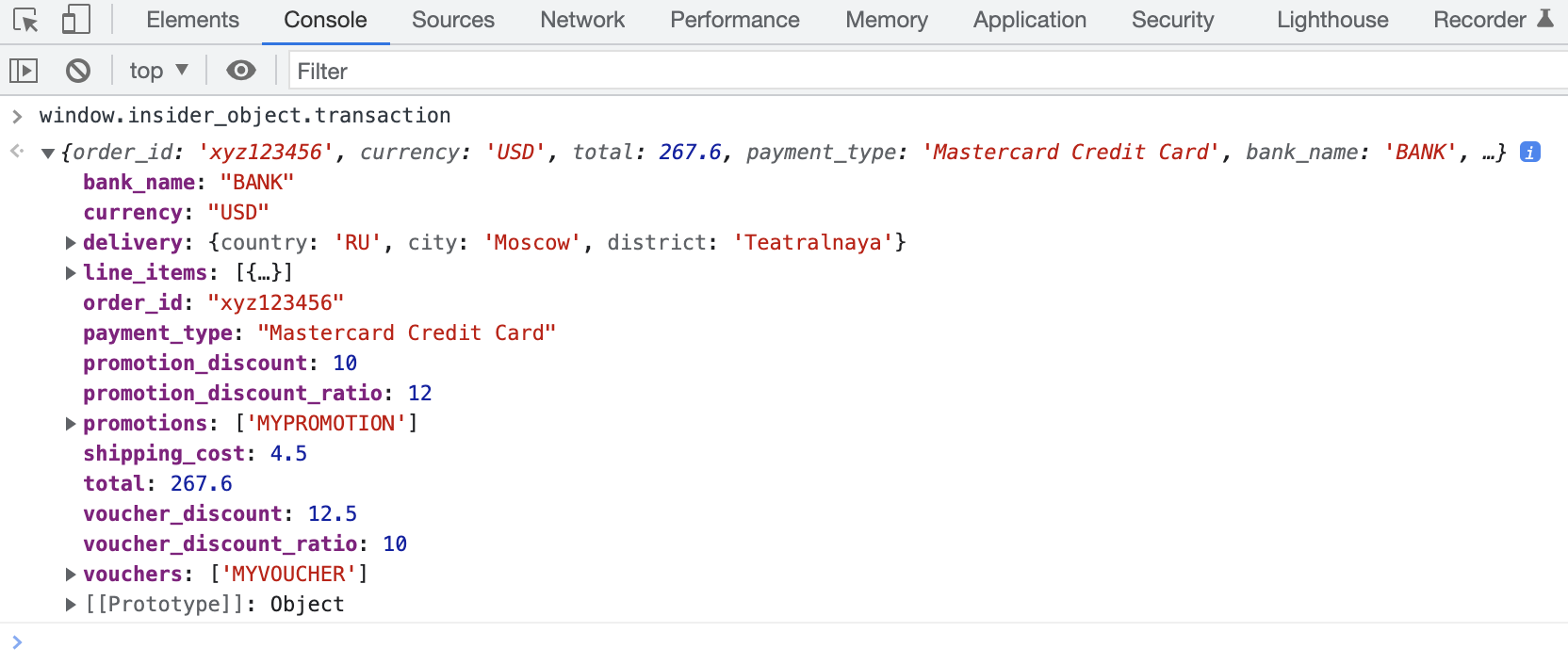
The following visuals from the developer console are sample visuals. In your case, the values might vary depending on the key.
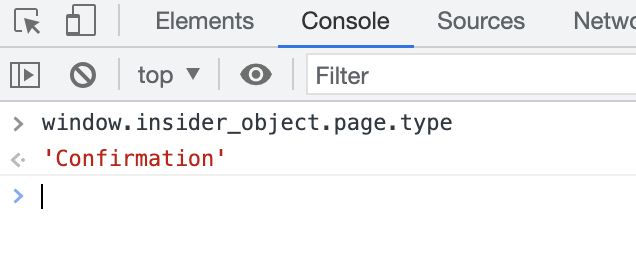
The page should return Confirmation as the type after running window.insider_object.page.type on the browser console.
window.insider_object.transaction should return the correct purchased products.
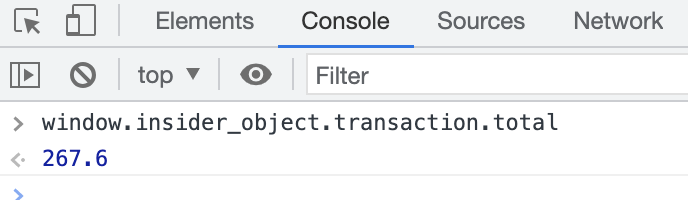
window.insider_object.transaction.total should return the correct total order amount.
window.insider_object.transaction.currency should return the correct currency.

If the page also has a page object, the transaction object and the page object should both be nested on the same level under the insider_object.
If there are multiple purchased products, each product should have its own separate product object.
Sample code
Below is a sample code for the Transaction object with two purchased products.
window.insider_object = window.insider_object || {};
window.insider_object.transaction = {
    "order_id": "xyz123456",
    "currency": "USD",
    "total": 200.4,
    "shipping_cost": 9.9,
    "delivery": {
        "country": "UK",
        "city": "London",
        "district": "Kensington"
    },
    "bank_name": "BANK",
    "line_items": [
        {
            "product": {
                "id": "N1234",
                "name": "Sleep Mask",
                "taxonomy": [
                    "Skincare",
                    "Moisturizers",
                    "Night Creams"
                ],
                "currency": "USD",
                "unit_price": 100,
                "unit_sale_price": 95.2,
                "url": "https://www.mywebsite.com/en-us/sleep-mask/n1234/",
                "stock": 150,
                "color": "Blue",
                "size": "S",
                "product_image_url": "https://www.mywebsite.com/product_images/n1234.png/",
                "custom": {
                    "season": "Winter",
                    "delivery_time": "In 5 days"
                }
            },
            "quantity": 1,
            "subtotal": 95.2
        },
        {
            "product": {
                "id": "M1234",
                "name": "Sleep Mask",
                "taxonomy": [
                    "Skincare",
                    "Moisturizers",
                    "Night Creams"
                ],
                "currency": "USD",
                "unit_price": 110,
                "unit_sale_price": 105.2,
                "url": "https://www.mywebsite.com/en-us/sleep-mask/m1234/",
                "stock": 140,
                "color": "Blue",
                "size": "S",
                "product_image_url": "https://www.mywebsite.com/product_images/m1234.png/",
                "custom": {
                    "season": "Summer",
                    "delivery_time": "In 5 days"
                }
            },
            "quantity": 1,
            "subtotal": 105.2
        }
    ]
}
In addition to the properties defined in the table above, you can add custom properties to any object. Such properties should be added under the custom object, as in the example above.
The key-value pairs under the custom object are attributed as custom event parameters to the Purchase event.
The value type of any key under the custom object varies depending on the key. Make sure to add the values in the data type that fits the best.
How can you monitor if the integration works correctly?
Once you deploy your integration, you can test it via the Website Integration Wizard. This wizard helps you complete your integration and test it afterwards. If you have already implemented the integration, you can use the wizard only to test it as well.