Selection Action is used to send a bot selection message to the user. You can select through cards, buttons, or keywords and map the user response to one of them.
To use Selection Action in your flows, follow the steps below:
Go to the Assistants menu on the navigation panel and select the relevant assistant.
You will see the Basic Actions menu on the left. Click on the Send Selection action or drag and drop it to the board to add the Selection Action to your bot.
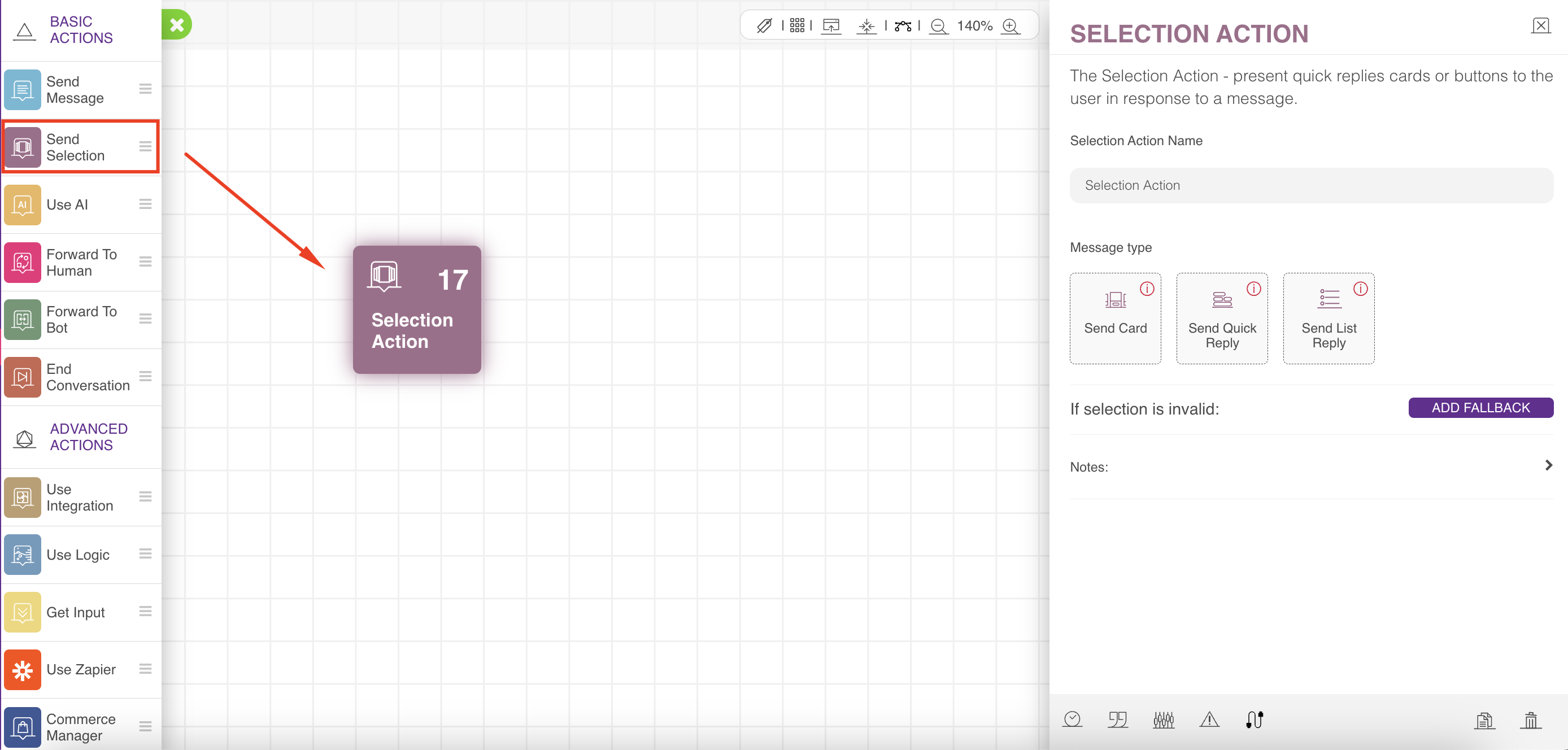
Naming your Selection Action is optional. You can also add a fallback to your Selection Action. If the selection is invalid, the user will see your alternative action.
Adding a fallback is important because the assistant should know what to do if the user writes a response that can not be mapped to any button or keyword.
Send Card
Send Card enables you to send one or multiple cards to the user. Each card can include:
Image
Title
Subtitle
Text
Buttons
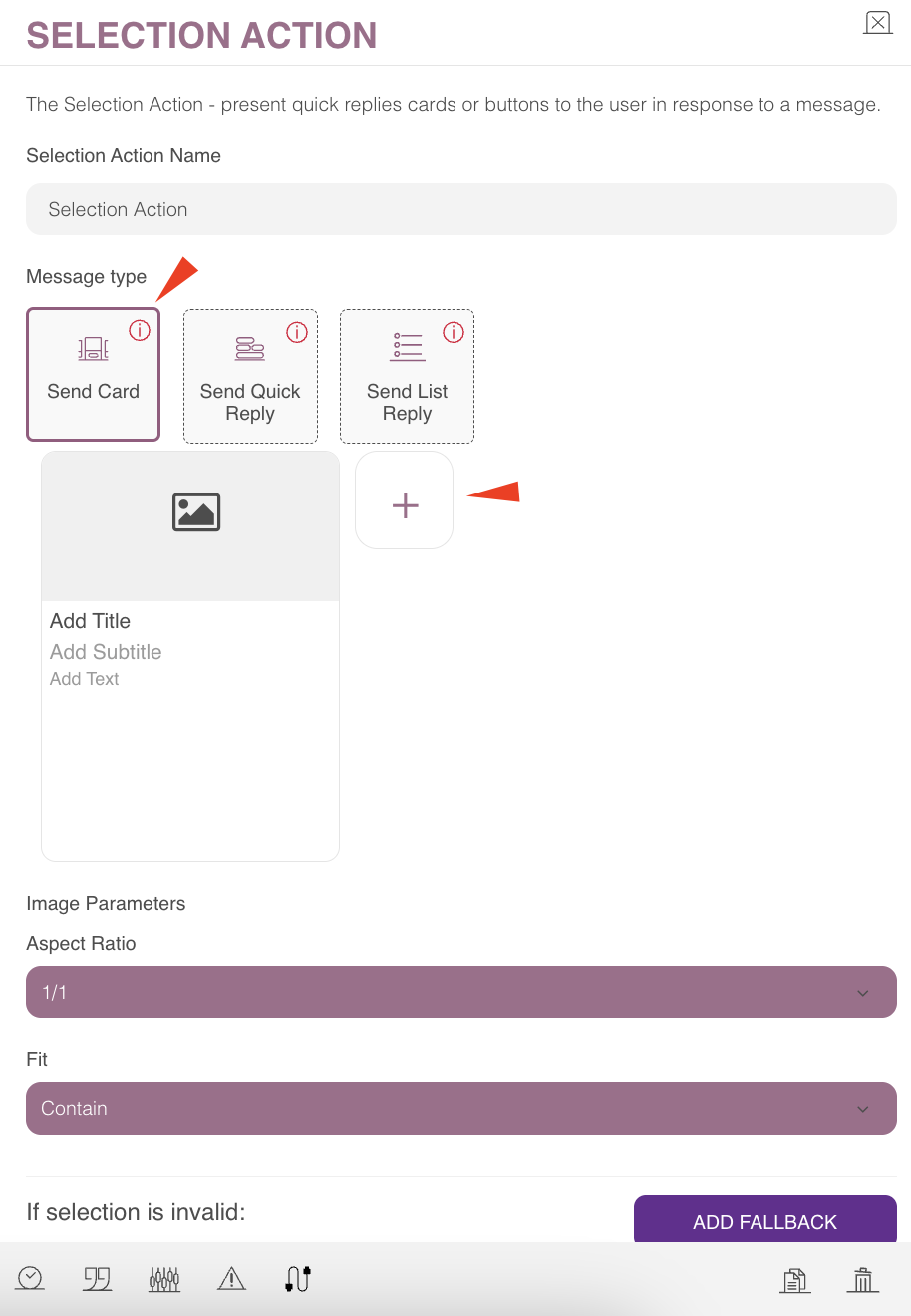
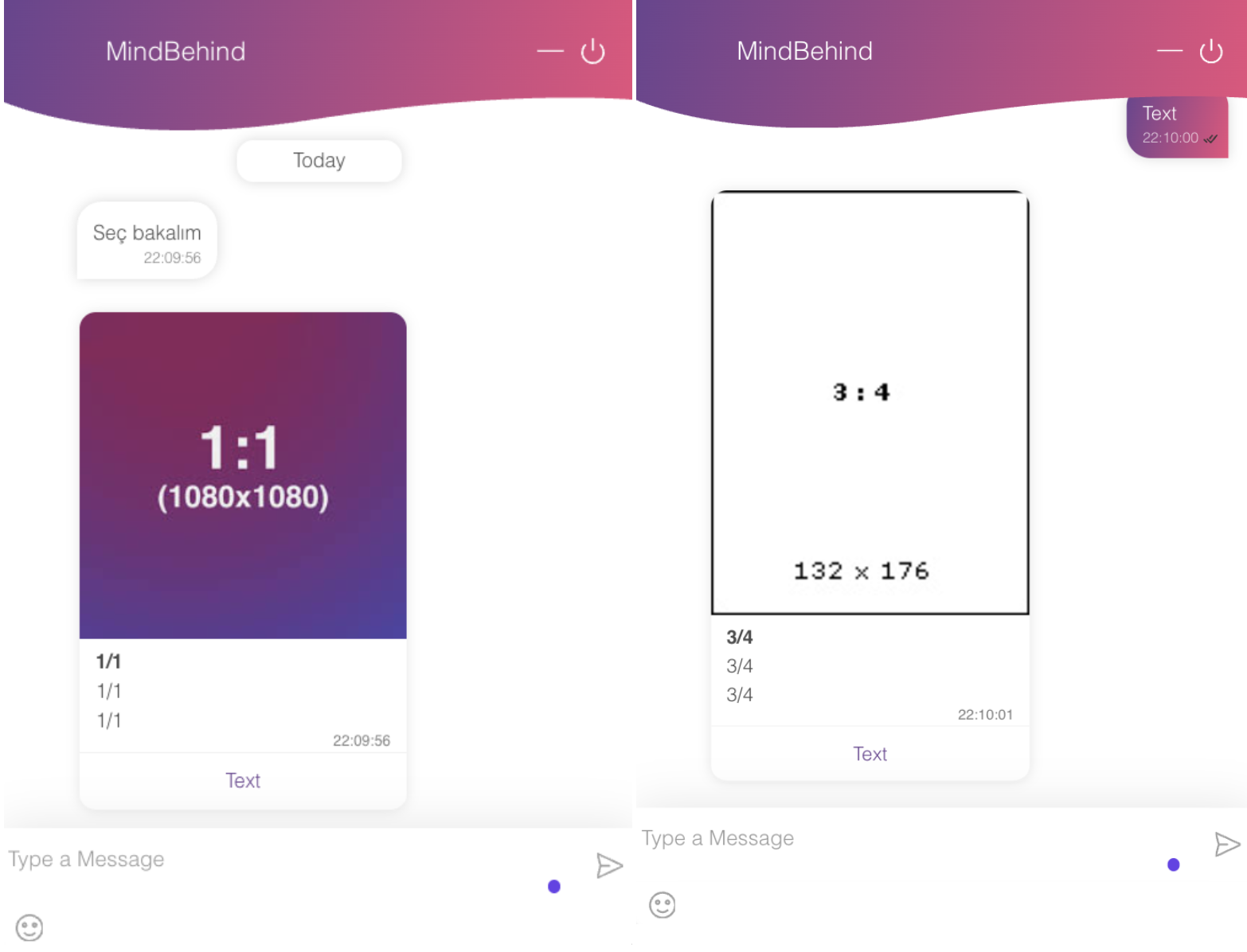
Two new parameters are available in the Image Parameters section under the Send Card message type. They give you greater control over the size and alignment of images inside cards:
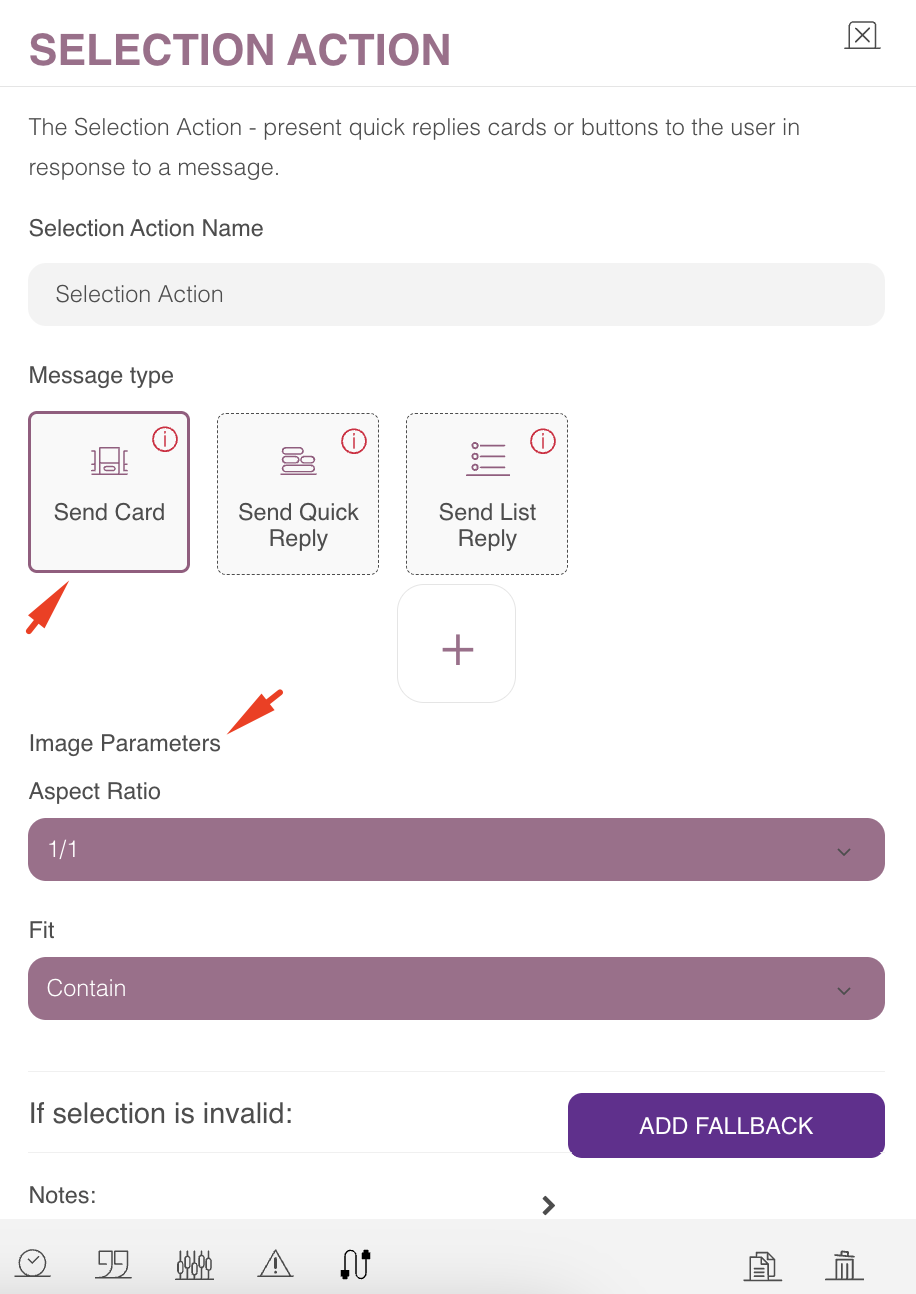
Aspect Ratio: It sets the ratio of the image inside the card. You can select one of the following options from the dropdown menu:
1/1 (square)
3/4
9/16
4/3
Fit: It defines how the image will be scaled within the selected aspect ratio. You can select one of the following options from the dropdown menu:
Cover: Crops the image to fully cover the area.
Contain: Fits the entire image inside the area (may leave space).
Fill: Stretches the image to fill the whole area.
None: Keeps the original image size.
Scale Down: Reduces the image size if it’s too large, but never enlarges it.
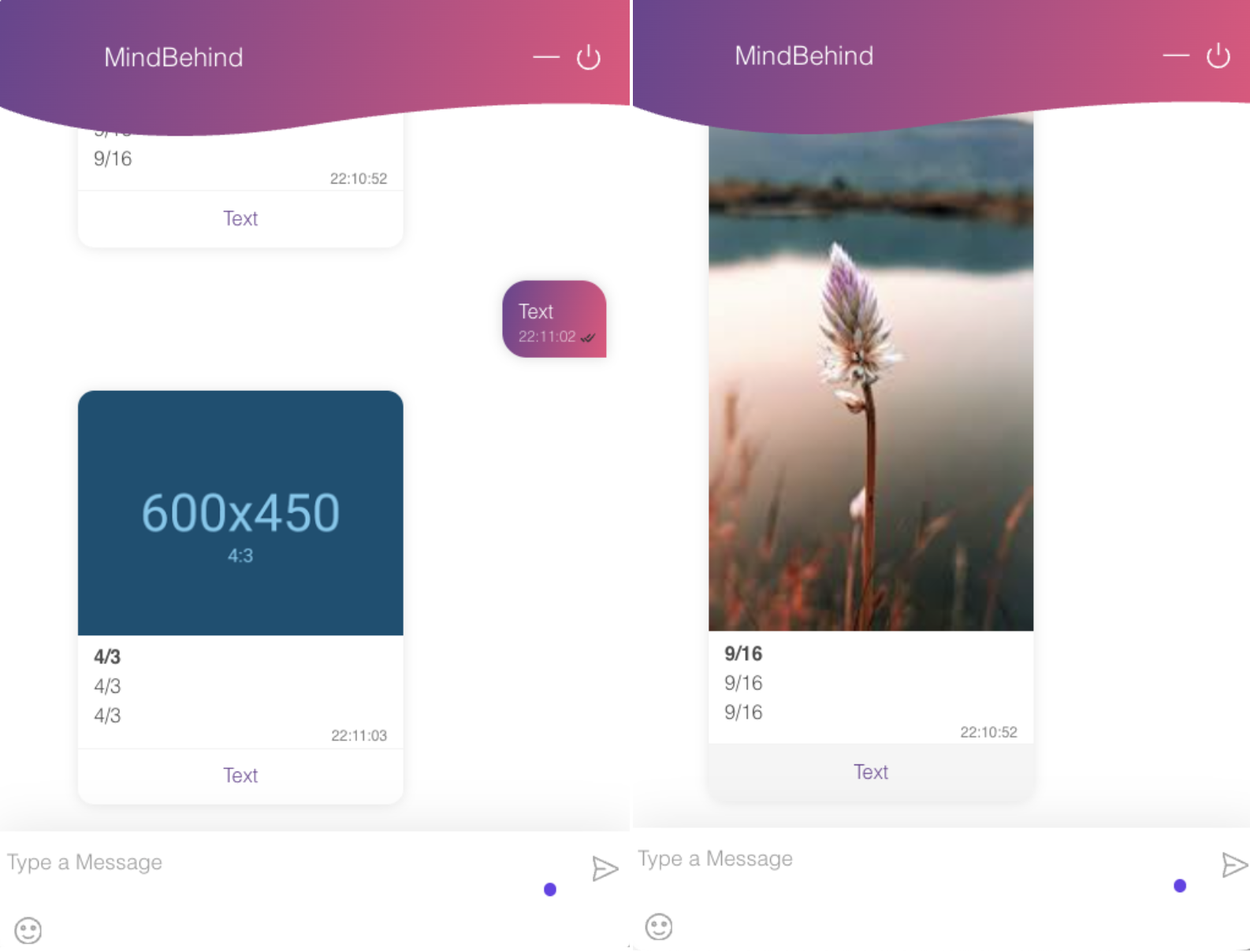
These options allow you to display images in your cards with greater flexibility and precision. You can refer to the visuals below for the Aspect Ratio examples using "Contain”.
Quick Reply Buttons
The quick reply buttons can have multiple types; you must configure different fields according to the type. The supported types are as follows:
Button: When you click the button, it only takes you to the next connection. You need to configure button text, button action, and button connection. The button text appears to the user, and when the user clicks on it, it is written as a user response. The user can not click on the button on some platforms, such as WhatsApp. In that case, using the action will help you. You can also use the action instead of the text if the text is too long to repeat as a user message.
Link: When you click the button, a new page opens with the link value, and the next action is taken. Instead of action here, you need to add the URL of that link, which will be used to determine the next action according to the clicked link.
IFrame: When you click on the button, it opens an IFrame in the same chat window with the URL chosen for the IFrame.
Facebook IFrame: You should choose this type to open the IFrame only for a Facebook channel.
The Send Quick Reply button or multiple buttons can be sent directly to users. All previous button types are supported. You can also choose a prompt message to display before the buttons.
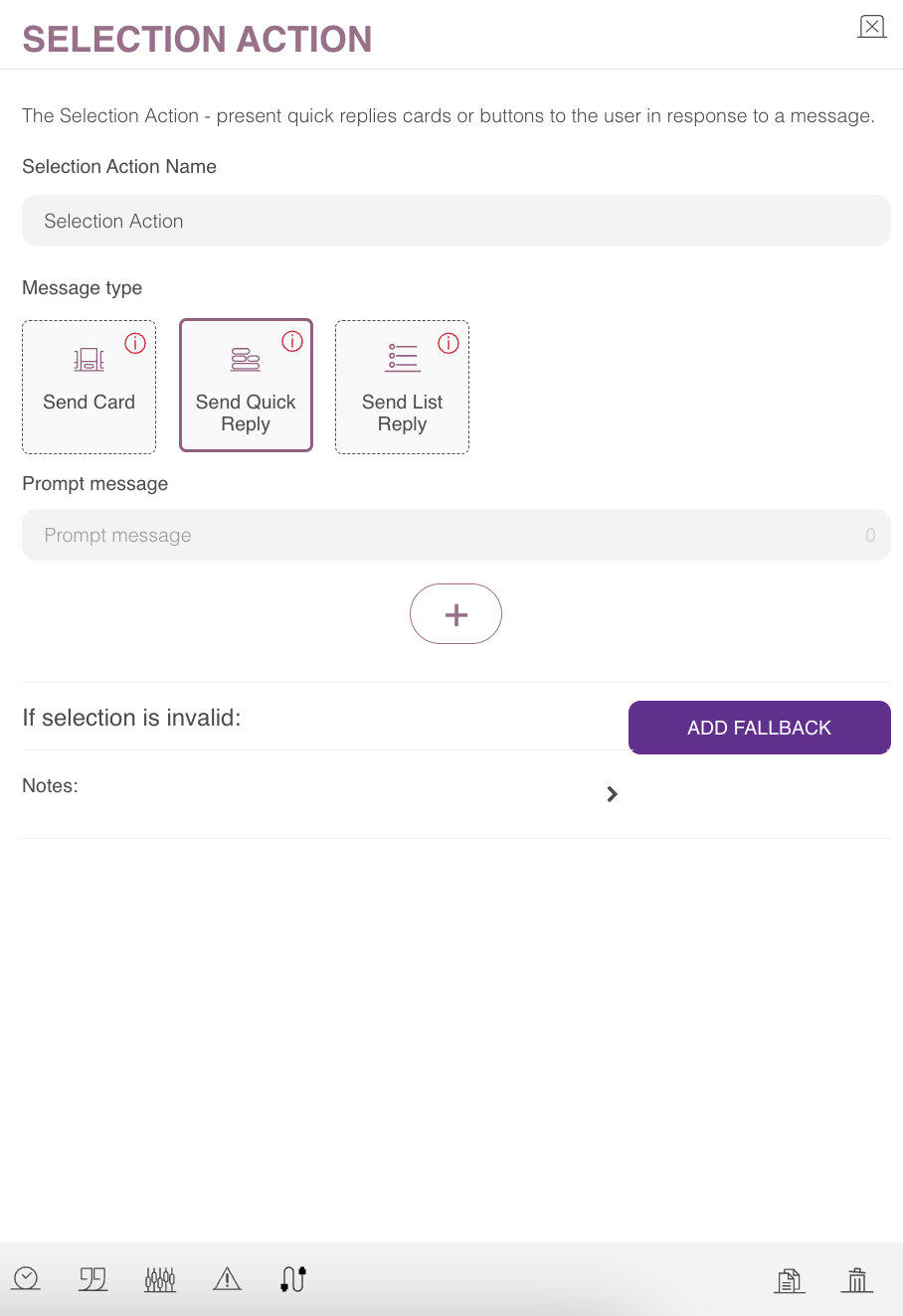
Some channels do not support prompt messages.
Define Keywords
You can click the Action Keyword icon from the footer menu to define the keywords.
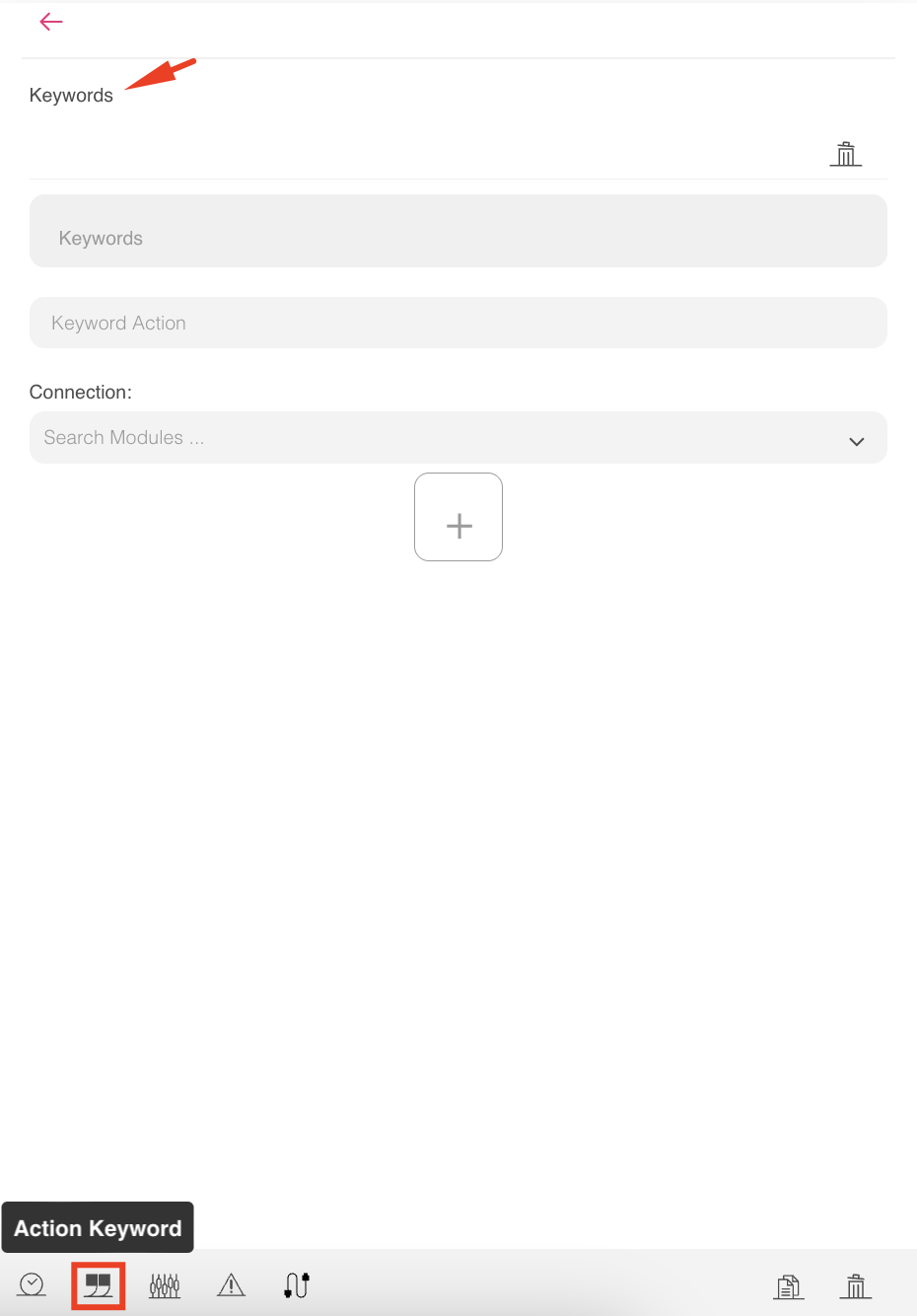
You can define multiple groups of keywords. For each group, you can put the keywords that the users mostly use in their responses, and you can choose an action target for this group.
The action might exhibit different behaviors depending on its configuration, and that will be in order as follows:
If the Selection Action contains no buttons or cards with buttons, then the flow stops and waits for input from the user. It happens mostly in selection through keywords.
If the Selection Action contains one button with a link type or one card with one button with a link type, the system will send the selection message to the user with that button, but will continue the flow and never wait for an input.
For all other cases, the system will send the selection message to the user, stop the flow, and wait for user input.
When waiting for input, the Selection Action only responds to the text and link click messages. In the case of a connect message, it does nothing, and in the case of other types, it falls back. In the case of one of them (text or link clicked messages), the selection processor will behave as follows:
It checks if the user input matches global keywords, and if a match exists, it will continue the flow to the connection specified in that global keyword.
It checks if the user input matches one of the buttons' data (Either the button's selection message or the buttons inside the card selection message), and it will check the buttons in the order they are defined on the designer page. It will check the following attributes for each button: action, link, and text.
It checks if the user input matches the local action keywords, and if a match exists, it will continue the flow without waiting for the connection specified in those local keywords.
It falls back if it can not catch a match. In that case, if the fallback count is defined, it keeps sending the local or global error message until the count is finished, at which point it will continue the flow to the fallback connection.
Defining a delay for this action will delay sending the bot selection message to the user, which will delay the flow to the next module afterward.