To manage your WhatsApp templates programmatically, you'll need to generate the appropriate API credentials. This article walks you through generating both a WhatsApp Template Management API Key and OAuth 2.0 credentials via Integration Settings.
Generate WhatsApp Template Management API Key
You can manage your WhatsApp templates programmatically using the Template Creation API. The Template Creation API key is different from the Campaign Analytics API key.
The API supports two authentication methods: Bearer Authentication with x-ins-auth-key, and with OAuth 2.0 through Insider Gateway.
To generate your WhatsApp Template Creation API key,
Navigate to your username > Settings > InOne Settings > Integration Settings.

Scroll to the API Keys section to click the Generate API Key button.

If you have created any API keys before, you will see them listed in this section.
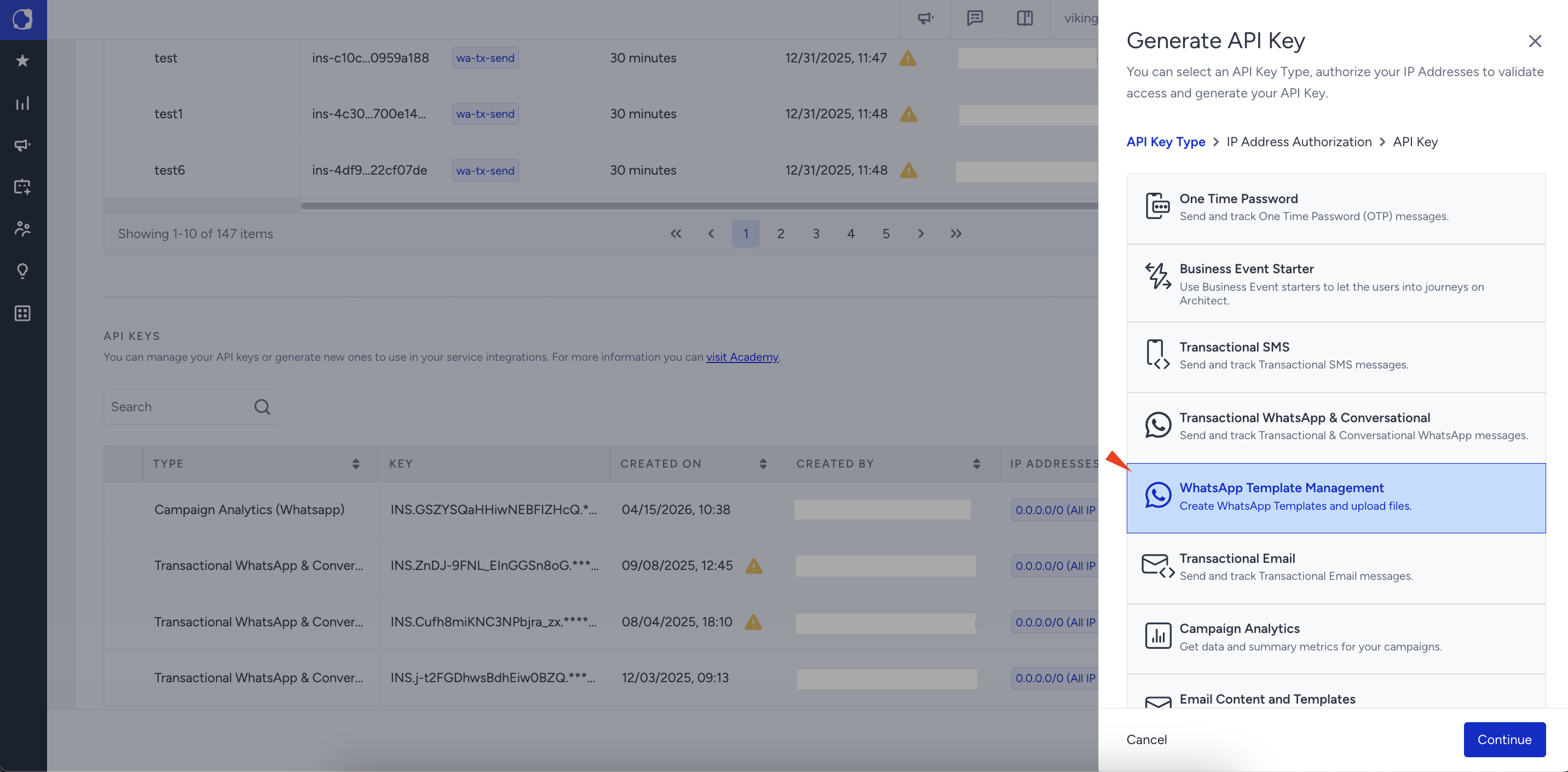
Select WhatsApp Template Management and click Continue.
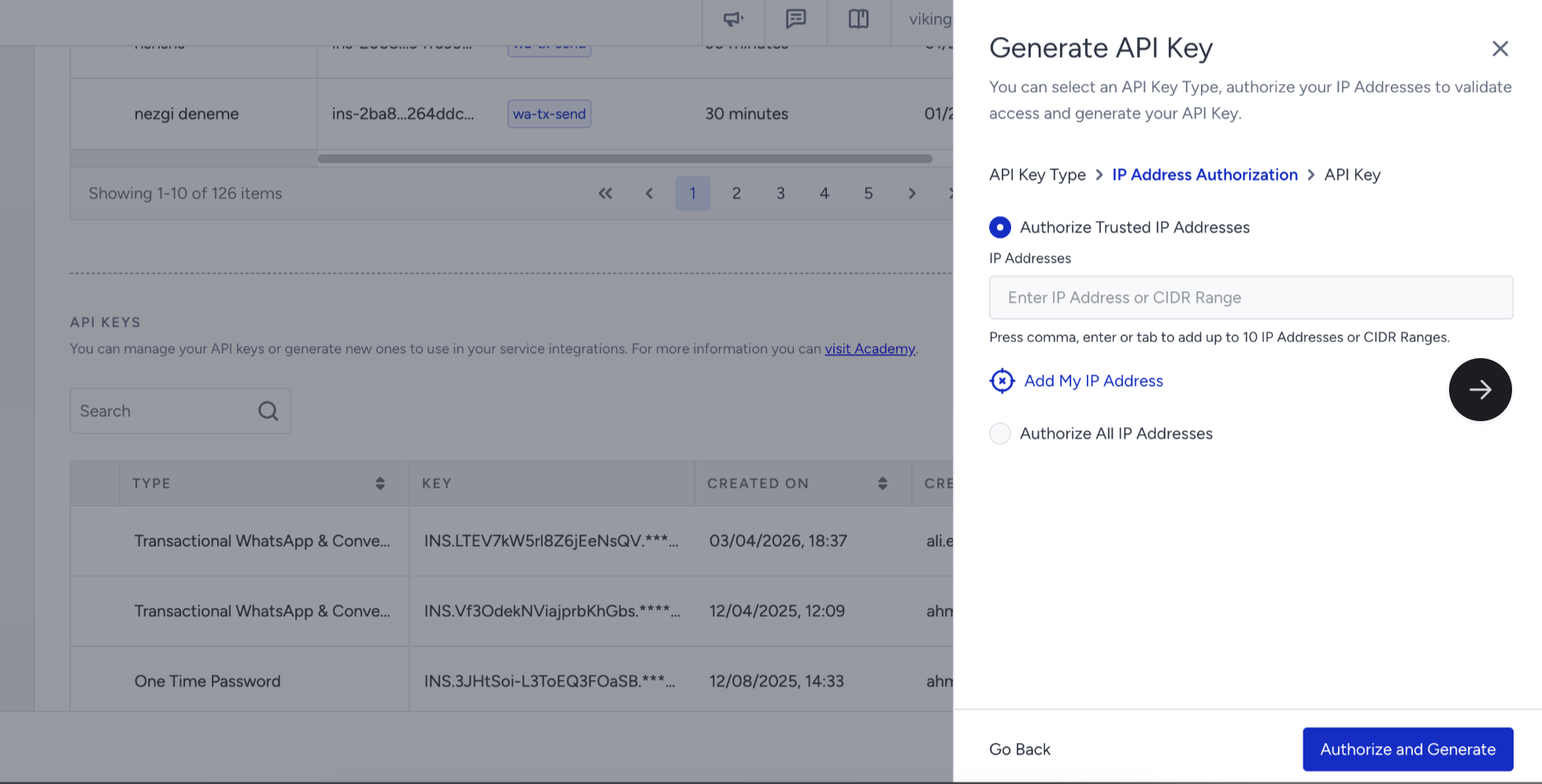
Enter the IP addresses to authorize.
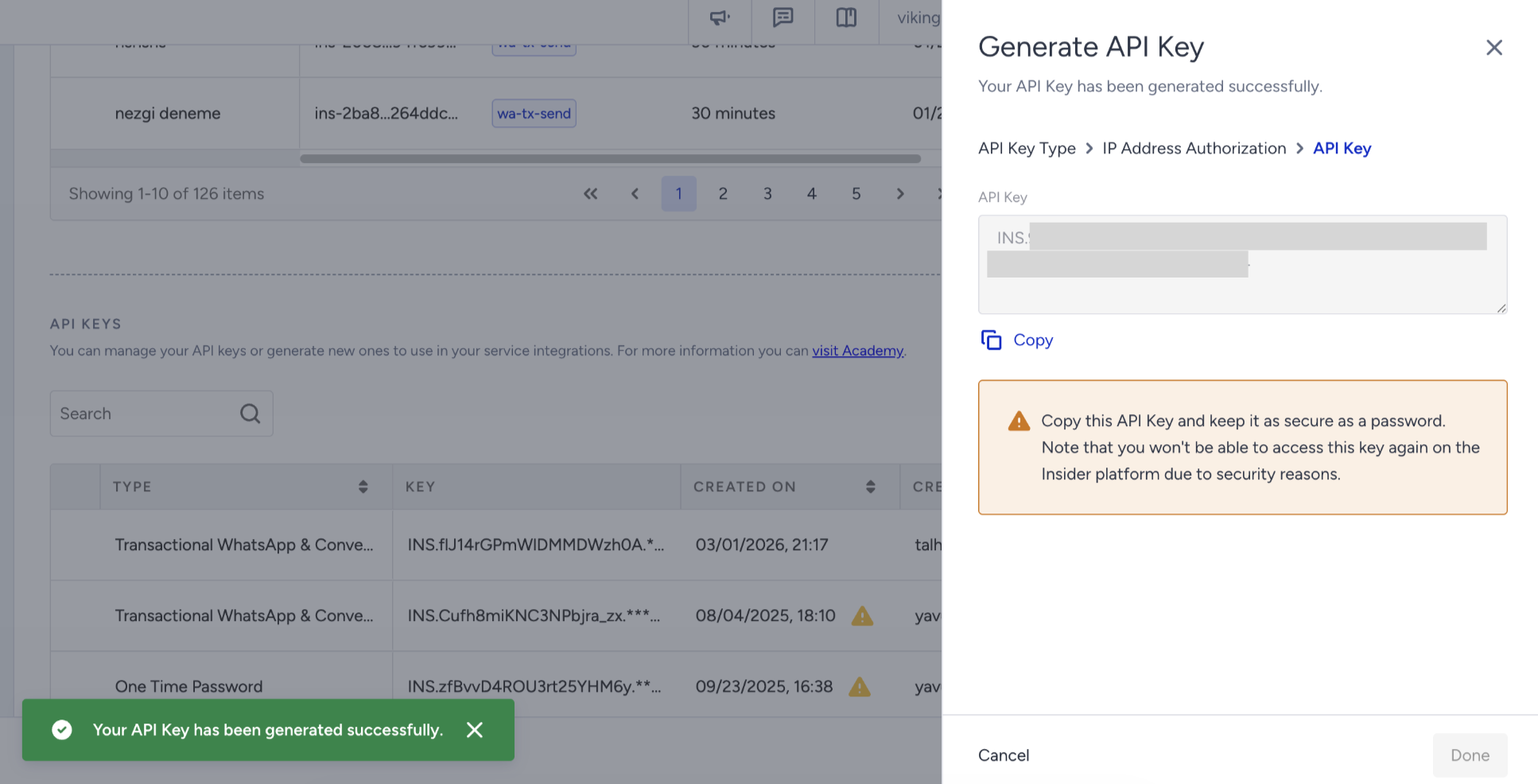
Your API Key has been generated. Copy this API Key and keep it secure.
After clicking Done, you will see your generated API Key in the API Keys list.
Generate OAuth 2.0 Credentials for WhatsApp Template Management
Navigate to your username > Settings > InOne Settings > Integration Settings.
Scroll down to the OAuth 2.0 Credentials section and click the Generate OAuth 2.0 Credential button.

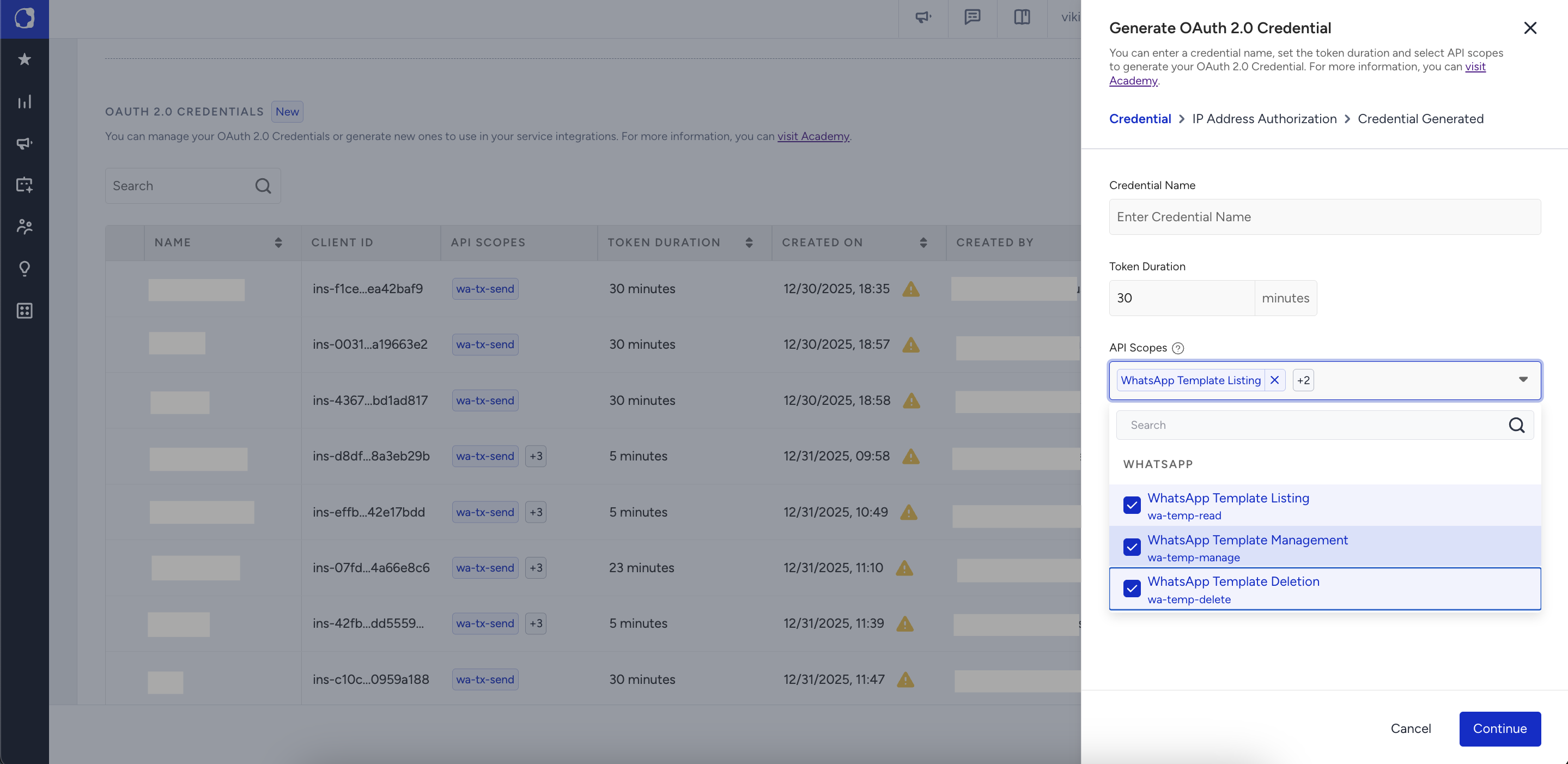
Enter a name for your OAuth 2.0 Credential and a token duration.
Select the API scope for your OAuth 2.0 Credential and click Continue.
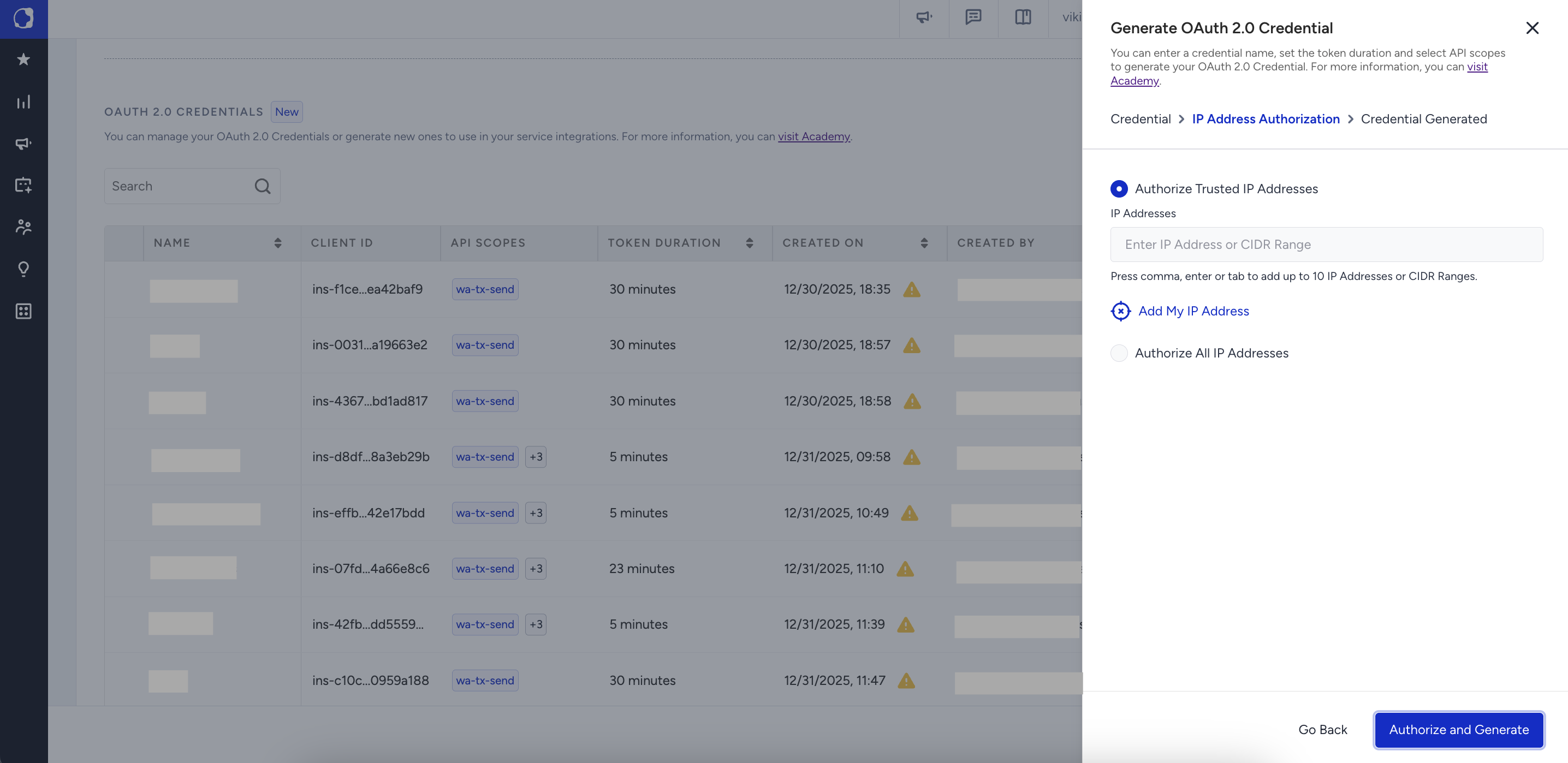
Enter the IP addresses to authorize and click Authorize and Generate.
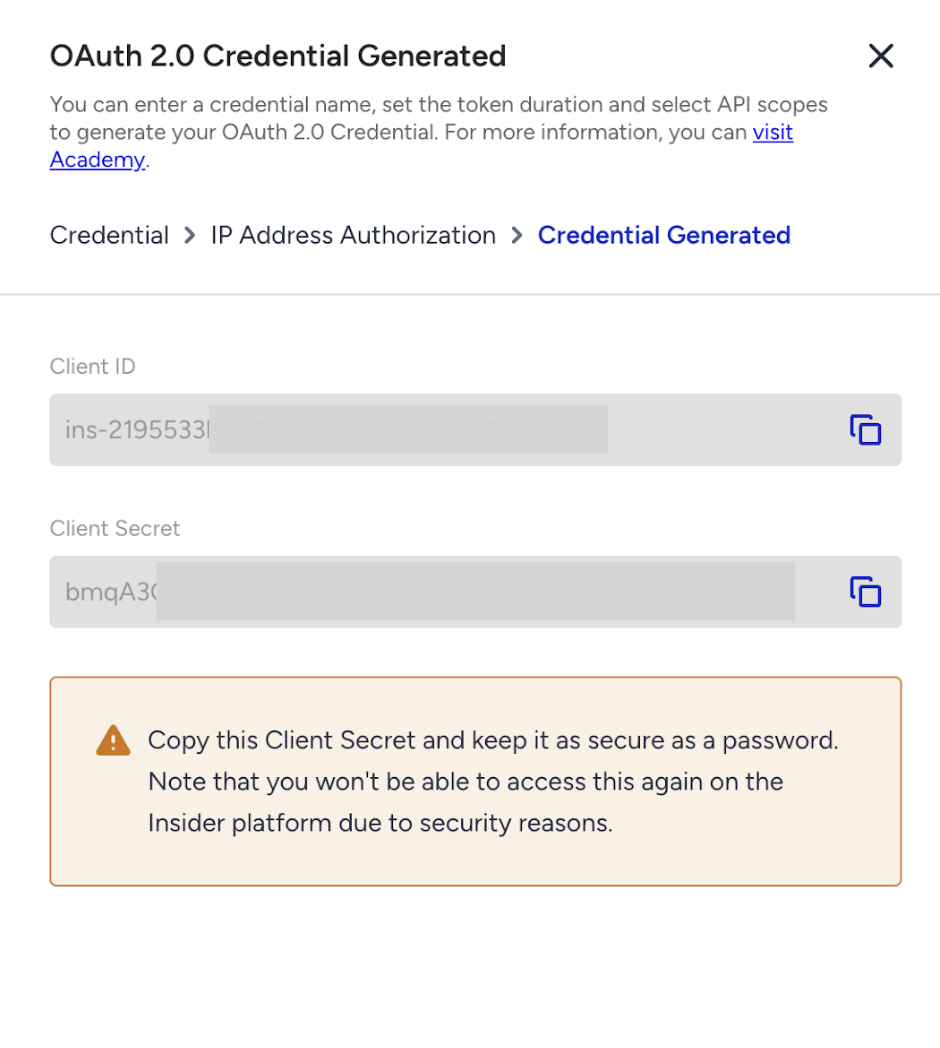
Click the Copy button to copy the Client ID and Client Secret before closing the prompt.
Now that you have generated the OAuth 2.0 credentials, you can proceed with Managing WhatsApp templates with OAuth 2.0.