You may keep cookies on your website that contain information about your users or user segments. You can use this information for third-party or internal segmentation, such as segmenting users who have made a large number of purchases of white T-shirts or users who provided their email address during sign-up.
First-party Segments (FPS) empower you to target your users based on custom dataset values stored in Local Storage and First-Party Cookies.
The FPS segments don't generate new users; instead, they organize existing users into segments based on their attribute values.
When you create a new attribute on the Custom User Attributes page, it might not appear right away in the FPS segments dropdown if there’s no data yet. Once the attribute contains data, it will automatically become available in the dropdown.
First-Party Segments Listing Page
To find the following details of your First-Party Segments, navigate to Audience > Segments > First-Party Segments.
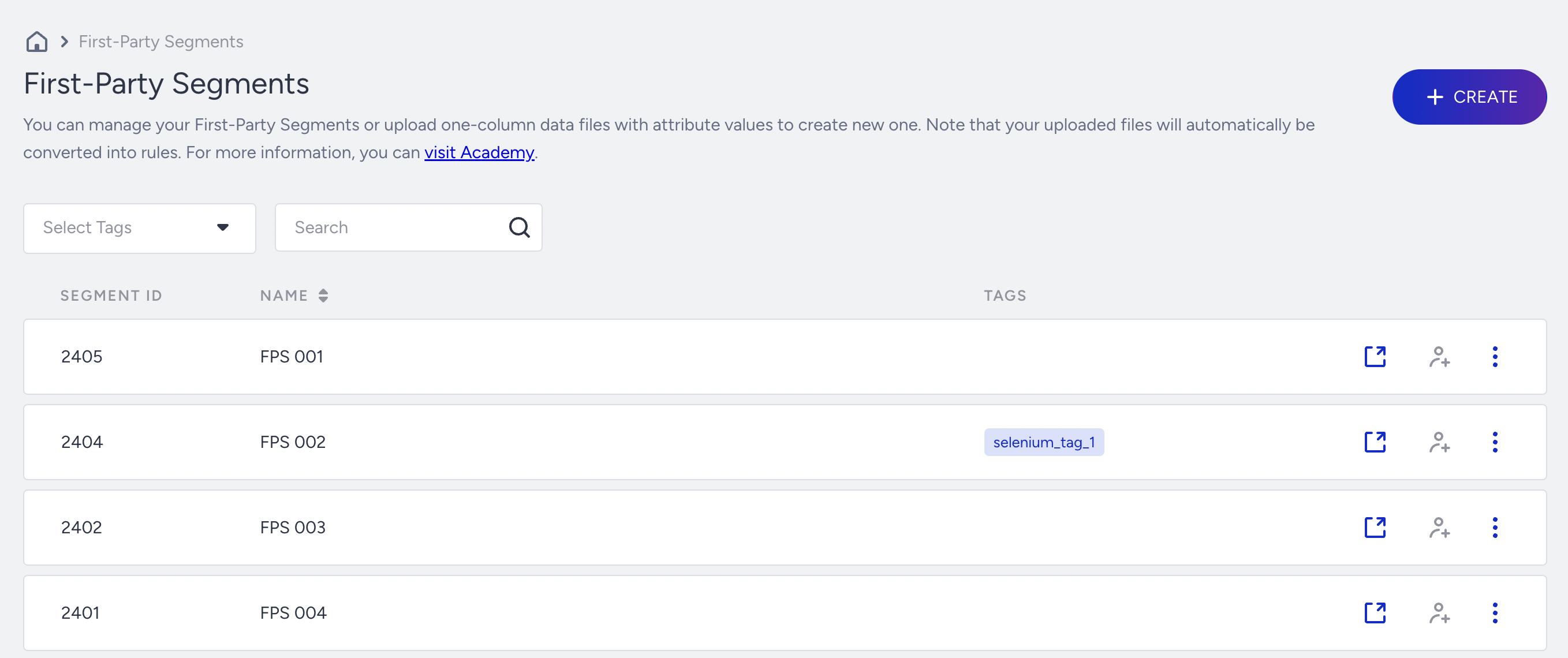
Select Tags: Displays the segments based on the tags.
Search: Describes the search criteria. You can search for a segment by email, name, UUID, or phone number.
Segment ID: Displays a unique ID to differentiate the segments.
Name: Specifies the name of the segment you assign while creating segments. When you click the Segment Name or Filters, you are redirected to the Details page.
Tags: Displays the tags that you have assigned.
Export: Exports the details of the dynamic segment to a CSV file.
Add Set of Rules: Adds rules to the segment.
Menu (three vertical dots): If you click the menu against a segment, you can see the following options:
Pin to Top: Use it to pin the selected dynamic segment at the top. If the dynamic segment is already pinned, this becomes Unpin.
Edit Tags: Use it to edit the tags assigned to the segment.
Delete: Use it to remove a segment permanently.
Create a First Party Segment
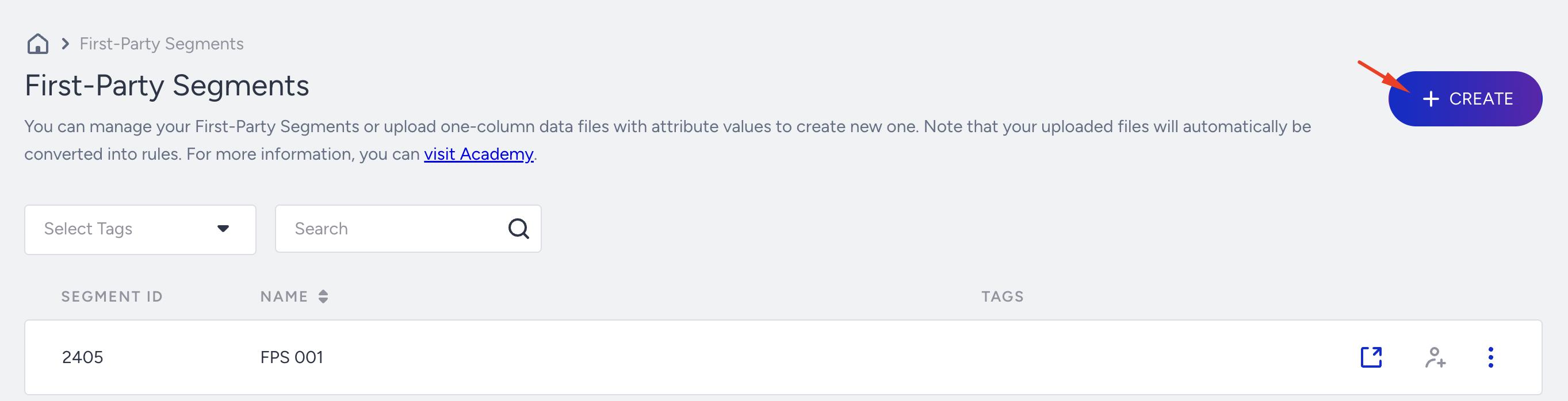
To create a First Party Segment, click the Create button on the First-Party Segments listing page.
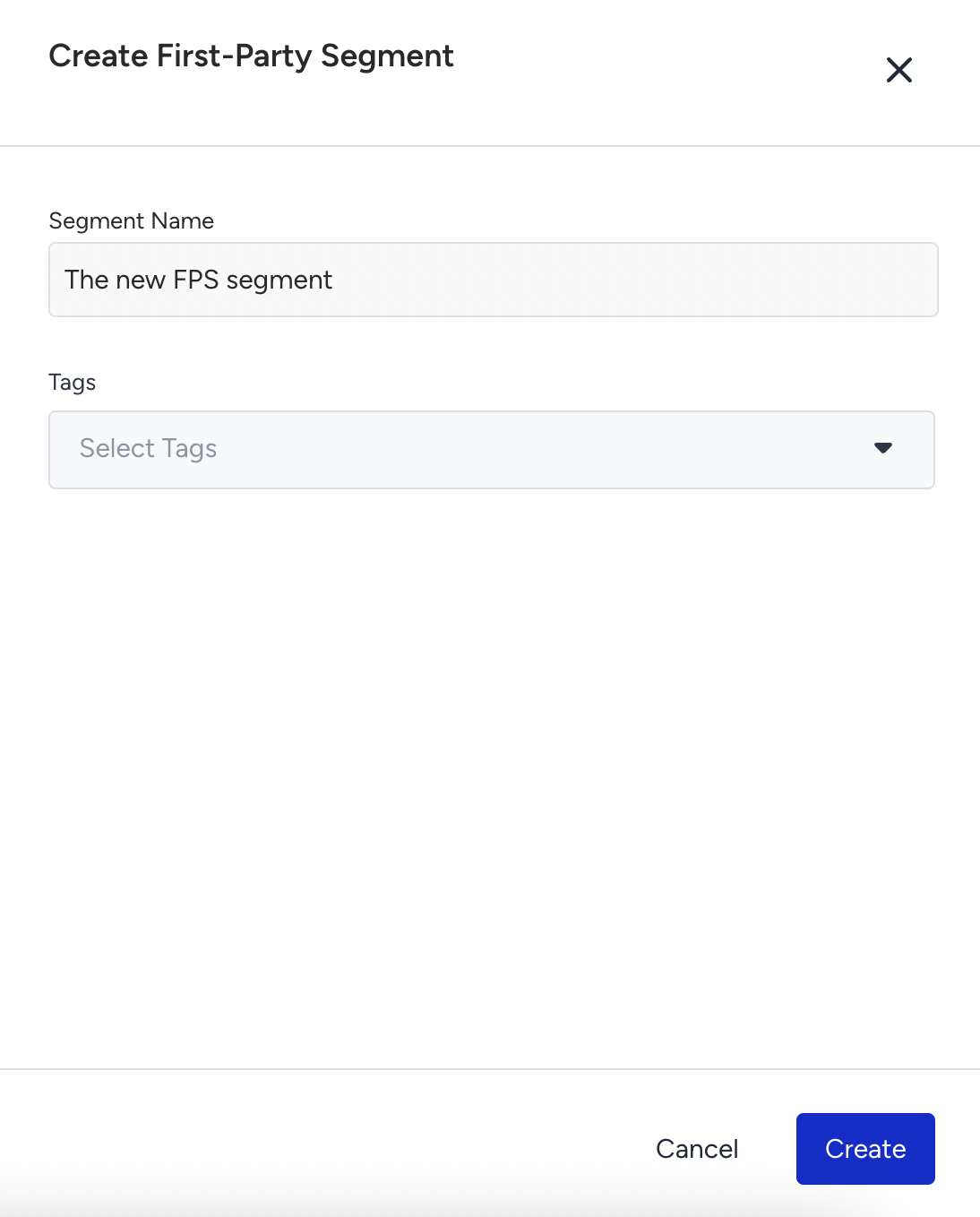
Enter a short, descriptive name and click the Create button. You can also select tags or create new ones to use as a filter later on.
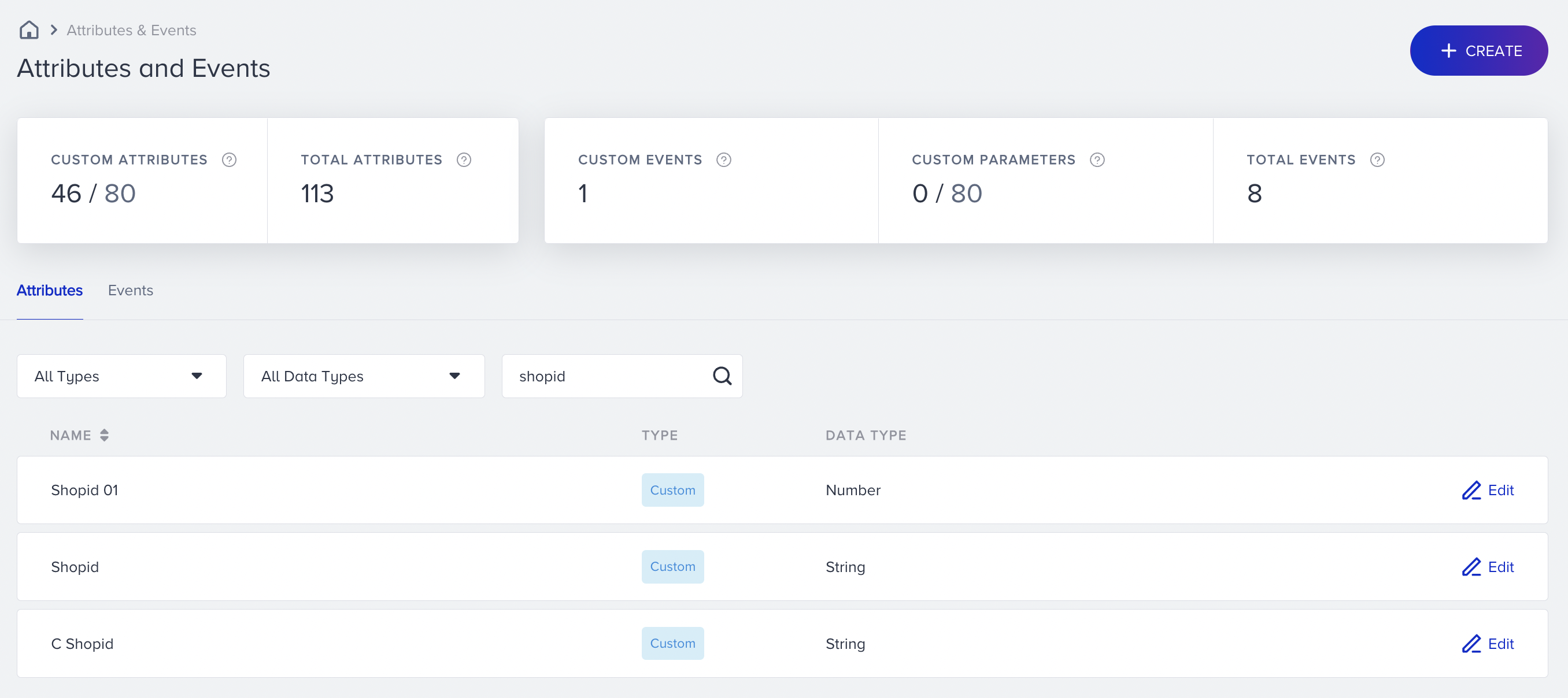
You can choose default attributes, such as Phone Number, or a custom attribute that suits your use case.
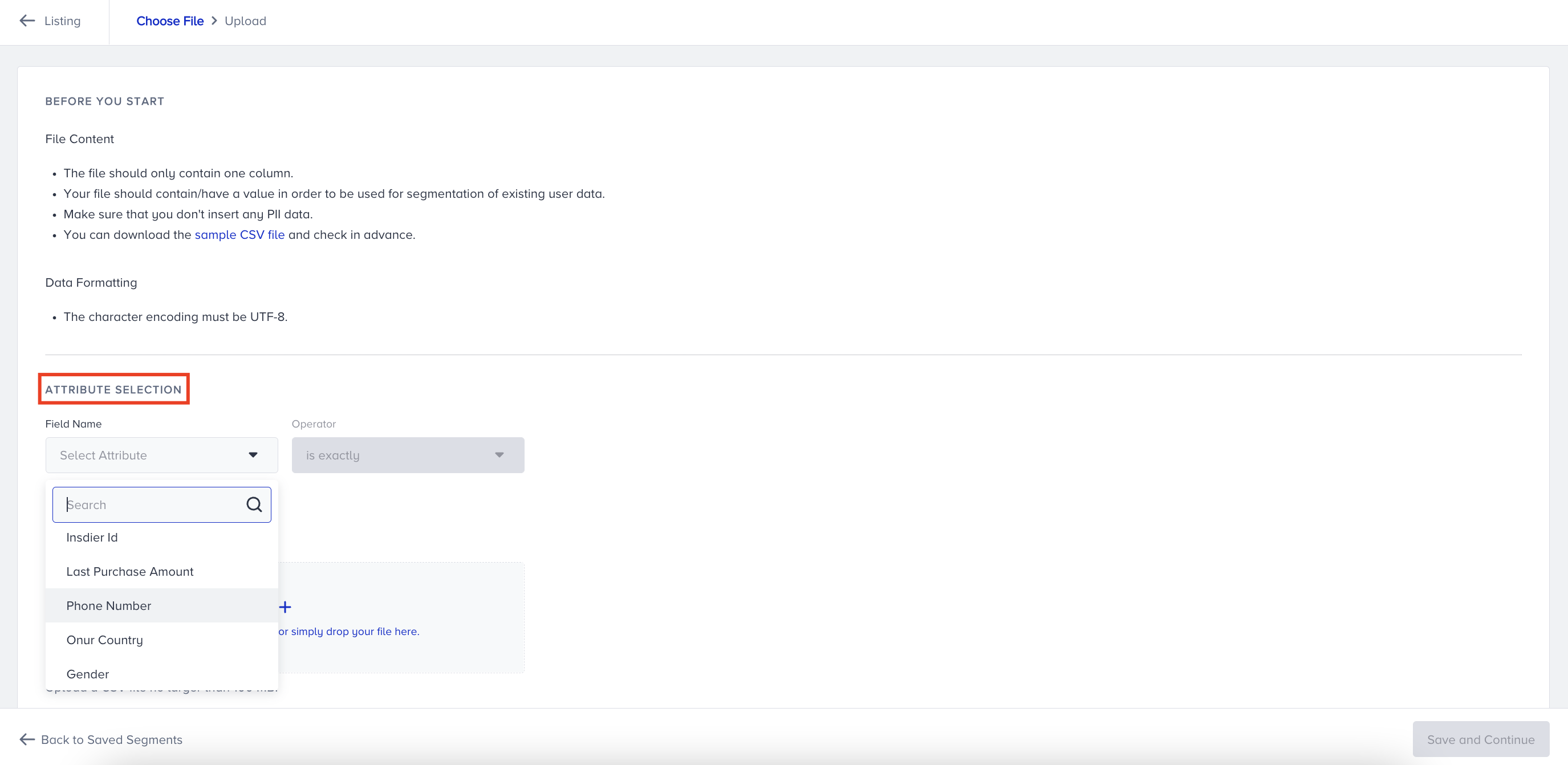
For example, you can see a custom attribute that you can use to get the “shopids” from your website on the Events and Attributes page.
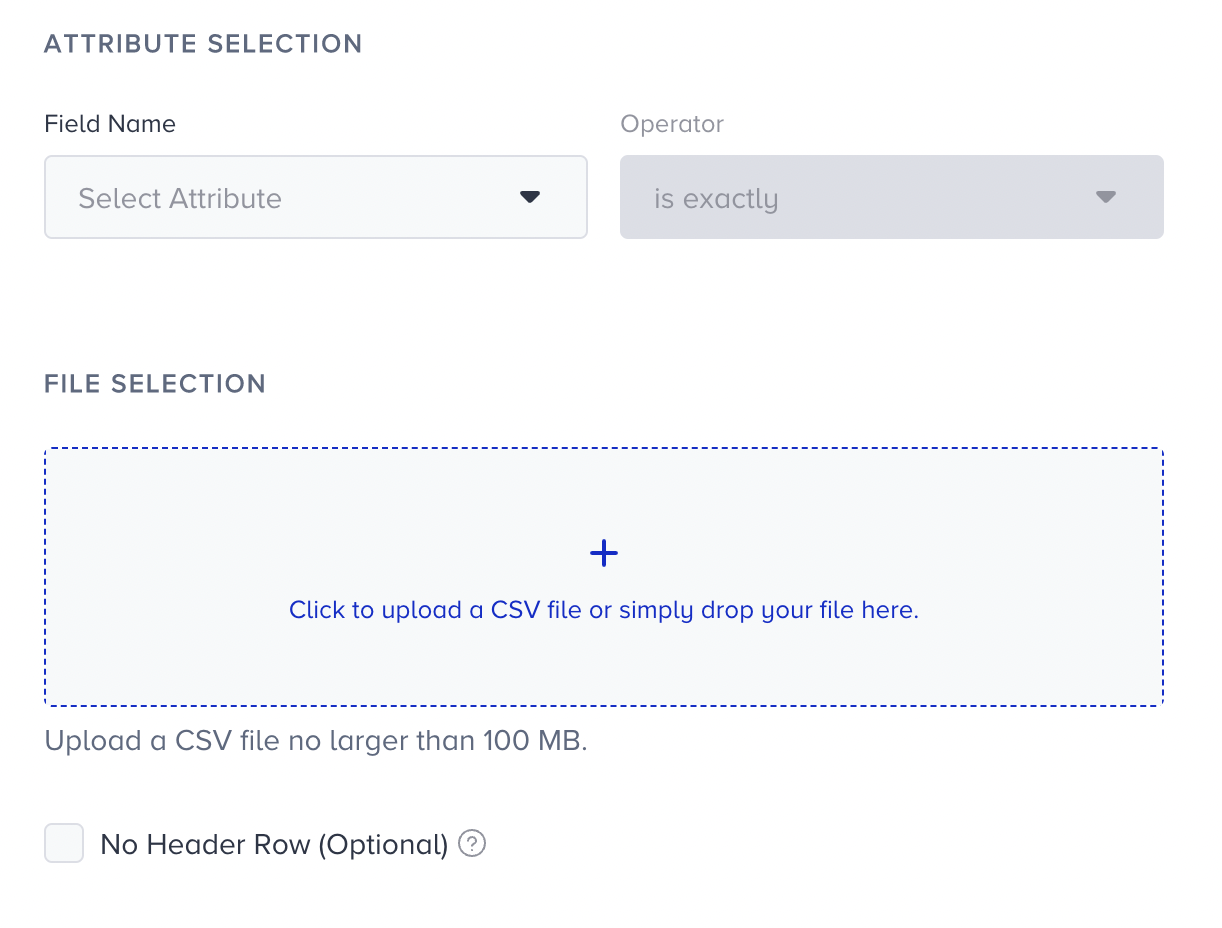
After selecting the attributes, upload the CSV file containing the attributes you want to segment.
Select the correct option about the CSV file that has a header row.
The phone number validation system detects issues, such as redundant country codes or incorrect formats, and only accepts valid numbers. Whether uploaded with or without a country code, all phone numbers are automatically standardized to the correct format.
Click Save and Continue to upload it. You will see that the file has been uploaded, which means you have created the FPS segment.