Eureka enables you to create a search experience for your mobile web and desktop websites with the Instant Search Preview template. If your website supports multiple locales, you need to localize your Instant Search Preview template based on the user's active locale during their session. Eureka provides a set of settings to localize translatable text in your search experience.
Eureka dynamic data sources for the search experience texts are already locale-based. You can define labels for the following settings in the selected locale:
Eureka has 19 static texts in the Instant Search Preview template for mobile and desktop web. To provide translations of each static text for each locale with Localization Keys, follow these steps:
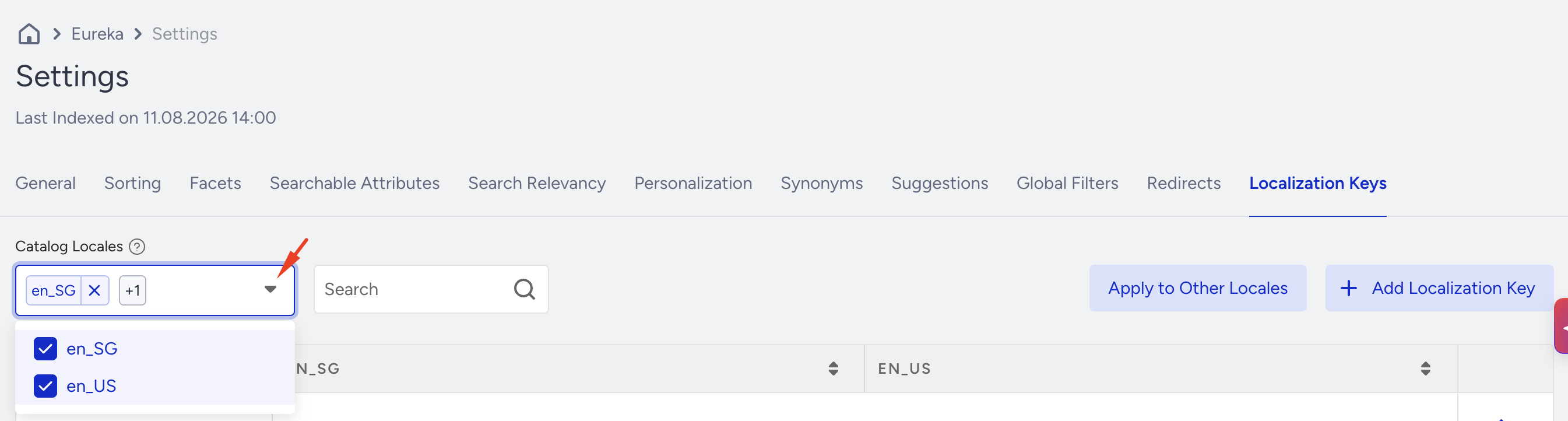
Navigate to Eureka > Settings > Localization Keys.
Select the locales for which you want to enter translations from the Locales dropdown.
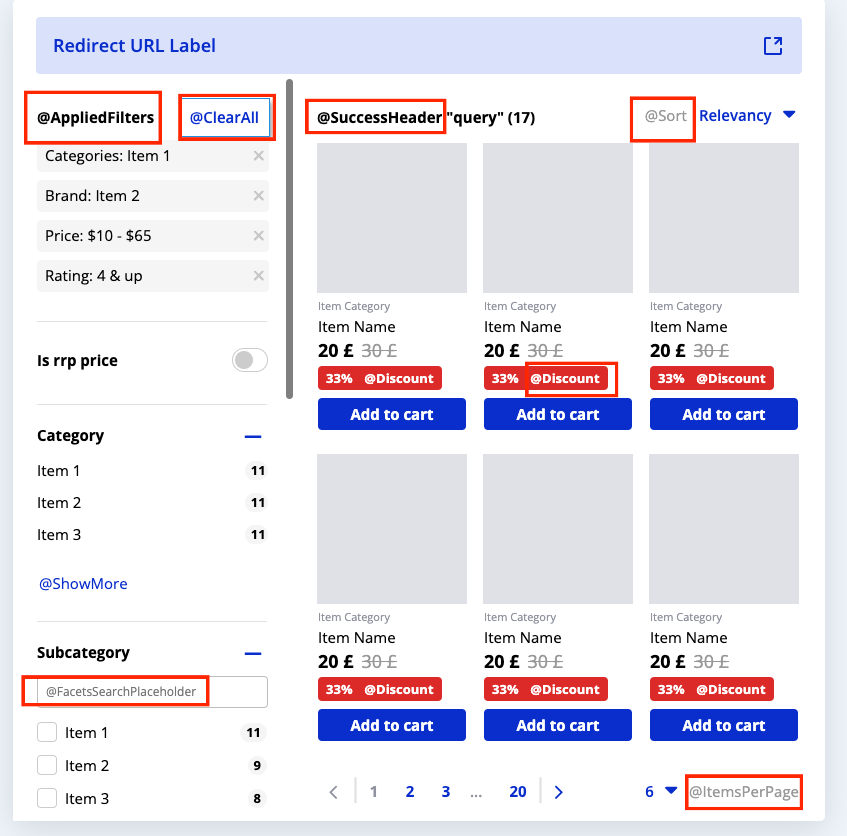
Each static text has a key value, and each key has a corresponding translated text for the selected locale. In the Design step, you can view these key names, which start with the "@" character.
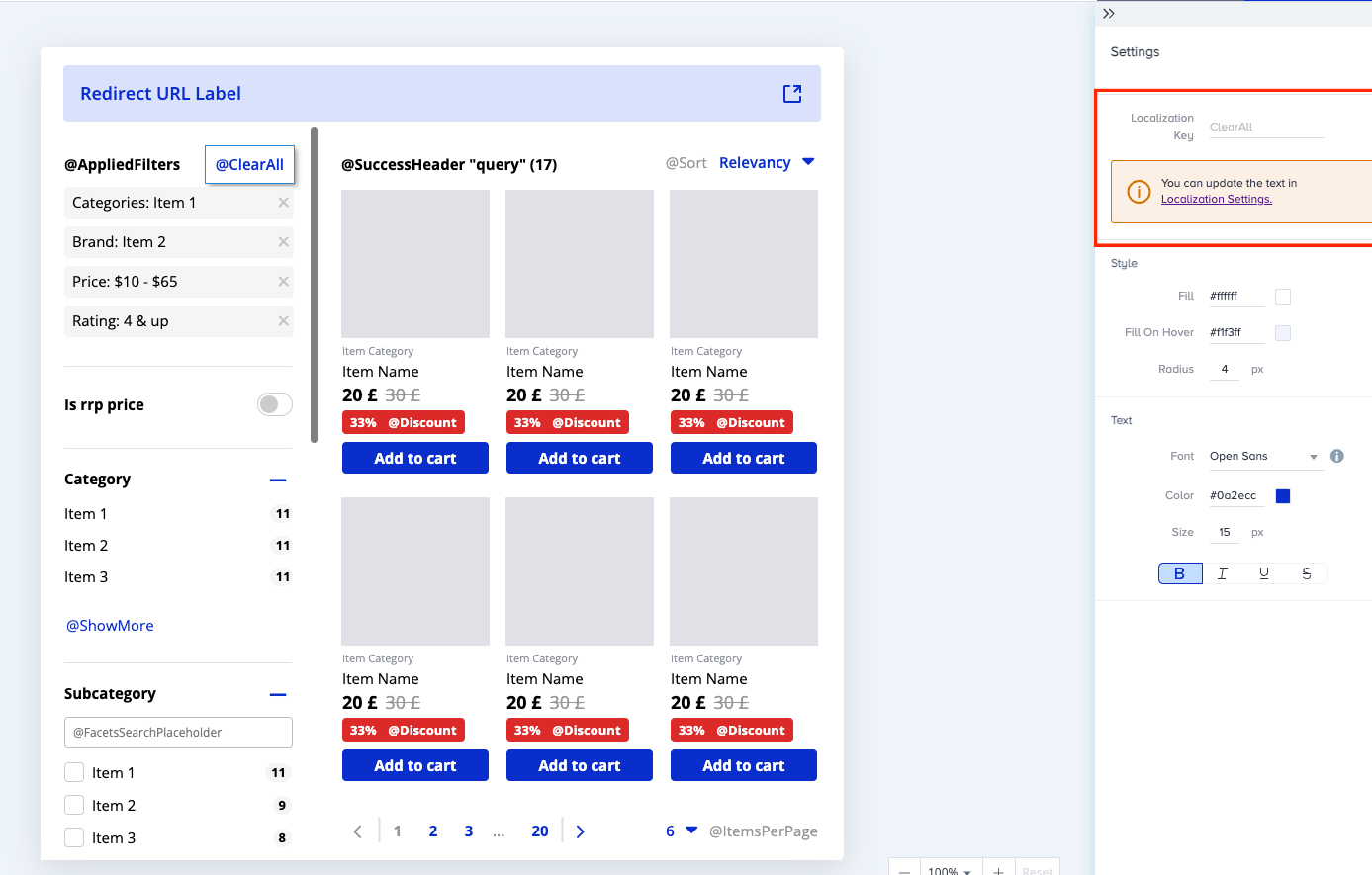
Once you select a translatable text, you can view the key name and a link to navigate to the localization settings.
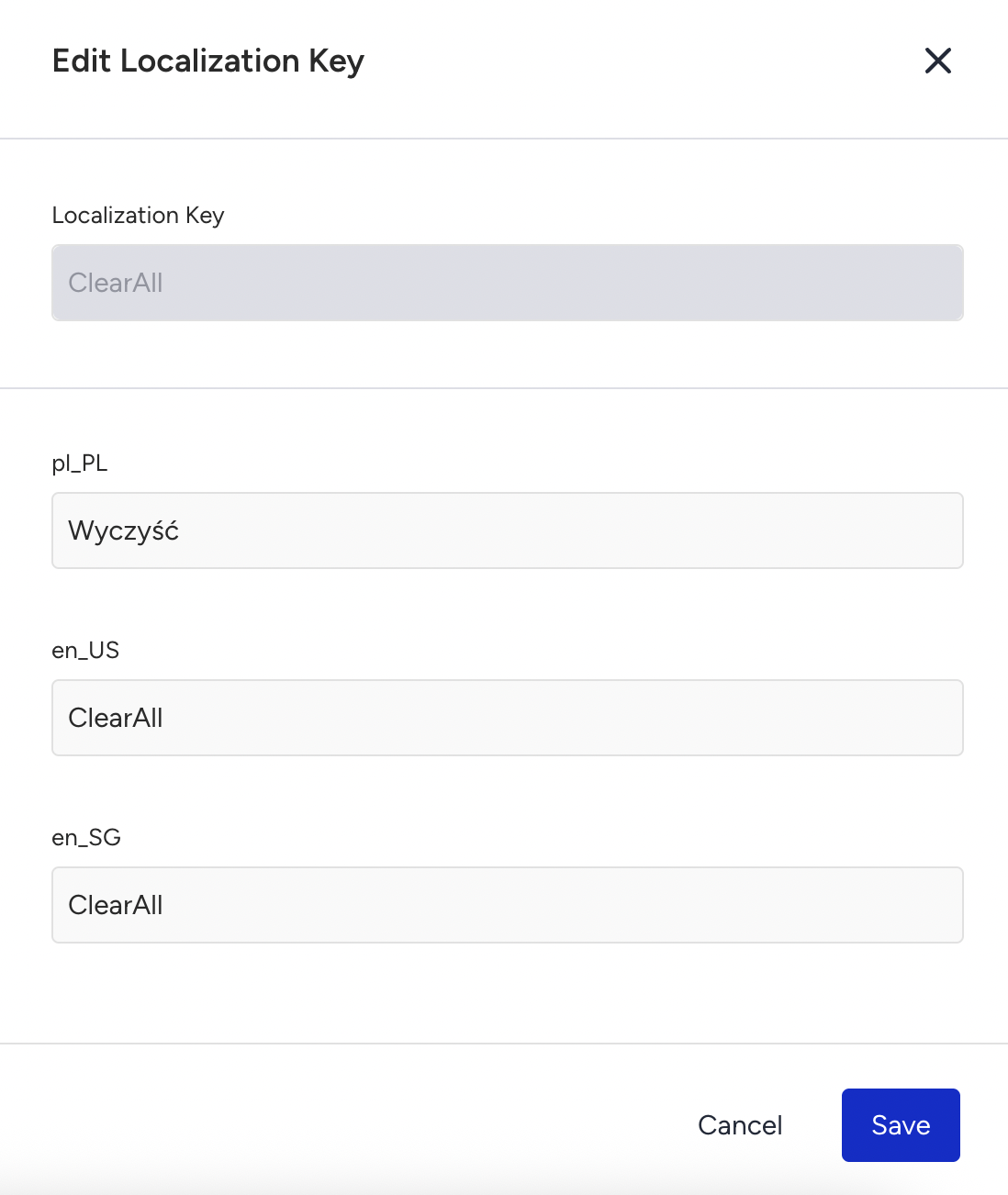
Click the Edit button next to the key to enter translations for that key. In the side modal, you can also enter translations for a specific locale.
You can also define new localization keys to customize your Instant Search Preview template with new UI elements and translatable texts.
Once you complete this step, you can use these custom-defined keys in your customized HTML element as follows:
