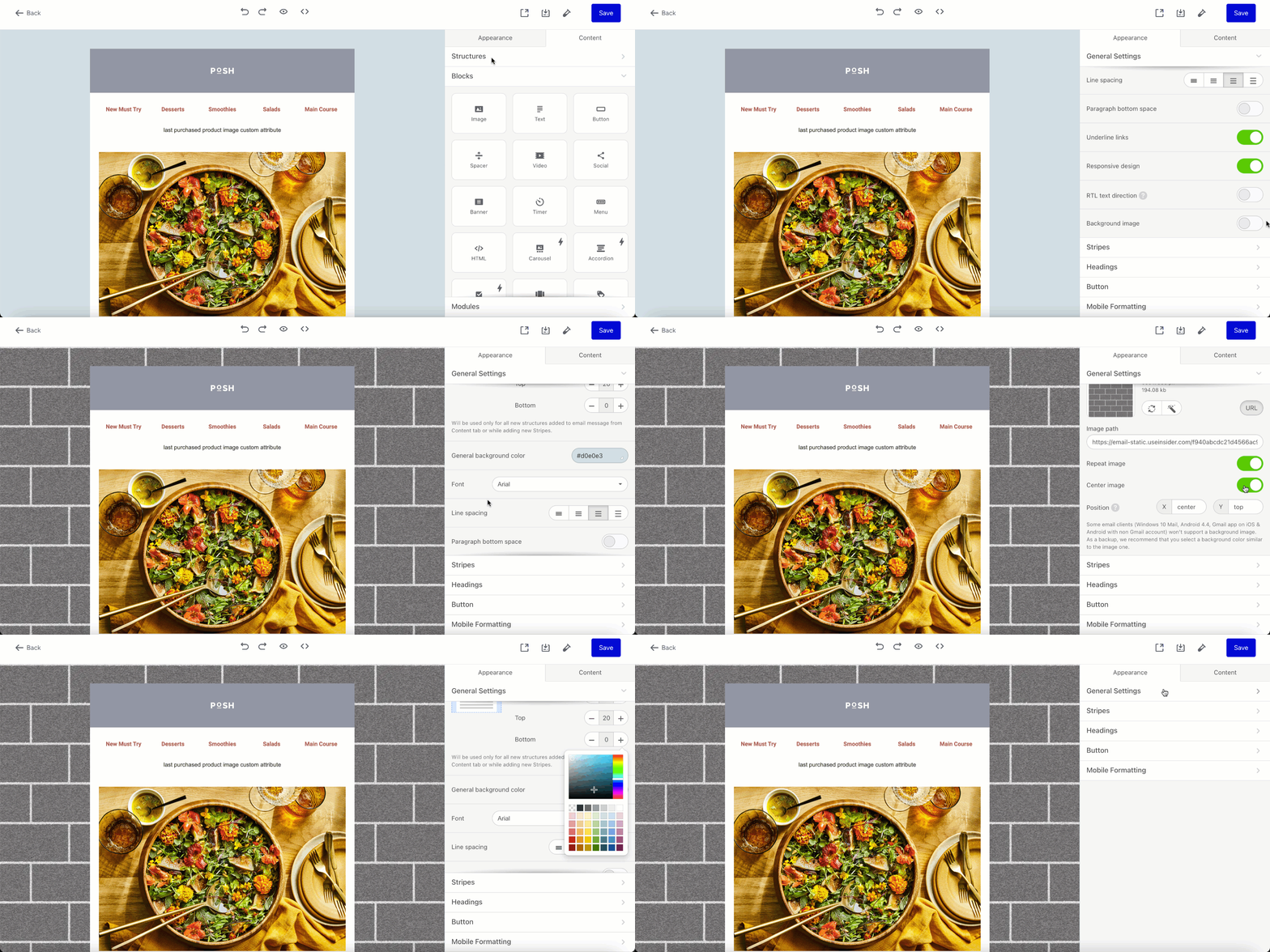
Backgrounds applied to individual containers/stripes (aka rows) help you drag recipients' attention to specific elements. Backgrounds applied to entire emails make your design look complete and unified.
By default, all emails have transparent backgrounds. To ensure recipients can read your logo, you need to set a background color for the structure. In this example, you will see how to apply a background color to a structure.
Set a background color for a structure
1. Click any element in this structure in the template.
2. Click the to container button on the left in the settings panel.
3. Click the to structure button.
4. In the background color of the structure field, enter or select the color you like.
Set a background image for the entire email
The background image will only be shown on desktop devices. It won’t be displayed on mobiles.
1. In the General settings tab, toggle the Background image button.

2. Add an image.
3. Set its position.
4. Click the repeat button if you want your image to be applied to the entire email, no matter how long it is.