To create an OTP (One-Time Passcode) Message Template from Meta, follow these steps:
- Log in to your Meta Business Suite account.
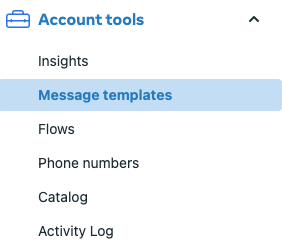
- In the Business Suite dashboard, navigate to the section or menu where you can manage message templates. This might vary depending on the specific layout and organization of the Business Suite dashboard.
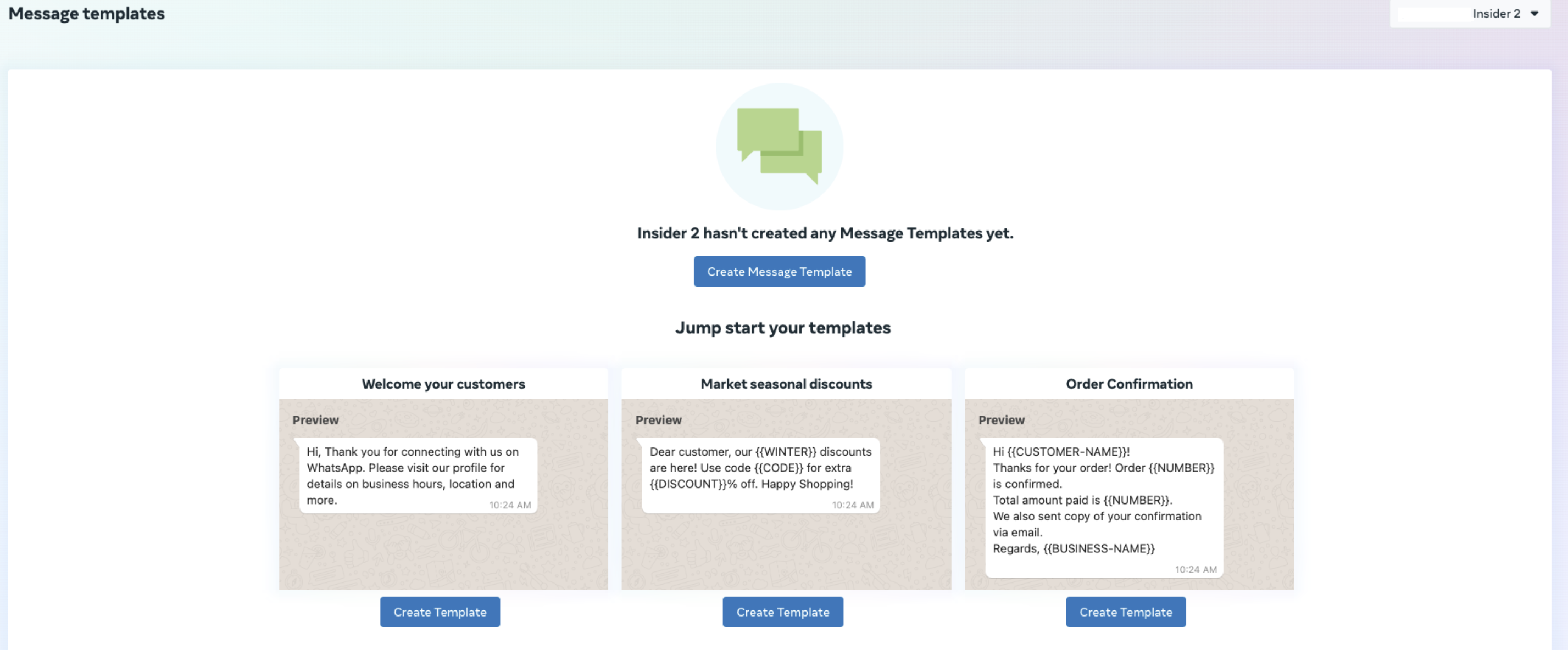
- Click the Create Message Template button.
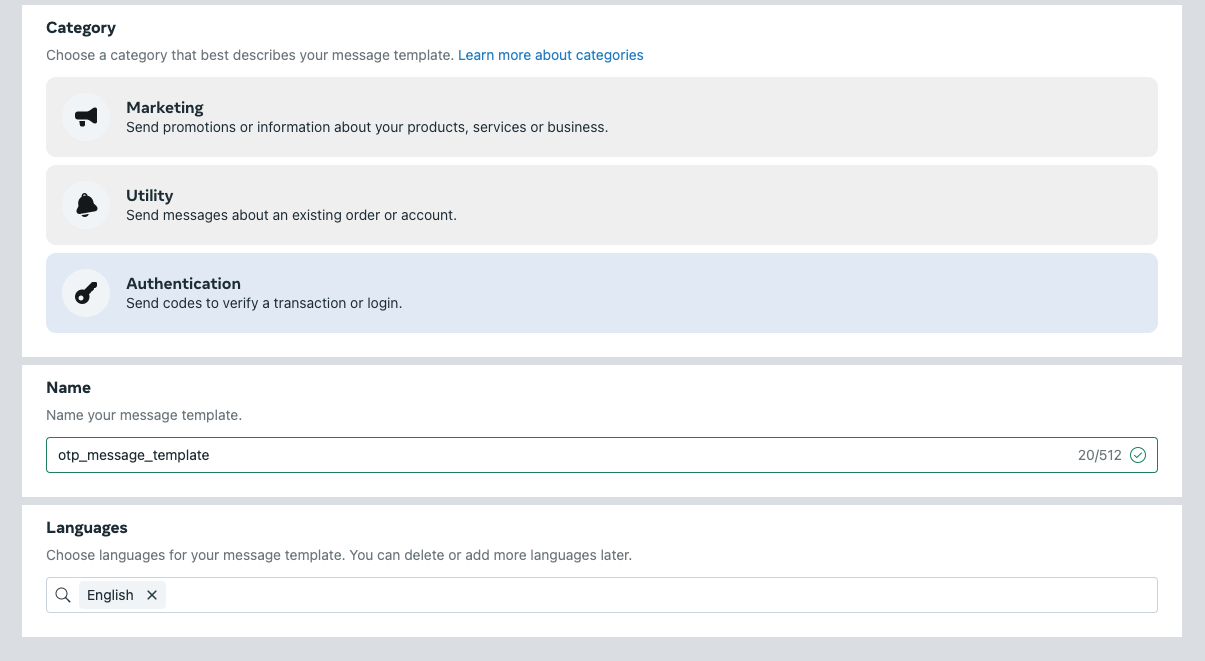
- Select the Category as Authentication and give the message template a name. After you select the language, click the Continue button.
- Choose Copy code under the Code Delivery option. The texts of authentication message templates are not editable, but you can make the following edits if you want to:
- Update the name of the button.
- Remove Security Recommendation (For your security, do not share this code)
- Update the text to indicate how long the code is valid before expiration. For example, you can change "This code expires in 10 minutes" to your preferred expiration time.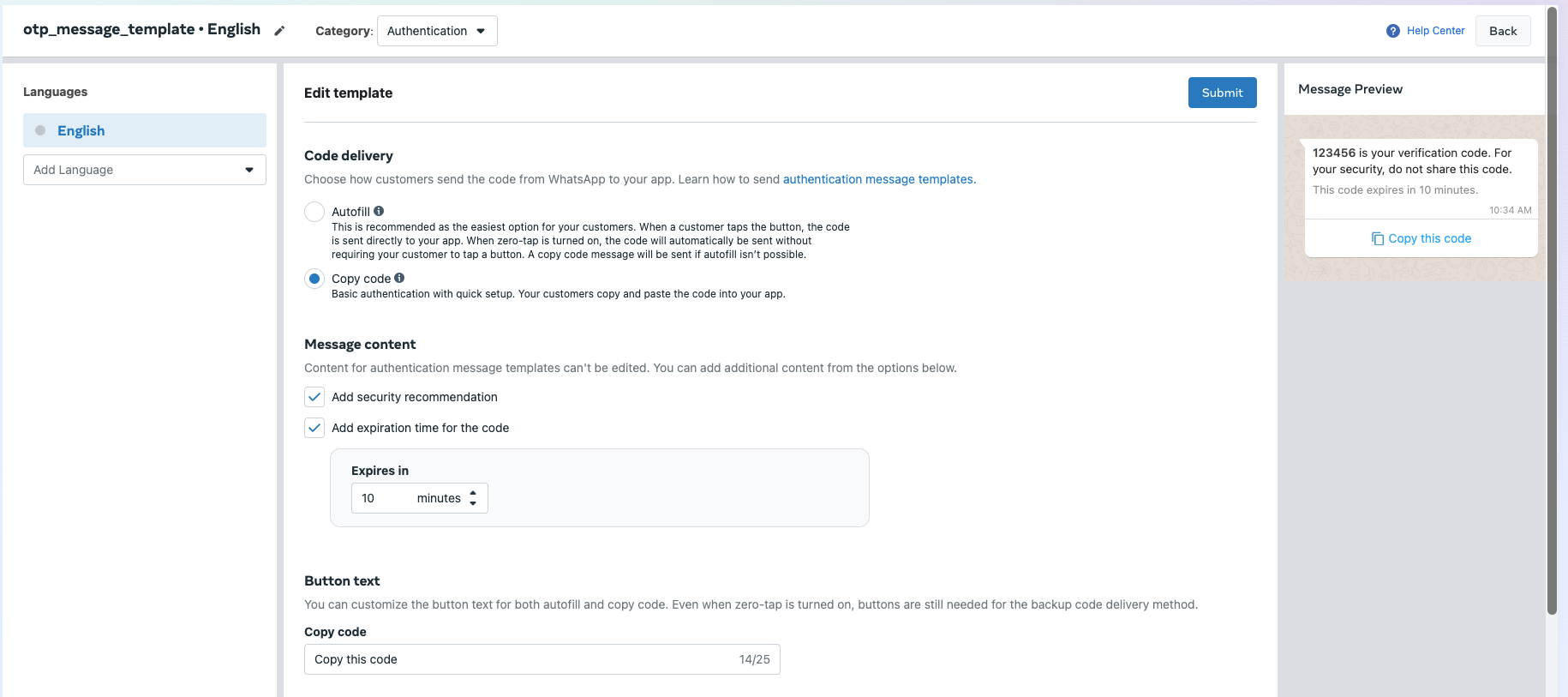
- After making the desired edits, save the changes and deploy it within your authentication message template configuration. This ensures that the updated template is used to send authentication codes to a user.