You can add a WhatsApp call-to-action (CTA) to your Facebook or Instagram ads to let users start a conversation with your business instantly. When someone taps the CTA, the ad opens a chat thread in your WhatsApp Business app, allowing customers to reach you directly and continue the journey inside WhatsApp.
Below is a complete end-to-end CTWA flow example.
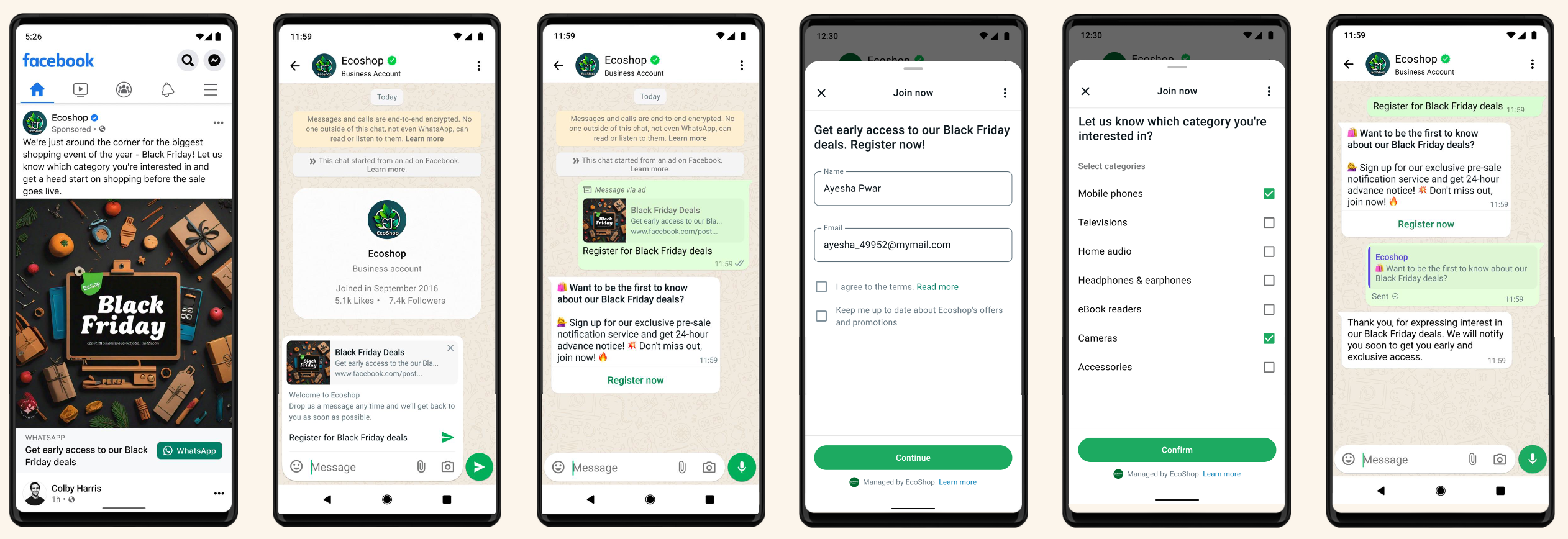
Prerequisites
Make sure the following setup is completed before creating your Click to WhatsApp ad.
Have a WhatsApp Business account
You can either use the WhatsApp Business app or integrate through the WhatsApp Business Platform.
Connect your WhatsApp number to Meta
You must connect your WhatsApp number to Meta to use it as the messaging destination for your Click to WhatsApp ads. You can link the number to your Facebook Page or connect it directly in Meta Business Manager. Make sure you have the required admin permissions for the Facebook Page or Business Manager account.
Before you start, make sure you have admin access to the Facebook Page.
WhatsApp Business App
After you submit the linking request, a one-time password (OTP) will be sent to the phone number associated with your WhatsApp Business app. Enter the code to complete the connection.
WhatsApp Business Platform (Account owned by your business)
If both the WhatsApp Business account and the Facebook Page belong to your business, the verification will be approved automatically once you send the linking request. No OTP is needed.
WhatsApp Business Platform via a Business Messaging Partner (On-Behalf-Of model)
If a business messaging partner manages your WhatsApp Business account, the linking request must be approved by your partner in Meta Business Manager.
Set Up Click to WhatsApp ads
Follow the steps below to create a Click to WhatsApp (CTWA) ad in Meta Ads Manager.
Open Meta Ads Manager and click Create to start a new campaign.
Choose your campaign objective. For CTWA campaigns, select an objective that aligns with the messaging (for example, Engagement, Leads, or Sales, depending on what is available in your account).
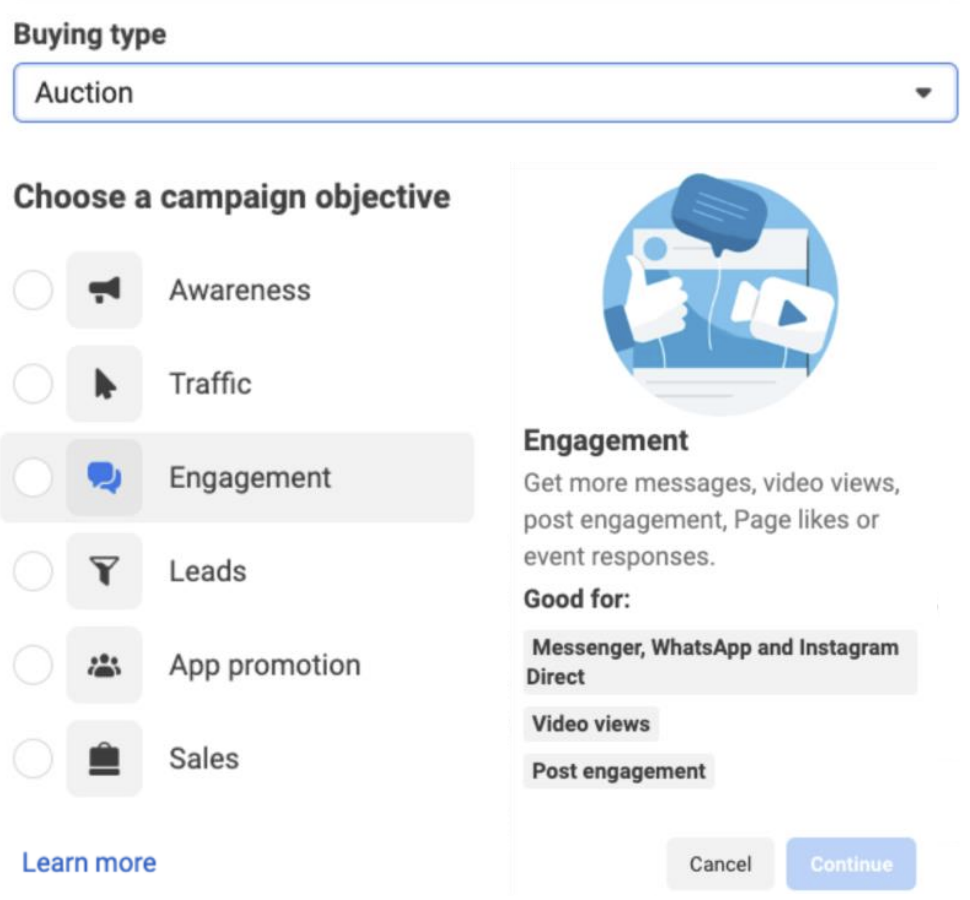
In the Conversion section, select Messaging Apps.
Under Messaging Apps, choose WhatsApp.
Select your WhatsApp number.
If you're using a Message objective, choose your WhatsApp number in the Accounts section.
For other objectives, Meta automatically uses the number connected to your Facebook Page.
Define your campaign settings, including:
Audience
Placements
Budget
Schedule
Click Next.
Choose your ad format (single image, carousel, or video) and complete the ad setup.
Click Create.
To finish your setup, click the Save and Finish button.
Select Publish to launch your Click to WhatsApp ad.
Best practices for creating Click to WhatsApp ads
Creating effective Click to WhatsApp ads requires a combination of the proper campaign setup, conversation-friendly templates, and strong creative assets. The following best practices will help you drive more conversations, improve ad performance, and create a smoother customer experience.
Use the Engagement objective and optimize for Conversations
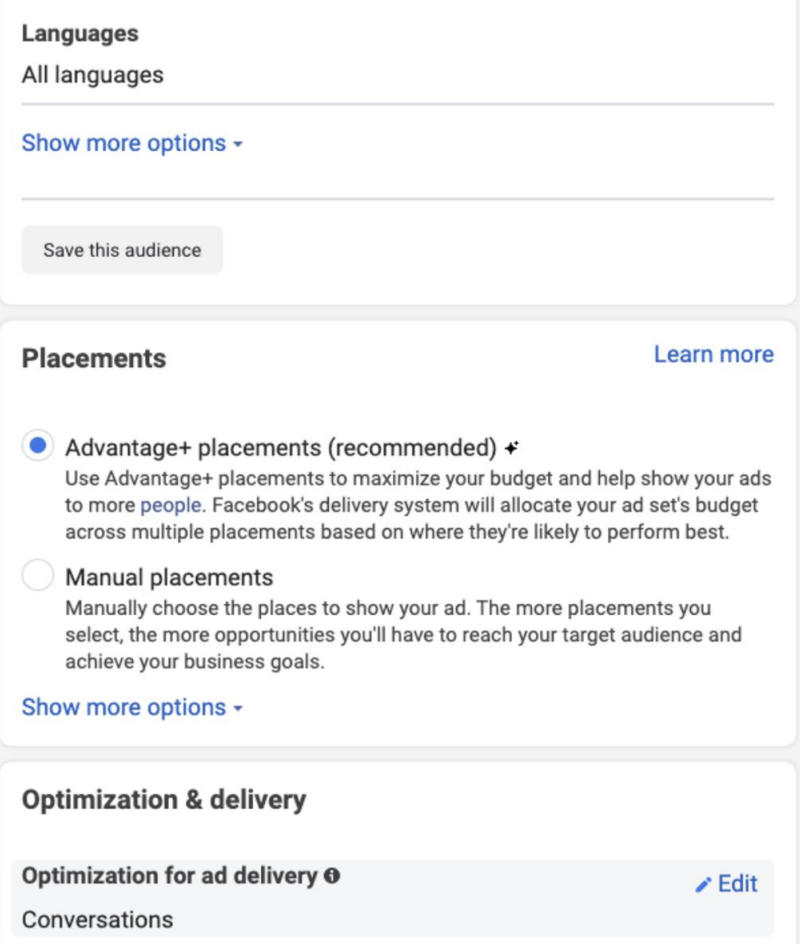
When possible, create your CTWA campaigns using the Engagement objective and set your optimization event to Conversations.
Optimizing for conversations enables Meta’s delivery system to use machine learning to identify users most likely to start a WhatsApp chat, improving overall campaign performance.
The Conversations optimization option is unavailable in all countries. When it is available, Meta recommends using it for the best results.
Budget recommendations
To help the delivery system exit the learning phase and optimize effectively, make sure your budget and bidding strategy are aligned with your chosen optimization event:
Daily budget: Aim for at least 10 times the average cost of your optimization event. (For example: If your average cost per conversation is $1, your daily budget should be at least $10.)
Bid cap or cost per result goal: Set your bid cap or cost per result high enough to realistically win auctions for your chosen optimization event.
Bid cap: The maximum you’re willing to bid in the auction.
Cost per result goal: The average amount you want to pay per conversation.
Refer to Meta’s guide for more details on the recommended budget strategies.
Use message templates with an engaging greeting and FAQs
Message templates help people start a conversation after clicking your ad. They reduce friction by giving users a clear first step, especially for those who are unsure what to say once the WhatsApp chat opens.
Message templates are only supported for campaigns using the Engagement objective.
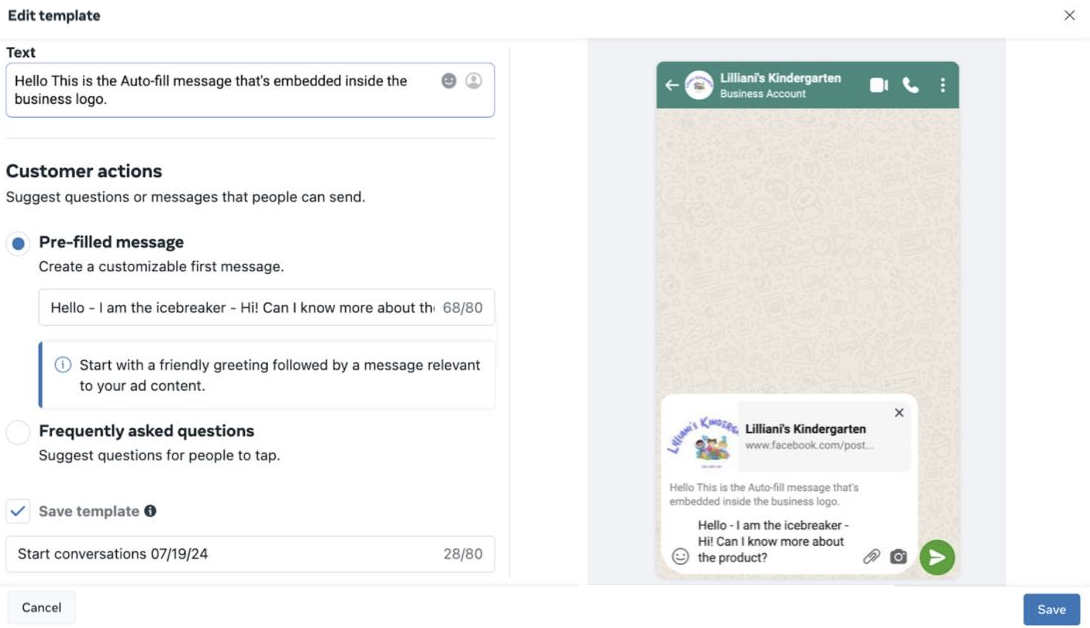
To help users begin the conversation smoothly, Meta provides several template types you can configure during ad creation. These options include:
Auto-fill message: This message appears immediately when the chat opens. It’s visible to the customer in the WhatsApp message field before they type anything. Use this space to set expectations or include a simple call to action. For example: “Welcome to XYZ! Enjoy 20% off all products today!”
Pre-filled message: A pre-filled message appears as the user’s first outgoing message, helping them initiate the chat with one tap. This is especially helpful if your ad promotes a specific product or offer. For example: “Hi! I’m interested in the XYZ sunglasses. Could you give me more details?”
Frequently Asked Questions (FAQs): FAQs appear as quick reply buttons and help users choose a topic to begin the conversation. These are broad, intent-based prompts such as:
“What are your latest promotions?”
“Can I get help with an order?”
“Do you have product recommendations?”
Creative best practices
Strong creative elements help your Click to WhatsApp ads stand out and drive more conversations. When designing your ads, keep the recommendations below in mind:
Use a clear offer or call to action: Highlight promotions, discounts, or a direct value proposition early in the ad text to encourage people to click and start a conversation.
Capture attention with short, vertical videos: Videos in the 9:16 vertical format, under 15 seconds, and with sound generally perform better and help stop the scroll.
Show visual cues that the ad leads to a chat: Include messaging-related icons, bubbles, or prompts to signal that tapping the ad will open a WhatsApp conversation.
Communicate your value clearly: Use messaging that helps people understand what they will gain by starting a chat. Consider angles such as:
Problem > solution
Bold pitch > resolution
Opportunity > benefit
Motivate people to start the chat now: Reinforce your call to action across your creative, post copy, and button text.
Prepare for conversation management: Set up away messages for offline hours and create quick replies to respond faster when you’re offline.
To see real-world examples, explore Meta’s Click to WhatsApp ad case studies.
After creating your CTWA ad, read the Meta Conversions API for Click to WhatsApp Ads to learn how to send conversion events.