This guide explains how to connect Microsoft LUIS to your MindBehind. Before integrating Microsoft LUIS, you should complete the prerequisites.
Prerequisites
The following items are required for this integration:
- Application ID (from Luis Panel)
- Authoring Resource Primary Key (from Luis Panel)
- Prediction Resource Primary Key (from Luis Panel)
- Endpoint (from Luis Panel)
- Management Endpoint (from Luis Panel)
- Pipeline Provider URL(from MindBehind team)
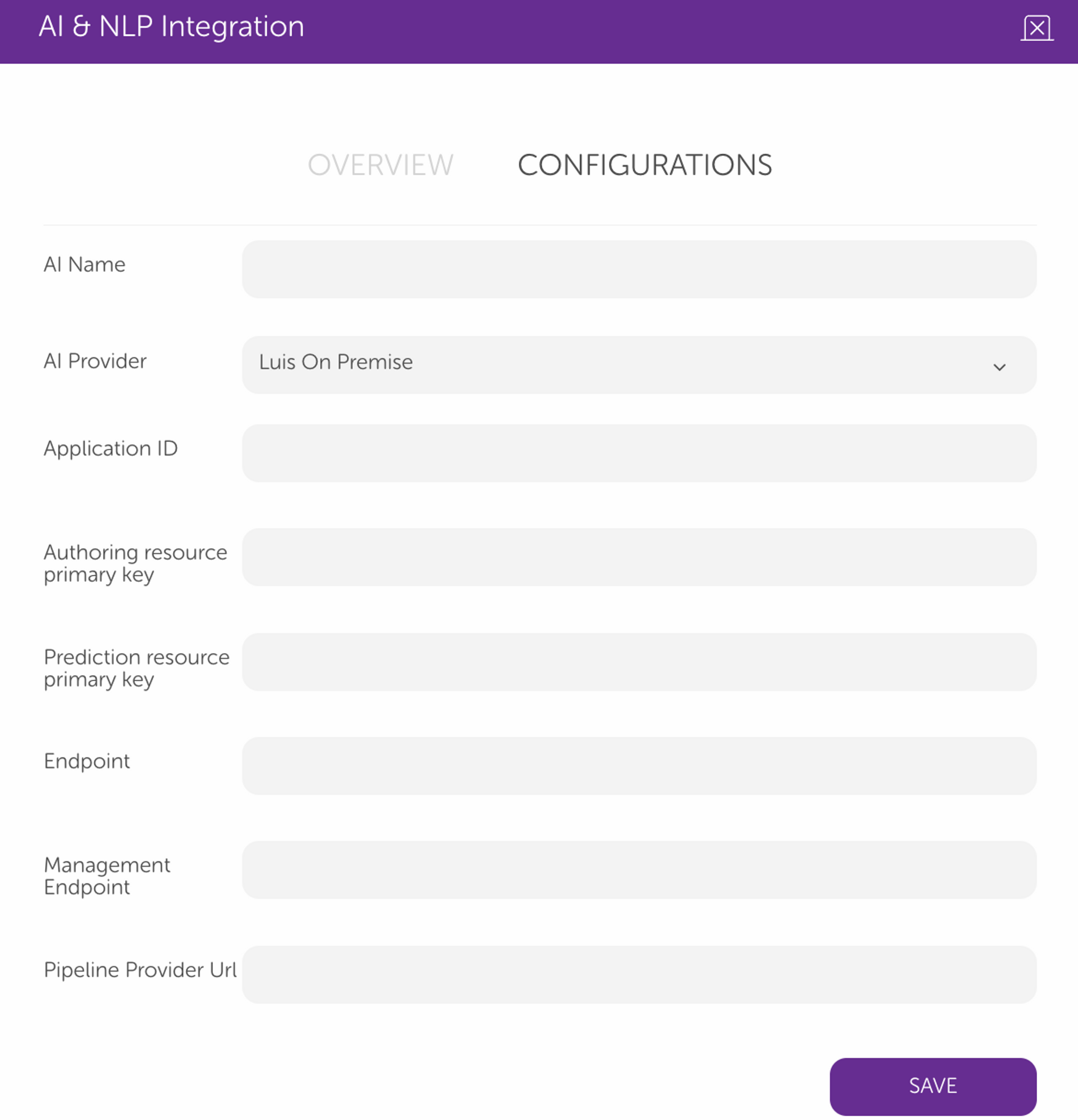
Integrate Microsoft LUIS
To connect your Microsoft LUIS account, follow these steps:
1. Create an account from the LUIS Panel or log in if you already have one.
2. In the "Select an Azure resource" window, find your Azure Directory, Azure Subscription, and Authoring Resource. If you don’t have a subscription, you can click the Create a free account button to create one. Then, you should choose an Authoring Resource.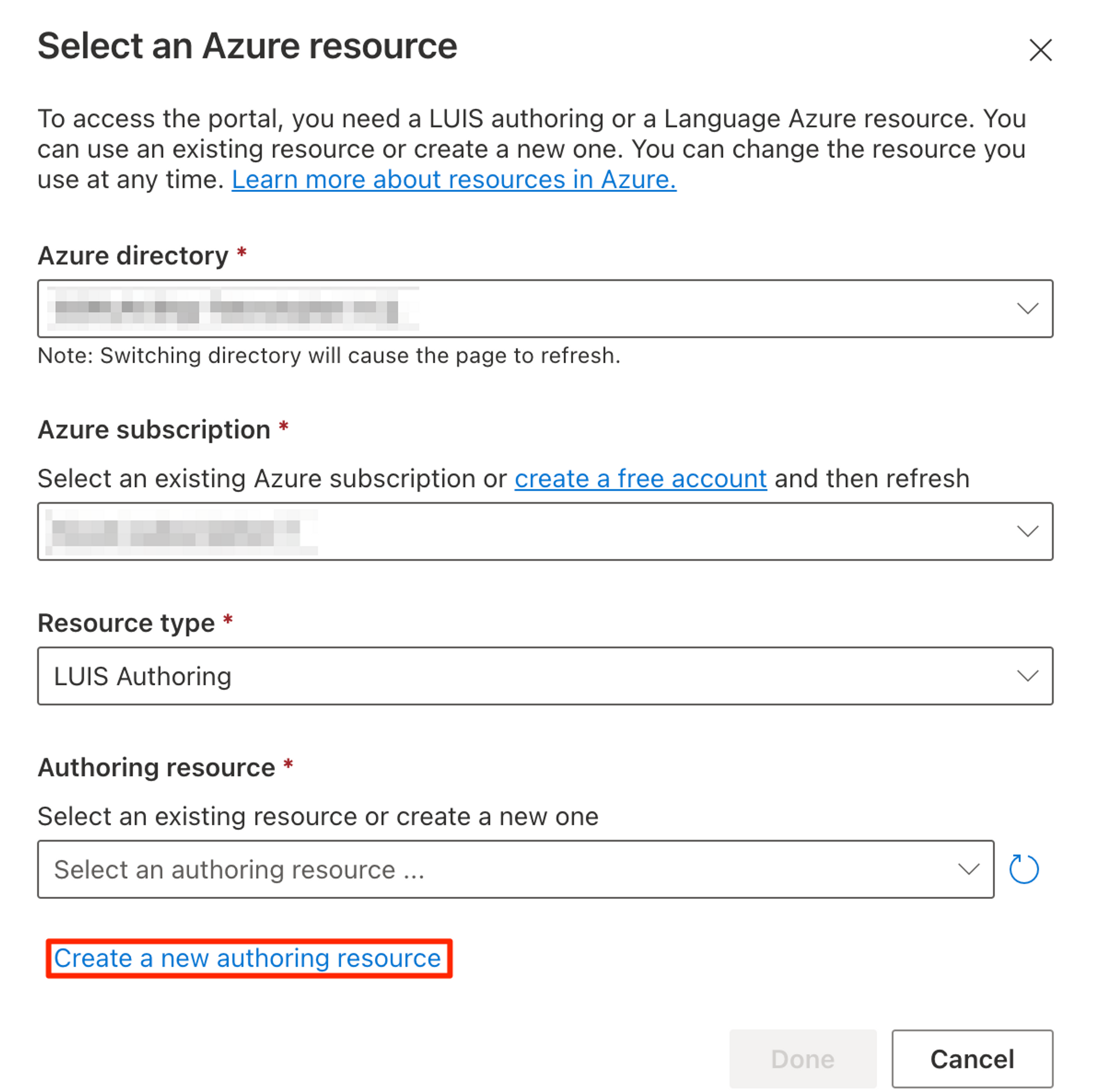
3. In the "Create a new authoring resource" window, select an Azure resource group, choose a resource name, and fill in the other fields as shown below. If you don’t have an Azure resource group, you can directly go to the Azure portal to create one.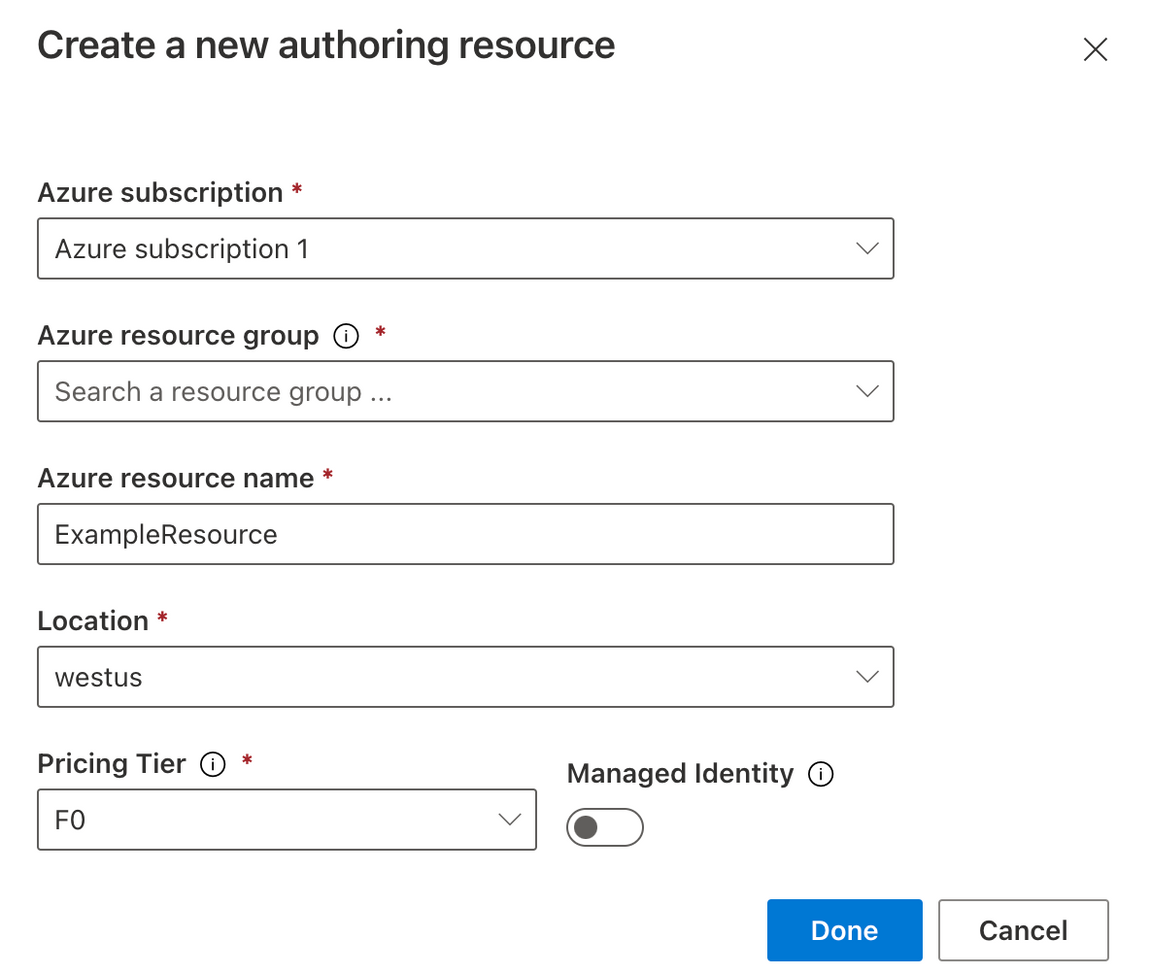
4. Select a subscription to fill in the resource group name and set your region. After filling these fields, click on the Review+create button. On the next page, click on the Create button.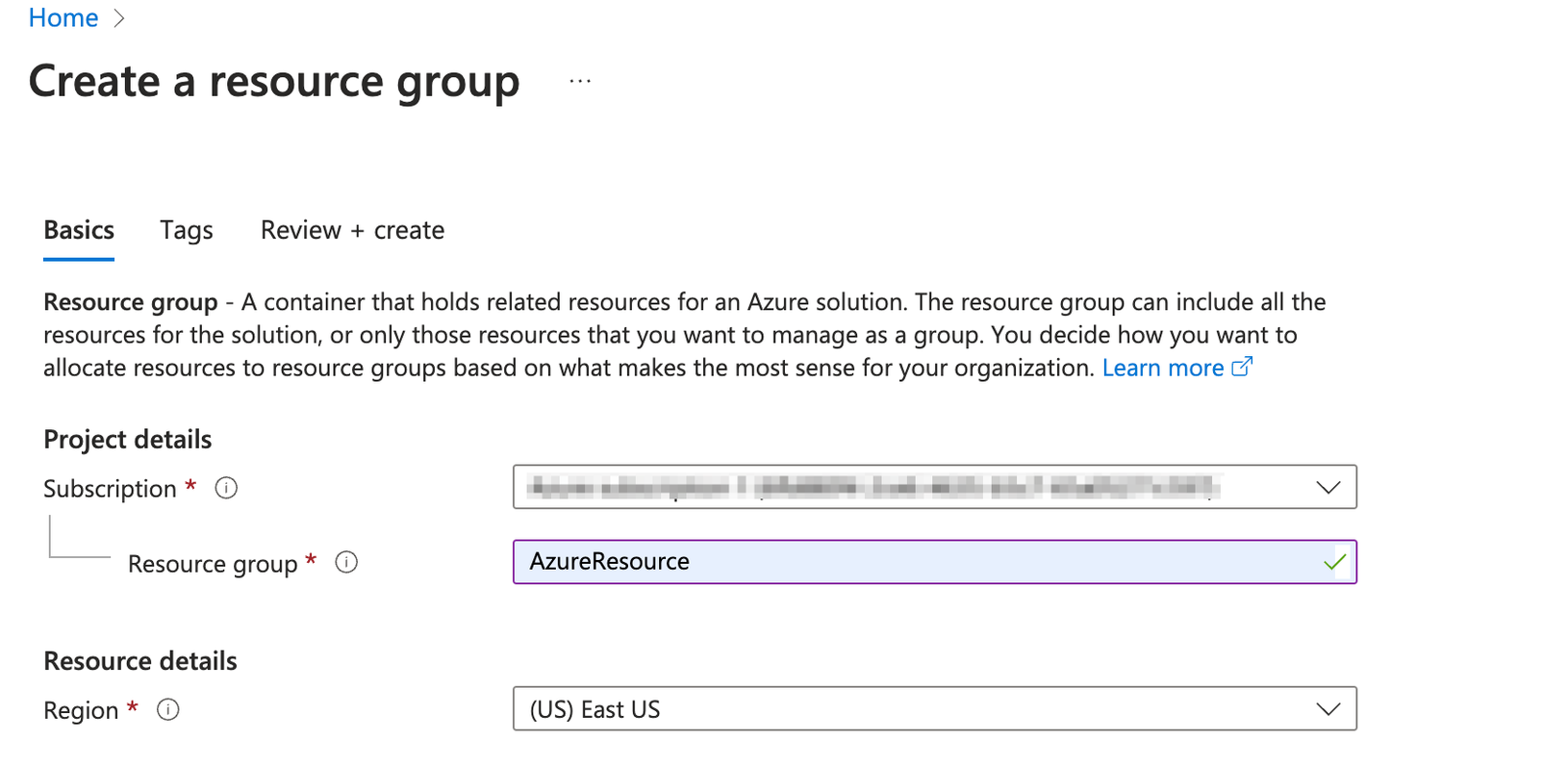
5. Go back to the "Create a new authoring resource" window and refresh. Now, you will see the resource group for the related subscription. Click the Done button..png)
6. After this, the page will go back to the "Select an Azure resource" window. Click on the Done button. You will be directed to the "Conversation Apps" page..png)
7. To create a provider, click on the New App button. Fill in the related fields and click on the Done button.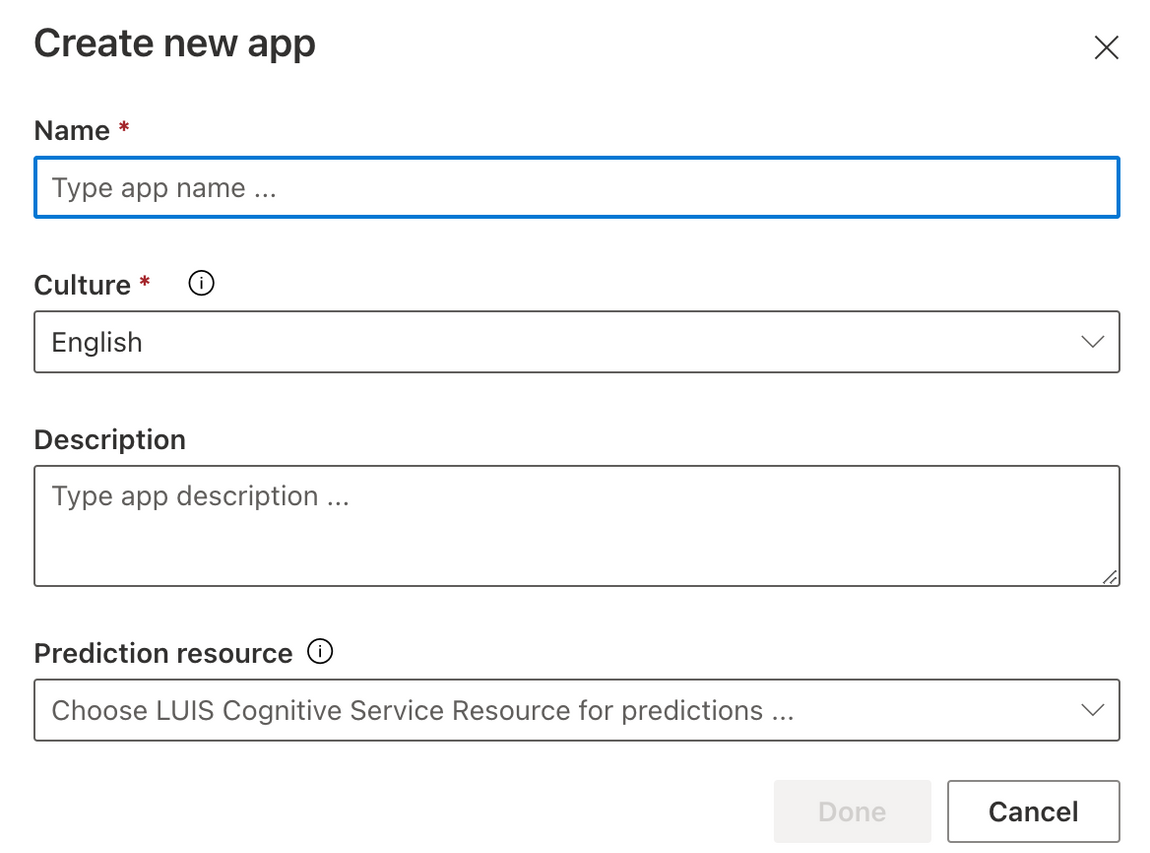
8. After creating your app, click on the Manage button to get your App ID.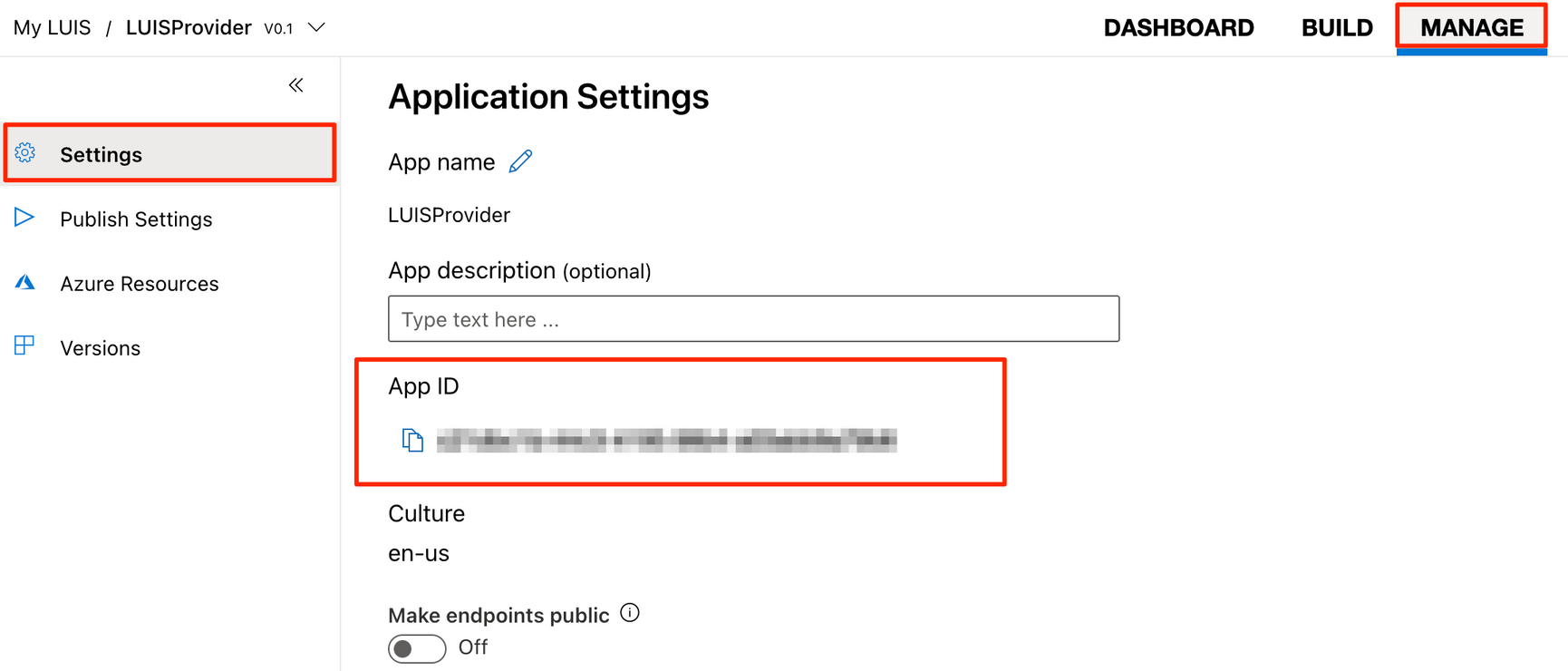
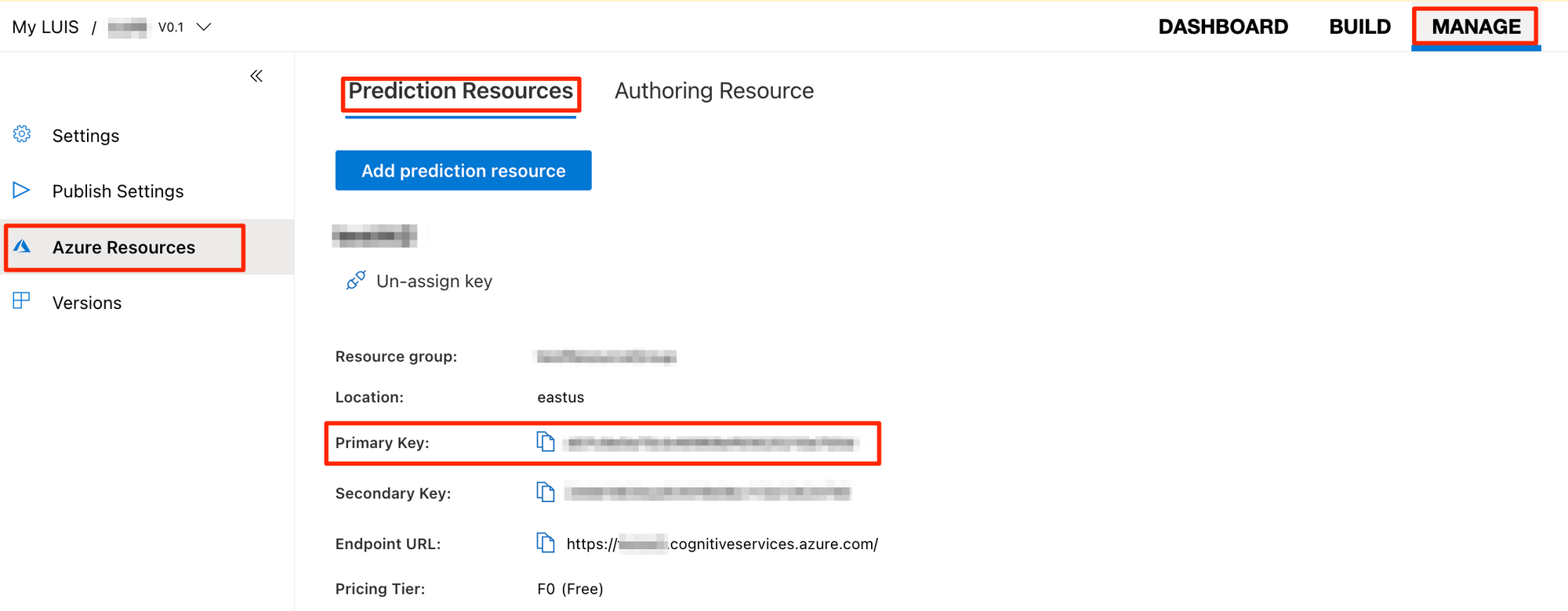
9. Go to "Azure Resources" and select the Authoring Resource option from the Luis Panel. Here, you will find the Primary Key, Location, and Endpoint. You can fill in the MindBehind Authoring Resource Primary Key and Endpoint configurations with these values.
Management Endpoint is used for API calls, so fill in the Region part of the link below with the Location info you retrieved. In this example, it will be like "https://westus.api.cognitive.microsoft.com/."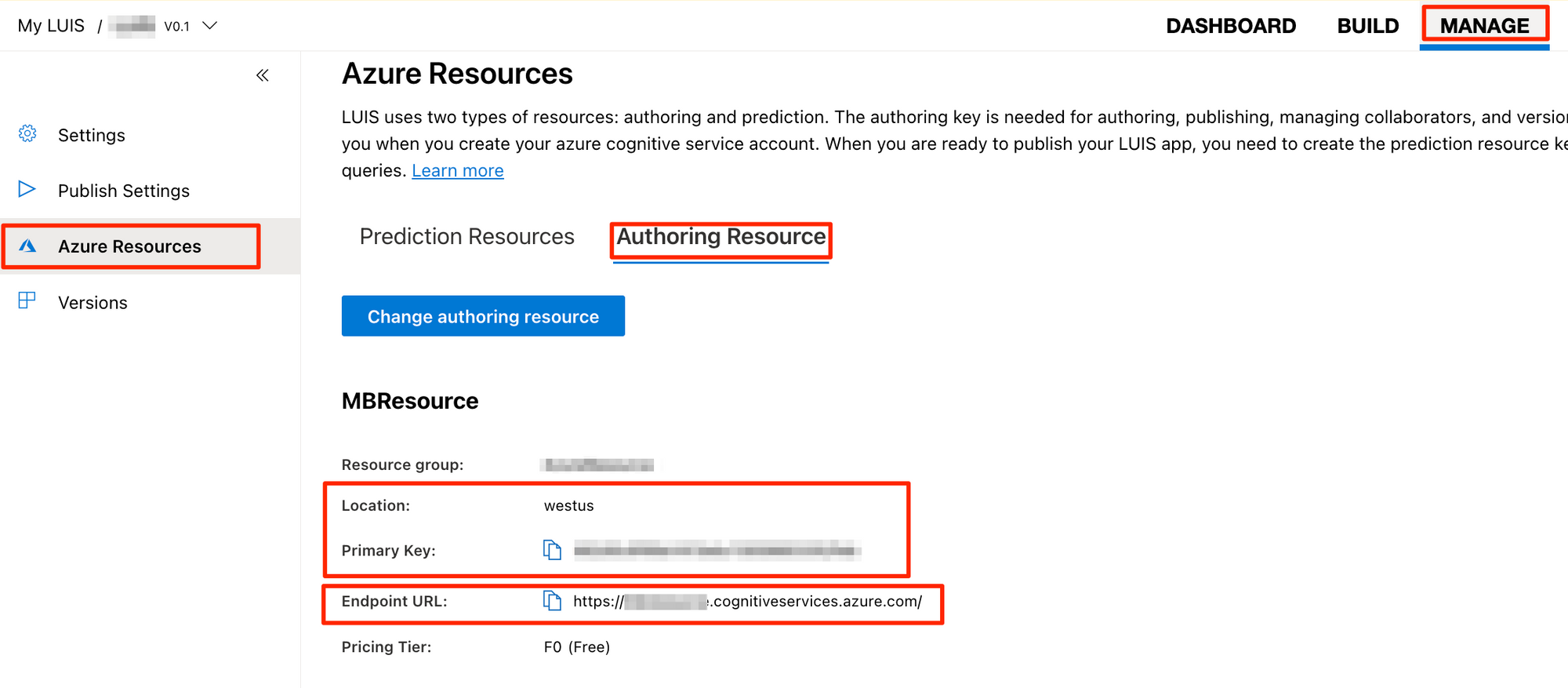
10 . Go to the Prediction Resources and get your Primary Key. You can fill in the Prediction Resource Primary Key configuration with this value.