You can use the Call an API to send data to your in-house services and trigger various external messaging tools.
When you use the Call an API element to trigger your external messaging tools, you can view the performance metrics related to it like any other messaging channel element Architect has by sending the related data to Insider One. The metrics that are typical of a channel analytics page are:
Metric | Who tracks it? |
|---|---|
Sent | Customer must send it. |
Delivered | Customer must send it. |
Clicked | Customer must send it. |
Opens | Customer must send it only for email. |
Conversions | Insider One tracks it. |
Revenue | Insider One tracks it. |
Insider One tracks and attributes Conversion and Revenue to the Call an API element, so they are not required to be sent.
Send the data
The customer must send the data to Insider One’s statistics API. Contact the Insider One team to get this endpoint.
The payload must be in the given format, and it must be sent for a specific Call an API element, details of which are specified in the campaign ID of the payload.
[
    {
        "actionCode": 2,
        "partnerName": "mypartnername",
        "userId": "1609949585316b55092ec7c.356ae319",
        "journeyId": "29348",
        "campaignId": "223481",
        "eventCode": "AC:223481"
    }
]
Parameter | Description |
|---|---|
actionCode | Represents the action for which the metric is sent. |
partnerName | Name of the InOne panel |
userId | Profile ID of the user the action is sent for |
journeyId | ID of the journey that can be found in the URL |
campaignId | ID of the Call an API campaign that can be found on the Call an API page. It is visible after the journey is launched. |
eventCode | A formatted version of campaign ID where “AC:” must be added just before the campaign ID. |
platform | If the channel you are triggering is a mobile messaging channel, you can also send the platform information as “ios” or “android”. If this is not applicable to you, you can send this area as null. |
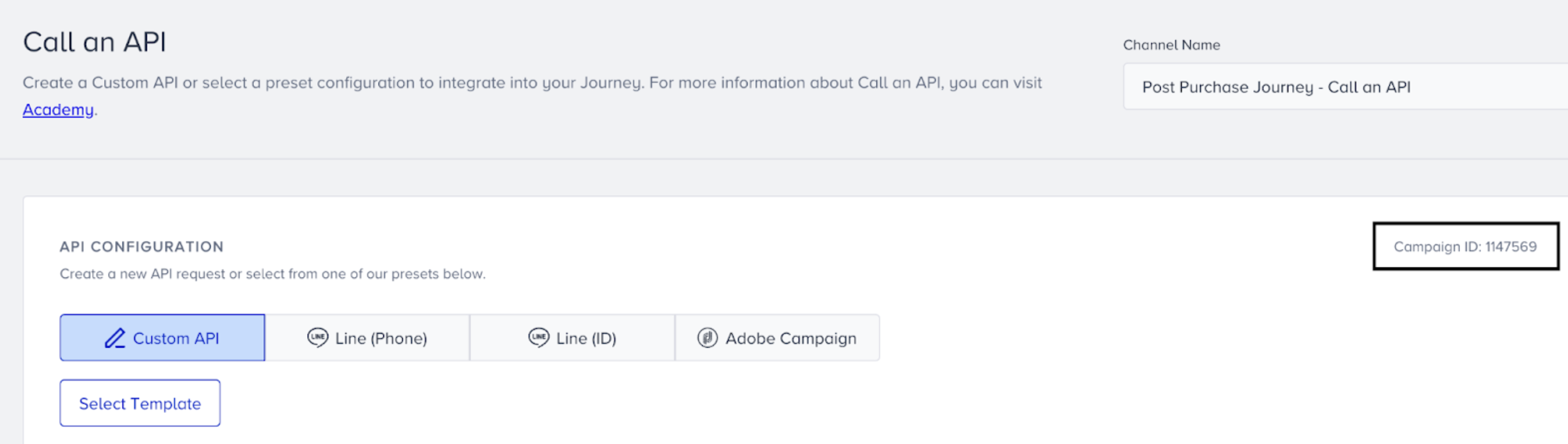
Campaign ID
You can also insert Journey ID and Campaign ID as dynamic content from the dropdown.
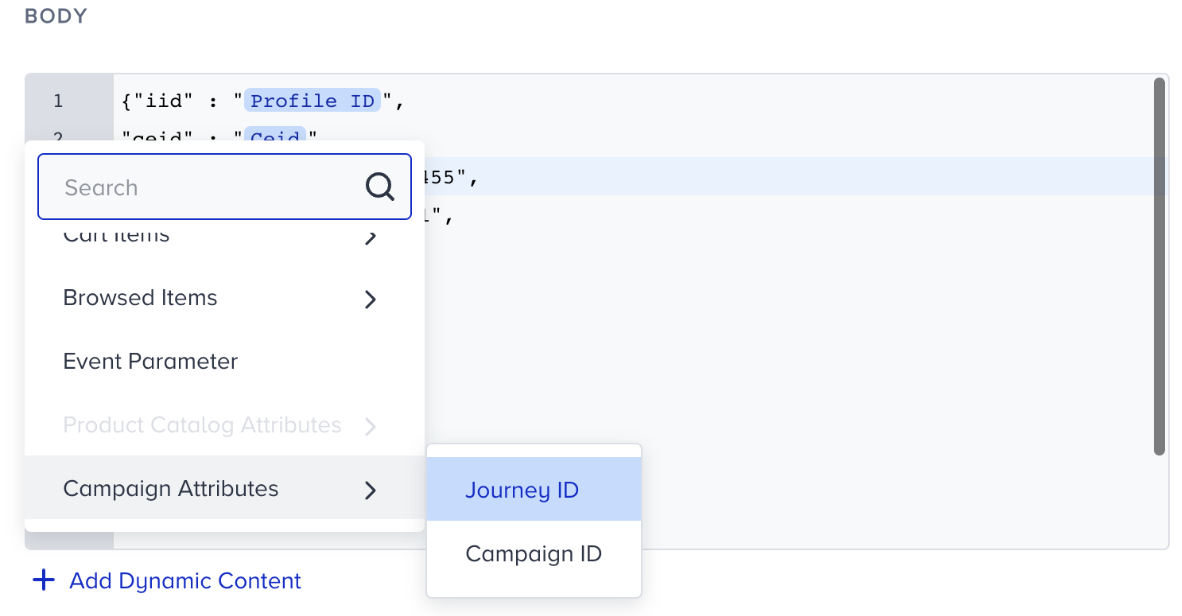
Remember to add the square brackets at the beginning and the end of the payload. You can add many payloads in the square brackets in the format of [{…}, {…}, {…}].
Attribution channel
To view your performance metrics, first select the Attribution Channel for the Call an API element. Attribution channel is the channel type that you are triggering using the Call an API element.
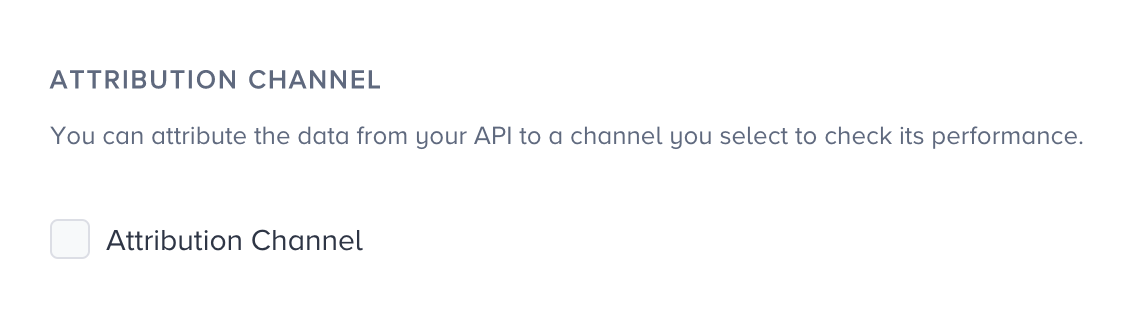
For example, let’s say you are using an external email tool and want to trigger emails in your cart abandonment journey with Call an API elements. On the element inner pages, you will see an Attribution Channel checkbox and a dropdown to specify the channel type.
You should choose Email from that dropdown and click the Save button. When you launch the journey and start sending the data to Insider One’s statistics API, you will see the related metrics on the analytics page of the related Call an API element. You will also see the Conversions and Revenue metrics, which are attributed to that element using the Last Click (Touch) Attribution Model.
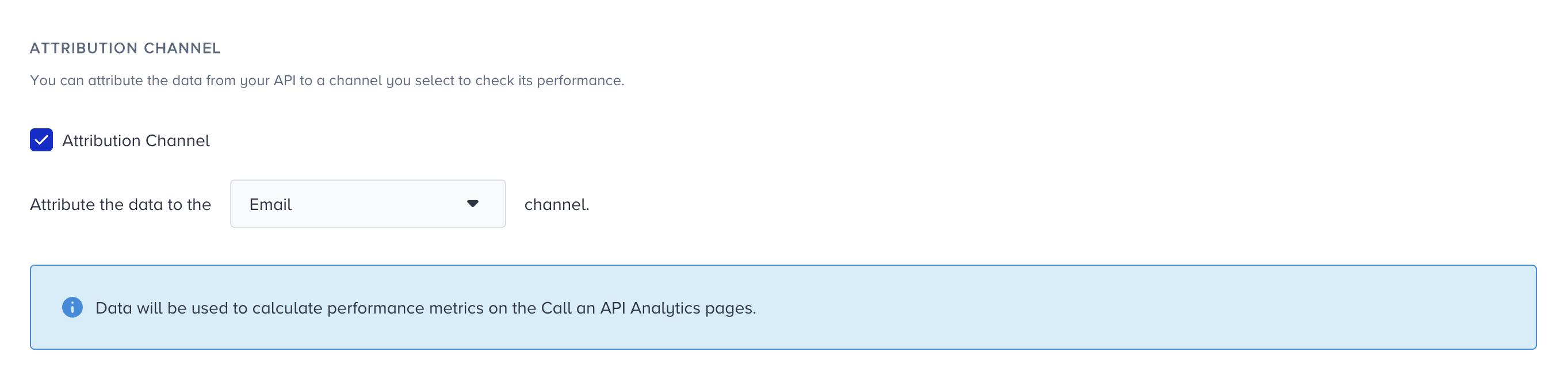
You can also choose Other from the dropdown if you are using the Call an API element to trigger any other messaging channel, such as Telegram, Line, etc.
Other identifiers in the payload
If you cannot send the Profile ID and would prefer to use another identifier, you need to specify which identifier you are using.
Let’s say you prefer using UUID instead of Profile ID. An example payload would be the following:
[
    {
        "actionCode": 2,
        "partnerName": "mypartnername",
        "identity": "uuid",
        "uuid": "1609949585316b55092ec7c.356ae319",
        "journeyId": "29348",
        "campaignId": "223481",
        "eventCode": "AC:223481"
    }
]
You can use other identifiers in the correct syntax:
Identifier | Usage |
|---|---|
Email address | “identity”:”em” |
Phone number | “identity”:”pn” |
UDID | “identity”:”udid” |
Ensure to use the same identifier in the key field when you specify the identifier’s value as follows:
[{…“identity“:”em”,
“em”:”jdoe@insiderone.com”,
….}]
If you want to use any other identifier, contact the Insider One team to get the correct syntax.