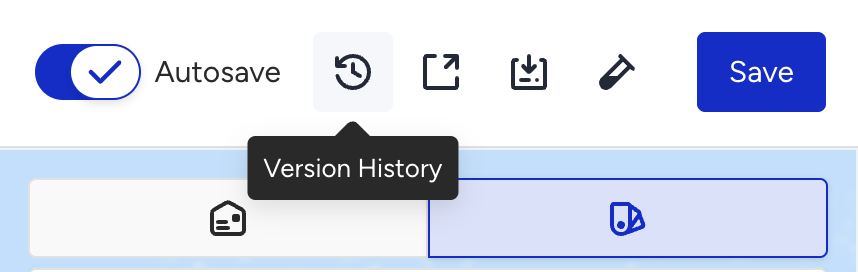
Autosave automatically saves your email design in the background while you work in the Drag & Drop Email Editor. When enabled, you no longer need to click the Save button manually; your changes are automatically saved so nothing is lost if your session is interrupted or your browser closes unexpectedly.
The Autosave toggle is located in the editor's top bar. By default, autosave is enabled. You can turn it on or off using the toggle.
When you click the toggle for the first time, a tooltip appears explaining the feature:
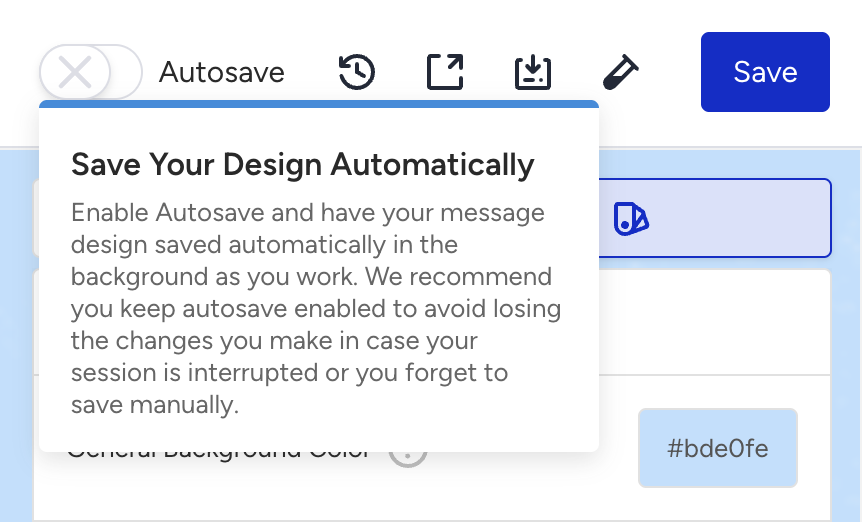
We recommend keeping Autosave enabled at all times. Turning it off means you must save manually using the Save button to preserve your work.
Autosave status
When Autosave is enabled, the editor dynamically displays the current save status in the interface. The following states are shown:
Status | When it appears |
|---|---|
Saving… (with spinner) | While the design is being saved in the background. |
Auto-saved at 14:30, today | After a successful save on the same day. |
Auto-saved at 23.06.2026 | After a successful save on a previous day. |
Autosave errors
If a background save fails, the editor displays a non-intrusive error indicator; it does not interrupt your editing with a full-screen alert. The indicator shows the save failed and allows you to retry or continue working.
If you click the Save button manually and it fails, a standard error notification appears on screen.
If autosave errors occur repeatedly, check your network connection or try refreshing the editor. Any unsaved changes made after the last successful save may be at risk.
Autosave and Version History
Every time Autosave saves your design, a new entry is created in Version History. This means you can always go back to any point in your design process and restore an earlier state.
To access Version History, click the Version History icon (⟳) in the top bar of the editor.