Stock Control lets you check whether a product is actually in stock right before Insider One sends a journey message that promotes it. You turn it on for a single channel element, and it applies to the dynamic product content inside that element.
Without it, a user can receive an abandoned cart or wishlist reminder, click through, and land on a product that has already sold out.
Checks the stock status of every product in the element's dynamic content, in the moment before the message is sent.
Lets you decide what happens when a product is out of stock: let the user continue to the next element, or drop the user from the journey.
Replaces an out-of-stock product with the fallback you assigned, so the message still goes out.
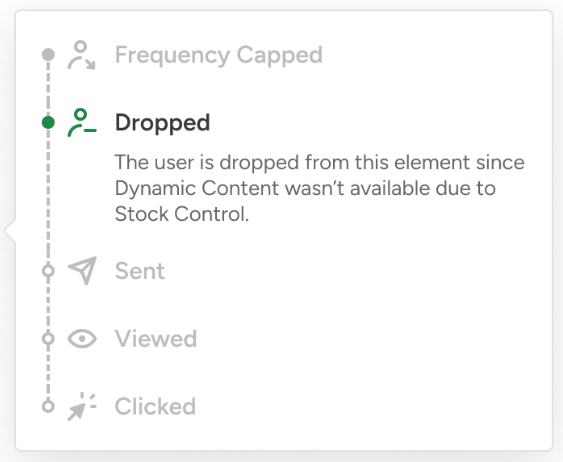
Holds the message back when an out-of-stock product has no fallback.
Works the same way on Email, SMS, MMS, RCS, WhatsApp, App Push, Web Push, and Call an API.
Shows you the outcome in Live Stats and Track Users.
Use cases
With a stock control, you can take actions as follows:
Abandoned cart and abandoned browse: Re-check the items before the reminder goes out, especially when a Wait element sits earlier in the journey.
Wishlist reminders: Message users only when the wishlisted item is available.
Price drop and back in stock: Re-verify availability before a second or later reminder.
Replenishment: Confirm the item is still purchasable before you remind the user to reorder.
Single stock and flash sale: Stop messaging once the last unit sells.
Requirements
You need the following to use stock control in your journeys:
A product catalog integration: Stock Control reads stock status from your product catalog. Its accuracy depends on how often you update that catalog.
Events that carry a product identifier. Stock Control cannot check a product it cannot identify.
The default events for cart, browse, and purchase use cases. If you run these use cases on custom events, migrate them to the default events first: item_added_to_cart, item_removed_from_cart, cart_page_view, product_detail_page_view, and purchase (confirmation_page_view).
If you are running cart and browse journeys on custom events, Stock Control cannot be enabled unless you migrate your events.
System rules for wishlist use cases. Define your wishlist system rules and enable the matching default events: item_added_to_wishlist, item_removed_from_wishlist, wishlist_page_view.
Enable Stock Control
To enable stock control in your journey, follow these steps:
Open your journey in Architect, then click the channel element you want to protect. The element's inner page opens.
Go to the Stock Control section.
Select Enable Stock Control.
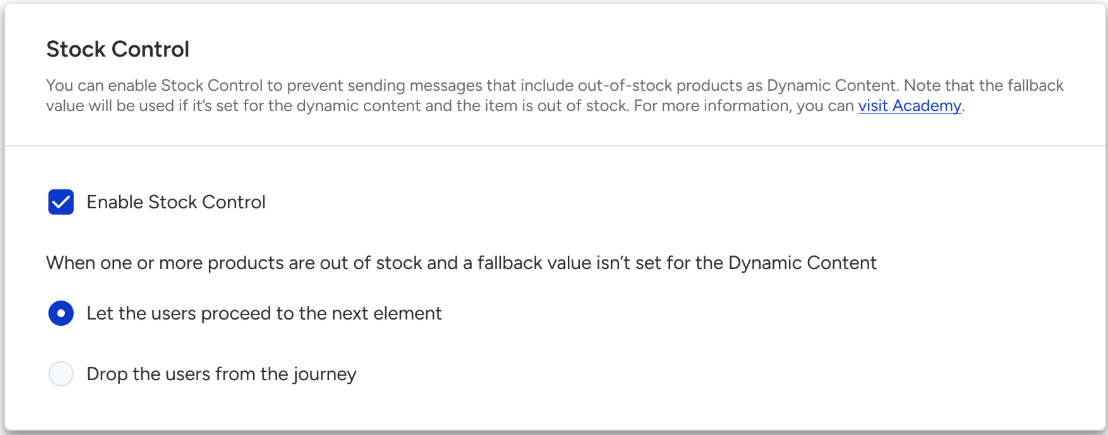
The checkbox is only available when the element contains dynamic content that carries a product identifier. If you remove the last piece of that content, the checkbox is switched off again.
Choose what should happen when a product is out of stock and no fallback is set, and save the element.
Let the users proceed to the next element (selected by default)
Drop the users from the journey
You choose this separately for each element, so different messages in the same journey can behave differently.
What does stock control check?
Stock Control applies to these types of dynamic content:
Any event that carries a product identifier
Cart Items
Browsed Items
Purchased Items
Wishlist Items
Product Catalog Attributes
Constant event parameters
What happens when a product is out of stock?
Assign a fallback. If a product is out of stock, the message survives. If you leave it empty, the message is held back.
Case | What happens |
|---|---|
The out-of-stock product has a fallback. | The fallback replaces it, and the message is sent. |
The out-of-stock product has no fallback. | The message is not sent. The user continues to the next element or is dropped, depending on your setting. |
Several products, and any out-of-stock one has no fallback. | The message is not sent. |
Several products, none in stock, no fallback. | The message is not sent. |
If you want your message to keep going out even when an item sells out, assign a fallback to that dynamic content.
On the Call an API channel, the same rule applies, except that the call is not made rather than a message not being sent.
What happens if the stock check cannot be completed?
Stock Control fails open. If the stock value is missing, the check does not return in time, or the dynamic content resolves to no products, the product is treated as in stock, and your message is sent as normal. No user is skipped or dropped because of a failed check.
An empty stock value is not treated as out of stock.
Analytics
You can see the results in the following dashboards:
Live Stats shows how many users had a message withheld by Stock Control on that element.
Track Users shows why an individual user's message was withheld, and whether that user continued to the next element or was dropped.
Keep in mind
Stock is checked when the message is sent, not when the user opens it. A product can still sell out in between.
Stock accuracy depends on how often you update your product catalog. Product catalog updates are capped at 200,000 per hour.
Sending only the in-stock products is not supported. Use a fallback instead.
Many users can reach the same element at once and are checked together. If some buy the remaining stock immediately afterward, later users may still see the product as out of stock.
Your send volume may drop after you enable Stock Control, because messages with unavailable products are now held back.
Stock Control supports the Product Catalog Database, but not the lookup tables.