Requirements
To start using the Scratch Coupon template, you need to complete the following requirements:
- Integrate basic SDK version 11.6.1 or higher,
- Create a coupon list.
Use cases
To get a better understanding of how and when to use the scratch coupon, refer to Use Cases for App Scratch Coupon.
Many popular online stores offer coupons and frequently hand them out to customers.
Scratch Coupon is a great way for marketers to create more eye-catching, engaging, and gamified coupon codes.
You should complete the following steps to launch a campaign with the Scratch Coupon template:
1. Create a campaign
1. Navigate to Experience > Optimize > App Templates..png)
2. Click the Create New Template to start creating your campaign. Choose Basic templates..png)
3. Select the Scratch Coupon template.
4. Select a template for your scratch coupon.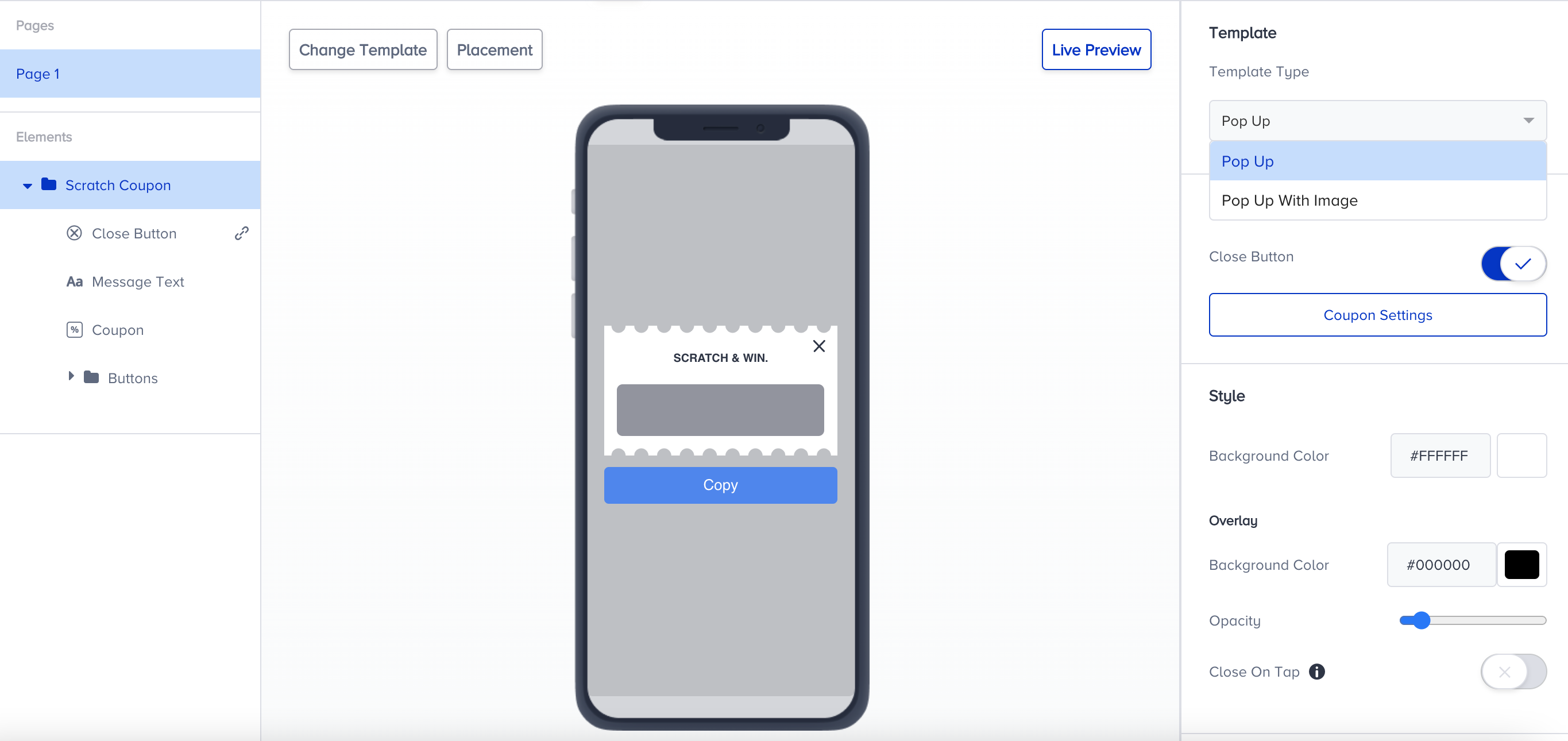
If you choose a template with the option for an image, you need to follow the specifications below:
- Your image should be with a 4:3 aspect ratio. E.g. 212x160.
- The image size should not exceed 5 MB.
5. Along with an image, you can customize the following elements of your scratch coupon:
- Close button: Show or hide the close button.
- Message text: Edit coupon message.
- Coupon: Select a previously created coupon list.
- Button: Modify the coupon button.
You can also customize the InApp window and A/B test with different layouts for different variants.
6. Click the Coupon Settings button to select a previously created coupon list. Follow the steps in Coupon Management to add coupons to your campaign.
7. You can customize both unscratched and scratched views separately..png)
8. You can customize tapped and untapped buttons separately. Text is the only event you can set for a button..png)
9. Scratch can have a second button, and this button can have different actions.
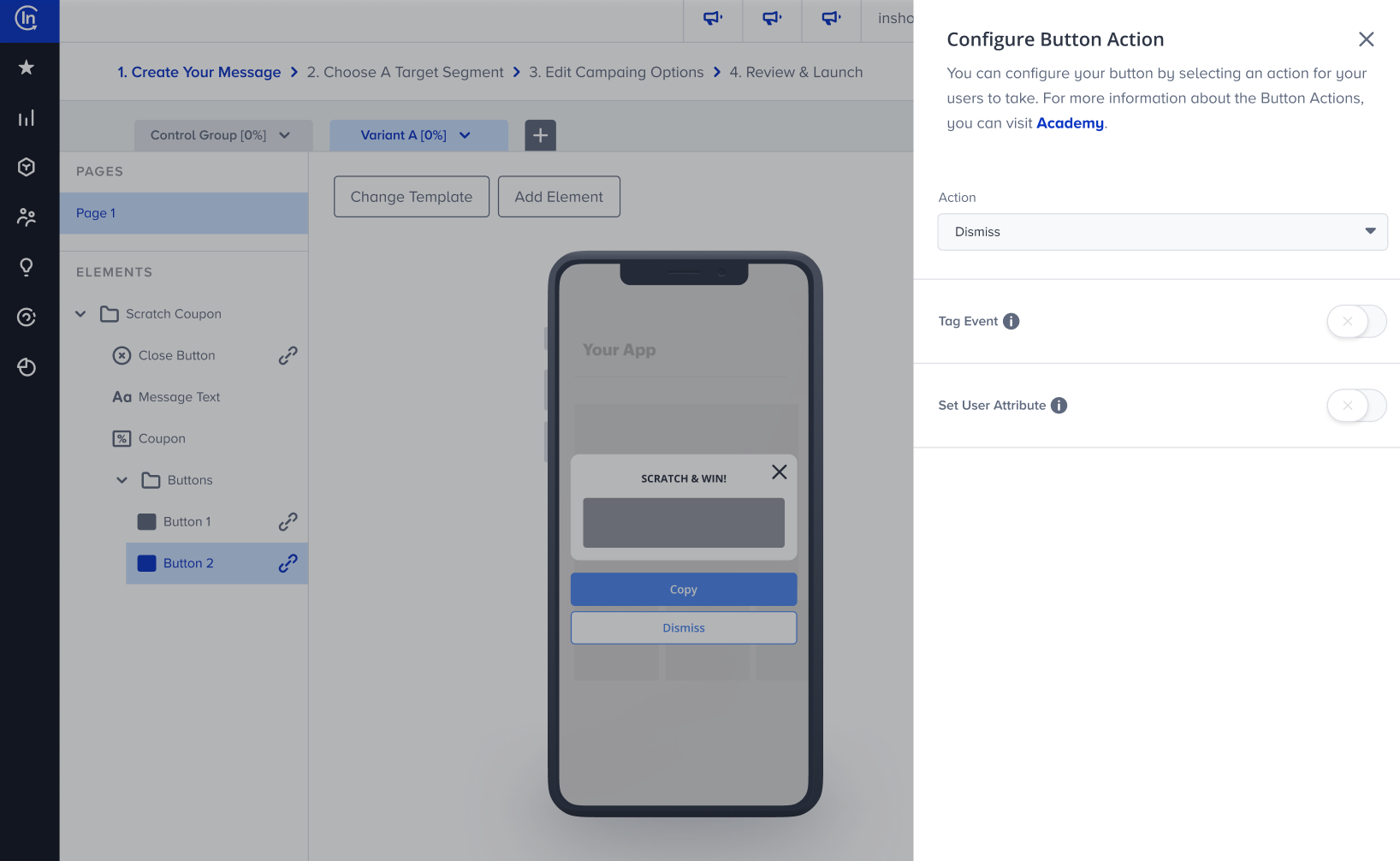
- Dismiss: Closes the template.
- Deep Link: Redirects users to another page. It works on both internal and external links.
- Push Permission: Helps app owners ask for push permission (on iOS) with Insider's App Templates. If a push permission pops up once, it will not appear again. This is due to the limitations of the operating system, to not bother the user too much.
- Open Settings: Takes the user to the settings of the app at the OS level. If users disabled push notifications or location services before, they can enable them from these settings.
- Feedback: Opens the default app rating prompt on the application.
Push permission allows the app owner to trigger a native push permission popup on iOS. You can prompt each user only once with this popup. If a user clicks it multiple times, no popup will be prompted again. You can set the re-eligibility to Never to create a campaign a user will see only once, and redirect users to a page where you can ask them if they want to opt in for push notifications.
Open Settings option opens the settings page of the app. Unlike push permission, this can be triggered multiple times. If a user opens their app settings via this option, they can configure their app notification details and settings, consent for cameras, microphone etc. You can ask your users for permissions via an InApp and redirect them to the settings page.
Google suggests against excessive usage of the app rating prompt.
10. Apart from the click behaviors, buttons have different capabilities.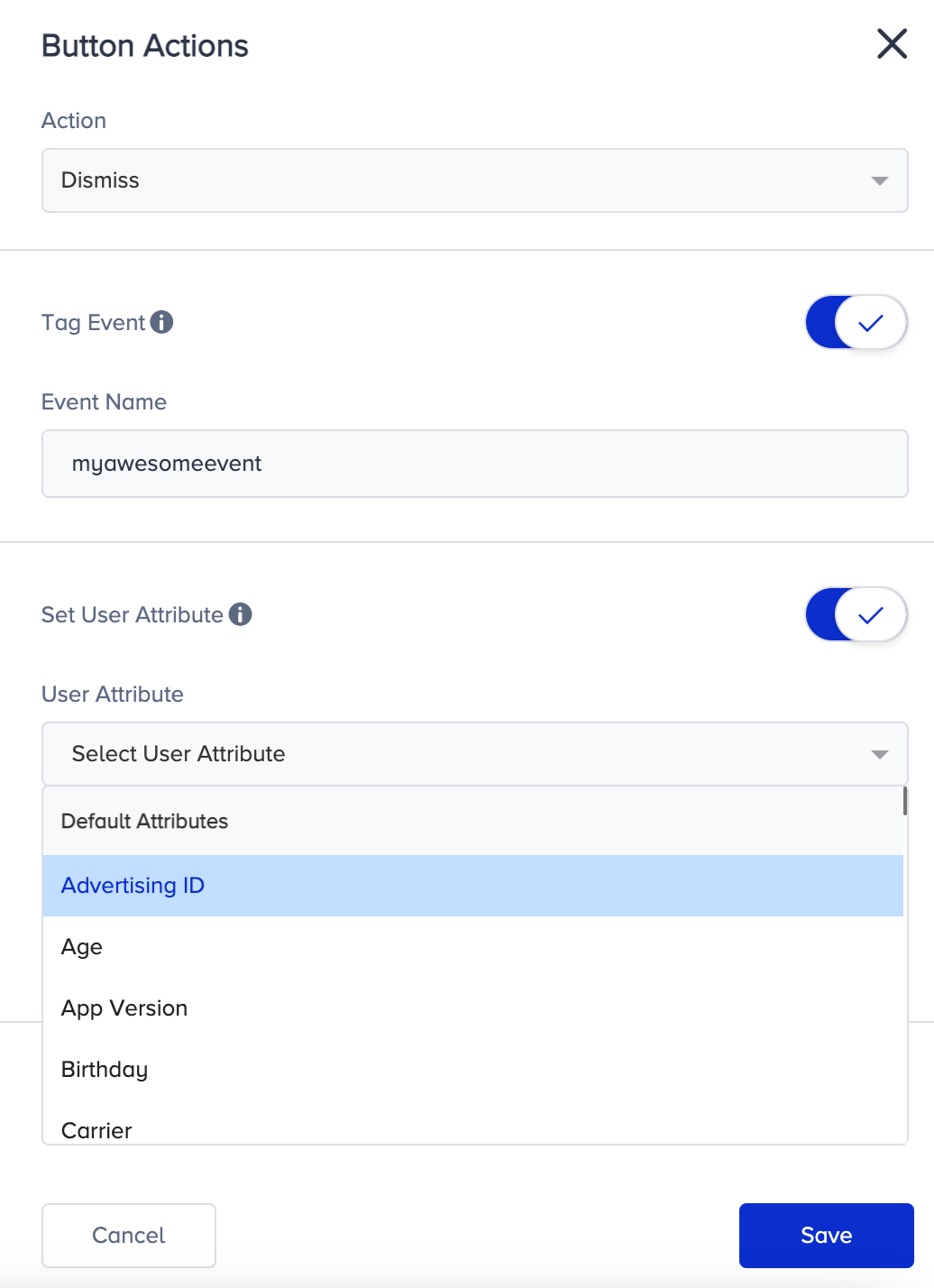
- Tag Event: Allows you to tag (trigger) an event when the respective button is clicked. This event does not have to be predefined. These events can be used for segmentation later. When you’re entering the event name, you need to make sure the event name consists of English-only characters, is lowercase, and underscored instead of a space.
- Set User Attribute: Allows you to set a specific attribute for the user who clicked on the respective button. You can either select from an existing attribute or create a new one. Either way, you need to enter a value for the attribute. This means that whenever the user taps on the button, this attribute will be set with the given value for that user.
2. Test your campaign
Refer to Test an app template to see how to test your campaign..png)
3. Choose a target segment
Refer to Chose a target segment to see the steps that you should complete to select your target audience..png)
You can exclude dynamic segments, get an exact audience, and select from Predefined Segments, Standard Segments, Predictive Segments, Integrated Segments, RFM Segments, and Saved Segments.
4. Edit campaign options
Refer to Edit campaign options to see the steps that you should configure before launching your campaign..png)
5. Review and launch
Refer to Review and Launch to confirm the details of your campaign..png)
6. See results
Go to the Results page to view the analytics of your campaign.