You can customize the coupon code element in the template as you design it.
Coupon Code Element
The coupon code element is added to the template by default, along with a Copy button, which you can remove if needed. If you keep the button, you can customize its appearance and behavior in the Settings menu.
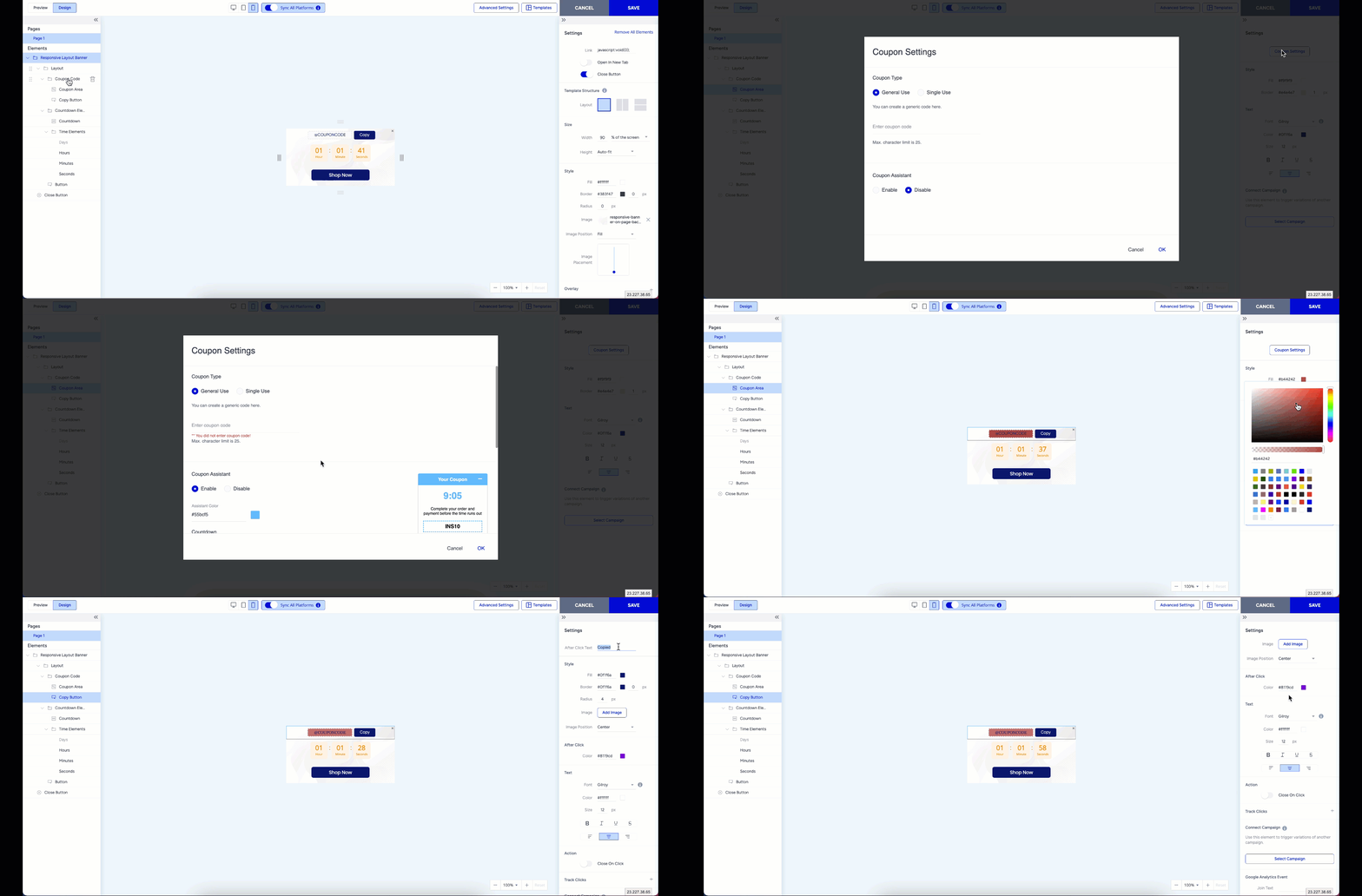
Coupon Settings
Through the Coupon Settings, you can define the coupon code displayed to users. They enable you to add general or one-time-use coupon codes.
If you want users to see the coupon on your website throughout their sessions, you can enable the Coupon Assistant. With the Coupon Assistant, you can type your general-use coupon code or use a previously uploaded CSV file for your single-use coupon codes. You can customize your coupon’s message (when it's applied) and style to fit your brand.
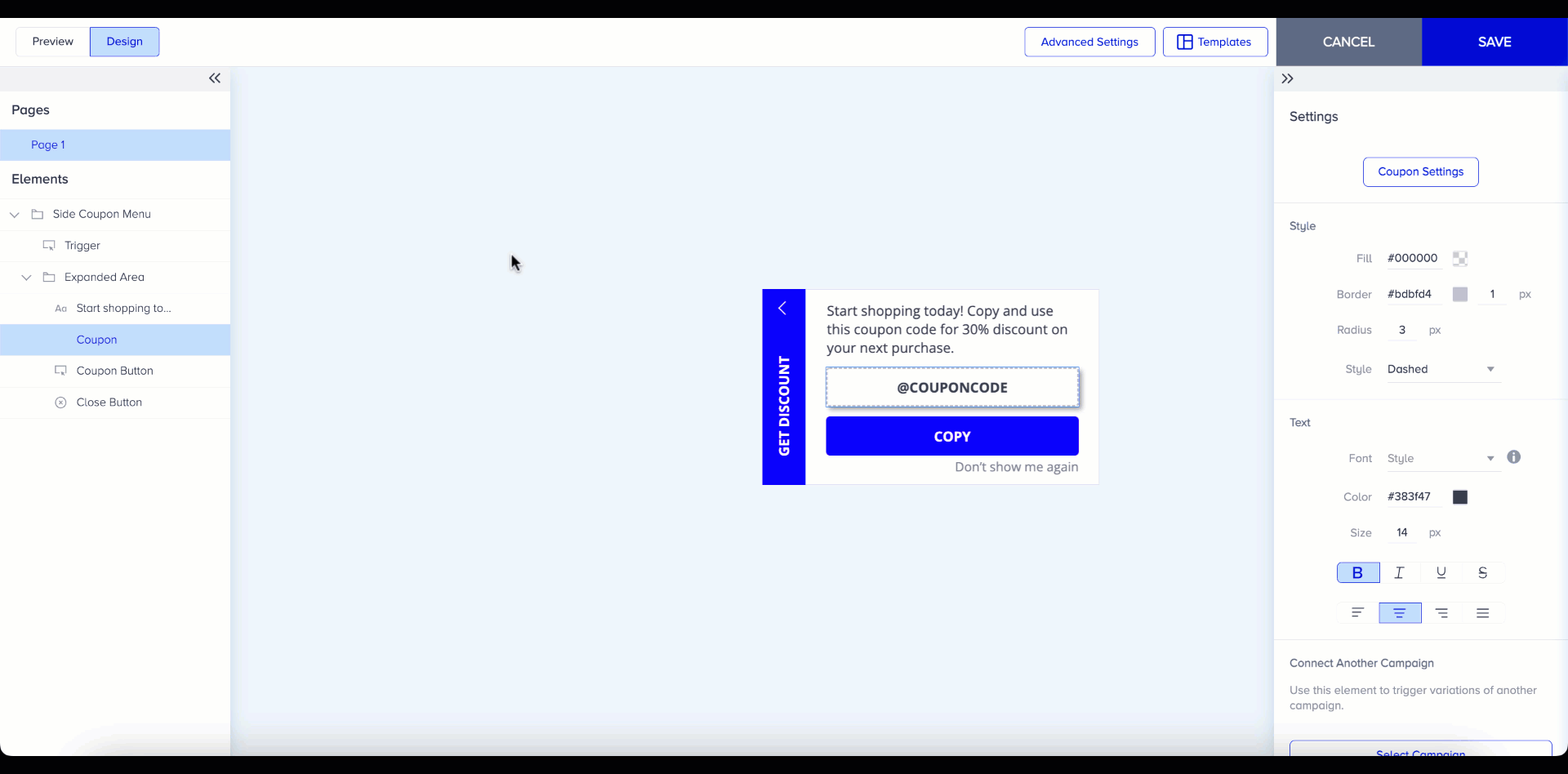
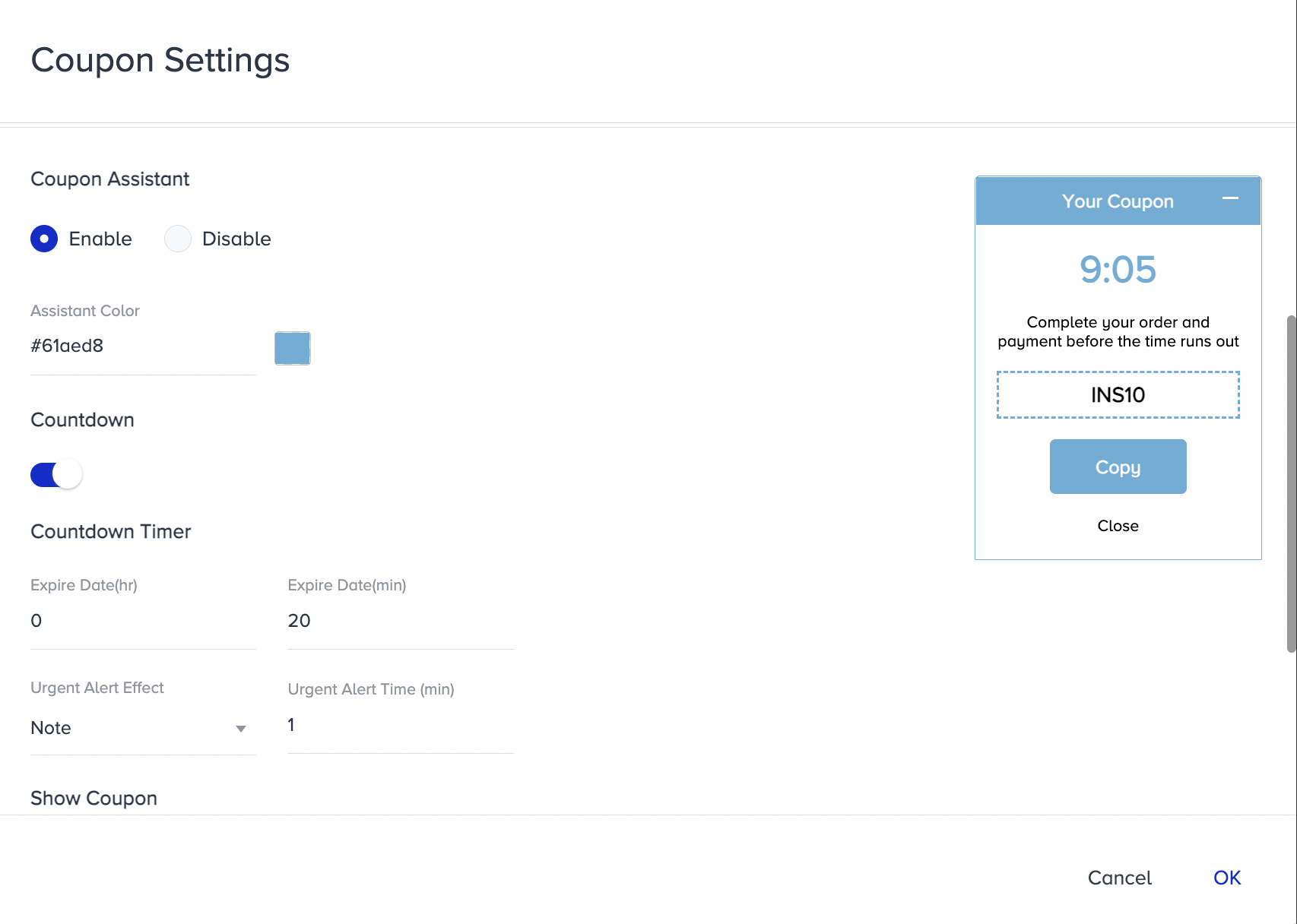
When you enable the Coupon Assistant, you can set a reminder for users to use their coupon while they are still on the website. If you want coupons to run for a limited time, you can set a countdown timer. You can set the time in hour:minute format (e.g., 01:23). You can also set an expiration date so the coupons disappear when the date arrives. You can edit the coupon's text fields or change its color.
Under Advanced Settings, you can select where to position the coupon both for Web and Mobile, define sentences after the user applies the coupon code correctly or not, and choose where to apply the system rules on your website.

Do not change anything in the Rules settings of the Coupon Assistant. If you have questions about the Rule settings, contact the Insider One team.
When does the coupon disappear?
The coupon disappears when:
The user finalizes the purchase or visits the success page, as defined by System Rules.
The expiration date arrives.
The user applies the code in the coupon area.
When a variation in your campaign runs out of coupon codes, it will no longer be displayed.
What you can do:
Enable fallback coupons so the system will seamlessly switch to them without interrupting the campaign.
Add more coupons for the affected variation to make it active and visible again.