You cannot make any changes to External Platform Integrations without having either an Administrator or an Editor with PII access in InOne. Refer to User Roles for further information.
With this integration, you can send your attribution and in-app event data from Adjust to Insider One through automated callbacks.
The basic setup enables you to turn on Adjust's integration and send callbacks to Insider One. You can also follow the advanced setup instructions to customize the information you want Insider One to receive from Adjust.
Following this guide, you will find details about the topics below:
Prerequisites for Integration
To successfully connect Adjust with Insider One and enable the transmission of user events, the following prerequisites must be met:
1. Insider SDK Integration
Ensure that the Insider SDK is integrated into your application. The specific requirements for this integration are as follows:
Implement the getInsiderID Method
This method must be implemented in your Insider SDK to retrieve the InsiderID. You can refer to the articles for the respective platforms:
iOS SDK: Version 13.4.1 or higher
Android SDK: Version 14.2.3 or higher
React Native SDK: Version 6.4.3 or higher
Flutter SDK: Version 3.10.4 or higher
Cordova SDK: Version 2.1.0 or higher
2. Adjust SDK Integration
Ensure that the Adjust SDK is integrated into your application.
3. Configuration of InsiderID as a Partner Parameter
To ensure that the InsiderID (insider_id is Adjust) is properly passed to the Adjust SDK and available for session tracking, you need to follow the steps below:
SDK Initialization Order
Make sure that the Insider SDK is initialized before the Adjust SDK. This ensures that the insider_id is passed as a Session Partner Parameter to the Adjust SDK upon initialization.
In-App Event Partner Parameter
To capture the insider_id in In-app event postbacks, ensure that the InsiderID is passed as an Event Partner Parameter for all events that need to be shared with Insider One.
If you need assistance setting up the partner parameters, you can reach out to the Insider One team or write to Adjust at support@adjust.com.
Dynamic InsiderID Handling
The InsiderID might change based on user behavior within your app. To maintain accurate tracking and attribution, call the getInsiderID method before each event is sent through the Adjust SDK.
Basic Setup
To turn on Adjust’s integration with Insider One and start configuring your Insider One account settings
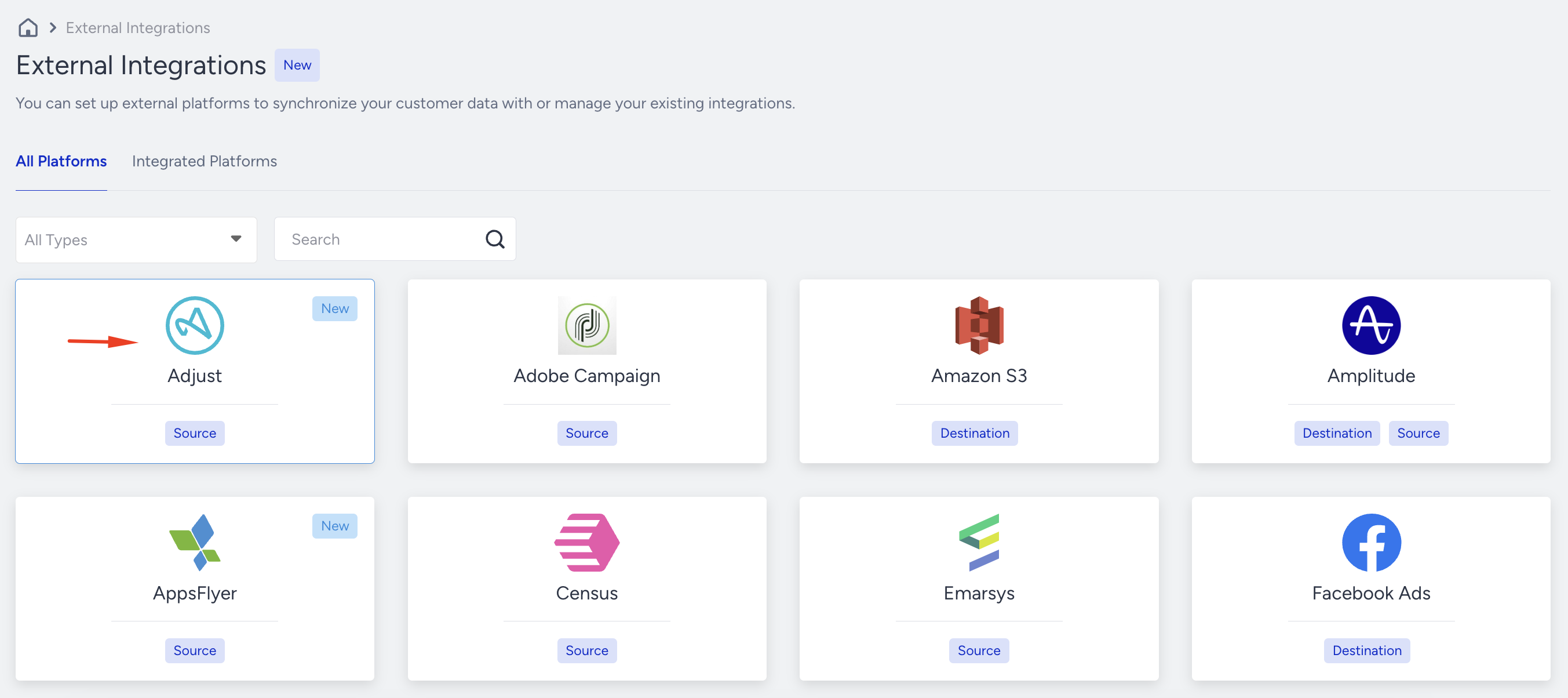
Navigate to Components > Integrations > External Integrations and select the Adjust platform.
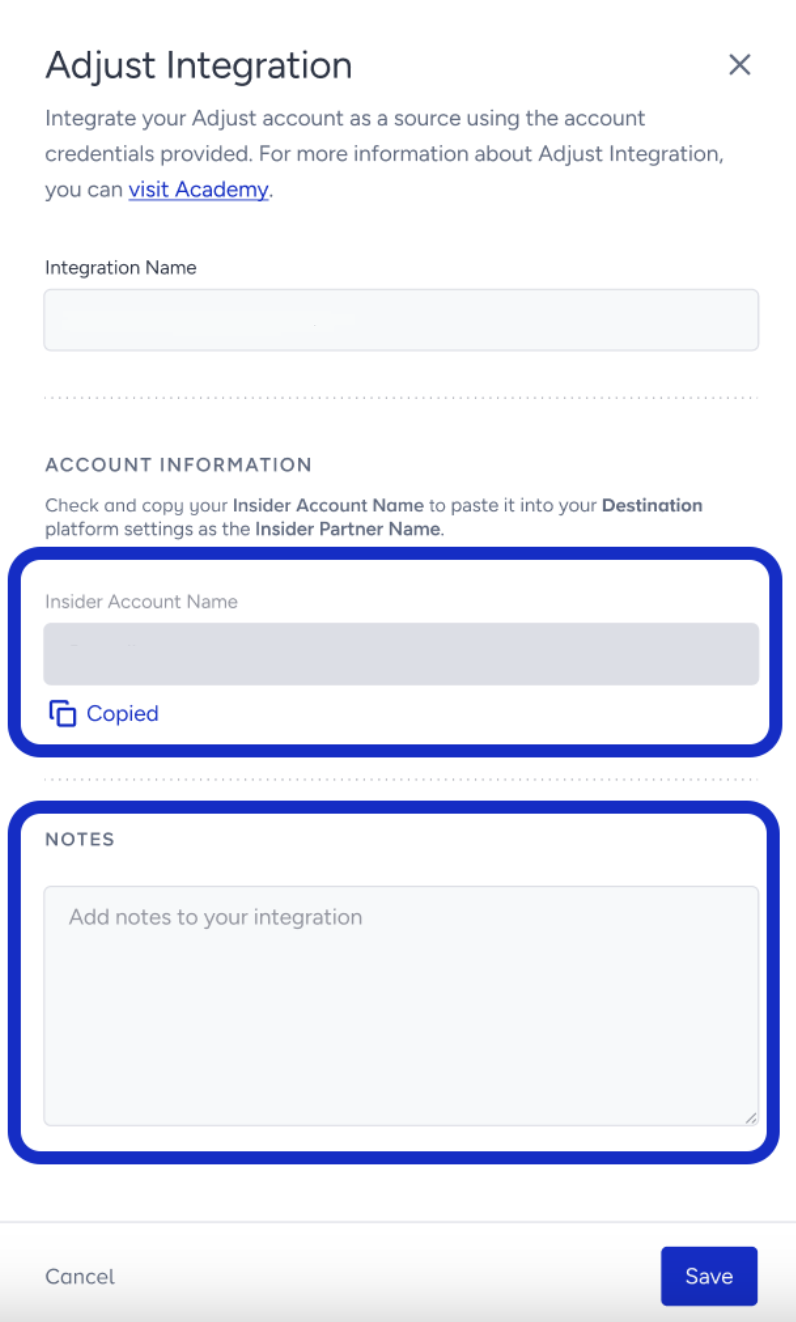
Select the integration type as Source. This means Adjust will be the Destination. Provide a name for your integration. Your Insider Account Name will appear; you can copy it easily. You can also write notes about the integration. Then, click the Save button to proceed.
Go to your Adjust account, find your app, and select your app options caret (^).
Select Partner Setup > ADD PARTNERS.
Select the add (+) icon next to Insider One.
Enter your Insider One partner name that you have copied in Step 2.
See the advanced setup to customize your callbacks (optional).
Select Save to save your changes.
You've successfully integrated Adjust as a Source. With this setup completed, Insider One can receive callbacks for the install and event activities.
Advanced Setup
Choose which data Insider One receives from Adjust by customizing your setup.
Forward custom data
Partner parameters (available in Adjust SDK version 4.0+) let Adjust collect custom data points from your app and send them to Insider One. To forward the partner parameters to Insider One:
Before adding new partner parameters to the Adjust SDK, ensure that none of the pre-existing partner parameters already meet your requirements.
Set up partner parameters within the Adjust SDK.
In the Adjust dashboard, find your app and select your app options caret (^).
Select Partner Setup > Insider.
Turn on Parameter Forwarding.
Select Partner Parameter Mapping.
In the FROM APP field, enter the name of your Adjust parameter (as written into the Adjust SDK). In the TO PARTNER field, enter your corresponding Insider name.
Select Save to save your changes.
With this setup completed, Insider One can receive custom event details for each of your linked events.
If you set up partner parameters within the Adjust SDK without turning on Partner Parameter Mapping, Adjust forwards the parameters as named in the Adjust SDK.
List of all parameters forwarded to Insider One
Insider One requires Adjust to send the following parameters (data points) with your callbacks:
Parameter | Insider One Mapping | Type | Description |
|---|---|---|---|
campaign_name | c_ad_campaign_name | Event Parameter | The name of the ad campaign responsible for the user acquisition |
adgroup_name | c_ad_adgroup_name | Event Parameter | The name of the ad group within the campaign |
created_at | crea | Event Parameter | The timestamp of when the event occurred |
is_organic | c_ad_is_organic | Event Parameter | Indicates whether the acquisition was organic (true or false) |
language | la | Attribute | Language setting of the user's device |
match_type | c_ad_match_type | Event Parameter | The method used to match the user (e.g., device ID, fingerprinting, etc.) |
installed_at | c_ad_installed_at | Event Parameter | The timestamp of when the app was installed |
adid | c_ad_adid | Event Parameter | Adjust device ID, used for attribution |
Once you complete the integration, ensure that the event(s) and attribute(s) you send from Adjust to Insider One are also visible on the segmentation step in your Insider One segments/campaigns. If you cannot see them, make sure to follow the integration steps listed above precisely.
Event parameters that contain the '%' symbol might be automatically encoded during processing. This does not affect event integrity, but the parameter value will be stored in its encoded form.
For an additional layer of security, configure your Adjust app to accept server-to-server (S2S) events only from Insider One’s egress IPs. This ensures that the app token can be used only from approved Insider networks. Even if the app token is exposed, it cannot be used from any other network. You can find this setting in your Adjust app’s S2S security configuration. Refer to Adjust’s documentation for the exact navigation path and any support steps required to enable it.
Refer to Insider One IP Allowlist for Destinations for the list of IPs to allowlist.