The Search Page in MindBehind Flow allows you to explore and filter past conversations based on multiple criteria, such as company, date range, channel, and user details.
This guide explains each search option, filter, and field so you can quickly locate specific conversations and view their full details.
Access the MindBehind Flow Search Page
Follow the steps below to open the Search Page and start exploring past conversations in MindBehind Flow.
Click the Search button on the Navigation Bar.
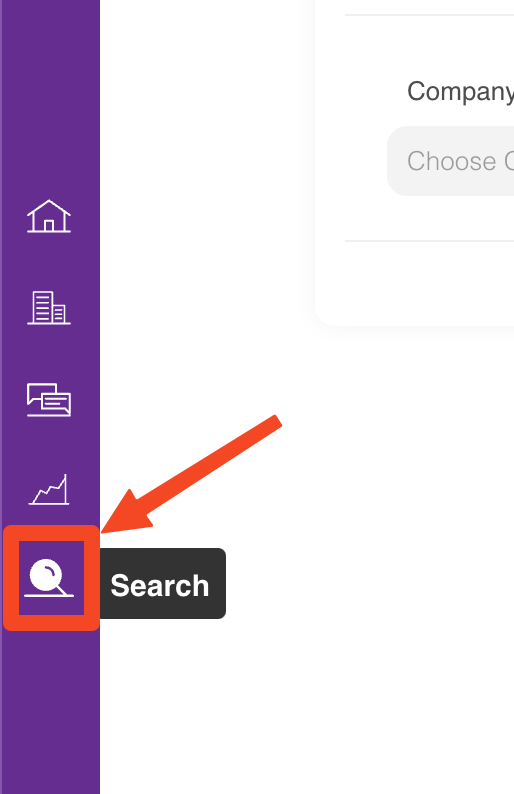
The Search Page will open, showing various filters and fields you can use to find past conversations.
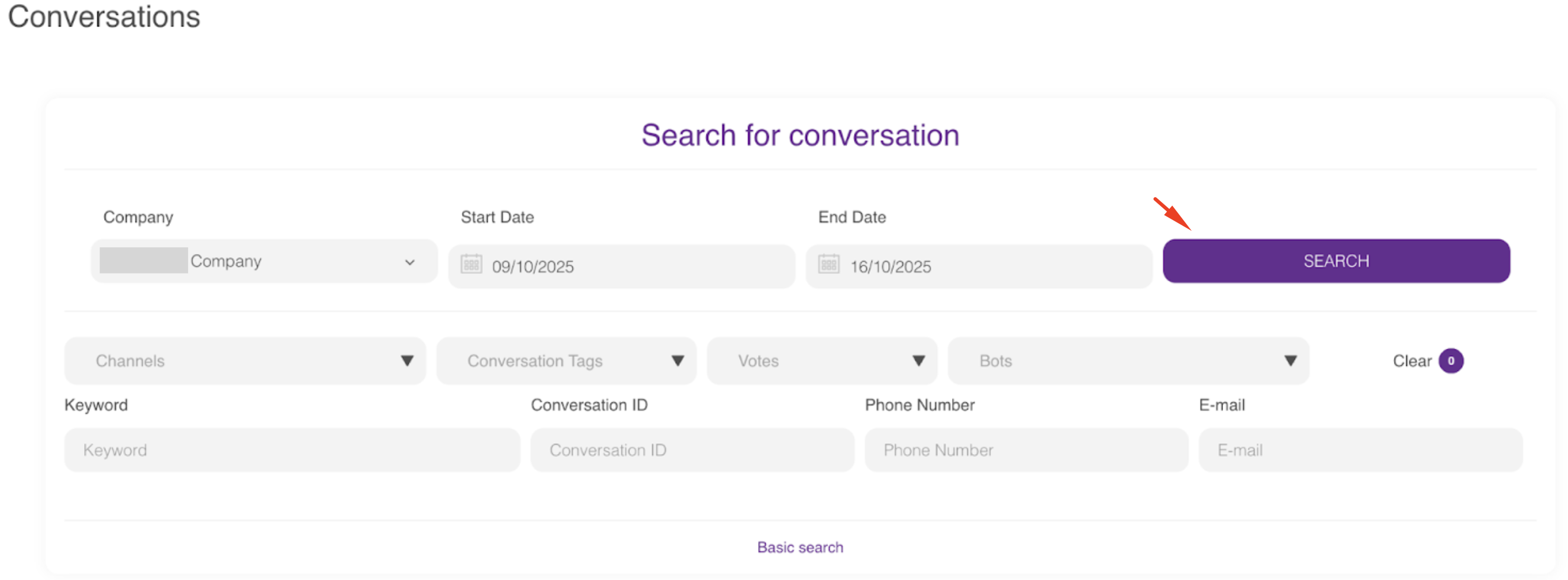
Refer to the Search Criteria and Filters to learn about each search criterion.
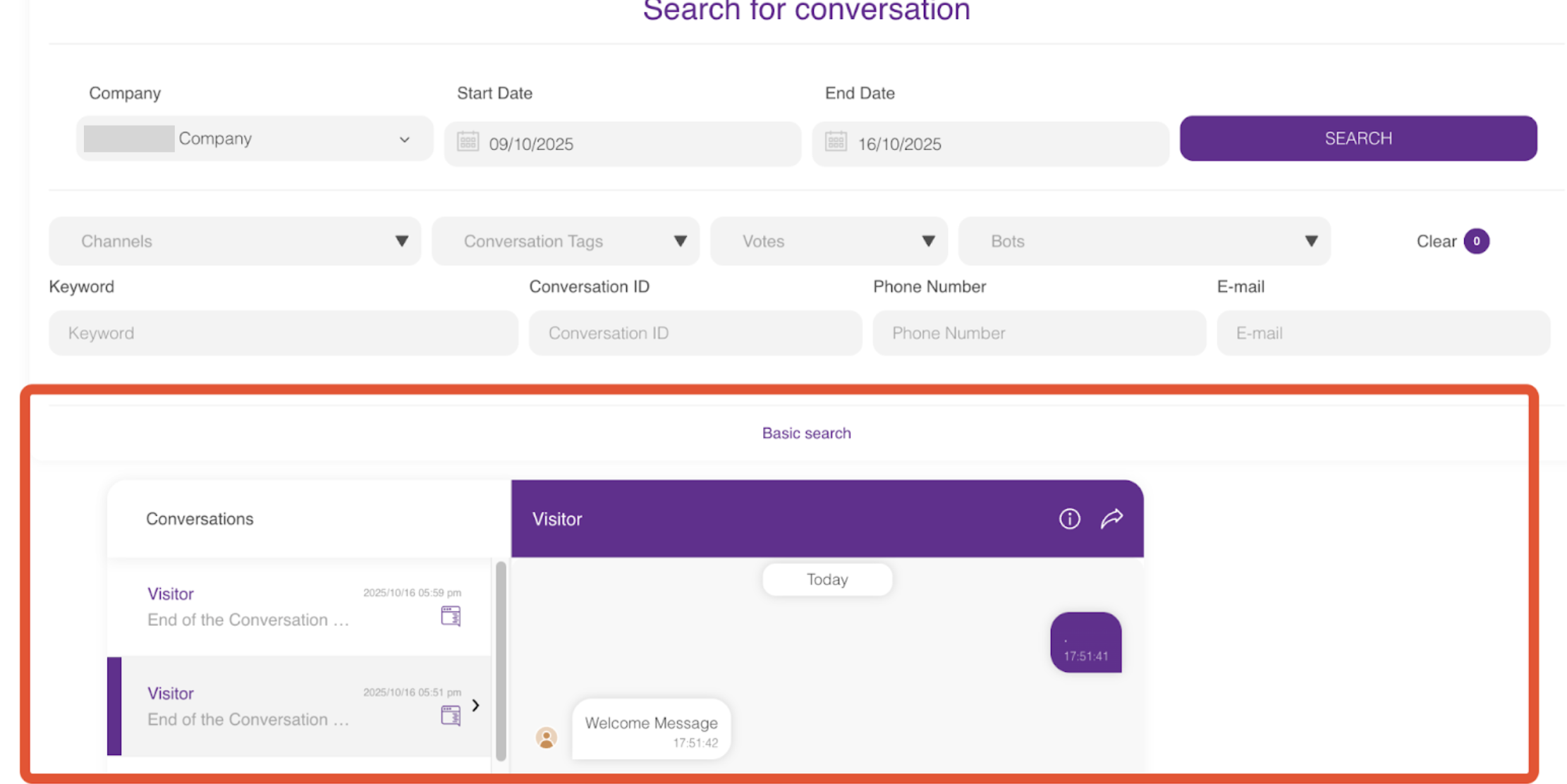
After filling in the fields and searching for the criteria, you can access past conversations. You can see the information about which channel the conversation came from, on what date, and the details of the conversation.
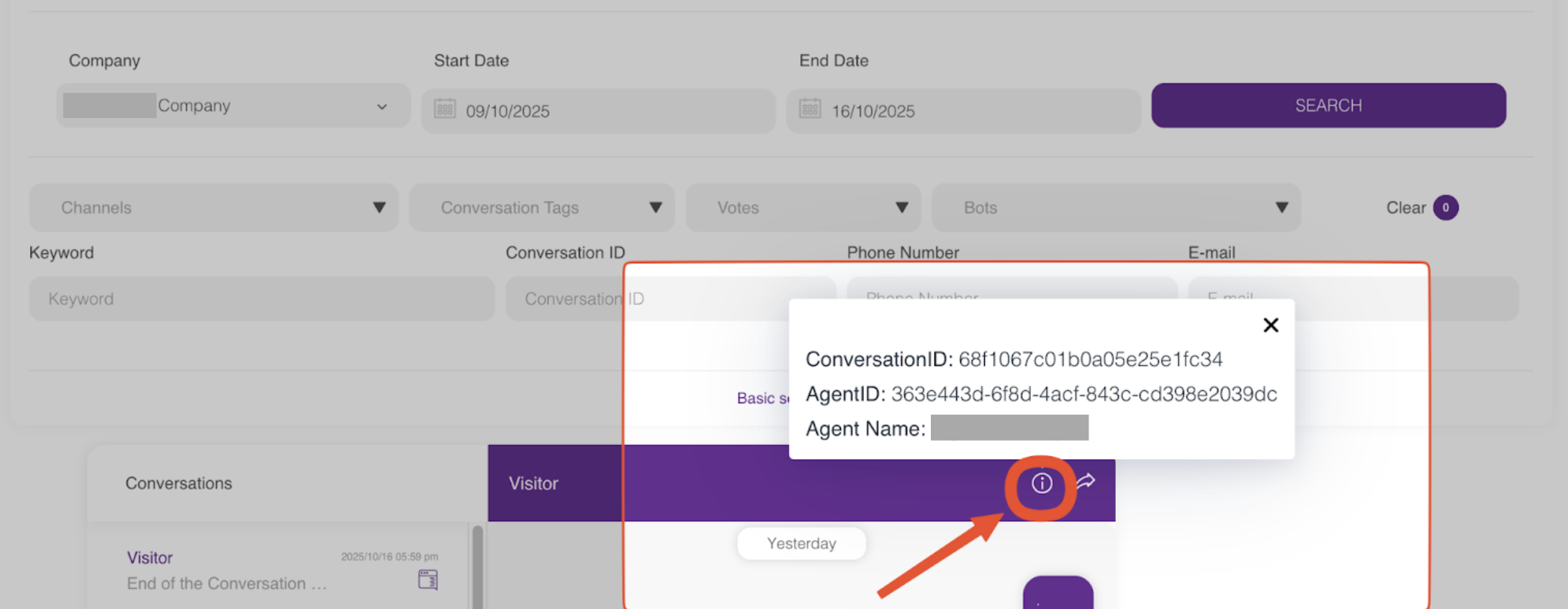
When you click the Info icon, the Conversation Details pop-up opens. It includes:
Conversation ID
Agent ID: Unique ID of the bot that handled the conversation.
Human Agent Name: Shown if a human agent participated (used for debugging purposes).
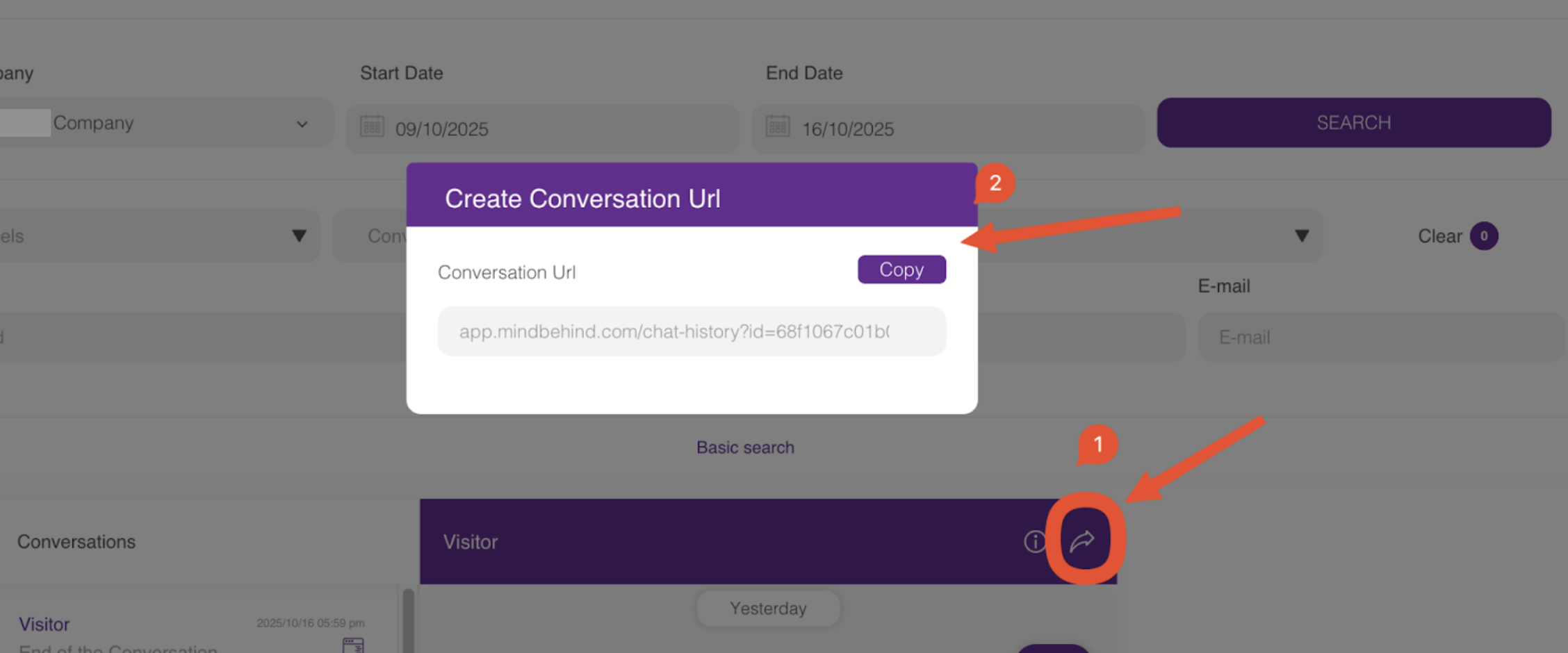
To share a specific chat:
Click the Share icon next to a conversation.
A Create Conversation URL pop-up will appear, showing a direct link such as:
https://app.mindbehind.com/chat-history?id=68f1067c01b...Click the Copy button to quickly share or access the conversation history.
Tip: You can share the generated conversation URL with other team members for quick access or troubleshooting.
Search Criteria and Filters
Use the available filters and input fields to narrow down your conversation results by company, date, channel, or user details.
Company: Select the company whose conversations you want to search.
Start Date & End Date: Define the date range for your search. For example: 09/10/2025 – 16/10/2025.
Search: Click the purple button to run a search using all selected filters and keywords.
Dropdown Filters: Narrow down results by Channels, Conversation Tags, Votes, or Bots.
Clear: Reset all applied filters and return the page to its default state.
Keyword: Search for specific words or phrases within conversation content.
Conversation ID: Retrieve a single record by entering its exact ID.
Phone Number: Search using the user’s phone number. The system matches any number containing the digits you enter (not only exact matches).
Email: Search using the user’s email address.
Search by Phone Number
When you search for conversations by phone number, the search does not require an exact match. Instead, it finds any record containing the number sequence you enter.
For example:
Record 1:
5301234567Record 2:
+90530123****
In this case, searching for “530123” will return both results.
You don’t need to include the country code (like +90). The system automatically matches numbers whether stored with or without it.
Enter only the main part of the number (area code + subscriber number) for best results.