You cannot make any changes to External Platform Integrations without having either an Administrator or an Editor with PII access in InOne. Refer to User Roles for further information.
You can create only one Insider One to Snowflake integration per Insider One account.
Snowflake is a cloud-based data warehouse that offers a secure, scalable platform to store and manage your organization's data. This includes customer information, website interactions, purchase history, and more. With its performance and storage capacity, Snowflake empowers you to analyze massive datasets and gain valuable insights.
In this article, you can find answers to the following questions:
Use Cases
360-Degree Customer View
Integrate campaign data with customer information and additional business and consumer data in Snowflake to fully understand your customers.
Audience Segmentation
Unlock more granular segmentation by combining Insider One's channel engagement and user data collected from 12+ channels or cross-channel journeys with your existing data on Snowflake.
Contact Data Enrichment
Supplement existing contact profiles by adding details from marketing interactions and campaign involvement.
How can I configure Snowflake as a destination?
Integrating Snowflake as a destination lets you pull data from Insider One into Snowflake, helping you maximize the impact of your campaigns and strategies. You can follow the steps below to start setting up Insider One as a destination:
1. Navigate to InOne > Components > Integrations > External Integrations. .png) 2. Select Snowflake from the list.
2. Select Snowflake from the list. 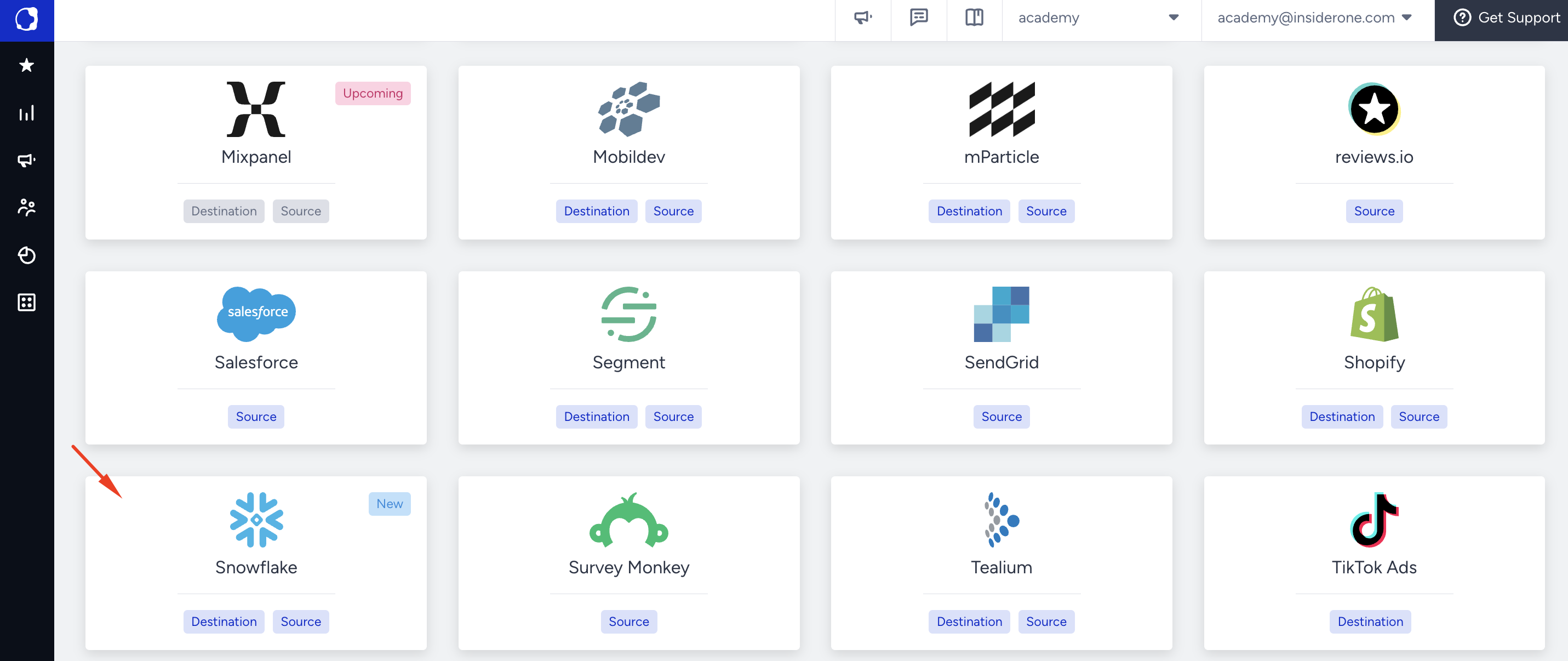
3. Select the integration type as Destination. This means Snowflake will be the Destination. Click the Save button to proceed.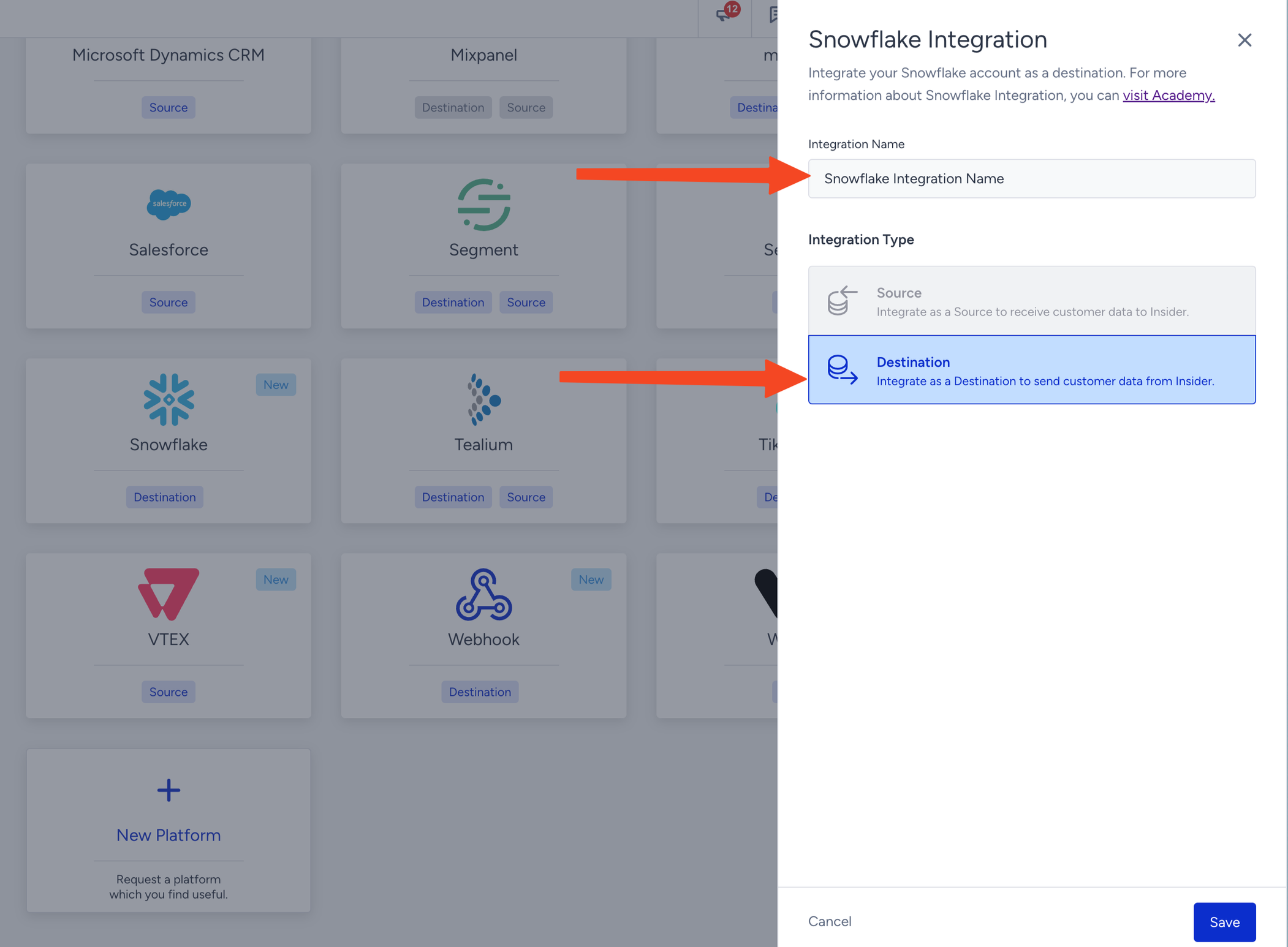
4. Fill in your:
Your Snowflake Account ID. You can refer to Account Identifiers to learn how to obtain your account identifier.
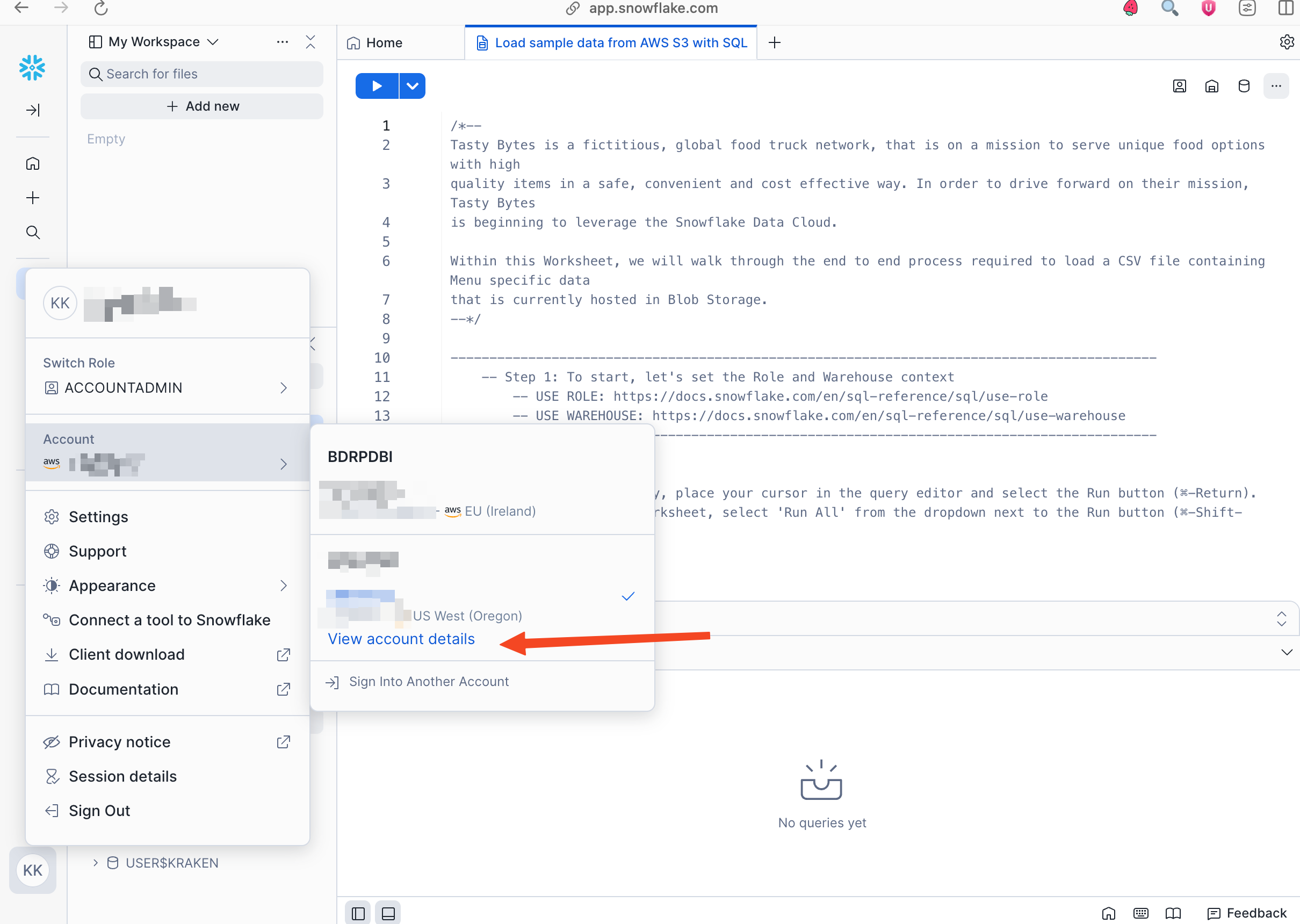
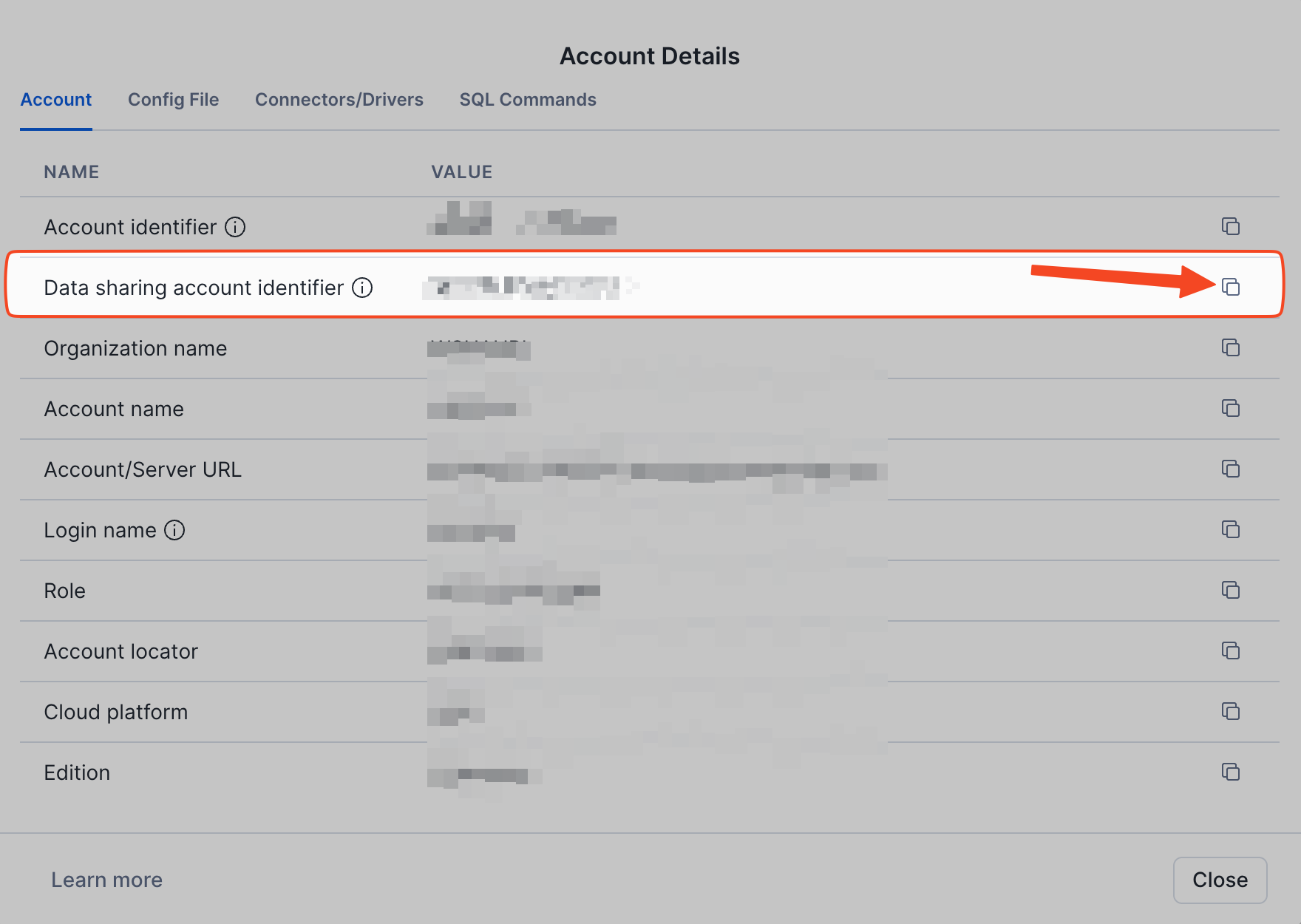
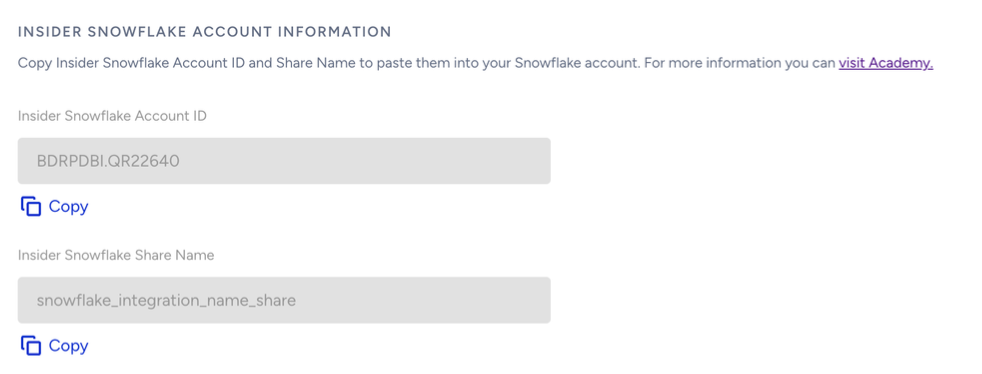
Insider One Snowflake Account ID (provided by Insider One)
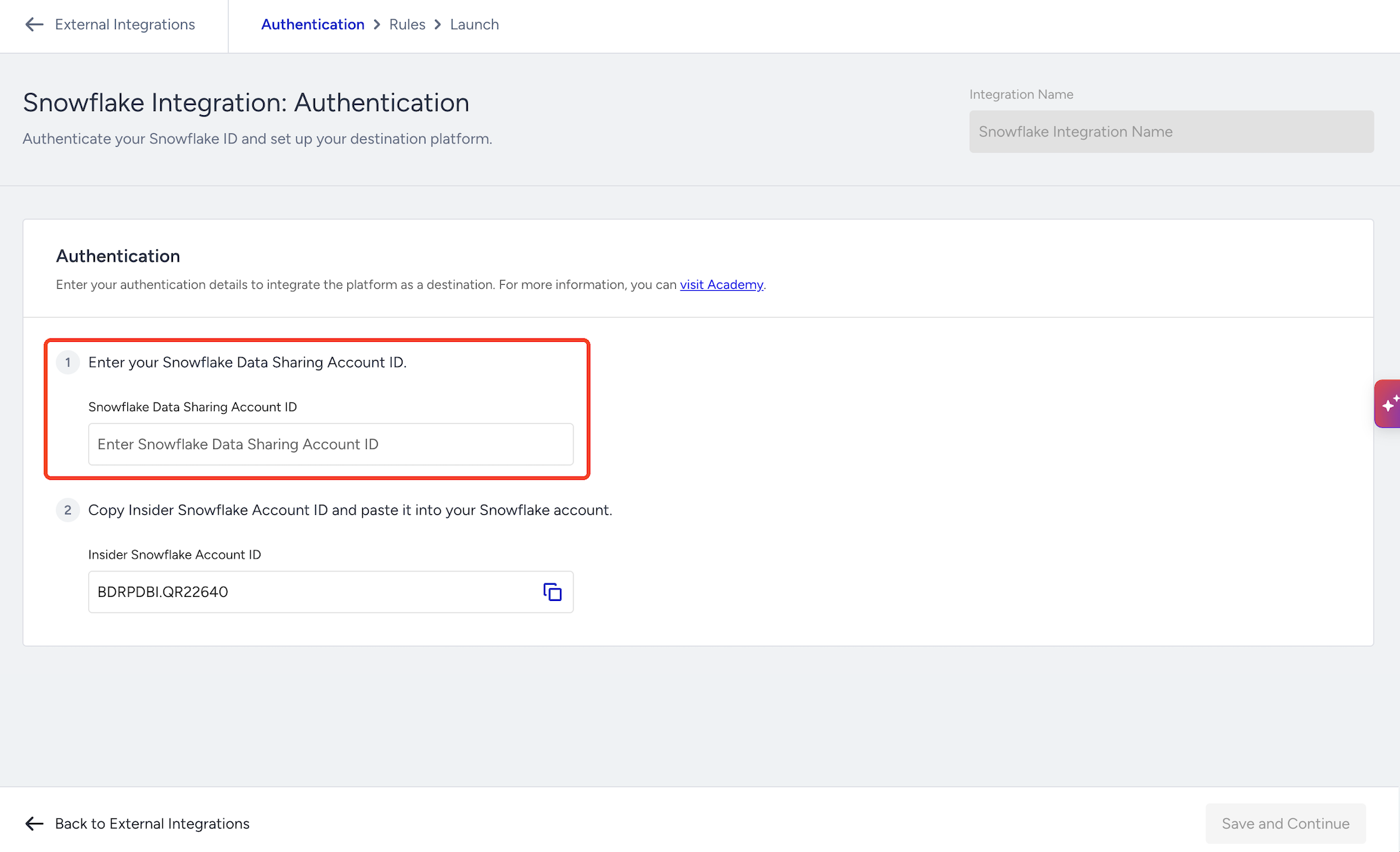
Note Insider One's Snowflake Account ID, as you will need to read data using these credentials.
The share is available to Snowflake accounts in other regions and cloud providers. Enter your account identifier in the
<organization_name>.<account_name>format.
Once this step is configured, Insider One will provide access to your provided Snowflake Account ID to read data from Insider One's own Snowflake Account.
5. After completing your Integration Key and Identifiers, you will continue with the Configure step. You can select one or more Events to send to Snowflake in the tabs here.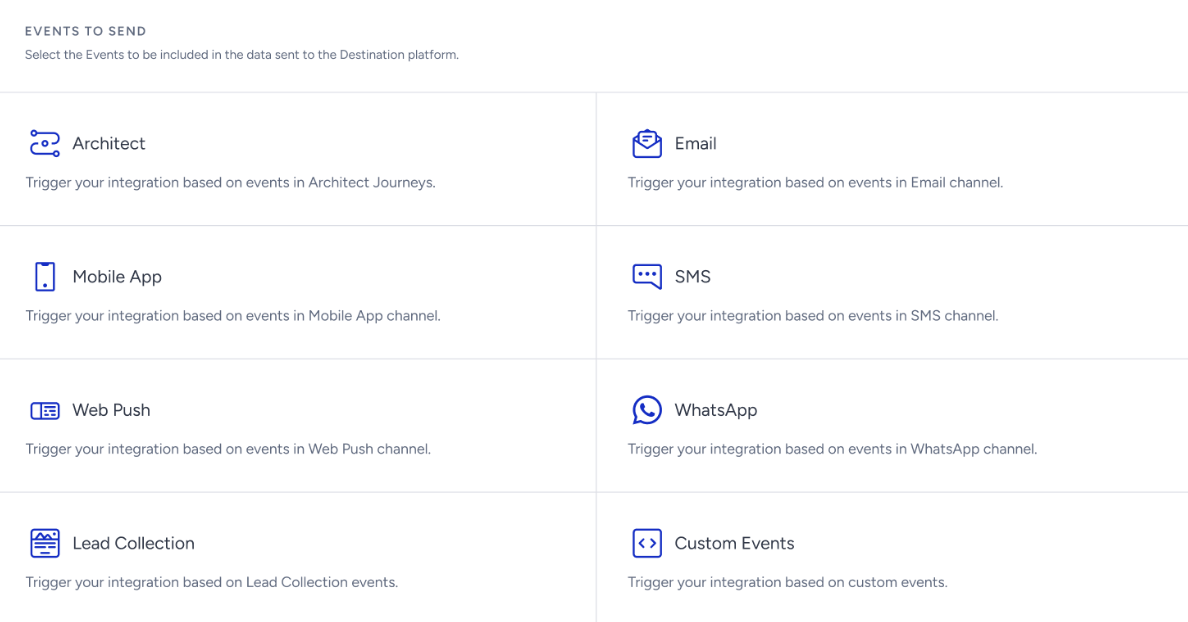 6. After you select the first event type you want to trigger the data collection, you can see the events based on the type and select or deselect the ones you want to collect. You can also add other event types via the same section.
7. The Event Parameter section will be enabled after you select an event. You can select the parameters of your events through the dropdown that you want to send to your destination.
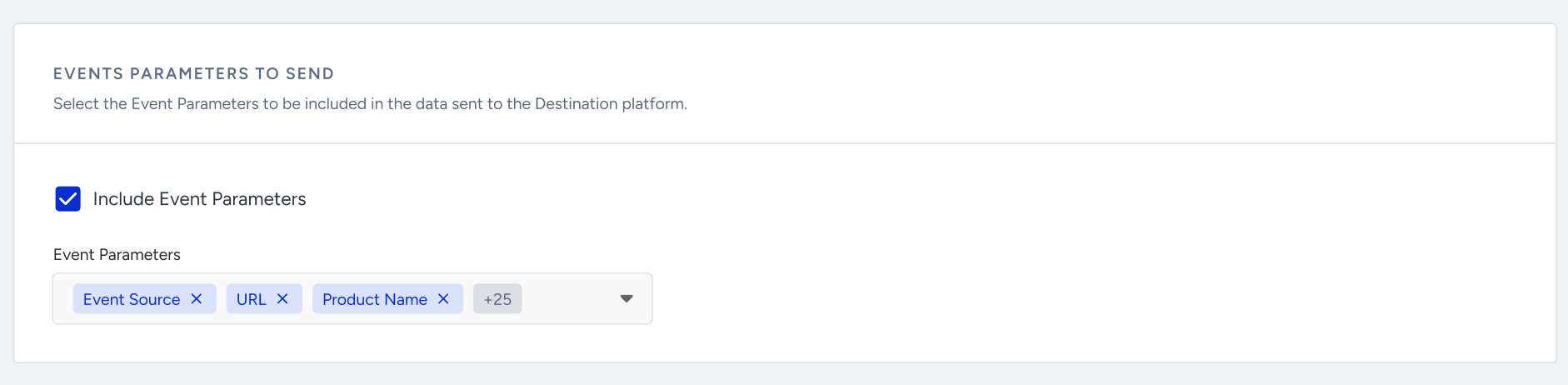
8. You can select the additional attributes to be included in the data sent to the endpoint. If you want to include additional attributes while sending the event data to your destination, add them here. For example, if you are sending an email open event, you can also select the email address to be sent to your destination. This way, you can understand which email address opened which email campaign.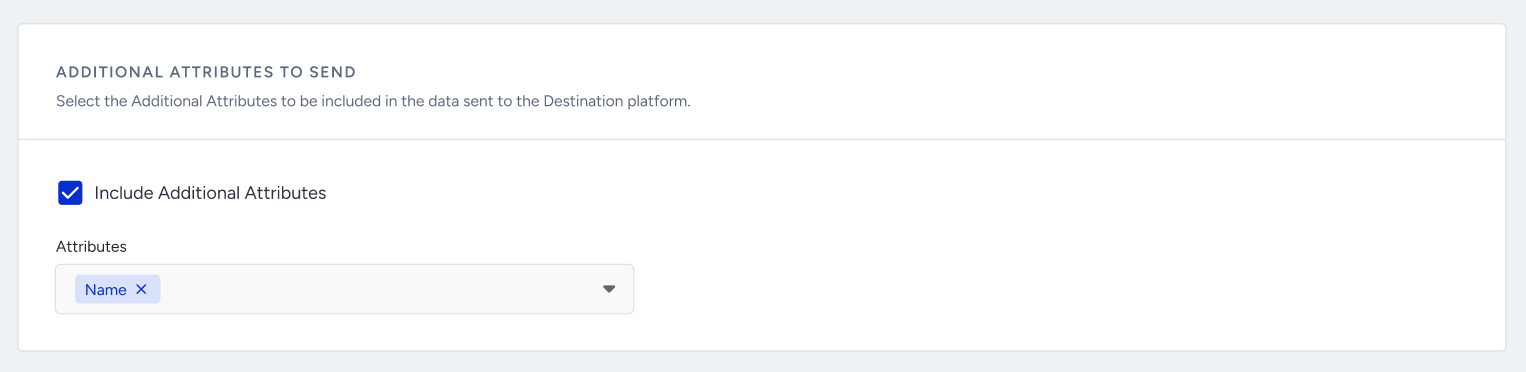 9. Launch is the last step to complete the integration. On this page:
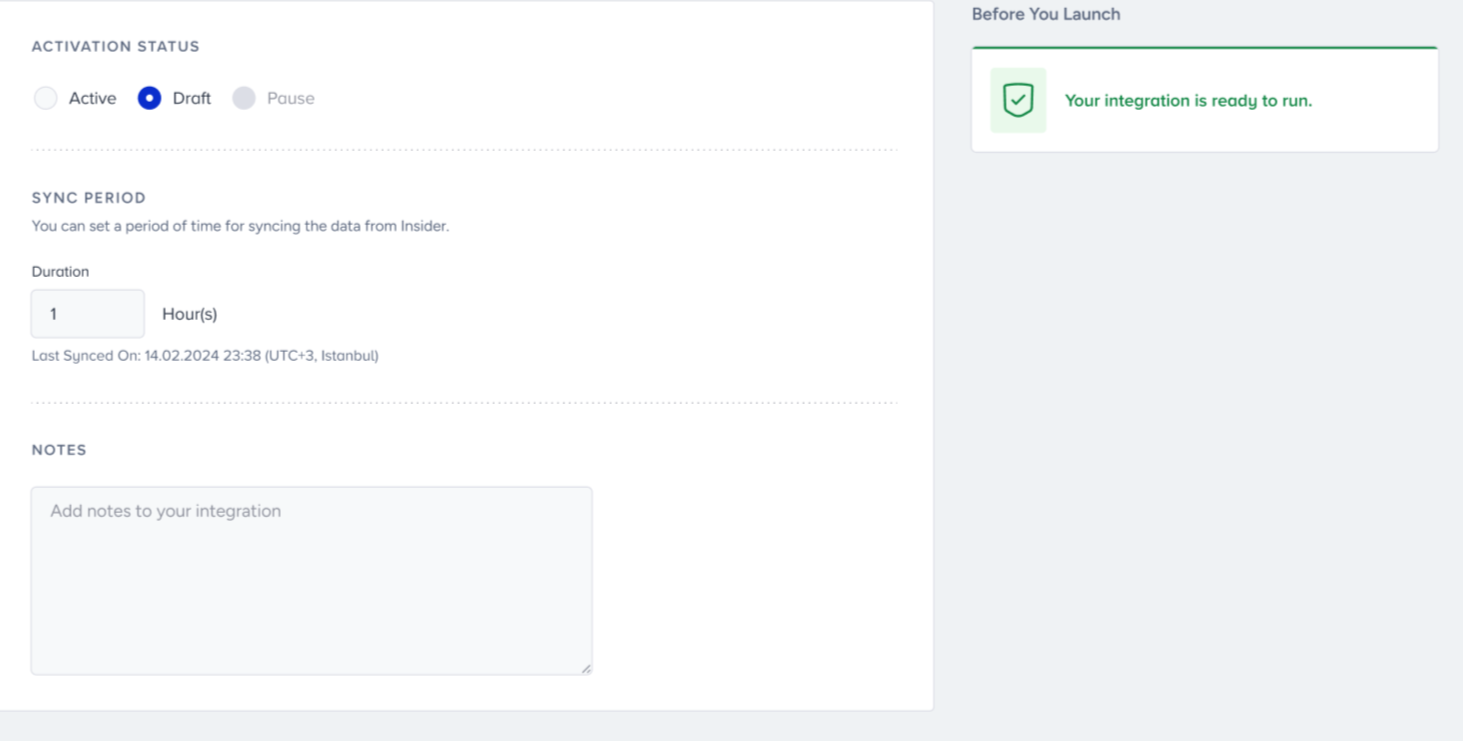
You can choose launch options as draft, active, or paused. The draft option is selected by default.
The Sync Period section allows you to customize the frequency of syncing event data to Snowflake. You can choose intervals of up to 24 hours. Beneath the input field, you'll find the timestamp indicating the last sync of events.
You can also add notes via the Notes box to enter additional information for your integration.
The Before You Launch section helps you understand if there is an issue with the integration you set up before launching it.
10. After you launch the integration, the data is shared with your Snowflake account through a private listing.
The share contains raw event data: one row per event, for the events you select in the Configure step. Each row carries the user's Insider ID, the event time, the event name, the event parameters you select, and the user attributes you select. Events of anonymous users are included. A user who is created and deleted within the same sync period still appears in the table.
How can I read the data from Insider One’s Snowflake account?
Snowflake’s Data Sharing lets you access the data from your Snowflake account with no hassle. This concept is crucial because shared data does not occupy any storage space in your account, meaning it does not add to your monthly data storage costs. You are billed only for the computing resources, like virtual warehouses, used to query the shared data. You can refer to Secure Data Sharing for further information.
The share is read-only. Access to the shared data inside your account is controlled by your own Snowflake roles.
To activate data sharing:
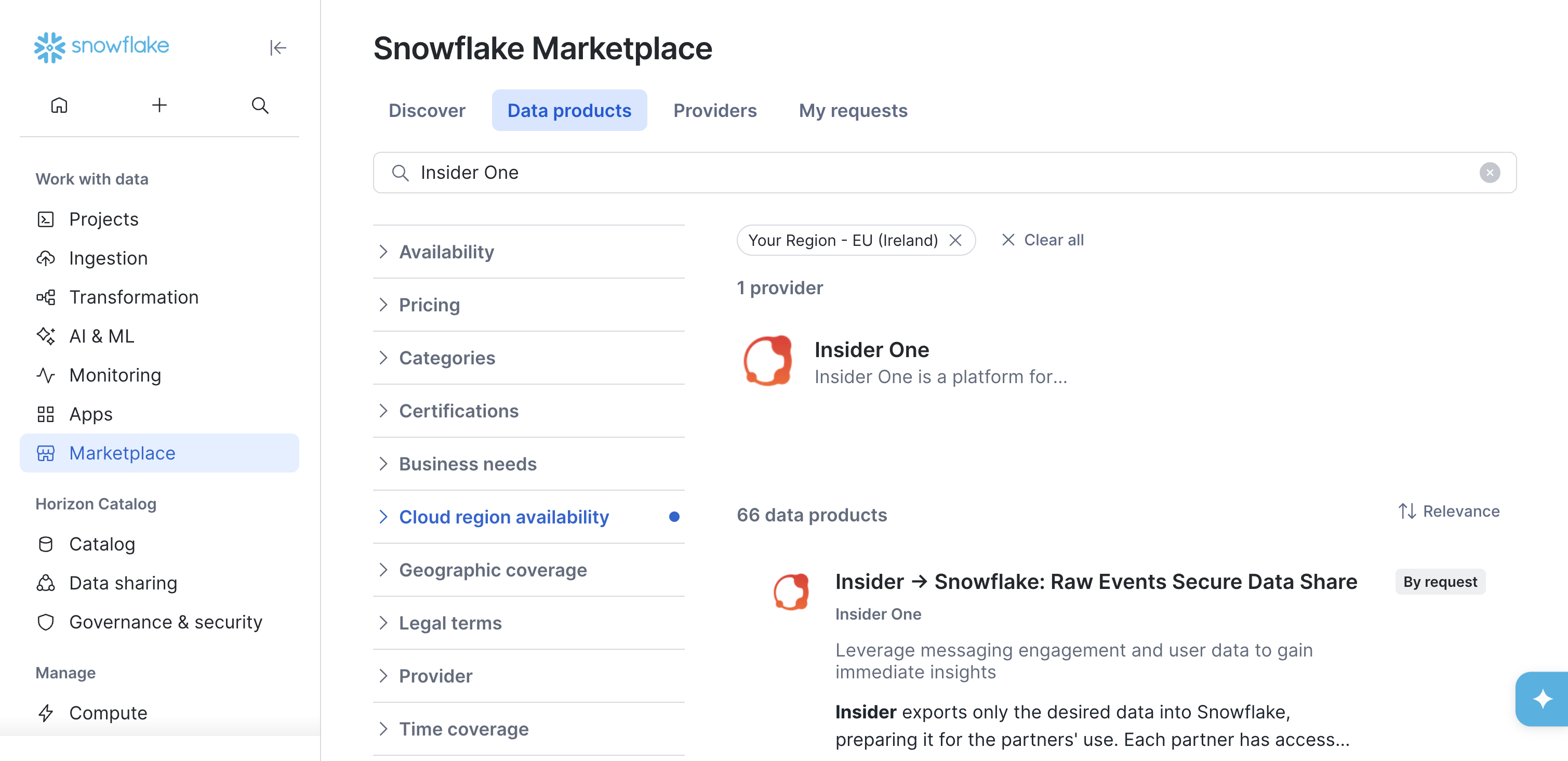
After the first sync is completed (and if it includes any data), go to the Snowflake Marketplace.
Search for Insider One under Providers.
Find the data product shared with you. Select the free one.
Click the Get button to add it to your account.
Depending on your Snowflake region and provider, you might experience up to a one-hour delay in viewing your data. This delay occurs because Snowflake’s data synchronization might begin after Insider One’s. When Insider One’s synchronization frequency is set to every hour, data will sync at the start of each hour (e.g., 12:00, 1:00). However, Snowflake’s data sharing might happen at different intervals, such as on the half-hour (e.g., 12:30, 1:30) or quarter-past (e.g., 12:15, 1:15), so updated data might only be visible at those times.
When you edit a Snowflake integration, previously shared data remains accessible. Each update creates a new table and view in the share:
If you rename the integration, the new name is reflected in the table and view names.
If you keep the same integration name, the timestamp suffix (
YYYYMMDD_HHMMSS) is updated to distinguish the new objects.As a result, you might see multiple tables and views in the same share (for example,
{panelName}_{integrationName}_TABLE_20260609_071750). The object with the most recent timestamp represents the latest integration configuration.
The columns of the shared table depend on the events, event parameters, and attributes you select in the Configure step. Every shared table follows the structure below.
Column | Type | Description |
|---|---|---|
| VARCHAR | Insider One's unique identifier of the user who triggered the event. |
| TIMESTAMP_NTZ | Time the event occurred. |
| VARCHAR | Source of the event. |
| VARCHAR | Name of the event, such as |
| VARCHAR | One column per event parameter you select. |
| VARCHAR | One column per attribute you select, such as |
Each integration has its own schema in the share, containing a table and a secure view with the same columns:
{panelName}_{integrationName}_TABLE_{YYYYMMDD_HHMMSS}and{panelName}_{integrationName}_VIEW_{YYYYMMDD_HHMMSS}.
FAQ
Q: I cannot see the data shared by Insider One in my Snowflake account. What should I do?
A: Here are the steps you should take when you cannot see the data shared by Insider One in your Snowflake account:
1. After the first sync is completed (and if it includes any data), go to the Snowflake Marketplace.
2. Search for Insider One under Providers.
3. Find the data product that has been shared with you. Make sure to select the free one.
4. Click the Get button to add it to your account.