After launching your Web Smart Recommender campaigns successfully, you can send recommendation events to your Google Analytics 4 (GA4) account.
How Smart Recommender connects to GA4
Smart Recommender sends event data to GA4 through your existing Google Tag Manager setup. Once you complete the GA4 integration, no additional configuration is needed in Smart Recommender, except to activate the GA4 toggle when creating a campaign.
GA4 receives Smart Recommender events through the same mechanism used for other Insider One analytics. When an impression or click is logged for Insider One analytics, the same event is forwarded to GA4 by Google Tag Manager. The GTM data layer collects the event and triggers the GA4 collect request.
Events sent from Smart Recommender to GA4
Smart Recommender sends two types of events to GA4:
Widget-Based Events
GA4 receives Smart Recommender widget-based events through the same mechanism used for other Insider One analytics. When an impression, click, or close event is logged for Insider One analytics, the same event is forwarded to GA4 by Google Tag Manager.
Impression: When a user views a Smart Recommender widget, an impression event is sent for each unique session, user, and widget.
Click: When a user clicks a Smart Recommender widget, a click event is sent for each unique session, user, and widget.
Close: When a user closes the overlay Smart Recommender widget, a close event is sent per unique session, user, and widget.
Product-Based Events
If you have a GA4 integration in your GTM data layer, you can also collect product-based impressions, clicks, and purchases through this data layer without a separate data stream for Insider One events.
Impression Events
When a user views a Smart Recommender widget, an impression is sent to both Smart Recommender Analytics and GA4 for all products visible in the widget. Each impression event contains the following parameters:
Item ID
Item name
The last item in the product category path
Brand
These product impression events are sent to the view_item_list event on GA4.
Click Events
When a user clicks a product in the Smart Recommender widget, a click event is sent to both Smart Recommender Analytics and GA4 for that product. Each click event contains the following parameters:
Item ID
Item name
The last item in the product category path
Brand
These product click events are sent to the select_item event on GA4.
Enable GA4 for a Smart Recommender campaign
To activate GA4 event collections for widget-based metrics,
Navigate to Attribute and Events > Google Analytics Events after you create your Web Smart Recommender Campaign.
Find your campaign and enable the events that you want to send to GA4.

To activate GA4 event collections for product-based metrics,
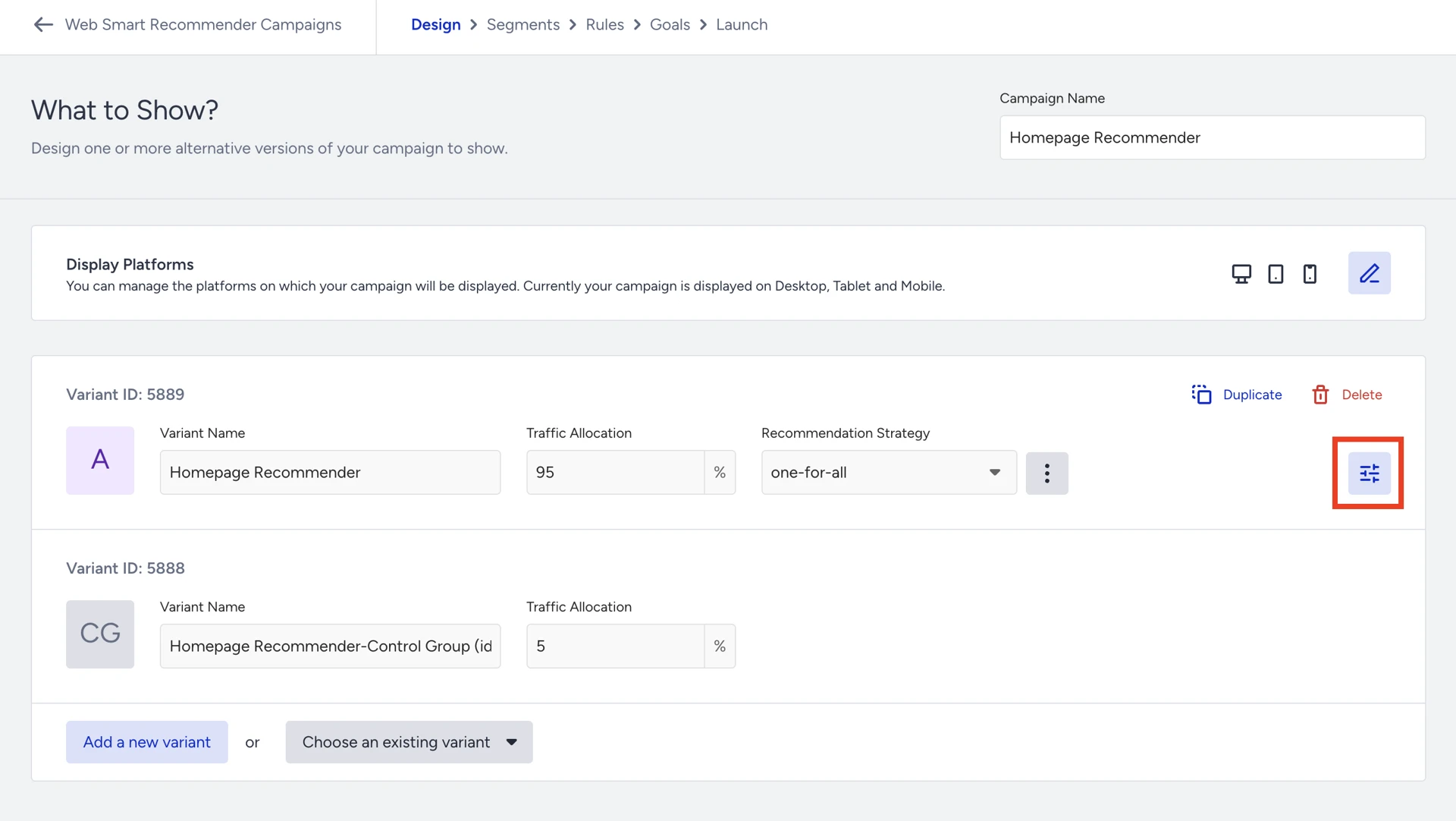
On the Design step of your campaign, click on the Advanced Widget Settings button.
Enable the product engagement tracking, then click Save.
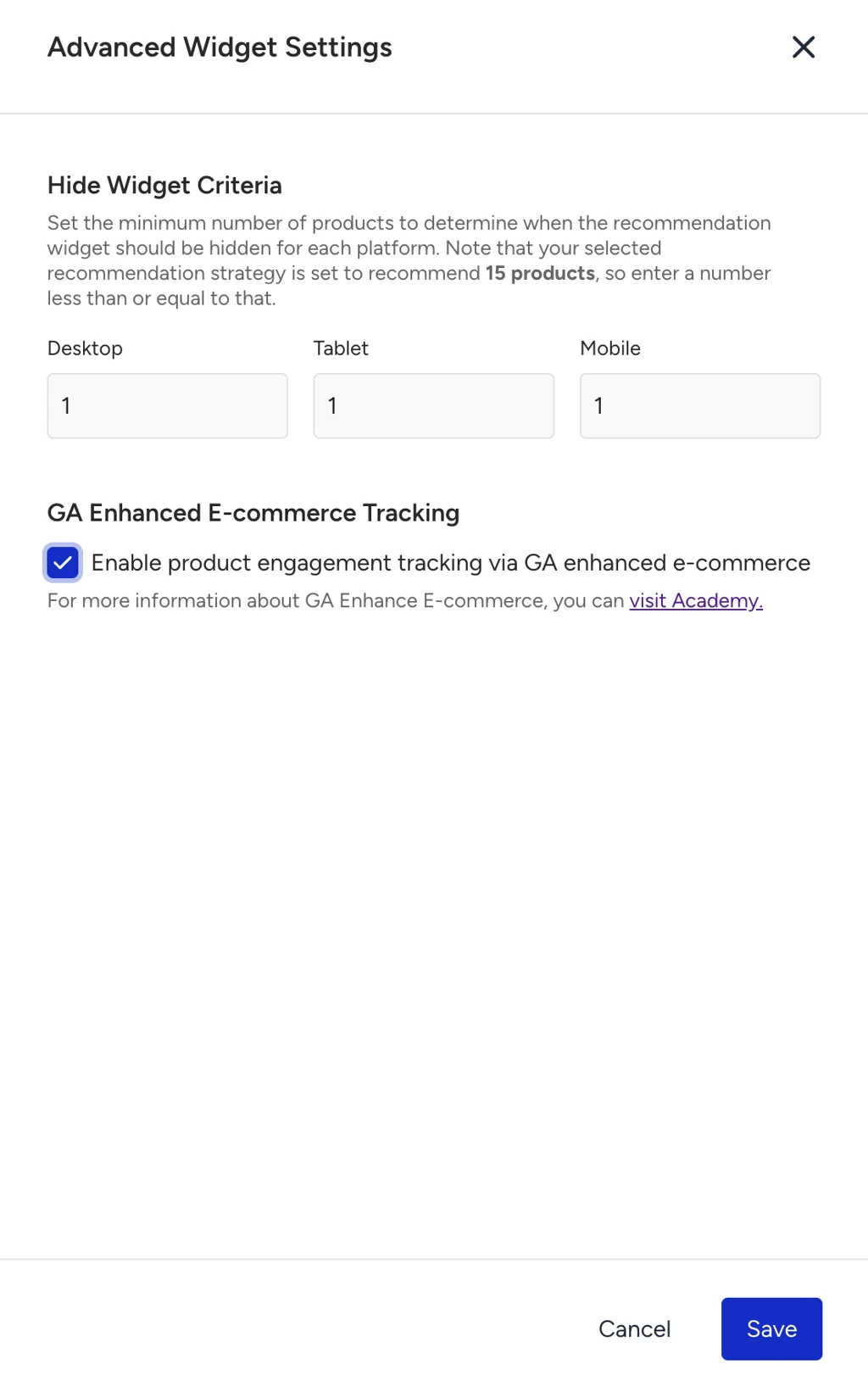
Once activated, impressions and clicks for that campaign start flowing into GA4 in real time. Historical events are not sent retroactively.
Check Smart Recommender Events in GA4 Reports
Monitor Widget-Based Recommendations Events
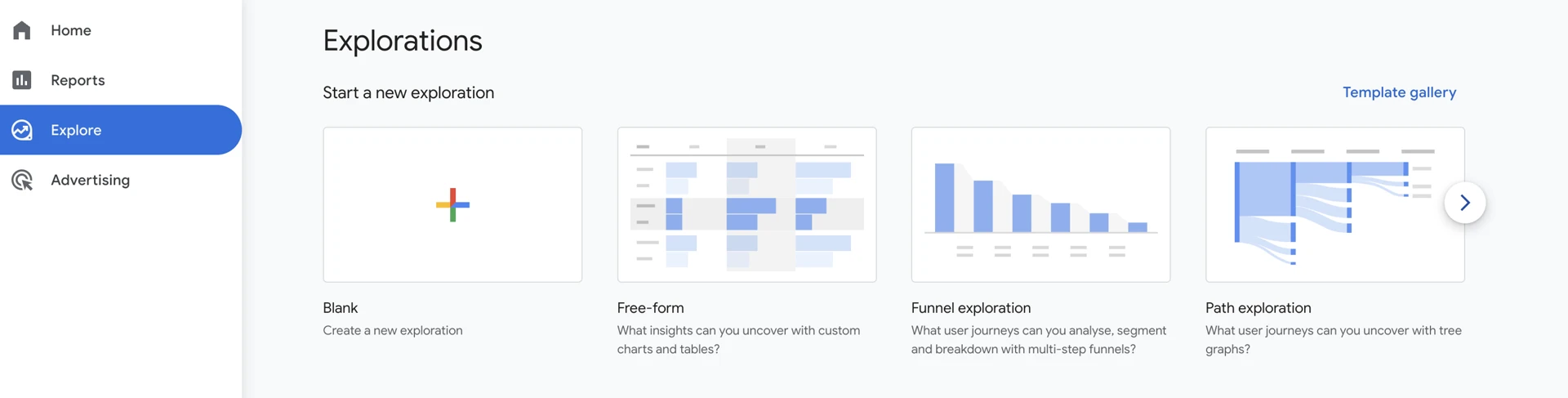
Navigate to the Explore section in your Google Analytics 4 property.
Under Start a new exploration, select the Free form template.
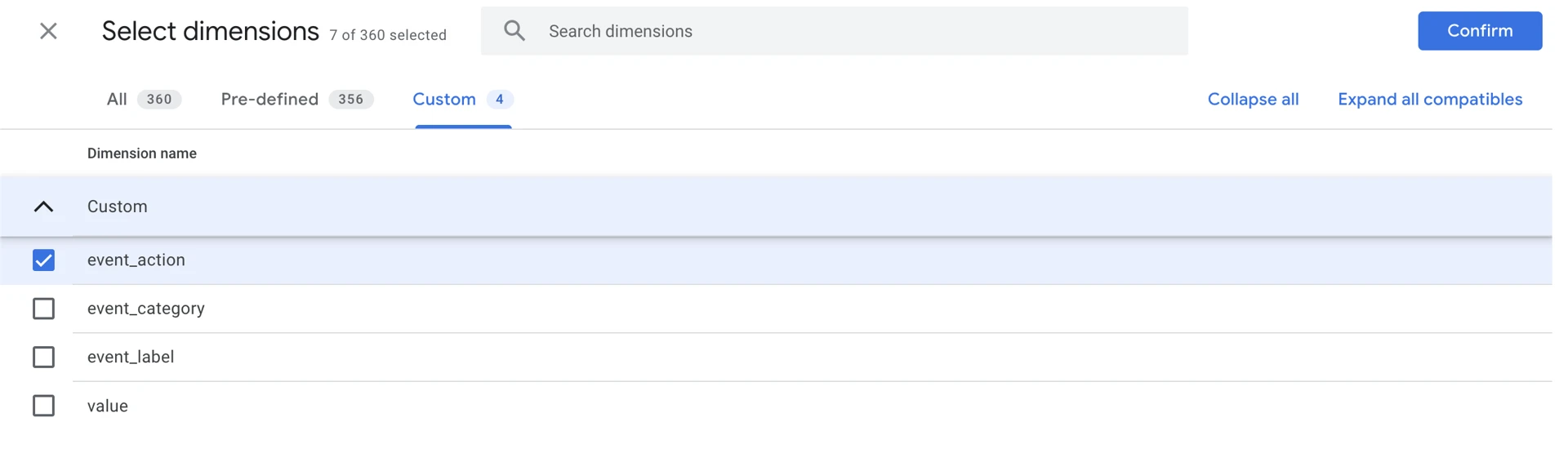
In the Variables column on the left, click the + (Plus) sign next to Dimensions to add a new dimension. Go to the Custom tab and select event_action, then click Confirm.
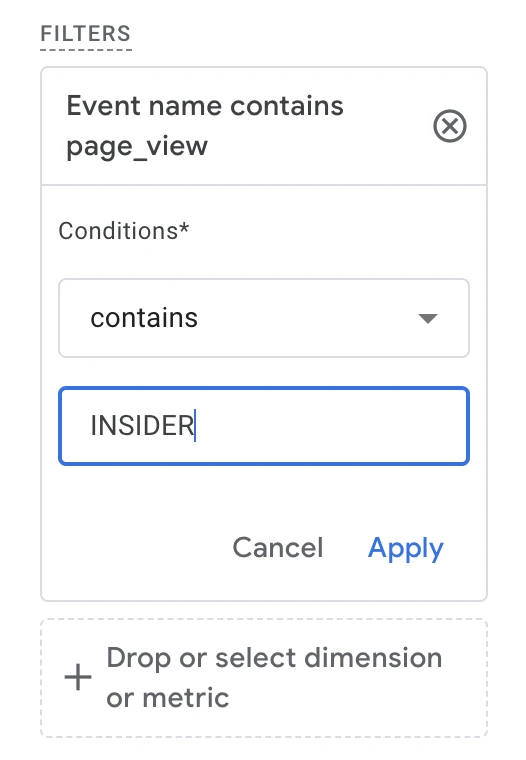
In the Settings column, click on the Drop or select dimension or metric under the Filters section. Select event_action to filter. Then set to filter as contains ‘INSIDER’.
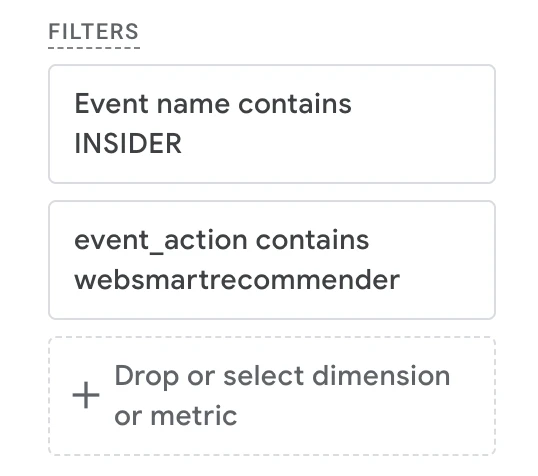
Add another filter for event_action that contains ‘websmartrecommender’ to filter out the events coming from the Web Smart Recommender campaign.
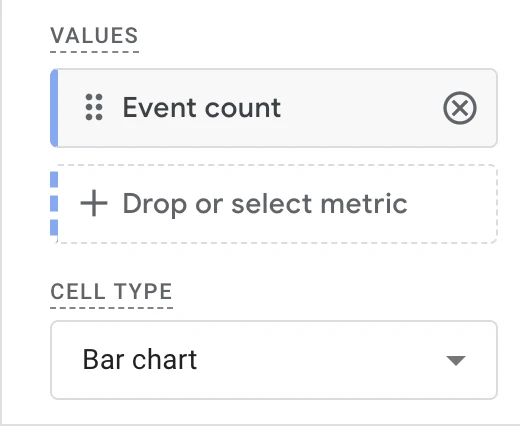
In the Settings column, add Event count metric under the Values section.
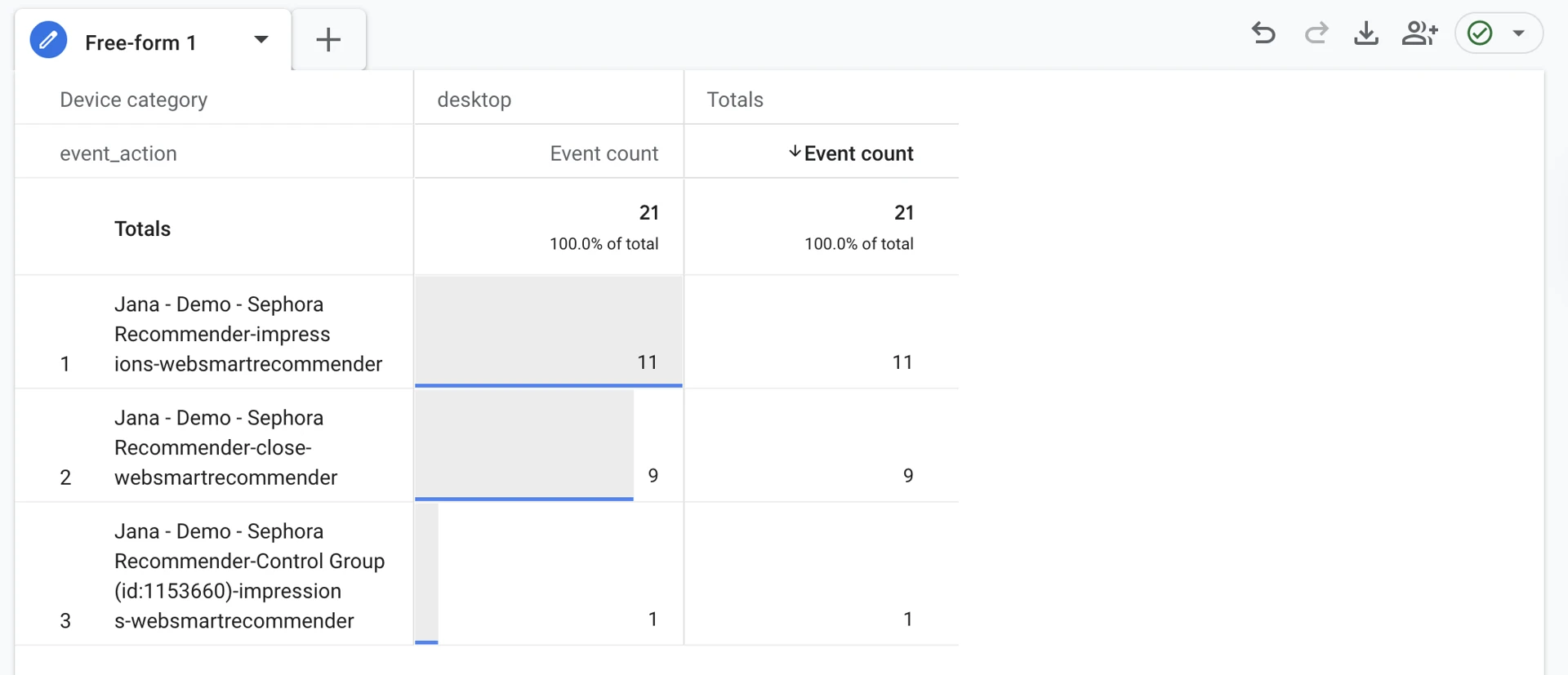
Select event_action for Rows and select Device category for Columns. Configure these settings according to your preference.
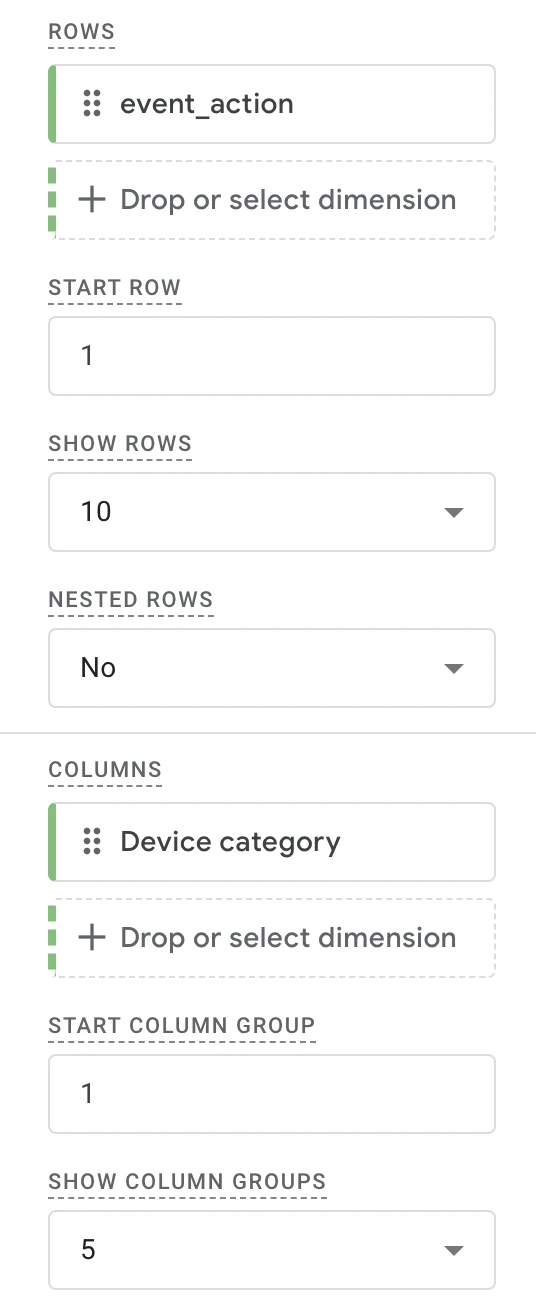
You can now see the event counts for each Web Smart Recommender campaign you’re tracking, broken down by device type.
Monitor Product-Based Recommendations Events
Navigate to the Explore section in your Google Analytics 4 property.
Under Start a new exploration, select the Free form template.
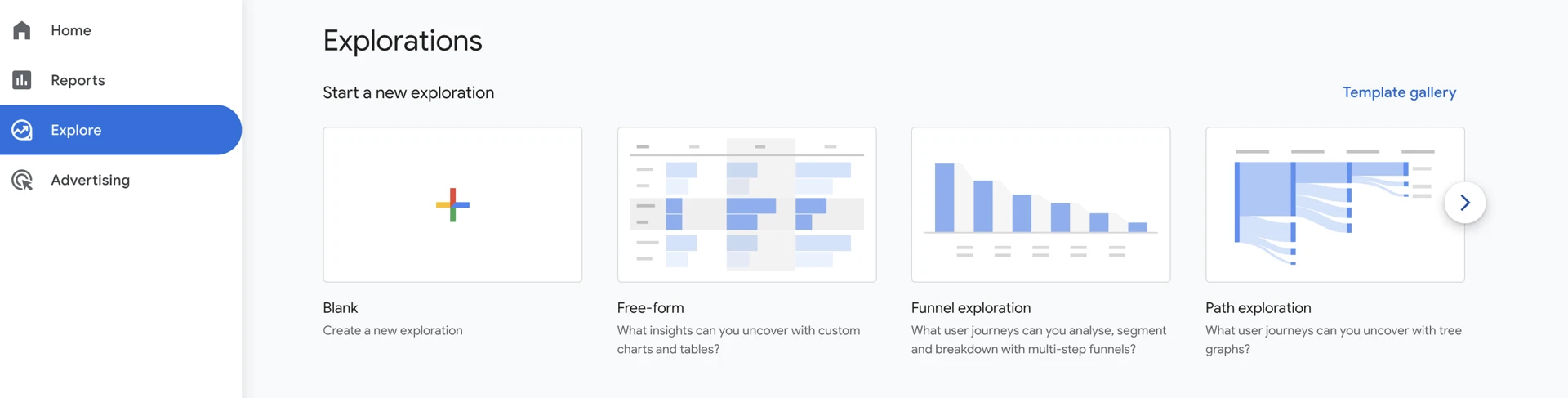
In the Variables column on the left, click the + (Plus) sign next to Dimensions to add a new dimension. Add Event name and item_list_name, then click Confirm.
To filter by item_list_name, make sure to create a custom dimension for item_list_name.
Click the + (Plus) sign next to Metrics to add a new metric. Search for and select Event count, then click Import.
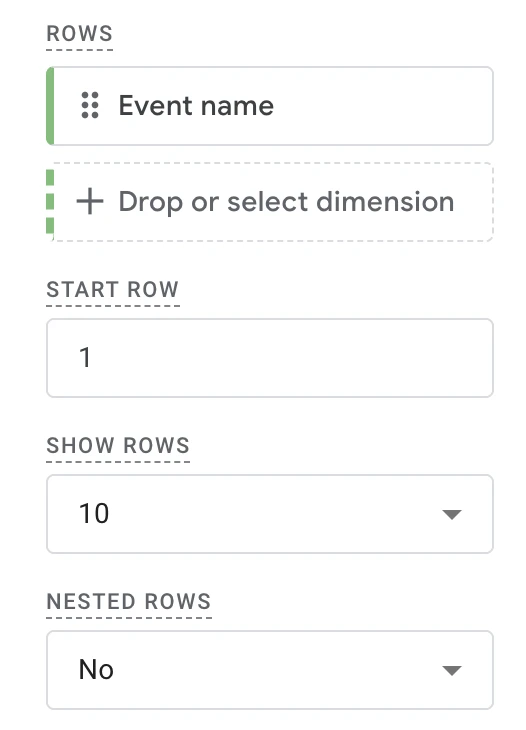
Drag and drop the Event name dimension into the Rows section under Tab Settings.
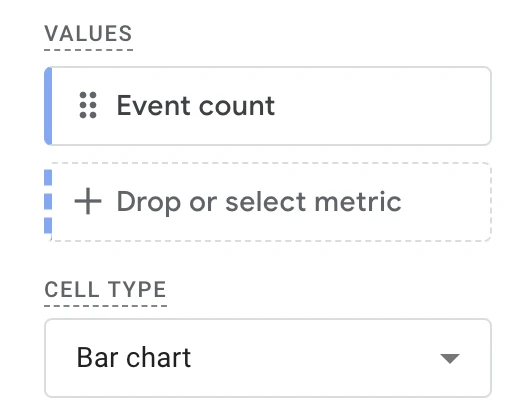
Drag and drop the Event count metric into the Values section under Tab Settings.
Under the Settings column, in the Filters section, filter by Event name and item_list_name dimensions as below.
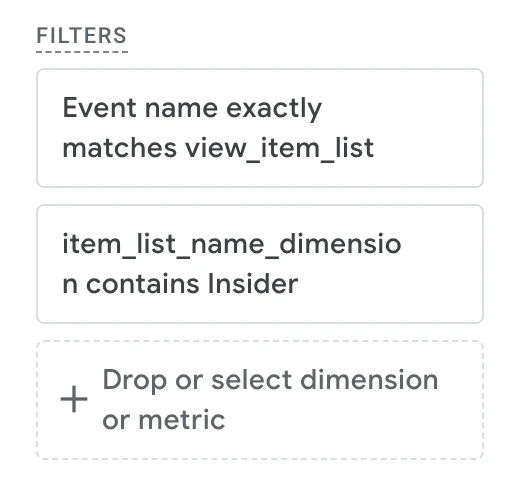
To save your exploration, give it a name in the top left corner. You can also view your click events by using the same filters for select_item events.