Insight Agent is your self-service analytics expert inside Agent One Teams. Ask about your campaigns and customers in your own words, and it answers like an analyst: the finding first, the numbers behind it, and what to look at next. Turn any answer into a chart, pin it to a Custom Dashboard, and schedule the questions you ask every week as recurring email reports.
Availability and setup:
Insight Agent is available to all accounts and needs no setup. If your Insider One account is collecting data, Insight Agent can already answer questions about it.
Insight Agent is a read-only agent: it answers questions and surfaces insights, but never changes anything in your account. To learn how conversations, tasks, and memory work across all agents, see Work with Agent One Teams.
Why marketers love Insight Agent
Answers in minutes, not days. Ask a performance question and get the finding with the numbers behind it. No SQL, no exports, no waiting in an analyst's queue.
Dashboards you build yourself. Pin any answer to a Custom Dashboard. Your team owns the view instead of requesting it.
Reports that arrive on their own. Schedule the report you pull every Monday, and it lands in your inbox on time, even when you're not logged in.
Put it to work
Answer the Monday question before the meeting starts
Your manager wants last week's email numbers: sends, click-through rate, open rate, and revenue. You ask Insight Agent in one sentence, check the date range, and walk into the meeting with a chart instead of a spreadsheet.
Build the channel view your team checks daily
You keep asking the same questions about each channel. Pin every answer to a "Weekly Channel Report" dashboard, compare it with the previous period, and give your team one place to look.
Put the weekly report on autopilot
The same report goes to your inbox every week, without anyone rebuilding it. Set it up once as a task, and each run pulls the latest numbers.
How it works
Ask a question in the Agent One Teams chat, and Agent One Teams routes it to Insight Agent. Insight Agent replies with a short written finding, then shows the data as a widget: a table, line chart, bar chart, pie chart, or metric card.
Insight Agent answers from the data in the panel you're working in:
Campaign and channel analytics go back two years.
User data insights, such as audience counts, reachability, profiling, and attributes, go back 90 days.
Answers are calculated fresh each time you ask. Insight Agent only reads your data; it doesn't create, change, or launch anything in your account.
Ask your first question
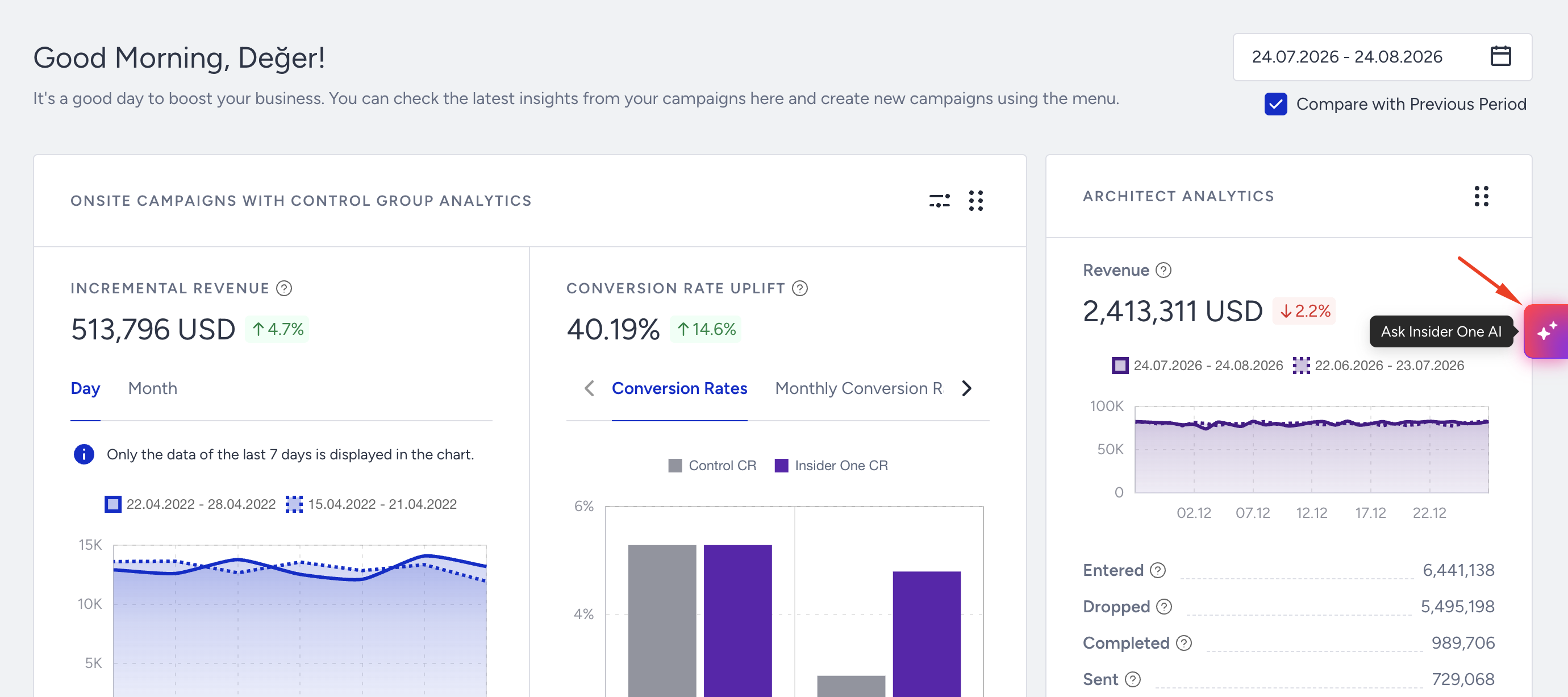
From any page in the InOne panel, click the Insider One AI button in the middle of the right edge of the screen.
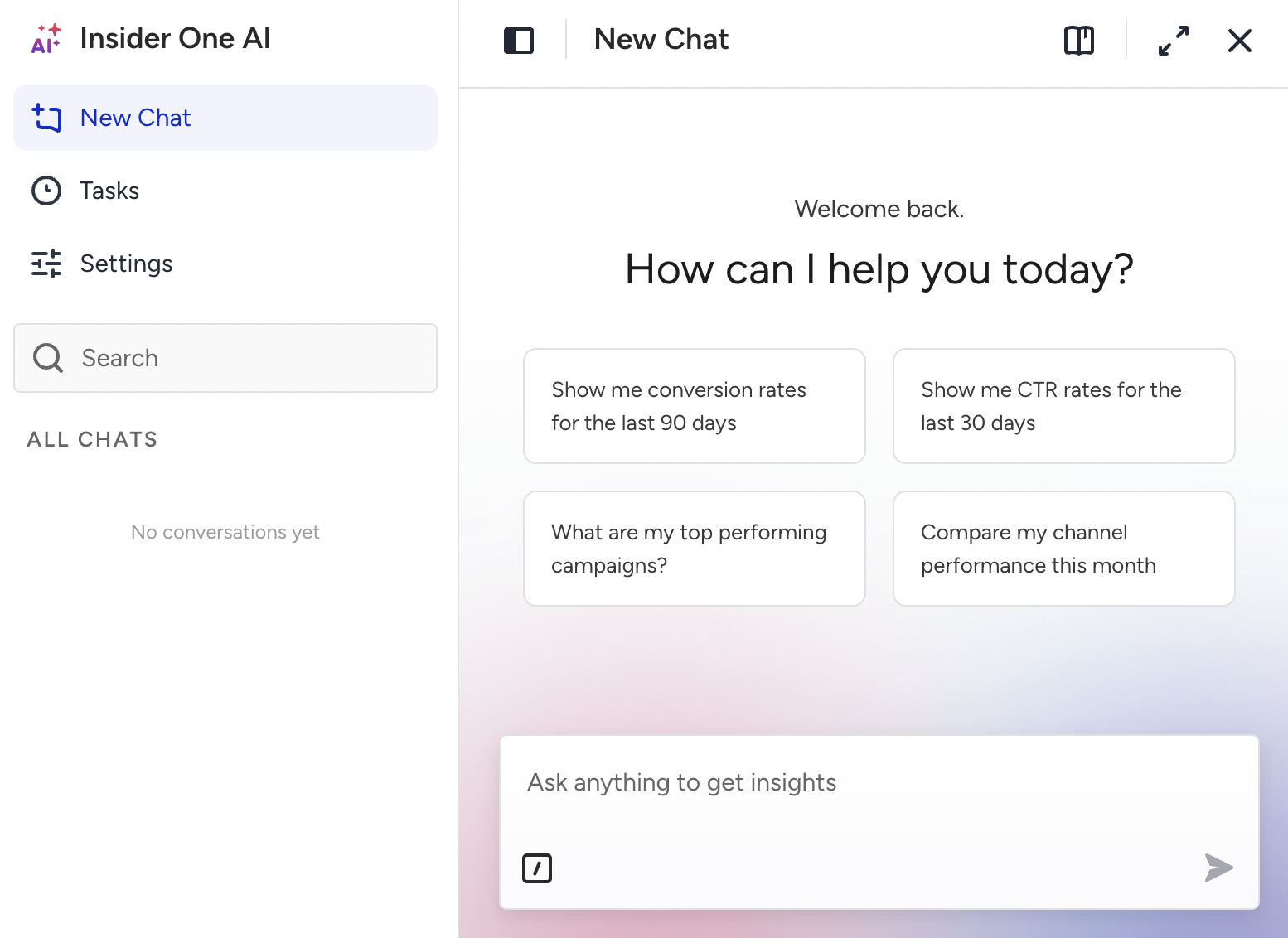
Type your question, or select one of the four ready-to-use prompts.
Read the written finding, then review the widget.
Before you act on the numbers, check two things in the widget:
Title: Does it describe what you asked for?
Date range in the footer: Is it the period you meant?
If either one looks off, rephrase your question and ask again.
Adjust the widget
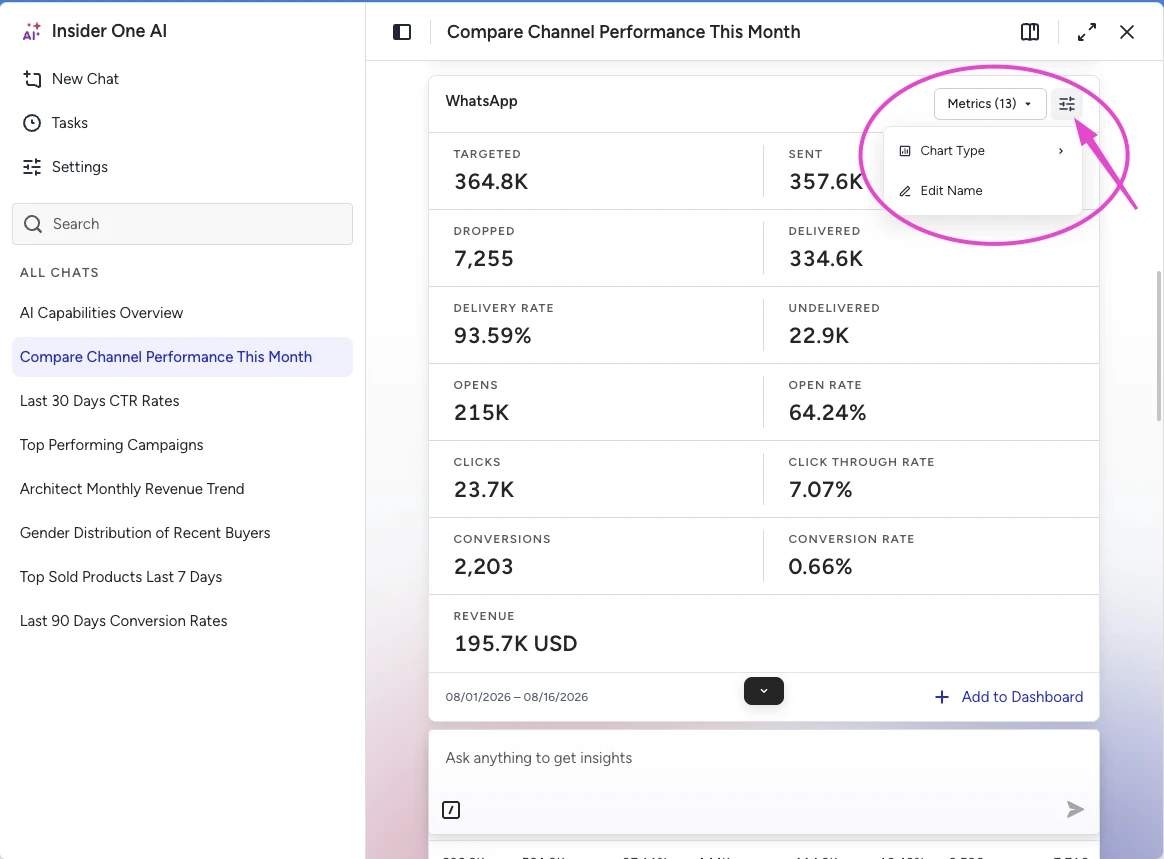
Click the gear icon in the top right corner of the widget.
Select a Chart Type: Table, Line Chart, Bar Chart, Pie Chart, or Metric Card. Insight Agent offers only the chart types that suit the result.
Click Metrics (n) to hide the metrics you don't need.
To rename the widget, click Edit Name or double-click the title. Choose a name you'll recognize later, such as "Email Weekly Performance."
Build a Custom Dashboard
Pin a widget
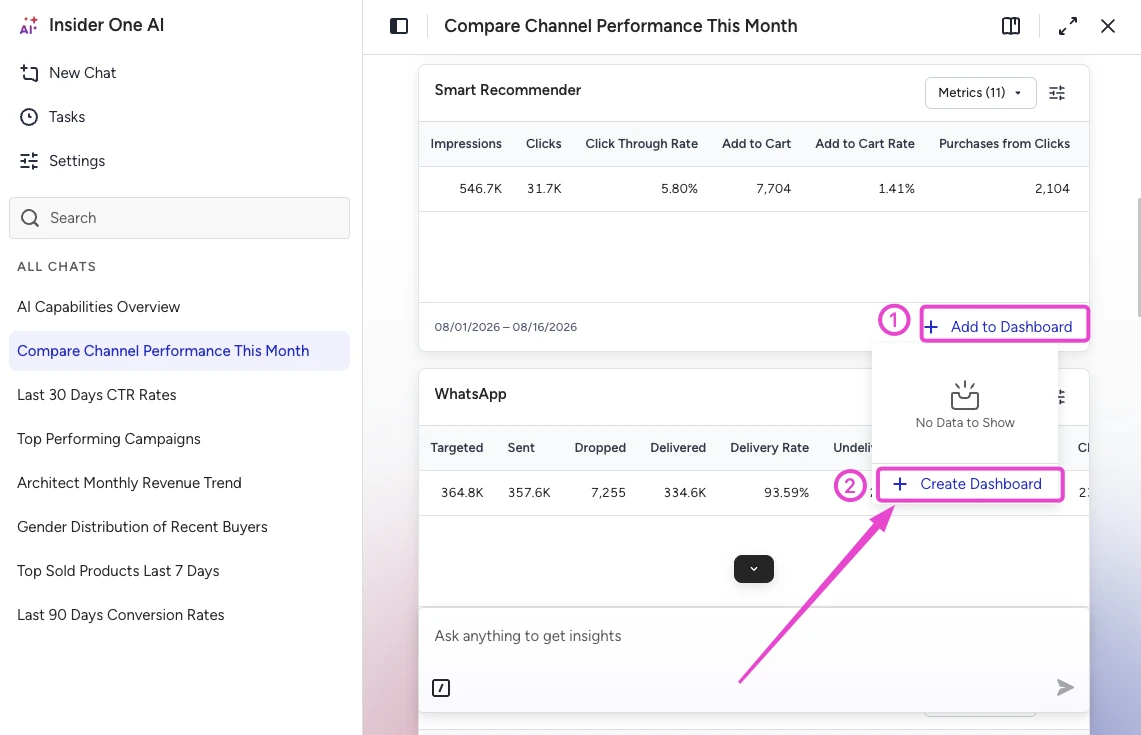
Click Add to Dashboard at the bottom of the widget.
If you don't have a dashboard yet, click Create Dashboard, name it, such as "Weekly Channel Report," and click Save.
If your prompt created multiple widgets, click Add All to Dashboard to pin them all at once.
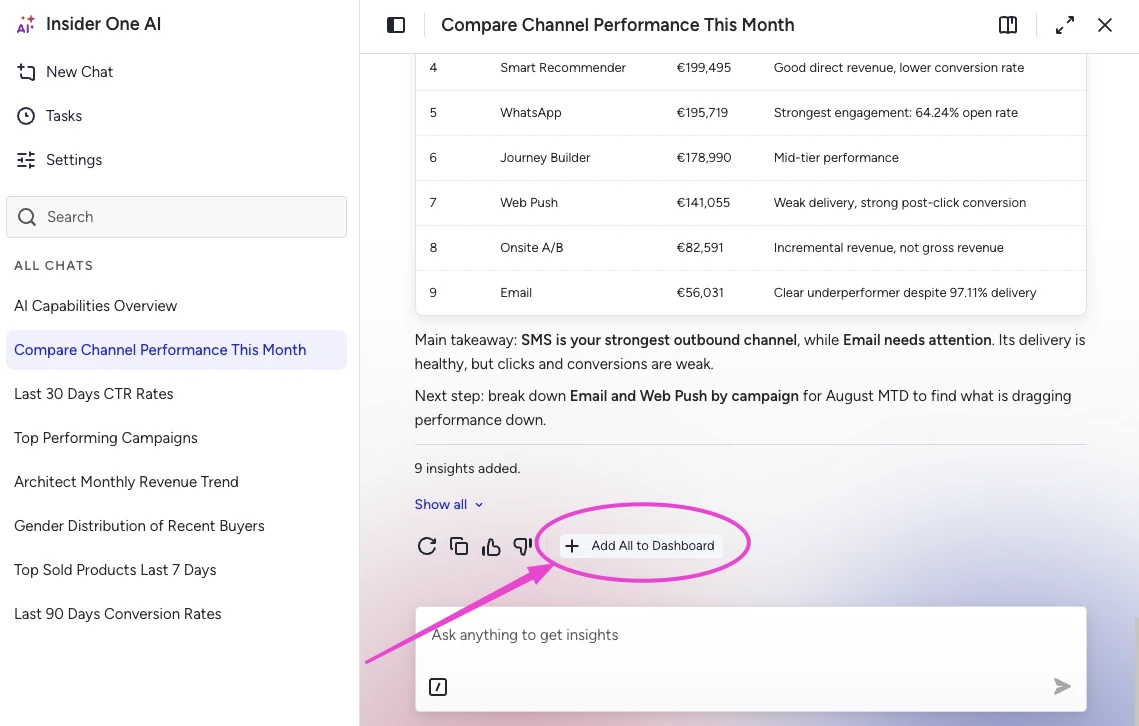
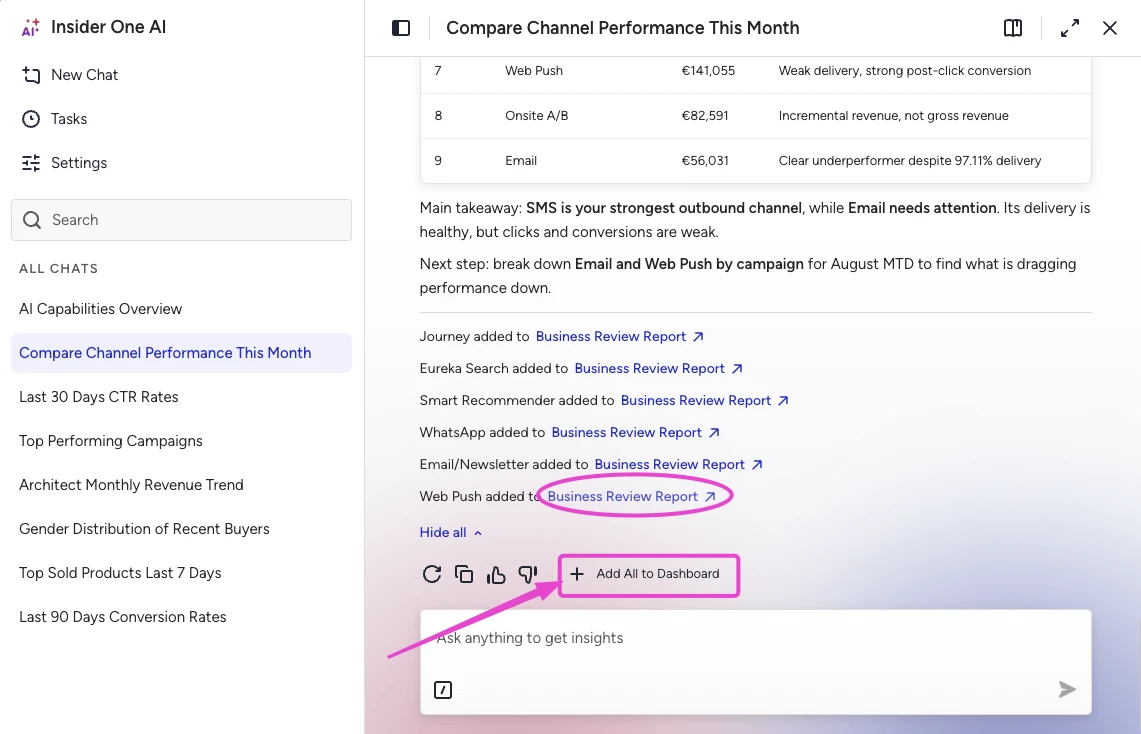
The button briefly changes to Added, and a confirmation appears under the message with the insight name and the dashboard name.
Open your dashboard
Click the dashboard name in the confirmation message, or navigate to Reports > Custom Dashboards in the InOne panel.
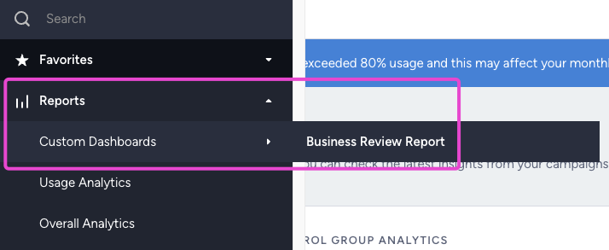
On the dashboard, you can:
Set a Date Range that applies across the dashboard.
Select Compare with Previous Period to see the period-over-period change.
Drag insights to rearrange them.
Edit the widget names and the dashboard name.
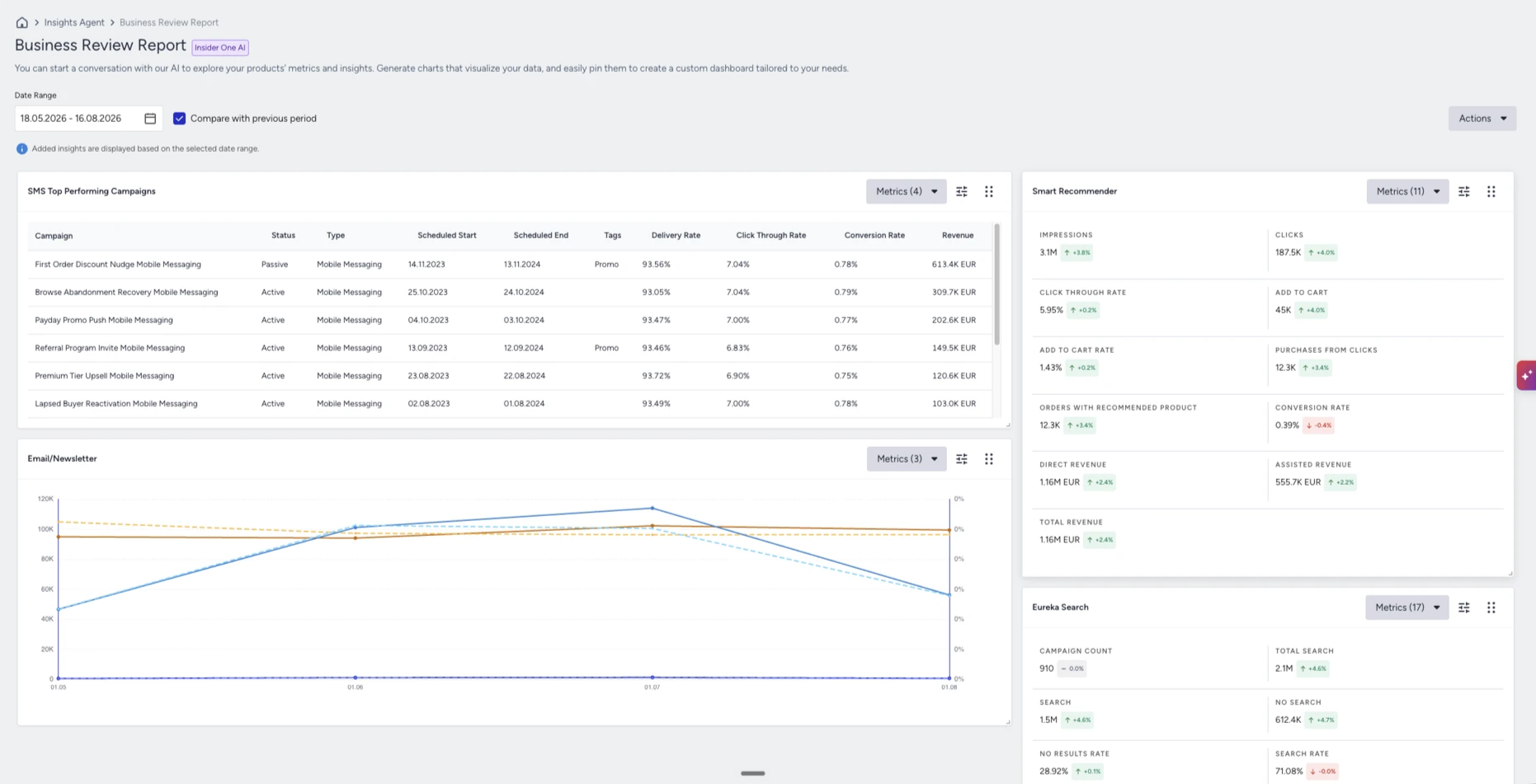
Note: The Date Range applies to campaign analytics. Insights built from user events and attributes keep the period they were created with, so they stay the same when you change the date range.
Keep asking questions and pinning results until the dashboard covers everything you track.
Schedule recurring reports
When a question becomes routine, schedule it as a task. The answer arrives in your inbox on the schedule you set, even when you're not logged in to the InOne panel.
Open Tasks in the chat panel.
Write a short prompt describing what you want to track.
Choose how often the task should run.
Enter the email address the report should go to.
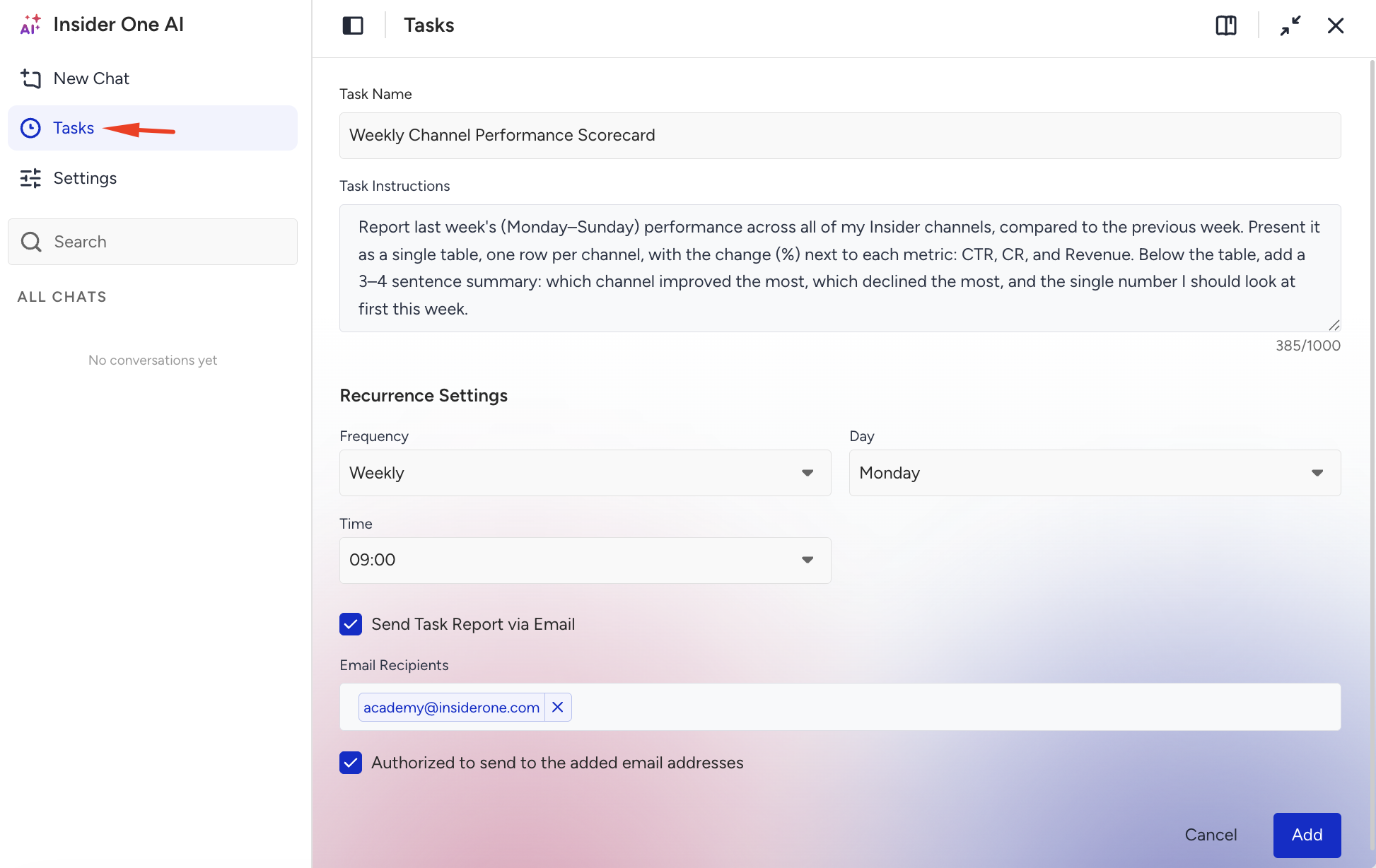
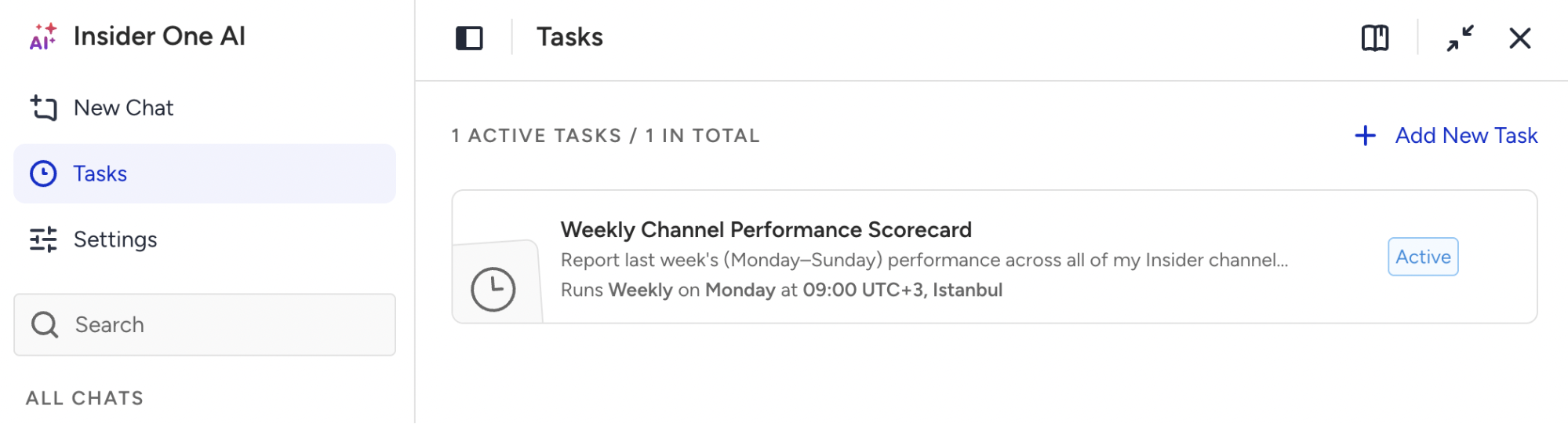
To pause, edit, or delete a task, see Work with Agent One Teams.
Save your preferences with Memory
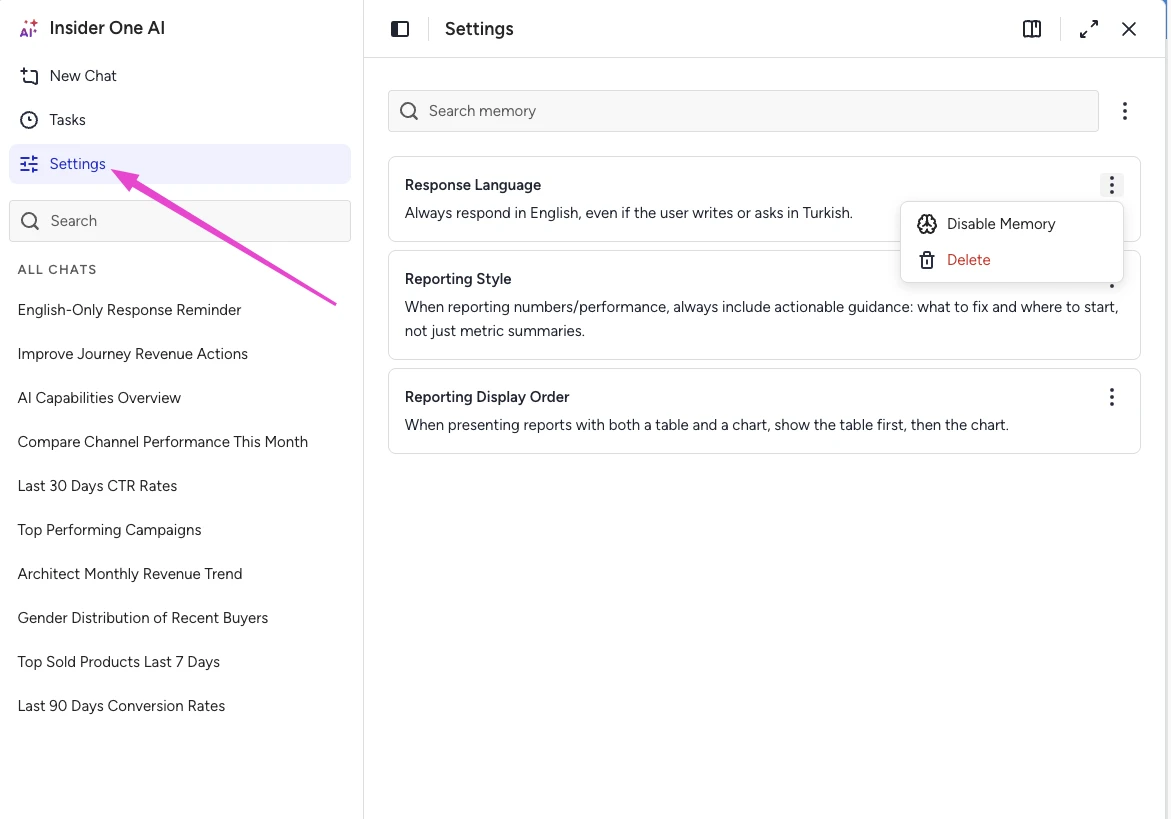
Insight Agent remembers how you work. Tell it how you want something and add "remember this" to your message. It saves the preference and applies it to every answer from then on. For example, ask it to always answer in English, keep the tone formal, or point out what to fix first.
To review your saved preferences, navigate to Settings > Memory. Delete any preference you no longer need.
Rate an answer
Every answer includes a thumbs up (Helpful) and a thumbs down (Not helpful) button in the action row. Ten seconds of feedback has a real effect on what the Insider One team fixes next.
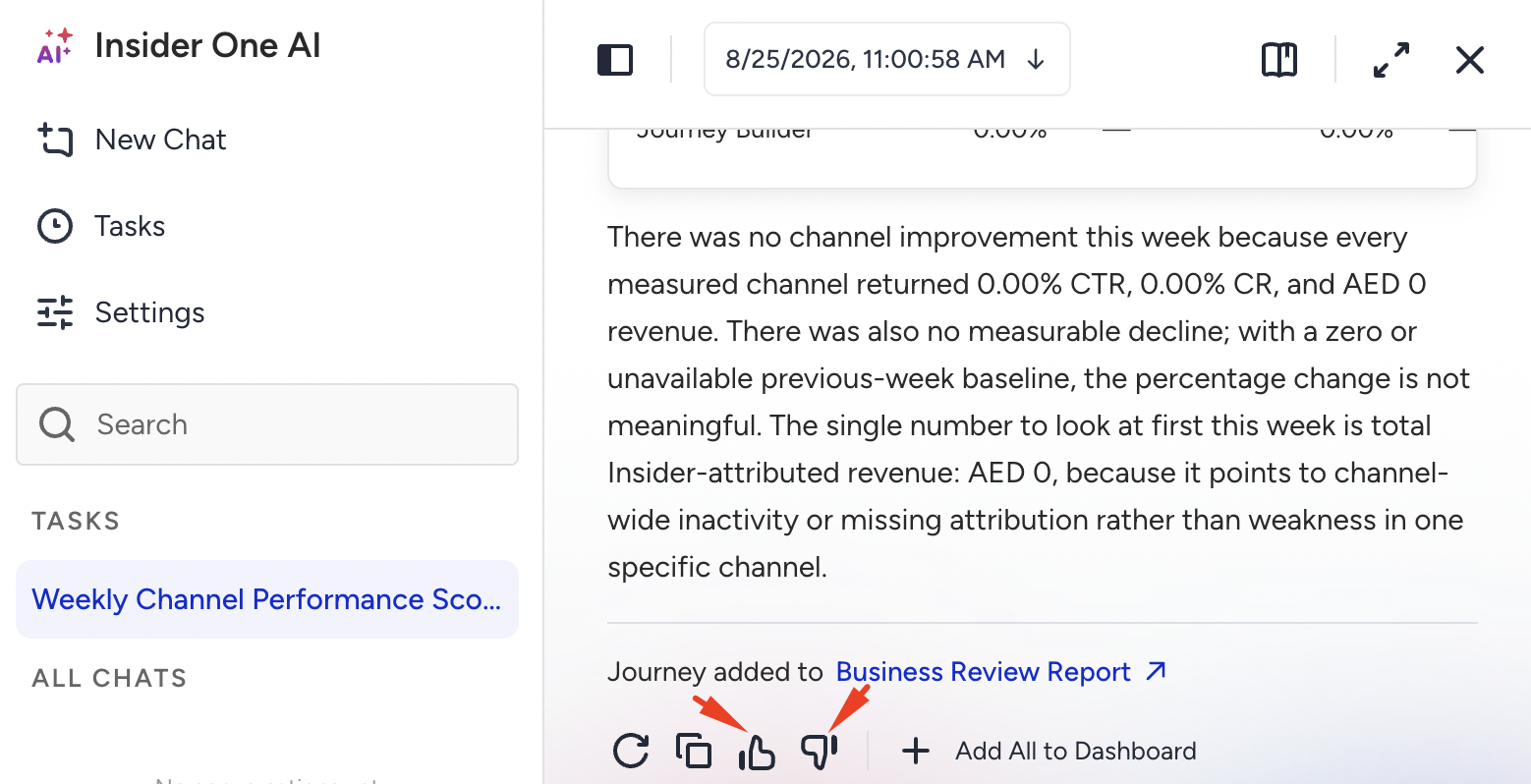
Helpful takes one click.
Not helpful opens a short form. Describe what went wrong in Enter Additional Feedback, then click Submit.
One specific sentence is worth more than a paragraph. "This shows Email only, but I asked for all channels" gives the Insider One team something to trace; "Wrong" doesn't. The team reviews your feedback alongside the conversation itself.
Example prompts and tips
Try these to get started:
How many emails did we send last week, and what was the average click-through rate, open rate, and total revenue of those campaigns?
How did our email campaigns perform last month?
Now break that down by country.
Always answer in English. Remember this.
For sharper answers:
Be specific. Name the metric, channel, and timeframe. "SMS revenue in May" gets a sharper answer than "SMS performance."
Narrow broad questions. A shorter date range or a single channel often succeeds where a broad question times out.
Refine with follow-ups. Build on the last answer instead of packing every detail into one long question.
Limits and good to know
Languages: Insight Agent replies in the language you write in and performs best in English. If a question in your language is misunderstood, ask it in English before rephrasing.
Data lookback: Two years for campaign and channel analytics, and 90 days for user data insights.
One panel at a time: Insight Agent answers questions about the panel you're working in.
Dashboards are personal: Each user has their own set.
Dashboard limits: Each user can create up to five dashboards, and each dashboard holds up to 16 widgets.
Troubleshooting
I changed the date range, and one of my numbers didn't change.
This is expected for insights built from your user data: audience counts, reachability, profiling, and attribute breakdowns. These insights keep the period set when you first asked the question. Campaign and channel widgets re-run against the new range.
I asked the same question twice and got different answers.
Check the date range in the footer of each result first. The most common cause is that the two answers cover different periods.
If the periods match and the numbers don't, click Not helpful, select Data doesn't look right, and include both numbers in the comment. That's exactly the report the Insider One team needs.
Something else doesn't look right.
Refresh the page. A refresh resolves most temporary issues.
Ask the question again. Answers are calculated fresh each time, so a retry is a real second attempt.
Narrow the question to a shorter date range or a single channel.
Report it. Click Not helpful and describe what you asked and what happened. If you have a number you believe is correct, include it.
Next steps
Insight Agent turns your questions into widgets, your widgets into dashboards, and your routine questions into scheduled reports. Ready to start? Build a dashboard for the metrics you check most, then schedule the report you pull every week.