You cannot make any changes to External Platform Integrations without having either an Administrator or an Editor with PII access in InOne. Refer to User Roles for further information.
Webhook (Data Stream), also known as a real-time data feed, lets you send real-time data to your endpoints. You can seamlessly integrate with Insider One to receive events and attributes through webhooks.
This feature lets you send data to an endpoint as soon as Insider One collects it, ensuring timely delivery of valuable insights.
Webhooks offer two key functionalities:
Attribute Stream: This feature lets you monitor specific user attributes and receive webhooks whenever they change. You can customize your webhook to stay informed about relevant user data in real-time.
Event Stream: With Event Stream, you can track specific events and receive webhooks as they occur. You can receive real-time webhooks whenever a user interaction triggers an event.
In this article, you can find answers to the following questions:
Use Cases
Real-Time Data Updates: Integrate webhooks to ensure all your tools and applications have real-time access to the latest data triggered by Insider One. For instance, automatically update customer profiles across multiple platforms whenever their information changes, such as a new address or contact number.
Cross-Platform Communication: Enable seamless communication between different systems and platforms using webhooks to send information in real-time to systems such as CRM tools or inventory management systems. For example, notify your CRM system whenever a new lead is generated on your website, ensuring that sales representatives can follow up promptly.
Automated Workflow Triggers: Utilize Insider One webhooks to trigger automated workflows in response to specific user actions or events in real-time.
Archive communication history in your own storage
Use Webhook (Data Stream) to send supported communication events to your own storage and build a searchable history that supports your organization's retention and audit requirements.
Your archive contains the events and fields selected in the webhook configuration. Define the required channels and records before setting up the integration.
Prepare your destination: Set up an endpoint that receives webhook requests and saves the records to your storage. Configure retention, access controls, and search in your own system.
Select the records: Follow the configuration steps below to select the supported communication events, available event parameters, and user attributes required for your archive. Apply segment filters only if you intend to archive a specific group of users.
Test the archive: Test the webhook connection, then generate the selected communication events. Verify that your destination stores the expected records and that you can find them using the available identifiers.
Monitor delivery: Monitor your endpoint and webhook queue notifications. Review the queue retention and transmission rules below, and define how your integration detects and handles missing or duplicate records.
The Event Stream payload includes the event name, selected event parameters and user attributes, Insider ID, webhook ID, partner name, and timestamp. The timestamp indicates when Insider One receives the data that triggers the webhook, not necessarily when a message is sent or delivered.
Archive scope: Event history is not the same as a copy of each message. Confirm whether the available fields meet your evidence requirements, especially if you need personalized message text, rendered HTML, media, or attachments. Confirm historical export options separately if you also need records from before the integration was activated.
Delivery monitoring: Queued webhook requests are retained for up to 24 hours and can be discarded under the queue retention conditions documented below. Use your own storage for long-term retention, and monitor delivery to identify gaps in your archive.
Configure Insider One Webhooks
To start sending your events and attributes to your endpoint, you can follow these steps:
1. Navigate to Components > Integrations > External Integrations and select the Webhook integration. Provide a name for your integration to make it easy to identify and navigate later, then click Save.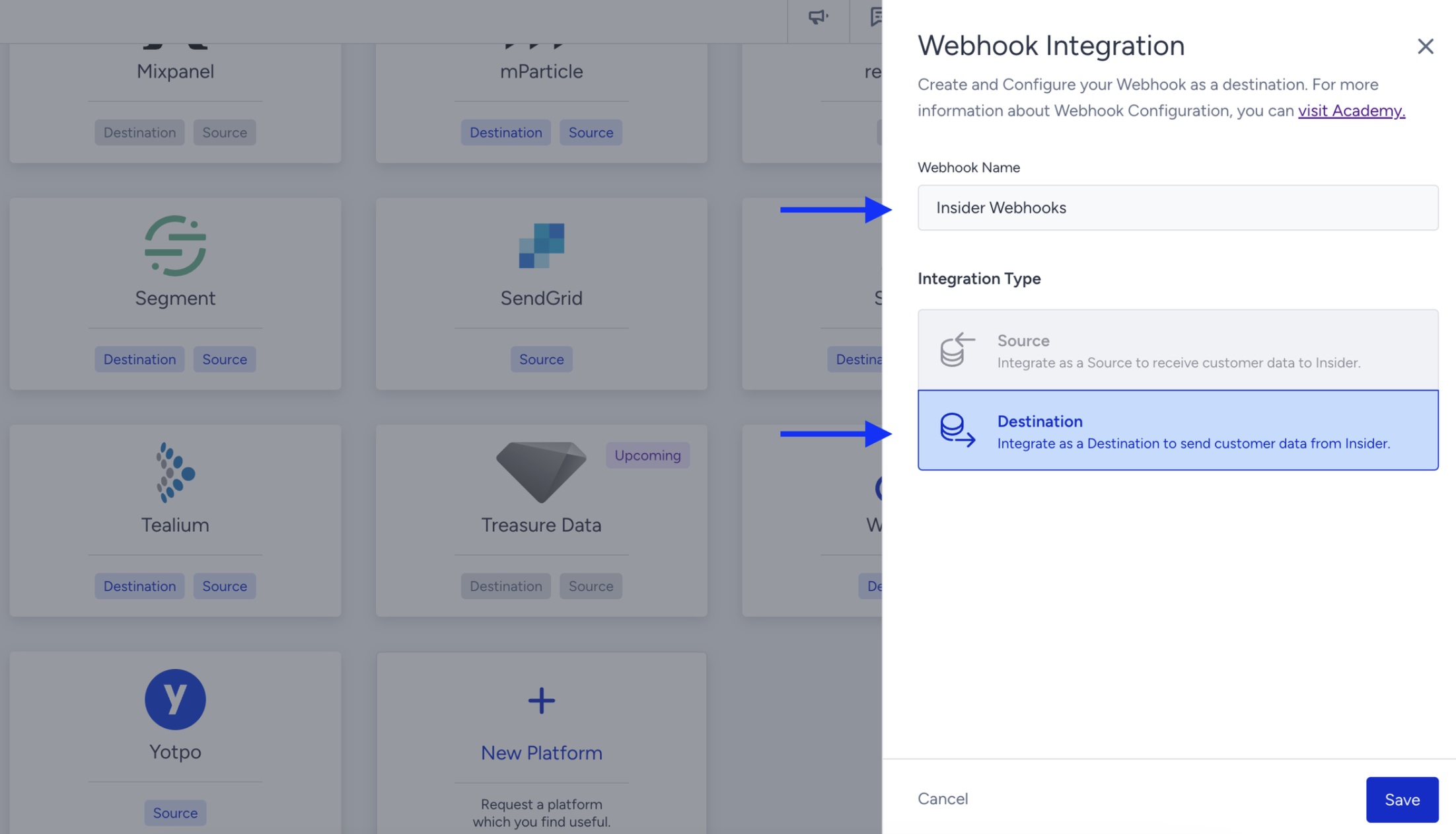
2. You land on the Rules step. In the tabs, you can select one or more Events or Attributes to trigger your integration.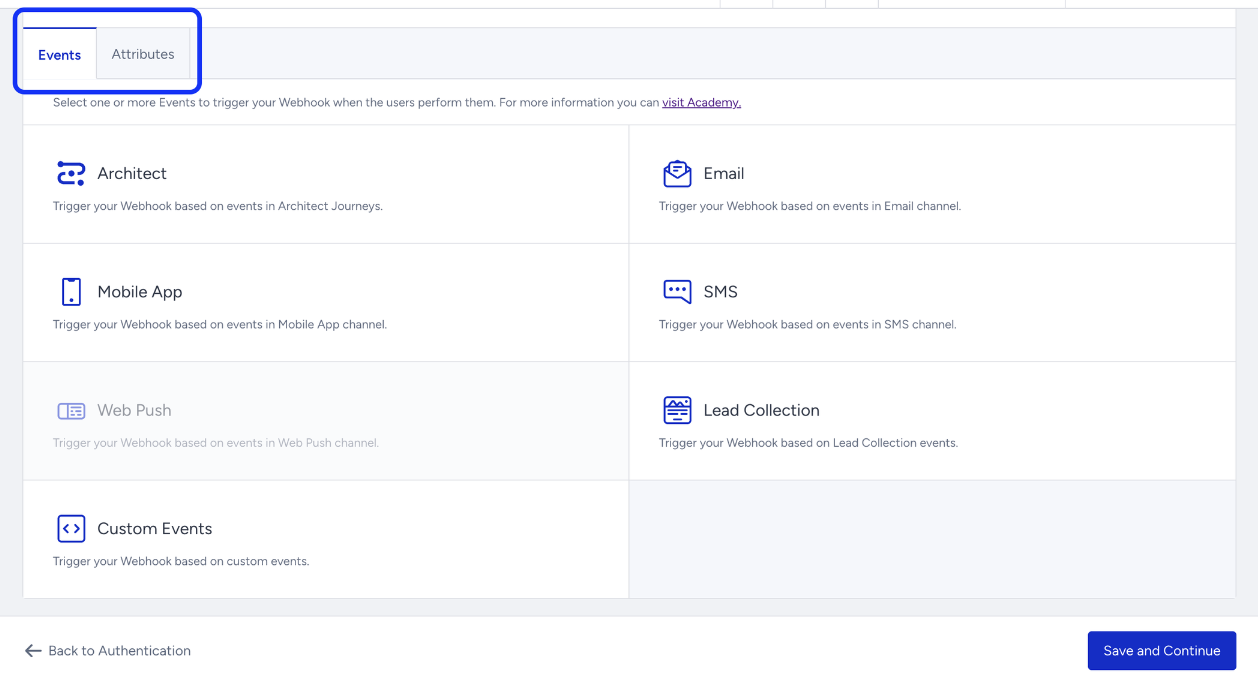
3. After you select the first event type you want to trigger the data collection, you can see the events based on the type and select or deselect the ones you want to collect. You can also add other event types in the same section.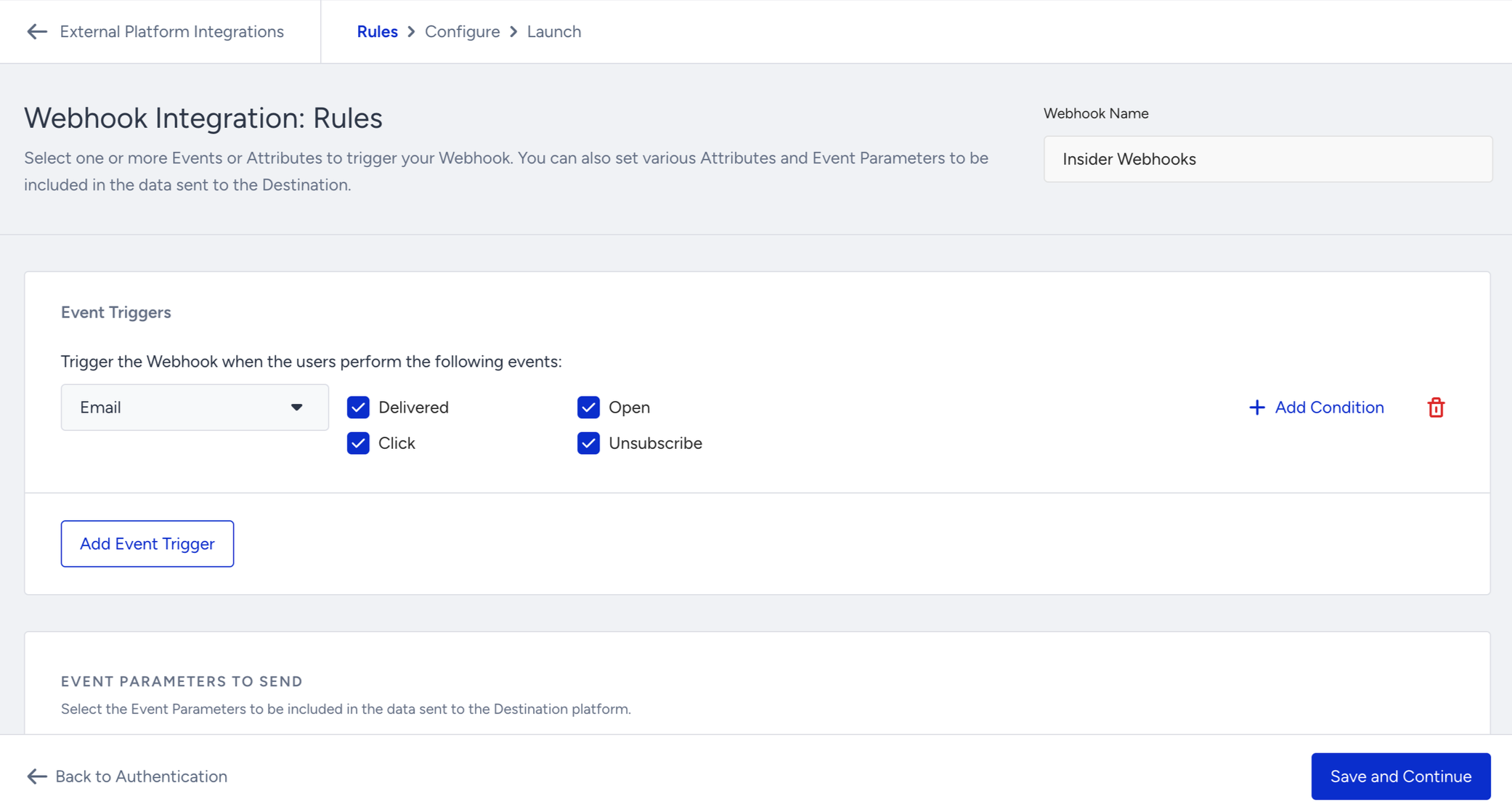
You can also add event parameters.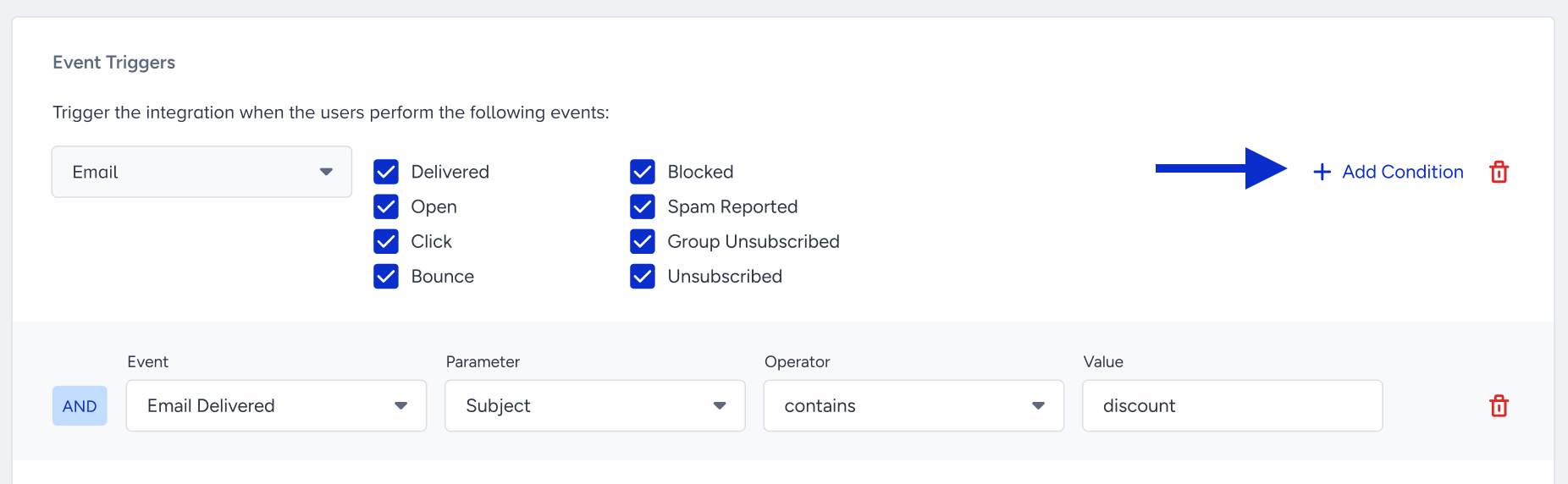
4. The Event Parameter section will be enabled after you select an event. You can select the parameters for your events in the dropdown you want to send to your destination.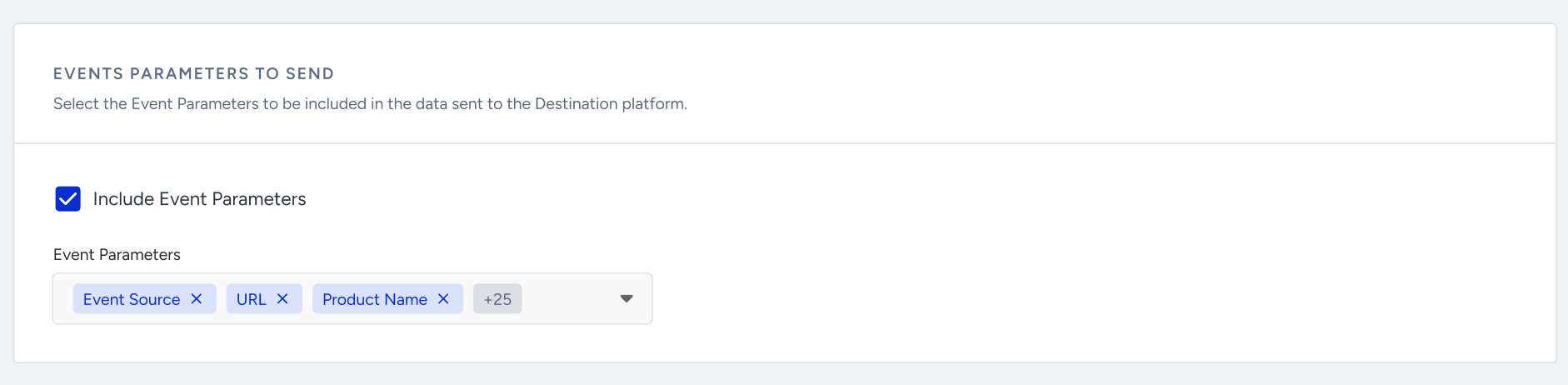
5. You can select the additional attributes to be included in the data sent to the endpoint. To include additional attributes when sending event data to your destination, add them here. For example, if you are sending an email open event, you can also select the email address to be sent to your destination. This way, you can understand which email address opened which email campaign.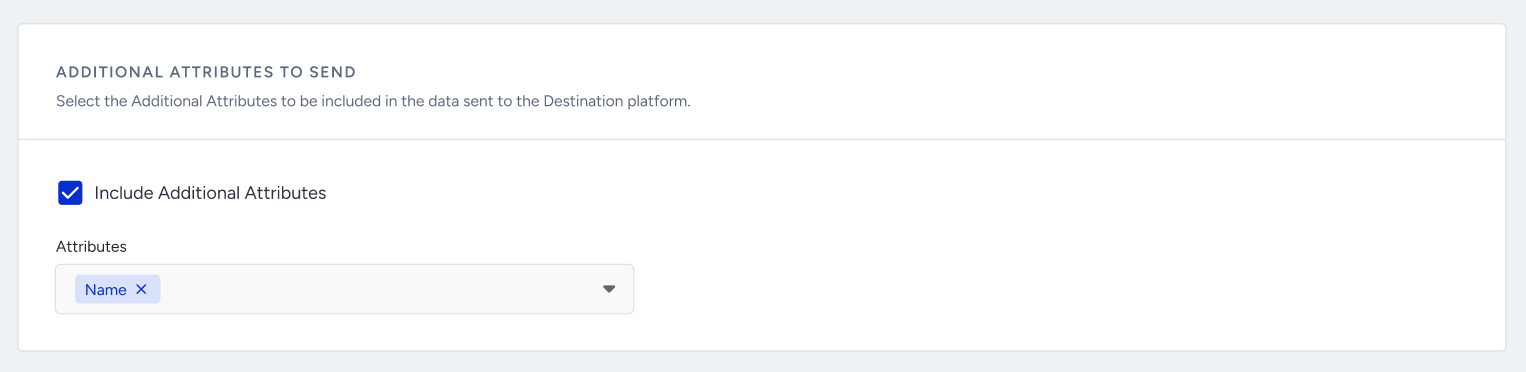
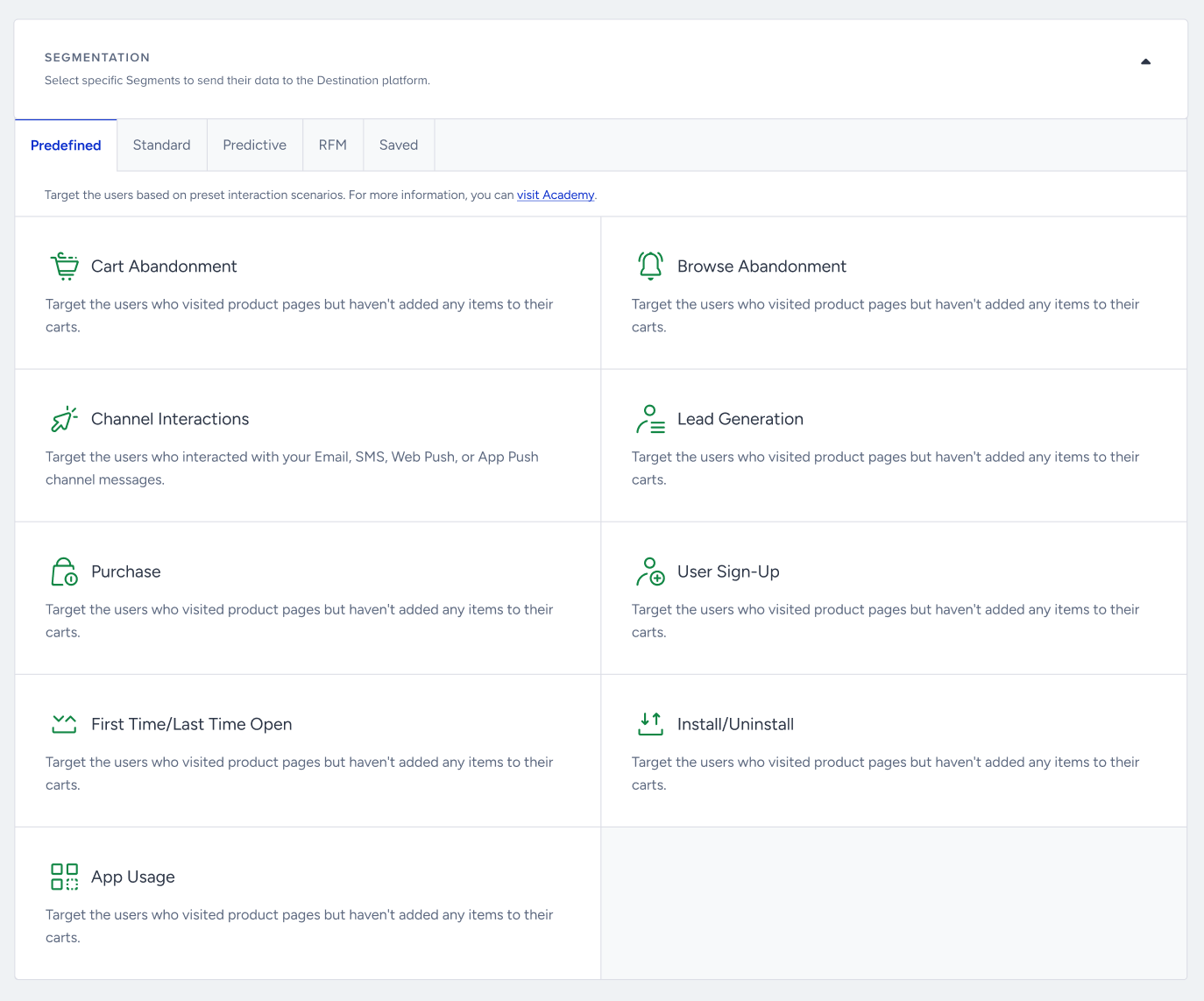
6. In the Segmentation step, you can also select filter users in specific segments in Insider One to send. The data is sent only if the user performs the selected event and meets the optional segment filter criteria. For example, using this section, you can send user data to users who perform a cart page view event and have a high Likelihood to Purchase value.
7. You can continue with the Configure step, which enables you to add your endpoint URL to send your Insider One data.
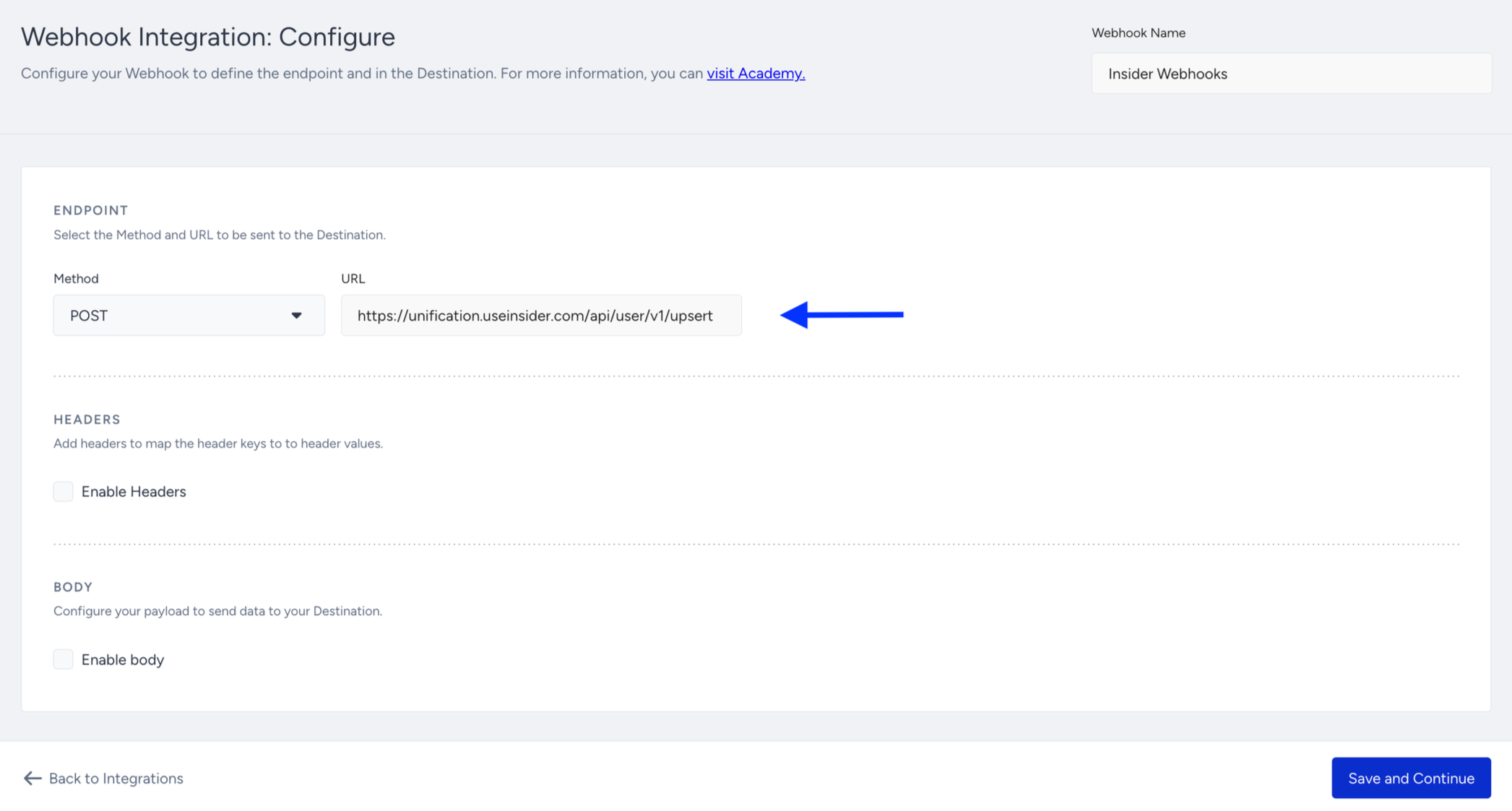
In this step, you can add headers and payload to send to your endpoint.
To send headers, check the “Enable Headers” checkbox and add a header name and value. You can add as many headers as you want.
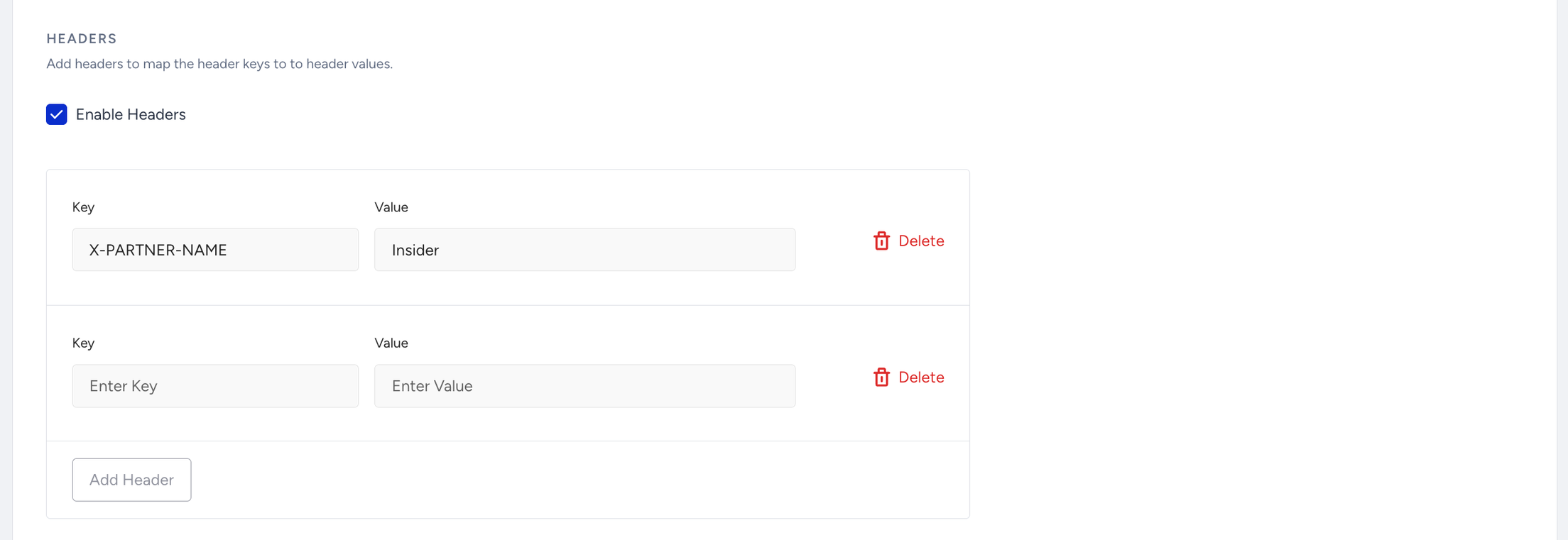
If you add sensitive data such as an API key in this field, make sure to check the Mark as Sensitive Information box to keep it protected.

You can choose to send the default payload generated by Insider One based on your selections on the Rules page, or you can opt to use a custom payload that will be sent when the webhook is triggered.
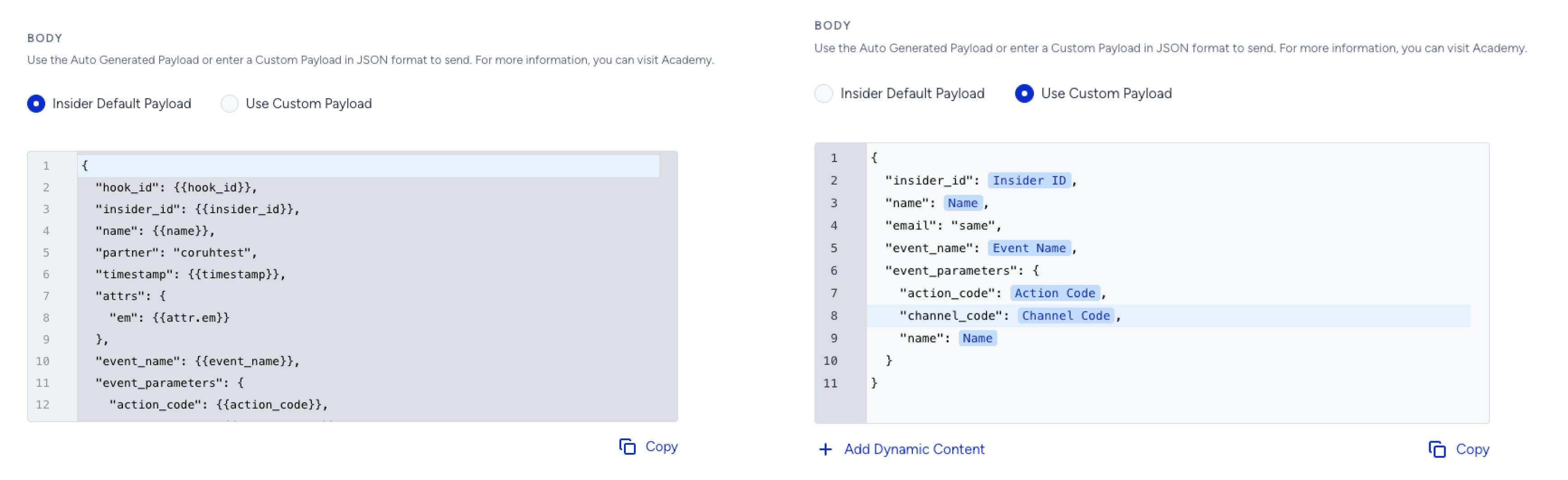
When configuring your payload body, ensure that you don’t include any sensitive information (e.g., API keys, tokens, or passwords) to keep your data secure.
Insider One evaluates all trigger conditions you add to a webhook together. For an Event Stream webhook, the webhook is sent only when all conditions match (AND). For an Attribute Stream webhook, you choose whether any or all conditions must match. To send a webhook for either of two cases in an Event Stream, create one webhook for each case.
8. After configuring your endpoint, headers, and body for your webhook, you can continue with the Launch step, the last step to complete the integration. On this page, you can choose launch options as draft, active, or paused, and optionally add notes via the Notes field to enter additional information for your integration. The Draft option is selected by default. 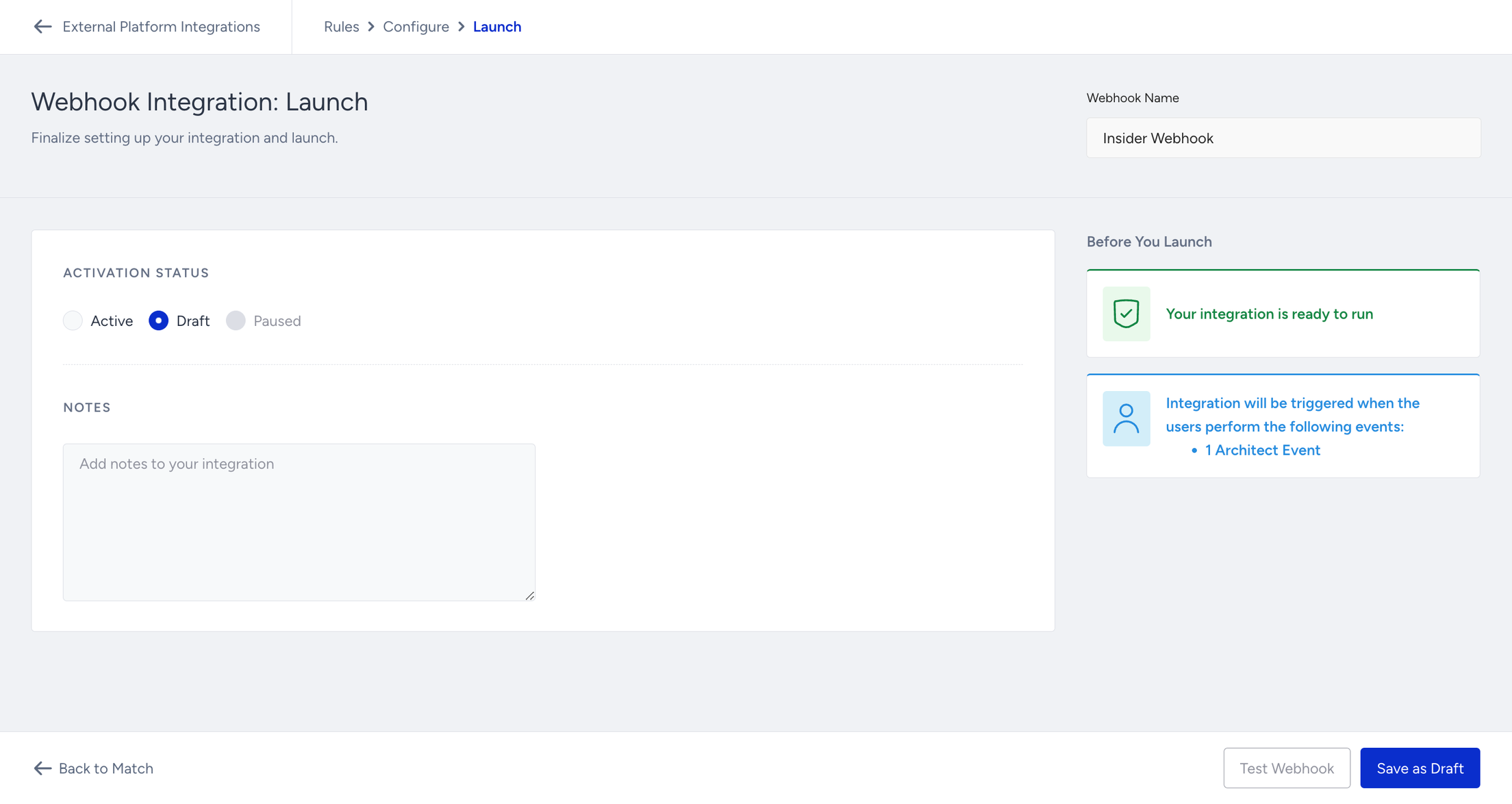
Before you start sending webhooks, you should test your webhook using the Test Webhook button. After the test is successful, you can enable webhook sending to your endpoint.
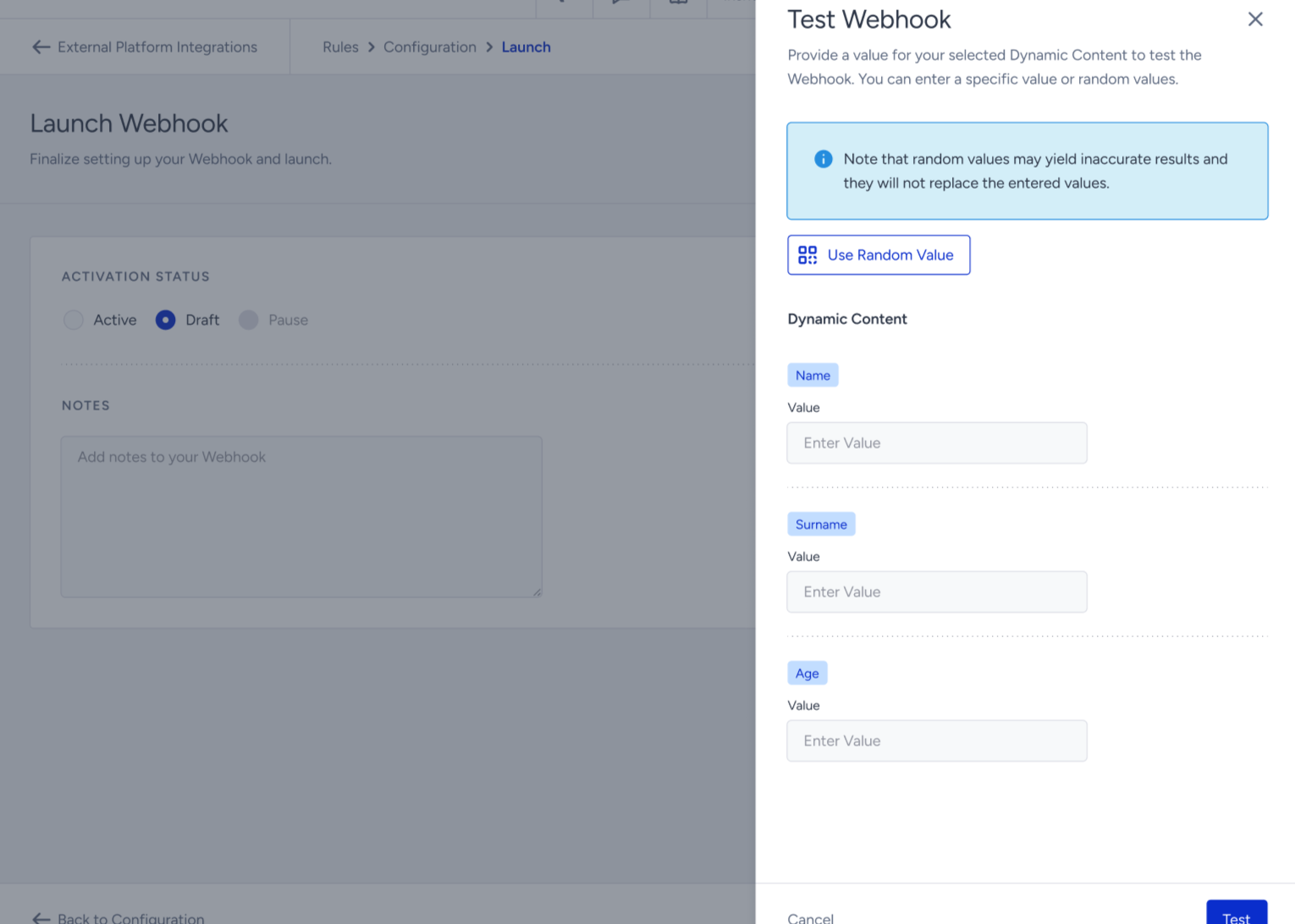
You can automatically add random values to the dynamic values, then click the Test button to send your data. After sending the data, you can view the response status and request details in the side modal to confirm your request was sent successfully.
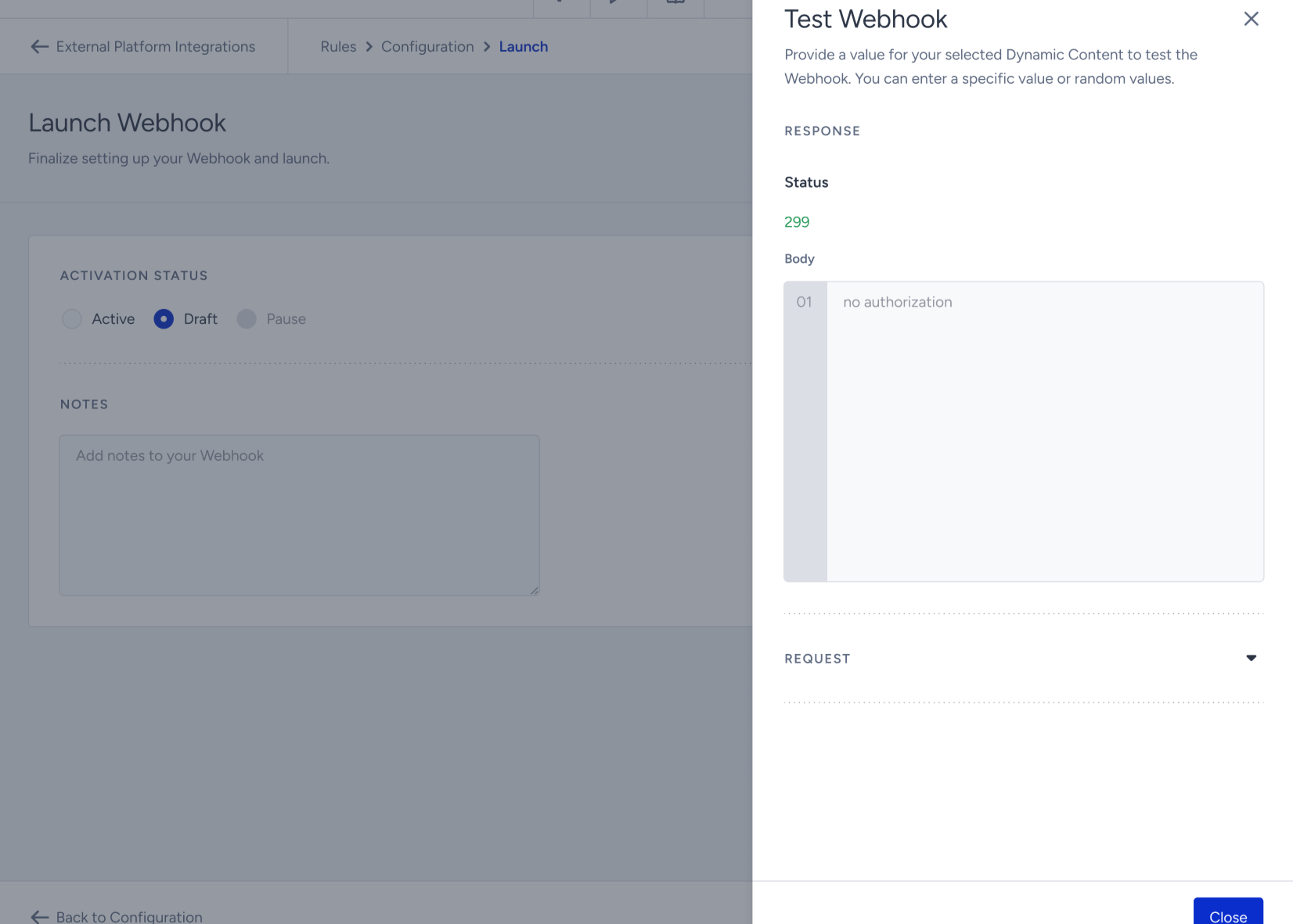
If you see a successful HTTP response in the status, you can activate your integration and send data to your endpoint.
Insider One sends webhooks only when the integration status is Active. A webhook saved as Draft or set to Paused does not send data to your endpoint, even when the rules match. After a successful test, set the status to Active to start sending.
9. After completing the steps, you have successfully integrated Insider One webhooks to your endpoint. This integration enables you to channel data seamlessly from Insider One to your destination.
If the endpoint’s response takes longer than 8 seconds, the test will automatically fail due to a timeout.
If you need to make any updates to the webhook, you can come back and edit the configuration.
For an additional layer of security, restrict your webhook endpoint to accept requests only from Insider One’s egress IPs. When combined with HMAC signature verification, IP allowlisting helps prevent spoofed or replayed requests from unauthorized sources.
Refer to Insider One IP Allowlist for Destinations for the list of IPs to allowlist.
Data structure and sample webhook
In any of the given cases above, Insider One sends a payload to the given webhook URL with the following details:
Attribute Stream
Parameter | Definition |
|---|---|
attrs | The attributes object, which contains the wanted attributes along with the subscribed attributes. |
hook_id | The ID of the subscribed webhook |
insider_id | The Insider ID/Profile ID of the user that is shared in the payload |
partner | This is your partner name. Navigate to Inone Settings > Account Settings to copy your partner name. The partner name should be lowercase. |
timestamp | The time when Insider One receives the respective data that triggers the webhook (epoch time) |
triggers | The array that contains the case(s) that trigger the attribute stream |
Webhook Sample
{
  "attrs": {
    "age": 20,
    "email_optin": false,
    "name": "John",
    "surname": "Doe"
  },
  "hook_id": 3,
  "insider_id": "a1b2c3d4e5f6",
  "name": "My attribute webhook",
  "partner": "poshstreet",
  "timestamp": 1623182670,
  "triggers": [
    {
      "current": {
        "value": "loyal"
      },
      "key": "membership",
      "next": {
        "value": "VIP"
      }
    }
  ]
}
Event Stream
Parameter | Definition |
|---|---|
attrs | The attributes object, which contains the wanted attributes along with the subscribed attributes. |
event_name | The name of the subscribed event |
event_parameters | The event parameters of the subscribed event |
hook_id | The ID of the subscribed webhook |
insider_id | The Insider ID/Profile ID of the user that is shared in the payload |
partner | This is your partner name. Navigate to Inone Settings > Account Settings to copy your partner name. The partner name should be lowercase. |
timestamp | The time when Insider receives the respective data that triggers the webhook (epoch time) |
triggers | The array that contains the case(s) that trigger the attribute stream |
Webhook Sample
{
  "attrs": {
    "age": 25,
    "email_optin": true,
    "name": "John",
    "sms_optin": false
  },
  "event_name": "purchase",
  "event_parameters": {
    "unit_price": 10,
    "url": "https://mybrand.com/blue-jeans"
  },
  "hook_id": 12,
  "insider_id": "1a2b3c4d5e6f",
  "name": "My event webhook",
  "partner": "mybrand",
  "timestamp": 1623187855,
  "triggers": [
    {
      "key": "url",
      "next": {
        "value": "https://mybrand.com/blue-jeans"
      }
    }
  ]
}
Event Stream webhooks send the attribute values that Insider One has stored when the event arrives. If the same user action also updates an attribute, the event can reach Insider One a fraction of a second earlier. In that case, the
attrsobject can contain the previous value. For example, anemail_optinvalue can still readtruein the webhook that follows an unsubscribe.To track opt-outs reliably, use an Attribute Stream webhook with the
global_unsubscribeattribute as the trigger. Do not reademail_optinfrom an Event Stream payload.
Throttle the webhook
Using Insider One's throttling function, you can limit the number of real-time webhook requests coming to your endpoint per minute.
Some service endpoints can't handle many requests and may be unable to receive and process them. You might also want to keep the number of requests coming to your endpoint from different services at a reasonable level for security reasons.
Go to External Integration Settings > Settings > Webhook Throttling.
Click the Add a Webhook Endpoint button to add your endpoint. Enter the URL and request a size limit for each endpoint. You can add as many endpoints as you want.
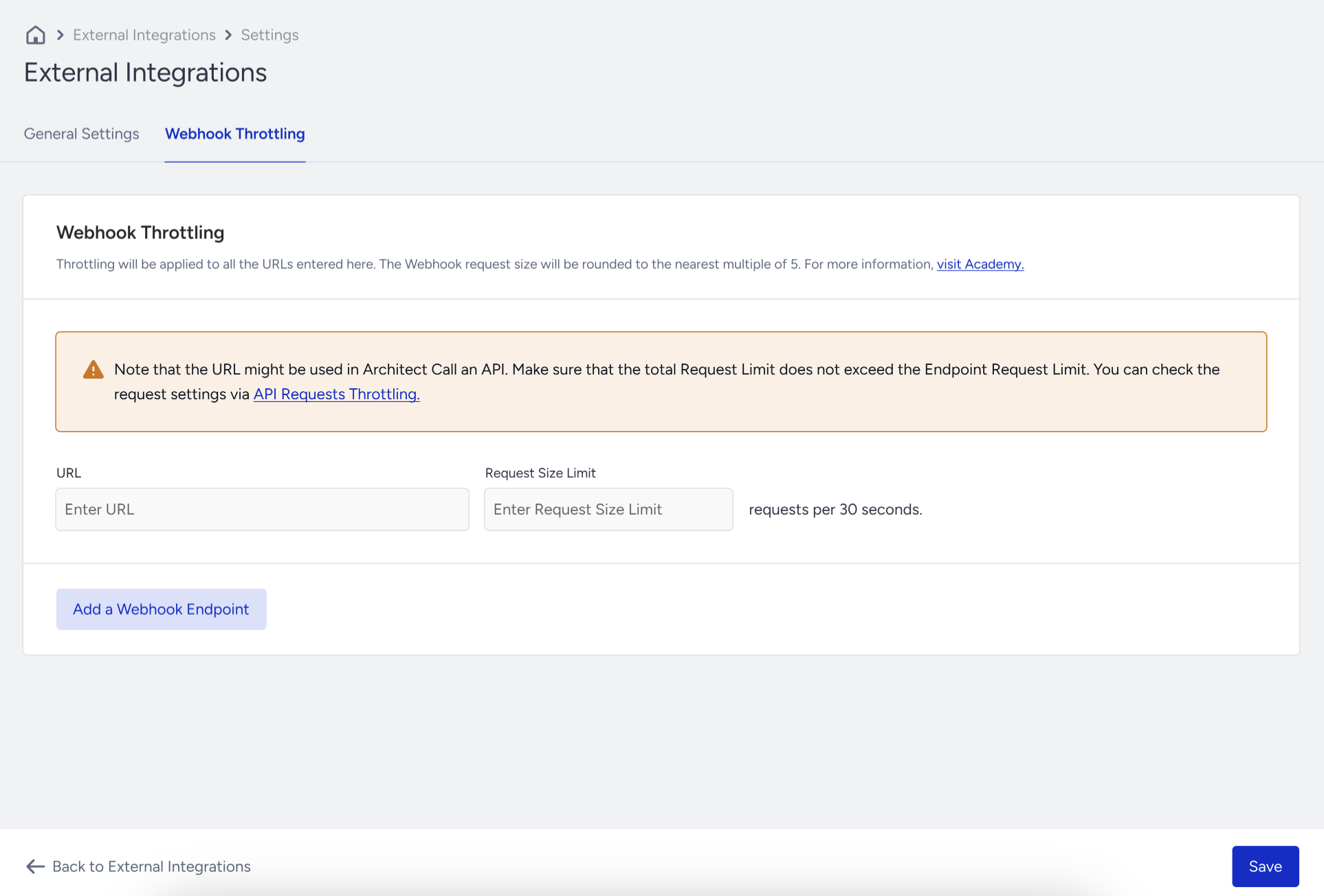
You can configure the request size limit for each 30-second interval. The maximum allowed request size limit is 1 million, if you use throttling.
After entering the URL and request size, click Save to save your changes.
The throttling settings will be automatically applied to the endpoint for all webhooks you launch.
Since throttling is endpoint-based, the request size limit you set is shared across all Insider One’s InOne features, including all webhooks and Architect's Call APIs that use the same endpoint.
Webhook Queue Notifications
If your endpoint accepts requests more slowly than they arrive, incoming webhook requests are queued on Insider One's side. Insider One continuously estimates how long it will take your endpoint to process the queued requests based on its current delivery rate. If the estimated queue clear time becomes significant, Insider One emails your account administrators so they can take action before delivery is affected.
Notification types
Notification | When it is sent | What it includes |
|---|---|---|
First warning | When the estimated queue clear time exceeds 3 hours | Endpoint URL, partner name, number of queued requests, estimated queue clear time, and the time the issue was detected |
Reminder | At most once every 3 hours while the condition continues | Updated queue size and estimated queue clear time |
Final reminder | As the estimated queue clear time approaches the 24-hour retention limit | Current number of queued requests and the updated estimated queue clear time |
Action required | If the endpoint stops responding for an extended period, approximately 3 hours | Endpoint URL, partner name, and the steps required to restore webhook delivery |
Notification frequency
Notifications are sent at most once every 3 hours for each affected endpoint to prevent repeated emails during the same incident.
If the endpoint catches up and the estimated queue clear time drops below 3 hours, the notification cycle resets. If the issue occurs again later, a new notification sequence begins with the first warning.
What to do when you receive a notification
Review the throttling limit configured for the affected endpoint together with the endpoint's actual processing capacity. If necessary, increase the throttling limit or improve the endpoint's response time so queued requests can be processed more quickly.
Queue retention
Queued webhook requests are retained for up to 24 hours. If the estimated queue clear time remains above 24 hours, the remaining queued requests for that endpoint are discarded.
This retention policy helps preserve reliable, near real-time webhook delivery across the platform. As long as your endpoint can process the queue within the 24-hour retention window, no queued requests are dropped.
Webhook transmission
Insider One has a retry mechanism designed to prevent webhooks from being transmitted in the event of errors or transient issues with the endpoint. If a request times out (after 15 seconds), Insider One triggers a retry for the specific webhooks. However, if a response is received, no further retries are attempted.
Insider One's retry strategy includes a maximum of 10 attempts, following an exponential backoff duration pattern:
First Retry: 2 minutes after the initial attempt
Second Retry: 4 minutes after the first retry
Third Retry: 8 minutes after the second retry
Subsequent Retries: The waiting time between retries continues to double, adhering to the exponential backoff strategy.
After the 10th retry, the system stops attempting to resend the request.
It's important to note that Insider One applies this retry mechanism for error codes 429, 502, 503, and 520. This scope ensures a comprehensive and resilient approach to webhook transmission.
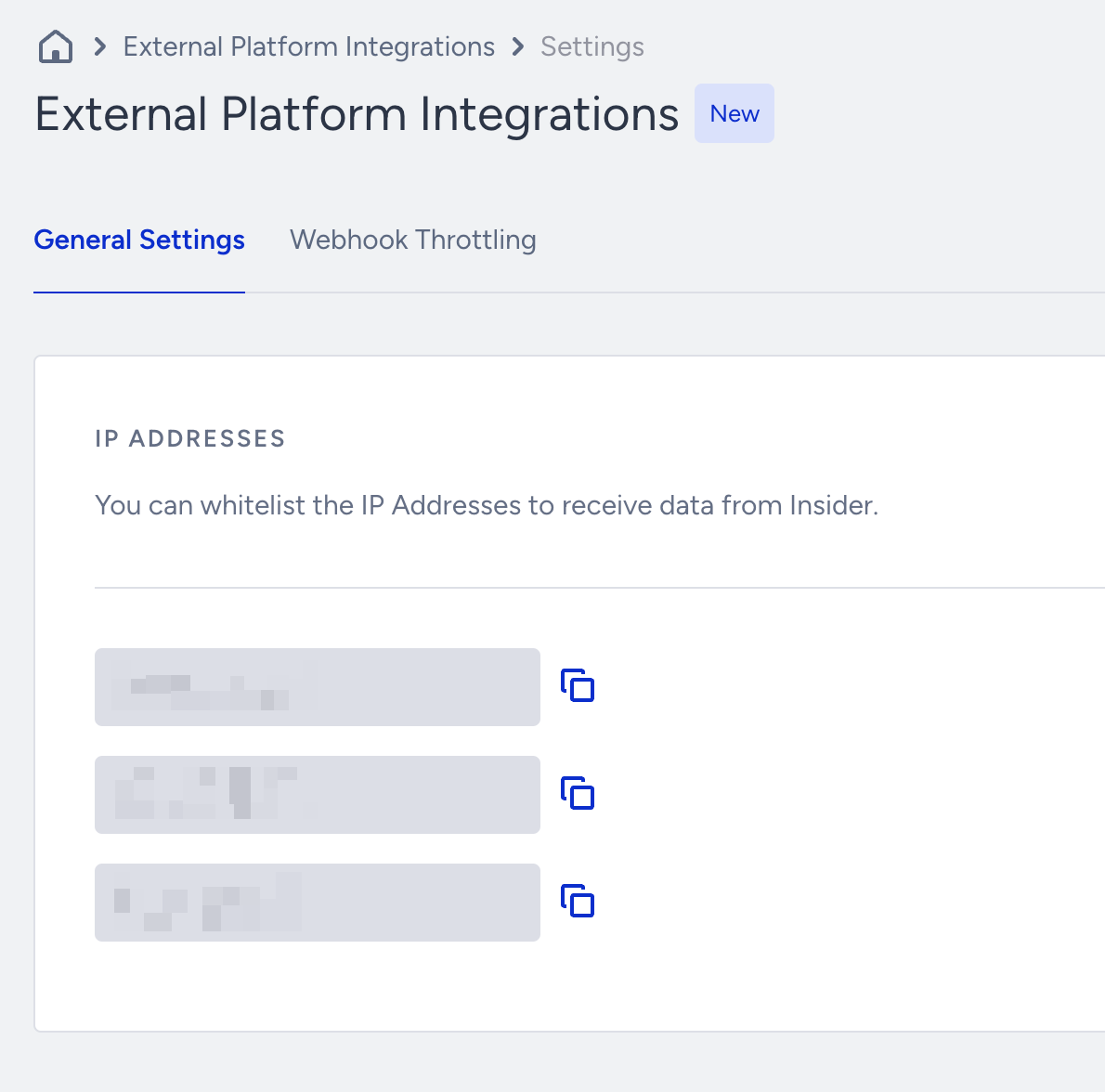
You can apply an IP restriction to webhook payloads arriving at your endpoint. Insider One sends webhooks from certain IP addresses. To view the IPs that Insider One sends webhooks, navigate to Settings on the External Integrations page.
This website doesn’t work with webhook functionality. We advise you to test your platform using your own endpoints or on another website with similar functionality.