This integration automatically synchronizes customer data from Databricks to Insider One. The process involves authenticating with Databricks, selecting relevant data tables, mapping data fields, and configuring synchronization settings.
Essentials before Integration
Before you begin, ensure the following prerequisites are met to enable a smooth and secure data import from Databricks to Insider One.
You must have a Databricks account with account admin privileges to set up the integration.
Ensure you have access to the catalog, schema, and tables that contain user and event data you want to sync with Insider One.
Insider One Databricks connector supports AWS, Azure, and Google Cloud platforms.
Step 1: Create Databricks Source Integration
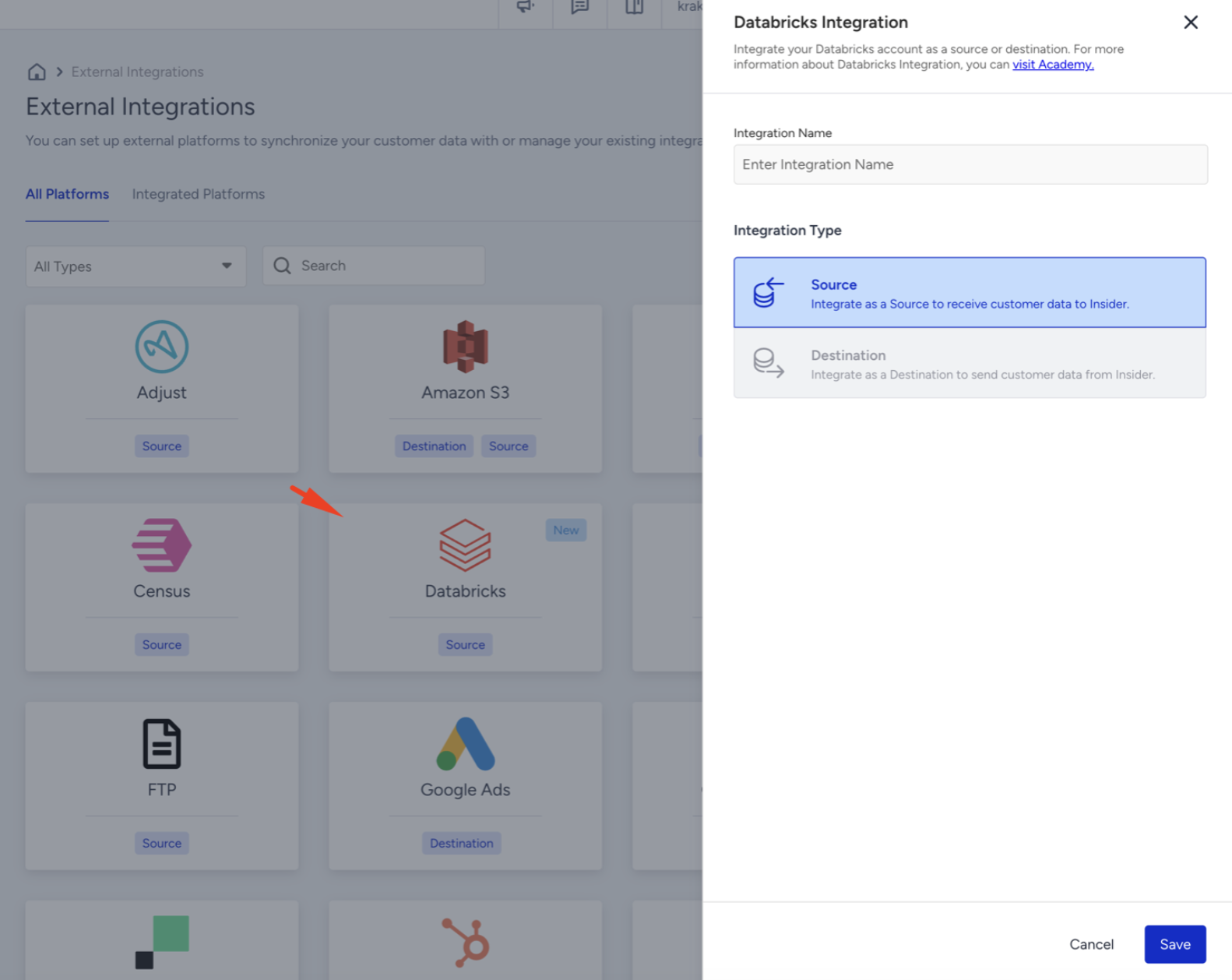
Navigate to Components > Integrations > External Integrations on Insider One’s InOne panel.
Select the Databricks integration and create a Databricks Source Integration.
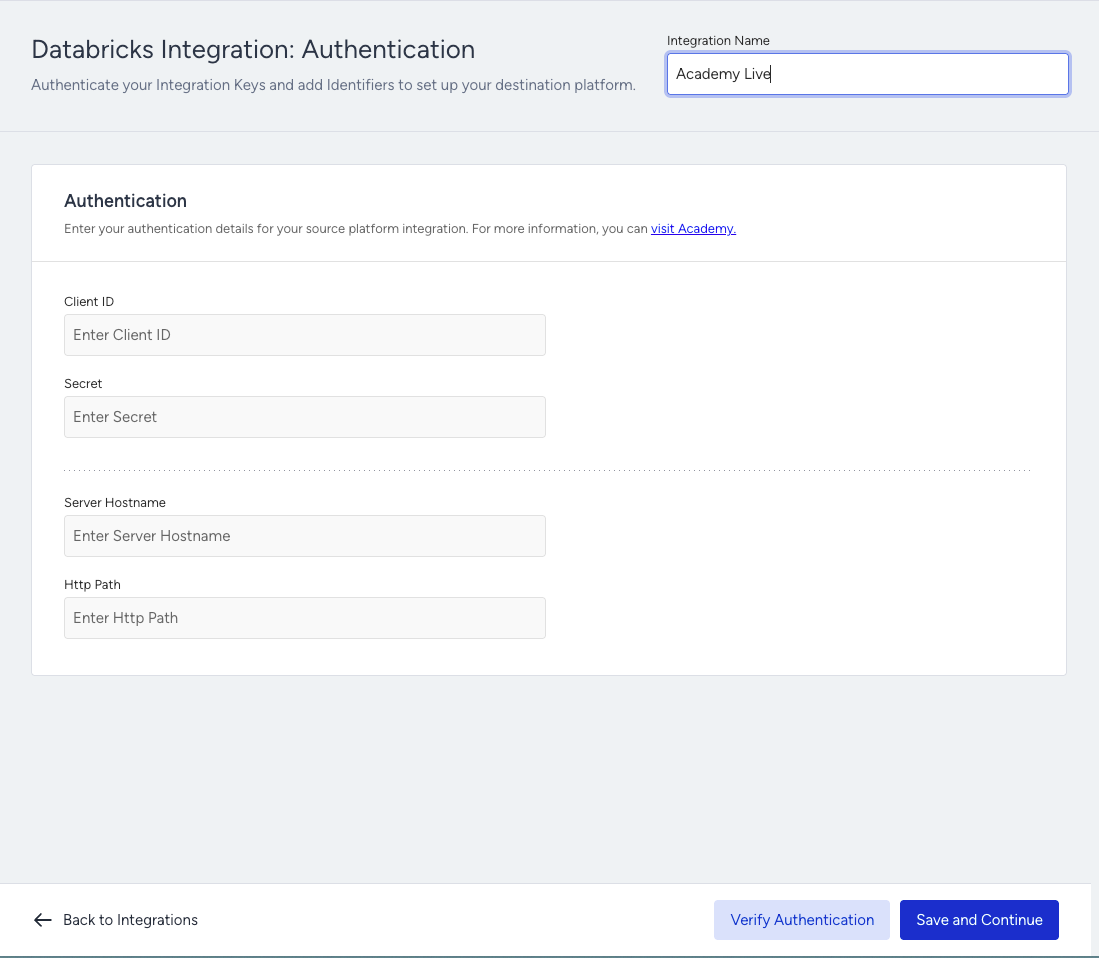
Enter your credentials on the Authentication page. You should fill in the following required fields:
Client ID
Secret
Server Hostname
HTTP Path
Click Verify Authentication and confirm your authentication before saving and continuing.
If you encounter any error messages, please check your integration settings and correct the errors before continuing
Step 2: Configure a Service Principal with OAuth
To connect Insider One with Databricks using OAuth, you’ll need to configure a Service Principal in your Databricks workspace.
Step 2.1: Create a Service Principal
In your Databricks workspace, click your user profile in the top right and select Settings.
Go to Identity and access > Service Principals and click Manage.
Select Add new, enter a name, and select:
- Consumer access- Databricks SQL access
- Workspace access
Then, click the Add service principal button.
Create an OAuth Secret Pair
On the Service Principal page, go to the Secrets tab.
Click Generate secret.
Copy the Secret and Client ID shown in the dialog.
Secret
Client ID (UUID format, e.g.,
63fc7e90-a8a2-4639-afd8-36ef6bb67cfa)
These values are shown only once. Save them securely before closing the dialog.
Step 2.2: Grant Catalog Permissions
Your Service Principal needs catalog permissions to query your Databricks data.
In the Databricks sidebar, click Catalog and find your schema.
Open the Permissions tab and click Grant.
In the Principals box, enter your Service Principal name.
Select the Data Editor preset, or manually assign the following:
USE SCHEMAEXECUTEREAD VOLUMESELECTUSE CATALOG
You should enable Change Data Field (CDF) for the table you share with Insider One to ensure integration works. You can use the following command to execute.
Enable CDF when creating a table:
CREATE TABLE my_table (

   id INT,

   name STRING,

   age INT

)

USING DELTA

TBLPROPERTIES (delta.enableChangeDataFeed = true);
Enable CDF for an existing table:
ALTER TABLE my_table

SET TBLPROPERTIES (delta.enableChangeDataFeed = true);
Refer to Databricks’ documentation for further information.
Step 2.3: Grant SQL Warehouse Permissions
If your Service Principal doesn’t have access to compute resources, you’ll need to grant permissions on the SQL warehouse.
In the Databricks sidebar, click Compute, then go to the SQL Warehouses page.
Locate your existing warehouse (or create a new one if needed).
Open the ⋮ menu next to the warehouse name and select Permissions. (If you don’t see this option, contact your Databricks account admin.)
In the Permissions panel:
i. Enter your Service Principal name.
ii. Set the permission level to Can use.
iii. Click Add to save.
Step 2.4: Add Databricks Credentials in Insider One
Once your Service Principal is configured, copy the following details from your SQL Warehouse Connection Details page (see screenshot above) and paste them into the InOne panel:
Server Hostname
HTTP Path
Step 3: Verify Your Authentication
After entering all required fields in the InOne panel:
Click Verify Authentication to confirm the connection.
If the verification is successful, click Save.
You will then be redirected to the Match Screen to continue setup.
Step 4: Select your Table
Choose the catalog, schema, and table you want to sync with Insider One.
Keep in mind:
You can select only one table per integration. If you need more, create separate integrations.
The table must be a Delta table. Refer to Databricks’ guide for instructions on converting other tables to Delta.
The table must have Change Data Feed (CDF) enabled. Refer to the 5th Step of Step 2.2 to learn how to enable CDF.
Views can’t be selected; you must select the tables.
Step 5: Map your Data
Insider One identifies and unifies incoming user records according to the identifiers, priority order, and value limits configured in Identity Resolution Management. Review these settings before your first import to understand how imported records will be matched and unified.
Map the column that represents the identifier to insert data into Insider One.

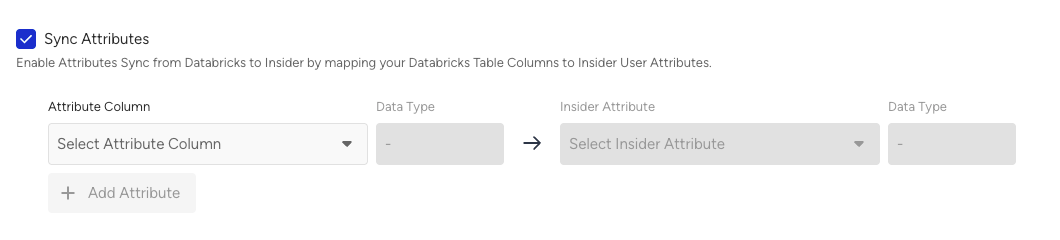
Turn on the Sync Attributes and/or Events sections according to your data in your selected table to import.
To sync the attributes, select the column that represents attributes with your attributes in Insider One.
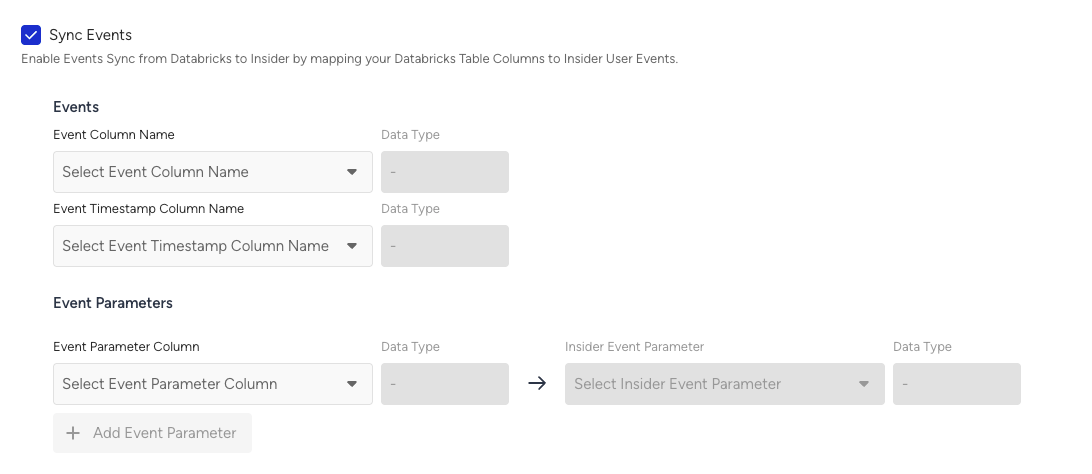
To sync the Events:
Select the column that represents the event name in your table.
Select the column that represents the event timestamp in your table.
Select the column that represents event parameters in your table.
If you send events with the same name and timestamp, Insider One treats them as duplicates and ignores them. Therefore, avoid sending different events with identical names and timestamps.
Event names must follow the same naming convention as the Upsert User Data API. Event names that do not match this format will not be processed. Refer to Create a Custom Event for further information.
Refer to Default Attribute, Event & Parameter Data Mapping Table for required event parameters.
Data Type Matching
Ensure that the data types in Databricks and Insider One are aligned. Use the table below to check the correct data type mappings.
Databricks Data Type | Insider One Data Type | Notes |
|---|---|---|
| String | Used for text attributes, identifiers, and event parameters. |
| DateTime | Insider One automatically converts any datetime format accepted by Databricks. RFC3339 format is recommended for consistency. |
| Number | Used for numerical attributes (e.g., a_age, e_quantity, e_unit_price). |
| Boolean | Used for opt-in attributes (e.g., a_email_optin). |
| Array Strings Array Numbers | Used for properties like |
| Array of Objects | Map nested data (order lines, subscriptions, preference objects) to a pre-defined Array of Objects attribute. See Mapping array-of-object (nested) columns below. |
Eligible Databricks column types are
ARRAY<STRUCT<...>>andVARIANT.ARRAY<MAP<...>>and other nested types are not eligible.
VARIANTrequires Databricks Runtime 15.3+ and is unavailable on Iceberg v2 tables.
Mapping array-of-object (nested) columns
You can map a nested column to an Array of Objects attribute, such as order lines, subscriptions, or preference objects.
Before you map the column:
Create the Array of Objects attribute first. Go to InOne > Components > Attributes and Events and define each object key and its data type. Refer to Create an Array of Objects Attribute.
Supported key types include String, Number, Date, Boolean, URL, String Array, Number Array, and nested Object with up to 2 nesting levels.
Match key names and types to your source exactly. Each object key is parsed independently. If a key name or data type does not match the registered schema, correctly mapped keys are still stored, while the mismatched key is skipped without an error or warning.
If the source array contains more objects than the attribute supports, the additional objects are also dropped without an error or warning.
Make sure each cell contains a JSON array of objects. A cell containing a single object, scalar value, mixed array, or malformed JSON is not ingested and counts against the sync run's success rate.
Before syncing, confirm that each key name and data type matches the source. After a test sync, review several user profiles to verify that all expected objects and keys were ingested. Because mismatched keys and objects exceeding the supported limit are skipped without an error or warning, a test sync helps you confirm the final result.
Each attribute supports up to 50 objects, extendable to 200 on request, 20 keys per object, 2 nesting levels, and 500 characters per string value.
Default Attribute, Event & Parameter Data Mapping Table
Parameter | Type | Description | Data Type | Required |
|---|---|---|---|---|
Attribute | Attribute. User's email address, can be used as an identifier. | String | No | |
phone_number | Attribute | Attribute. User's phone number in E.164 format (e.g. +6598765432), can be used as an identifier. | String | No |
email_optin | Attribute | Attribute. User's permission for marketing emails: | Boolean | No |
gdpr_optin | Attribute | Attribute. User's permission for Insider One campaigns, data collection, and processing: | Boolean | No |
sms_optin | Attribute | Attribute. User's permission for SMS: | Boolean | No |
whatsapp_optin | Attribute | Attribute. User's permission for WhatsApp Message: | Boolean | No |
name | Attribute | Attribute. User's name. | String | No |
surname | Attribute | Attribute. User's surname. | String | No |
birthday | Attribute | Attribute. User's birthday in RFC 3339 format (e.g. 1993-03-12T00:00:00Z). | Date/Time | No |
gender | Attribute | Attribute. Gender of the user | String | No |
age | Attribute | Attribute. Age of the user | Number | No |
language | Attribute | Language information of the user | String | No |
country | Attribute | Attribute. The user's country information in ISO 3166-1 alpha-2 format. | String | No |
city | Attribute | Attribute. City information of the user. | String | No |
uuid | Attribute | Attribute. The user’s UUID can be used as an identifier. | String | No |
event_name | Event | Name of the event | String | Yes |
timestamp | Event Parameter | Event time | Datetime | Yes |
event_group_id | Event Parameter | Event group ID | String | No (Yes only when the event_name is purchase or cart_page_view) |
product_id | Event Parameter | Event parameter. Unique product ID. | String | No |
name | Event Parameter | Event parameter. Name of the product. | String | No |
taxonomy | Event Parameter | Event parameter. Category tree of the product. | Array | No |
currency | Event Parameter | Event parameter. Currency used for product pricing, in ISO 4217 format (e.g., USD). | String | No (Yes only when the event_name is purchase or cart_page_view) |
quantity | Event Parameter | Event parameter. Quantity of the product. | Integer | No (Yes, only when the event_name is purchase) |
unit_price | Event Parameter | Event parameter. Price of the product without any discount(s). | Float | No |
unit_sale_price | Event Parameter | Event parameter. Unit price of the product. | Float | No (Yes only when the event_name is purchase or cart_page_view) |
color | Event Parameter | Event parameter. Color of the product (selected by user). | String | No |
size | Event Parameter | Event parameter. Size of the product (selected by user). | String | No |
shipping_cost | Event Parameter | Event parameter. Shipping cost of the items in the basket. | String | No |
promotion_name | Event Parameter | Event parameter. Name of the promotion. | String | No |
promotion_discount | Event Parameter | Event parameter. Total amount of discount applied by promotions. | Float | No |
If you have Purchase Event in your Databricks table, please make sure to;
If in a basket, there are more than single item, make sure to add those as seperated rows into your Databricks table.
Include
e_guid(event_group_id) parameter for each purchase event. This is needed to connect different products to single cart
Refer to Attributes and Events for further information on all default events and attributes.
If your data type in Databricks is a
TIMESTAMPformat, the specific date format is not critical. Insider One automatically converts any datetime format that is accepted by Databricks.
Step 6: Launch your Integration
Select your Sync Frequency and launch your integration.
The first sync imports all data from the table. Subsequent syncs retrieve only the rows that have changed.
Limitations
Views are not supported; you can only use tables to map your data.
Each table must include an identifier.
Custom attributes or event parameters must be predefined in Insider One (via the Attributes and Events page).
For Purchase Events:
Add one row per product in a basket.
Include
e_guid(event_group_id) to link multiple rows to a single cart.
The synchronization process does not support
DELETEoperations. If a record is deleted from your Databricks table, the corresponding data will not be removed from Insider One on the next sync.Event updates are not possible.
Each row (user) must be under 350KB; rows exceeding this size will not be upserted.
A single sync can process at most 1 billion rows.
Initial (full) sync: the limit is the table's total row count.
Subsequent (incremental) syncs: the limit is the total number of change records captured by Change Data Feed (CDF) between two syncs, not the table's current size. Since CDF records every change, a row updated multiple times is counted multiple times, so repeated or bulk updates between syncs can exceed 1 billion change records even when the table itself is much smaller.
If a sync exceeds this limit (rows on the initial sync, or CDF change records between two syncs), the sync is not processed and the integration is moved to Archived. If you expect to approach this, contact Insider One team before launching.
important
If you modify the table schema (for example, by adding a new column), the integration will stop working.
If you need to change the schema, we recommend creating a new integration instead.
Please note that a new integration will perform an initial full sync and import all data from the table. Therefore, it is best practice to include only the identifiers and the new fields you intend to send to Insider One.
Important: CDF Retention and
VACUUMInsider One's incremental sync reads change records from Delta Change Data Feed. When you run
VACUUMon the source table, or when the table's CDF retention period elapses, change records older than the retention window are permanently removed on the Databricks side. Once removed, those changes cannot be recovered.If Insider One's last successful sync watermark points to a CDF version that has been vacuumed:
If some versions are vacuumed but newer versions remain readable, the next sync continues from the latest available version. The integration stays active, no error is shown, but any inserts and updates within the gap are permanently lost.
If all CDF versions since the last sync have been vacuumed, the next sync ends with status
no new dataand reasonCDF versions are vacuumed. The integration stays active.Best practice:
Keep CDF retention longer than the maximum expected interval between syncs.
If the integration is going to be paused for an extended period, coordinate with Insider before resuming, and expect data loss for the paused window.
For long-paused integrations, create a new integration to perform a fresh full snapshot.
Important: Source Object Deletion or Rename
If you delete, rename, or replace the catalog, schema, or table that an active integration is pointing at, the integration is automatically Archived from Active.
Once archived:
All actionable items on the integration's pages are disabled.
The existing column mapping is retained until the table is changed.
The same table name becomes selectable for other integrations.
An information card appears in the Before You Launch section of the integration.
An email notification is sent if the integration was Active at the time of archival.
An archived integration cannot be reactivated against the same object. To resume syncing, create a new integration.
Data loss and duplication to be aware of while using CDF
If a row is inserted and then deleted between two syncs, the delete is not captured and the row is still ingested into Insider One.
Deletes never propagate on their own: removing a row in Databricks does not remove the record in Insider One.
Updating a row that was already synced in a previous sync re-ingests it and can create duplicate events. Avoid modifying historical rows after they have been synced.
Turning CDF off and back on loses every change made while it was off; the next sync does not deliver them.
Data Import Logic
During the Databricks → Insider One synchronization:
If any identifier coming from Databricks is invalid, the entire record is not sent.
If an attribute coming from Databricks is invalid, only that specific attribute is skipped.
If an event parameter coming from Databricks is invalid, the entire event is excluded from processing.
Ensure each event has a unique timestamp and avoid modifying rows that include historical event records after they have been successfully synced.
If a single incremental sync exceeds the row limit set for your account, all rows are still ingested, but they do not trigger any webhooks, campaigns, or journeys.
Important: Insert/Delete Behavior Between Sync Runs
If a row is inserted after a sync run and then deleted before the next sync, Insider One will not capture the delete event.
However, if a row is inserted and then deleted between two sync runs, it will still be ingested into Insider One. This is because CDF captures both the insert and delete change records, and since both occur before the next sync, Insider One processes the insert event and imports the row even though it has already been deleted.
Important: Event Deduplication & Re-Ingestion Behavior
Duplicate Detection Rule: Insider One treats events with the same event name and timestamp as duplicates.
If multiple events with identical names and timestamps are sent within the same sync, only one will be processed and the others will be ignored.Avoid Updating Previously Synced Events: Do not update rows that were already consumed by Insider One in a previous sync.
Updating these rows triggers re-ingestion, which may create duplicate events in Insider.
Recommendation: Ensure each event has a unique timestamp and avoid modifying rows which include historical event records after they have been successfully synced.
Repeatedly re-sending unchanged rows moves your integration to Action required. Deduplication protects your data, but the duplicated rows are still transferred and processed. If more than 5% of the rows in your last two syncs were re-sent with identical content, the integration is moved to Action required until you fix the source query. See DWH_DUPLICATE_DATA_THRESHOLD_EXCEEDED in the Data Warehouse and Storage Import Monitoring and Error Guide.
You can track every sync on the integration's Monitoring screen. Each run displays its status, success rate, and any errors found. For the full list of import errors, their meanings, and how to resolve them, see the Error Guide.
Frequently Asked Questions (FAQ)
Q: What permissions do I need in my Databricks account to set up the integration?
A: You need a Databricks account with account admin privileges to configure the necessary components like the Service Principal and permissions.
Q: Can I sync data from more than one Databricks table at a time?
A: No, you can only select one table per integration. If you need to sync data from multiple tables, you must create a separate integration for each one.
Q: What are the requirements for a Databricks table to be eligible for syncing?
A: The table must be a Delta table, and it must have the Change Data Feed (CDF) feature enabled.
Q: How often can I sync my data from Databricks to Insider One?
A: You can set the sync frequency to be either Daily (at a specific time you choose) or Hourly (at the beginning of every hour).
Q: What happens if I try to map a custom attribute that doesn't exist in Insider One?
A: The integration will fail for that attribute. Create all custom attributes and event parameters in your Insider One account on the Attributes and Events page before you set up the mapping.
Q: What happens if I delete a record in my Databricks table? Will it be removed from Insider One?
A: No. The integration currently only processes additions and updates to records. If you delete a record in Databricks, the corresponding data will remain in Insider One and will not be removed during subsequent syncs.
Q: Which cloud platforms are supported?
A: Insider One Databricks connector supports AWS, Azure, and Google Cloud platforms.
Q: What should I do if a sync fails with a DATABRICKS_JAVA_HEAP_SPACE error?
A: This error indicates that the SQL warehouse does not have enough capacity to process the data. The integration moves to Action Required, and synchronization stops.
Increase the SQL warehouse size based on your table size and workload. Then, resolve the error from the Monitoring page to resume synchronization. The required warehouse size depends on the table size and workload, so a single minimum size does not apply to all integrations.