Suggested readings: Add images to an email, Image rollover effect
In this section, you will learn how to edit images used for any general purpose in an email, including product cards, signatures, thumbnail images, etc.
To edit images in your email design:
1. Click the Edit button to the right of the image snippet in the Settings panel.

Your image will be opened with the Pixie editor in a new pop-up window.
2. Here, you can apply filters, resize and crop images, draw over them, put any text over them, add sticker frames, and apply backgrounds.
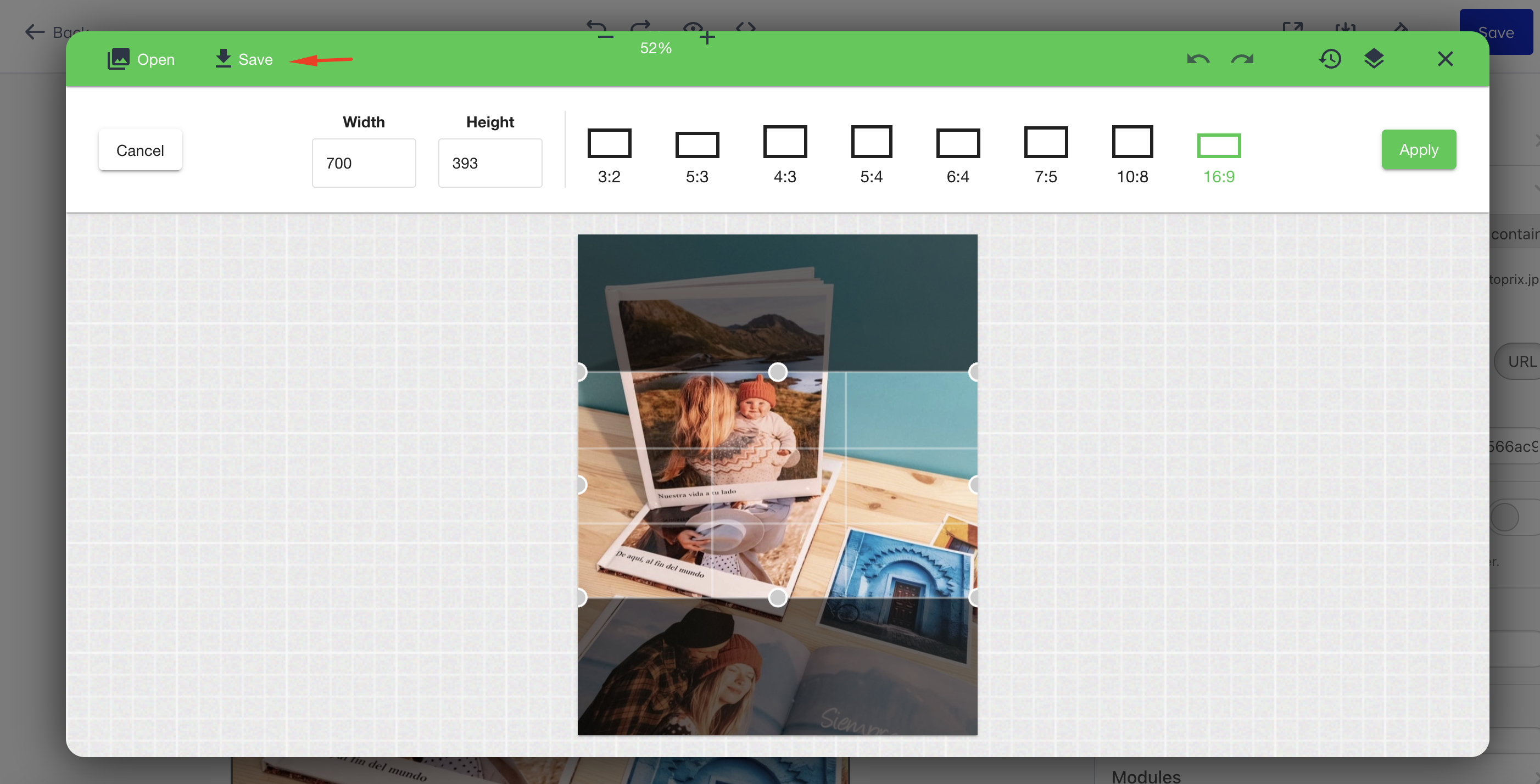
3. When you complete editing, click the Save button in the Pixie editor to apply your changes to the image.