Before you start building your ChatGPT Discovery App, make sure you have:
An active Insider One account with Smart Recommender and Eureka, and your product catalog connected.
Your own OpenAI account to publish the app on ChatGPT. Insider generates the configuration; you publish it under your OpenAI account.
Your brand basics ready: app name, vertical, and the recommendation strategies you want to use.
Navigate to Components > Integrations > AI Integrations > ChatGPT Discovery App Builder to start.
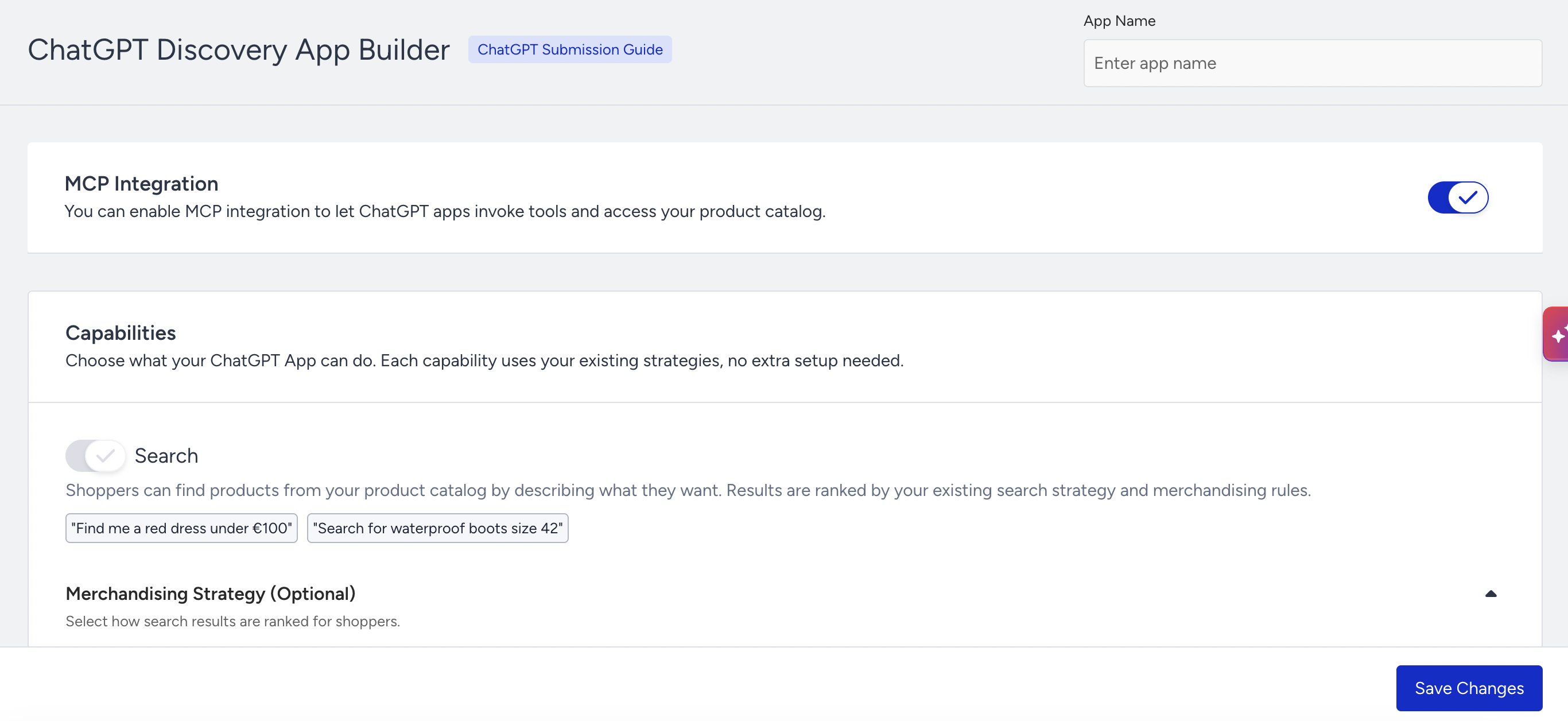
The Setup Screen at a Glance
You configure everything on one screen, top to bottom:
App Name: Name your app.
MCP Integration: The master switch that lets your GPT app talk to your catalog and strategies.
Capabilities: The discovery building blocks: Search, four Recommendation groups, Catalog Explore, and Lead Collection. You enable each one and assign strategies.
Save Changes: Commit your configuration.
Each capability maps to an MCP tool the GPT can invoke. In plain terms: turning a capability on gives your ChatGPT app a new skill it can use in conversation.
Step 1: Name your app
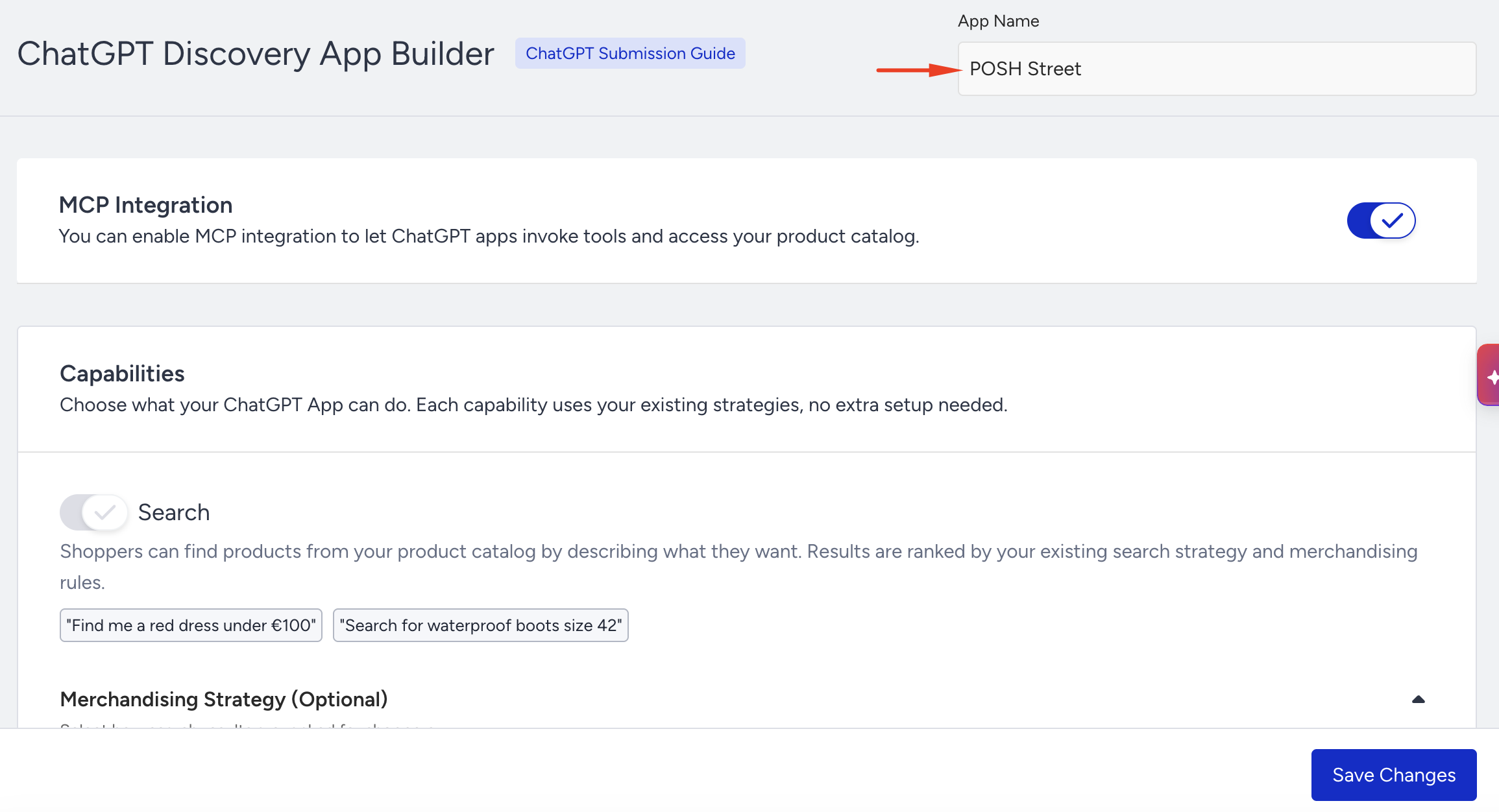
In the App Name field on the top right, enter the name shoppers will associate with your assistant, for example, your brand name. This is also how you'll recognize the app in your InOne panel.
Step 2: Enable MCP Integration
At the top of the configuration area, toggle MCP Integration on.
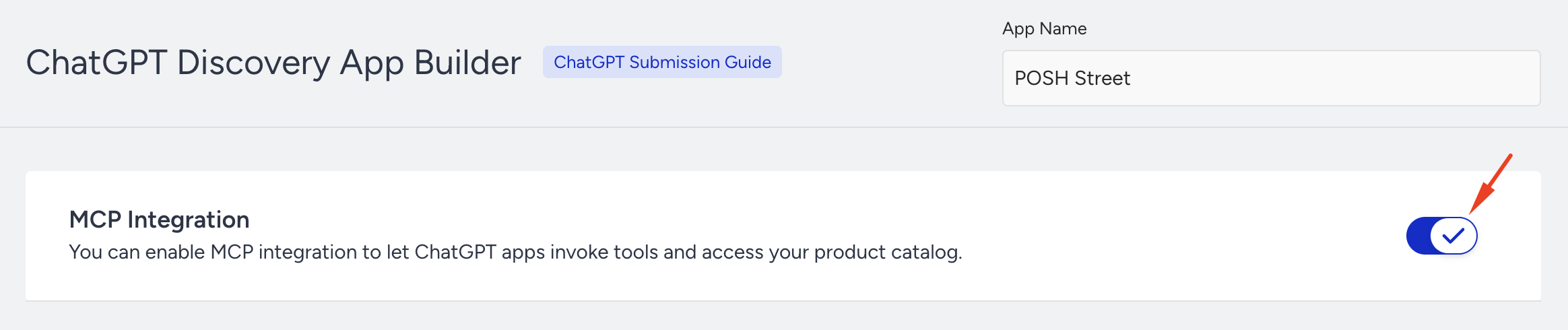
You can enable MCP integration so that ChatGPT apps can invoke tools and access your product catalog.
This step is required. Without it, your app cannot reach your catalog or run any discovery capability. Leave it on.
Step 3: Configure your Capabilities
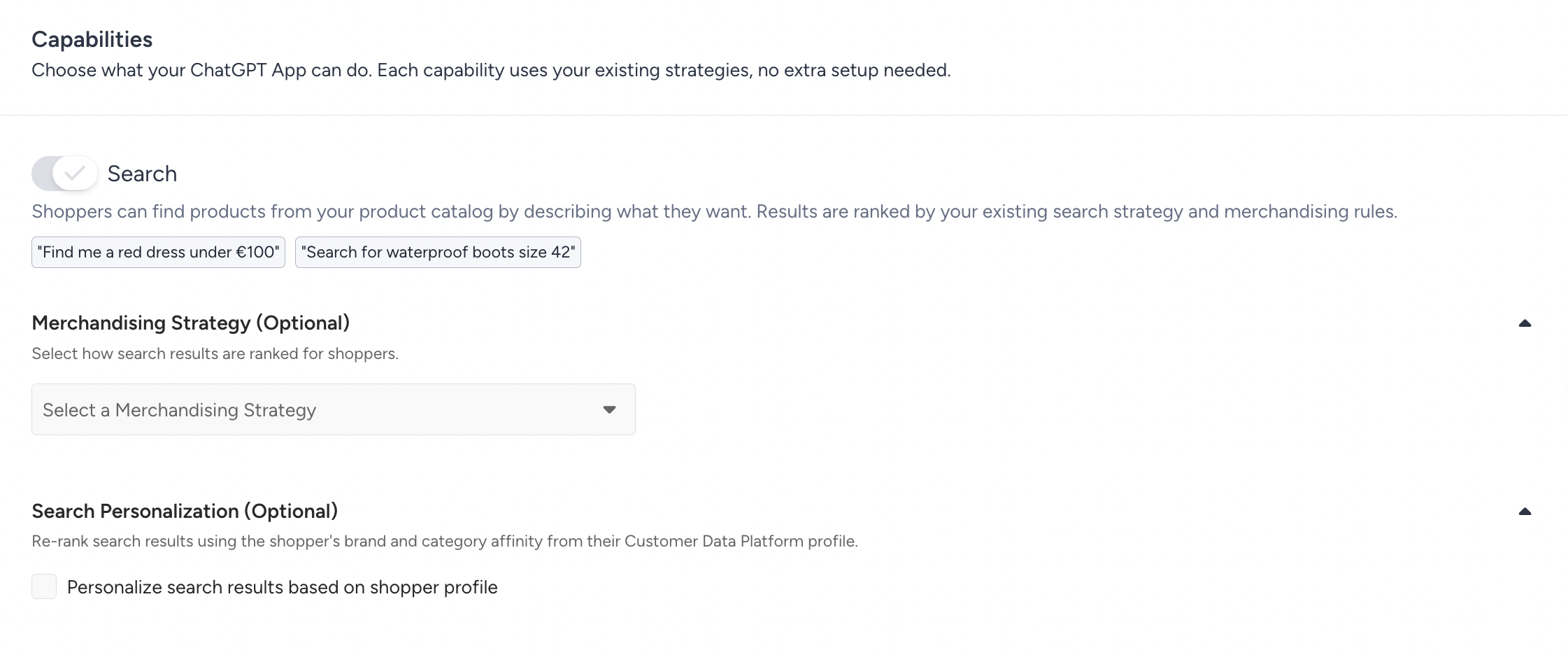
The Capabilities section is where you decide what your app can do. Enable the ones you want and assign a strategy to each. Each capability shows example shopper phrases so you can see the kinds of questions it handles.
Generic Recommendations
Surface trending, new, or discounted products when shoppers aren't looking for anything specific.
For browsing shoppers. Example queries: "What's trending right now?" "Show me something popular".
Default Strategy: Runs for all intents not covered by an override (for example, Top Sellers).
Intent-level overrides: Optionally assign a different strategy per shopper intent. Unconfigured intents use the default. Intents include:
Trending & Popular: What is hot right now?
New & Latest: What is new?
Deals & Value: Any good deals?
Smart Discovery: Discover something new
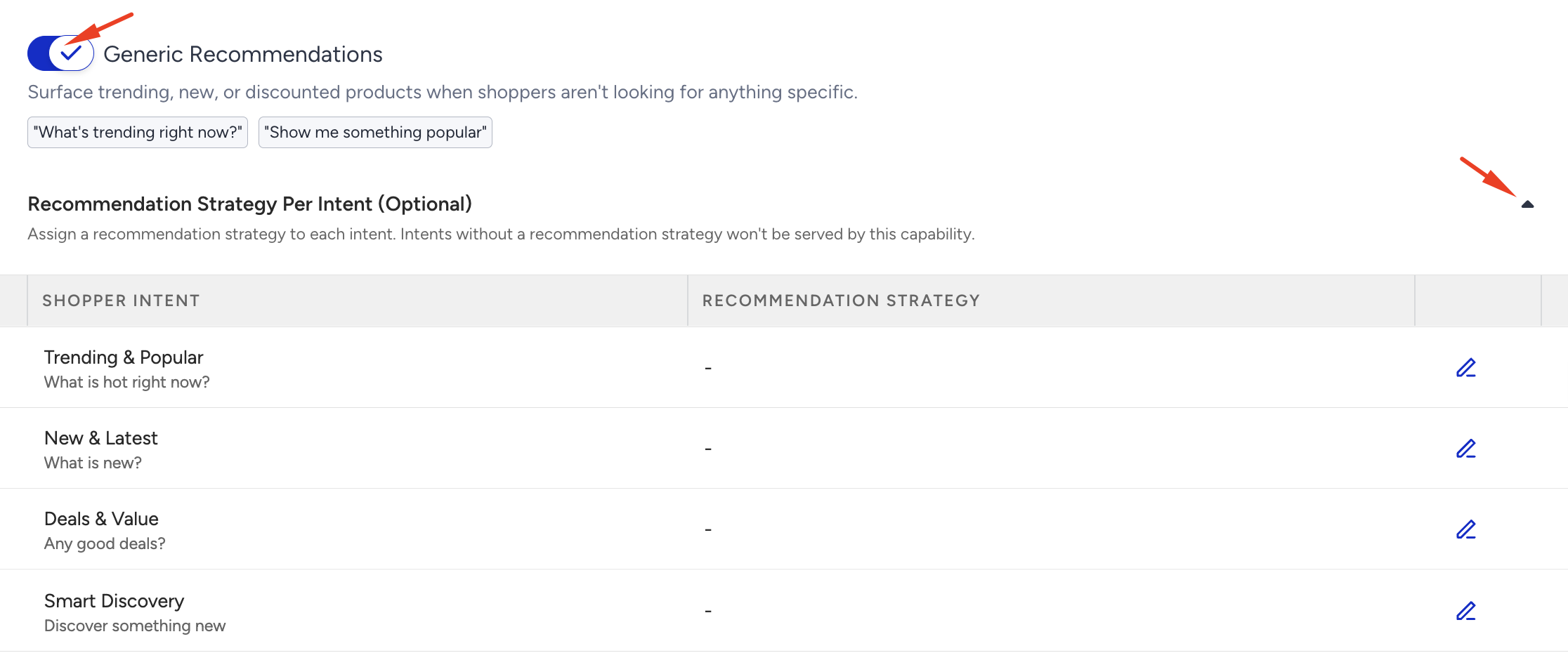
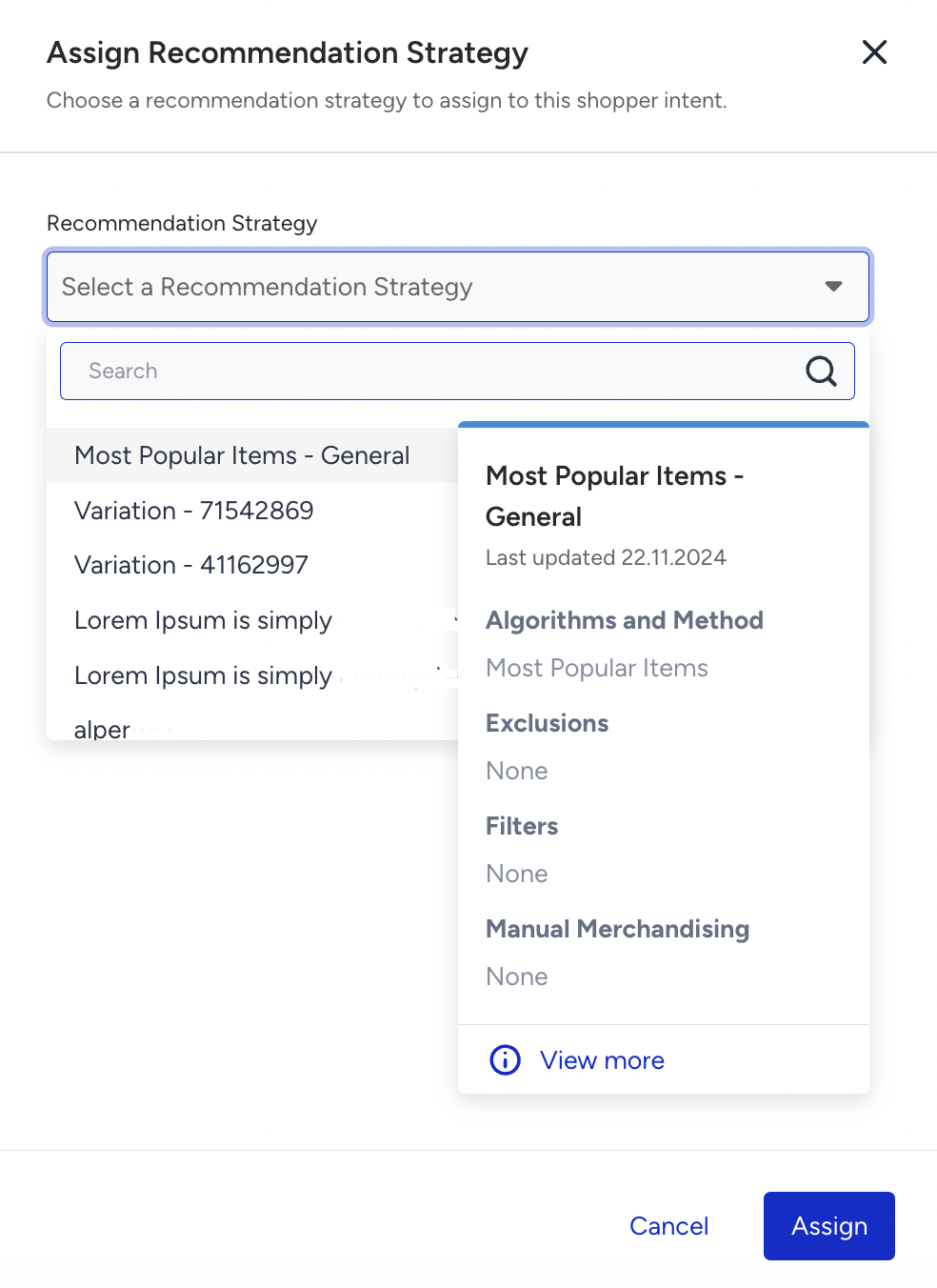
Click on the Edit icon on any row to give that intent its own strategy.
Product Context Recommendations
GPT suggests recommendations based on the product the shopper is currently viewing or discussing.
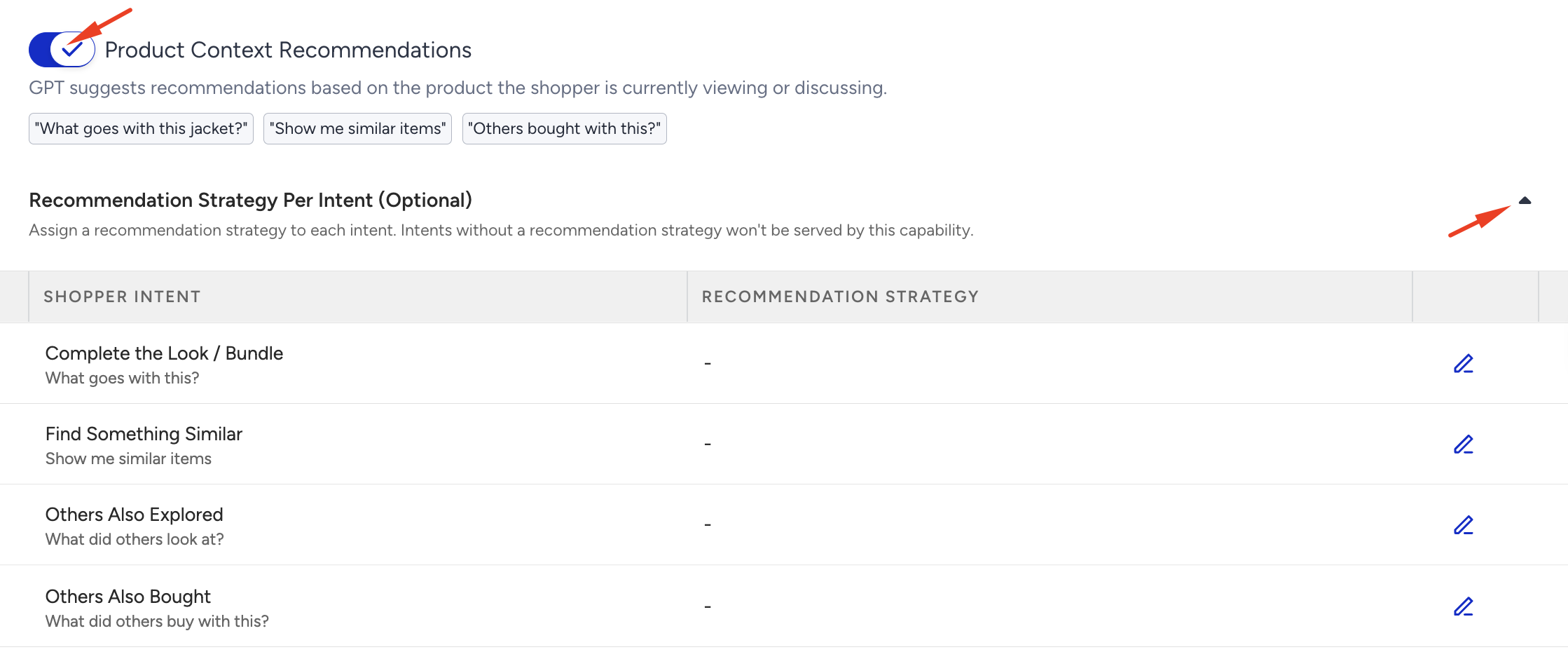
The "what goes with this" group. Example queries: "What goes with this jacket?" "Show me similar items", "Others bought with this?"
Default Strategy: for example, Viewed Together.
Intent-level overrides:
Complete the Look / Bundle: What goes with this?
Find Something Similar: Show me similar items
Others Also Explored: What did others look at?
Others Also Bought: What did others buy with this?
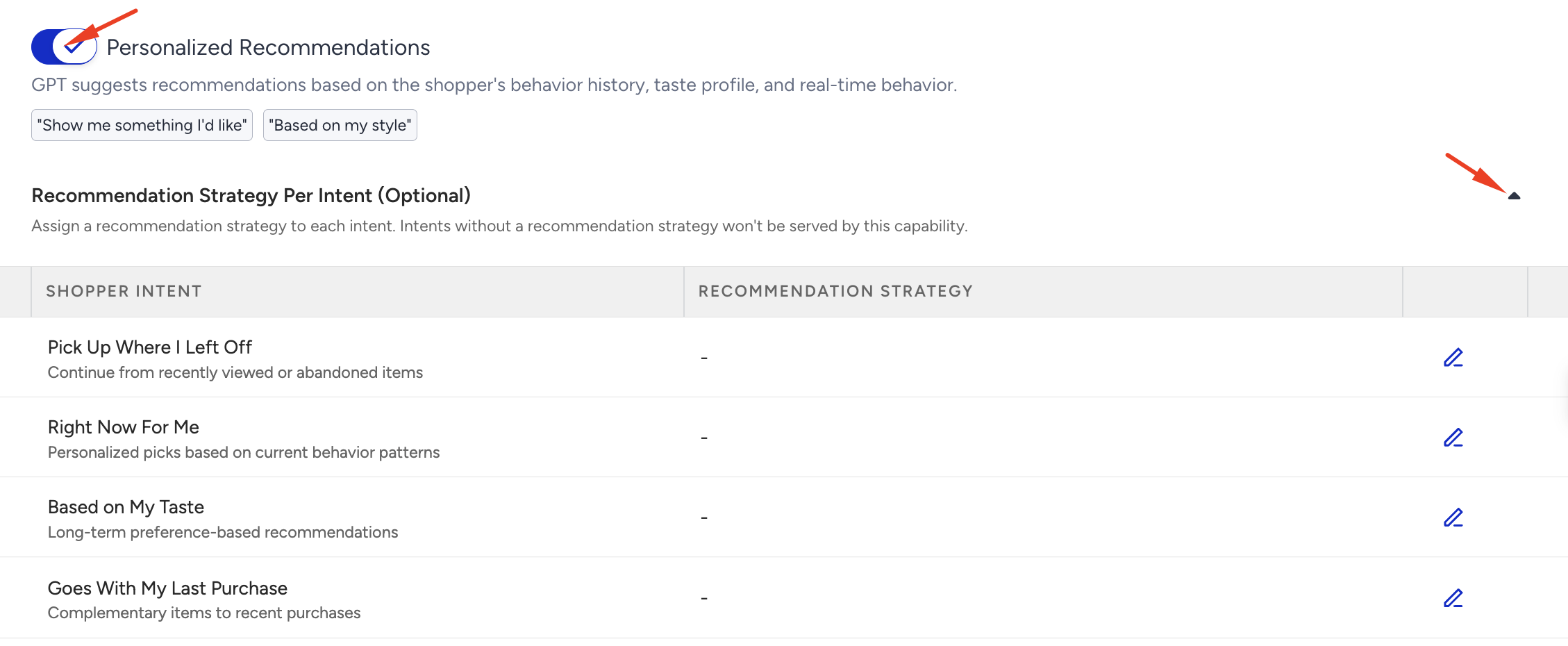
Personalized Recommendations
GPT recommends based on this specific shopper's history, taste profile, and real-time behavior.
It uses the shopper's CDP profile. Example queries: "Show me something I'd like", "Based on my style". Assign a Default Strategy (for example, Similar Products) and add intent overrides if needed.
Personalized results require an identified shopper. See Personalization & identity below.
Curated & Manual Collections
GPT surfaces products you have specifically hand-picked for campaigns, promotions, or editorial moments.
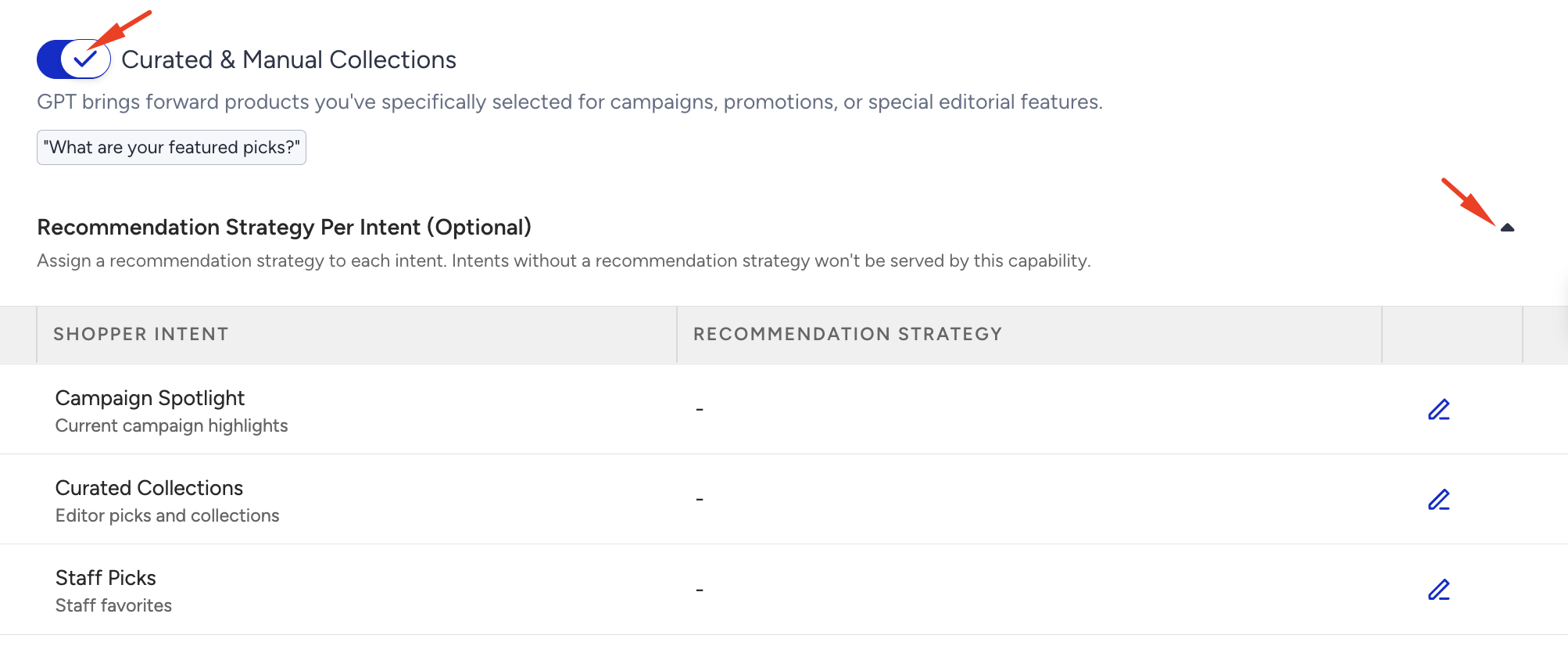
For campaign and editorial control. Example query: "What are your featured picks?" Assign a Default Strategy (for example, Top Sellers) so your curated collections surface in conversation.
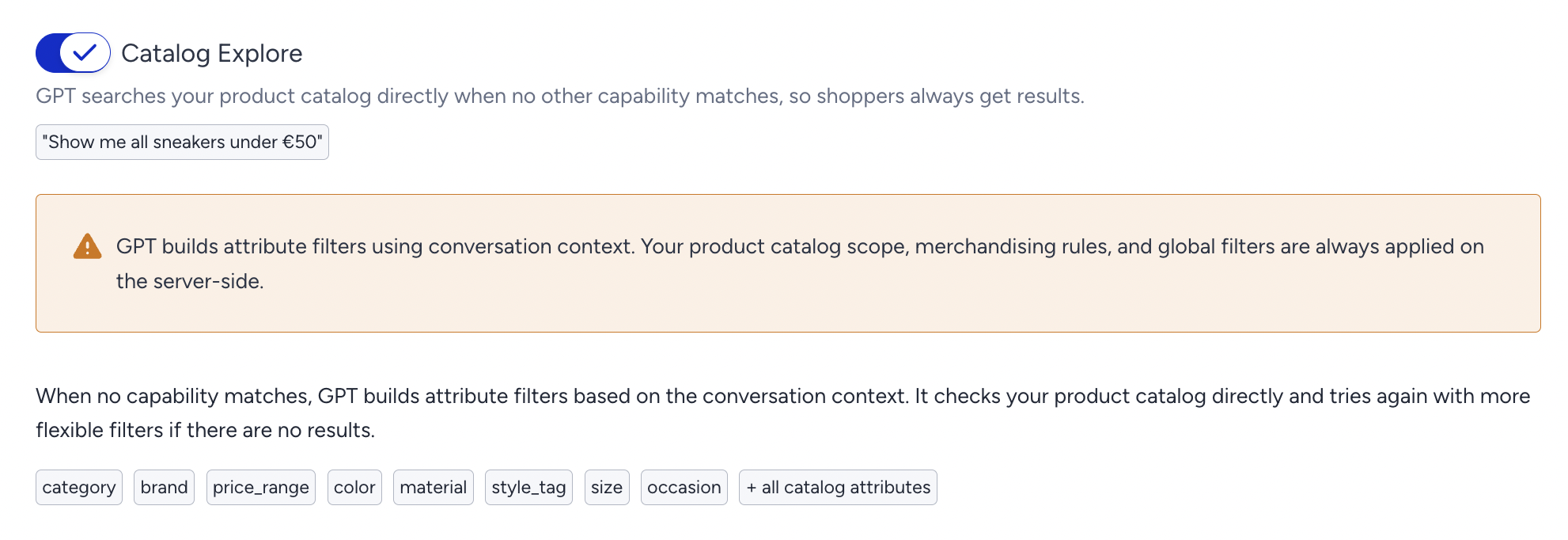
Catalog Explore (Fallback Layer)
When no capability matches, GPT constructs attribute filters from the conversation context, queries your catalog directly, and retries with relaxed filters if it receives no results.
This is your safety net; it guarantees a useful answer even for vague or anonymous requests. Example query: "Show me all sneakers under €50".
It builds filters from attributes such as category, brand, price_range, color, material, style_tag, size, occasion, and any other catalog attribute. Your catalog scope, merchandising rules, and global filters are always enforced server-side, so the fallback can never return out-of-scope products.
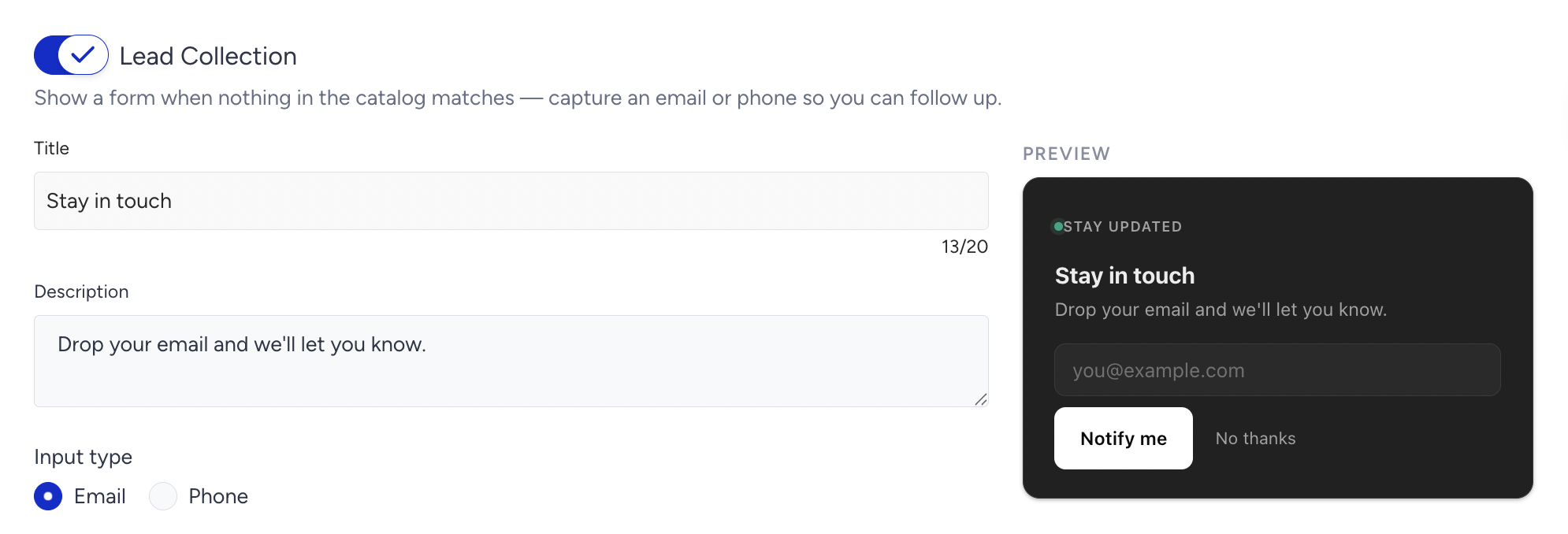
Lead Collection
Show a form when nothing in the catalog matches — capture an email or phone so you can follow up.
Turns out-of-stock dead-ends into recovered sales and new leads. When a search or recommendation lands on an unavailable product, the app offers to take the shopper's contact details and adds them to your CDP for a back-in-stock notification. Example query: "Do you have the navy parka in size M?"
Enable the capability and confirm collected leads flow into your CDP.
Anonymous shoppers can be captured here too; this is often their first identifying action.
How the Capabilities work together
Your app uses a three-layered discovery engine and always returns something useful:
Search first: Finds direct matches for what the shopper asked.
Recommendations next: Generic, Product Context, Personalized, or Curated, depending on intent.
Catalog Explore as fallback: Constructs filters from the conversation when nothing else matches.
You don't wire this logic yourself. Enabling and assigning strategies is all it takes; the engine routes each shopper question to the right layer.
Step 4: Personalization & identity
Personalized recommendations only work when the app knows who it's talking to. So whenever a shopper asks for something that depends on their profile, such as "show me something I'd like," "based on my style", the app needs to identify them first.
Here's how that plays out in the chat:
The app generates a secure authentication link for your website that the shopper can use.
The shopper is asked to click the link. It opens your website in a new tab, captures their User ID, and closes the tab automatically.
The shopper returns to the chat and confirms they're signed in. From that point on, recommendations reflect their history, taste profile, and real-time behavior.
Anonymous shoppers still get great results from Search, Generic Recommendations, and Catalog Explore; identity only kicks in when a request genuinely needs it.
Step 5: Save and export
Click Save Changes to commit your configuration.
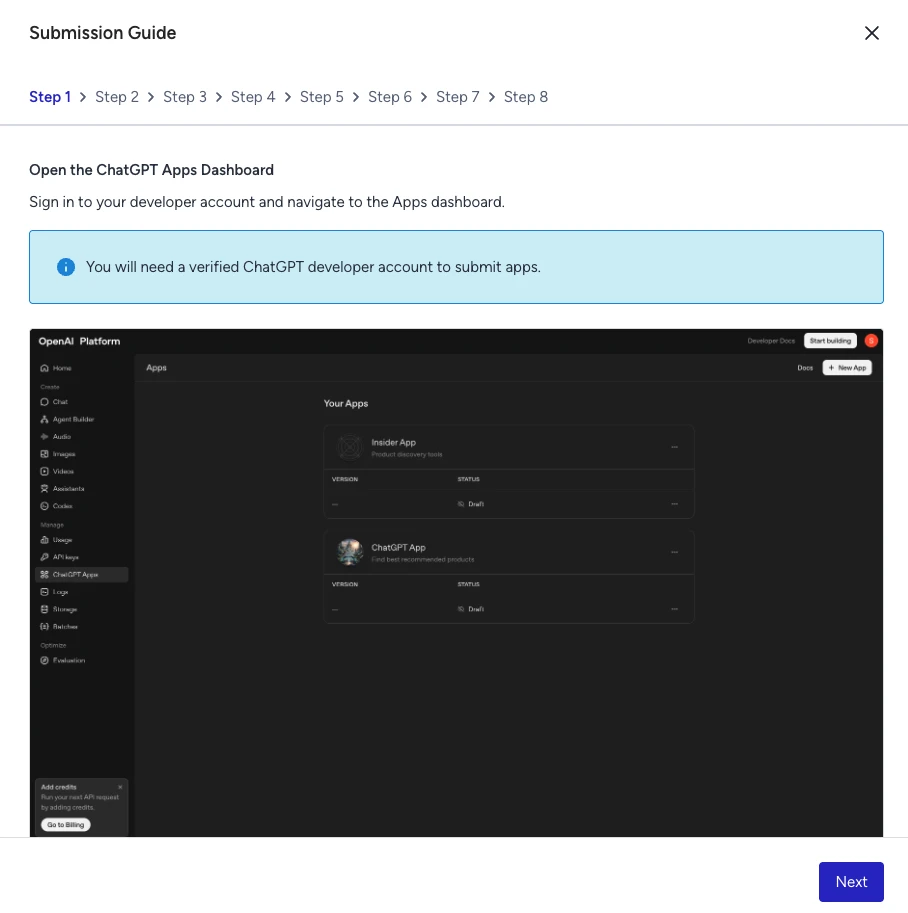
Follow the Submission Guide link at the top of the page to publish the package on ChatGPT under your OpenAI account.
Step 6: Test your app
Test before and after publishing so you know exactly what shoppers will experience.
Sanity-check each capability with sample prompts. Use the example chips as a starting script, then push beyond them:
What you're testing | Try saying | What good looks like |
Search | "Find me a red dress under €100" | Relevant, in-stock products within budget |
Generic Recommendations | "What's trending right now?" | On-strategy popular items (e.g. Top Sellers) |
Product Context | "What goes with this jacket?" | Complementary / Viewed-together items |
Personalized | "Show me something I'd like" | Results that reflect the test profile's history |
Curated | "What are your featured picks?" | Your hand-picked campaign products |
Catalog Explore | "Something minimalist for my daughter, around €200" | Sensible filtered results even with a vague ask |
Lead Collection | "Do you have the navy parka in size M?" (out of stock) | App offers a back-in-stock alert and captures contact details |
Test both shopper states. Run the prompts once as an anonymous shopper and once as an identified shopper to confirm personalization kicks in only when expected.
Check the edges. Try a query with no exact match (for example, an out-of-range price) to confirm that Catalog Explore relaxes filters and still returns options rather than an empty result.
Verify guardrails. Confirm that out-of-scope or filtered-out products never appear; your server-side catalog scope and merchandising rules should hold in every answer.
Iterate without re-publishing. If the results aren't right, adjust the strategies or overrides in the panel, then Save Changes. Discovery behavior updates from Insider One, so you do not need to republish the GPT to change its recommendations.