Numerous studies show potential customers are more likely to buy from your brand after watching a video. You can add videos to your emails to draw users' attention.
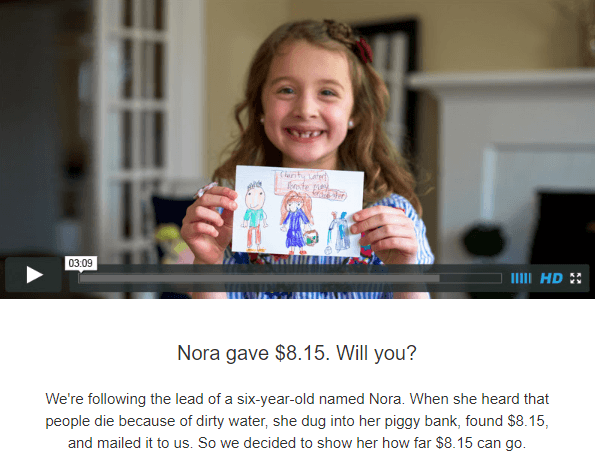
You can add videos to your emails in two ways:
- Inserting a URL link for the video
- Embedding the video
Insert a URL link to your video
This is a safe way to deliver videos because it works across all email clients and devices.
To insert a URL link to your video:
1. Pull the 1-column structure in your email design.
2. Pull in a basic Video block.
3. Left-click the container in the email.
4. In the settings panel, you only need to insert the YouTube or Vimeo link to your video.
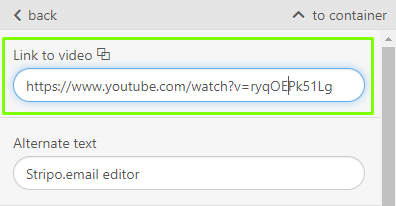
5. The system will automatically fill out the Alternate text field.
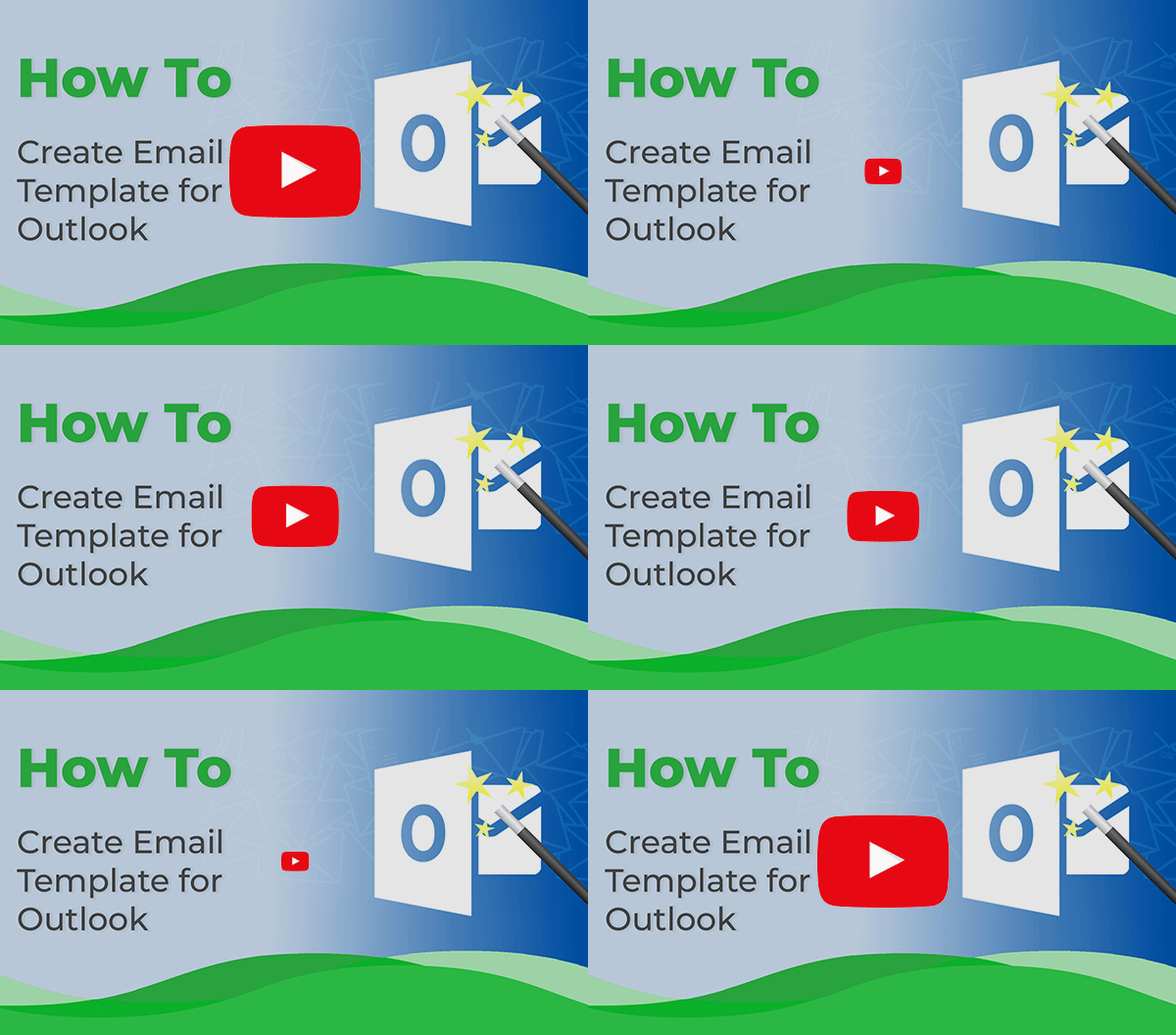
6. Select the color of the play button. It can be white, traditional red, or black.
The system automatically generates thumbnails and preview images for your videos. But you may also want to set a custom one.
Set a custom thumbnail to video in emails
1. Toggle the custom thumbnail button in the settings panel.
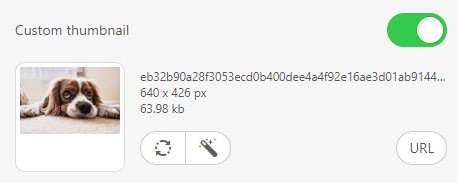
2. Upload an image, and edit it if necessary.
3. You may even insert an animated GIF as the thumbnail image. It will undoubtedly draw more attention to the video.
Inserting a URL link to your video is a safe way of delivering videos, as it works well in all email clients and on all devices. Users who click the link are taken to the video hosting website; the video does not play inside the email. For example, if you add a YouTube link, the recipients will be redirected to the YouTube website or app when they click it. If you want playable videos inside the email, follow the instructions in the following Embedding Video section.
Embed a video
Embedded videos are videos played directly in emails. Recipients do not need to visit another website to watch them.
Embed this code in emails
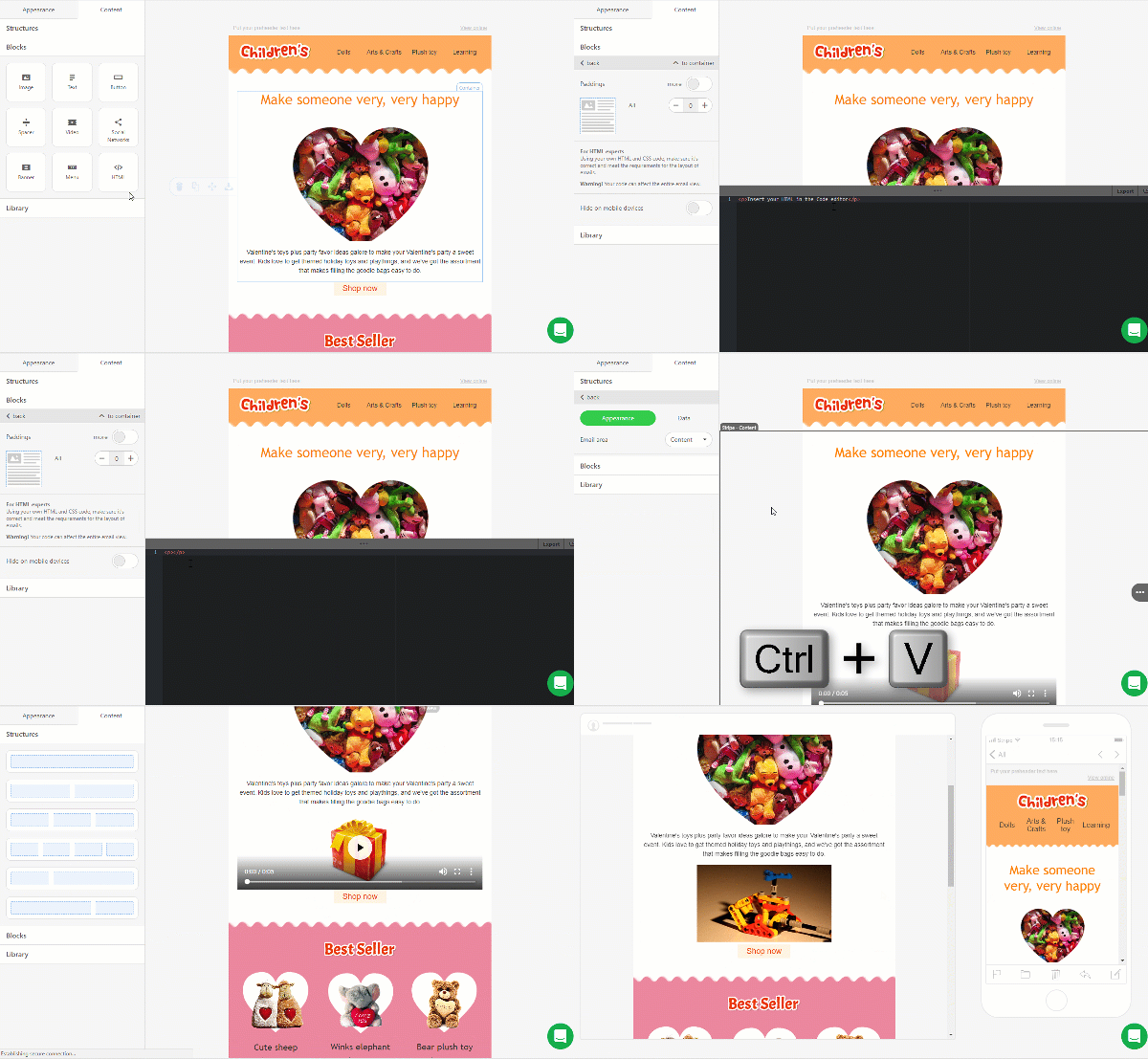
1. Drag the 1-column structure into your email design.
2. Drop in a basic HTML block.
3. In the email template, left-click the Insert your HTML in the code editor to open the code editor.
4. In this editor, instead of the Insert your HTML code editor, paste the following sample embed code.
<video poster="https://iiqf.stripocdn.email/content/guids/cab_pub_7cbbc409ec990f19c78c75bd1e06f215/images/Present_Gift_Box_Red_with_Yellow_Bow2_Christmas_New_Year.png" controls="controls" width="100%" height="176">
	<source src="http://techslides.com/demos/sample-videos/small.mp4" type="video/mp4">

	<a href="https://www.youtube.com/watch?v=qseKF5NerCU">
		<img src="https://iiqf.stripocdn.email/content/guids/cab_pub_7cbbc409ec990f19c78c75bd1e06f215/images/Present_Gift_Box_Red_with_Yellow_Bow2_Christmas_New_Year.png" width="320" height="176">
	</a>
</video>The second two links in the <a></a> tag are a fallback code with a YouTube video link and a preview image to be displayed in your emails.
The first part of the code works when subscribers use Macbooks and open emails in AppleMail or Outlook, while the second one works when an email is opened on any other device and in any other email client.
5. Customize the embed code.
The code above the fallback is for recipients whose devices and email clients support this interactivity. The section below is for recipients whose email clients do not support interactivity; they are redirected to YouTube, Vimeo, or any other video hosting site.
By using this code, you ensure all your users will see the video you want to share.
Customize the embed code
1. Upload the image you will use as the thumbnail to any site. It will serve as the preview image for clients who use Apple devices.
Indeed, the MP4 video generates a thumbnail, but it will not render on iPhone X or devices with Retina displays. The play button will automatically appear on it. Paste this link after the Poster attribute.
2. Convert your video to MP4 format via any video hosting site. Replace the link after the source src attribute in the code with your URL.
3. Convert your MP4 video to WebM format and insert the link in the respective line of the code. This video will be played on devices that support this format.
4. Upload the second image you will use as the thumbnail. This will be displayed for all email clients that do not yet support interactive emails. Consider using a screenshot of your YouTube video. Draw a play button over it.
5. Then upload your video to YouTube (Vimeo, your website, etc.), paste this URL in the href attribute after the quotation marks instead of the existing link. Once the recipient hits the play button, they will be directed to the respective website.