Uploading users to Insider One's InOne panel without obtaining their consent may result in legal sanctions and economic penalties for brands. That's why you should make sure you receive your users' consent before uploading them.
To upload your subscribers via a CSV file,
1. Navigate to InOne > Audience > Segments > Saved Segments > Static Segments.
2. Click the Create button. Name your new segment and proceed with choosing Static Segment.

3. You need to mark the "Authorized to process the uploaded users' data" checkbox to upload the CSV. If your CSV file does not have a header row, you can also mark the respective checkbox..png)
The phone number should be in the “+651234567890” E.164 format, starting with the country code (e.g., +65). For users you want to target with WhatsApp campaigns, set the WhatsApp opt-in value to TRUE.
You can leave the WhatsApp opt-in field empty if you upload users only for segmentation, listing, or reporting purposes. Users without a WhatsApp opt-in value are not eligible for WhatsApp campaign targeting.
4. You need to define the language of the targeted users. The language attribute value should be in the “xx_XX" format, such as "en_US". A sample CSV file would look as follows;
.png)
If some users in your CSV file do not have a language value, or their value does not exactly match the language you select (for example en_GB instead of en_US), selecting a specific language in your campaign excludes those users. To reach every user in the segment regardless of language, select All Languages in the Segments step.
5. The system automatically detects the related fields. If not, you can further complete them as follows:

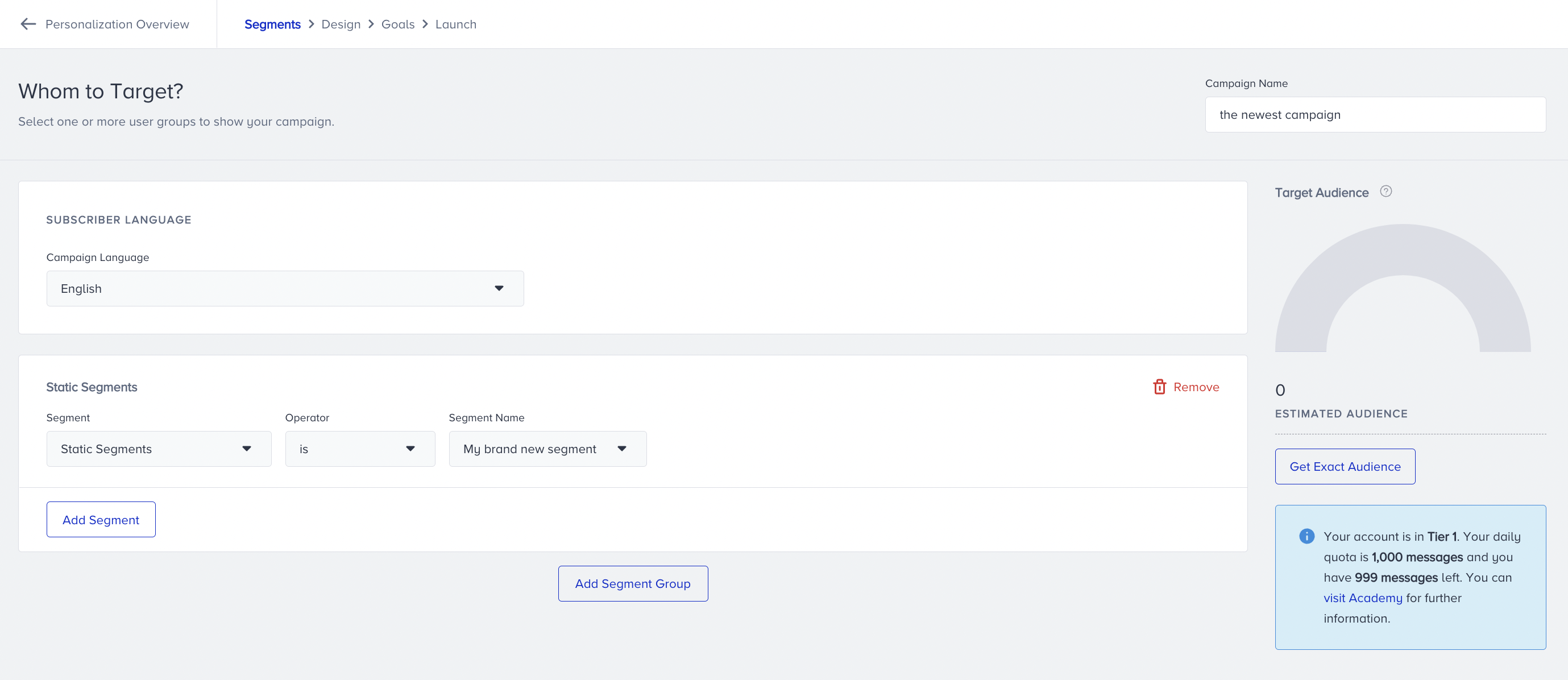
After uploading the contacts, you can reach your subscriber base on the Segments page.
To use your uploaded contacts in your campaign, you need to choose Static Segments and select the previously created segment name when creating your campaign.