Email annotations bring email messages with images, deals, expiration dates, and more to the Promotions tab. These annotations require neither registration nor a whitelist. With Gmail Annotations, you can boost your discount offers, showcase specific products and product categories, add coupon codes, and increase brand awareness.
This guide offers details about:
- Use cases
- Generate the annotations code
- Use the annotations code within email editor
- Important notes
- FAQ
Use cases
You can use annotations for different use cases.
- Product Image: You can add a product or campaign image in this field. If you add your image URL following the recommended aspect ratio, your email will look like this.
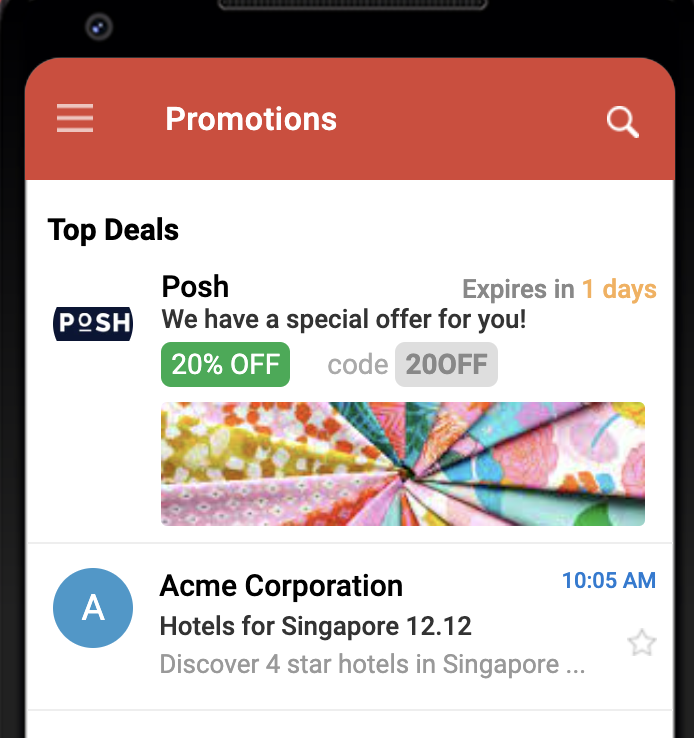
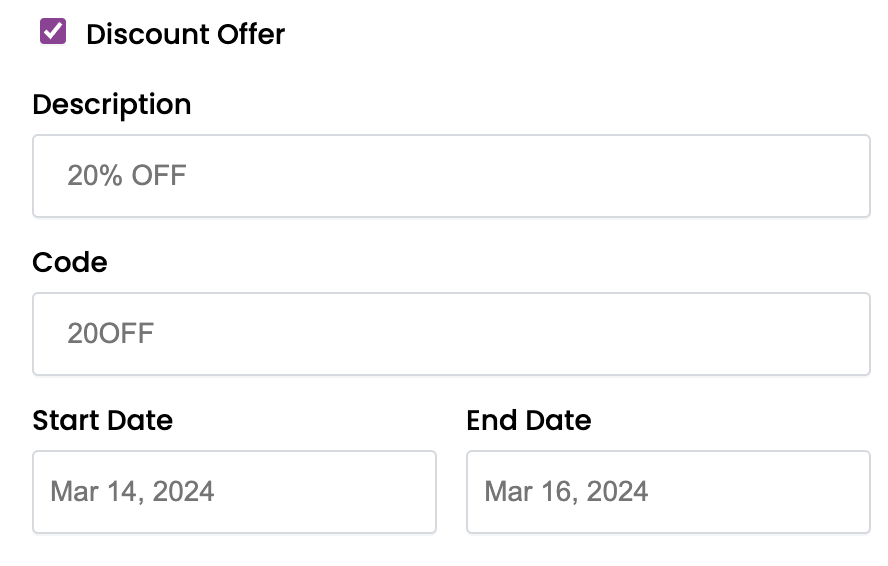
- Deal/Discount Annotation: You can add a description, code, and define start and end dates to add deals to your message.
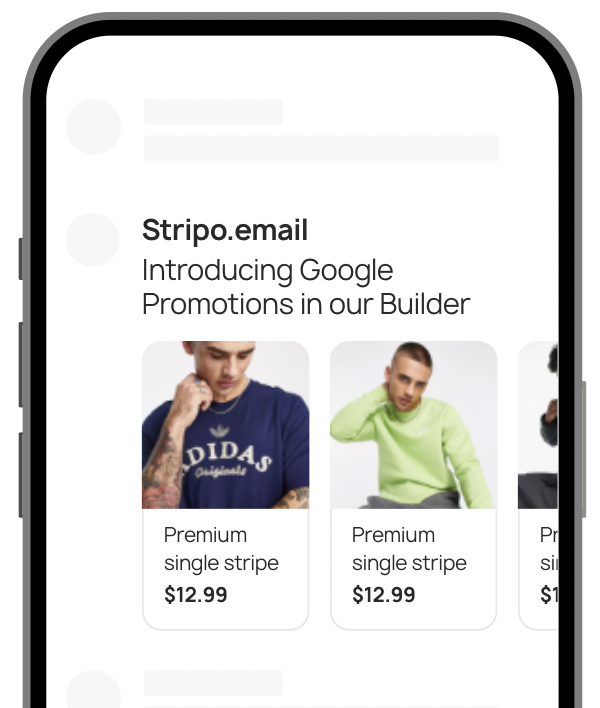
- Additional Use Cases: You can refer to Gmail Promotion Annotations Builder to create different variations of annotations, such as product cards.
Generate the annotations code
To create annotations for your email campaigns:
1. Go to Insider's Gmail Promotions page.
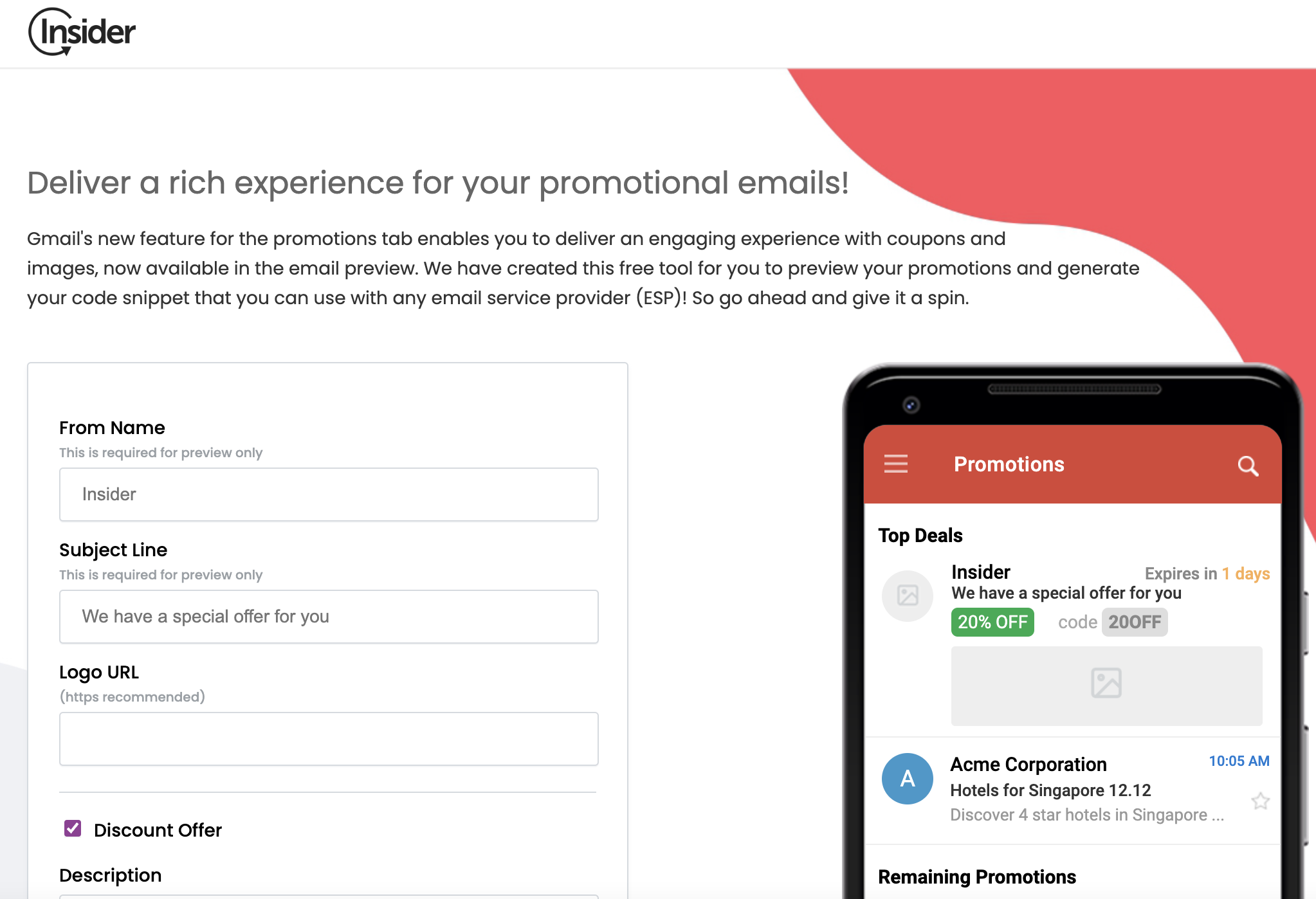 2. Fill in the required fields of the form. Description, Code, Start Date, and End Date are optional fields. You can instantly preview the display of your annotations on the right screen.
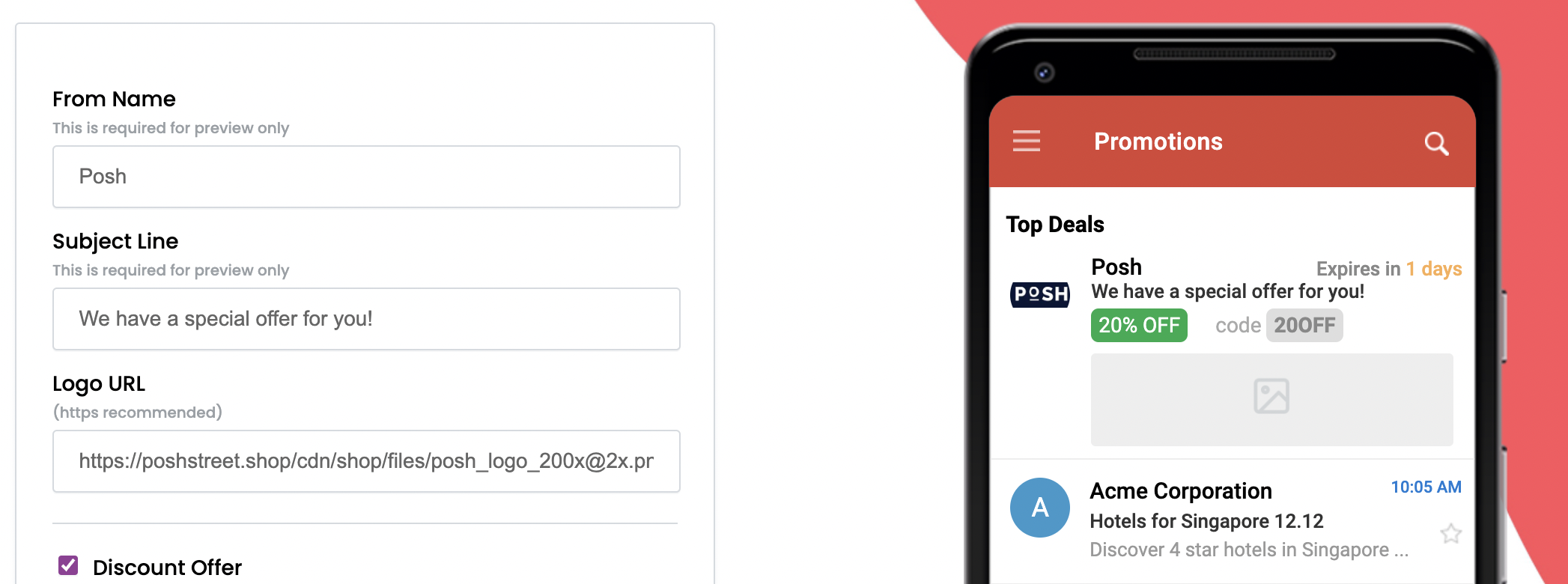
- The supported aspect ratios are 4:5, 1:1, and 1.91:1.
- You should avoid reusing images and keep your promotional email fresh and engaging with unique images. Email messages that reuse the same image may be regarded as duplicates.
- You should use the HTTPS protocol for image URLs.
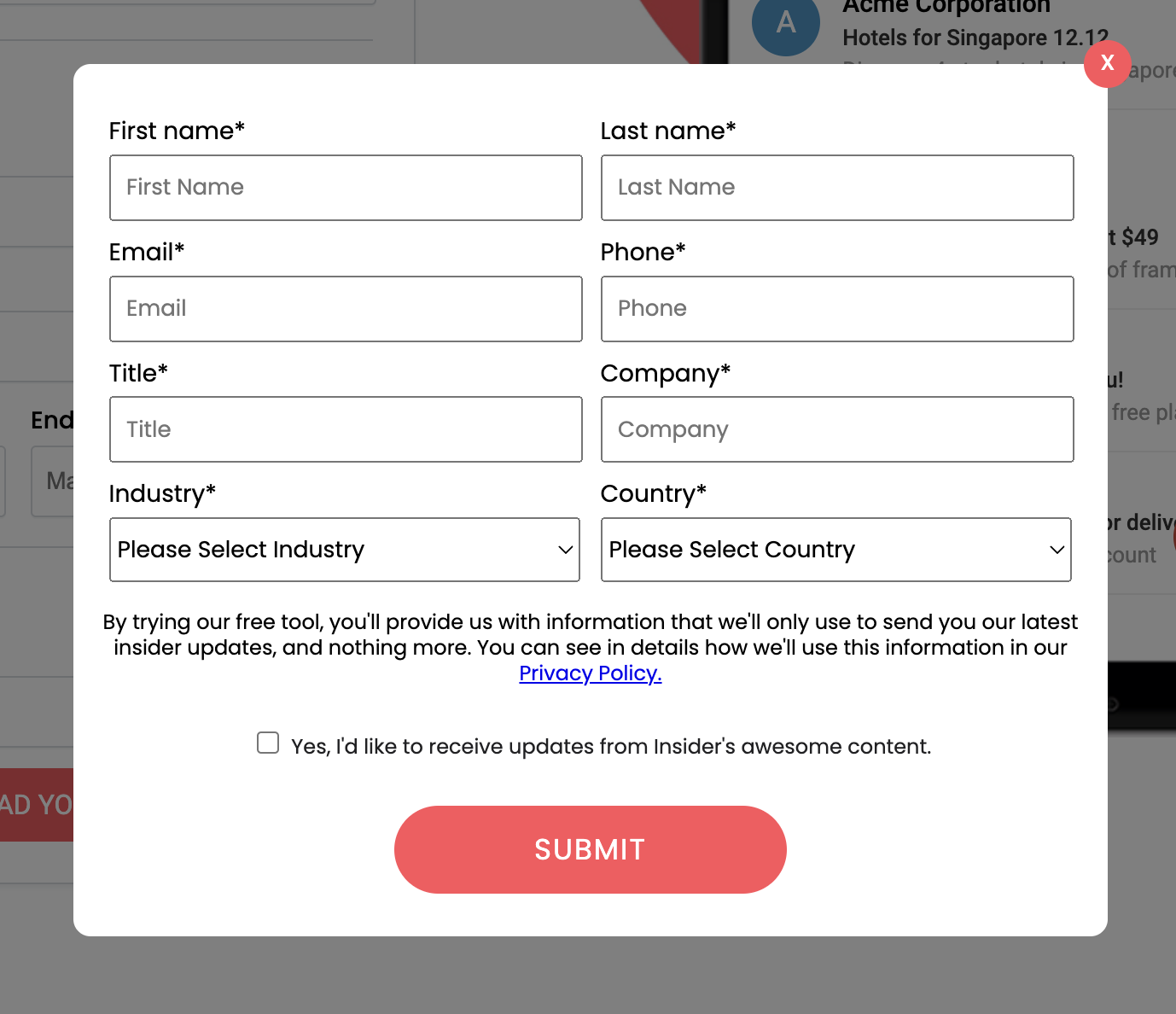
3. Click the Download Your Code button to generate and download your Microdata code. Fill out the form and click the Submit button.
4. Click the Get Your Microdata Promo Code button to download the respective file.
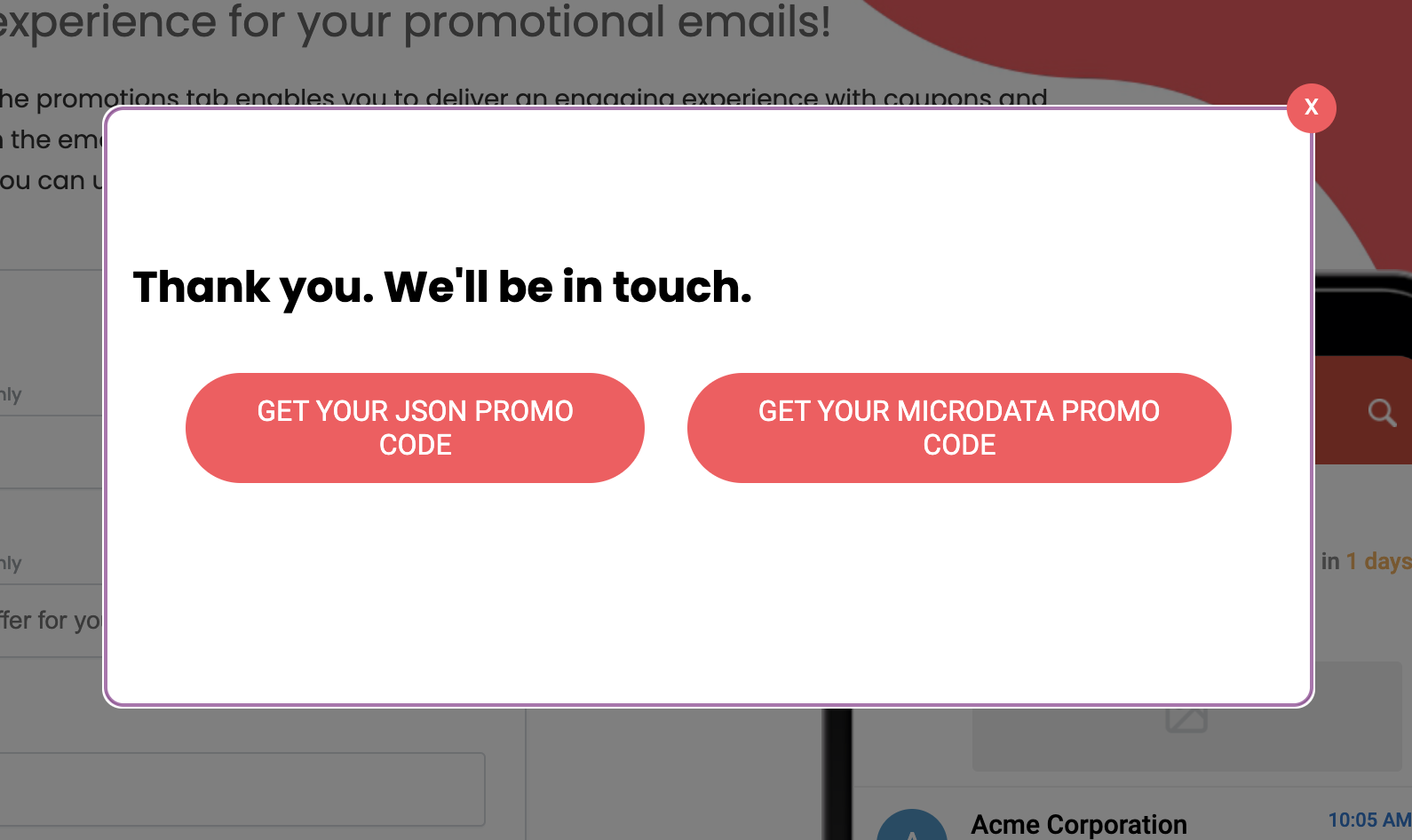
Since the <script> tag is not supported on the email editor for security reasons, JSON code option is currently unavailable. That's why it's recommended to use the Microdata Promo Code.
You can also preview the email display on Google's Preview Your Annotations page.
Use the annotation codes within email editor
To use the annotation codes in your email:
1. Generate your base Microdata Promo Code from the Academy.
2. Go to the Design step of your email and open the HTML Editor.
3. Download the generated microdata file.
4. Open the downloaded file and locate this section:
<div itemscope itemtype="http://schema.org/PromotionCard">
  <meta itemprop="image" content="https://your-image-url.com/image.jpg">
</div>
5. Add the following line inside the same <div>:
<meta itemprop="url" content="https://your-landing-page.com/offer">6. Save the file, then paste the updated code into your email’s <head> section.
7. Send a Test Message to a Gmail address and check the Promotions tab on mobile.
.jpeg)
.png) Below is an example markup.
Below is an example markup.
<!-- Start Gmail Promo Tab annotations code -->
<!-- Custom Logo -->
<div itemscope itemtype="http://schema.org/Organization">
  <meta itemprop="name" content="Insider">
  <meta itemprop="logo" content="https://poshstreet.shop/cdn/shop/files/posh_logo_200w2x.png">
</div>

<!-- Promotion Card -->
<div itemscope itemtype="http://schema.org/PromotionCard">
  <meta itemprop="image" content="https://your-image-url.com/image.jpg">
  <meta itemprop="url" content="https://your-landing-page.com/offer">
</div>

<!-- Discount Offer -->
<div itemscope itemtype="http://schema.org/DiscountOffer">
  <meta itemprop="description" content="20% off">
  <meta itemprop="discountCode" content="20OFF">
</div>
<!-- End Gmail Promo Tab annotations code -->
Important notes
- It is not guaranteed that all emails will have their email annotations displayed.
- You should view your email in the Gmail mobile app, and your email should appear in the Top Promotions section of the Promotions tab. Since only two or three emails appear in the Top Promotions, your email might still not be among these emails.
- According to Google, emails get picked for Top Promotions based on the brand's sender reputations at Gmail, and the user's historical engagement with the brand's emails. This is based on a 30-day period of open rate and spam rate measured and calculated by Gmail.
- Using the Offer/Discount expiration date allows an email to be viewed at the top in two cases: when it is first sent and within 3 days of the offer expiration date.
- The Academy generator will be updated to include the url field in a future release. Until then, you can use the manual steps listed in this guide.
- Even with correct annotations, display in Top Promotions is not guaranteed. Gmail selection depends on sender reputation and engagement.
FAQ
Q: Is it possible to track the success metrics of Gmail Annotations?
A: The best case to track the success of annotations is to do an A/B test. You can create two variants: one with annotations and another without annotations, to test the performance of both.
Q: Since there are several limitations on how our annotations appear in the inboxes, what happens if I don’t meet the requirements?
A: Even if you don’t have the expected sender reputation and Google algorithm does not pick your deal for the Top Promotions, your email will still be displayed under the Promotions tab.
Q: Why don't our Google annotation images show up?
A: Several reasons for how you upload the image might cause this issue.
- All images in the annotation must pass Google’s quality filters. To populate the carousel, images should follow the recommended aspect ratio, be high-quality or high-resolution close-ups, and contain little to no text. Images must also be family-safe, as Google filters out inappropriate content.
- Several image-upload issues can prevent the carousel from appearing. Google only supports certain image formats, so using an unsupported format can cause failures. The image URL must use HTTPS, must not be broken, and must resolve to the correct image; otherwise, Gmail will not render it in the annotation.
- Due to Google’s privacy and safety rules, annotated emails must be sent at scale for carousels to work consistently. It’s recommended to send the campaign to at least 100 recipients so Google can classify it as a “mass send.” All recipients should receive identical image URLs.
- Gmail enforces a density cap on how many product carousels can appear for a user. If someone subscribes to many brands that use carousels, Gmail may limit how many are shown.
Q: Can I receive emails with annotations even though I have not added the Gmail annotation code?
A: It is unnecessary to add the Gmail annotation code to the email to receive it in the Promotions tab. Gmail's algorithm places emails into different tabs like Primary, Social, and Promotions. Adding the Gmail annotation code into the HTML helps you get your email into the Promotions tab, but removing the code does not move it out of the tab. Based on the content analysis of the email, Gmail can move it under the Promotions tab.
Q: Does adding Gmail Annotations guarantee that my promotion card will always be shown?
A: Even if the annotation markup is implemented correctly, Google ultimately decides to display it in the Promotions tab. That's why it is not guaranteed to be displayed.
You can:
- Ensure your Gmail annotation code follows the Gmail requirements.
- Register your sender with Google using the Sender Verification process to increase trust.
- Ensure your sender domain is authenticated and have all needed DNS records (SPF/DKIM/DMARC).
- Ensure your sender domain has a good sender reputation. You can monitor your domain reputation in Google Postmaster Tool.
The final display decision is up to Google's algorithm.