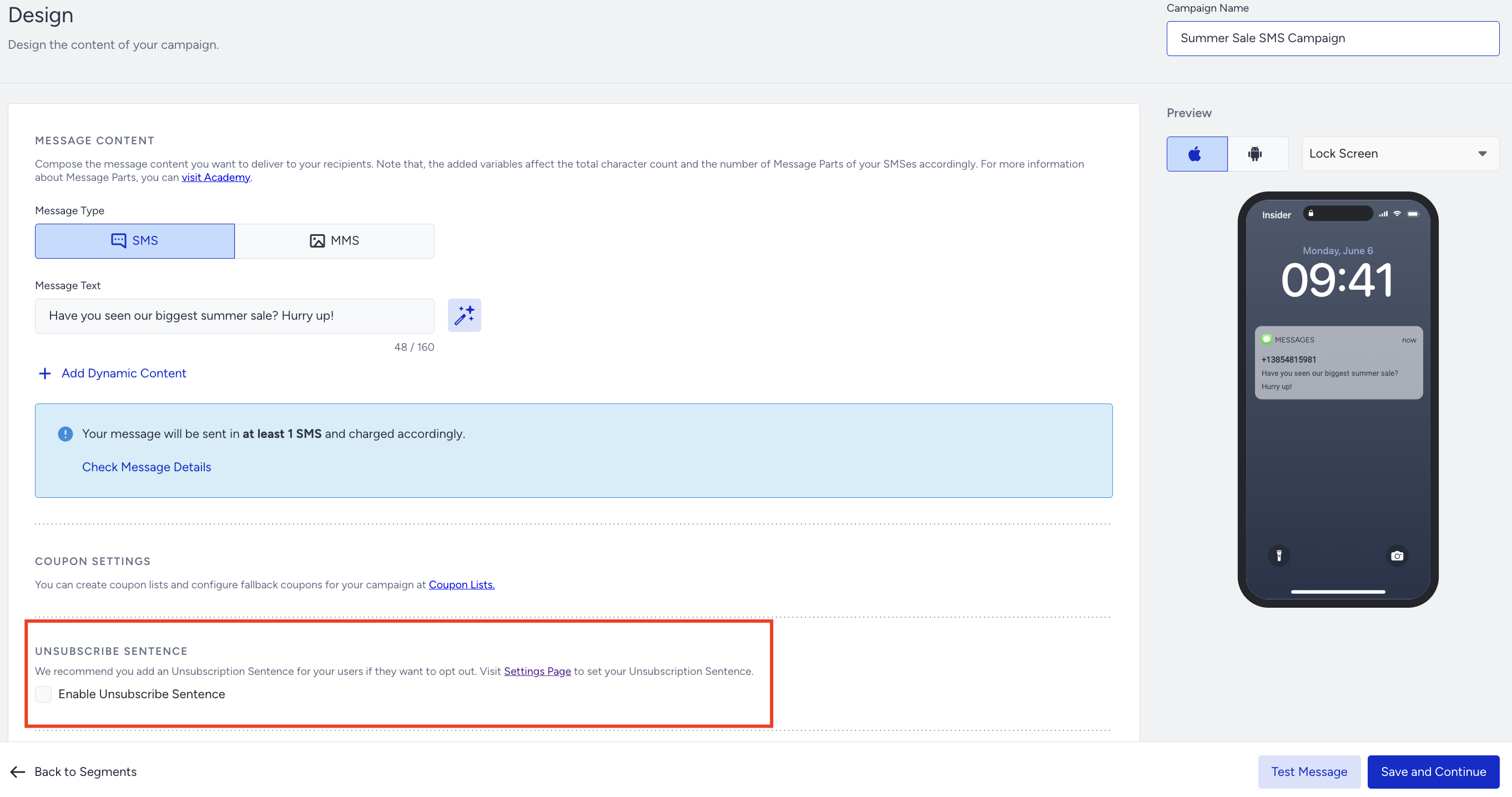
Insider now offers a centralized and flexible way to manage multiple SMS unsubscription methods directly from your panel. You can customize opt-out settings per campaign and localize unsubscribe keywords. Refer to Centralized SMS Unsubscription Management for further information.
You can use the SMS Unsubscription with Insider Domain method to easily redirect your users to our website https://sms-unsubscribe.useinsider.com/ to collect unsubscribers. Therefore, you do not pay extra fees for an Unsubscribe Number and develop an unsubscribe method.
To use this method,
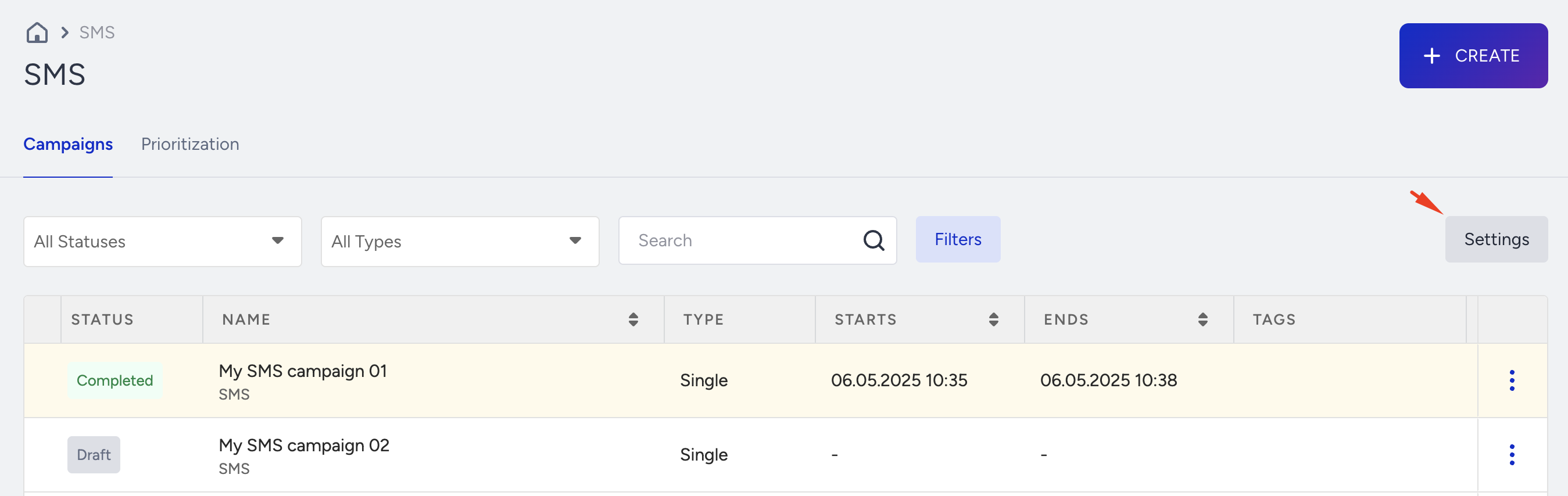
- Navigate to the SMS campaign listing page and click Settings.
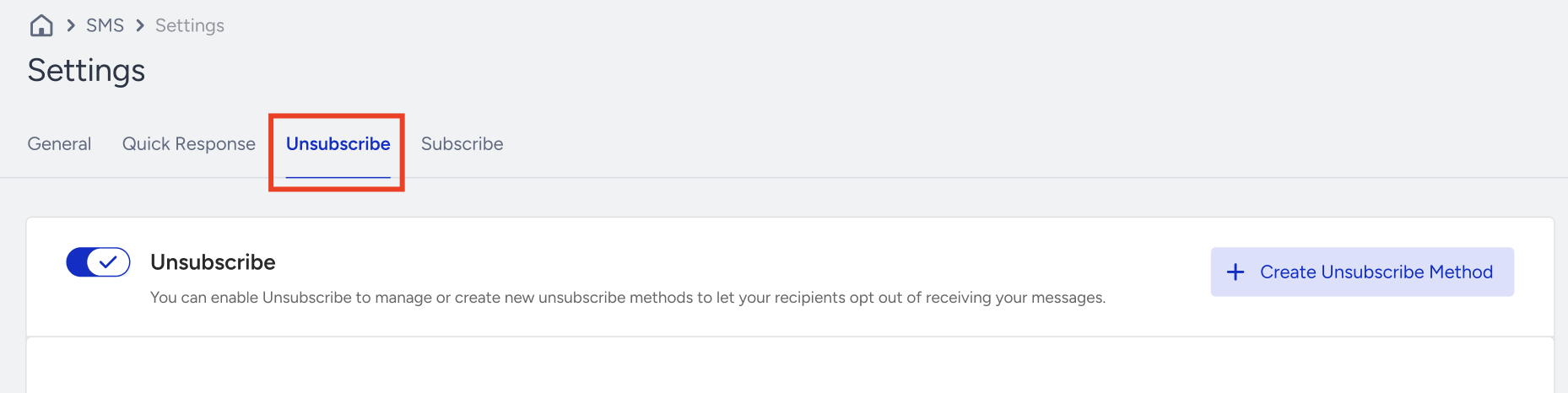
- Click the Unsubscribe tab.
To create a new unsubscribe method, click the +Create Unsubscribe Method button.
Your title goes hereEnsure the Unsubscribe toggle is enabled.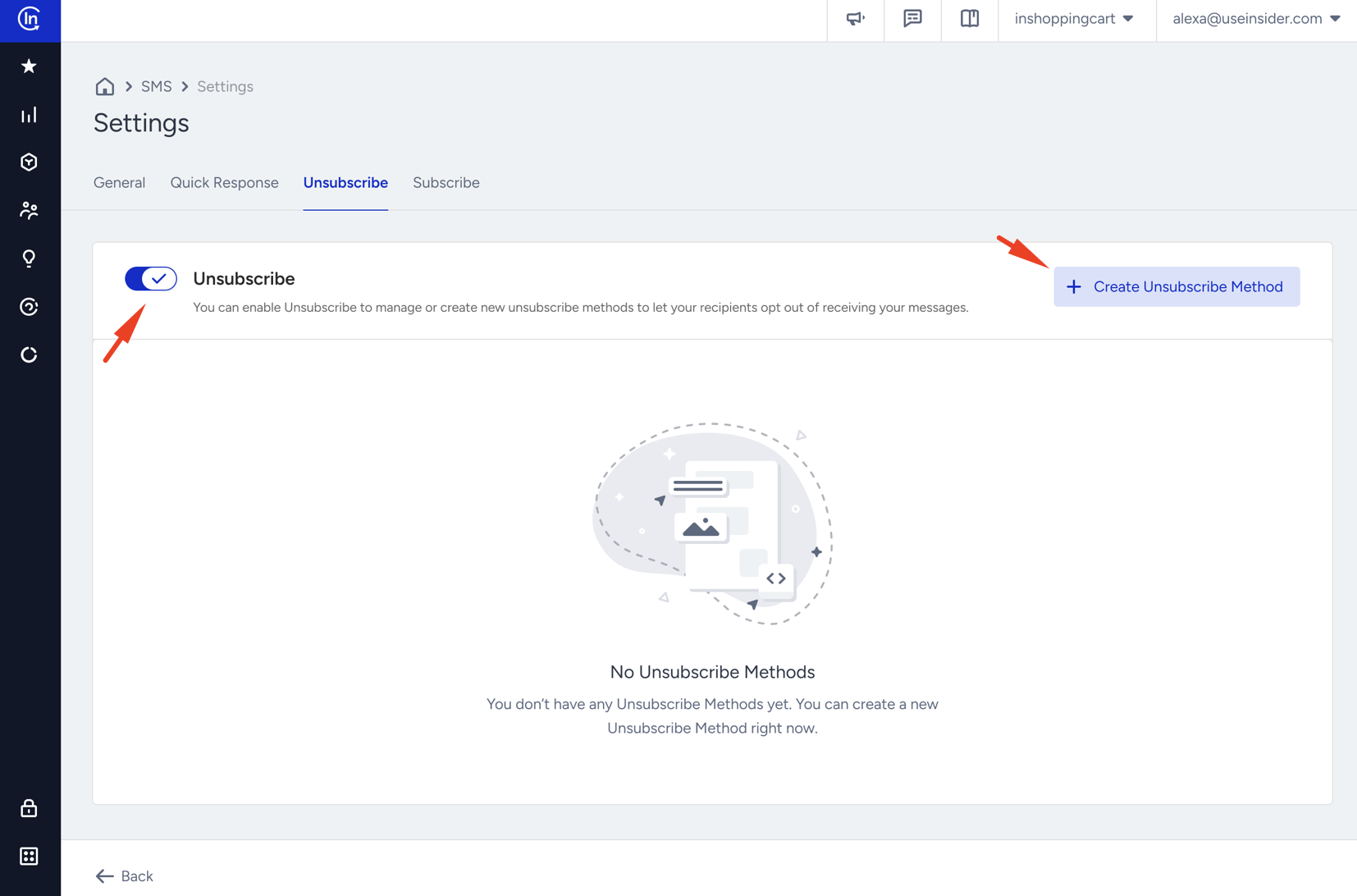
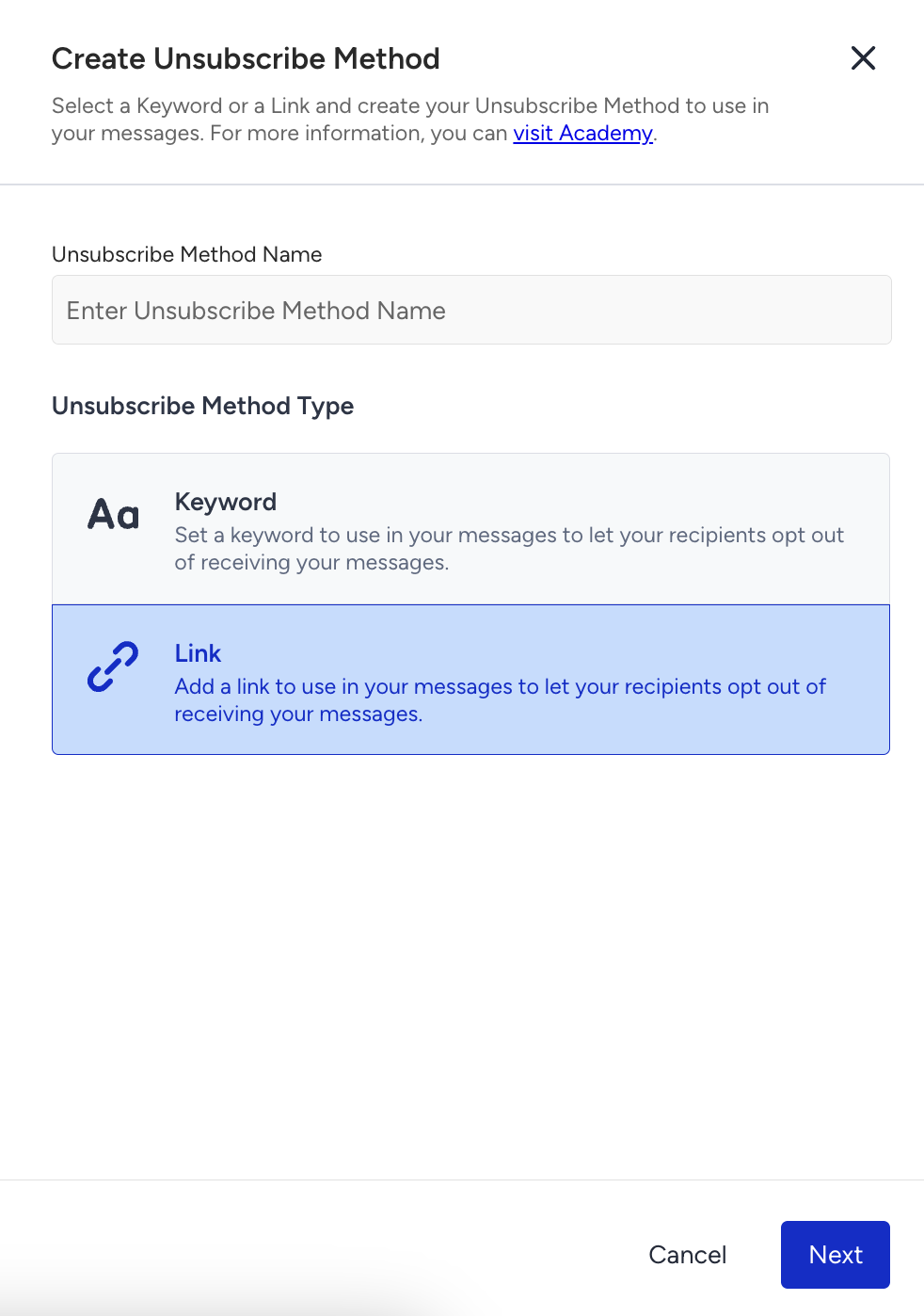
- Type a name for the unsubscribe method and select "Link" as your Unsubscribe Method type. Click Next to continue.
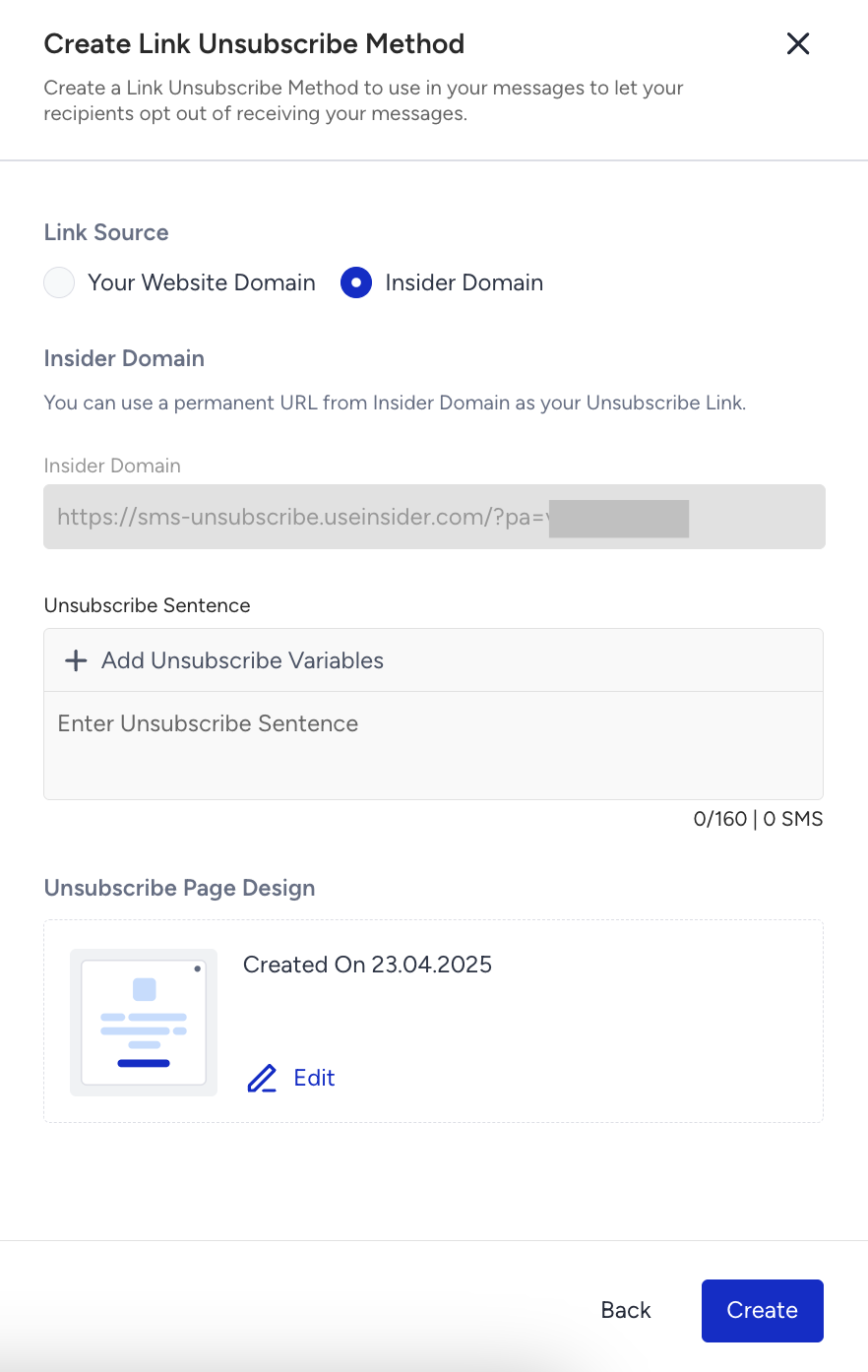
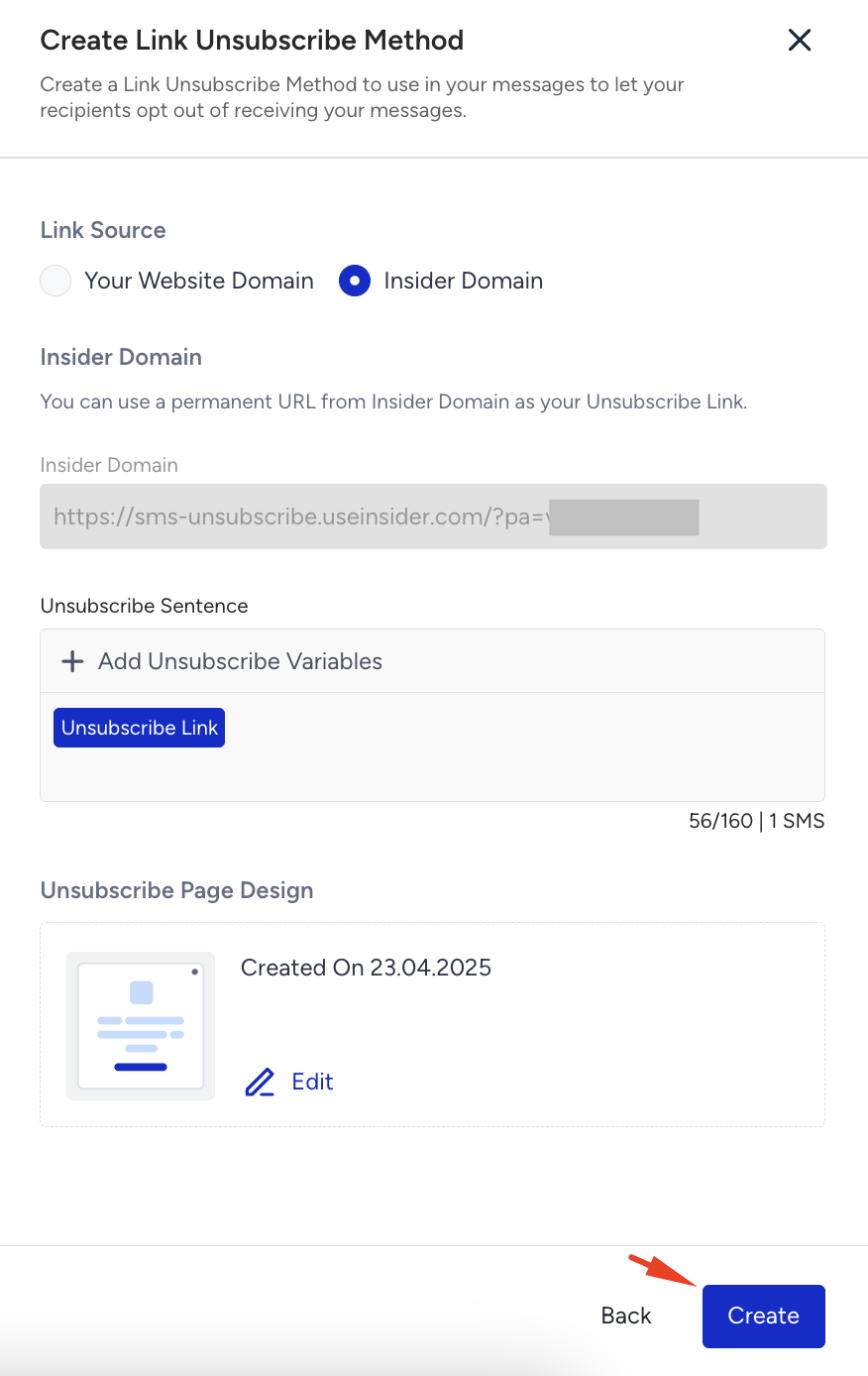
- Select Insider Domain as the Link Source. Then, the Unsubscribe Link will be automatically created.
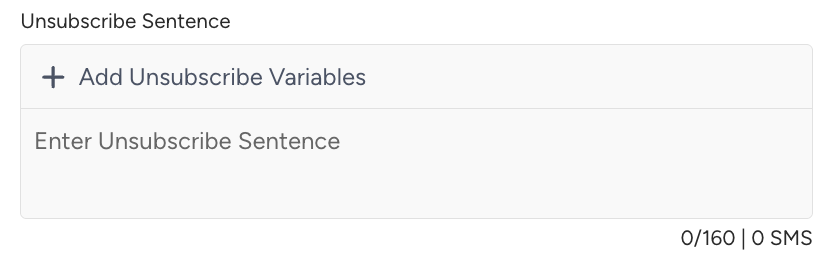
- Write your unsubscribe sentence in the respective field.
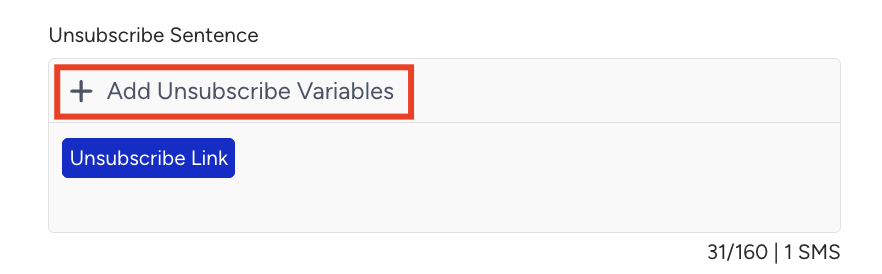
- Click the +Add Unsubscribe Variable option, and the unsubscription link will be added there automatically.
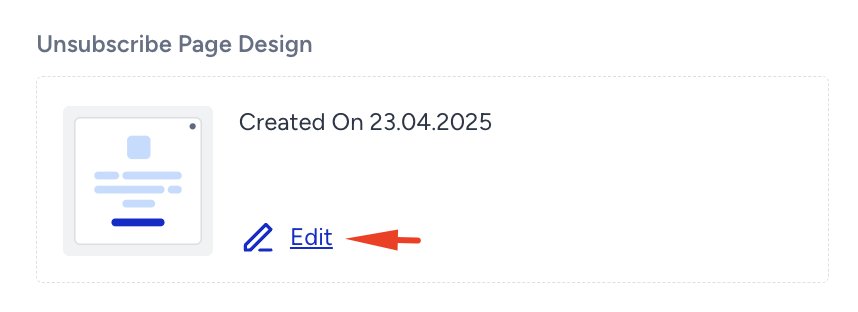
- To design your unsubscribe page, click the Edit button under the Unsubscribe Page Design field. You will be directed to the Landing and Confirmation pages.
- Once you are done, click the Create button.
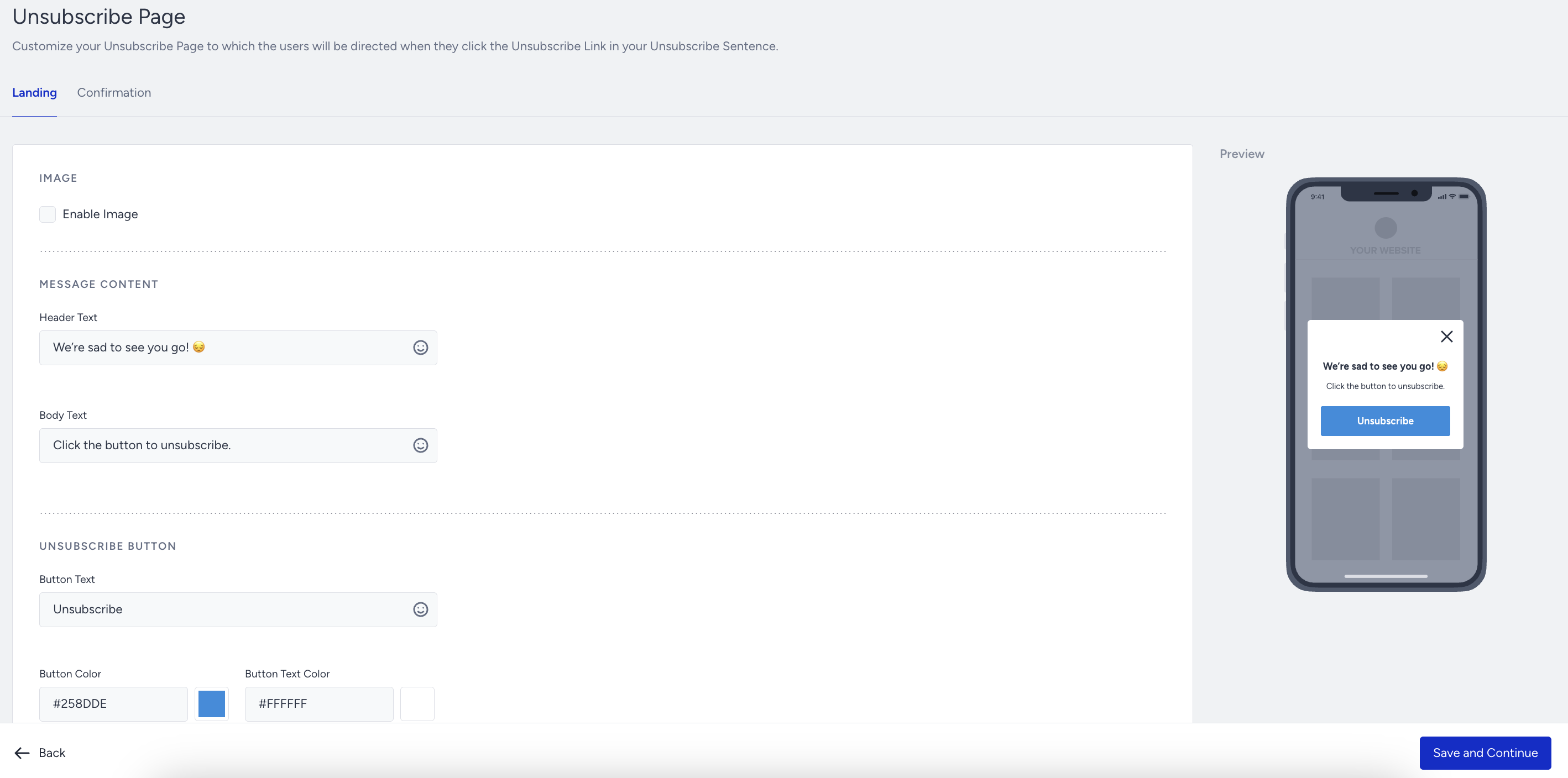
Landing Page
After you click the Edit button, you will land on the Landing Page. On this page, you can:
- Upload a custom image or disable it.
- Use emojis in the header and the body.
- Customize the Unsubscribe Button, enter the button text and link, and change the button color and text color to match your design.
Confirmation Page
After the user clicks the button, they will be directed to the Confirmation Page you designed under the Confirmation Page. You can:
- Upload a custom image or disable it.
- Use emojis in the header and the body.
- Customize the Unsubscribe Button, enter the button text and link, and change the button color and text color to match your design.
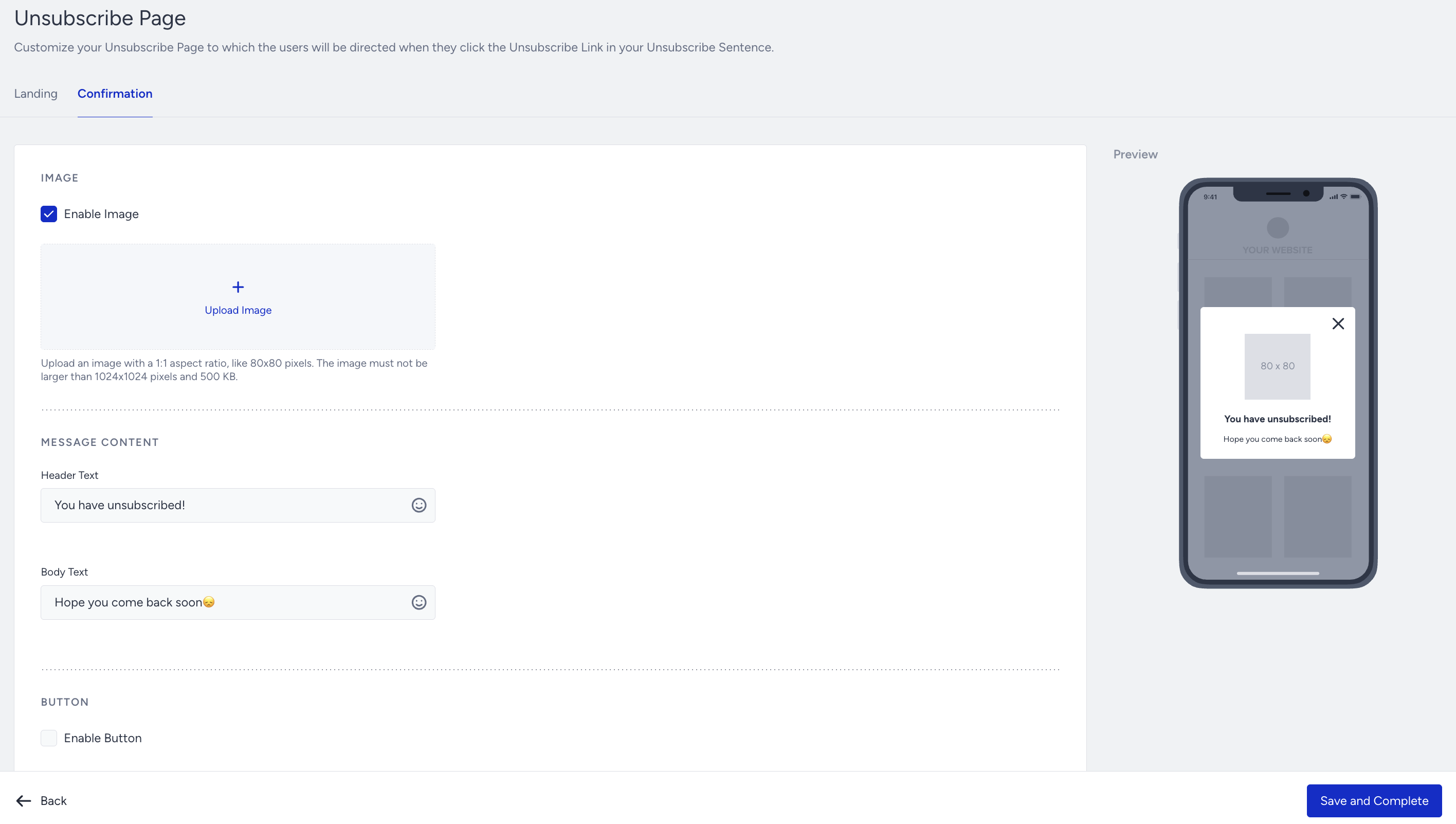
Once you complete the configurations, click the Save and Complete button.