The Sender Address Setup step allows you to define the email identities that will appear in the From field when you send transactional emails from your verified domains. Each sender address includes both a sender name and a username, ensuring that your emails are recognizable and trusted by your customers.
Understanding the terminology
Username: username@sender.domain.com
Sender name: Sender Name <username@sender.domain.com>
Sender address: Sender Name <username@sender.domain.com>
In this step, you will add at least one sender address for one of your sender domains. These sender addresses will be used when sending transactional emails via Insider One's Transactional Email API.
Dynamic sender name and username are not supported in Transactional Email. The sender name and username you set here are static values used for every transactional email sent from the default sender address. They cannot be personalized at send time using dynamic fields or API parameters.
Add sender address
In the Sender Address Setup step, you will see your sender domains listed in table view. Here, you can see the sender address and sender names for each sender domain.
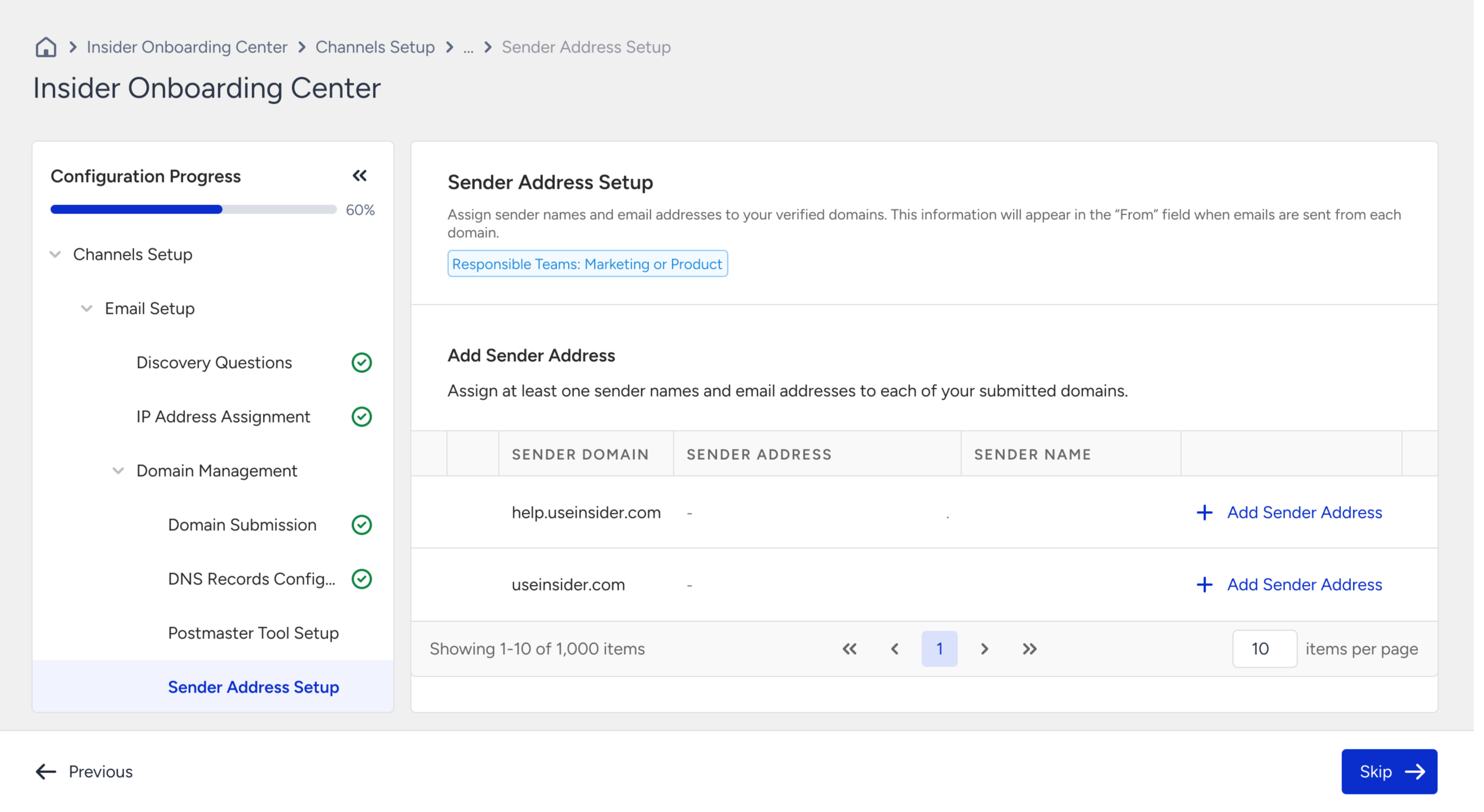
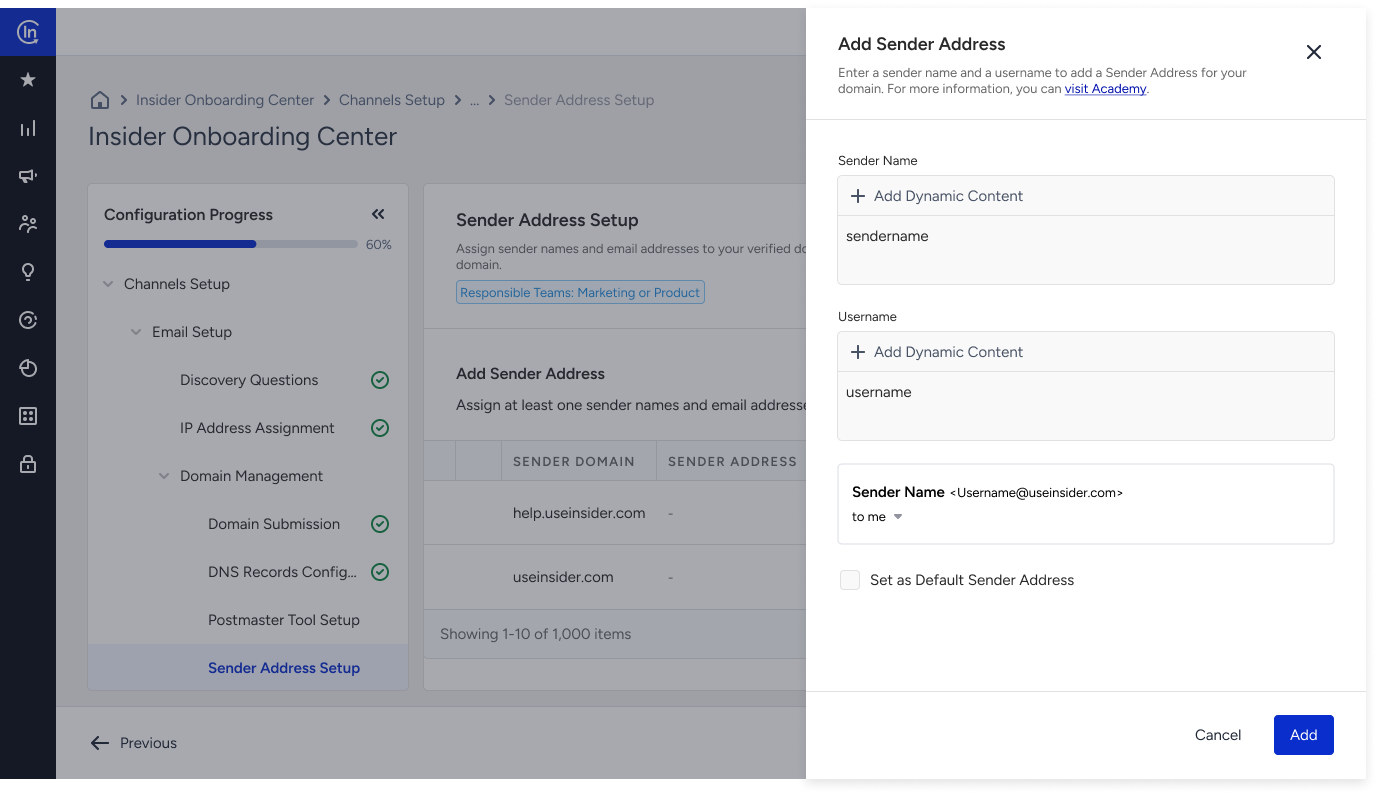
To set up a sender address for one of your sender domains, click the Add Sender Address button on the right side of the table. After clicking it, you will be guided to define the sender name and username for your sender address with a preview.
After adding your sender addresses for your sender domains, you can remove or set another sender address as the default from the menu button next to the sender addresses.
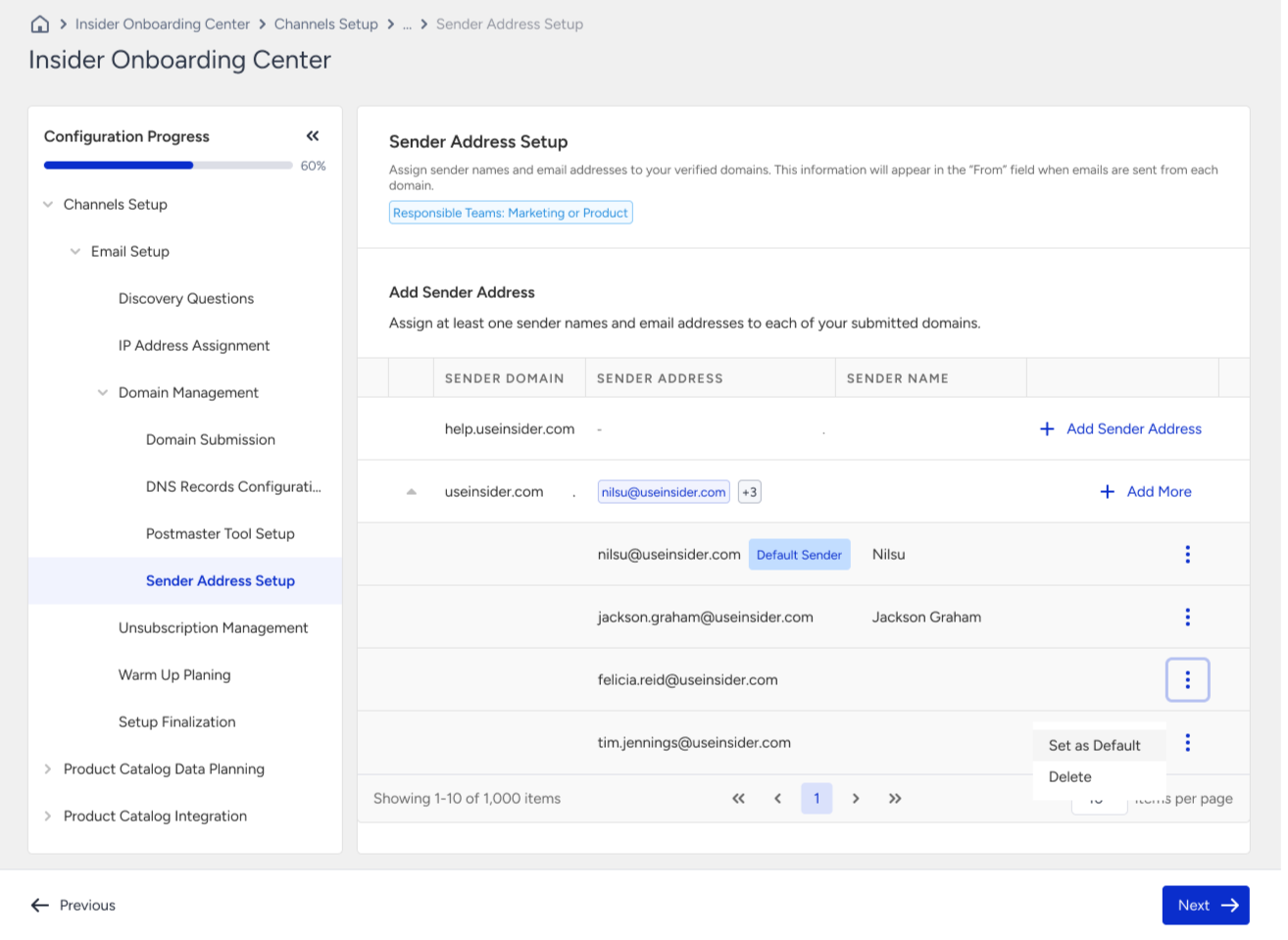
You cannot delete a sender address that has been selected as default. To delete the default sender address, choose another sender address as the default first.
Verify your domain before creating a new sender address as any transactional email cannot be sent with an unverified domain.