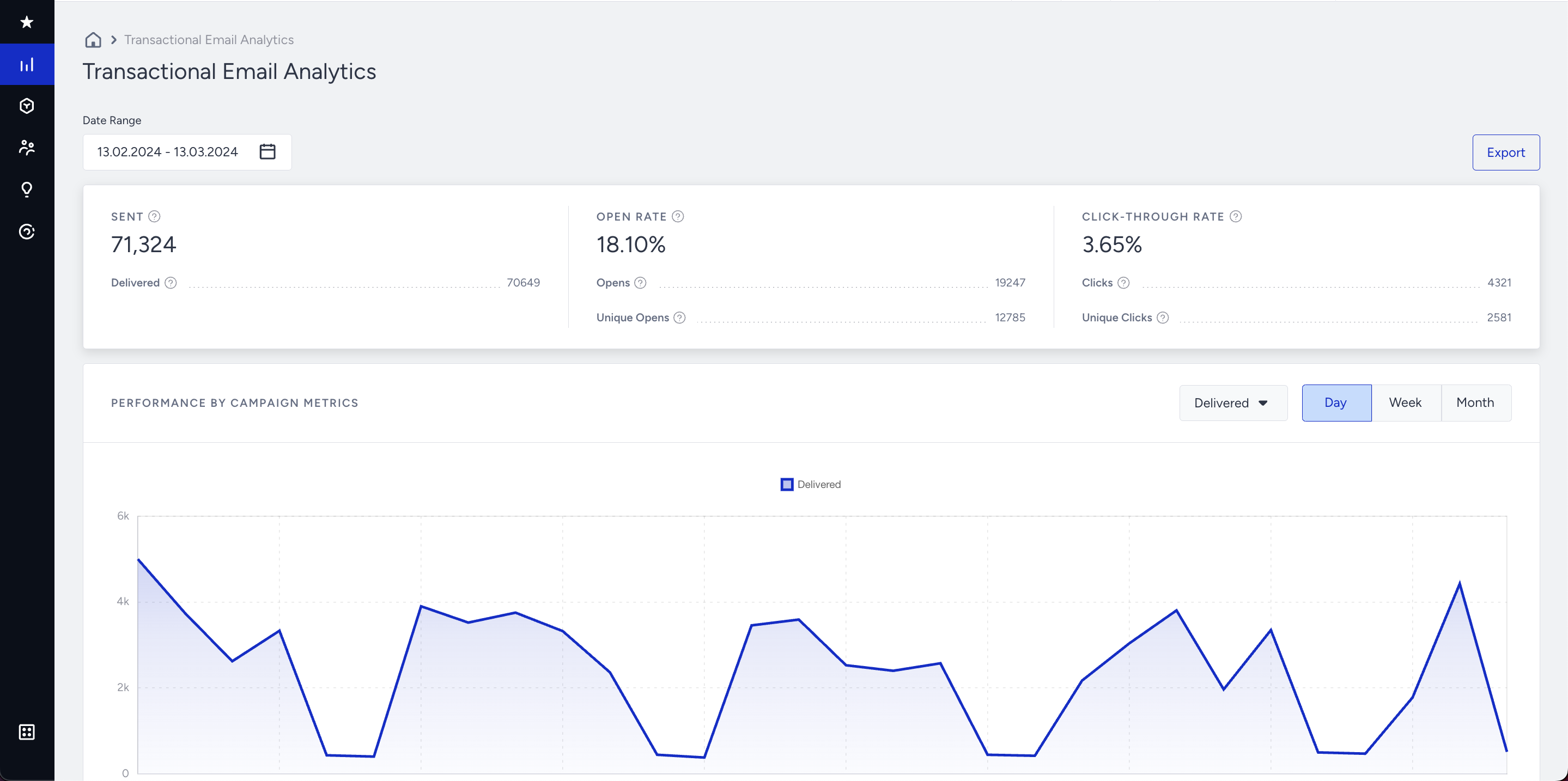
The Transactional Email Analytics page provides analytics for transactional emails sent using the transactional email API. You can view this page via Reports > Email Analytics > Transactional Email Analytics.
With the latest version of the Transactional Email API, you can now group your transactional emails into categories and filter this page so that the analytics reflect only a selected category. This makes it easier to compare the performance of different types of transactional emails, such as password resets, order confirmations, or shipping updates.
In the top right section of the page, the following options are available:
Export
By clicking Export, you will receive all analytics from a selected time range in an Excel format.
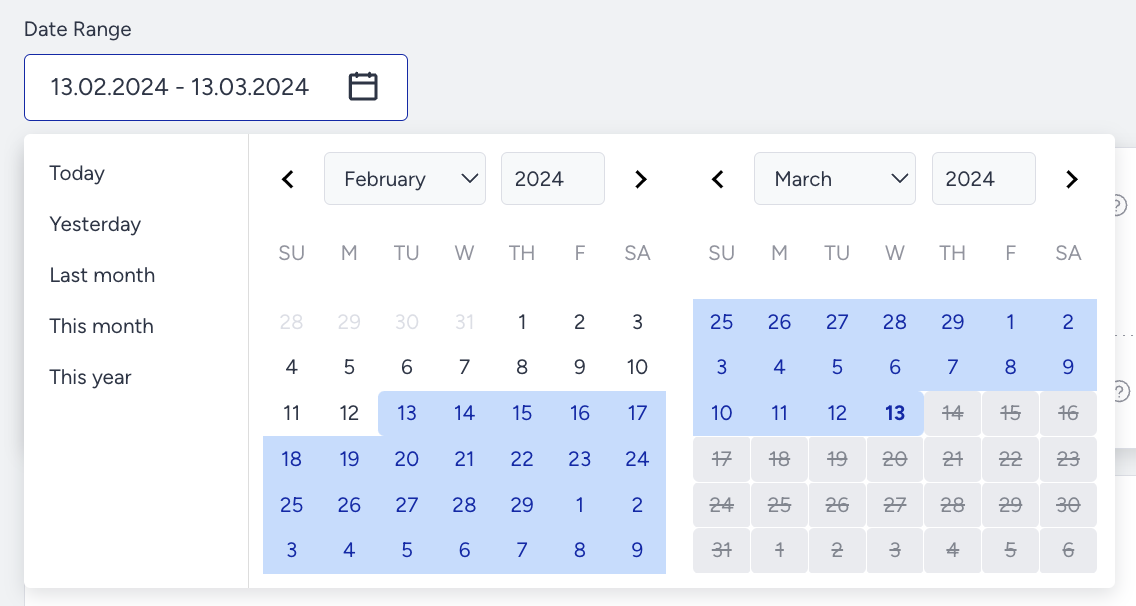
Time Range
This option allows you to select the time range from which you want to see your analytics.
- Today
- Yesterday
- Last month
- This month
- This year
Category
This option allows you to filter the analytics on the page by category, so you can view the results for a single category instead of all of your transactional emails together. The category selection includes the following:
- Legacy data: Contains all transactional emails sent through the previous version of the Transactional Email API. Emails sent before categories were available are grouped here.
- Uncategorized: Contains transactional emails sent with the latest version of the Transactional Email API without specifying a category in the payload.
- Your categories: Any categories you have created are listed here, so you can select one to view its analytics. First, you need to create these categories, then use them in the Transactional Email API v2 to send a payload using the category body parameter.
To send a transactional email under a specific category with the latest version of the API, you need to include that category’s ID in the payload. For more information about how to retrieve a single category’s ID, refer to GET /mail/v2/categories_{id}. If you want to see all of the categories you have created, refer to GET /mail/v2/categories.
If the customer sends requests via v2 with an already created category, it will be displayed underneath as follows: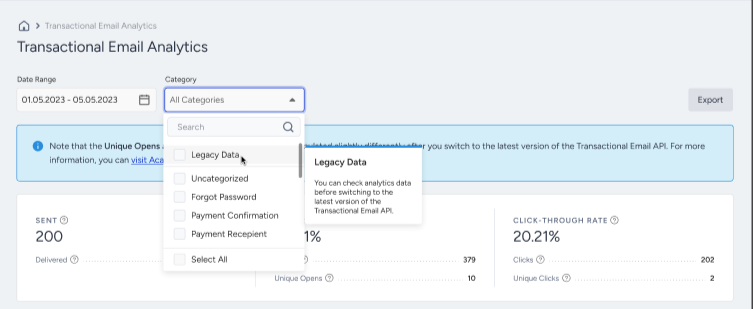
If the customer sends requests via v2 without any category assigned, it will be displayed under "Uncategorized".
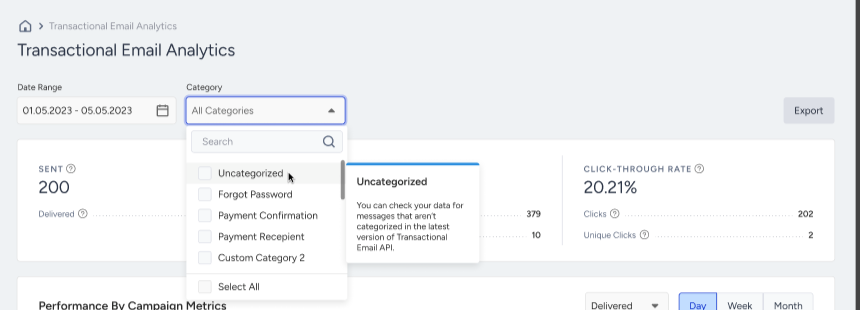
If the customer switch to v2 from v1 or doesn’t use v2 endpoint at all, their previous analytics all will be summed up under “Legacy Data”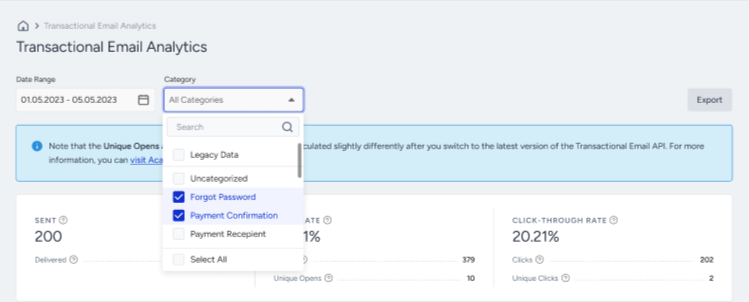
Summary metrics
After selecting the time range, you can view the analytics from emails sent from your account from that period. These include:
- Sent: The total number of emails sent
- Delivered: The total number of emails that have been delivered to the subscribers
- Open Rate: The percentage of opened emails. It is obtained by dividing the unique opens by the total number of delivered emails.
- Click-through Rate: The percentage of total clicks on a link obtained by dividing the unique clicks on links by the total number of delivered emails.
- Opens: The total number of times your users opened your emails. This number demonstrates the number of opens regardless of the number of unique users. This means that if the same user opens the sent email 5 times, this number will increase by 5.
- Unique Opens: The number of unique individuals that have opened your emails. This number demonstrates the number of opens regarding the uniqueness of users. For example, if the same user opens the email 5 times, this number will increase by 1 and not 5.
- Clicks: The total number of times your users have clicked on the various links within your emails. This number demonstrates the number of clicks regardless of the number of unique users. This means that if the same user clicks on the same item 5 times, this number will increase by 5.
- Unique Clicks: It represents the number of unique individuals that have clicked the links in your emails. If the same user clicks the same link 5 times, this number will increase by 1 and not 5.
The way Unique Opens and Unique Clicks are calculated depends on the version of the Transactional Email API used to send the emails, so you may notice a slight difference between the two:
Previous version 1 (Legacy data): Uniqueness was calculated within each reporting period. As a result, a recipient who opened or clicked on different days within your selected time range could be counted more than once across that range. Unique clicks and opens were stored for 7 days by SendGrid, which provided the data.
Latest version: Uniqueness is calculated across your entire selected time range, so a recipient who opens or clicks on different days within the range is counted only once. V2 deduplicates unique opens/clicks across the full selected data range. Because this calculation is optimized for very high email volumes, the totals for large audiences may vary slightly. Beware that date ranges spanning both v1 and v2 may show inflated unique counts.
Performance by Campaign Metrics
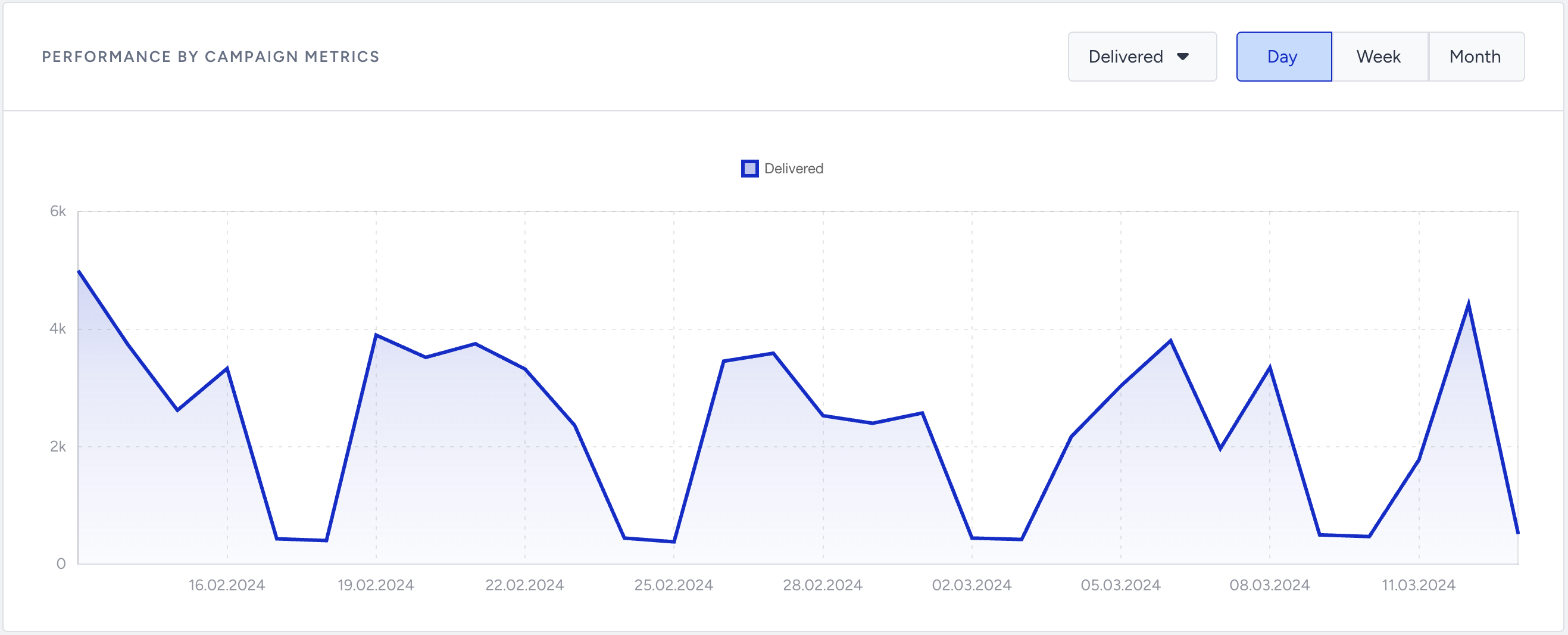
The chart section of the analytics displays the details on a line chart based on the chosen option. You can select one of the following from the top right section of the chart: Delivered, Total Opens, or Total Clicks.
You can also choose the date interval from the top right section. You can view the details on a daily, weekly, or monthly basis.
 In the bottom section of the analytics, you can view other email-related details of the campaigns you sent in that date range, which are as follows:
- Bounce Rate: A bounced email is an email message that has been returned to the sender because the recipient's address is invalid. A bounce might occur because the domain name doesn't exist or the recipient is unknown. If an email is on the bounce list, we will auto-drop any future requests to this email address. Bounce rate is calculated as Bounces/Total Sent.
- Spam Reports: The number of users who have marked the email as spam. We will auto-drop any future email requests to this email address.
- Blocks: A blocked email is an email message that gets as far as the recipient's mail server but bounces back before it gets to the intended recipient. Blocks can also happen when your message is rejected for a reason related to the message, not to the recipient's address. This can occur when your mail server IP address has been added to a blacklist, blocked by an ISP, or if the message content is flagged by a filter on the receiving server. Blocks might also occur because the recipient's inbox is full. Blocks are soft bounces. If they are not reachable for a while, they become bounces. The ESP(SendGrid) will handle this.
- Invalid Emails: The number of invalid email addresses. We will auto-drop any future email requests to this email address.