Grocery shopping is a frequency-heavy, essentials-first vertical where user behavior is shaped by habits, recurring needs, dietary preferences, and budget sensitivity. Customers often reorder the same items on a weekly or monthly basis, while also exploring promotions, planning recipes, and making impulse purchases. To maximize impact, recommendations should support replenishment, discoverability, and meal planning, while driving higher basket sizes and repeat visits.
What you can achieve with Smart Recommender
Personalized replenishment on homepage
Remind users to restock frequently purchased items—like milk, eggs, or coffee—based on their typical buying cycle.
Meal kit recommendations for planners
Simplify decision-making and increase AOV by suggesting ready-to-buy bundles such as “Taco Tuesday” or “Breakfast Staples.”
Cross-Sell staples with complementary items
On product pages, recommend frequently paired items—pasta with sauce, cereal with milk—to grow basket size.
Win back dormant shoppers with smart suggestions
Re-engage inactive users with curated picks from past purchases, seasonal ingredients, or current promotions.
Impulse add-ons at checkout
Use cart page recommendations for last-minute items—chocolates, snacks, drinks—that customers often add before payment.
Diet-dased personalization at every touchpoint
Leverage Attribute Affinity to tailor suggestions to dietary tags like vegan, keto, or gluten-free, ensuring relevance and conversions.
Budget-conscious discovery
Highlight discounted or value-for-money products to appeal to price-sensitive users and encourage larger orders.
A/B testing across the shopping journey
Experiment with placement, bundle sizes, and discount messaging to identify strategies that drive engagement and repeat purchases.
Walkthrough: Boosting AOV with Cross-Sells
One of the most effective ways to increase your store’s Average Order Value (AOV) is by encouraging customers to add complementary products to their purchase. In the grocery space, purchases are often part of a larger routine—such as restocking food—so recommending related items at just the right moment can drive meaningful cross-sell opportunities.
In this example, we’ll walk through how to create and test a cross-sell campaign on grocery product pages designed to boost the AOV of customers with currently low AOV. The goal is to test and compare which complementary category leads to a higher AOV when recommended alongside grocery.
Identify the best-performing complementary category for pet owners and use it to maximize basket size while creating more complete grocery routines.
1. Create your Recommendation Strategy
It's time to create your first recommendation strategy. Navigate to the Recommendation Strategies and click Create.
Select your page type as Product Detail Page.
Select your algorithm as Purchased Together to recommend suitable products for cross-selling.
Enter the number of products you want to recommend.
Exclude the recently purchased products in the last 4 weeks to keep your customer engaged.
Add a filter for the category attribute to display recommendations from the “Fresh Produce” category.
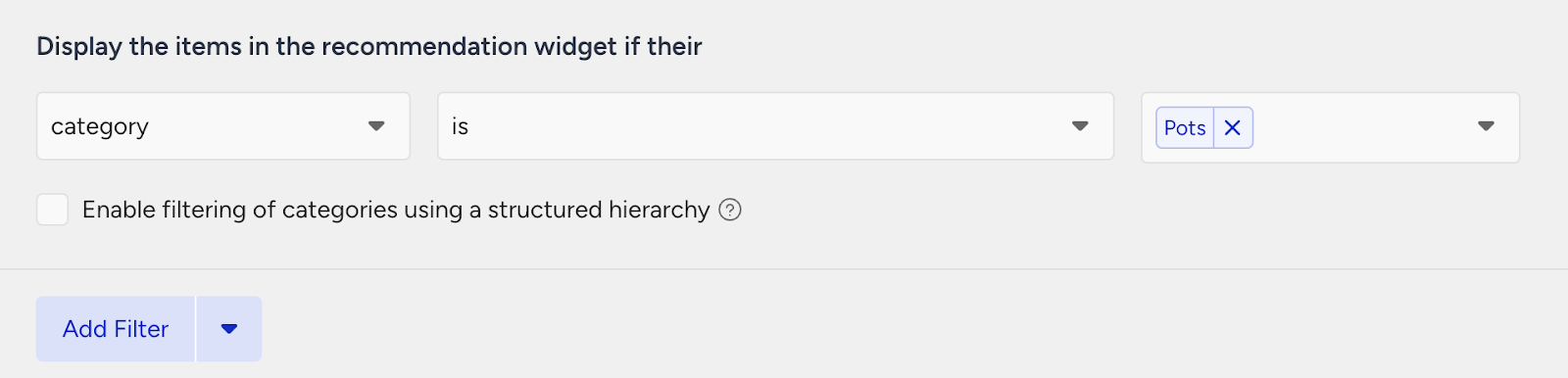
Then, create your second strategy that you want to test against.
Select your page type as Product Detail Page.
Select your algorithm as Purchased Together to recommend suitable products for cross-selling.
Enter the number of products you want to recommend.
Exclude the recently purchased products in the last 4 weeks to keep your customer engaged.
Add a filter for the category attribute to display recommendations from the “Pantry Staples” category.
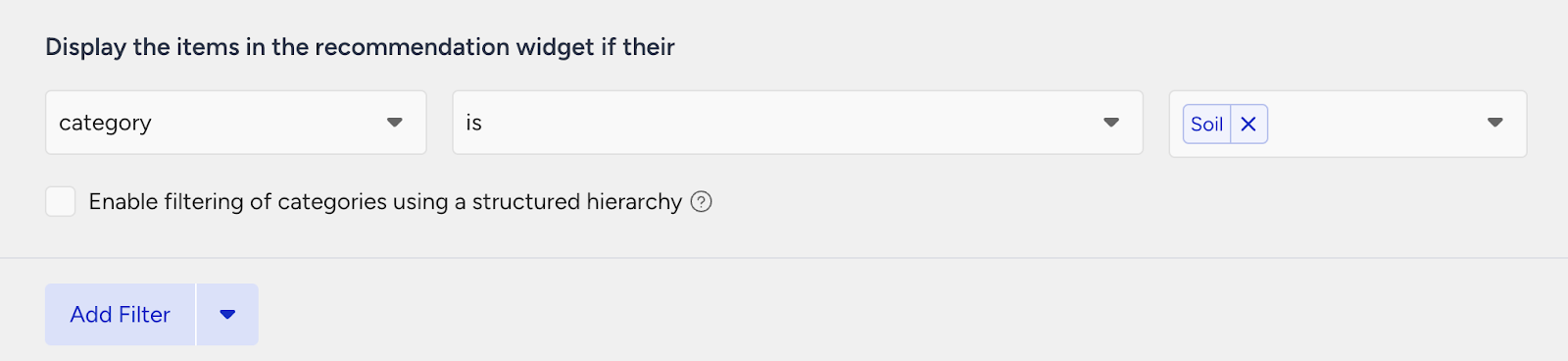
2. Launch your campaign
Now, launch your first campaign using your strategies.
Go to the Web Smart Recommender page and click Create.
Select your integration method for the widget.
On the Segments step, pick the audience.
For this example, you can select customers with a low AOV under Purchasing Behavior and set your threshold.
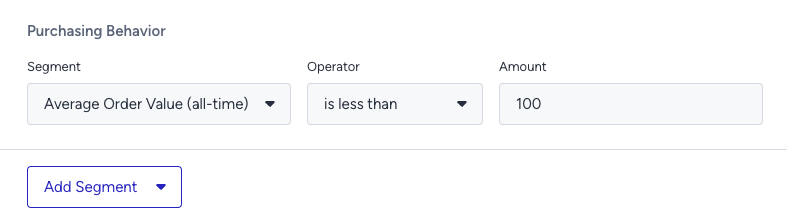
On the Rules step, decide where and when to show your campaign.
Use Page Rules to target the product detail pages of cleanser products.
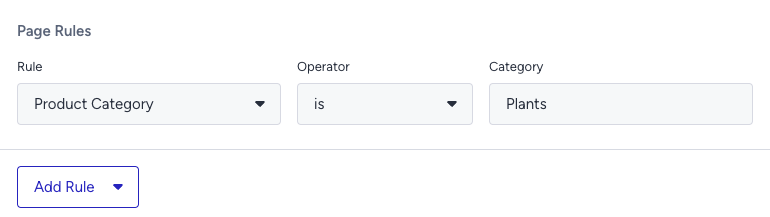
On the Design step:
Assign your two strategies to the variants.
Assign traffic allocation for each variant.
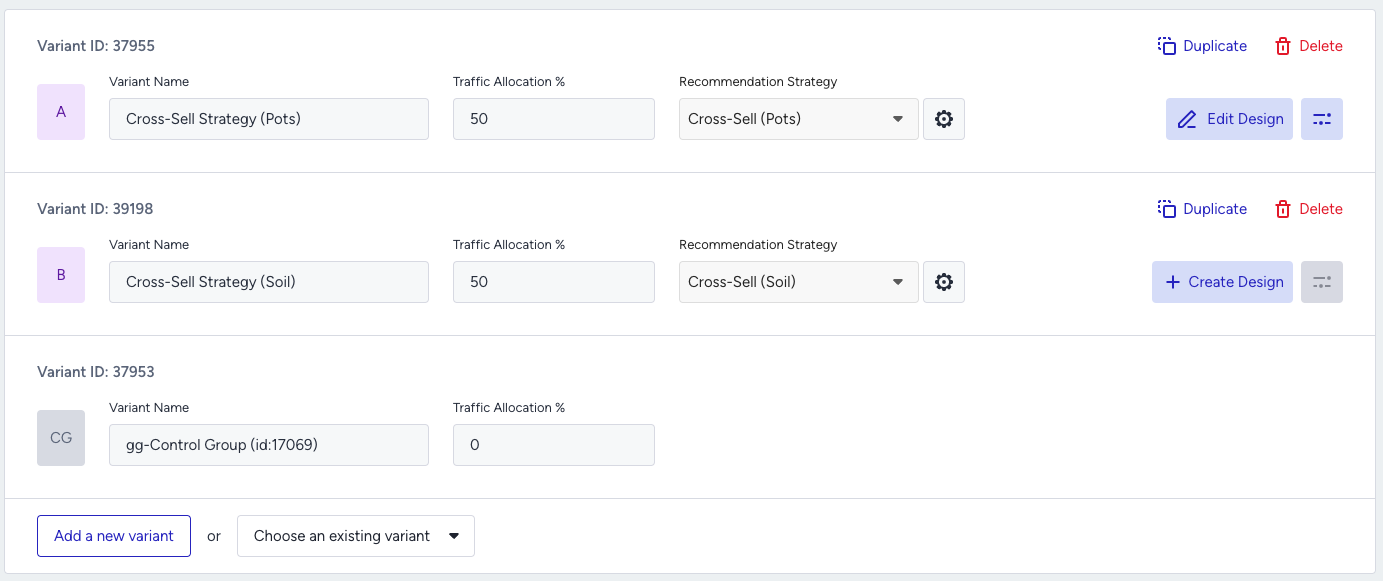
Now you’re ready to design your widget. Click Edit Design to open the Advanced Product Card Designer. Here, you can customize your product cards however you like.
Make sure all the attributes you want to display are included in your product catalog. If you need to show more information on your product cards, you can create custom attributes from Product Attributes page.
After finalizing your campaign design, the next step is to select the locales and stores where you want the campaign to appear.
Once your targeting is set:
Review the campaign details.
Confirm that all settings match your objectives.
Click Launch to activate your first campaign.
3. Track your campaign metrics
You’ve launched your campaign—great work! Now it’s time to track how it’s performing.
Go to the Smart Recommender Analytics page.
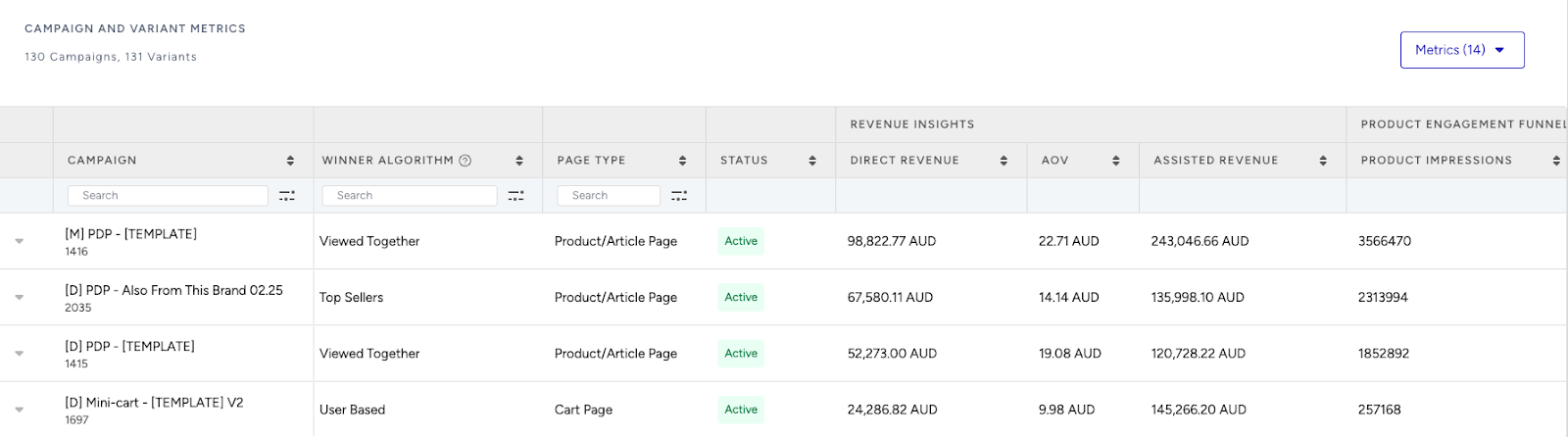
Locate your campaign under the Campaign and Variant Metrics table. Once the experiment duration ends, click your campaign name.
Compare key metrics, including Direct Revenue, Average Order Value (AOV), and Conversion Rate.
You can see which product category—Fresh Produce or Pantry Staples—led to higher AOV for low-spending customers.
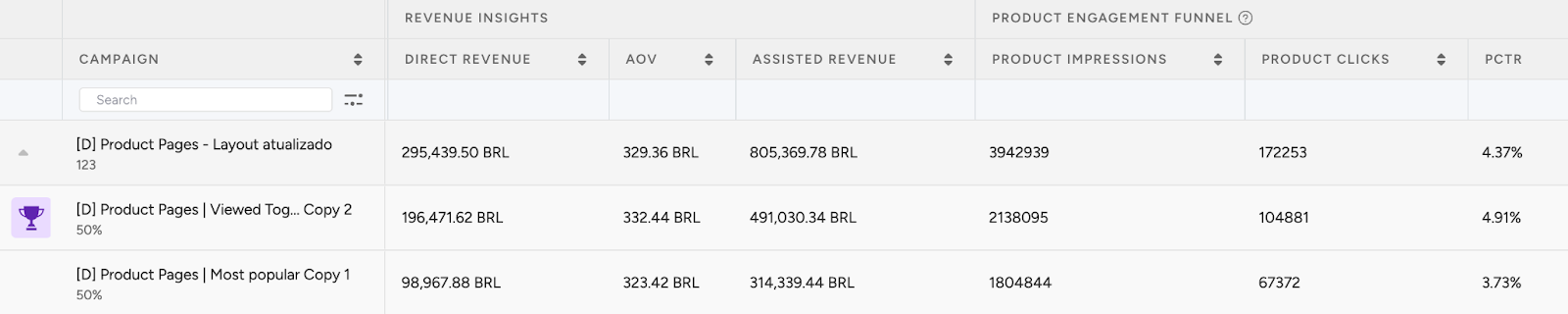
If one variant is clearly winning, adjust the traffic allocation to 100%. This ensures the best-performing strategy receives all traffic and maximizes impact.
You can also test and compare additional cross-sell strategies by adjusting the rules and filters based on other product categories across other Grocery categories.
4. Optimize your campaigns
Once your campaigns are live and running, it’s time to review results and apply data-driven improvements.
Go to the Smart Recommender Analytics page.
Evaluate campaign performance based on engagement metrics.
Track Engagement Funnel Metrics: Understand how users interact with your recommendations at every step. View product impressions, clickthrough rate, add-to-cart rate, and conversion rate for each campaign to pinpoint where you’re driving engagement and where there’s room to improve.

Compare Campaign and Variant Performance: Use the Campaign and Variant Metrics table to review key KPIs like AOV, Conversion Rate, and Direct Revenue. Identify which strategies are delivering the best results and refine or scale your winning variant accordingly.
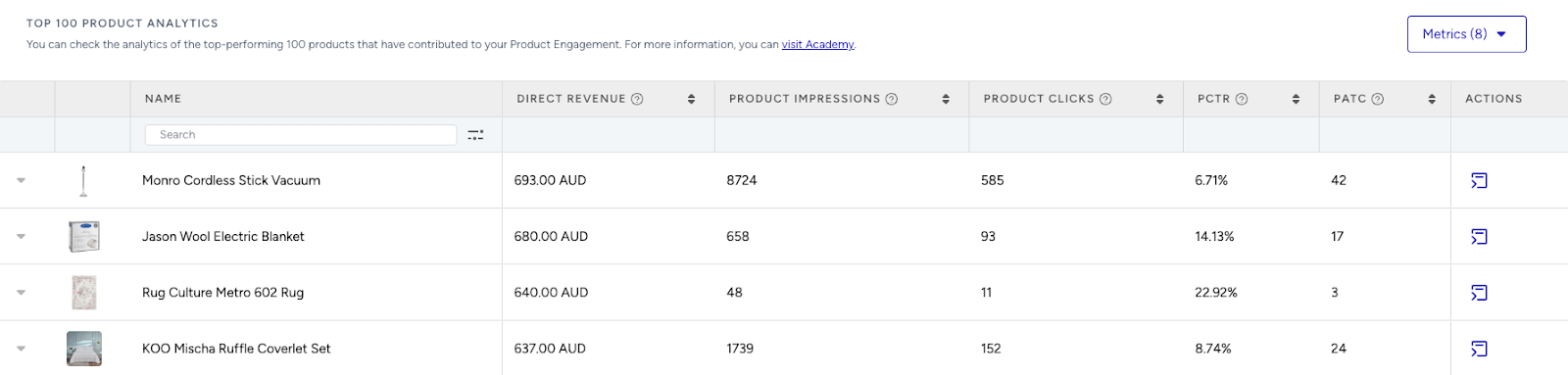
Analyze Product-Level Impact: Visit the Top 100 Product Analytics to see which products are performing well within your campaigns. Consider giving extra visibility to low-performing but strategic items by highlighting them in future recommendation widgets.
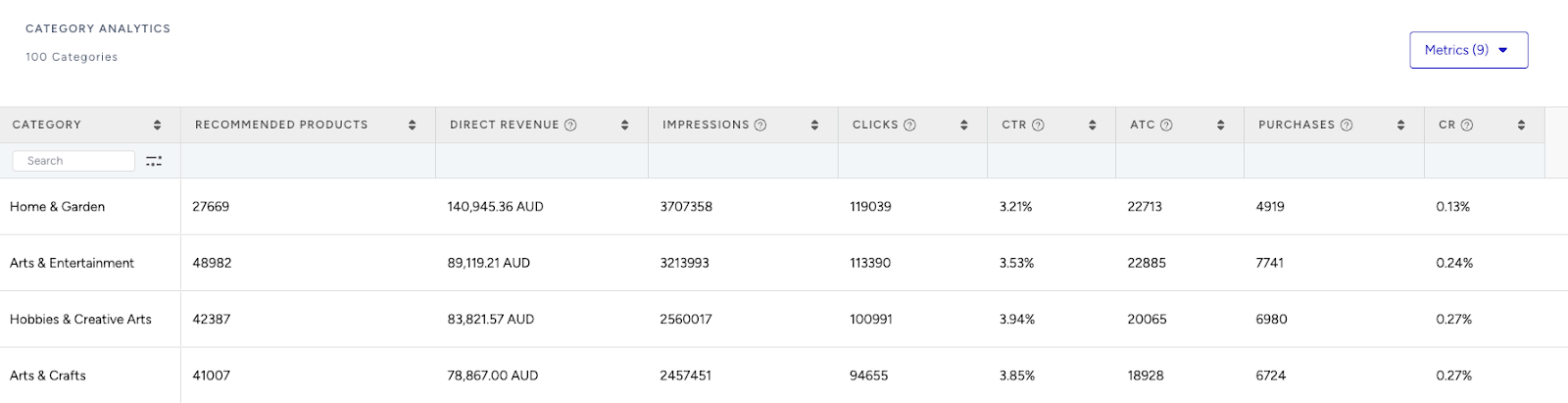
Review Category Trends: Use the Category Analytics view to assess which product categories drive the most conversions. You can prioritize high-performing categories to maximize conversions or spotlight underperforming categories to help boost their visibility and performance.
Use cases based on the page types
Home Page
Your grocery refill list
Make reordering easy by reminding users of items they’re likely running low on. For example, use past purchase data to suggest groceries they bought 7–30 days ago, like milk, eggs, or coffee.
Create a strategy with the Most Popular algorithm to highlight top-viewed popular products on your homepage.
Enable the “Enhance recommendations based on Attribute Affinity” toggle to personalize recommendations based on your customer’s affinities.
Add Category + is + Grocery filter to your strategy to display popular items of the season.
Fresh picks of the week
Help users discover what’s fresh and in demand this week to inspire their next grocery run. For example, highlight trending items such as seasonal fruits or popular snacks based on current-week shopping trends.
Create a strategy with the Trending Products algorithm.
Add Category + is + Grocery filter to your strategy to display products from the groceries.
Set segments for returning users on the campaign to address the right audience for starter kits.
Use dynamic widget titles like “Spring Greens Everyone’s Loving.”
Product Detail Page
Meal ideas around this item
Inspire complete meal planning by recommending items that pair well with what the user is viewing. For example, if someone is looking at pasta, suggest tomato sauce, parmesan, or garlic bread based on what others commonly buy together.
Create a strategy with the Complementary Products algorithm.
Add Category + is + Sauce or Category + is + Cheese filter to your strategy to display products from the animal foods.
You can use this widget with headlines like “Make the Perfect Pasta Night” to capture more attention.
Health-conscious alternatives
Support healthier choices by offering alternatives that align with dietary preferences. For example, if a user is viewing regular granola bars, suggest lower-sugar, organic, or vegan options with similar flavors or ingredients.
Create a strategy with the Substitute Products algorithm.
Add Category + is + Healthy filter to your strategy to display products from the animal foods.
Category Page
Best deals right now
Drive urgency and value by spotlighting top promotions in the category a user is exploring. For example, while browsing snacks, highlight items with the highest current discounts, like buy-one-get-one-free chips or marked-down energy bars.
Create a strategy with the Highest Discounted algorithm to surface the biggest deals.
Add a Category + matches the category they’re currently viewing filter to recommend products from the category users are viewing, like recommending the highest discounted pots for the pots category page.
Keep attribute affinity off to focus on value rather than personalization.
Add visible discount badges to boost CTR.
Top sellers in category
Showcase what other shoppers are consistently buying in the same category. For example, if a user is browsing breakfast cereals, surface top-selling options—and if choices are limited, expand to include bestsellers from the broader breakfast category.
Create a strategy with the Trending Products algorithm to recommend viral products of the category.
Apply category + contains the currently viewing category’s attribute filter.
If your category type is hierarchical, enable the “Expand the category filter to include recommendations from the next category if there aren't enough products to display.” checkbox to make sure recommendations are shown even though there aren’t enough products to recommend from the category the user is visiting.
Enable the “Enhance recommendations based on Attribute Affinity” toggle to personalize recommendations based on your customer’s affinities.
Cart Page
Don’t forget these daily essentials
Make sure users don’t miss out on everyday staples by surfacing universally popular picks. For example, regularly highlight essentials like coffee, bread, milk, and snacks—regardless of personal preferences—to keep baskets well-stocked.
Use the Most Popular algorithm.
Add a Category + is one of + Coffee, Bread, Dairy, Snacks filter to suggest practical add-ons.
Leave affinity off to prioritize functional relevance.
Top up for free delivery
Encourage larger baskets by helping users reach the free delivery threshold with smart add-ons. For example, if a shopper is 10 USD short of the 75 USD minimum, suggest frequently bought-together items like snacks or pantry staples, along with a prompt like “Add 10 USD more for free delivery!”—and if no free shipping is available, still recommend complementary products to boost order value.
Use the Checkout Recommendation algorithm with a spend threshold (e.g., 100 USD).
No filters required; affinity is optional.