Smart Design Creator is an AI-powered capability within the Onsite Experiment product that streamlines the creation and customization of campaign templates. It enables teams to generate on-brand campaign designs rapidly without coding, significantly reducing production time and dependency on design and development resources.
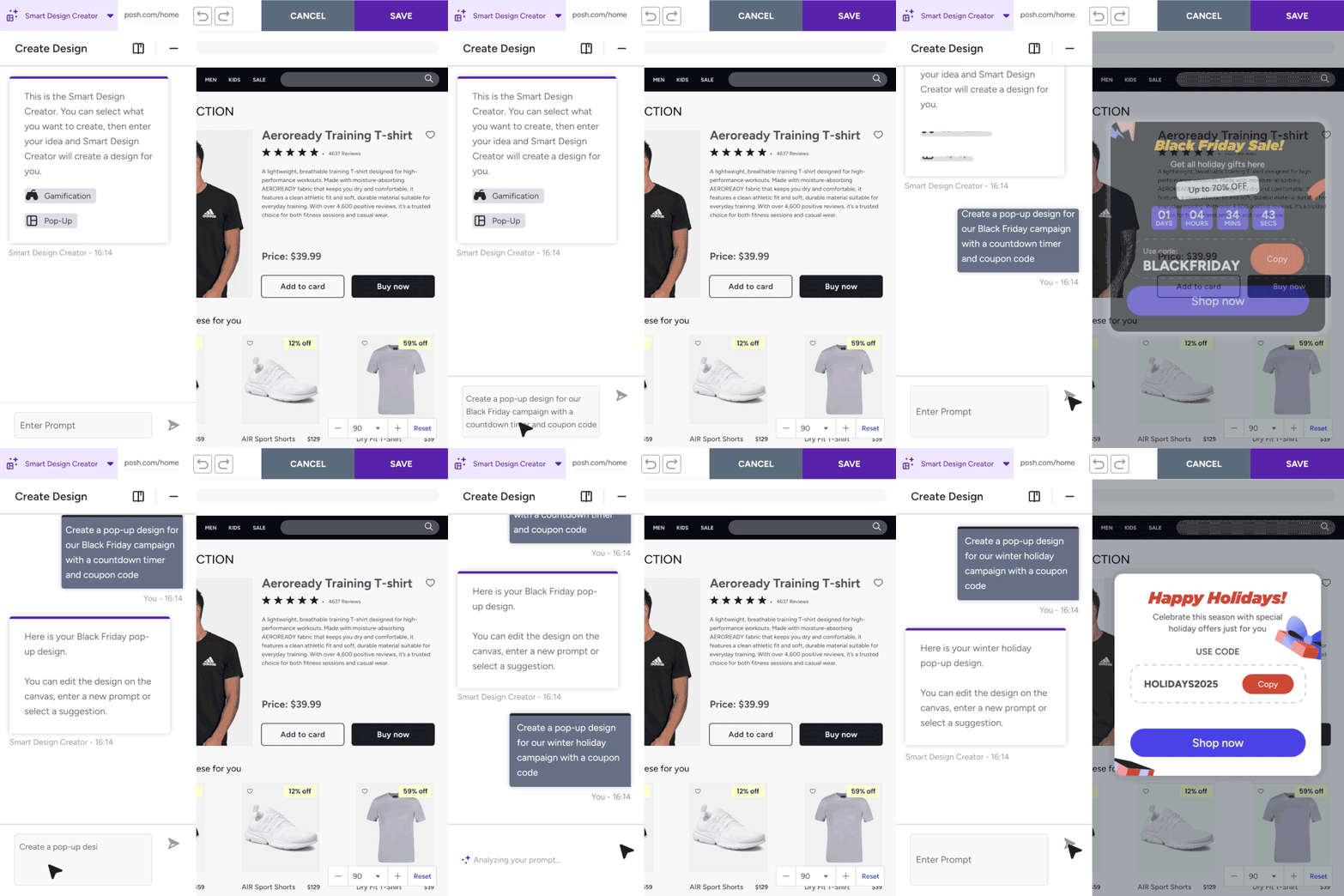
Smart Design Creator supports two primary modes of operation:
Pop-Up Mode
Used for creating standard pop-up designs that may include images, buttons, countdown timers, static coupon codes, and text elements.
Gamification Mode
Used for generating interactive, playable campaign experiences through natural-language prompts, such as Rock–Paper–Scissors, Tic Tac Toe, Word Guess, and Digit Recall.
These two modes enable marketers to design engaging, high-impact campaign experiences while preserving brand consistency and minimizing operational complexity.
Smart Design Creator also marks an advancement toward AI-driven marketing personalization, strengthening automation capabilities and interactive campaign design within OnSite products.
Pop-Up Mode
Pop-Up Mode is designed to create pop-up designs featuring images, buttons, countdown timers, static coupon codes, and text elements using generative AI.
Capabilities
Generates ready-to-use pop-up layouts based on natural-language prompts.
Allows users to edit or regenerate designs using additional prompts.
Supports manual fine-tuning through the in-editor floating menu.
Key benefits
Reduces popup creation time from hours to minutes.
Minimizes reliance on design and technical teams.
Improves campaign speed, quality, and consistency across teams.
Gamification Mode
Gamification Mode automates the creation of interactive, game-based campaign experiences designed to increase user engagement and conversion.
Capabilities
Generates five complete, playable game types in its initial release:
Rock–Paper–Scissors
Tic Tac Toe
Color Hunt
Word Guess
Digit Recall
Additional capabilities include:
Creating visual and gameplay variations aligned with brand identity
Reusing built-in logic for scoring, animation, and interactivity
Enabling scalable self-service game creation for partners and internal teams
Key benefits
Accelerates expansion of the gamification library through AI-generated templates.
Reduces dependency on external teams by up to 90%.
Enables partners to react immediately to seasonal, campaign, or trending concepts.
How Smart Design Creator works
Navigate to Smart Design Creator from the Onsite Experiment’s Design step using the top-left product dropdown.

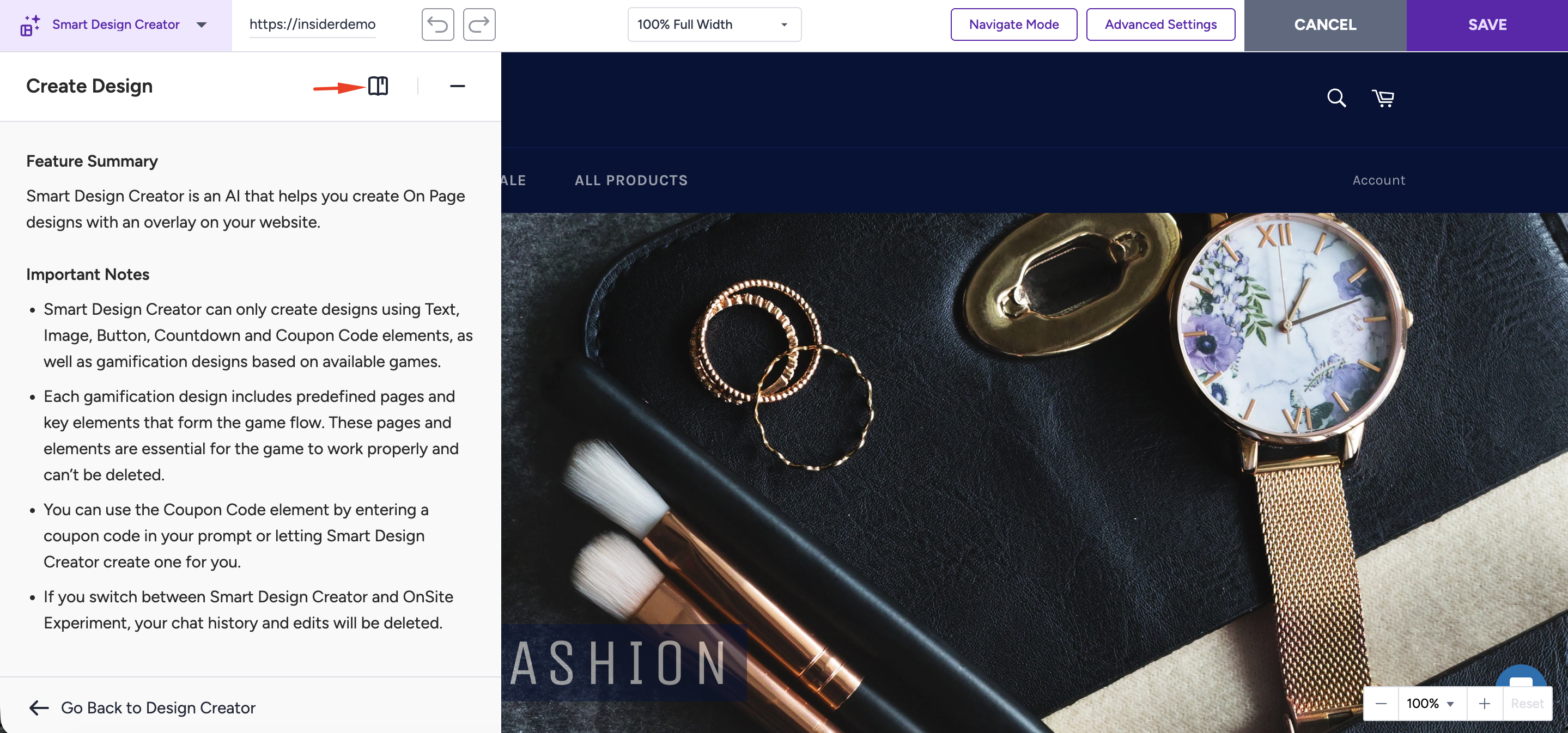
A built-in help and education panel is available within the interface, where you can review capabilities, limitations, and important usage notes to better understand how Smart Design Creator works.
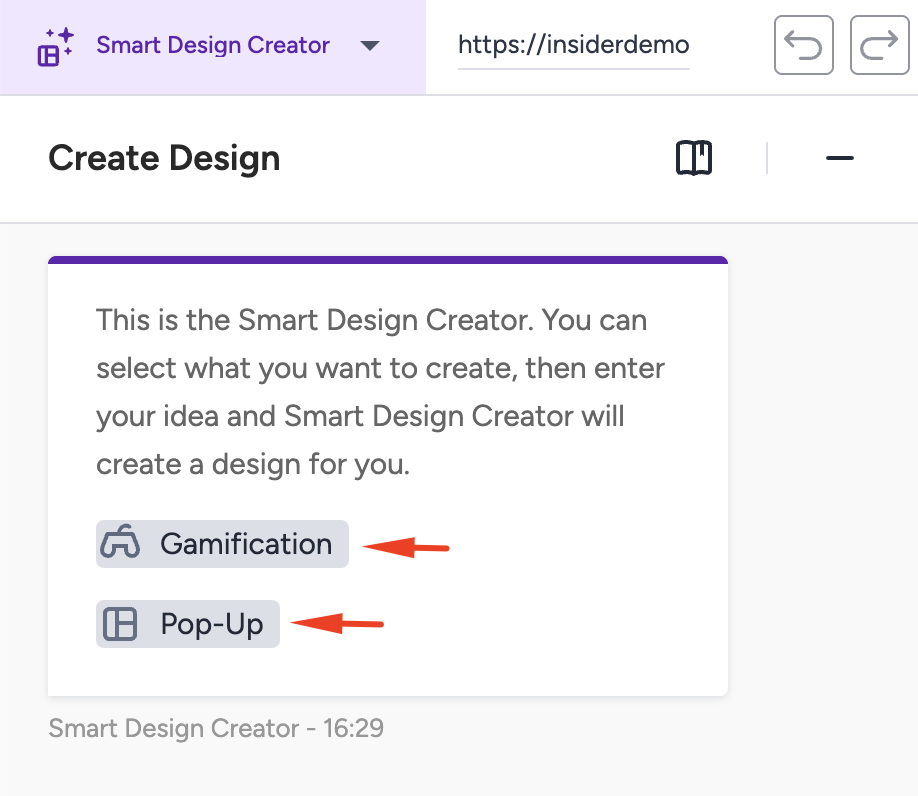
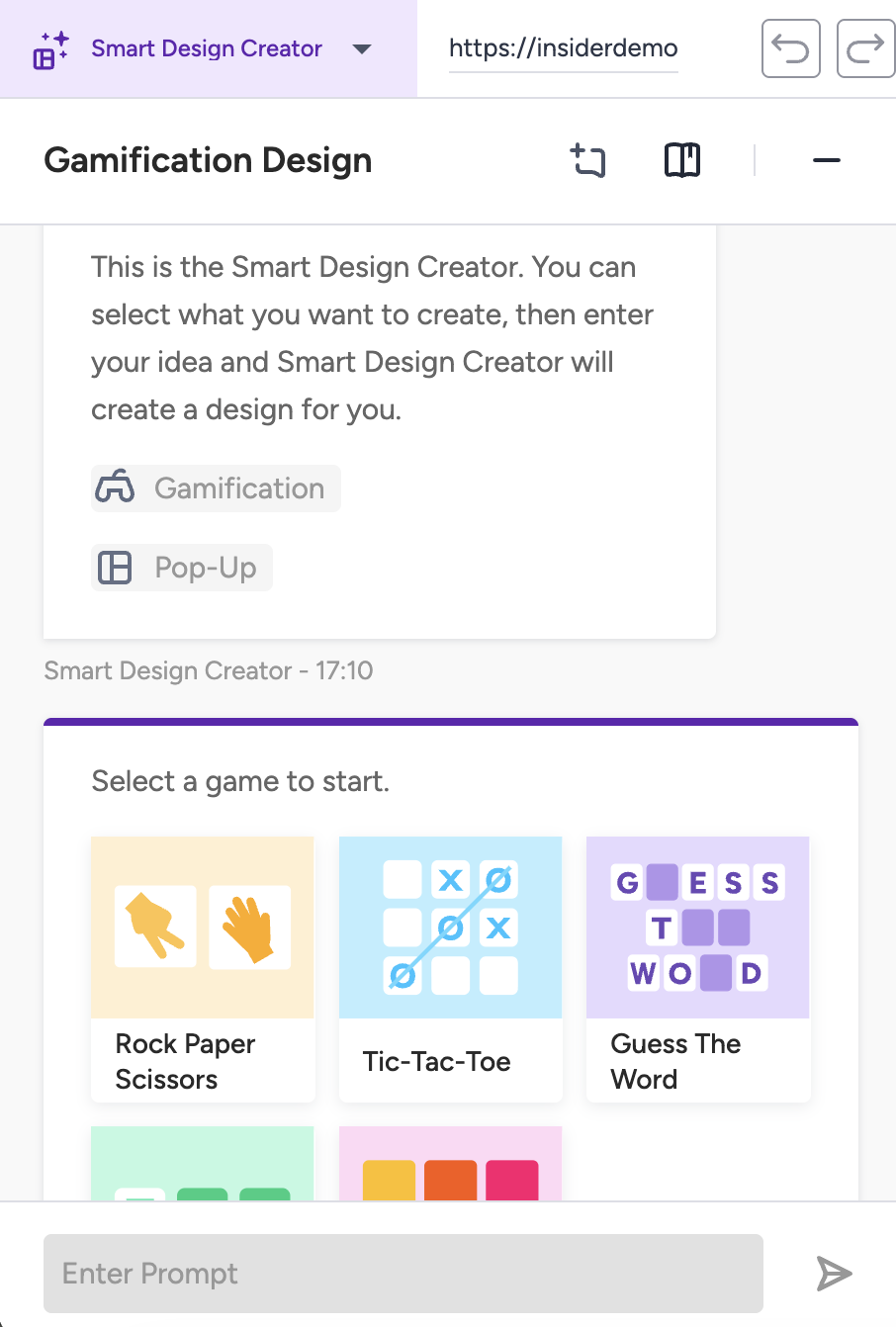
You can choose either Pop-Up or Gamification mode.
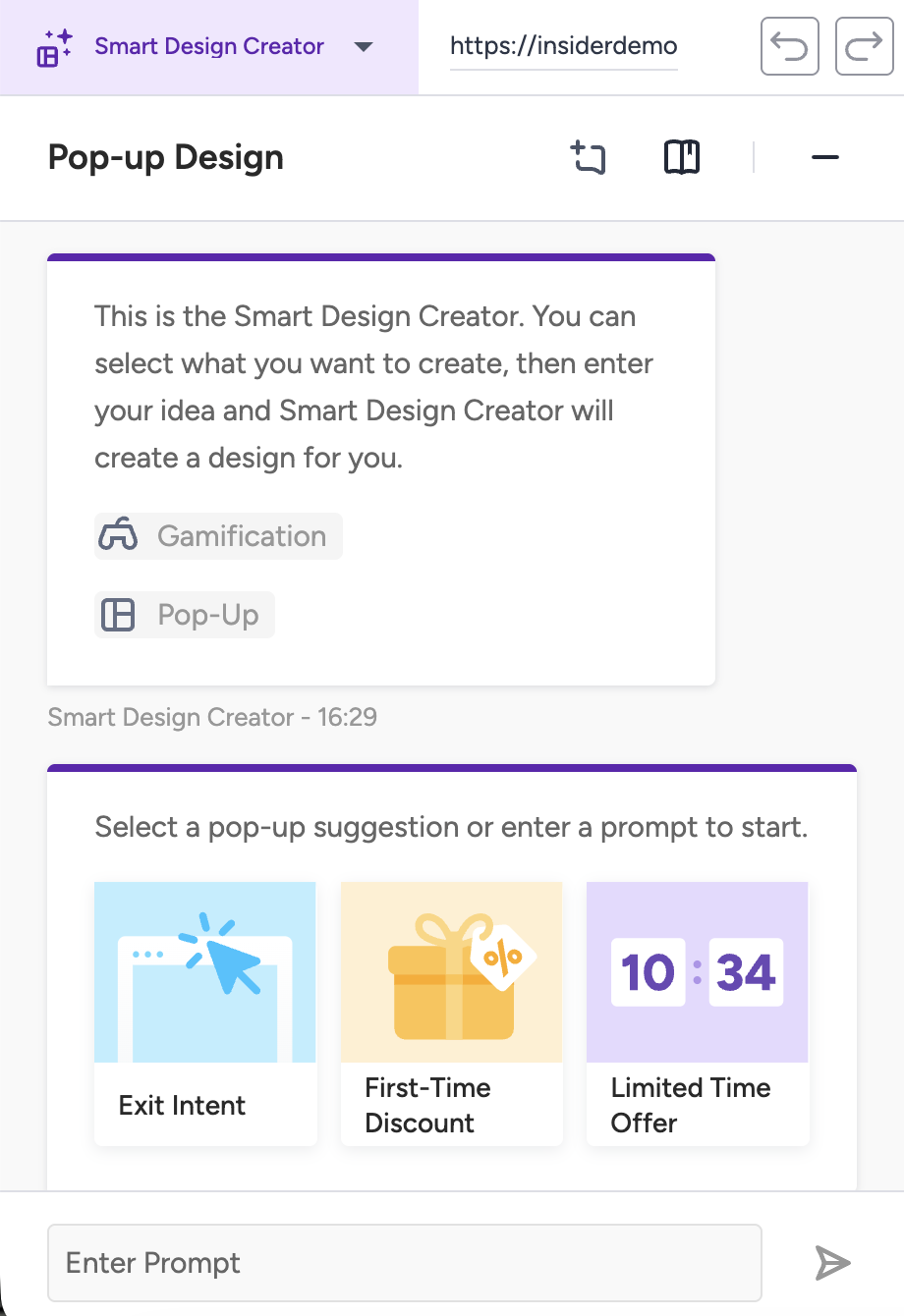
Pop-up Mode: When selected, the system displays prompt suggestions (e.g., “Create a seasonal signup popup with a countdown timer”) to help you start the chat and generate a design instantly.
Gamification Mode: When selected, the system displays a list of available game templates (e.g., Rock–Paper–Scissors, Tic Tac Toe, Word Guess). You must pick one game type to continue customizing it through prompt instructions or direct edits.
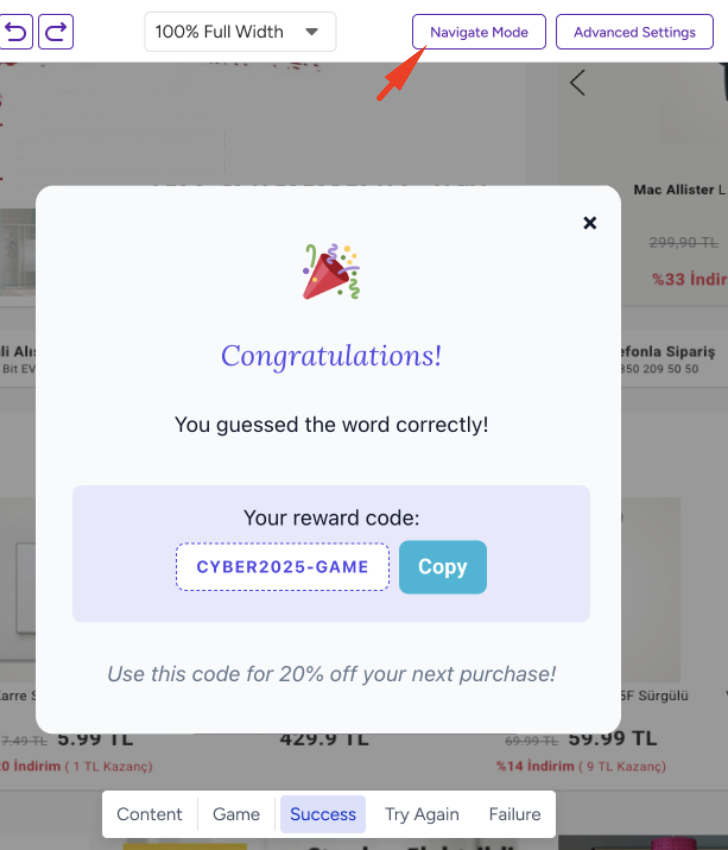
Navigation Mode, particularly valuable in Gamification Mode, allows you to switch between different game screens or states (for example, start screen, gameplay, win screen, loss screen). This enables you to preview each step of the experience and fine-tune the design and content for every stage of the game.
You can describe what you want using natural language – e.g.:
“Create a holiday-themed popup with a countdown.”
“Generate a pastel-colored Tic Tac Toe game for a fashion brand.”
The system generates a fully functional design for a pop-up or game template. Both layout and logic (e.g., game scoring, animations, interactivity) are automatically created.
You can instantly undo or redo recent changes from the top bar, ensuring flexibility and creative freedom during customization.
You can click directly on elements to modify visuals, copy, or layout. The floating editor menu enables fine-tuning without re-running generation.
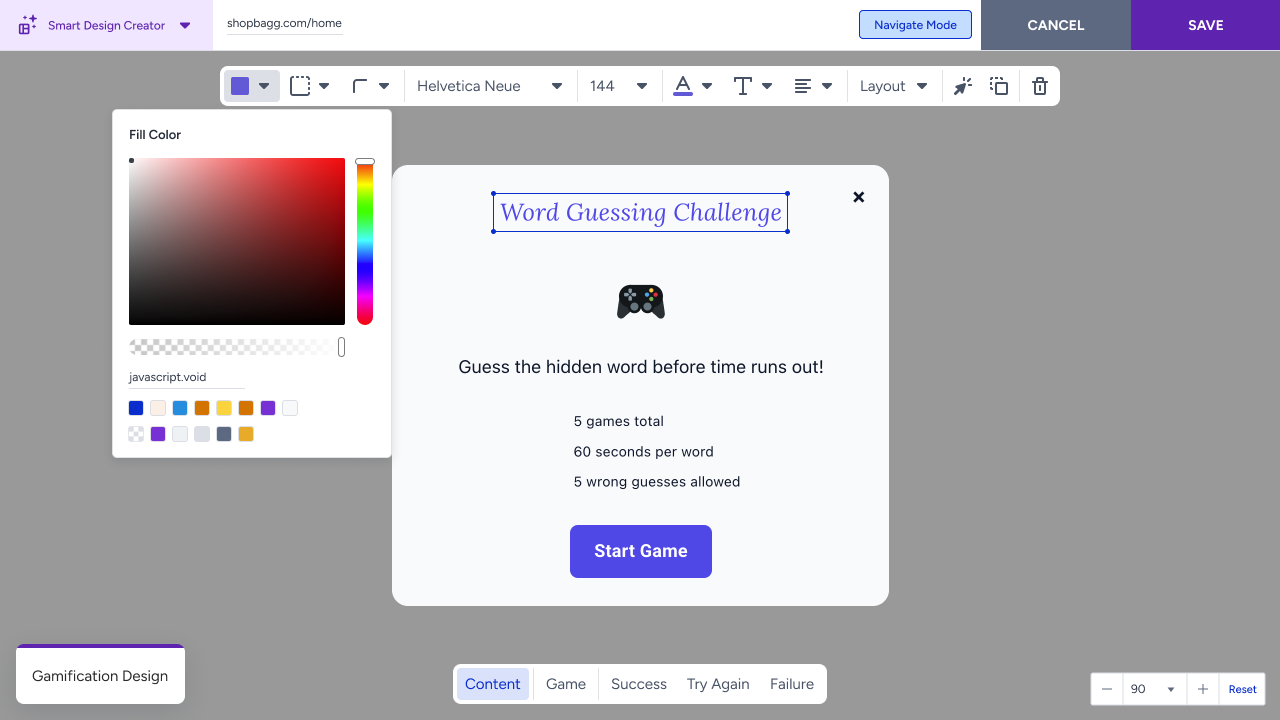
If you want to go back to iterate with a prompt, click on the Restart Design button on the top bar to return to the first page of the generated template.

At any time, you can start a new design session using the Create a New Chat option, which clears the previous prompt and launches a fresh AI-assisted design process.
Once finalized, save and publish your design through the standard campaign workflow (segment, rules, launch).
Limitations and error messages
The Smart Design Creator uses AI to interpret user prompts and generate campaign designs. However, certain inputs, conditions, or technical issues can result in limited or failed outputs. Below are the main cases and the messages you may encounter:
Successful scenarios
Type | Description | System Response |
|---|---|---|
Successful Generation | The prompt is valid, supported, and clearly structured. | |
Semi-successful Generation | The AI partially understands the request but omits minor details (e.g., missing styling or limited animation). | The design is generated using partial elements; you are advised to refine the prompt for better results. |
Prompt-related failures
Type | Description | System Response |
|---|---|---|
Irrelevant Prompt | You enter a prompt unrelated to design or gamification (e.g., “How to be rich?”). | “Smart Design Creator can only help you create designs. You can enter another prompt to start creating.” |
Unsupported Game | You request a game type not among the five supported during initial development (e.g., “Create a Flappy Bird game”). | “Smart Design Creator can only create gamification designs based on the available game types. Please enter another prompt and try again.” |
Not Understood | Your prompt is ambiguous or incomplete, and the AI cannot infer a valid design. | “Your request couldn’t be applied. You can rephrase your prompt and try again.” |
System-related failures
Type | Description | System Response |
|---|---|---|
Backend Error / Timeout | A server issue or long generation time prevents design creation. | “Your design couldn’t be created right now. You can wait for a while and try again.” (Includes a “Try Again” button.) |
Failed Generation | The system fails to produce a valid output due to an internal error or unexpected prompt structure. | “Generation failed. Please refine your prompt or try again later.” |
Frequently Asked Questions
What happens if I write my prompt in Portuguese or another language?
Smart Design Creator automatically detects the language of your prompt. You may write in Portuguese or any supported language; the system will interpret the request and preserve the intended context.
What kinds of edits can I make after generation?
After the AI generates your design, you can:
Edit text, images, colors, and layout elements directly.
Use Undo/Redo to safely revert changes.
Switch pages using Navigation Mode.
Regenerate specific parts with an updated prompt.
You do not need to restart the design. Live edits are supported while the overall structure remains intact.
What happens if I switch from Smart Design Creator to Onsite Experiment?
All designs created in your current session will be lost.
Prompt-based templates generated in Smart Design Creator are not compatible with the Onsite Experiment editor because they have different template structures.
What happens if I save my work and come back later?
When you save your design:
The session, generated layout, and edits are stored automatically.
You can resume your work exactly where you left off, including previous prompts and outputs.
You may also start a new session at any time if you prefer to begin a new design flow.
What if another user wants to edit my design?
Another user may edit the saved design; their changes will overwrite the latest version.
However, they will not be able to view your original prompts. Only the generated design output is visible in the editor.
Do my answers or prompts train the AI?
No. Individual prompts and design outputs are not directly used to train the AI model.
What should I do if the system does not understand my prompt?
Add more detail to your prompt. For example, specify:
color scheme
layout preferences
purpose of the campaign
Example: “Create a summer sale pop-up for retail with a countdown timer.”
More explicit context helps the AI generate a template that better matches your intent.