You cannot make any changes to External Platform Integrations without having either an Administrator or an Editor with PII access in InOne. Refer to User Roles for further information.
This guide explains how to set up the Salesforce CRM integration in InOne. Once configured, InOne regularly pulls object records from your Salesforce org and syncs them into Insider One as user profiles and behavioral events.
The table below outlines the key integration details and capabilities.
Capability | Details |
Auth method | OAuth 2.0 (Salesforce) |
Data flow | One-way: Salesforce to Insider One |
Object types | Contact (default), Lead, Account, or Custom SOQL |
Sync behavior | Incremental (new and updated) or full fetch |
Supported data | User identifiers, profile attributes, events, and event parameters |
Scheduling | Configurable cron schedule (UTC) |
Requirements
Information | Details |
Salesforce OAuth Client ID | From Salesforce Setup under Apps > App Manager > your Connected App > Manage Consumer Details. |
Salesforce OAuth Client Secret | From the same Connected App entry. |
Salesforce Object | The object type to sync: Contact, Lead, Account, or a custom SOQL query. |
Ensure your Salesforce Connected App has OAuth 2.0 enabled. The integration uses the Salesforce REST API (v63.0). The authorized Salesforce user must have Read access to the object you plan to sync.
Step 1: Create a new integration
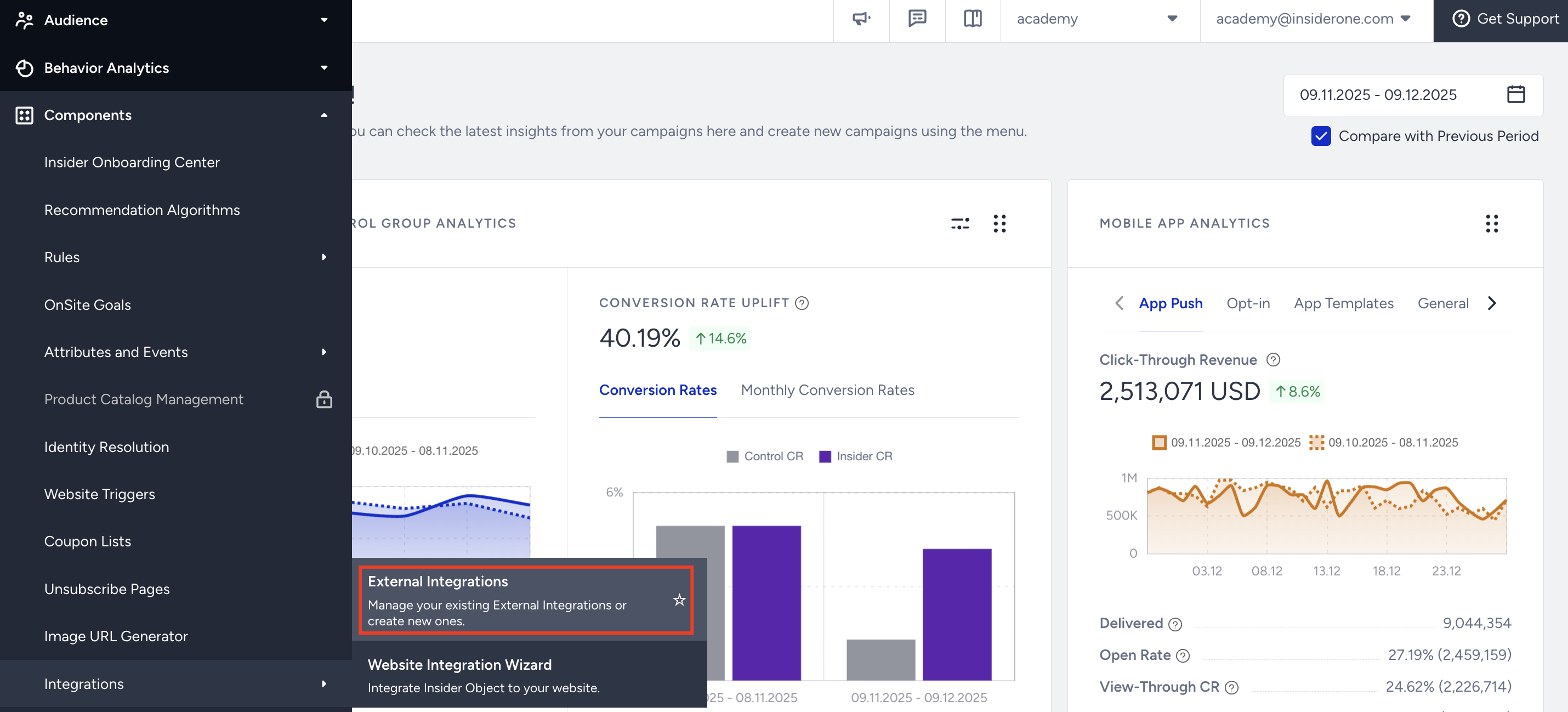
Navigate to InOne > Components > Integrations > External Integrations.
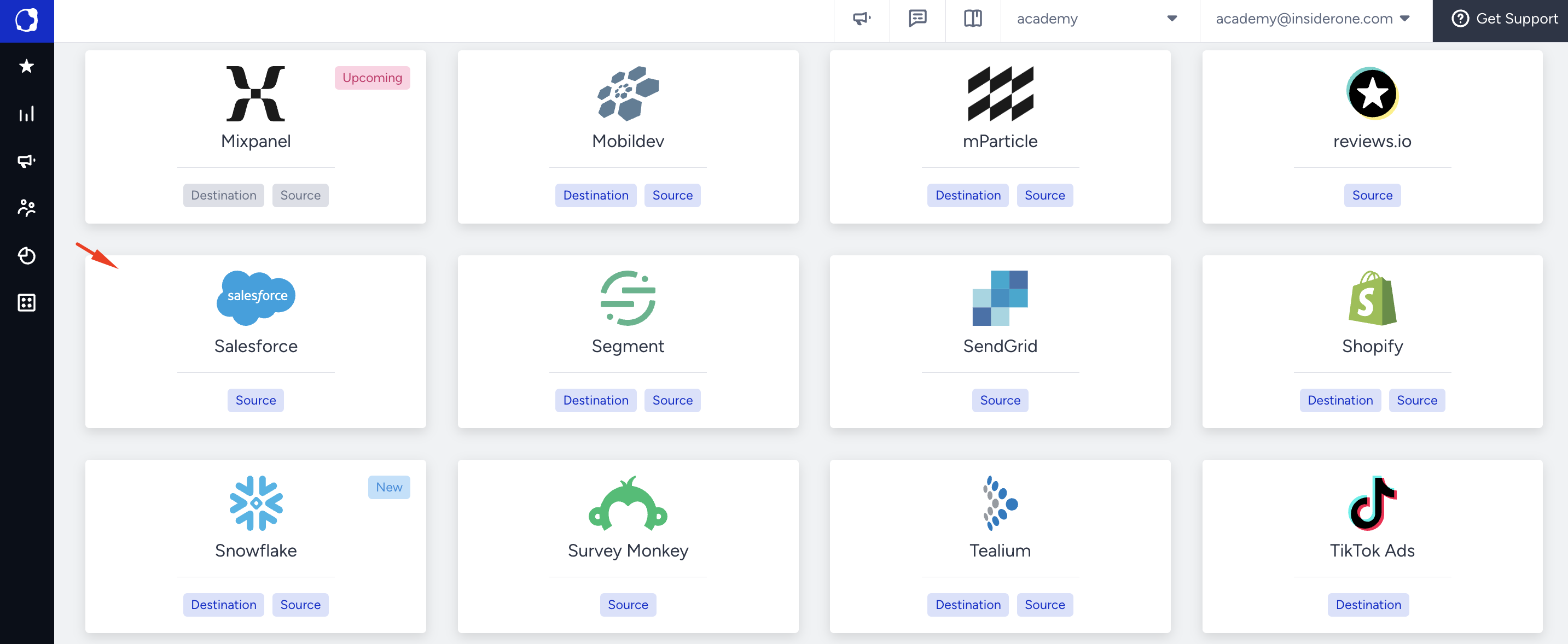
Select the Salesforce integration.
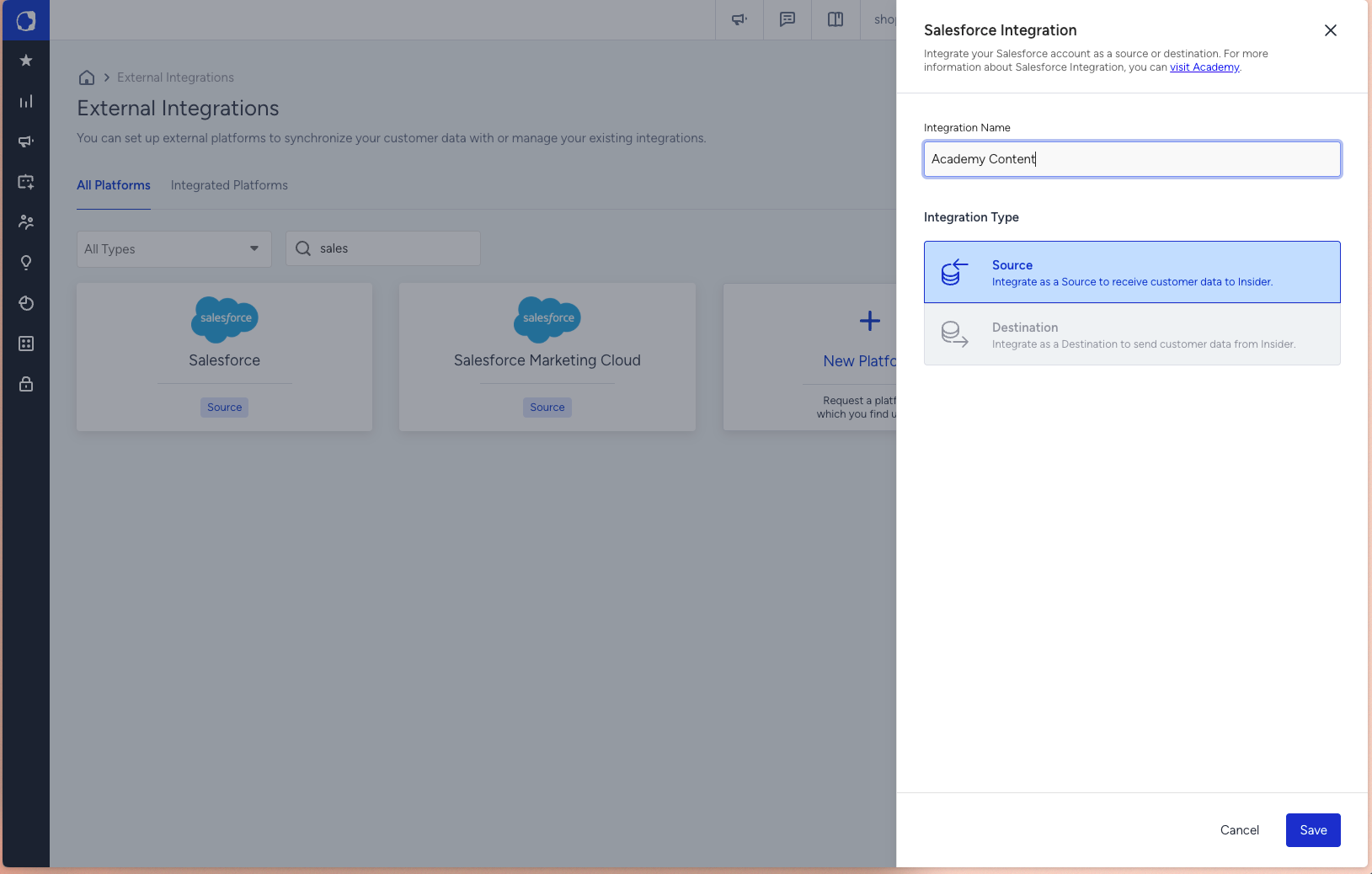
Give the integration a unique name and click Save.
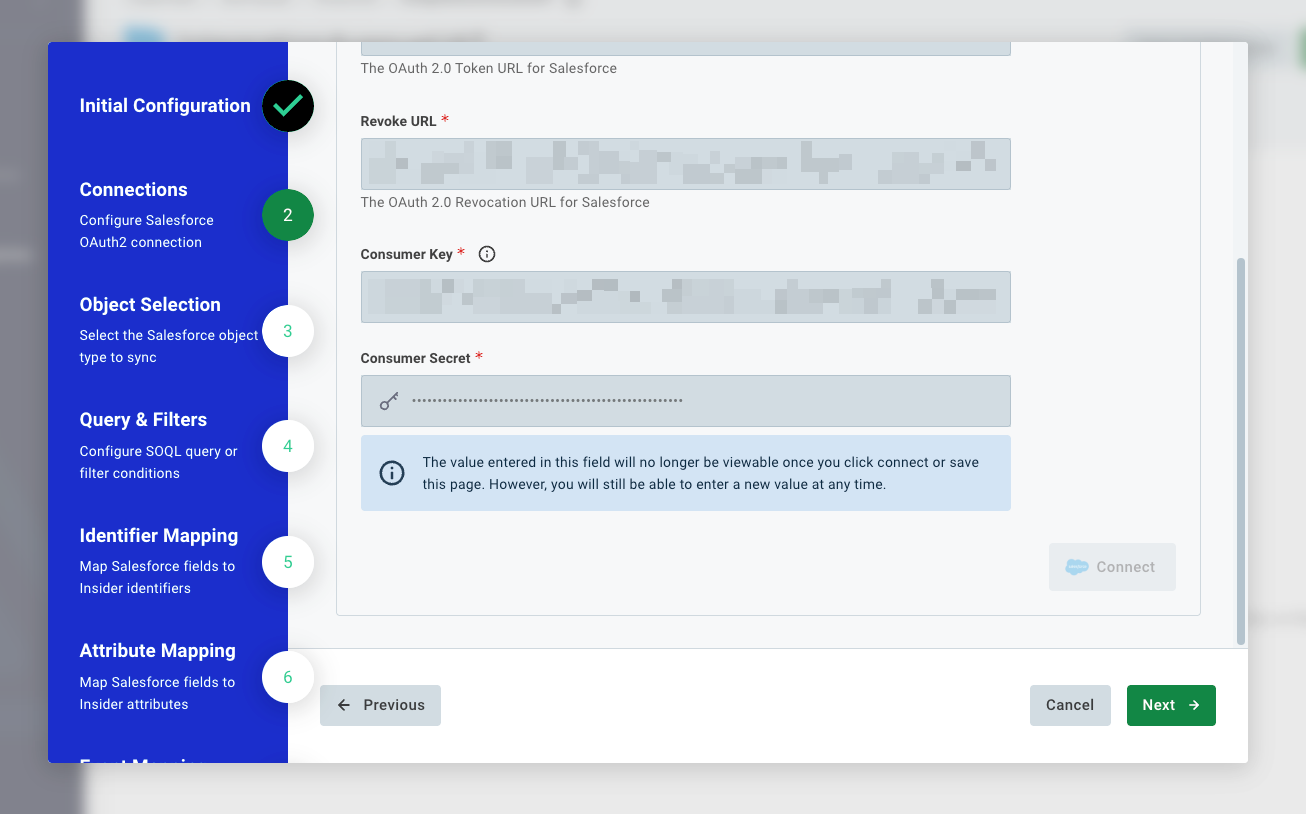
Step 2: Connect your Salesforce account
Field | Description |
Authorize URL | The OAuth 2.0 Authorization URL for Salesforce. Defaults to https://login.salesforce.com/services/oauth2/authorize. |
Token URL | The OAuth 2.0 Token URL for Salesforce. Defaults to https://login.salesforce.com/services/oauth2/token. Not mandatory to change. |
Revoke URL | The OAuth 2.0 Revocation URL for Salesforce. Defaults to https://login.salesforce.com/services/oauth2/revoke. Not mandatory to change. |
Client ID | The Consumer Key from your Salesforce Connected App. |
Client Secret | The Consumer Secret from your Salesforce Connected App. |
Create a Connected App in Salesforce
This step is performed in your Salesforce org, not in Insider One.
Log in to Salesforce and go to Setup.
In the Quick Find box, search for App Manager.
Click New Connected App.
Fill in the basic information:
Connected App Name: Insider One Integration
API Name: Auto-populated from the name
Contact Email: Your admin email
Under API (Enable OAuth Settings), select Enable OAuth Settings.
In the Callback URL field, enter:
https://oauth2.connect.insiderone.com/callbackUnder Selected OAuth Scopes, add the following:
Access the identity URL service (id, profile, email, address, phone)
Manage user data via APIs (api)
Perform requests at any time (refresh_token, offline_access)
Leave all other settings at their default values, then click Save.
Salesforce may take up to 10 minutes to activate the new app.
After activation, go back to App Manager, find your Connected App, click the dropdown arrow, and select Manage Consumer Details.
Salesforce prompts you to verify your identity. After verification, you will see:
Consumer Key (this is your Client ID)
Consumer Secret (this is your Client Secret)
Copy both values. You will need them in the next step.
Click Connect. A browser pop-up opens for Salesforce OAuth authorization. After you complete the login, close the pop-up. The status indicator turns green to confirm the connection.
Click Next to proceed.
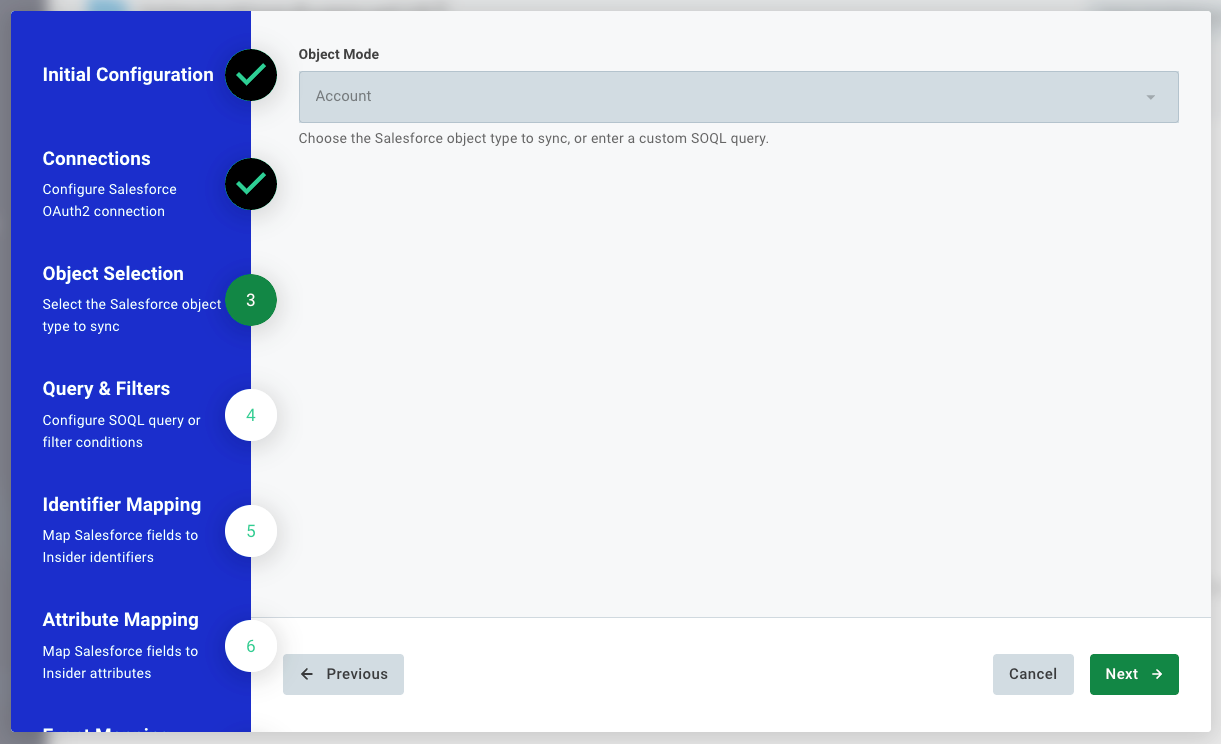
Step 3: Object selection
Select the Salesforce object type to sync.
Option | Description |
Contact (default) | Syncs Salesforce Contact records. The field list is dynamically fetched from your org. |
Lead | Syncs Salesforce Lead records. The field list is dynamically fetched from your org. |
Account | Syncs Salesforce Account records. The field list is dynamically fetched from your org. |
Custom SOQL | Syncs the results of a custom SOQL query you define in the next step. Use this for complex joins or non-standard objects. |
Click Next when done.
Step 4: Query and filters
Configure how records are fetched and filtered.
Field | Description |
Fetch Mode | New and Updated Since Last Sync (default): fetches records created or modified since the last successful run. Always Fetch All Records: fetches all records on every run. Use with caution on large orgs. |
Query Configuration | For standard objects (Contact, Lead, Account): use the visual condition builder to add filter rules (e.g., |
When using Custom SOQL, include a WHERE clause referencing SystemModstamp or LastModifiedDate if you need incremental behavior. Example:
SELECT Id, Email, FirstName, LastName FROM Contact WHERE LastModifiedDate > {lastSyncTime}
The placeholder {lastSyncTime} is automatically replaced by the integration on incremental runs.
Click Next when done.
Step 5: Identifier mapping
Map Salesforce fields to Insider One identifier types. At least one mapping is required. Records with no valid identifier value are skipped.
Field | Description |
Identifier Type | The Insider One identifier type: Email Address, Phone Number, UUID, or any custom identifier. |
Source Field | The Salesforce field provides the identifier value. |
Common mappings: Email Address to Email, Phone Number to Phone, UUID to Id.
Click +Add to Identifier Mappings to add rows. Click Next when done.
Step 6: Attribute mapping
Map Salesforce fields to Insider One user profile attributes.
Column Mappings: Each row maps a Salesforce field to an Insider One attribute. The field value is written to the matched user profile on each sync run.
Fixed Value Mappings: Sets a static value on every synced record. Common use: set
crm_sourcetosalesforceto tag all synced records by origin.
Date-type attributes must be in ISO 8601 format for the sync to succeed, for example,
2026-10-06or2026-10-06T14:30:00Z. If a Salesforce field stores dates as text in another format, convert the values before the sync runs.
Click Next when done.
Step 7: Event mapping (Optional)
Enable event sending by checking Map events. One event is sent per Salesforce record.
Field | Description |
Event name source | Fixed value: every record triggers the same event type. From source data: reads the event name from a Salesforce field. |
Event name | Visible when the fixed value is selected. Choose a standard or custom Insider One event type. |
Timestamp source | Processing time: uses the sync execution time. From source: reads the timestamp from a Salesforce field (e.g. |
Step 8: Event parameter mapping (Optional)
Active only when event mapping is enabled. Maps Salesforce fields or fixed values to event parameters (e.g., opportunity_value, stage, product_name).
Step 9: Sync Options
Field | Description |
Skip Hook | Suppresses Architect journey triggers for all users upserted in this run. Enable for large historical imports. |
Fast Fail on Upsert Error | Stops the sync on the first failed upsert batch. Leave off unless strict all-or-nothing behavior is required. |
Schedule | Cron expression (UTC) for how often the integration runs. |
Phone Number Settings | Normalizes phone values to E.164 format and optionally adds a country code. |
Identifier Settings | Controls behavior when an identifier value fails validation. |
Click Finish to save and activate the integration.
Troubleshooting
Symptom | What to check |
OAuth connection fails | Verify Client ID and Client Secret. Confirm the Connected App is active and the OAuth callback URL is correctly configured in Salesforce Setup. |
No fields available in mapping steps | The field list is fetched live from Salesforce using the describe API. Confirm the connected user has read access to the selected object. |
Records not syncing | Check Fetch Mode. If using "New and Updated Since Last Sync" with no recent changes in Salesforce, the run correctly returns zero records. |
Records are missing in Insider One | Confirm that at least one Identifier Mapping is set and the mapped Salesforce field contains valid, non-null values. Check the Executions tab for upsert error details. |
Custom SOQL returning errors | Validate the SOQL query in Salesforce Developer Console before pasting it here. Confirm field names use the Salesforce API name (not the label). |
Sync triggering unintended journeys | Enable Skip Hook in Sync Options. This is especially important for large historical backfills. |
Frequently Asked Questions
Q: Can I sync custom Salesforce objects?
A: Yes. Select Custom SOQL in Object Selection and write a SOQL query that targets your custom object (for example: SELECT Id, Email__c FROM My_Custom_Object__c).
Q: Does incremental sync work for all object types?
A: Incremental sync works for Contact, Lead, and Account using LastModifiedDate. For Custom SOQL, include the {lastSyncTime} placeholder in your WHERE clause to enable incremental behavior.
Q: Will syncing records create duplicate profiles in Insider One?
A: No. The Insider upsert API is idempotent. Re-sending the same record with the same identifier updates the existing profile.
Q: Can I sync the same Contact record with both attribute and event mappings?
A: Yes. Configure both Attribute Mapping and Event Mapping. Each record updates the user profile and sends one event per sync run.
Q: Will syncing trigger Architect journeys?
A: By default, yes. Enable Skip Hook to suppress journey triggers for all records in a run.