You cannot make any changes to External Platform Integrations without having either an Administrator or an Editor with PII access in InOne. Refer to User Roles for further information.
You can configure the Insider One Connector for SurveyMonkey to allow survey data to be seamlessly sent and managed via Insider One's InOne panel.
With this guide, you can find answers to the following questions:
What are the use cases of SurveyMonkey and Insider One integration?
How can I authenticate the Connector for SurveyMonkey from Insider One's InOne panel?
Use Cases
Leveraging the Insider One and SurveyMonkey integration capabilities, you can easily send survey data from SurveyMonkey to Insider One and utilize it within Insider One’s extensive ecosystem. The SurveyMonkey connector enables you to sync:
Responses from specific surveys
User feedback on selected questions
Metadata, such as survey completion timestamps
Selected data based on custom filters (e.g., respondents in specific regions or demographics)
During configuration, you can apply filters to decide which data should be synced. For example:
You can sync only responses where the user selects a specific answer (e.g., "Very Satisfied").
If your survey includes optional contact details, you can filter and sync only the entries that provide a valid email or phone number.
After configuring the data connection, you can enable the following use cases:
Personalized Campaigns
Use survey insights to create tailored Architect journeys based on user feedback. For instance, send follow-up campaigns to respondents who rated their satisfaction below a certain threshold.
Segmentation
Sync survey responses to build audience segments based on preferences, feedback, or behaviors captured in your surveys.
Lead Collection
Use survey data to identify potential leads and initiate targeted marketing campaigns.
Prerequisites
Before configuring the connector, ensure the following points are clearly defined:
Define the User Identifier(s): Insider One supports email, phone_number, and uuid as default identifiers. Depending on your data structure, you can also use a custom identifier.
Attribute Mapping: Decide which survey data points you want to sync with Insider One. Below is an example of how you can map SurveyMonkey fields to Insider One:
SurveyMonkey Field | Insider One Attribute Key | Identifier | Attribute Type on Insider One | Attribute Type |
|---|---|---|---|---|
respondent_email | Yes | Default Attribute | String | |
respondent_phone_number | phone_number | No | Default Attribute | String |
survey_completion_time | completion_time | No | Custom Attribute | Timestamp |
response_choice_question_1 | preference_question_1 | No | Custom Attribute | String |
Setting up your identifiers and attributes, you can ensure smooth synchronization between SurveyMonkey and Insider One.
Set Up SurveyMonkey
SurveyMonkey uses an API key for authentication. These steps guide you through getting your API key:
Access your SurveyMonkey account.
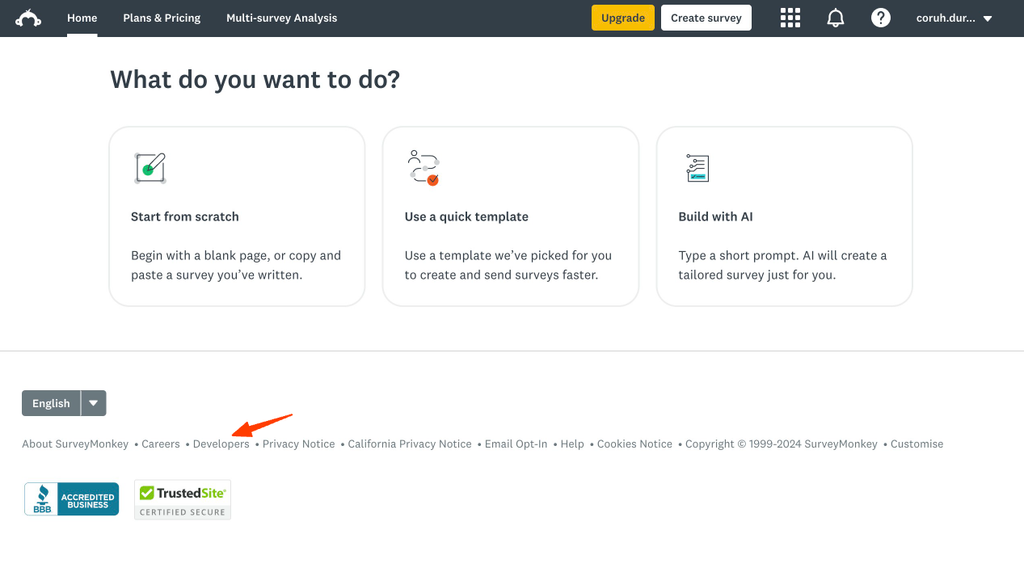
Go to the Developers module inside SurveyMonkey and click My Apps.
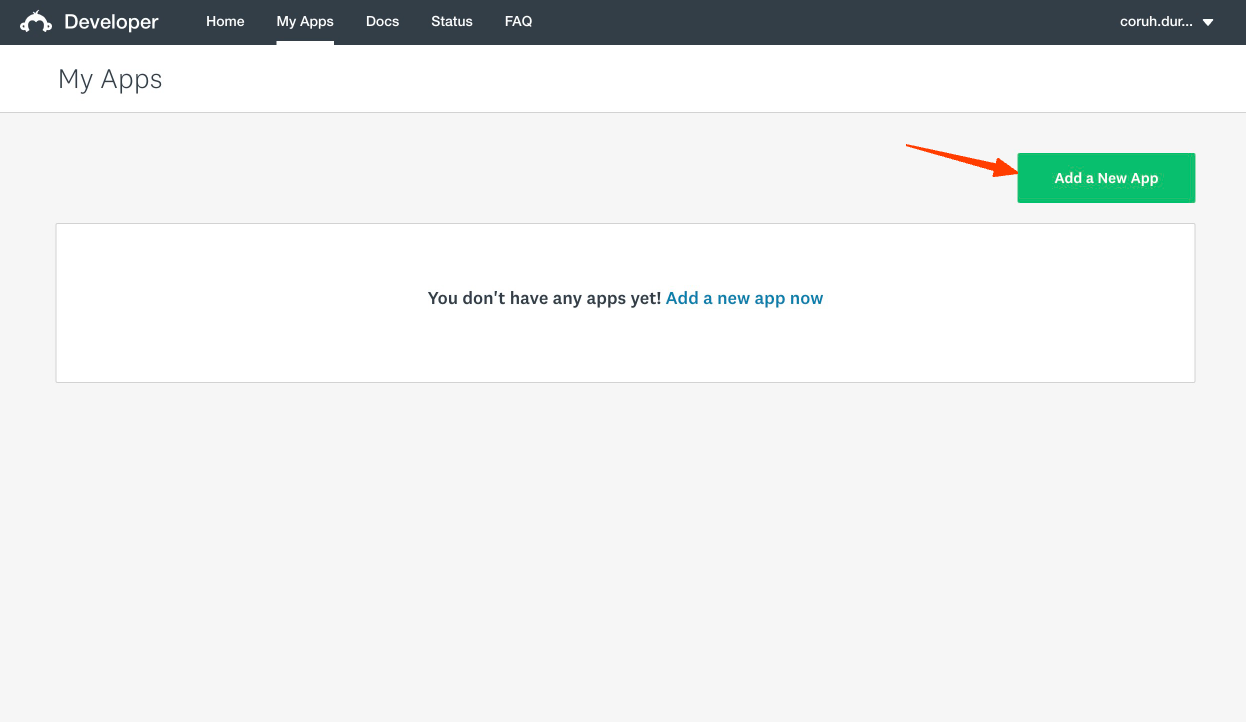
Click the Add a New App button.
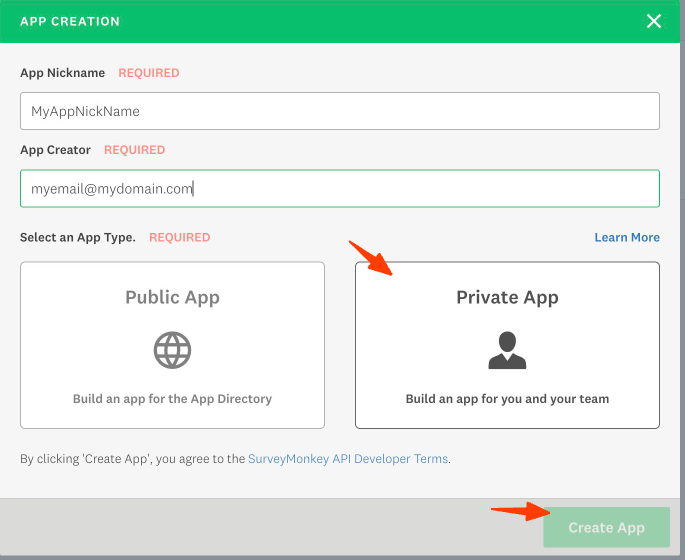
Enter a nickname and email for your app, select the Private App, and click the Create App button.
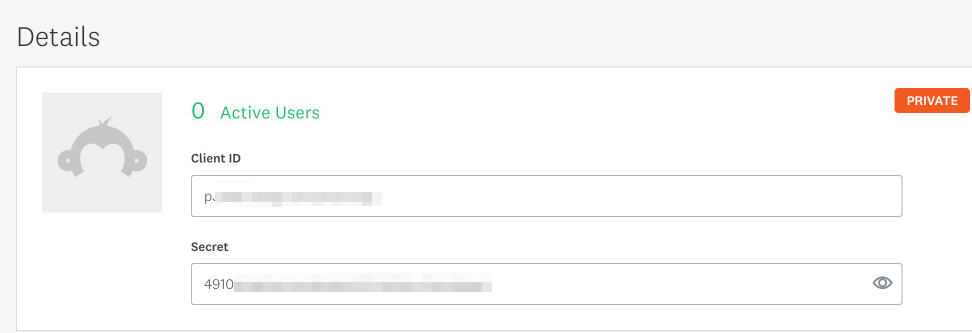
Get the Client ID and Secret.
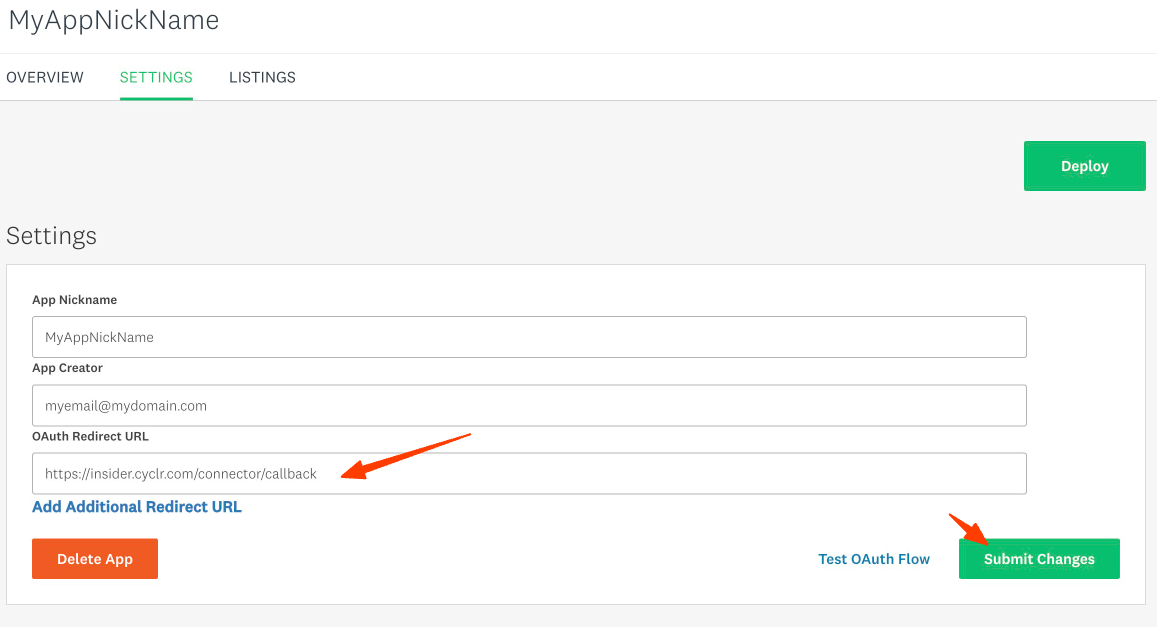
Go to the Settings tab, enter the OAuth Redirect URL, as shown below, and click the Submit Changes button.
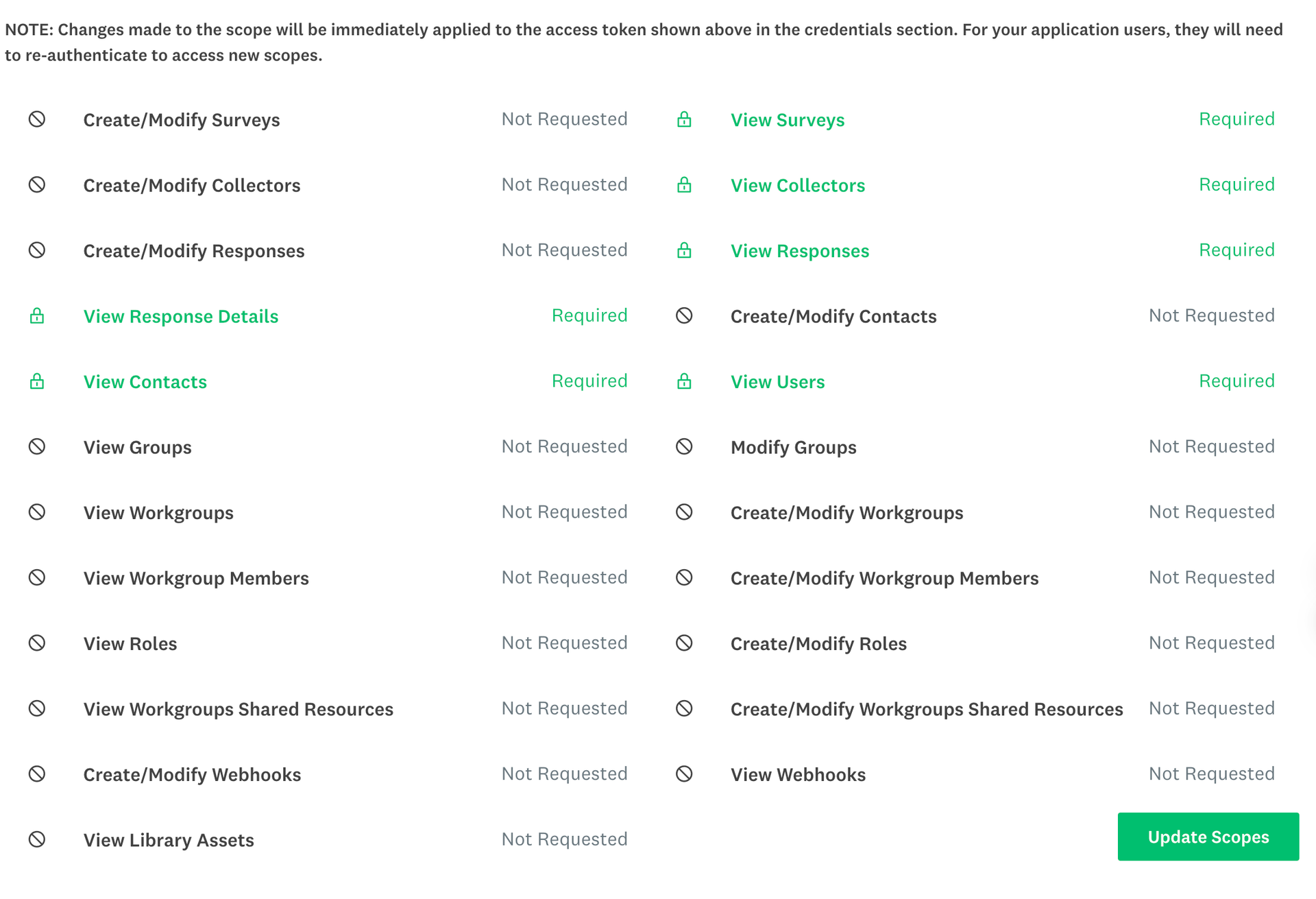
Scroll down to the scopes, select the ones below, and click the Update Scopes button.
View Surveys
View Collectors
View Responses
View Response Details
View Contacts
View Users
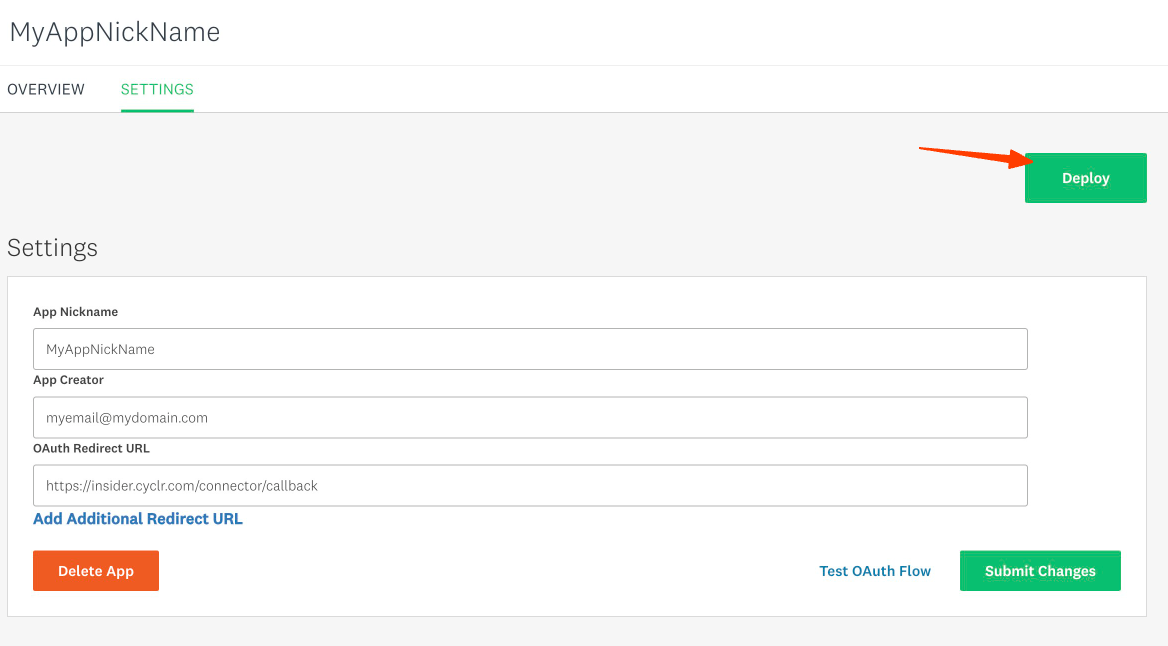
Scroll up and click the Deploy button to deploy your app.
Authenticate the Connector from Insider One's InOne panel
Make sure you create a support ticket or contact the Insider One team to activate your SurveyMonkey integration and start the data flow.
To authenticate the SurveyMonkey Connector from Insider One's InOne panel,
Navigate to Components > Integrations > External Integrations.
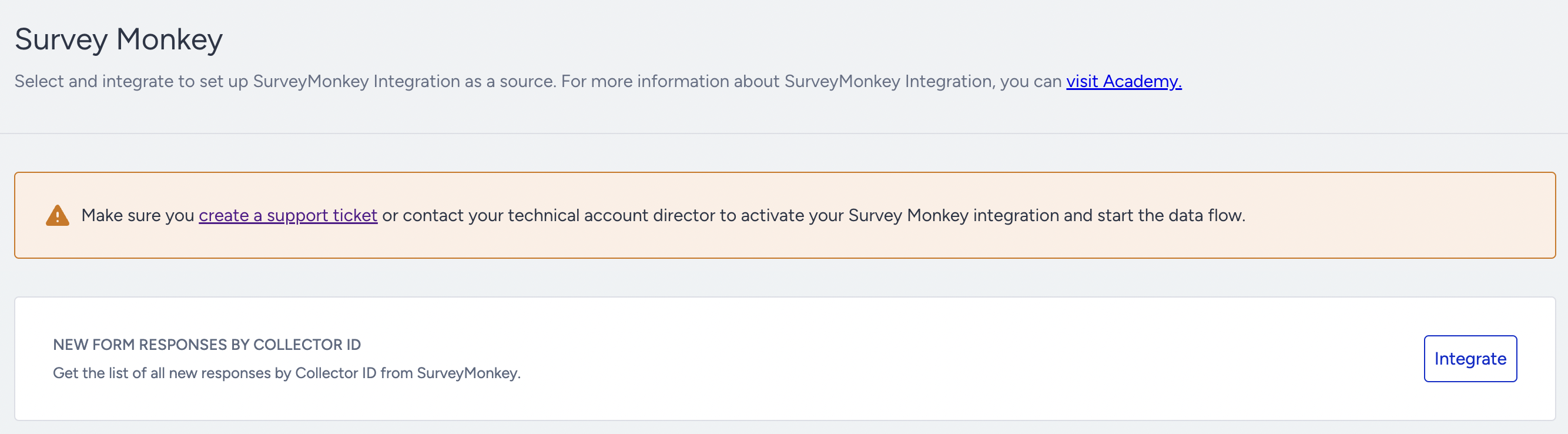
Select the SurveyMonkey platform.
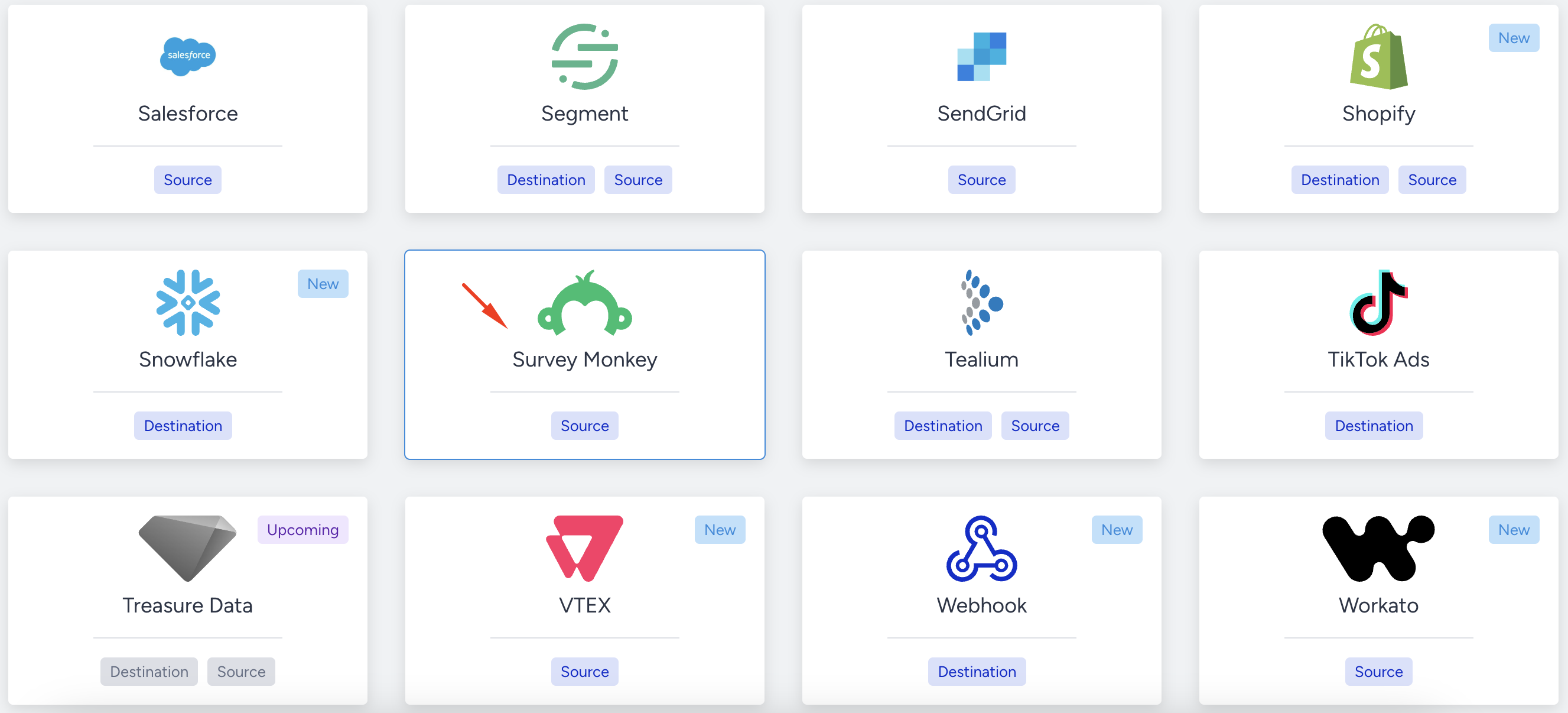
Choose the method you want to install and click the Integrate button.
Enter the Client ID and Client Secret you have copied from the SurveyMonkey private app.
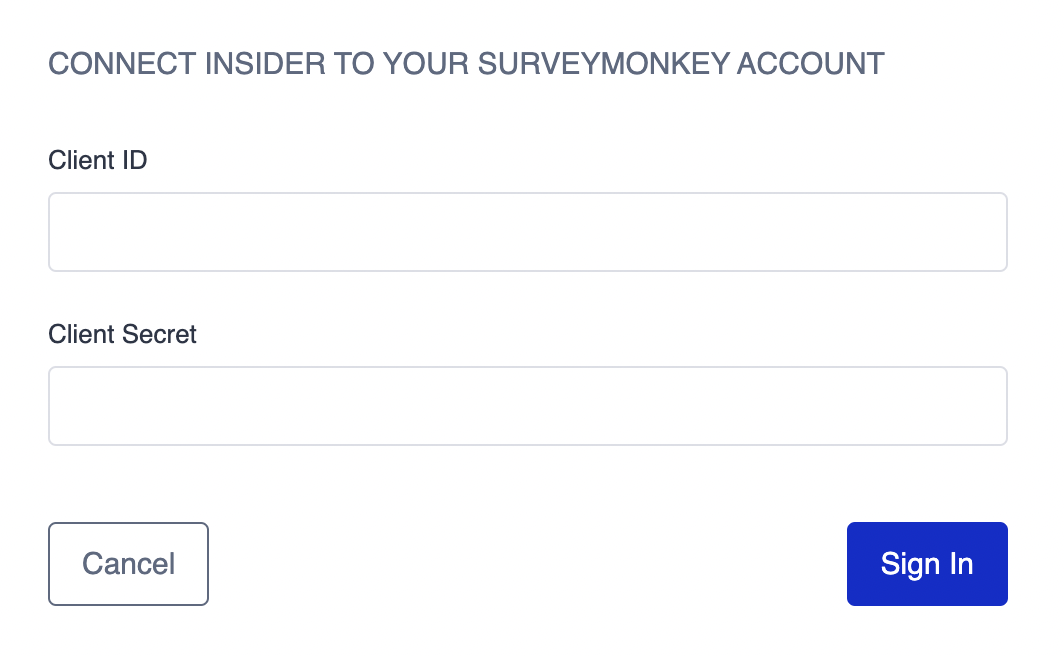
After filling in the fields, click the Sign In button, and Insider One will be connected.
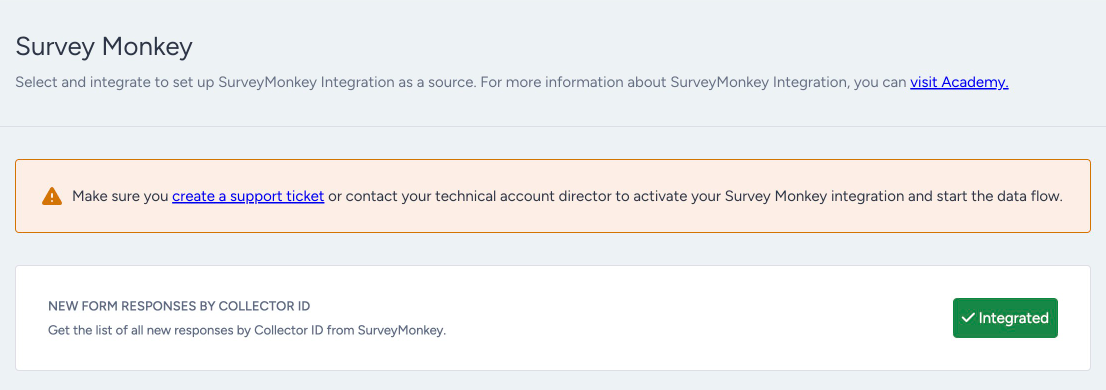
Make sure you create a support ticket or contact the Insider One team to activate your SurveyMonkey integration and start the data flow.
Finalize the Setup
Once the mapping is complete, Insider will start the connector.
The data can be synced automatically every 5 minutes, 15 minutes, 30 minutes, 1 hour, 2 hours, 3 hours, 4 hours, 6 hours, 8 hours, 12 hours, and daily and weekly since the last run.