You cannot make any changes to External Platform Integrations without having either an Administrator or an Editor with PII access in InOne. Refer to User Roles for further information.
The Salesforce Marketing Cloud (SFMC) User Data Migrator enables you to transfer user identifiers, attributes, preferences, and consent data from Salesforce Marketing Cloud to Insider One.
The migrator provides a guided setup in Insider One. You can connect your Marketing Cloud account, select a Data Extension, map its fields to Insider One, configure the synchronization, and monitor migration results.
The migration consists of two phases:
Set up API access in Marketing Cloud: This authorizes the connection between Insider One and Marketing Cloud. It allows Insider One to read your Data Extensions and their fields (your data schema), so you can map and build your metadata quickly and accurately. While setting up your API requirements, you might also choose to consolidate all of your user data (attributes) into a single Data Extension to work with a single integration (you can also run multiple integrations and connect separate Data Extensions). Working from one unified Data Extension makes the mapping and migration process considerably easier.
Configure and run the migration in Insider One: Using the SFMC User Data Migrator's guided wizard, you connect your account, select the data you want to bring over, map it to Insider One, configure how it should sync, and complete the migration, all from a single screen.

Requirements
Make sure you have the following:
A Marketing Cloud Administrator role: Required to create the API package described below.
Your API credentials: Client ID, Client Secret, and Subdomain (you'll generate these in this guide).
The Data Extension(s) you want to migrate: Know which Data Extension holds the user data you want to bring over.
A quick review of your Insider One attributes: Know which fields already exist and which custom data you'll need to create.
Step 1: Set up API access in Marketing Cloud
To allow Insider One to read your Data Extensions and their fields, create an API package in Marketing Cloud.
Create an installed package
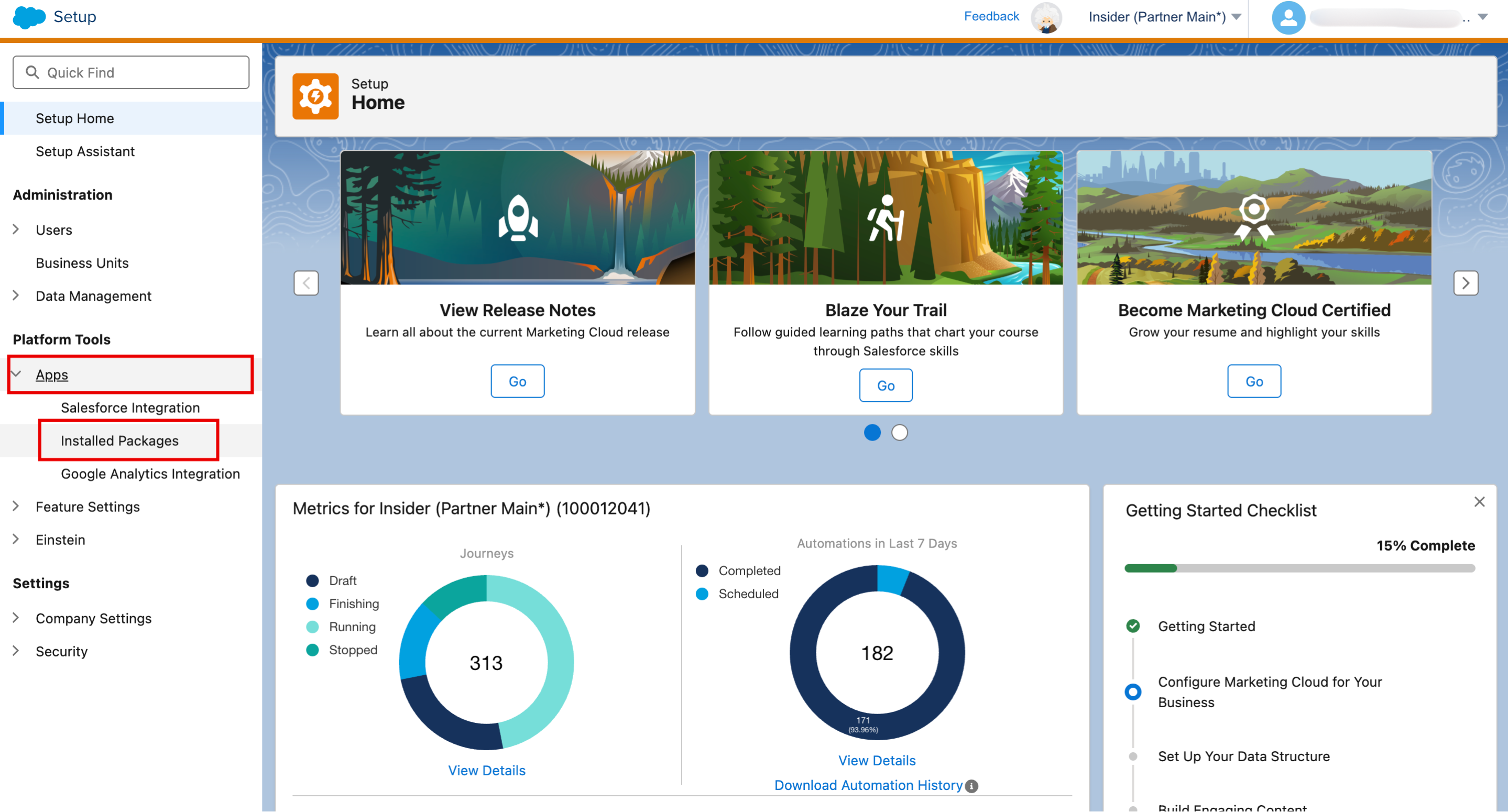
1.1. In Marketing Cloud, go to Setup > Platform Tools > Apps > Installed Packages.
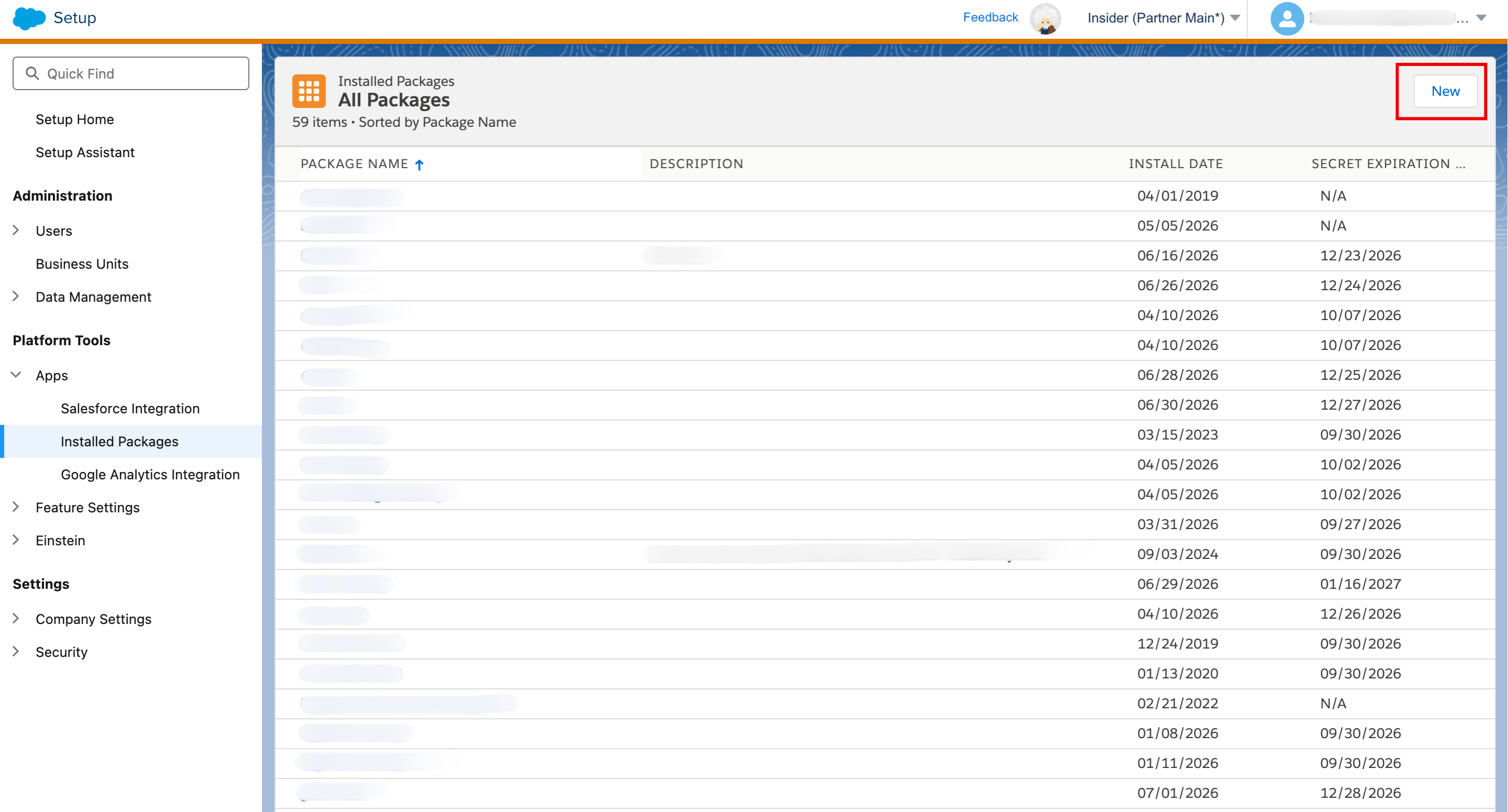
1.2. Select New.
1.3. Enter a name and description for the package.
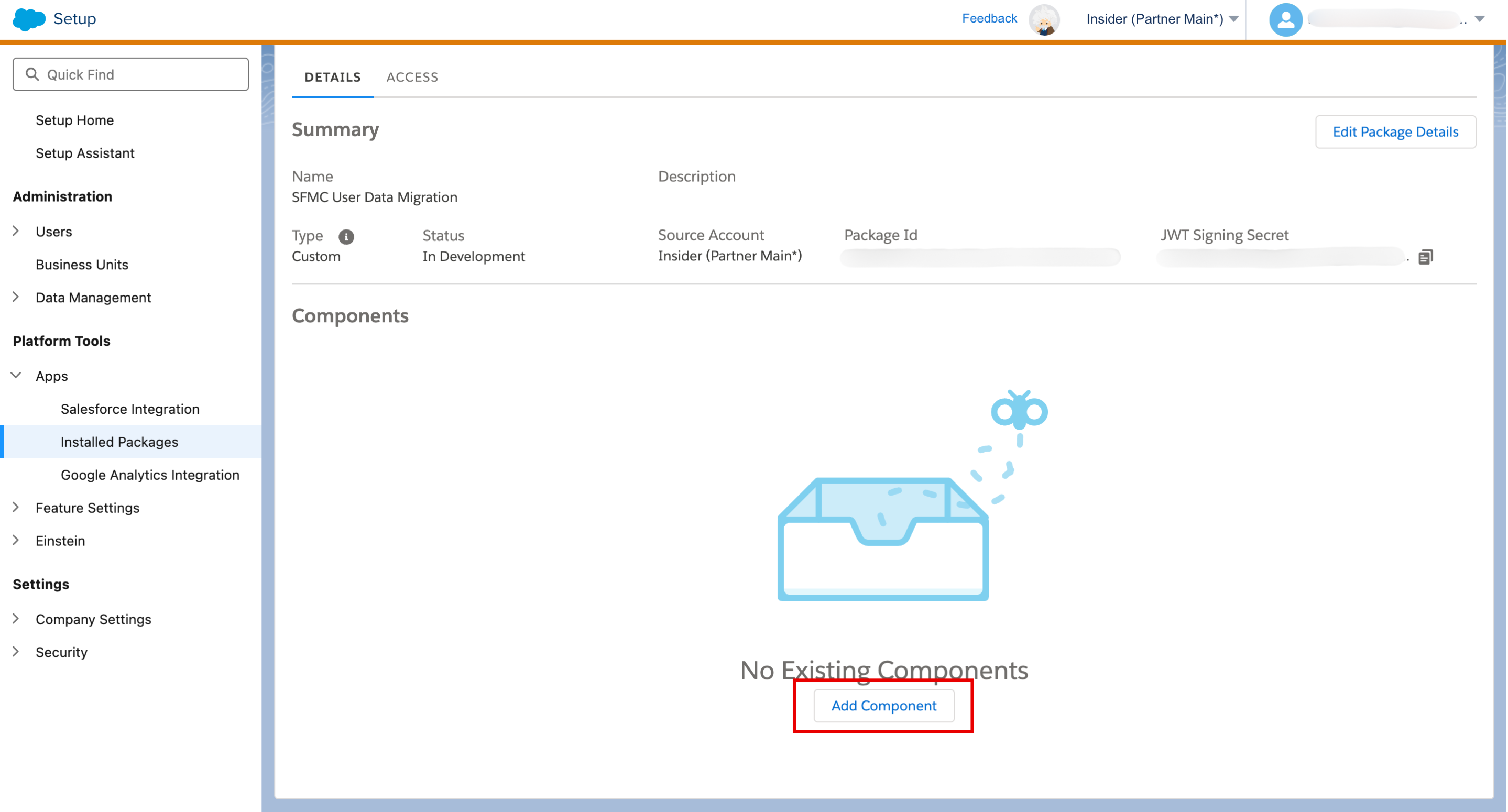
1.4. Once your package is created, click Add Component.
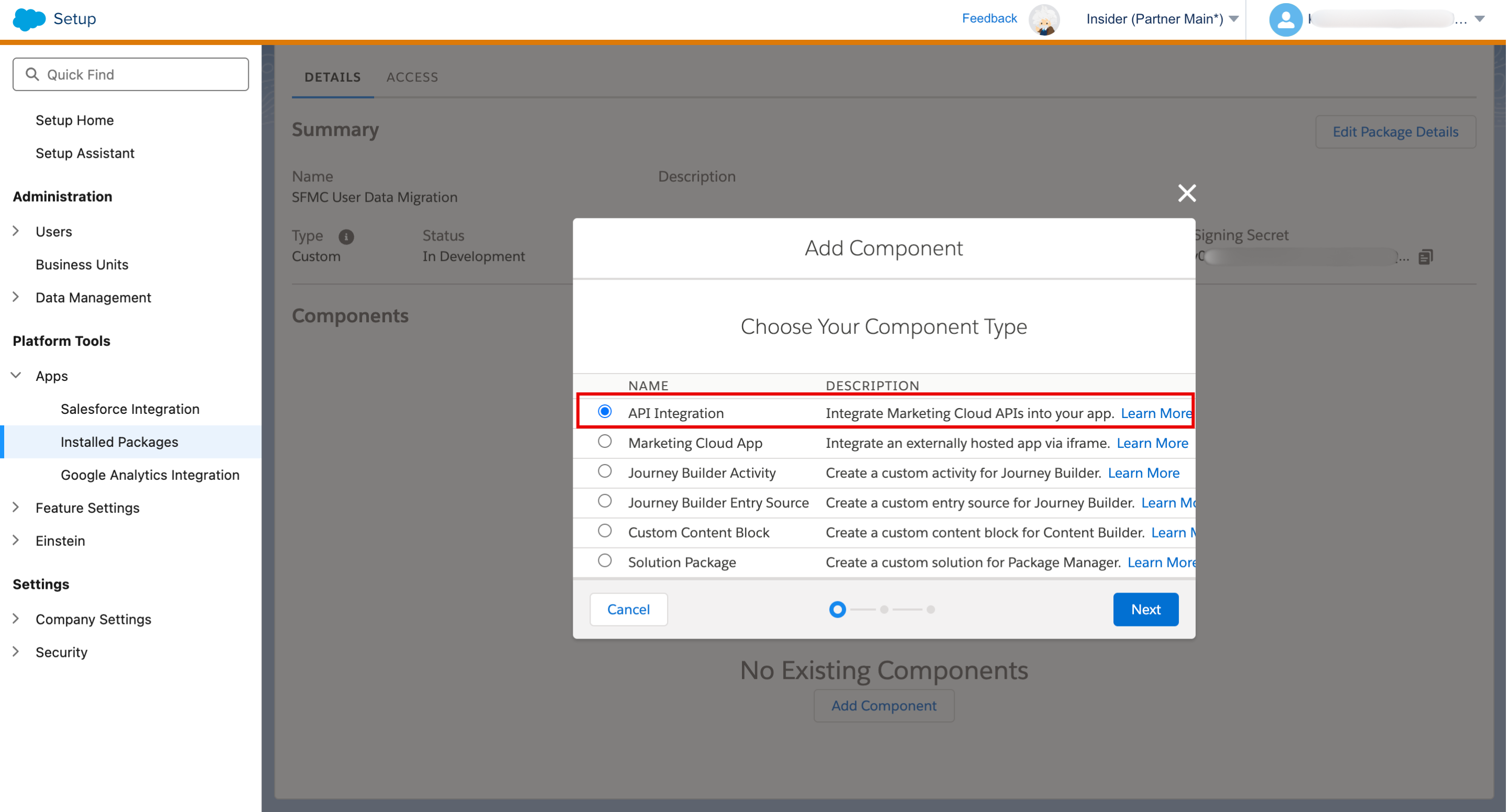
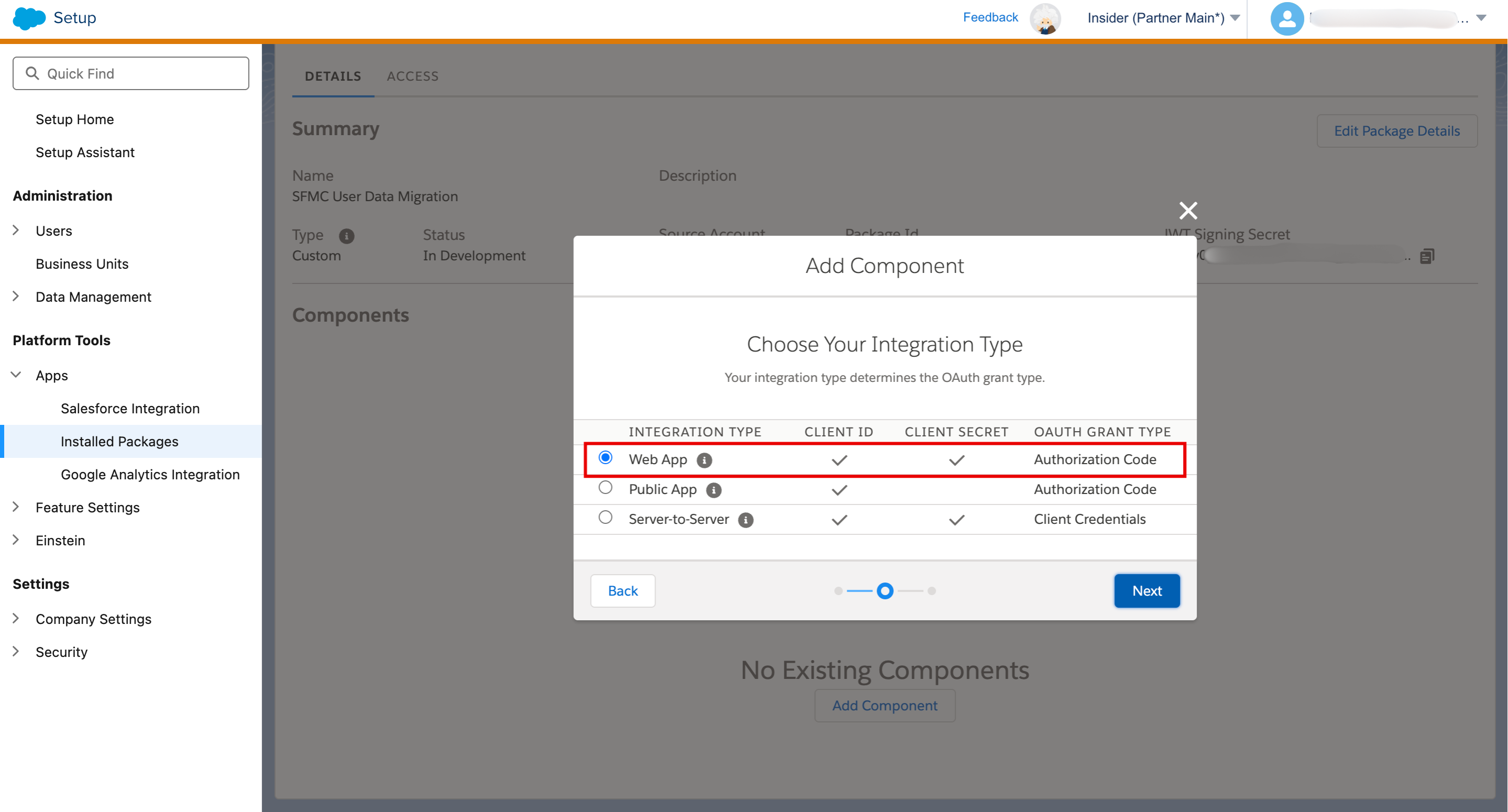
1.5. Select the API Integration and click Next.
1.6. Select Web App as the connection type; the option that authorizes Insider One via a secure sign-in and a refreshable token, rather than a direct server-to-server key.
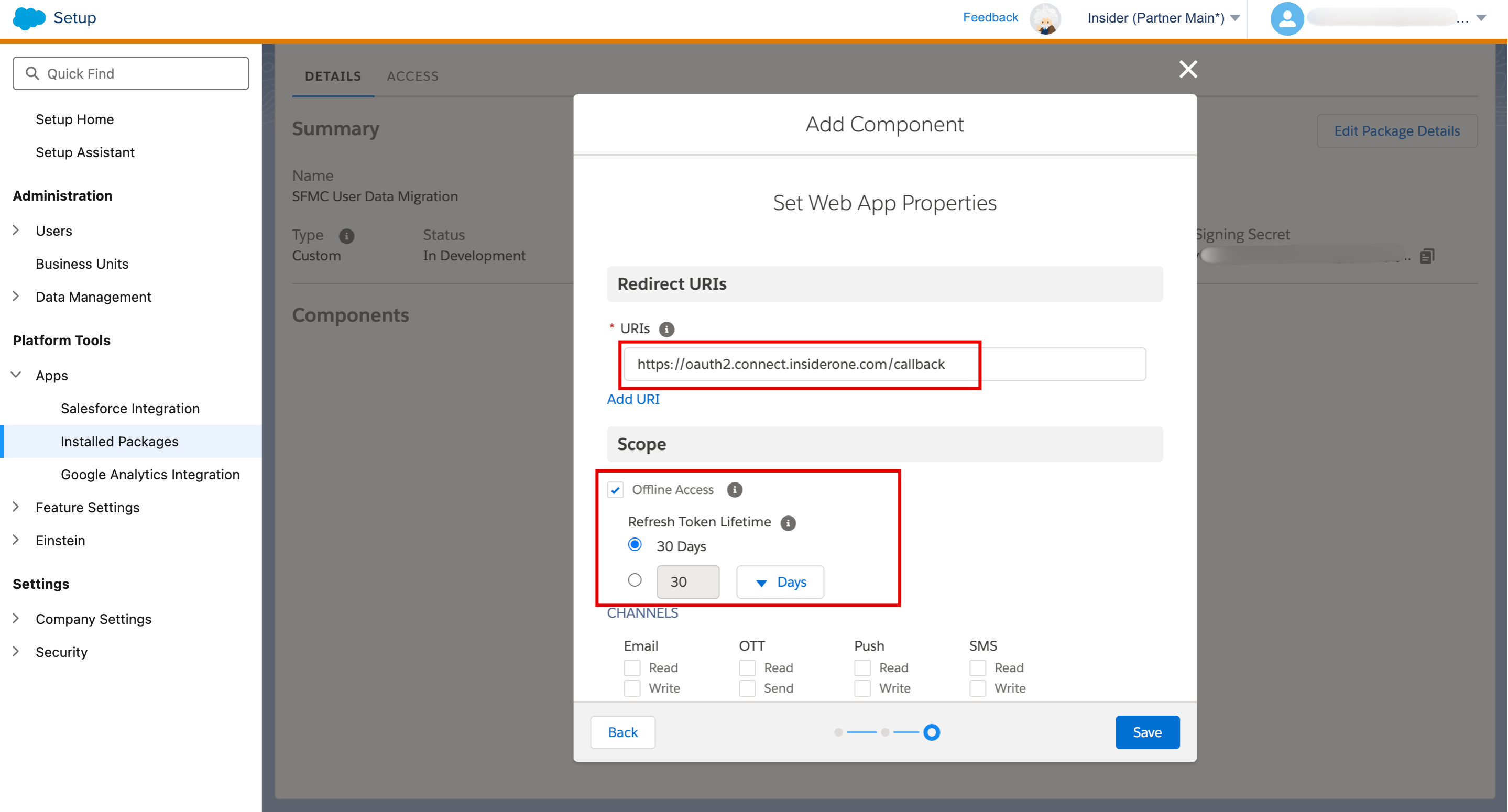
1.7. Enter the following redirect URI:https://oauth2.connect.insiderone.com/callback and configure the required scopes:
Select the offline scope to allow the access token to be refreshed during recurring or long-running migrations.
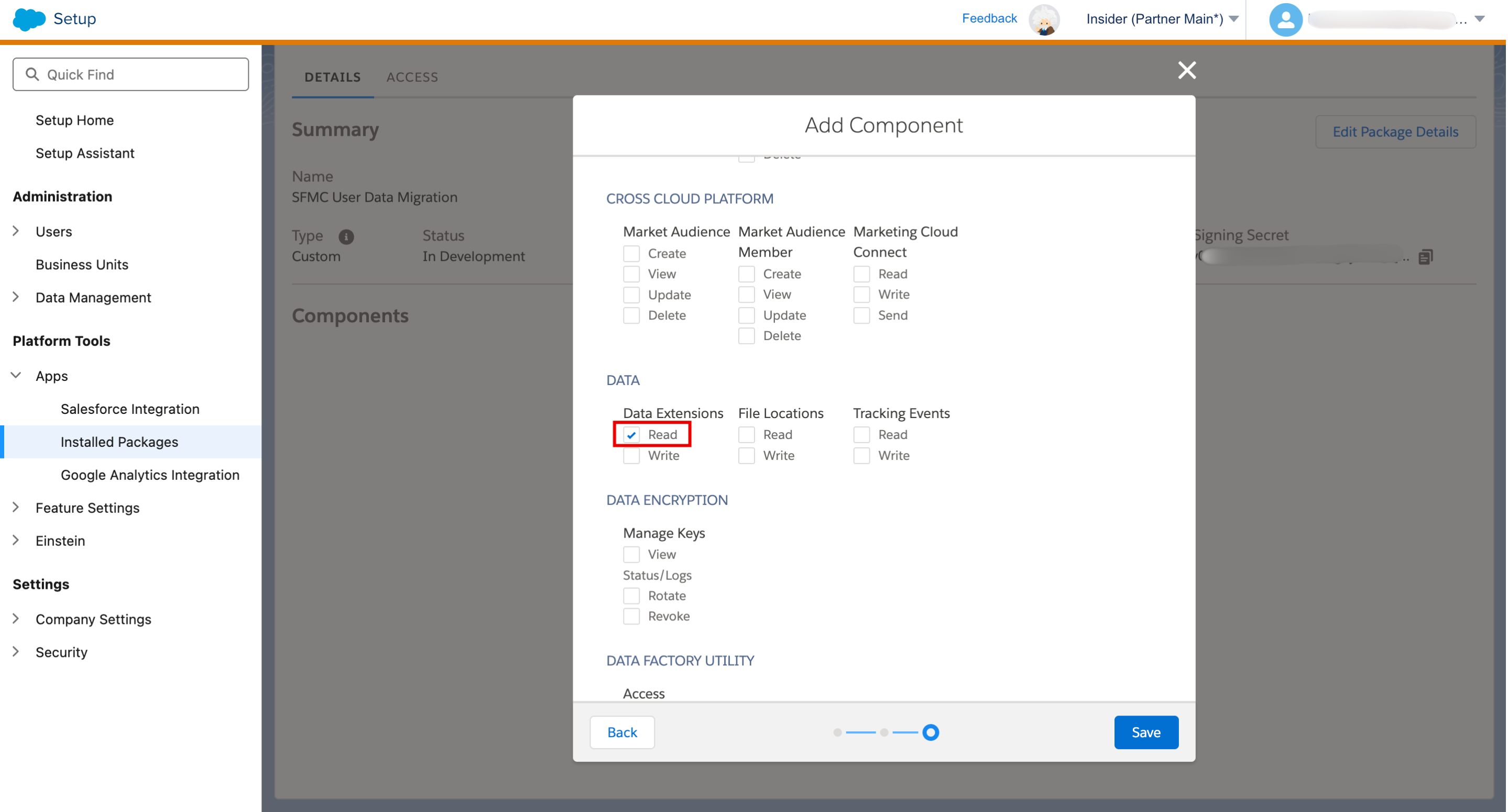
Under Data, enable Read access for Data Extensions.
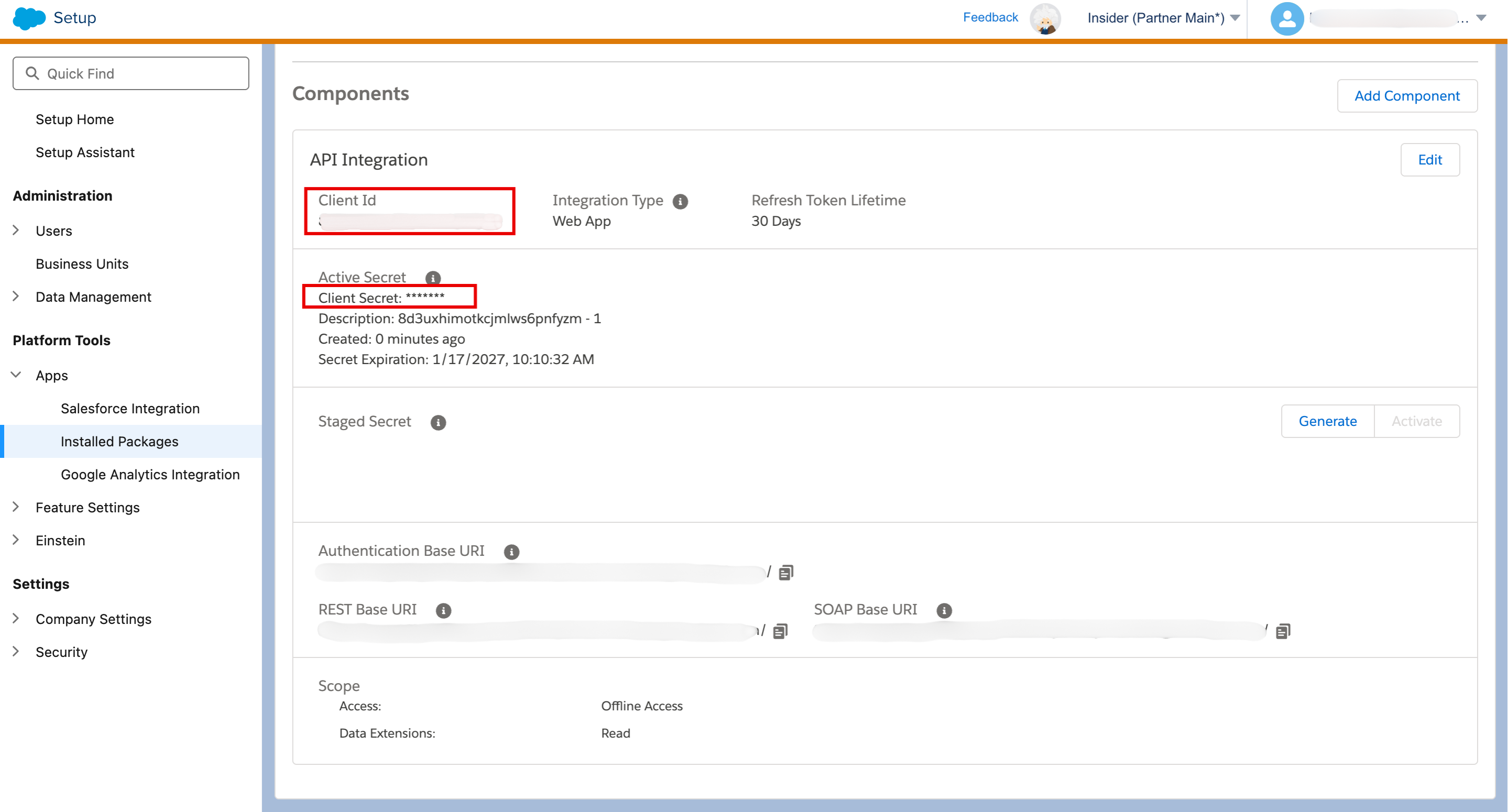
1.8. Once you save your selections, you'll be able to locate all the information Insider One needs to read your data schema. Copy your Client ID, Client Secret, and Subdomain. You will use these credentials when connecting your Marketing Cloud account in Insider One.
Step 2: Configure the migration in Insider One
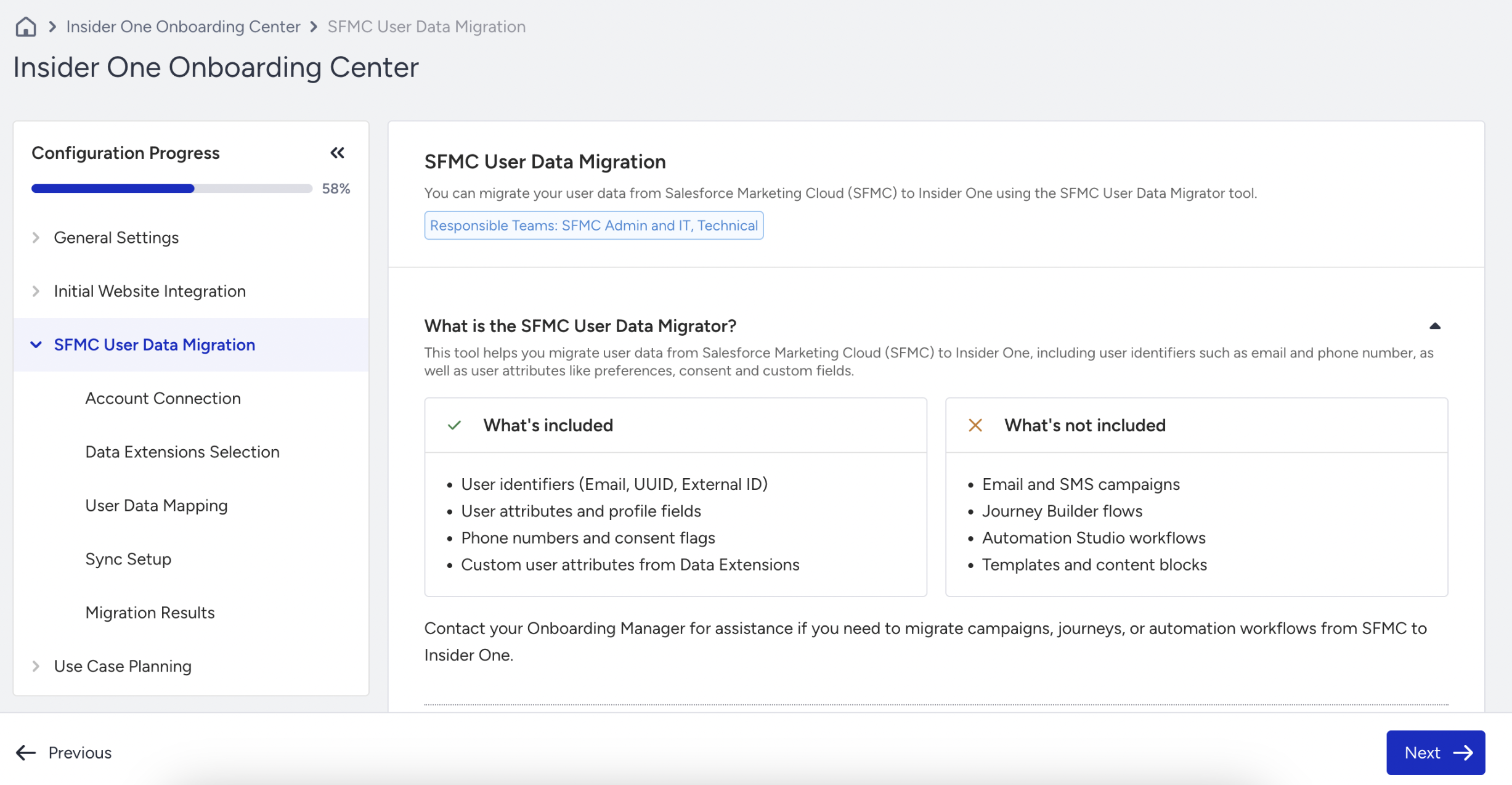
Navigate to InOne > Components > Insider Onboarding Center > Configuration > SFMC User Data Migrator.
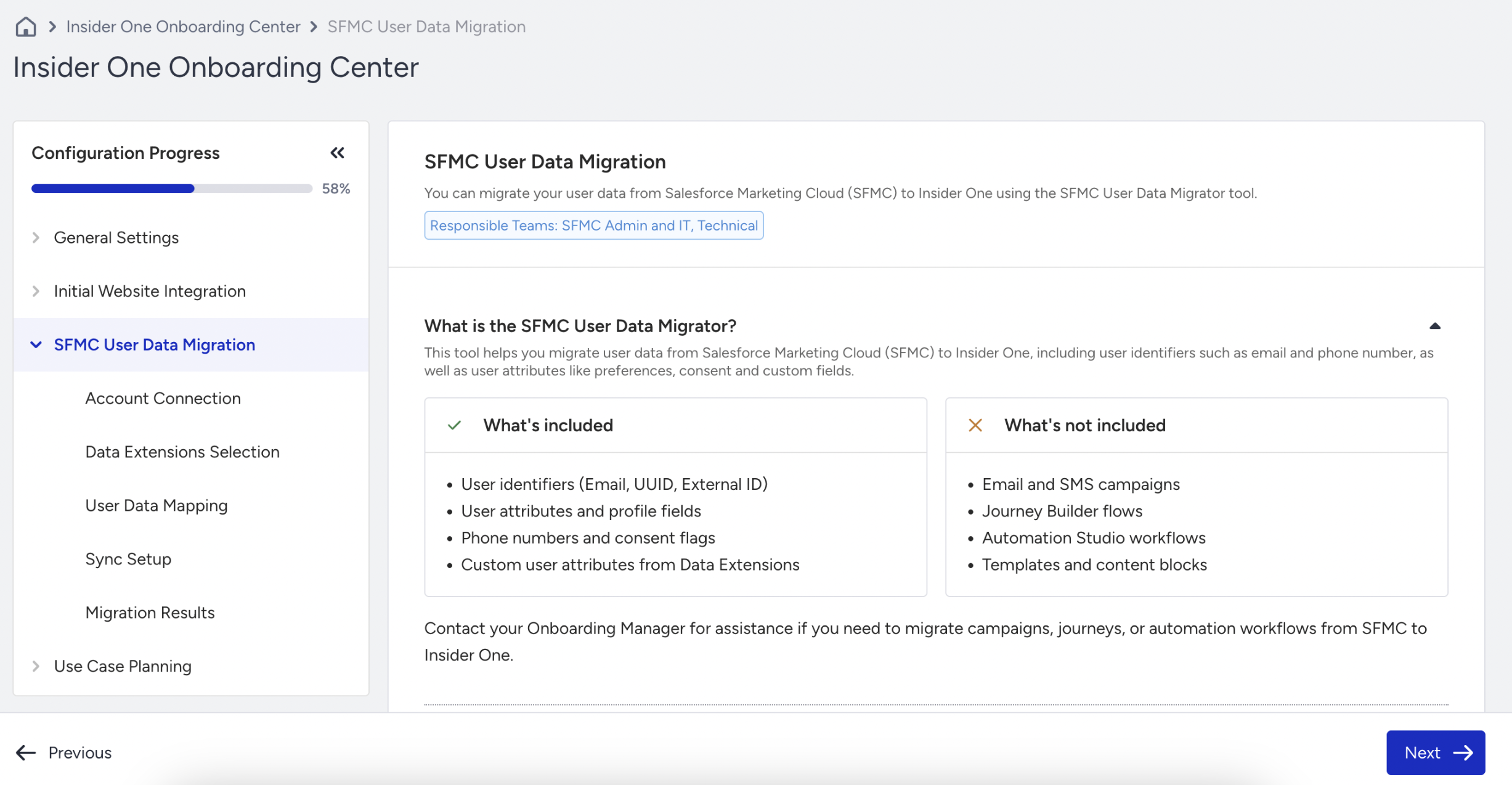
The migrator includes the following steps:
Account Connection: Authenticate your Marketing Cloud account.
Data Extension Selection: Select the data you want to migrate.
User Data Mapping: Map Marketing Cloud fields to Insider One identifiers and attributes.
Sync Setup: Configure synchronization behavior and frequency.
Migration Results: Start the migration and monitor each synchronization.
Multiple Data Extensions: After you complete the first migration, you can create additional migrations under the same Marketing Cloud connection. Each migration can use a different Data Extension. For details, see Manage multiple Data Extensions.
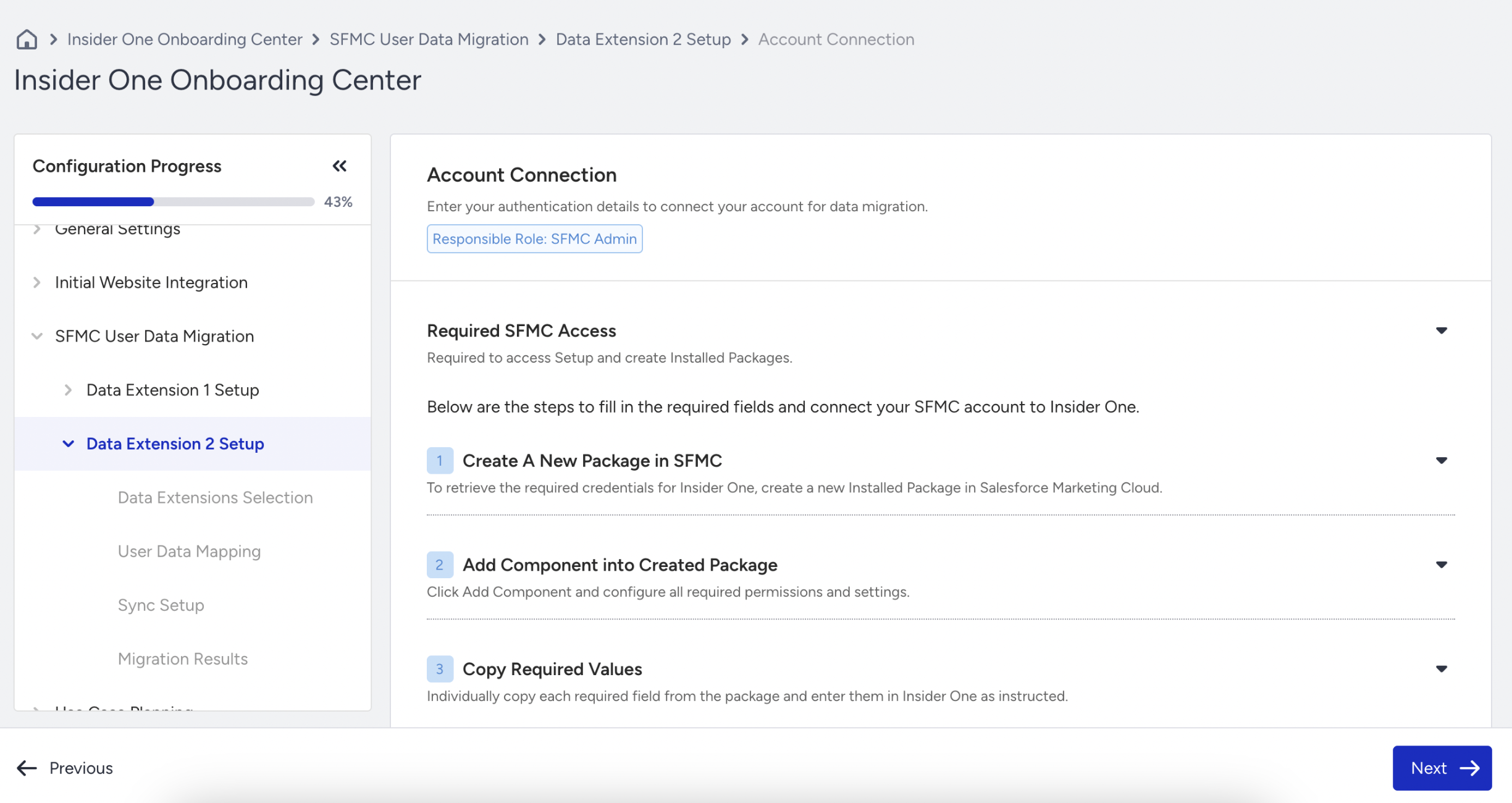
Step 2.1: Connect your Marketing Cloud account
In the Account Connection step, enter the Client ID, Client Secret, and subdomain that you generated in Marketing Cloud.
Before connecting, confirm that:
You have a Marketing Cloud Administrator role.
The Installed Packages feature is available in your account.
Select Connect to authorize the connection. Insider One stores the Client Secret in encrypted form.
Step 2.2: Select a Data Extension
In the Data Extension Selection step, select the Data Extension that contains the user data you want to migrate.
You can use one of the following approaches:
Select an existing Data Extension: Use this option when the required user data is already available in one Data Extension.
Consolidate multiple Data Extensions: Combine data into one Data Extension before migration.
Enter the Data Extension's External Key. To locate it, navigate to Marketing Cloud > Email Studio > Subscribers > Data Extensions > Properties > External Key.
Select how the migrator should retrieve records during each synchronization:
Always Fetch All Records: Retrieves every record from the Data Extension during each synchronization.
New and Updated Since Last Sync: Retrieves only records that were added or updated after the previous synchronization.
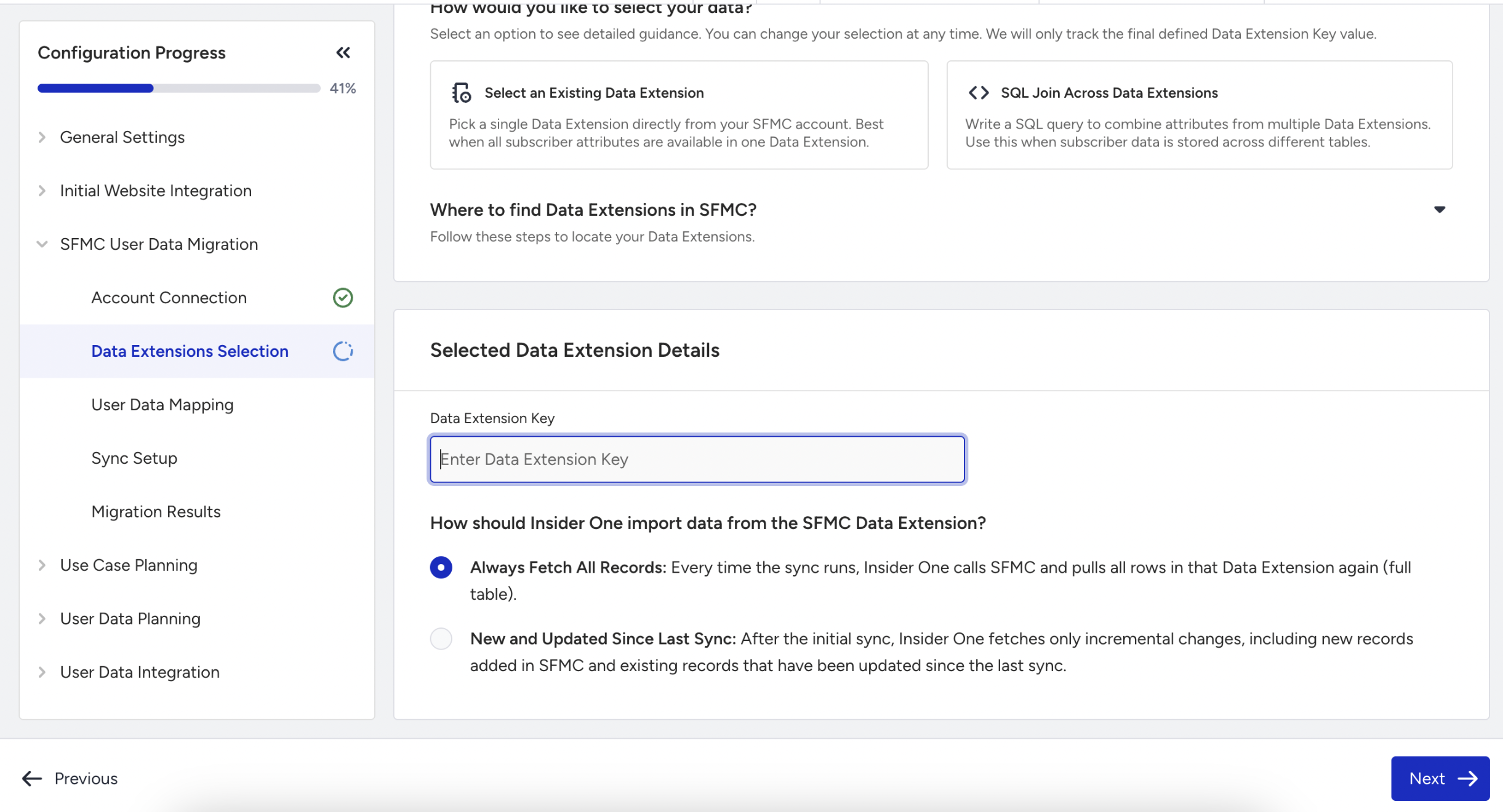
Your selections are saved automatically. Click Next to proceed.
Step 2.3: Map user data
In the User Data Mapping step, map the fields in your Marketing Cloud Data Extension to the corresponding user identifiers and attributes in Insider One.
User Identifiers
Map identifier fields, such as email addresses and phone numbers, to Insider One user identifiers.
You can:
Drag and drop identifiers to define their matching priority.
Configure or remove an identifier.
Review the identifiers included in your Identity Resolution Management configuration.
Insider One identifies and unifies incoming user records according to the identifiers, priority order, and value limits configured in Identity Resolution Management Settings. Review these settings before starting the migration to understand how imported records will be matched and unified.
User Attributes
Map the remaining source fields, such as profile information, preferences, and consent values, to Insider One attributes.
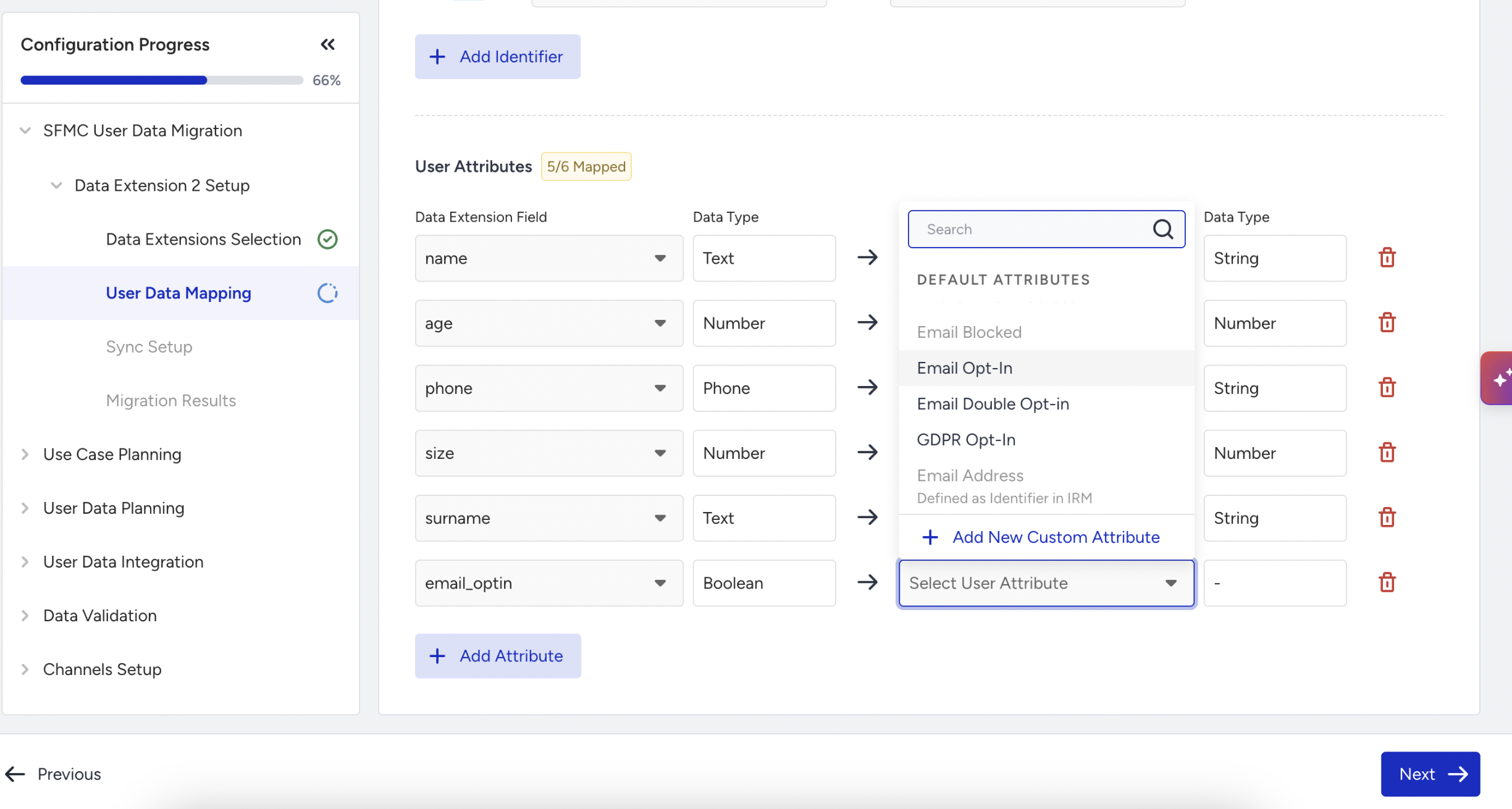
For each mapping:
Select a field from the Data Extension.
Select the corresponding Insider One attribute.
The expected data type is displayed automatically.
If a source field does not match an existing default attribute, you can create a custom attribute during the mapping process.
The migrator validates field types and indicates incompatible mappings before you continue. You can also expand Match Guidelines for additional mapping guidance.
Step 2.4: Configure the synchronization
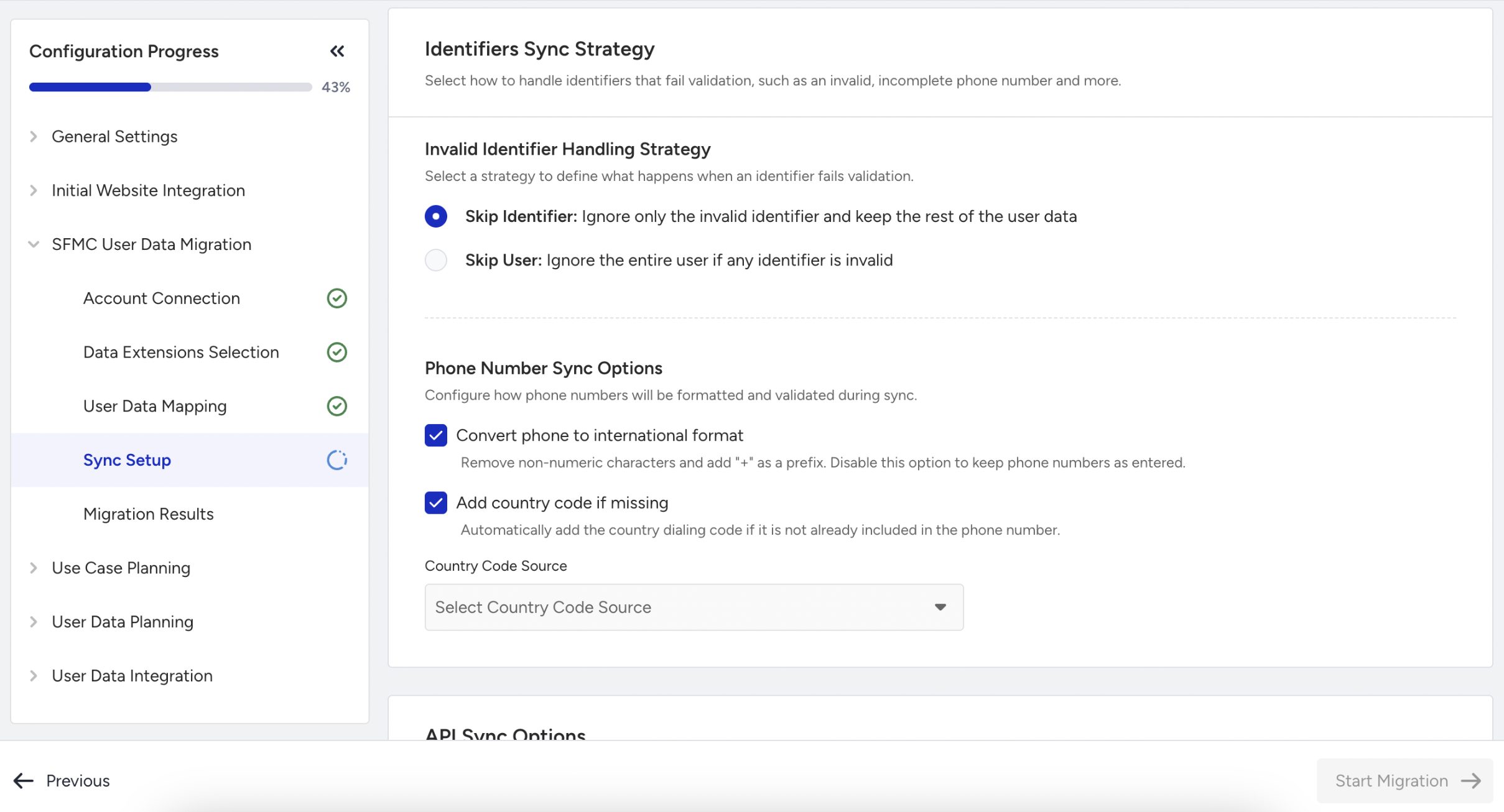
In the Sync Setup step, review the mapped data and configure how the migration should run.
The Mapped User Data Summary displays the number of mapped identifiers, attributes, and custom attributes.
Configure invalid identifier handling
When this setting is available, select how the migration should process a record that contains an invalid identifier:
Skip Identifier: Excludes the invalid identifier and continues processing the remaining user data.
Skip User: Excludes the complete user record when any mapped identifier is invalid.
Configure phone number options
When a phone number is mapped, you can:
Convert phone numbers to international format.
Enter a country calling code manually.
Use a field in the source data to provide the country calling code.
Configure API sync options
Prevent historical data from triggering your active journeys: Prevents migrated historical records from triggering active journeys in Insider One.
Fast Fail on Upsert Error: Stops the synchronization when an upsert error occurs.
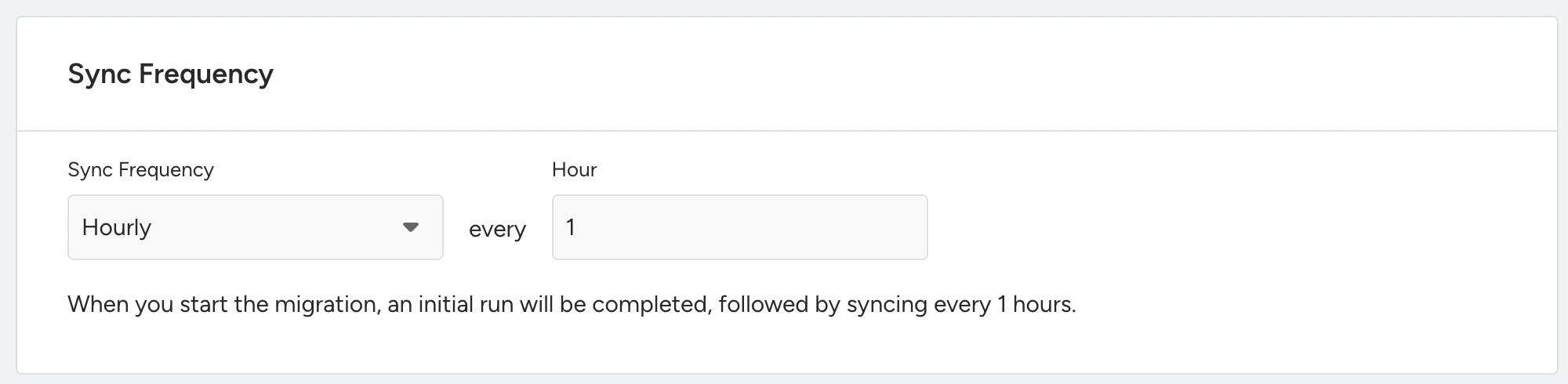
Select a sync frequency
Select one of the following frequencies:
One-time
Minute
Hour
Day
For a daily synchronization, you can also select the time of day.
Important: When you start the migration, the mapped identifiers and their priority order are applied to your Identity Resolution Management configuration. This can replace the existing configuration. Review the mappings carefully before confirming the migration.
Select Start Migration and confirm the changes to begin the synchronization.
Step 2.5: Monitor migration results
The Migration Results step displays the result of each synchronization in the Sync History table.
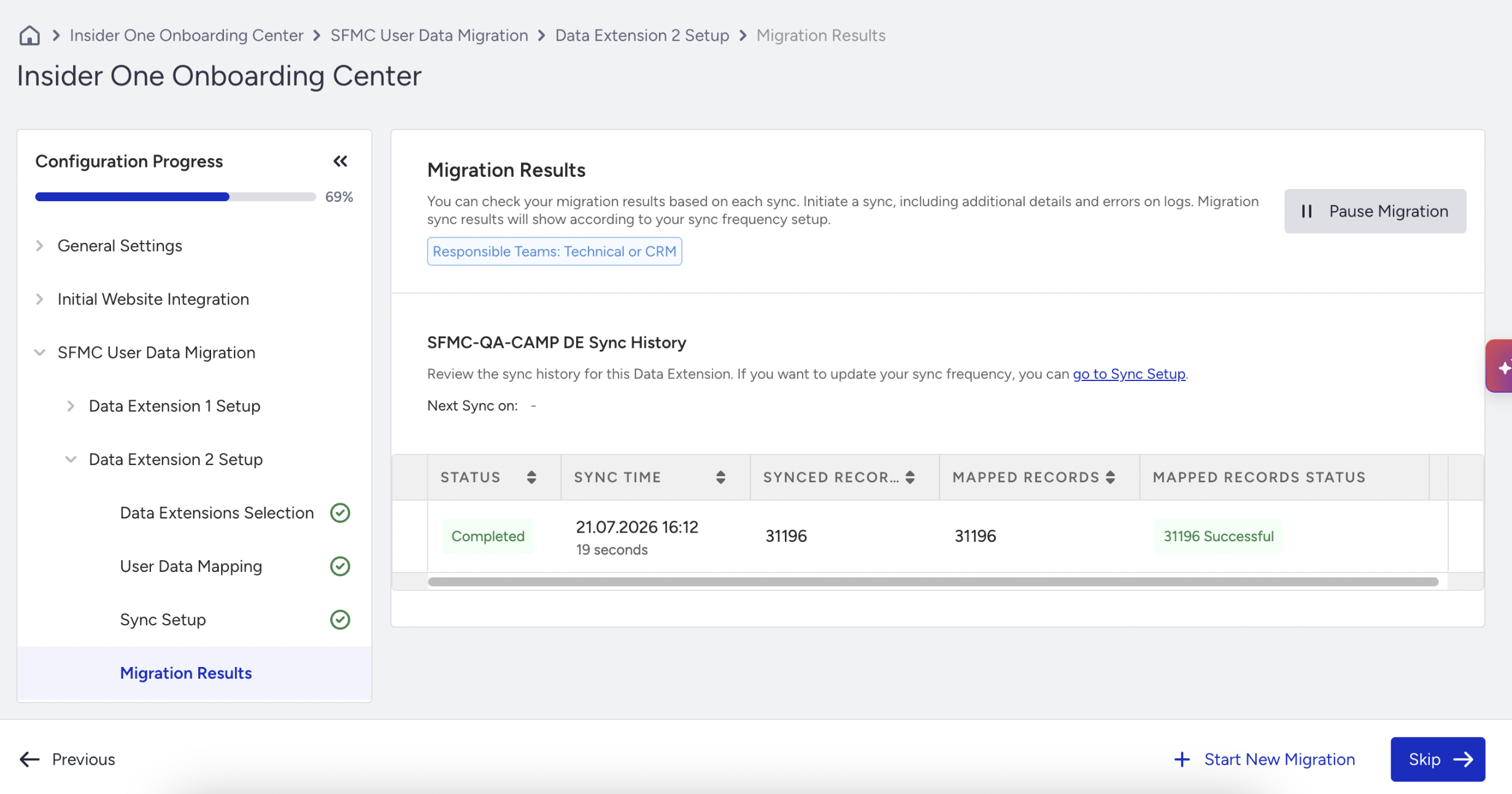
The table includes:
Status: Syncing, Completed, or Failed.
Sync Time: The start time and duration of the synchronization.
Synced Records: The number of records processed.
Mapped Records: The number of records mapped to Insider One.
Mapped Records Status: The number of successful, skipped, and failed records.
Select the information icon for a synchronization to open its detail panel. The panel includes:
Sync Details: General information about the synchronization.
Errors: Error details for records that could not be processed.
You can pause or resume the migration at any time. The page also displays the next scheduled synchronization time when the migration is active.
Manage multiple Data Extensions
You can create separate migrations for multiple Data Extensions under the same Marketing Cloud connection.
Each migration appears as a separate item in the left sidebar. You can switch between migrations, review their synchronization status, and run them independently.
Next steps
After the migration starts, review the Sync History regularly and investigate skipped or failed records from the migration details panel.
For assistance with campaigns, journeys, or automation workflows outside the scope of user data migration, contact Insider One team.