Email annotations bring email messages with images, deals, expiration dates, and more to the Promotions tab. These annotations require neither registration nor a whitelist. With Gmail Annotations, you can boost your discount offers, showcase specific products and product categories, add coupon codes, and increase brand awareness.
This guide offers details about:
Use cases
You can use annotations for different use cases.
Product Image: You can add a product or campaign image in this field. If you add your image URL following the recommended aspect ratio, your email will look like this.
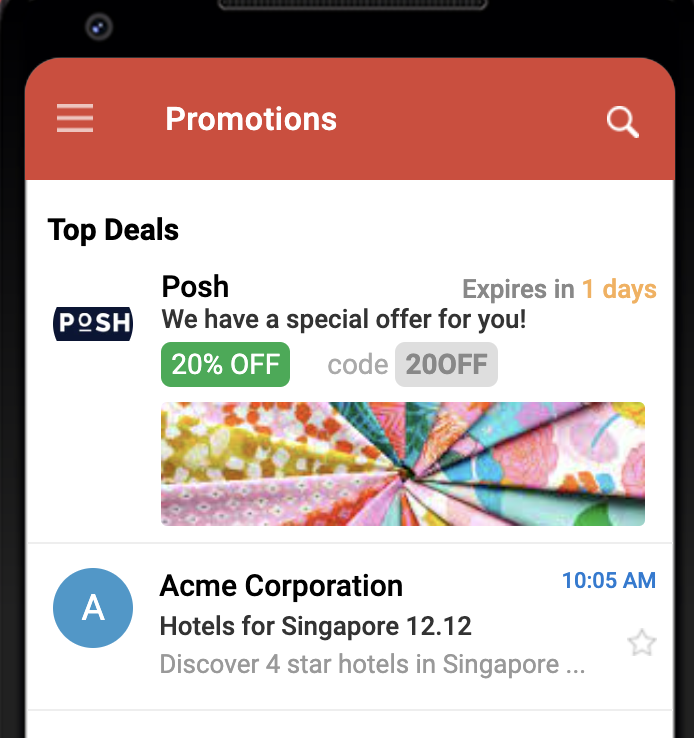
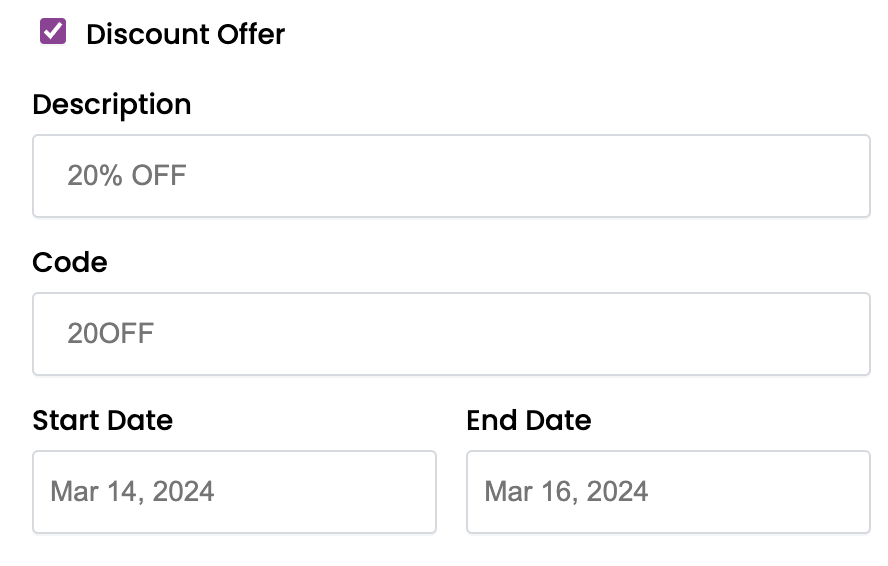
Deal/Discount Annotation: You can add a description, code, and define start and end dates to add deals to your message.
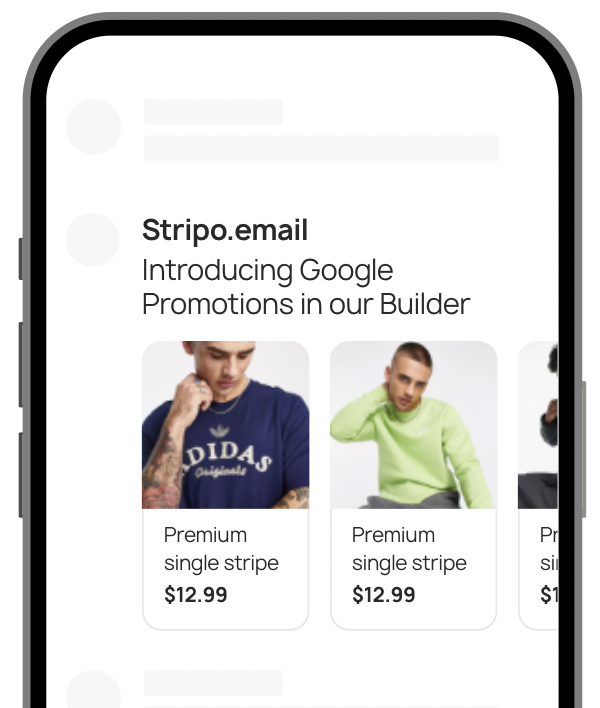
Additional Use Cases: You can refer to Gmail Promotion Annotations Builder to create different variations of annotations, such as product cards.
Enable Gmail annotations in the editor
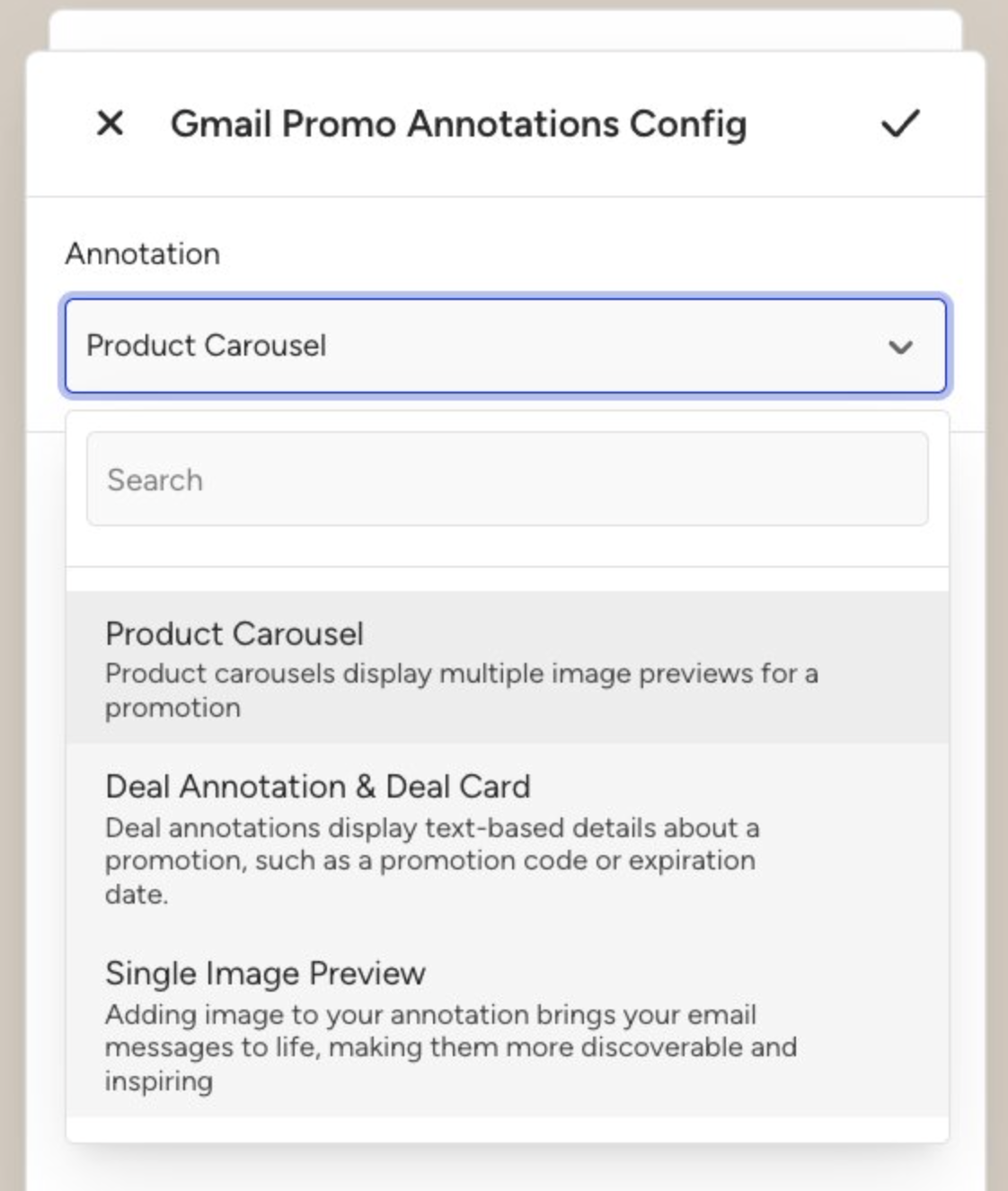
In the editor, you can configure the following annotation types:
Product Carousel
Deal
You can select the annotation type from the Annotation dropdown after enabling Gmail annotations.
To use Gmail annotations in your email:
Go to the Design step of your email campaign.
Open the editor.
In the right-side panel, open Message Settings.
Click the Email annotations for Gmail.
Turn on the toggle.
Select the annotation type from the Annotation dropdown.
.png)
Once enabled, the editor displays a Preview area and annotation-specific fields.
Configure the Product Carousel annotation
Select Product Carousel from the Annotation dropdown to showcase multiple promotional product cards in Gmail.
The Product Carousel annotation lets you display multiple products directly in the Gmail Promotions preview.
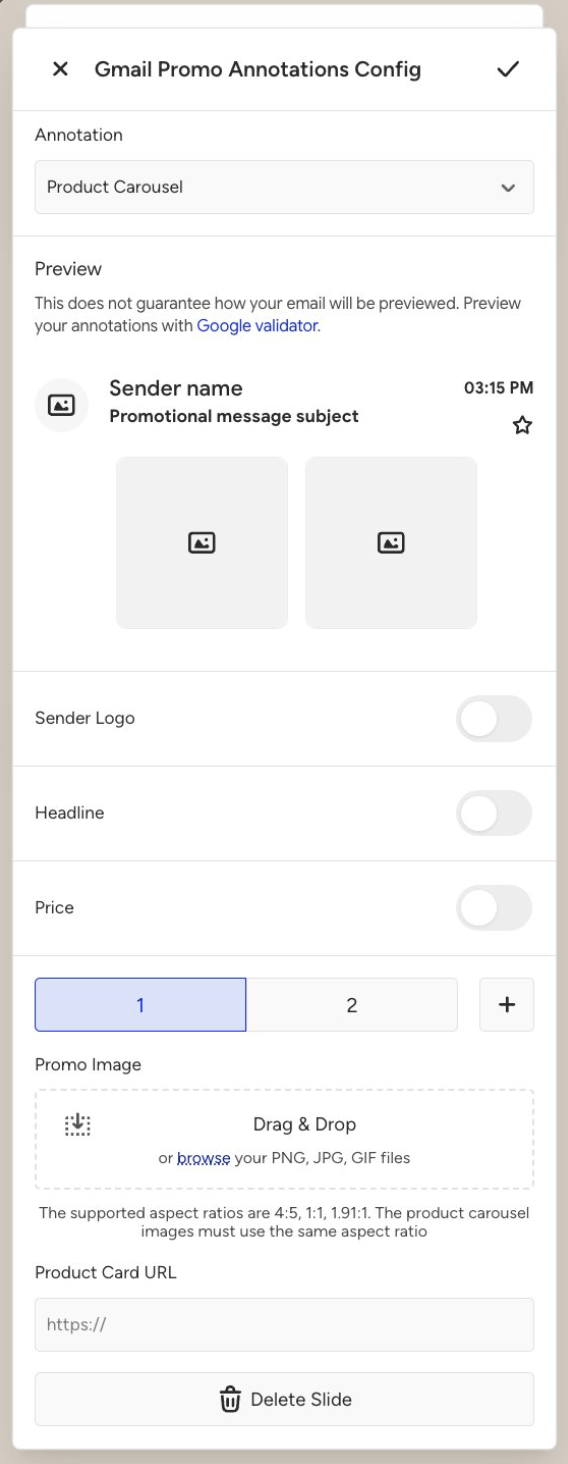
Preview
The Preview section shows how the annotation may appear in Gmail, including sender information and product cards.
This preview is for configuration guidance inside the editor.
Sender Logo
You can enable the Sender Logo to display your brand logo in the annotation. When enabled, the sender logo is used as part of the Gmail annotation preview.
Headline
You can enable the Headline to display a short promotional heading in the annotation. You can use this field when you want to emphasize the main message of the promotion.
Price
You can enable the Price to show price information for product cards. This helps surface pricing information directly in the inbox preview.
Slides
The Product Carousel supports multiple cards shown as slides.
You can:
Switch between existing slides using the numbered tabs.
Add a new slide with the + (Plus) button.
Delete a slide with Delete Slide.
Promo Image
Each slide requires a Promo Image. You can upload images by drag-and-drop or by browsing your files.
Supported file types include:
PNG
JPG
GIF
Supported aspect ratios are:
4:5
1:1
1.91:1
All images used in the same product carousel must use the same aspect ratio.
Product Card URL
Each slide also includes a Product Card URL field. You can use this field to define the landing page for the related product card.
Configure the Deal annotation
Select Deal from the Annotation dropdown to highlight a promotional offer in Gmail.
The Deal annotation is designed for campaigns focused on a discount, promotion, or limited-time offer.
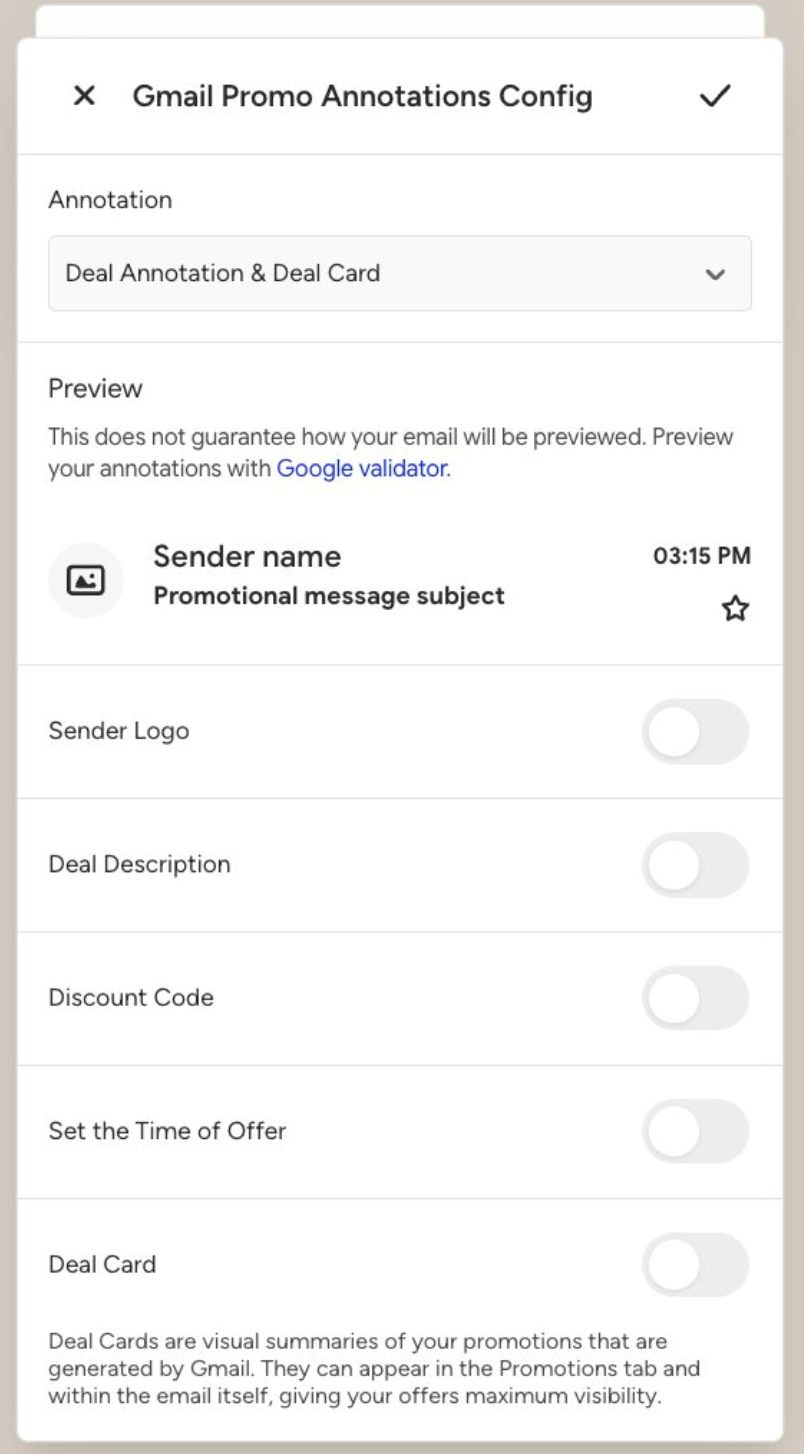
Preview
The Preview section shows how the sender name, subject area, and deal-related content may appear in Gmail.
Sender Logo
Enable the Sender Logo to include your brand logo in the annotation.
Headline
Enable the Headline to display the main promotional text.
You can use the Headline to highlight the deal's key value proposition. Depending on your configuration, additional deal-related fields may also be available in this annotation type.
Test and validate Gmail annotations
After configuring the annotation:
Save your email.
Send your campaign according to your normal sending workflow.
Check the Gmail mobile Promotions tab experience.
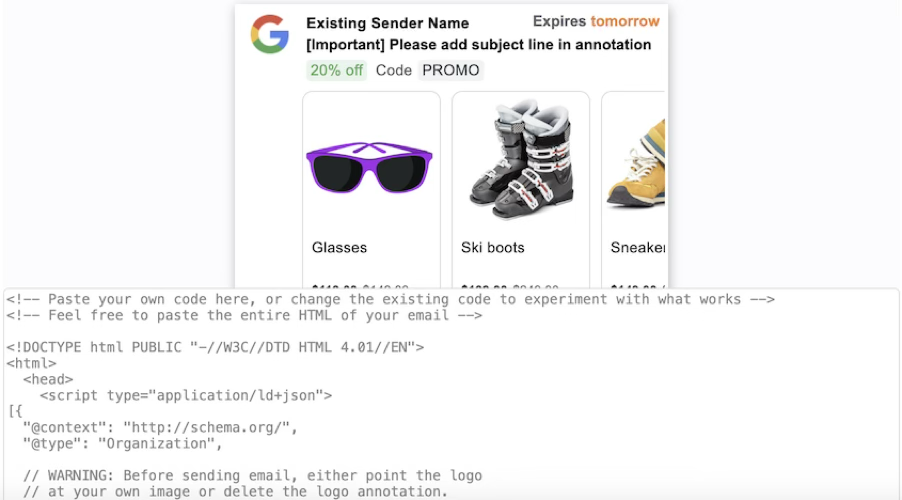
Keep in mind:
Annotations are shown on Gmail’s side.
The editor preview is only a configuration aid.
The final visibility depends on Gmail’s own rendering and eligibility logic.
Because Gmail determines whether an annotation is shown, correct setup does not guarantee display in the Promotions tab.
Important notes
Gmail annotations are configured directly from the editor UI. You do not need to manually generate or paste HTML annotation code into the email head for this flow.
Annotation visibility depends on multiple external factors, including Gmail’s own decisioning, recipient eligibility, and campaign behavior. Because of this, annotations should be treated as an enhancement, not as guaranteed rendering.
FAQ
Q: Is it possible to track the success metrics of Gmail Annotations?
A: The best case to track the success of annotations is to do an A/B test. You can create two variants: one with annotations and another without annotations, to test the performance of both.
Q: Since there are several limitations on how our annotations appear in the inboxes, what happens if I don’t meet the requirements?
A: Even if you don’t have the expected sender reputation and the Google algorithm does not pick your deal for the Top Promotions, your email will still be displayed under the Promotions tab.
Q: Why don't our Google annotation images show up?
A: Several reasons for how you upload the image might cause this issue.
All images in the annotation must pass Google’s quality filters. To populate the carousel, images should follow the recommended aspect ratio, be high-quality or high-resolution close-ups, and contain little to no text. Images must also be family-safe, as Google filters out inappropriate content.
Several image-upload issues can prevent the carousel from appearing. Google only supports certain image formats, so using an unsupported format can cause failures. The image URL must use HTTPS, must not be broken, and must resolve to the correct image; otherwise, Gmail will not render it in the annotation.
Due to Google’s privacy and safety rules, annotated emails must be sent at scale for carousels to work consistently. It’s recommended to send the campaign to at least 100 recipients so Google can classify it as a “mass send.” All recipients should receive identical image URLs.
Gmail enforces a density cap on the number of product carousels that can appear for a user. If someone subscribes to many brands that use carousels, Gmail may limit how many are shown.
Q: Does adding Gmail Annotations guarantee that my promotion card will always be shown?
A: Even if the annotation markup is implemented correctly, Google ultimately decides to display it in the Promotions tab. That's why it is not guaranteed to be displayed.
You can:
Ensure your Gmail annotation settings are correctly configured in the editor.
Register your sender with Google using the Sender Verification process to increase trust.
Ensure your sender domain is authenticated and has all needed DNS records (SPF/DKIM/DMARC).
Ensure your sender domain has a good sender reputation. You can monitor your domain reputation in the Google Postmaster Tool.
The final display decision is up to Google's algorithm.