OTP is a password validation service that sends a password as an SMS to a defined number and validates this password with its validator service. In MindBehind products, you can use this service before the user starts chatting with a chatbot or live agent.
You can use the OTP services in different ways, varying in validator and sender services:
The sender service is the one that generates and sends the password to the given number.
The validator service gets the password as input from the user and checks the input against the sender’s password.
After these two services agree on the user's input and the generated password is matched, the user can start chatting with the chatbot or live agent.
Three different usage types are available for the OTP service:
Type/Service | Sender Service | Validator Service |
|---|---|---|
1st | MindBehind | MindBehind |
2nd | Third-Party | MindBehind |
3rd | Third-Party | Third-Party |
In this article, you can find details about 3 different usage types of the OTP Service:
1st Type
To learn how to use the 1st type of usage of the OTP Service, follow the steps below:
Type/ Service | 1st |
Sender/Service | Third-Party |
ValidatorService | MindBehind |
1. Go to the Web Messenger channel and click the update button.
2. Go to the Settings tab and select One-Time Password as the authentication mode.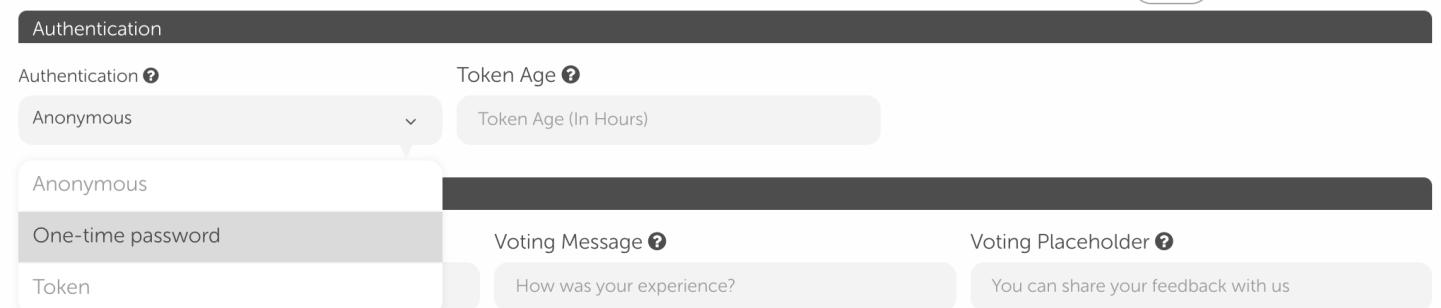 3. Fill in the blanks to customize headers and messages (You do not have to fill in if you want to use default texts).
4. You should fill in the Preferred Country field with the country name. You can customize input areas, which will be shown by the user, for SMS and phone number inputs. You should also fill in the Phone header, phone description, SMS header, and SMS description fields.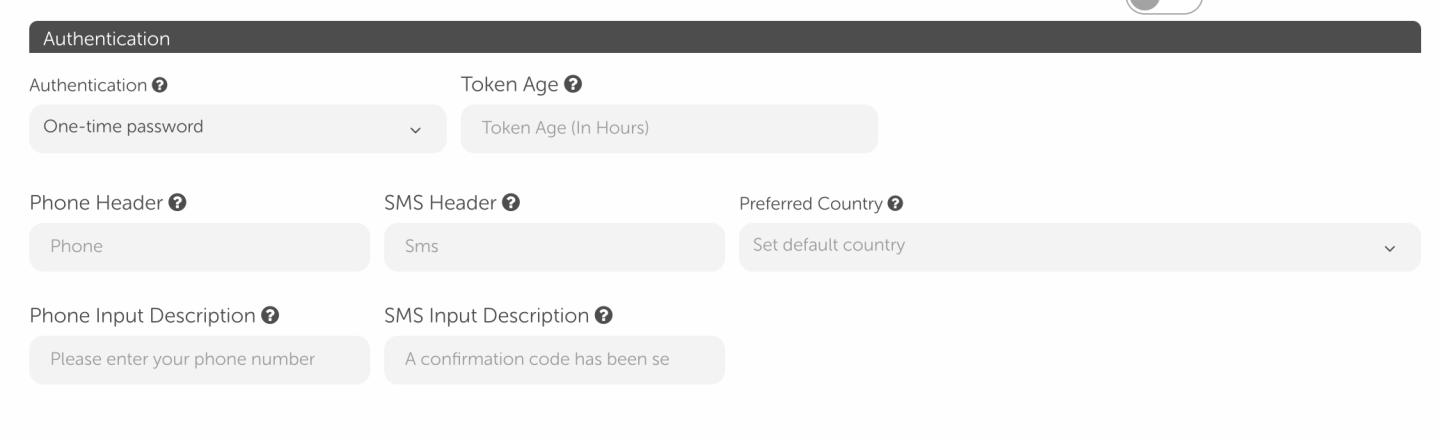 5. Turn on the settings to get the name and email of the user. You can fill in the header and description fields to customize the message for the user.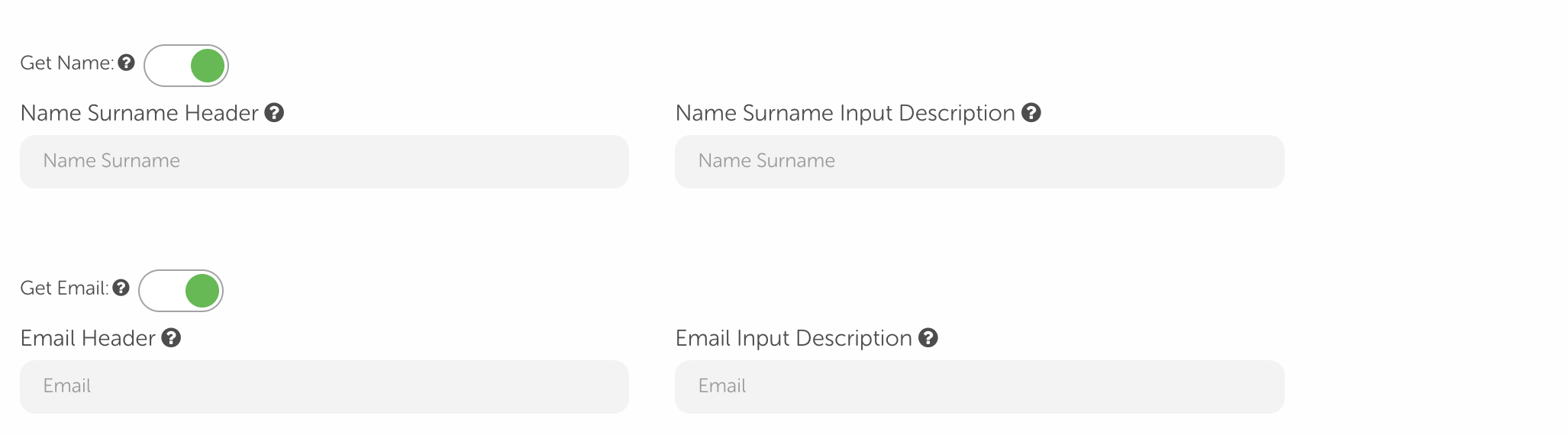
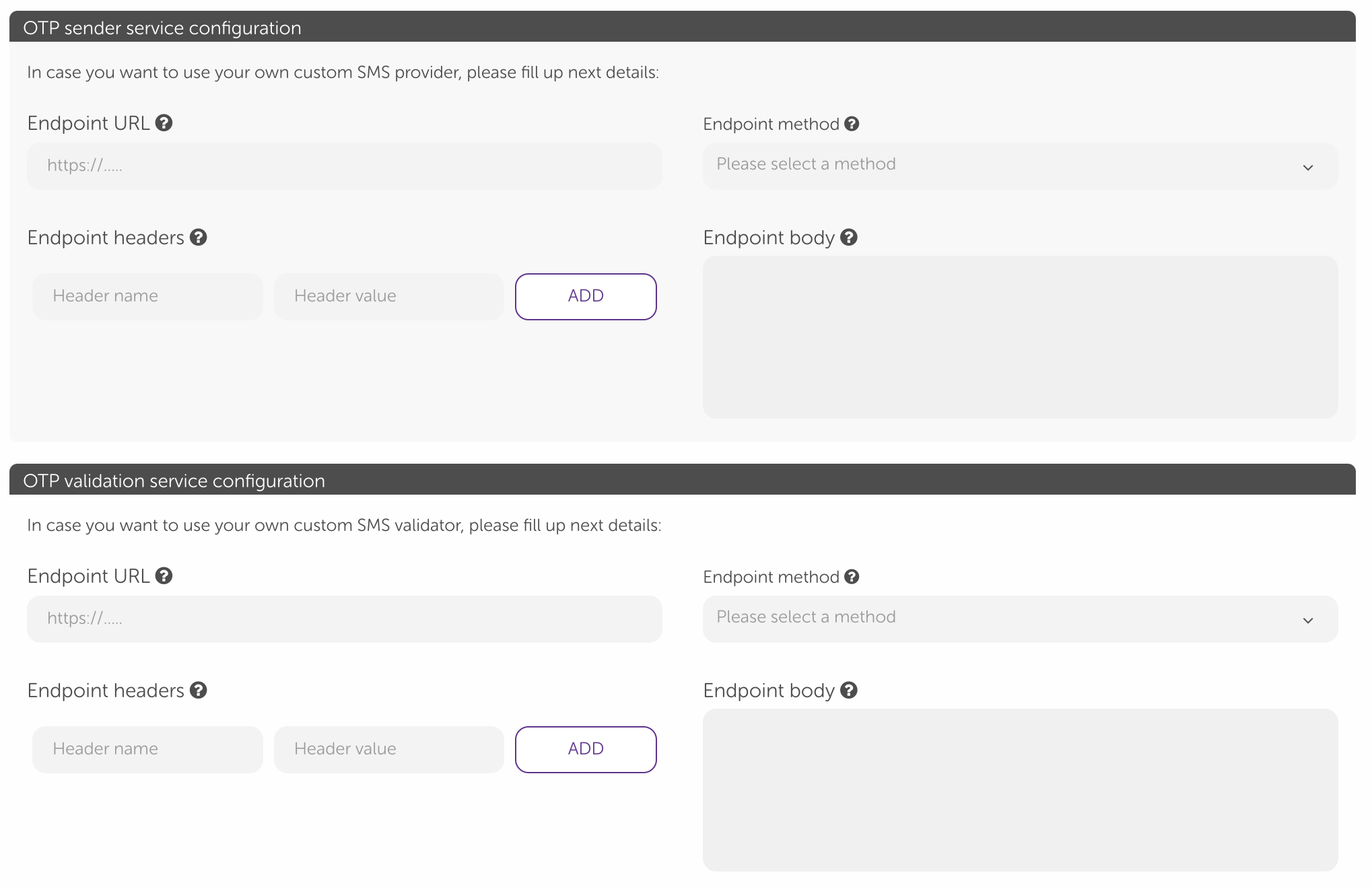
Do not fill in the blanks for sender and validator services. Since both the sender and validator services of MindBehind will be used, you do not have to fill in extra blanks on these fields.
 6. After saving your settings, you can use the OTP service.
2nd Type
To learn how to use the 2nd type of usage of the OTP Service, follow the steps below:
Type/ Service | 2nd |
Sender/Service | MindBehind |
ValidatorService | MindBehind |
You can follow the first 3 steps of the previous chapter.
Contact the Insider One team.
Since the sender service will be used as a third party, the integration team will provide the sender service URL, headers, method, and body. After the integration team provides that information, you need to apply it to the fields.
You should leave the Validator Service field empty since MindBehind validation will be active.
Save your changes, and you are ready to use the OTP service as configured.
.png)
3rd Type
To learn how to use the 3rd type of usage of the OTP Service, follow the steps below:
Type/ Service | 3rd |
Sender/Service | Third-Party |
ValidatorService | Third-Party |
You can follow the first 3 steps of the previous chapter.
Contact the Insider One team.
Since both sender and validator services will be used as third parties, the integration team needs to provide the service URL, headers, method, and body for both sender and validator processes.
After the integration team provides that information, you need to fill in the required fields.
%202024-10-21%2022-42-56(1).png)
Save your changes, and now, you can use the OTP service as configured.
In the scope of security developments, when three OTP requests are sent from the same IP within 1 hour, the OTP cannot be sent on the 3rd request because the request times out.