This guide aims to explain how to publish your bot on Teams. In this guide, you can find answers to these questions:
- What are the prerequisites for publishing my bot on Teams?
- How can I register the Microsoft Teams Bot in Azure?
- How can I set up my bot for my Teams Business account?
Prerequisites
- Make sure to be the Global admin in the Microsoft Azure portal. Other roles are not authorized to create a bot.
- Before publishing the MindBehind bot, make sure to have a healthy bot in Microsoft Azure.
- After having a healthy Teams bot on Azure, make sure to have a Microsoft App ID and a Microsoft App Password.
Register the Microsoft Teams Bot in Azure
Refer to Registering the Microsoft Teams Bot in Azure to follow the registration steps.
- Log in to the Azure portal.
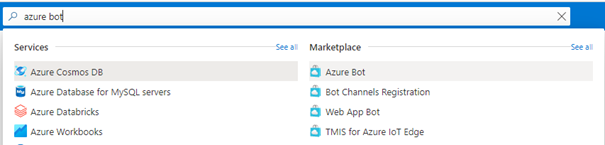
- Search for Azure Bot in the search box at the top, then click on the link under the Marketplace section.
- In the left panel, give a unique name to the Bot handle, select the Subscription, the Resource group, and the Location of the bot channel registration. The Location should be the same region where the Verba Bot virtual machine resides in Azure.
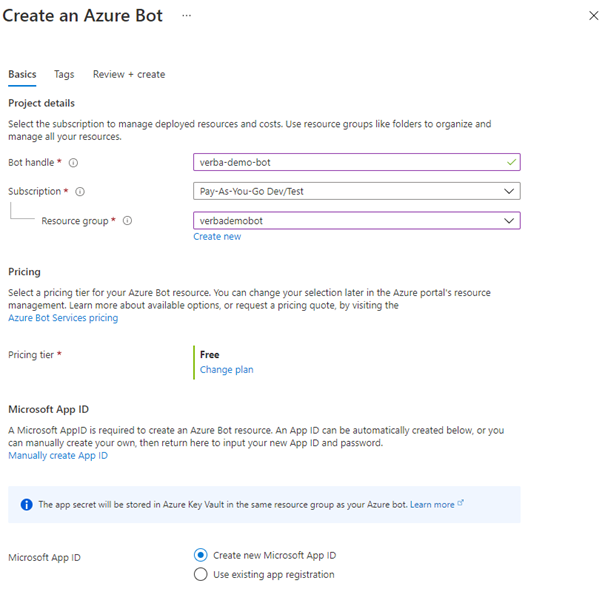
- Click on the Review + Create button, and if the configuration is correct, click the Create button again. Creating the Azure Bot may take a few seconds. Azure will create an app registration and assign a bot service to it.
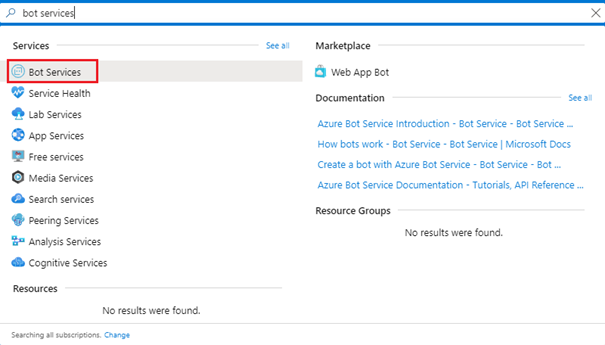
- Once the Bot Channels Registration is completed, search for Bot Services in the search box at the top, and click on the Bot Services link under the Services section. (Alternatively, you can find Bot Services on the hamburger menu in the upper right corner. Navigate to All services> AI + machine learning category.)
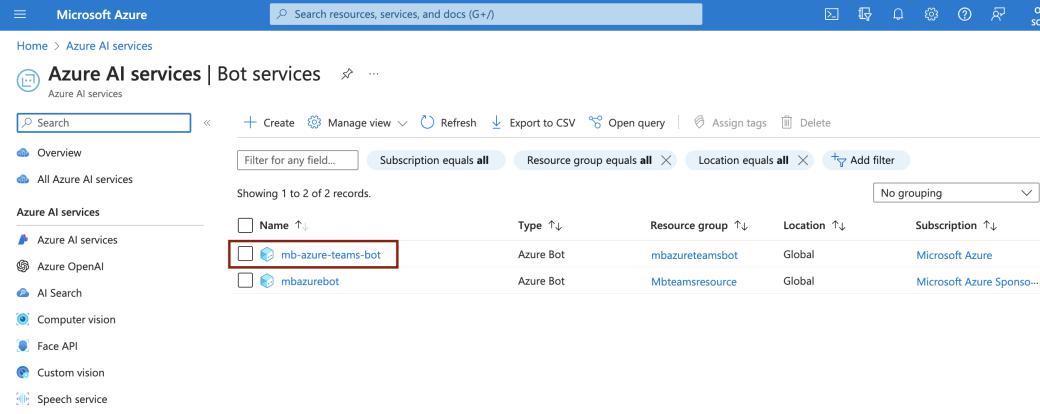
- Select the Bot Service from the list that was created previously using the name provided in Step 3 (Bot handle).
- In the second left panel, under the Bot services section, click on the Bot service menu.
- Click the Channels option inside the bot service.
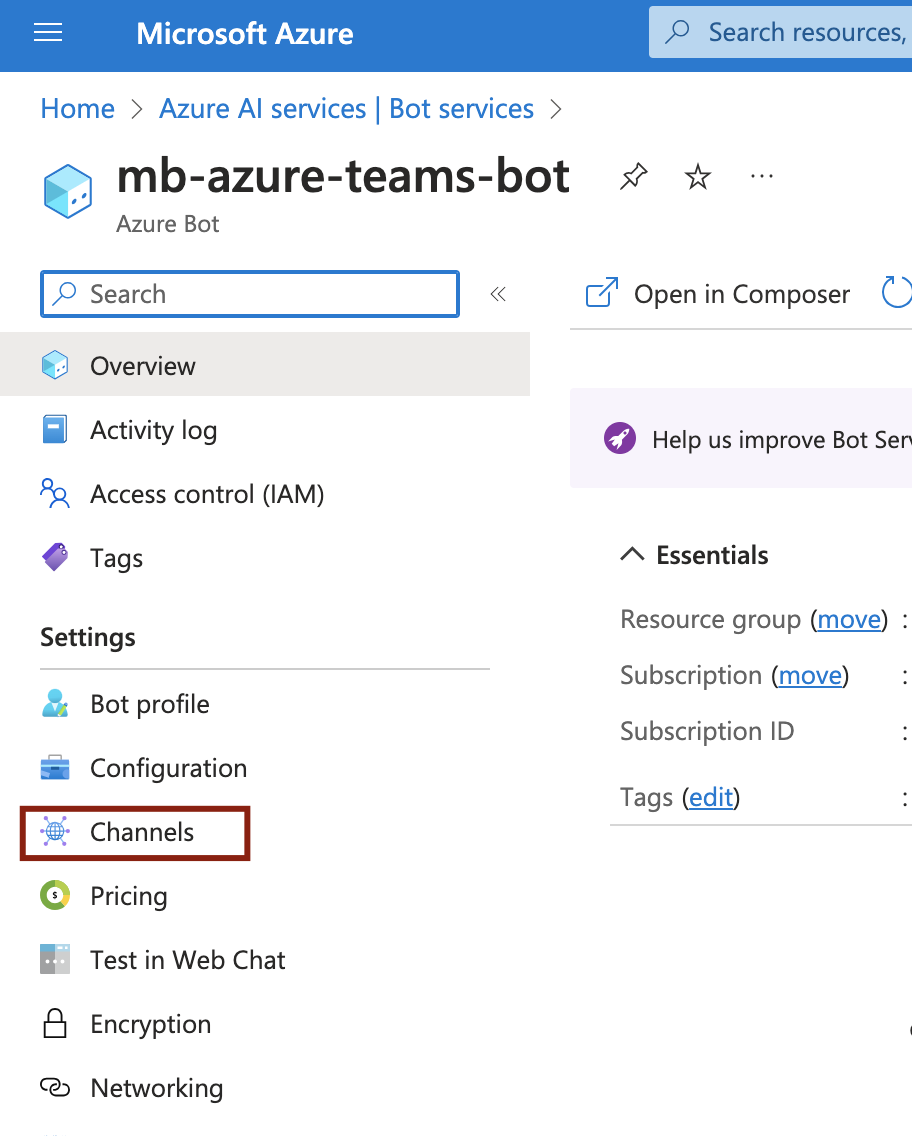
- Under the Add featured channel section, select the Teams icon (Configure Microsoft Teams channel).
- Click the Save button and agree to the terms of service.
- Search for App registrations in the search box at the top and click on the App Registrations link under the Services section. (Alternatively, to find the App registrations, you can open the hamburger menu in the upper right corner and navigate to Azure Active Directory> App registrations in the left panel.)
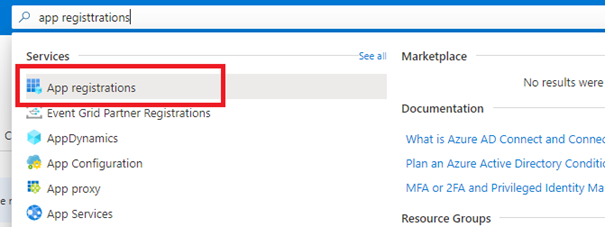
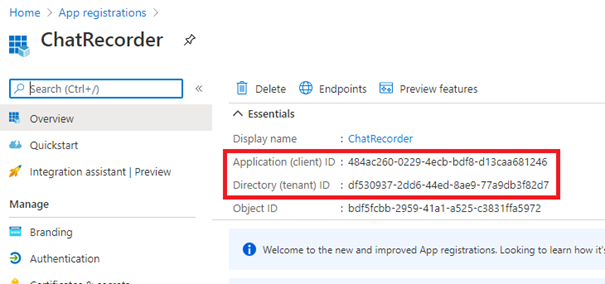
- Select the App Registrations from the list that was created previously using the name provided in Step 3 (Bot handle).
- Copy the Application (client) ID and the Directory (tenant) ID. You will need them later. Application (client) ID is MICROSOFT-APP-ID that you will use when you add the Teams Channel to your Mindbehind Account Channel.
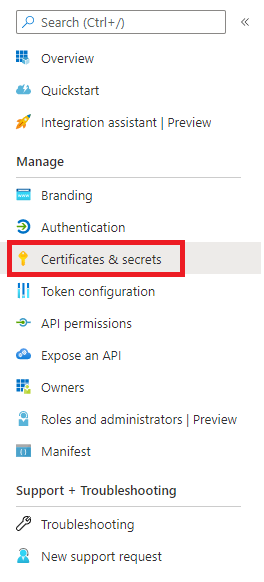
- Select the Certificates & Secrets menu in the left panel.
- Under the Client Secrets section, click the New Client Secret button.
- Provide a description, set when the secret expires, and click on the Add button.
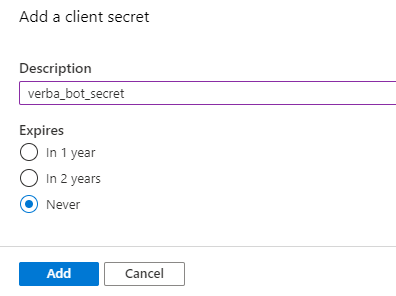
- Copy the new "Client secret". You will need it later.Client Secret is MICROSOFT-APP-PASSWORD that you will use when you add the Teams Channel to your Mindbehind Account Channel.
- Navigate to the Manage section in the left menu and click the Authentication menu.
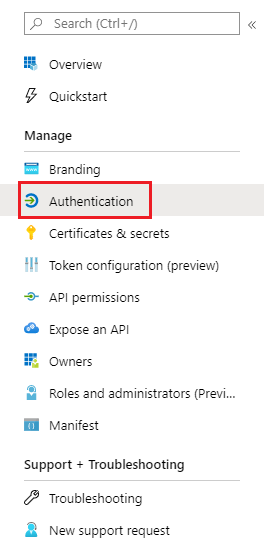
- Under the Platform configuration sections, click on the Add a platform button.
- Select Web in the right panel.
- Provide a Redirect URL. It can be any website. Copy the URL since you will need it later.
- Click the Configure button at the bottom.
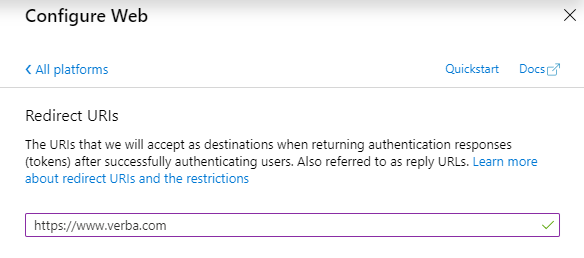
- To configure permissions for the bot, go to the left panel and click on the API permissions menu under the Manage section.
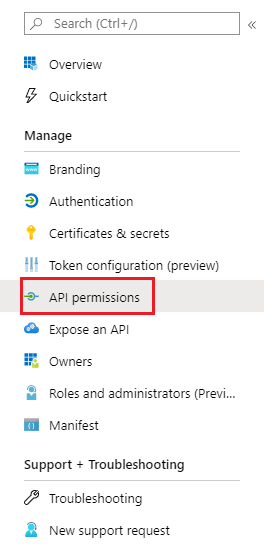
- Click the Add a permission button.
- Select the Microsoft Graph, then select Application permissions.
- You can select the following permissions:
- Calendars.Read
- Calls.AccessMedia.All
- Calls.Initiate.All
- Calls.InitiateGroupCall.All
- Calls.JoinGroupCall.All
- Calls.JoinGroupCallAsGuest.All
- OnlineMeetings.Read.All
- User.Read.All
The same App Registration can be used for the chat recording. In that case, add the following permissions:
- Calls.AccessMedia.All
- Calendars.Read
- Calls.Initiate.All
- Calls.InitiateGroupCall.All
- Calls.JoinGroupCall.All
- Calls.JoinGroupCallAsGuest.All
- OnlineMeetings.Read.All
- User.Read.All
- Group.Read.All
- Chat.Read.All
- ChannelMessage.Read.All
- ChannelMember.Read.All
- Directory.Read.All
- Files.Read.All
- Sites.Read.All
If the Chat recording will be used, the protected API access has to be requested. You can go to the Protected API Access for Chat Recording section at the bottom.
27. Click on the Add Permissions button.
28. To grant admin consent to the permissions, you should separate Azure tenants for the recording provider (bot) and the Teams environment to record.
In the case when the recorded Teams environment and the recording bot are in separate Azure tenants, the following steps should be followed using the Tenant ID of the Azure tenant where the Teams environment to record resides, and also using a user that has the Teams Service Admin or Global Admin role in that tenant.
29. To get the Tenant ID, log in to the Azure portal of that tenant and go to the Azure Active Directory. 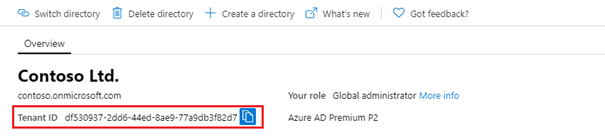 If the same bot is being used in multiple tenants, you should follow the steps below for each tenant using the guidelines above.
30. Build the consent URL. You can use this format.
You can replace the "{tenant_id} "part with the "Directory (tenant) ID" and "****the {microsoft_app_id}" part with the "Application (client) ID" from Step 12. Replace the "{redirect_uri}" part with the URL from Step 20.
31. Copy the previously created consent URL into the browser, then click the Enter button. Log in with a Teams Service Admin or Global Admin user of the Azure tenant where the Teams environment to record resides. Click the Accept button. The page will redirect to the webpage provided in the Redirect URL setting.
32. After successfully publishing the bot, visit the Configuration page on the left menu, and add a messaging endpoint such as: https://app.mindbehind.com/external/v1/incoming/teams/{microsoftAppID}
33. Provide the Microsoft App ID that you received in Step 14. You can also see your Microsoft App ID below.
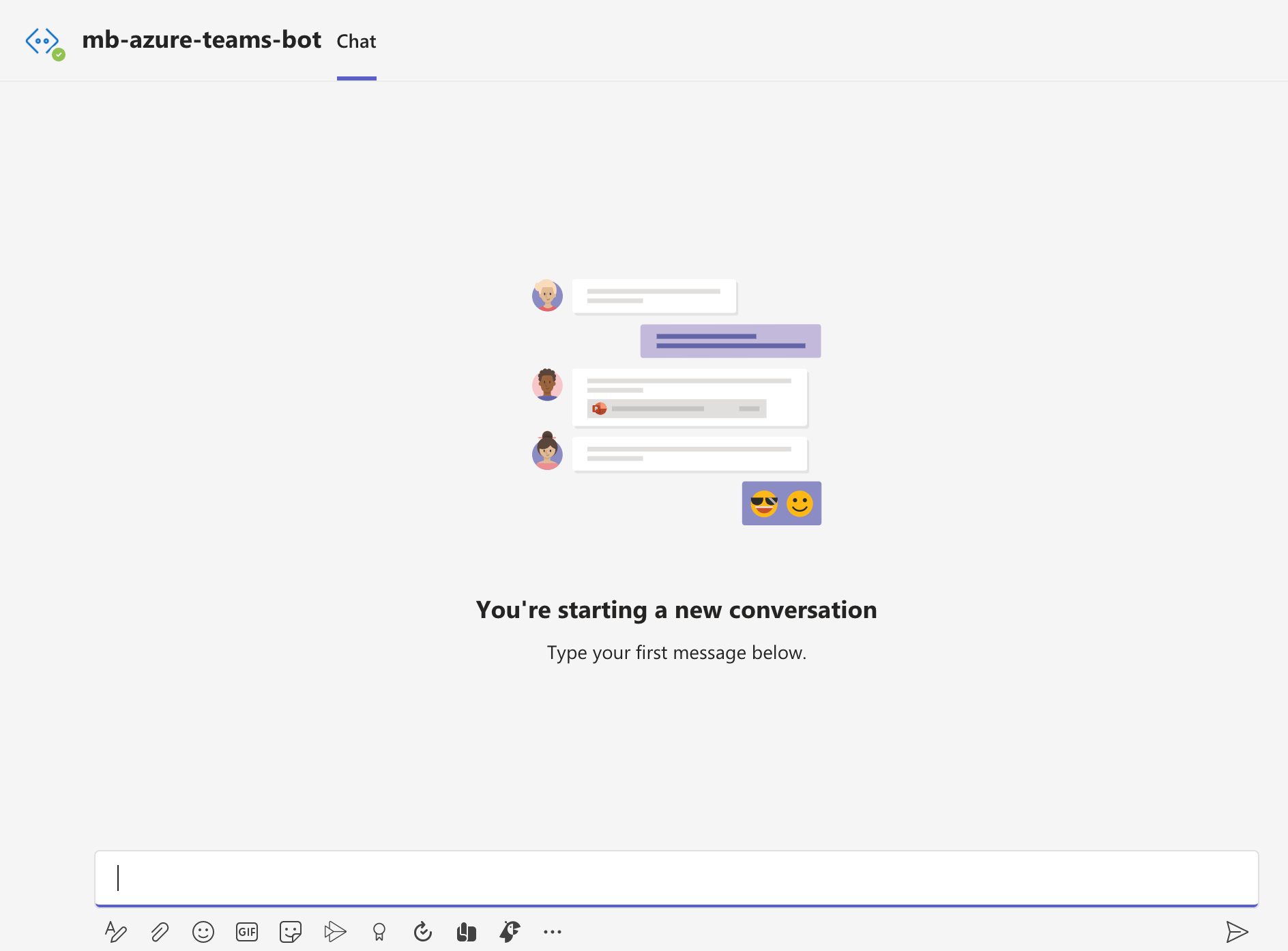
34. Select the Bot Type as “MultiTenant” in the screen below. 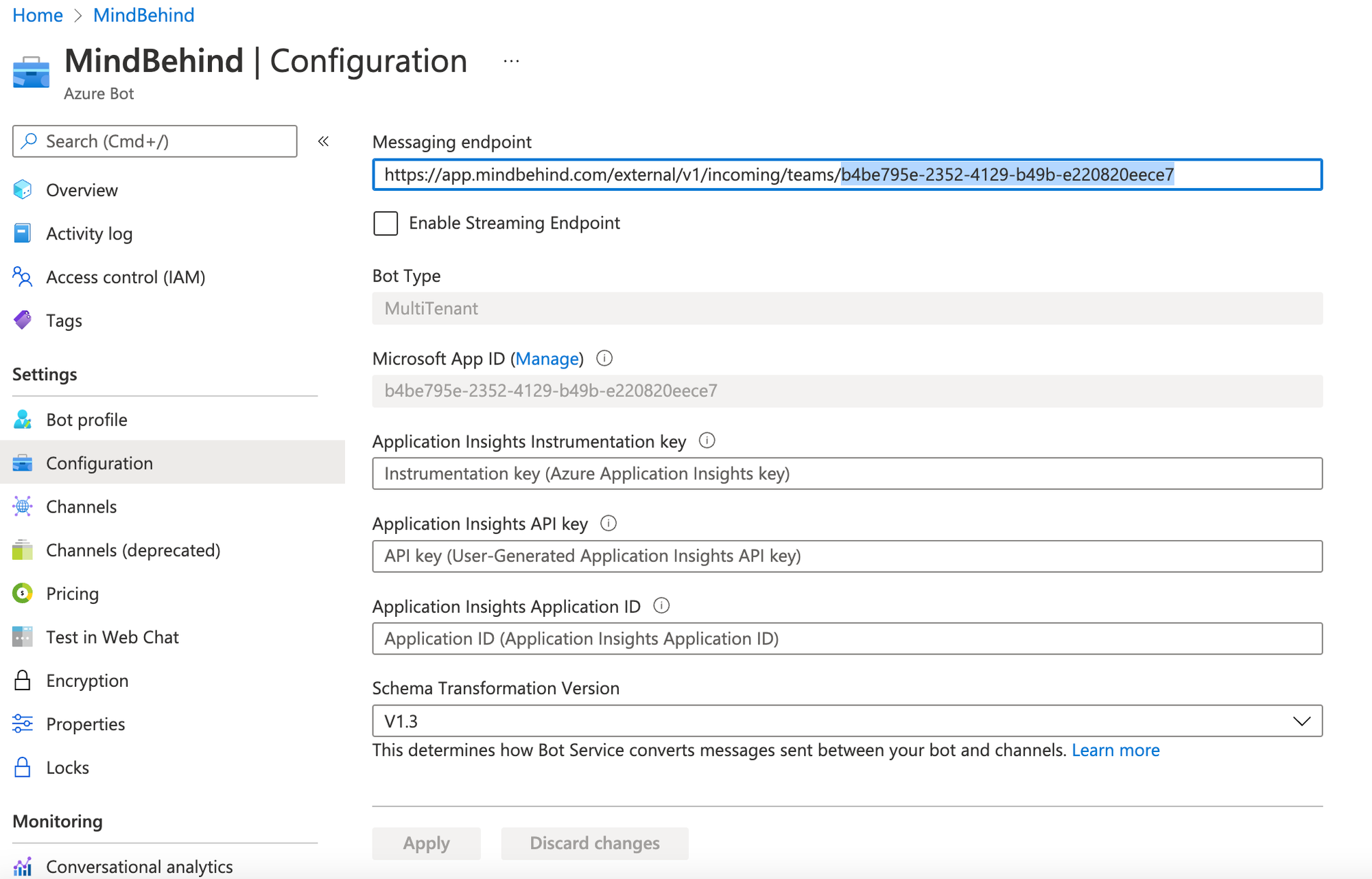 35. You can see the bot URL that you can send through Teams from the Channels tab. You will see your Microsoft Teams Healthy channel and the Open in Teams button, which redirects you to the Teams App.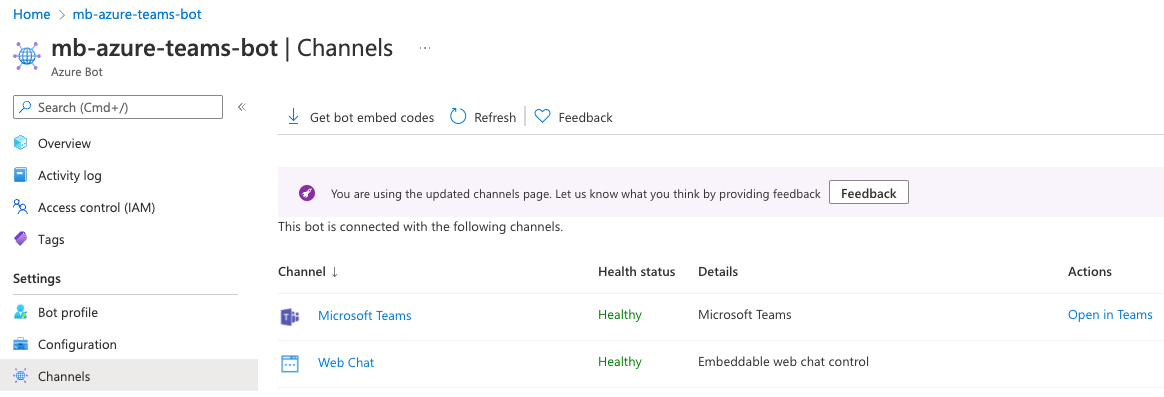
Set up your bot for your Teams Business account
- Go to the MindBehind platform.
- Choose the company that your assistant belongs to.
.png)
- Click on the Channels tab.
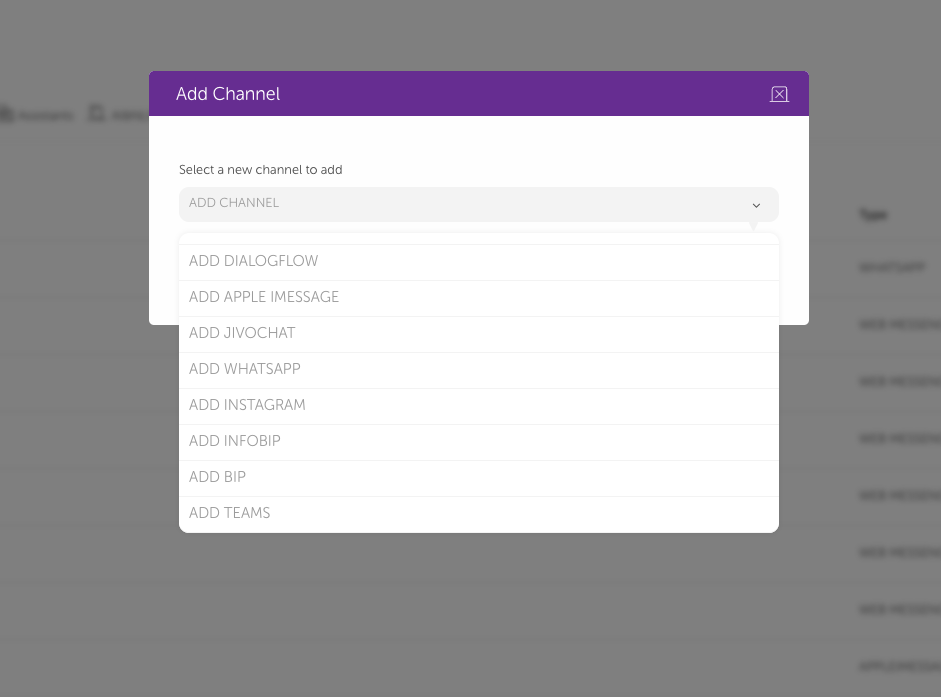
- Select the Add Teams option from the dropdown.
- Add the credentials that you have in Microsoft Azure Bot, such as your APP ID and password (client secret value).
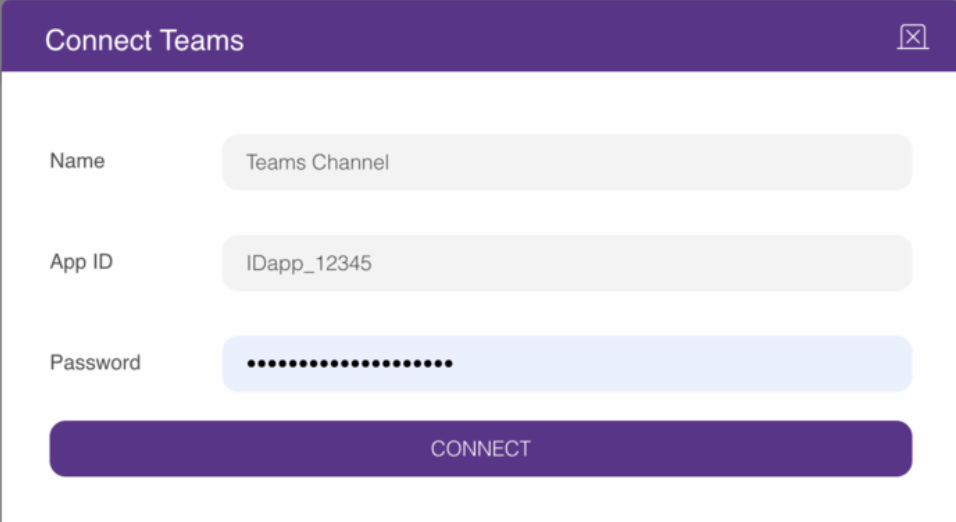 The Client Secret value can only be copied when you create a client secret.
 - Go to your assistant.
.png)
- Click the Publish button r ight at the top.
.png)
- Under the Channels tab, you can see the pages that you have added.
- Click the Deployments tab and click the Add Deployment button.
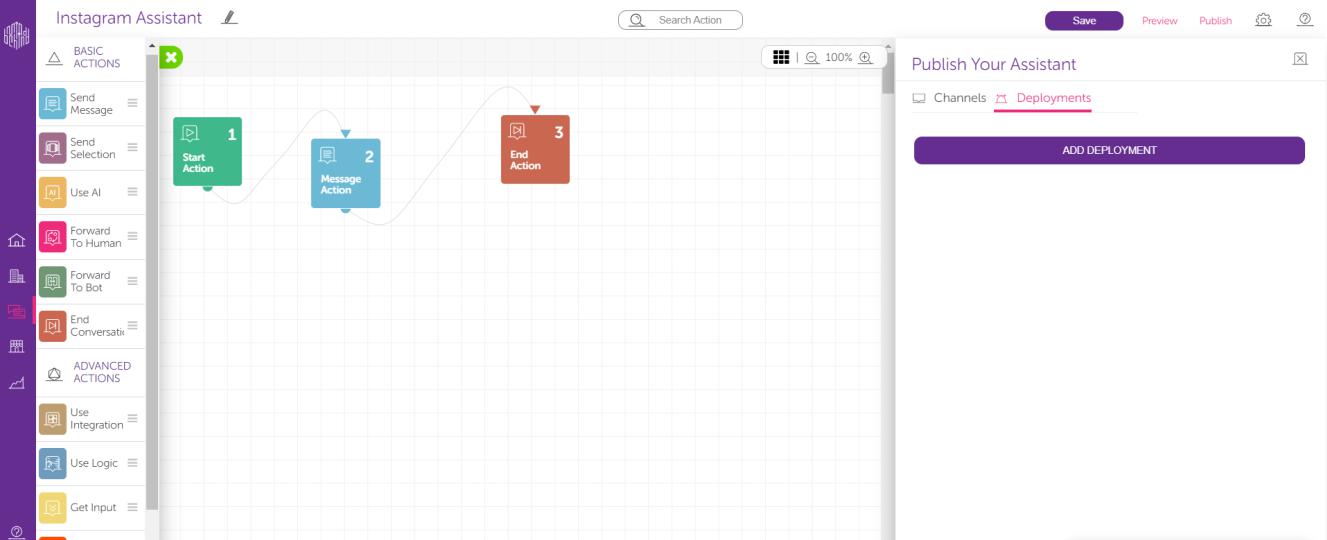
- Select your channel.
- Select the assistant version and click the Publish button.
Congratulations! It is all done. Your bot is running on your Teams bot as well.