The Agent panel in MindBehind Live enables agents to manage conversations and share files. This document details the functions of the available buttons and components in the Agent panel.
In the Agent panel, you can find the sections below:
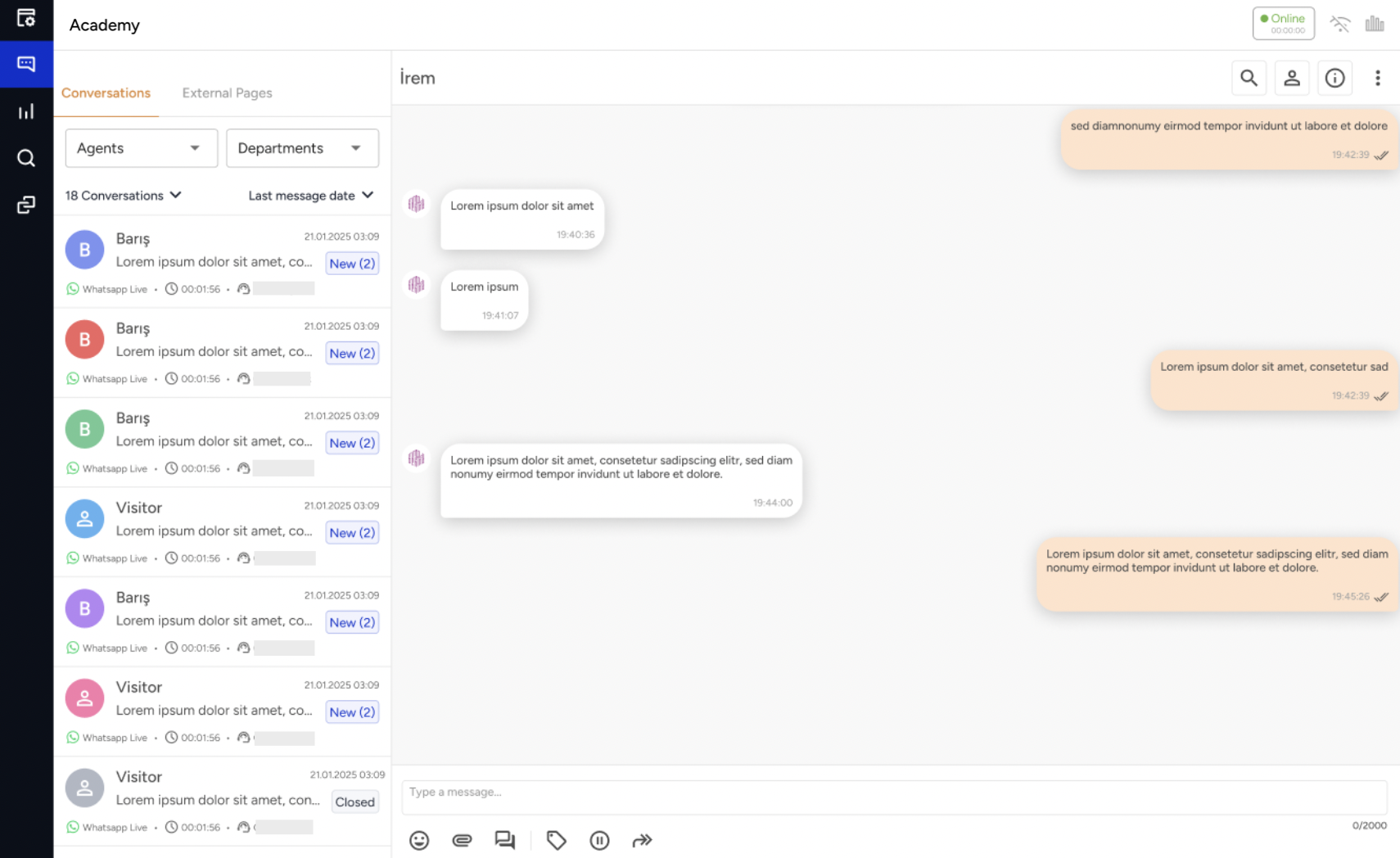
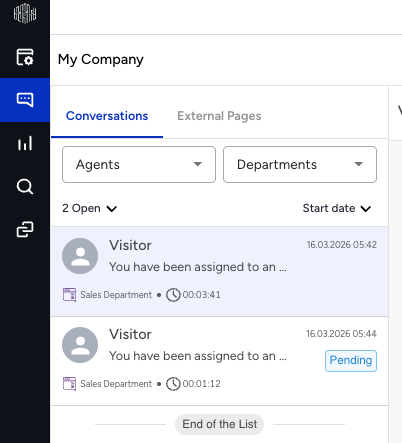
Conversation List
This section displays conversations categorized as Queued, Assigned, and Pending Tags.
Agents: They can view only the conversations assigned to them.
Department Administrators: They can view all conversations (Queued, Assigned, and Pending Tags) within their authorized departments.
Account Administrators: They can view all conversations across the company.
You can filter conversations by Agent and Department, and sort them by the date of the last message or the start date.
Conversation Cards
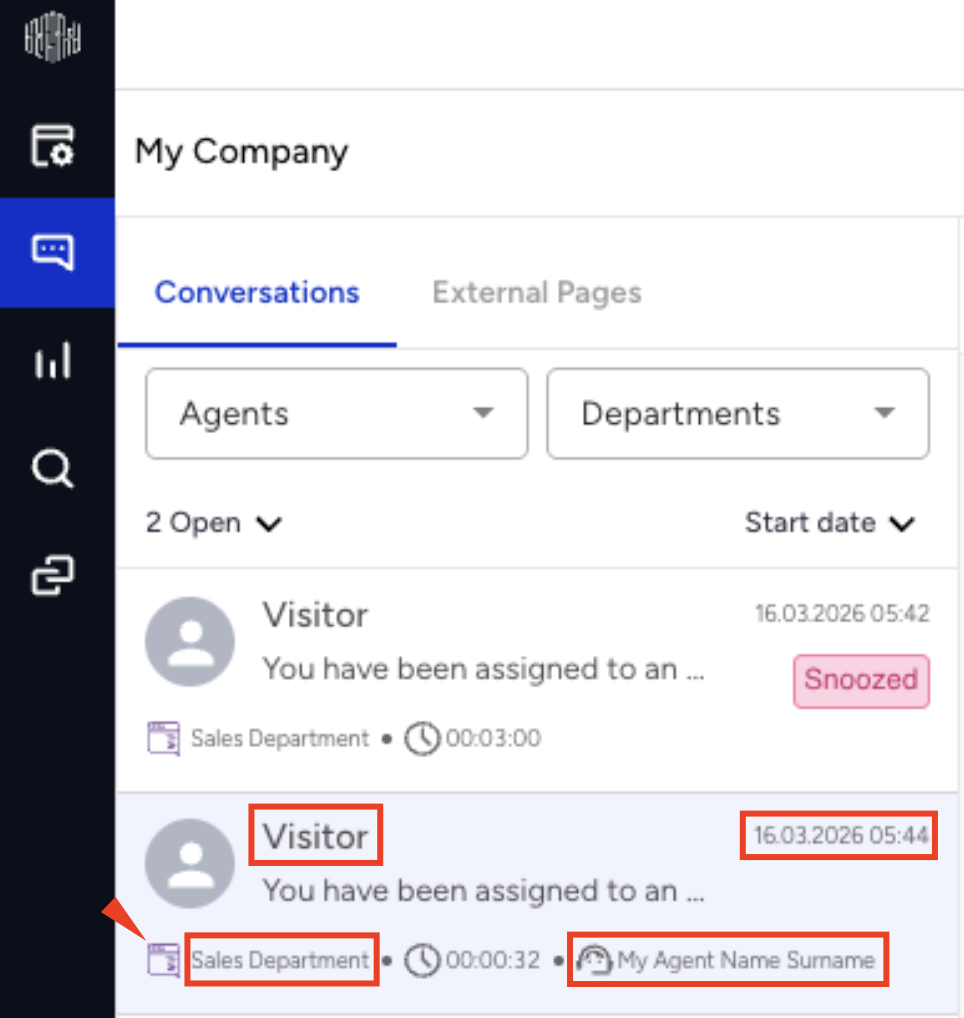
In this section, you can find the specific details about the conversation, including:
Customer Name
Last Message
Agent Name
Department Name
Conversation Status
Start Date
Channel Type
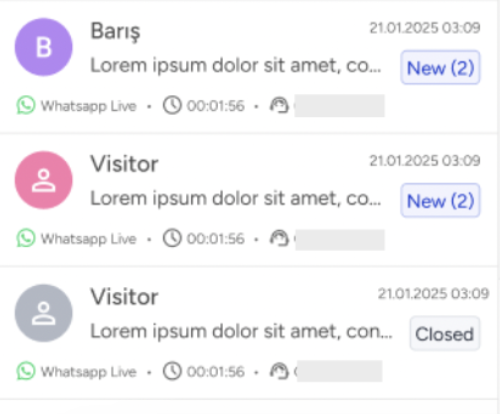
Conversation Statuses
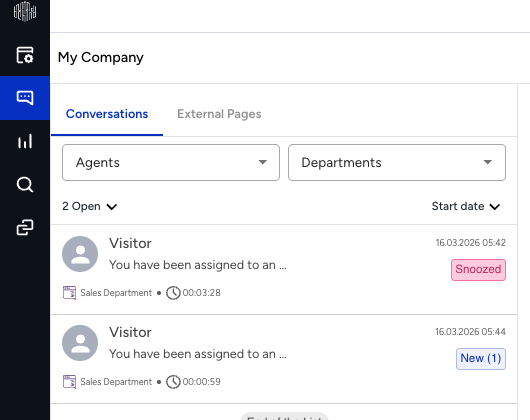
New: Unread or newly assigned.
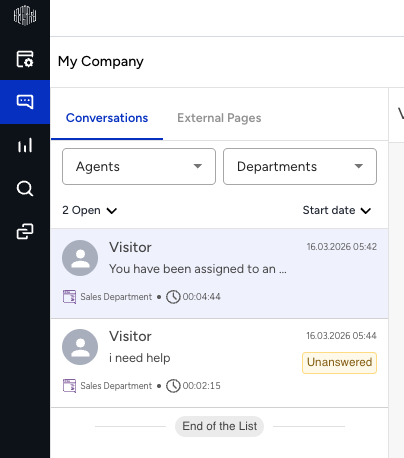
Unanswered: No human agent reply yet.
Pending: Last message from human agent.
Closed: Conversation ended.
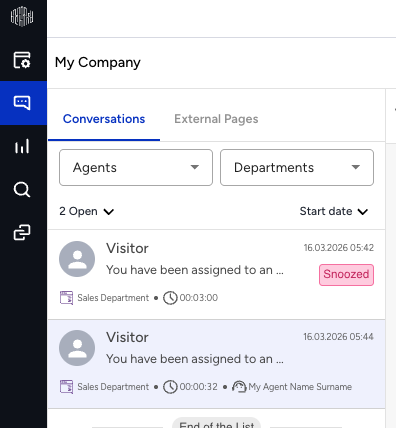
Snoozed: On hold, waiting on user.
Chat Section
When agents select a conversation from the list, it appears in the central chat section. 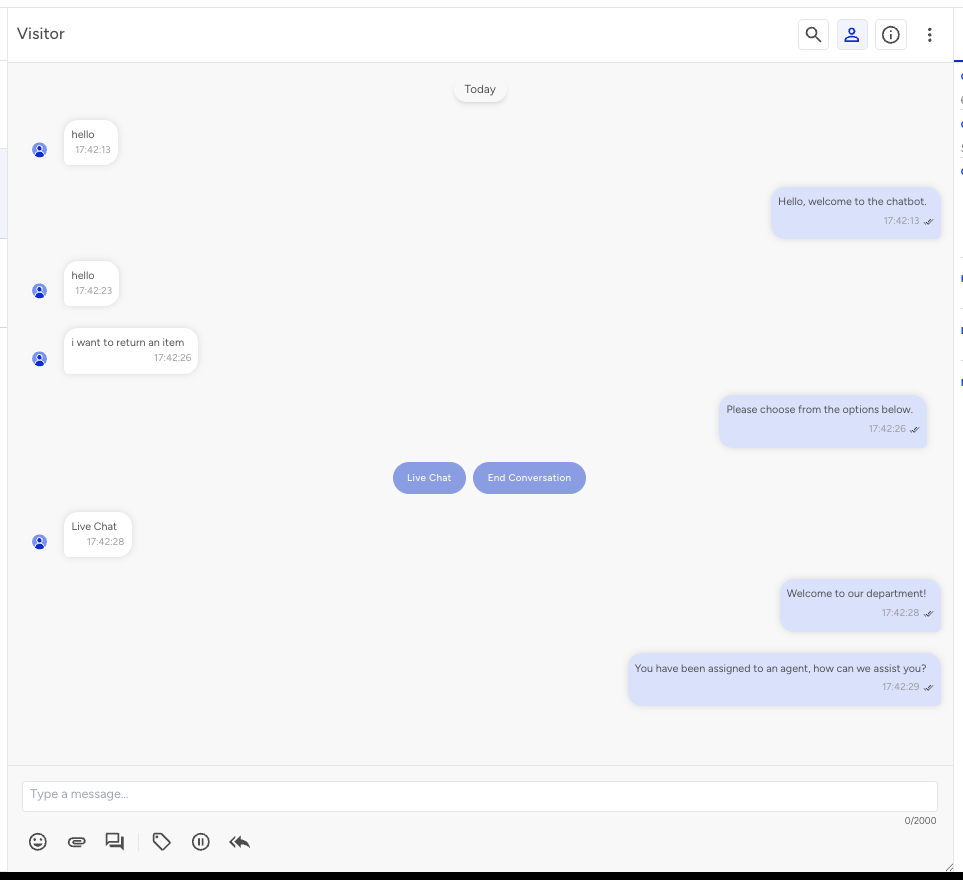
You can see the available actions in the chat below:
Quick Replies: It displays a list of predefined quick replies. The selected text appears in the input field, allowing the agent to edit it before sending.
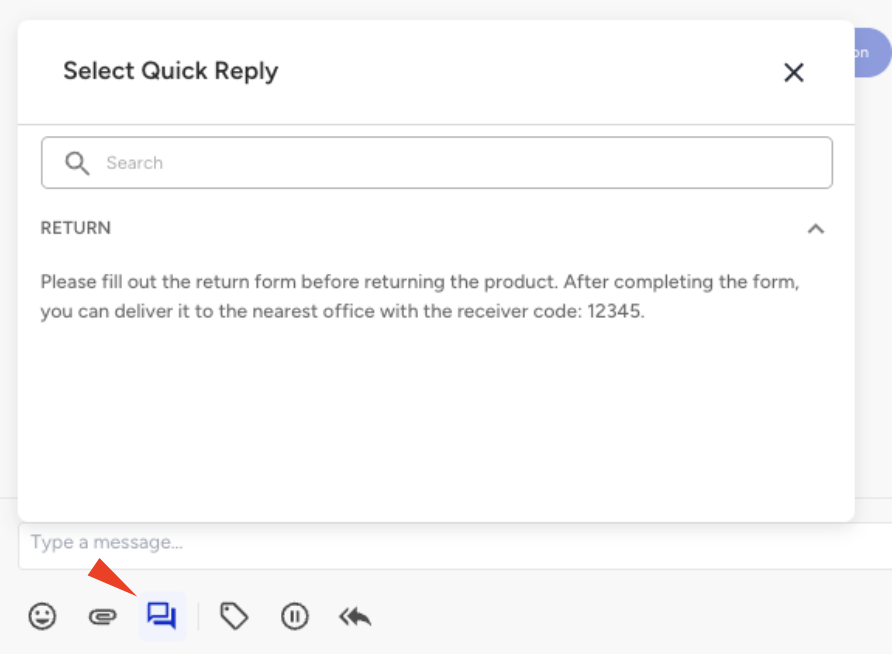
Refer to the Quick Replies guide to learn how to add quick replies in the chat.
Forward button: Click this button to forward a conversation directly to an agent or another department.

In the menu that opens, you can switch between the Forward to Agent and Forward to Department tabs.
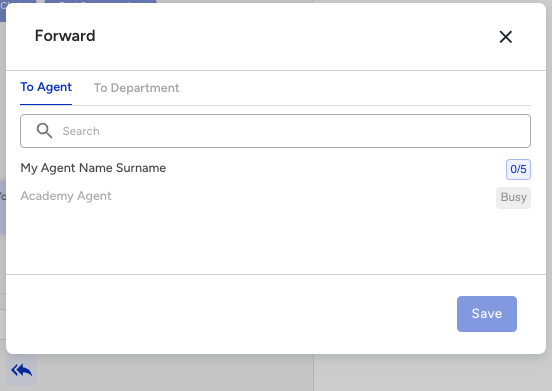
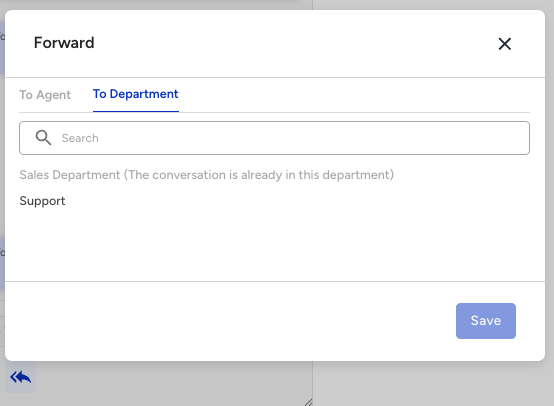
The queued conversations can't be forwarded.
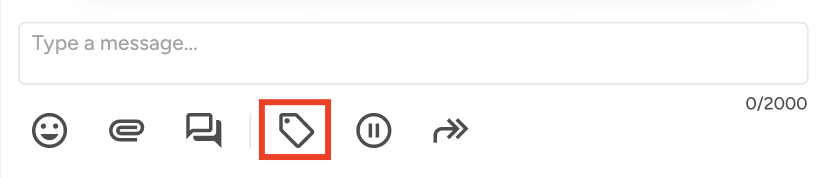
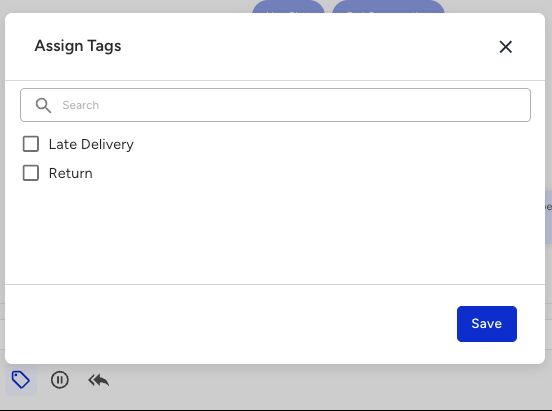
Assign Tags: Click this button to tag conversations. Select your desired tags from the menu that opens and click the X button to apply them.
Hold button: Click this button to place a conversation on hold. Held conversations appear with a “Snoozed” label in the Conversation List and do not time out until they are resumed.

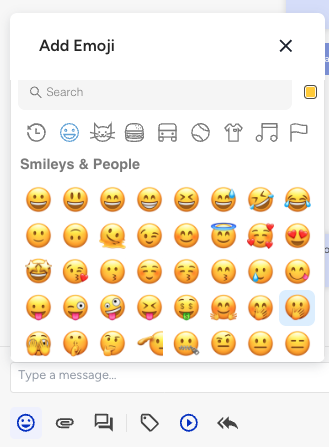
Add Emoji: Select emojis to enhance your messages.

Attach Files: Click this button to share files with the customer. The maximum file size is 20 MB, and the supported file formats are as follows:
Images: png, jpg, jpeg, gif, bmp, webp.
Documents: pdf, doc, xls, xlsx, docx, ppt, pptx, txt.
Videos: avi, m4v, mov, mp4, wmv.
Audio Files: m4a, mp3, wav, wma.

Page Header
In the Page header, you can find the functions below:

Company Name: Displays the name of the company.
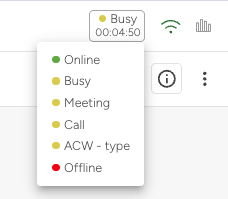
Status Change: This section displays the agent's current status and the duration spent in that status. Once clicked, agents can select a new status from the dropdown menu.
Online: Conversations can be assigned if the agent is online.
Busy and optional status types: In this status, ongoing conversations with assigned conversations continue, but no new conversations are assigned to the agent.
Offline: Any assigned conversations return to the queue, and no new conversations are assigned to the agent.
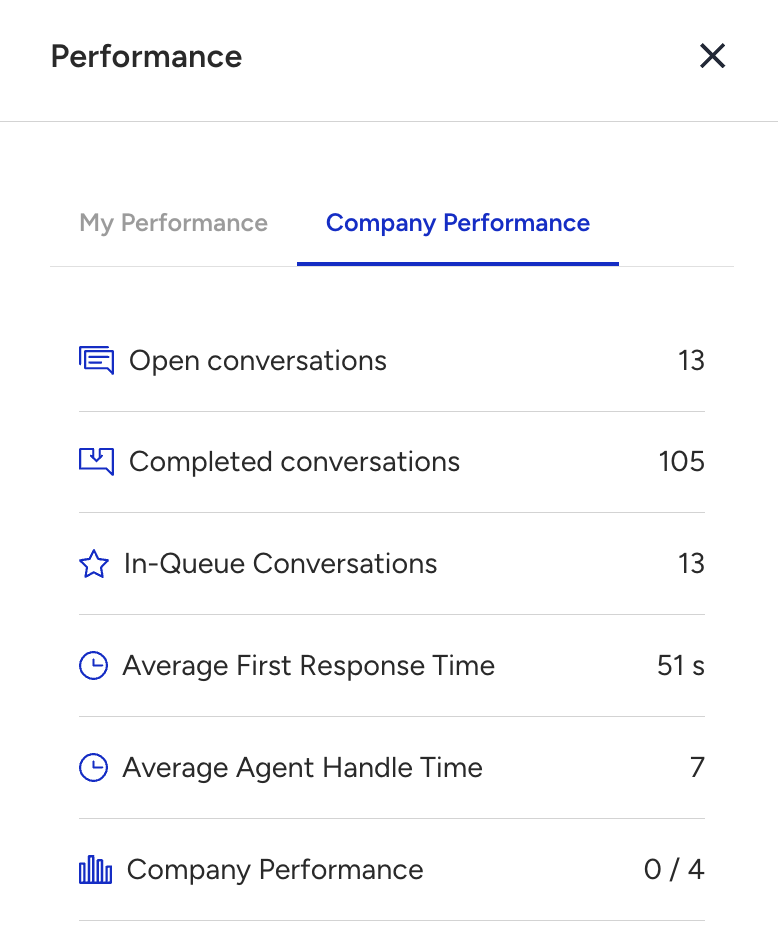
Performance tab: Displays a pop-up where agents can view their daily performance as well as the company's overall performance.

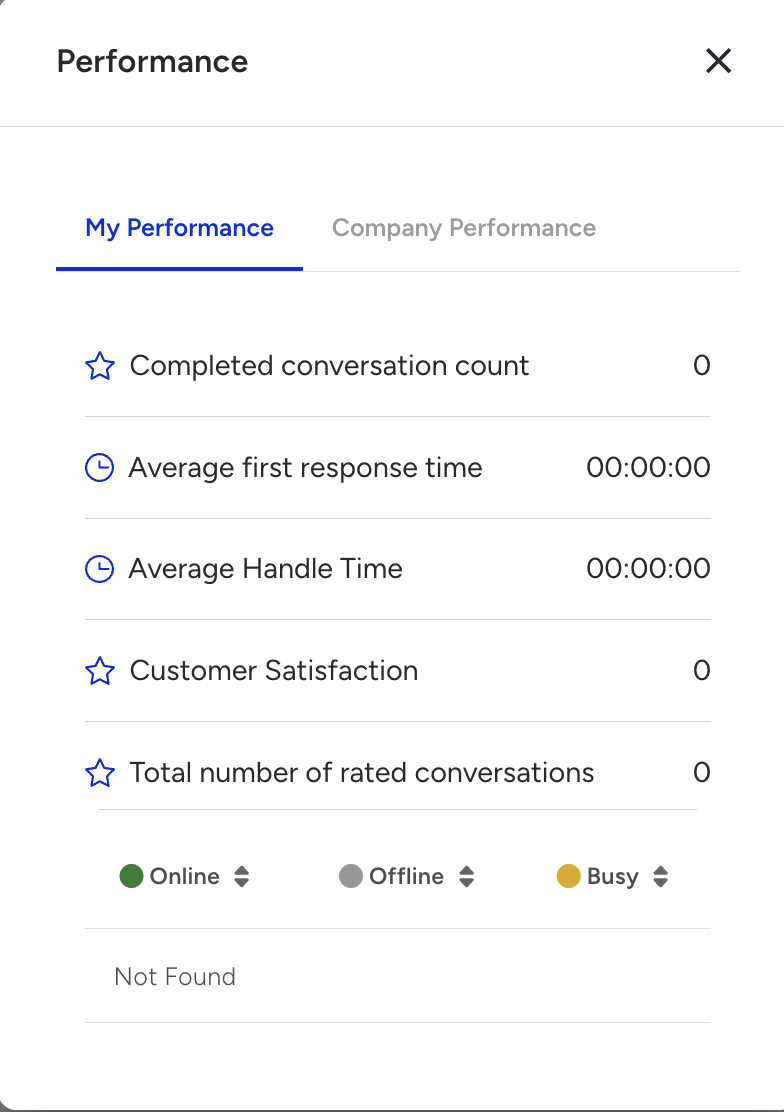
Agents can find both their and the company's performance details under these sections:
My Performance tab displays the details below:
Completed Conversation Count: The number of conversations the agent has completed within the day.
Average First Response Time: The average time it took for the agent to give the first response in conversations.
Average Conversation Time: The average time the agent has spent on each conversation.
Customer Satisfaction: The average rating given to the agent's conversations (on a scale of 10), if available.
Total Number of Rated Conversations: The number of conversations that have been rated.
Agent Workload Analysis: Displays the agent's statuses throughout the day.
Company Performance tab displays the details below:
Open Conversation: The total number of active conversations that are either assigned to agents or still in the queue.
Completed Conversation: The total number of conversations that have been completed within the day.
In-Queue Conversation: The number of consumers waiting in the chat queue to be assigned to an agent.
Conversation First Response Time Average: The daily average of the first response times for completed conversations.
Conversation Time: The daily average duration of conversations for completed conversations.
Company Performance: The value on the left shows the number of conversations that are currently being handled by agents. The value on the right indicates the total number of conversations that the online agents can collectively handle at one time.
Search Message
When you click the Search Message button, you can search for specific keywords or content within the conversation.

Client Profile
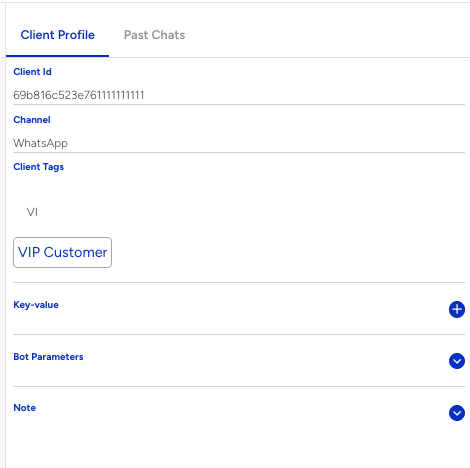
In the Client Profile section, you can find the following information about the conversation and customer profile.

Name: Displays the customer's name.
Phone: Shows the customer's phone number if available.
Client ID: Displays the customer's ID in MindBehind.
Channel: Shows the name of the channel where the conversation took place.
Tags: Allows you to set client tags. You can write the desired tag for the client in this field and select it from the suggestions that appear to complete the tagging. To create a client tag, go to the Live > Company > Tags and click the Create Tag button. Select the Client as the type, and the tags will be ready for use.
Key-Value: Displays the assigned key-value pairs for the customer, e.g., key="Address" value="USA NYC".
Bot Parameters: Shows the parameters defined for the conversation in the chatbot, e.g., "isValidUser" = "true".
Note: Allows you to add notes to the conversation. These notes can be accessed by other users through the Agent panel or Search.
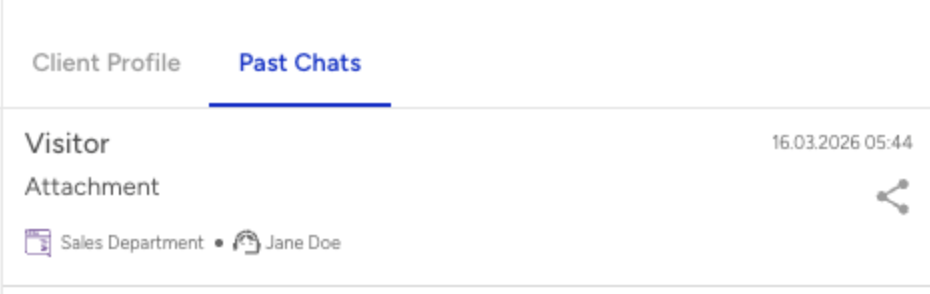
Past Chats: Displays the customer's past conversations. You can see an unlimited number of conversations. All Live and Chatbot conversations are shown here.
Conversation Info
To access detailed information about the conversation, you can navigate between the Conversation Details and History tabs in the menu.

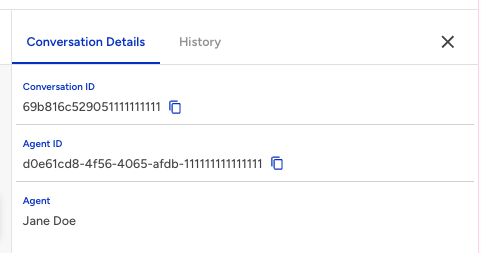
If you click the Conversation Details tab, you will see the following details:
Conversation ID: Displays the unique identifier of the conversation.
Agent ID: Shows the ID of the last agent who handled the conversation.
Agent: Displays the name of the last agent who handled the conversation.
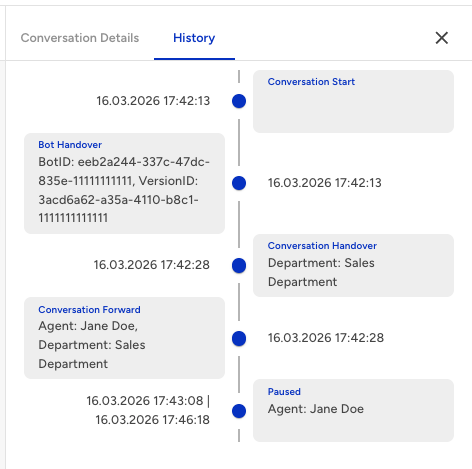
If you click the History tab, you will see the following details:
Conversation Start: Indicates the timestamp when the conversation began.
Bot Handover: Shows the bot involved in the conversation, if applicable.
Conversation Handover: Displays the timestamp when the conversation is added to the department queue.
Conversation Forward: Indicates the timestamp when the conversation was assigned to an agent.
Paused: Reflects the duration for which the conversation was on hold.
Conversation End: Displays the timestamp when the conversation ended. You can also find the details below:
Agent: Indicates conversations ended by the representative. Conversations that time out while assigned to an agent are also marked as Agent.
Bot: Indicates conversations that were either completed within a flow or timed out while interacting with a chatbot.
Client: Indicates conversations terminated by the customer.
System: Indicates conversations that were not completed within 24 hours and are marked as System.
When you click the three dots menu next to the Conversation Info icon, the following options are available:
Generate Summary: This button enables you to summarize the conversation with the AI assistance. Refer to the Conversation Summary by AI for further details.
End Conversation: Closes the active conversation.
