Two-factor authentication (2FA) is a security process that requires two different forms of verification, adding an extra layer of protection to your accounts.
This guide explains how to enable Two-Factor Authentication (2FA) on your MindBehind Live account.
Set up Two-Factor Authentication (2FA)
Before using this feature, ensure that all users in the company have an authenticator app (such as Google Authenticator or Microsoft Authenticator).
To set up the 2FA configuration, follow the steps below:
- Navigate to MindBehind Live > Companies > Company Settings.
- Activate the Enable Two-Factor Authentication (2FA) toggle.
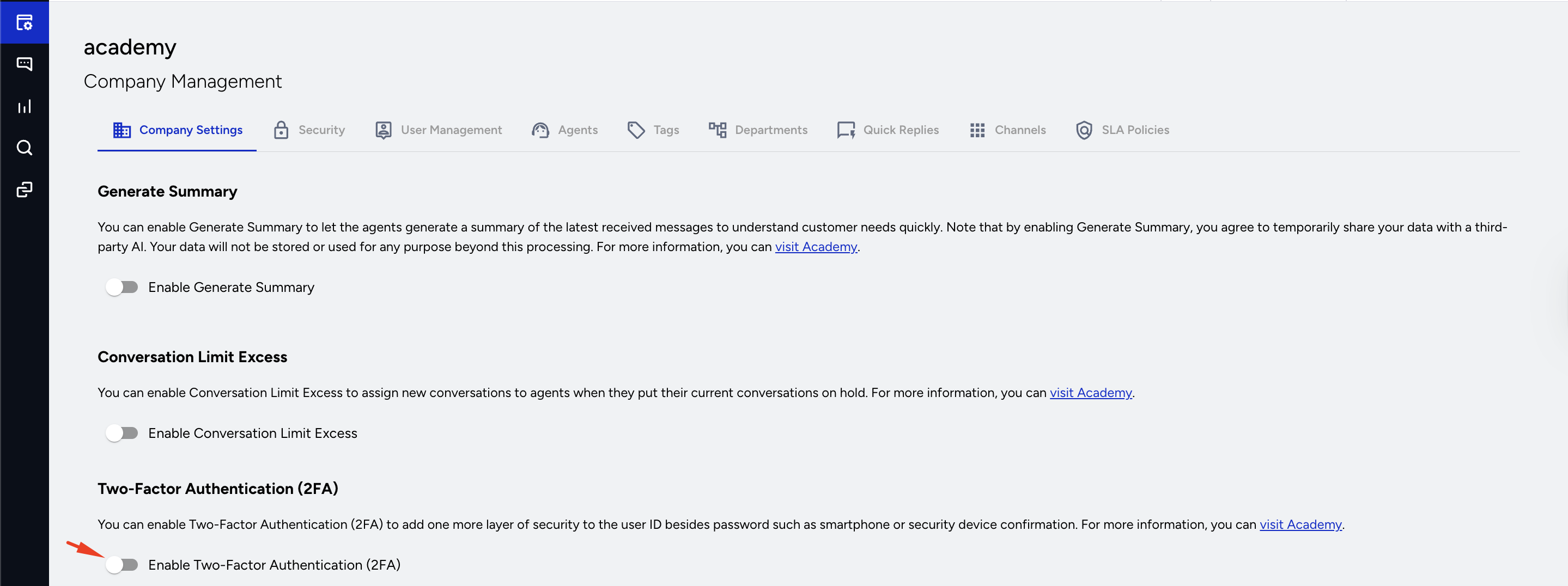
If this setting is turned on, every user in the company who refreshes the page will be directed to the Login stage and must complete the "Actions after enabling 2FA steps" below.
Actions after enabling 2FA
- After enabling the 2FA setting, all company users will be prompted to set up 2FA during their next login.
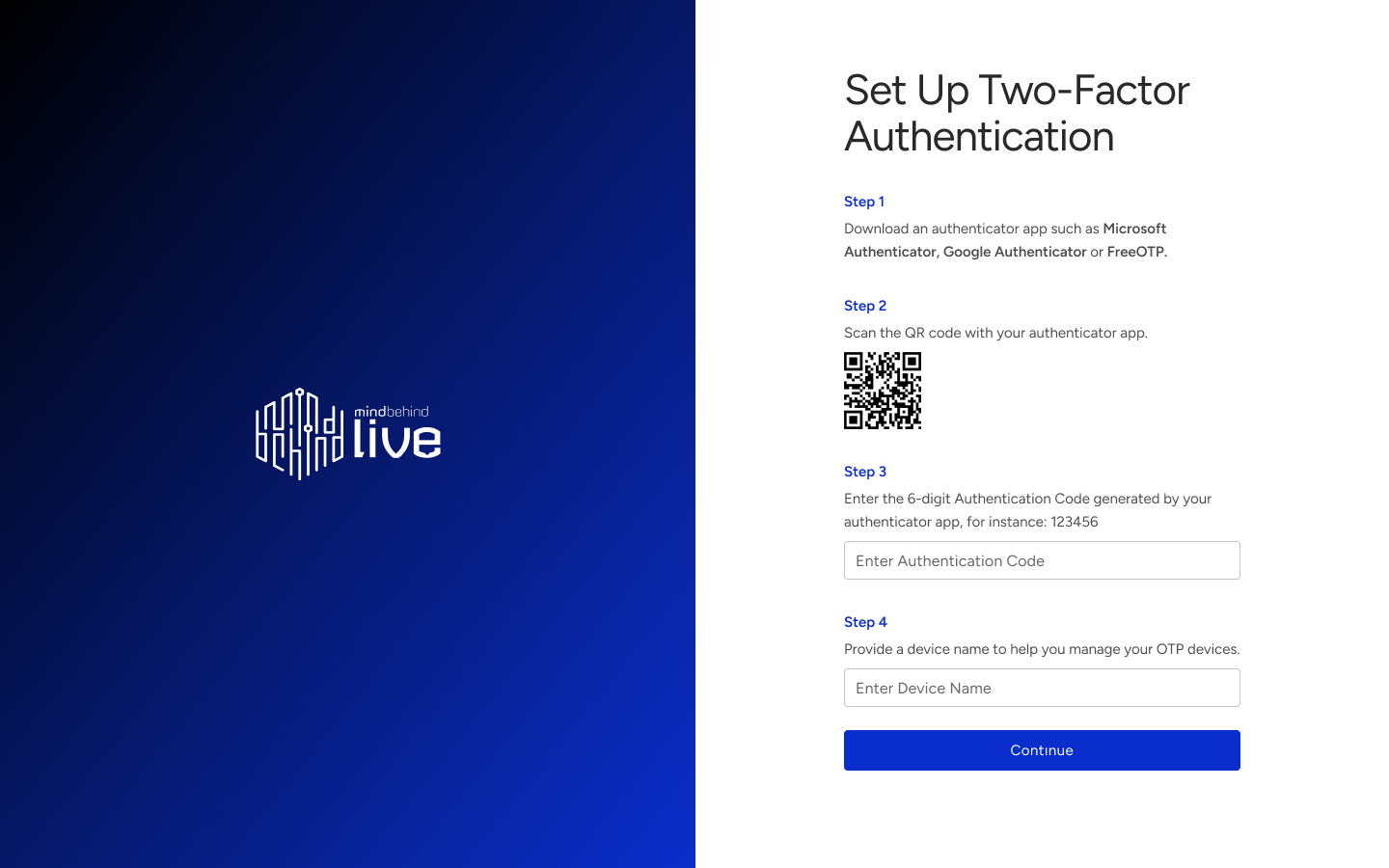
- Upon the first login, you will see a QR code on the screen.
- Open your authenticator app (such as Google Authenticator or Authy) on your mobile device.
- Use the authenticator app to scan the QR code displayed on the screen.
- The authenticator app will generate a 6-digit PIN.
- Enter this PIN in the field labeled "Enter verification code" on the same setup screen.
- After entering the verification code, you will have the option to name your OTP device (for example, "John's iPhone").
- After naming the device, click the Continue button.
- You will be provided with backup codes, which can be used to access your account if you are unable to access your OTP device.
- You should copy or download these backup codes and store them in a secure place.
- After managing the backup codes, click the Continue button to complete the setup process.
- From now on, every time you log in, you will be prompted to enter your one-time password (OTP) for authentication.
Subsequent logins
- During each login attempt, you will be prompted to enter a 6-digit code.
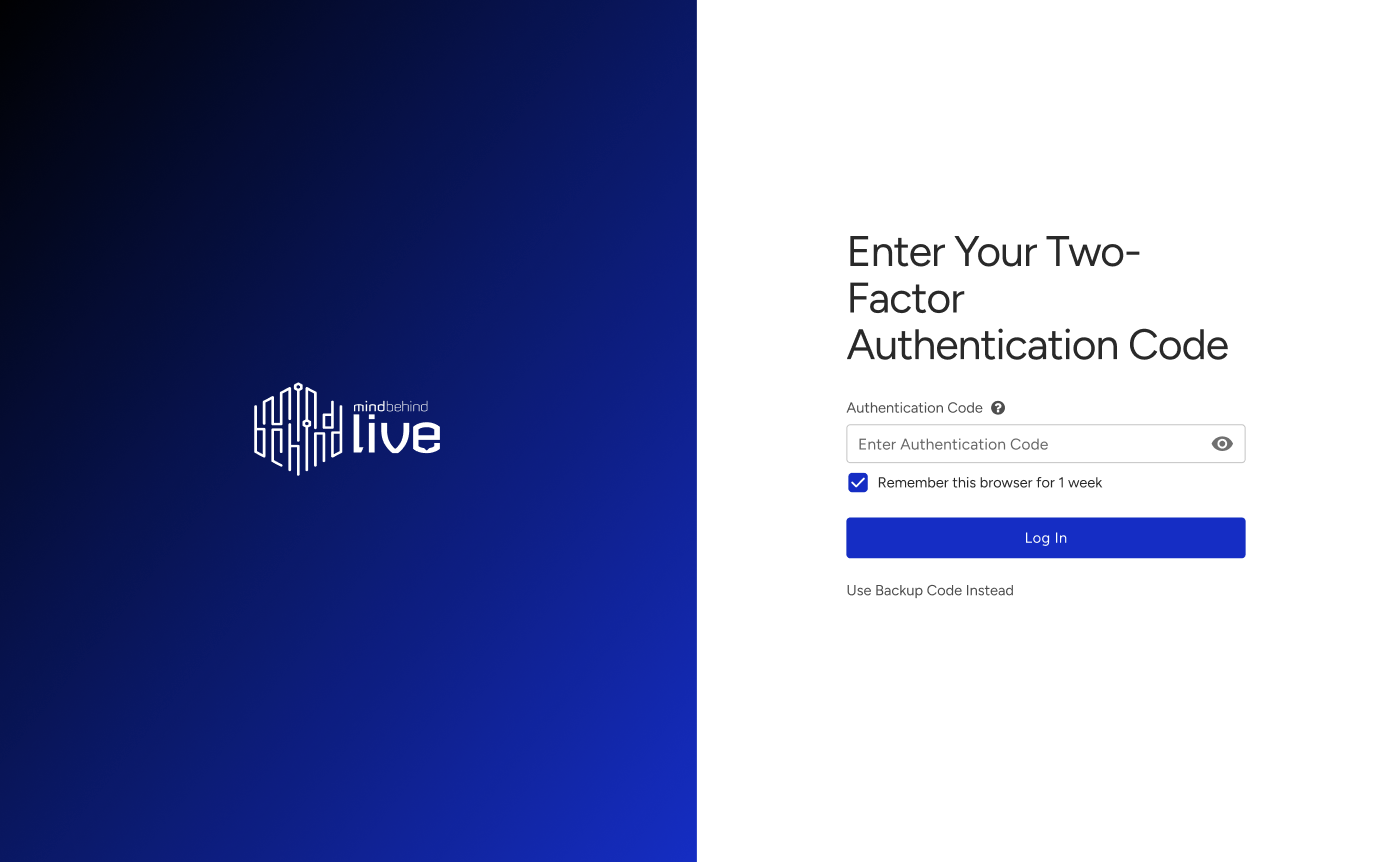
- Open the authenticator app on your mobile device.
- Enter the current 6-digit code displayed in the app.
- If you don't have access to your authenticator app, click the "Use Backup Code Instead" option.
- You will be redirected to a page where you can enter a backup code.
Each backup code can only be used once. Use the backup codes in the order they appear in the downloaded file.
If you lose access to the authenticator app or have used all backup codes, contact the Insider One team to refresh your 2FA credentials.