Suggested reading: Integrate Code Station
After you integrate the Code Station module, you can start using the Code Station Action in your flows.
To use the Code Station Action,
1. After entering your assistant, drag and drop or click on the Code Station Action from the Actions menu to your Assistant Design canvas. 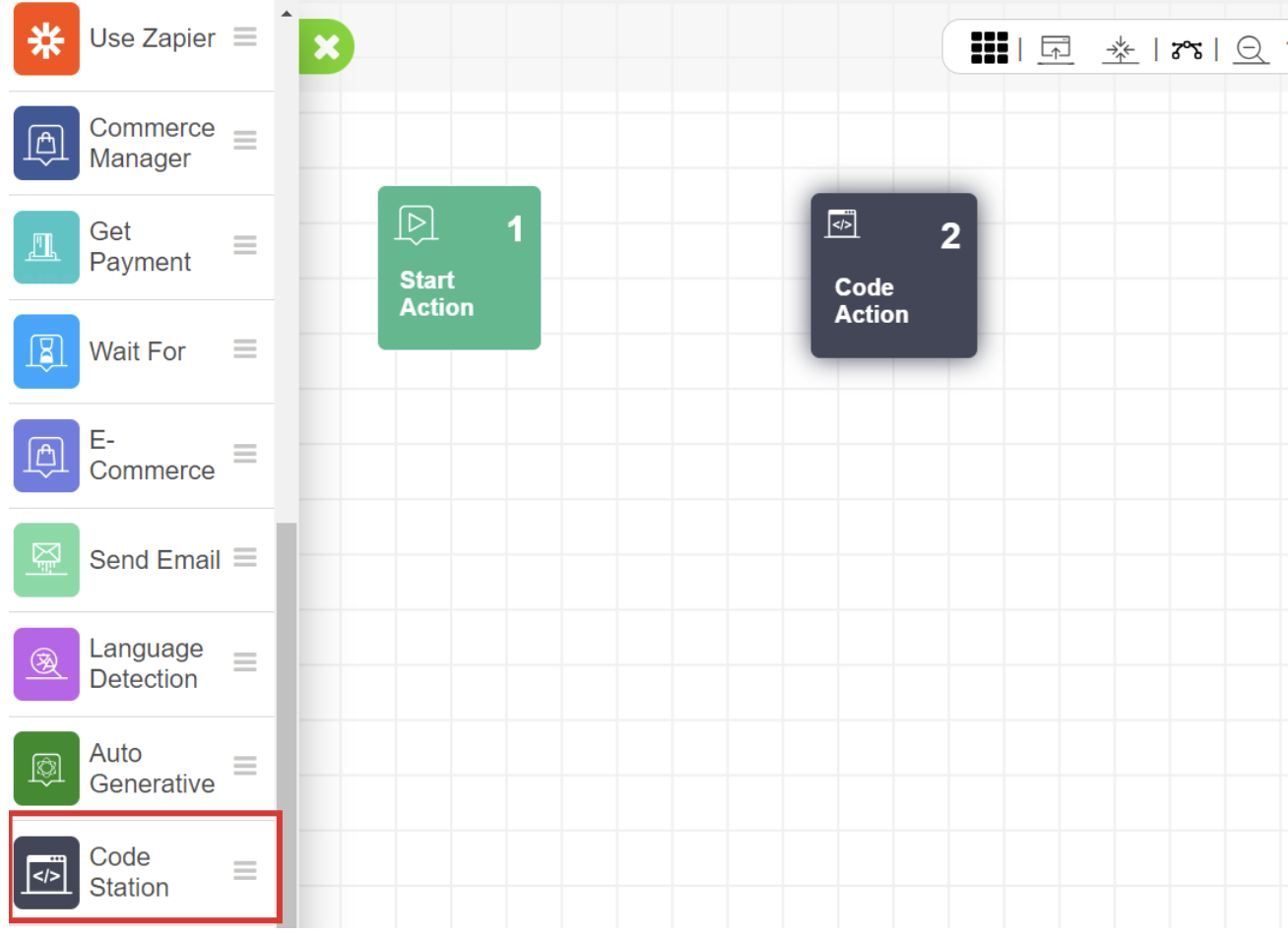
2. When you click on the Code Action, it will display the dashboard for your design. On this configurations menu, you can:
- Name your action,
- Select your code module from the dropdown in the Function Name section,Your title goes hereWhen you select your Code Module, you must also choose its version.
3. After selecting the version, if your code module contains parameters, they will be displayed in the "Key" list under the Parameters section. 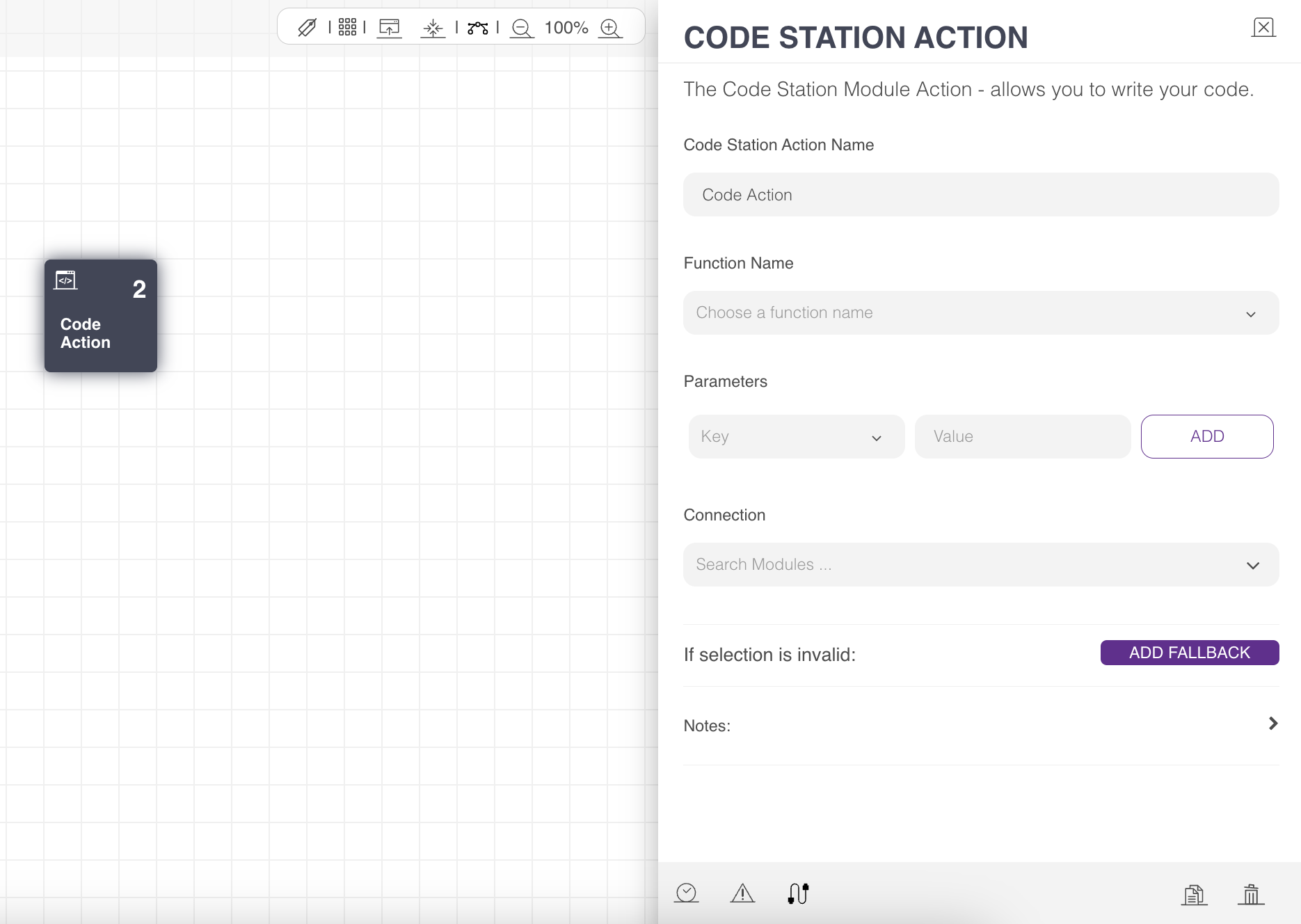
Example Scenario
This example uses the ClearData function from the General Helper Templates. The user provides values for the #phone parameter, and the code module clears the parameter in the scenario. You can see the below map prepared to retrieve the phone parameter's value from the end-user: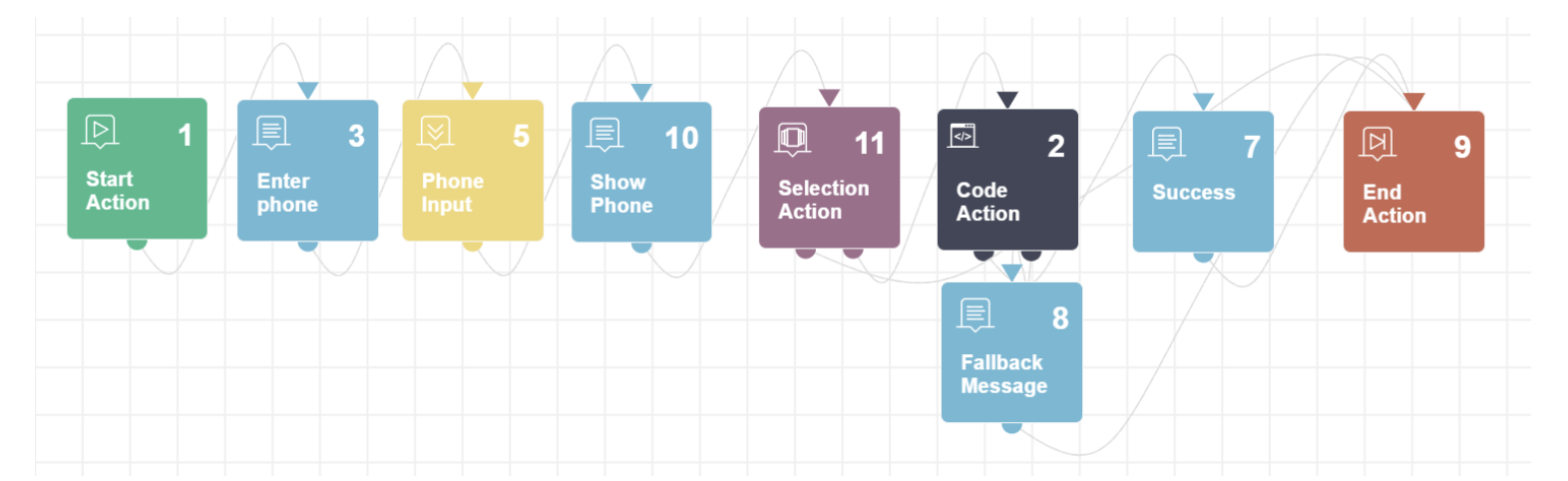
The code module details are filled with the details below: 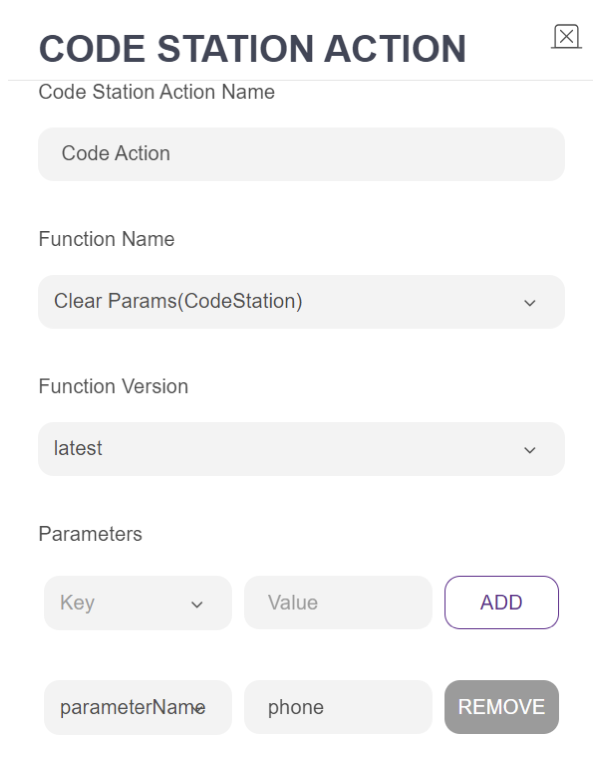
In this scenario, when a user enters a phone number, the bot displays the value and prompts the user to either clear the data or exit. If the user selects "clear data," the process proceeds directly to the code module, which checks if the "phone" parameter has been removed from the bot's parameters.
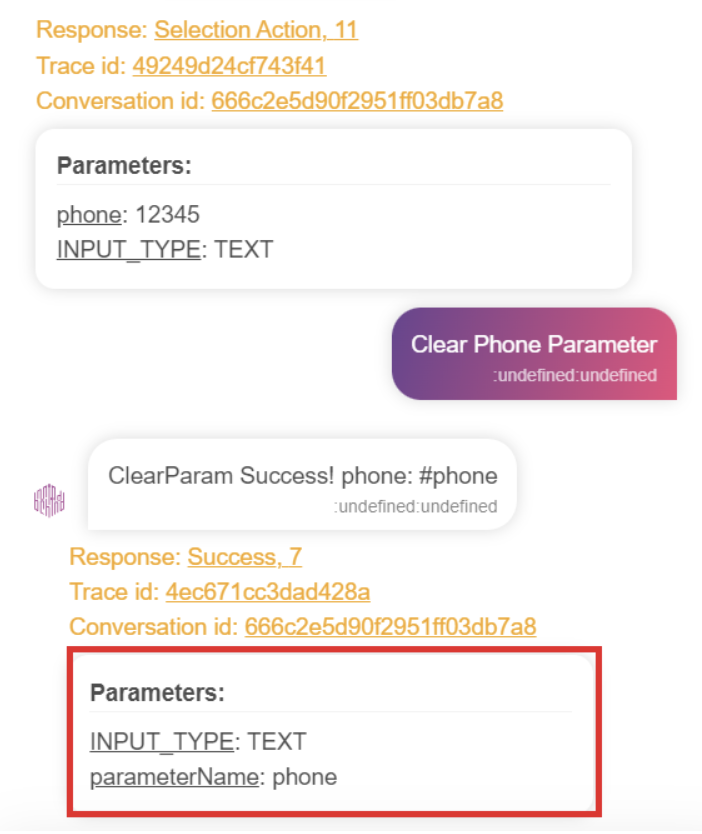
- If the phone parameters value is defined as "12345" by the user, the bot displays the value as follows:
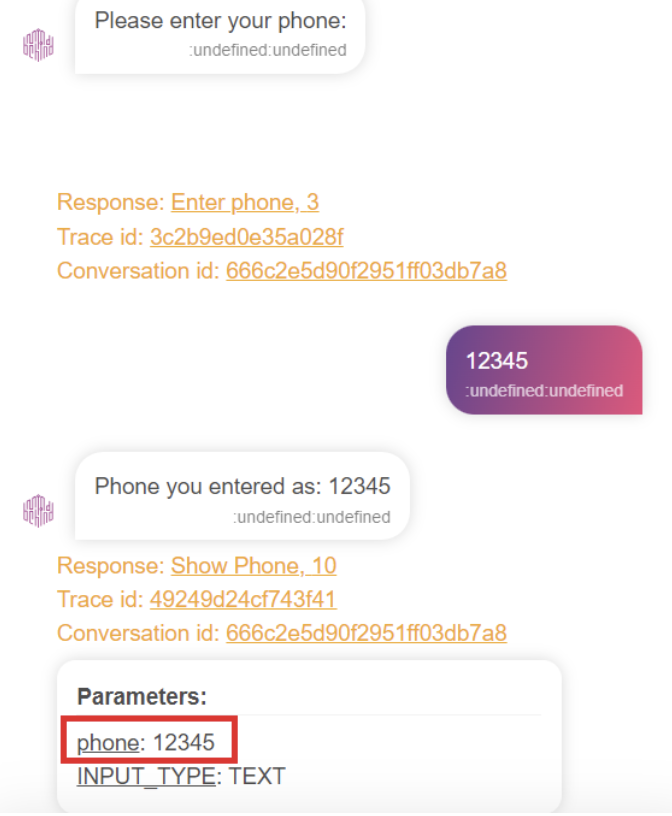
- If the user selects "clear data," the bot response will look like below: