Business Login for Instagram makes it easier for Instagram users to configure their accounts for API access.
To access their account to the Meta APIs, Instagram users must first convert their account to a professional account and create a Facebook Page representing their business, then connect that page to their account.
Business Login for Instagram allows Instagram users to complete all of these steps in a single window instead of having to complete them in the Facebook and Instagram apps, simplifying this process.
To use Instagram's Business Login, follow the steps below:
- Go to your company page.
- To add a new Instagram channel, go to the Channels tab.
.png)
- Click the "Log into Facebook" button.
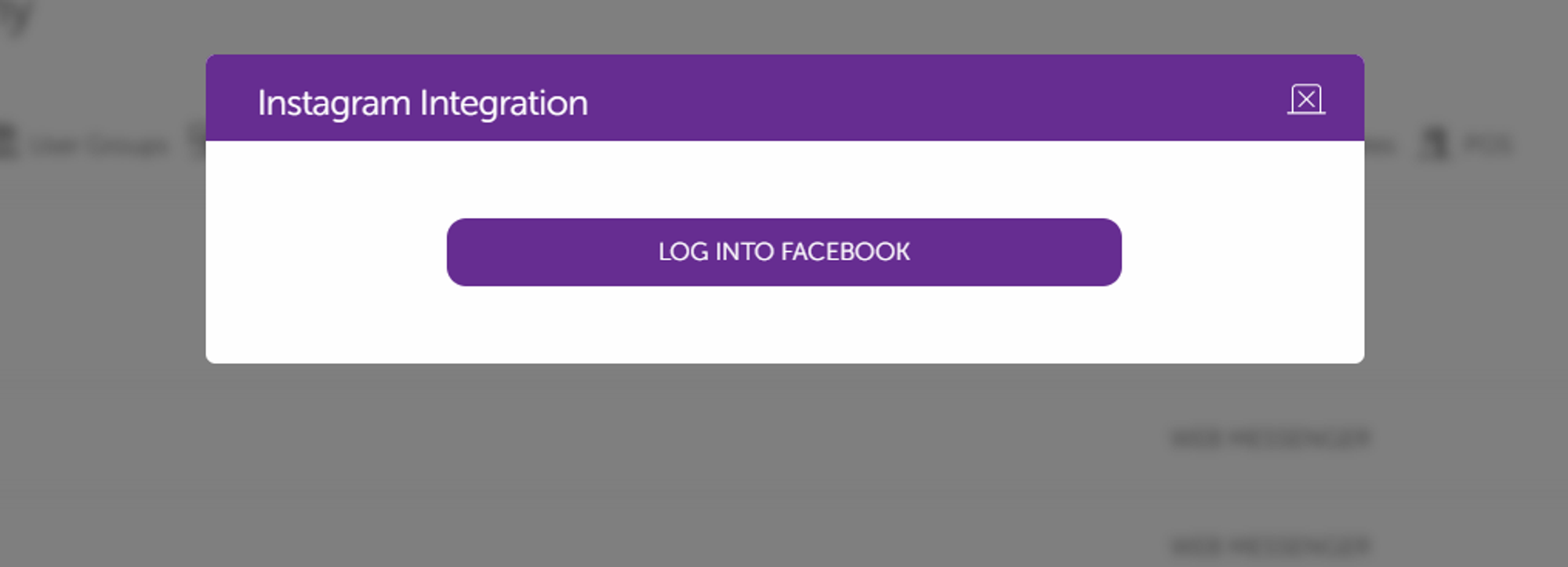
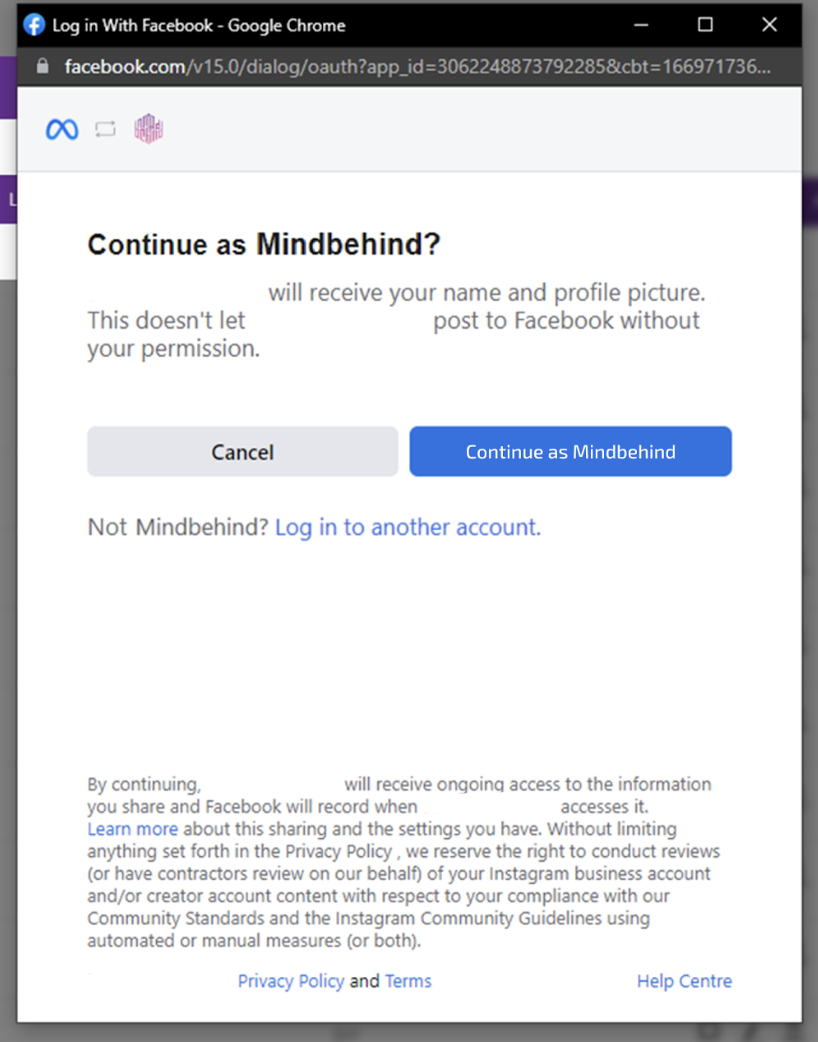
- You will see a screen as shown below. Click the "Continue as …" button with the account that you want to integrate with.
- If you are not logged into Facebook, you will first see a prompt to log in. If you want to use an account other than the one currently logged in, use “Log in to another account” to switch accounts.
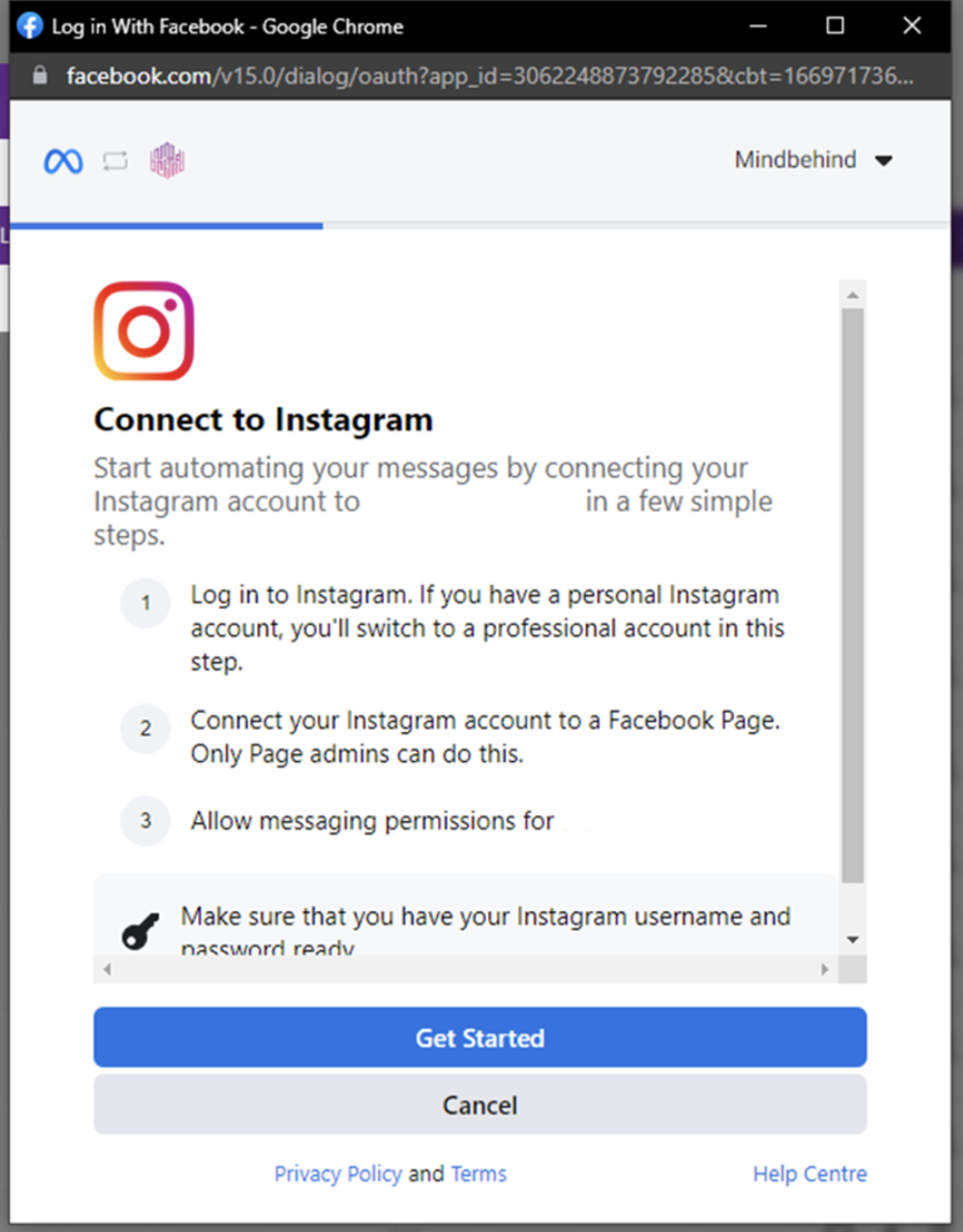
- On the next page, you will see all the information about the process.
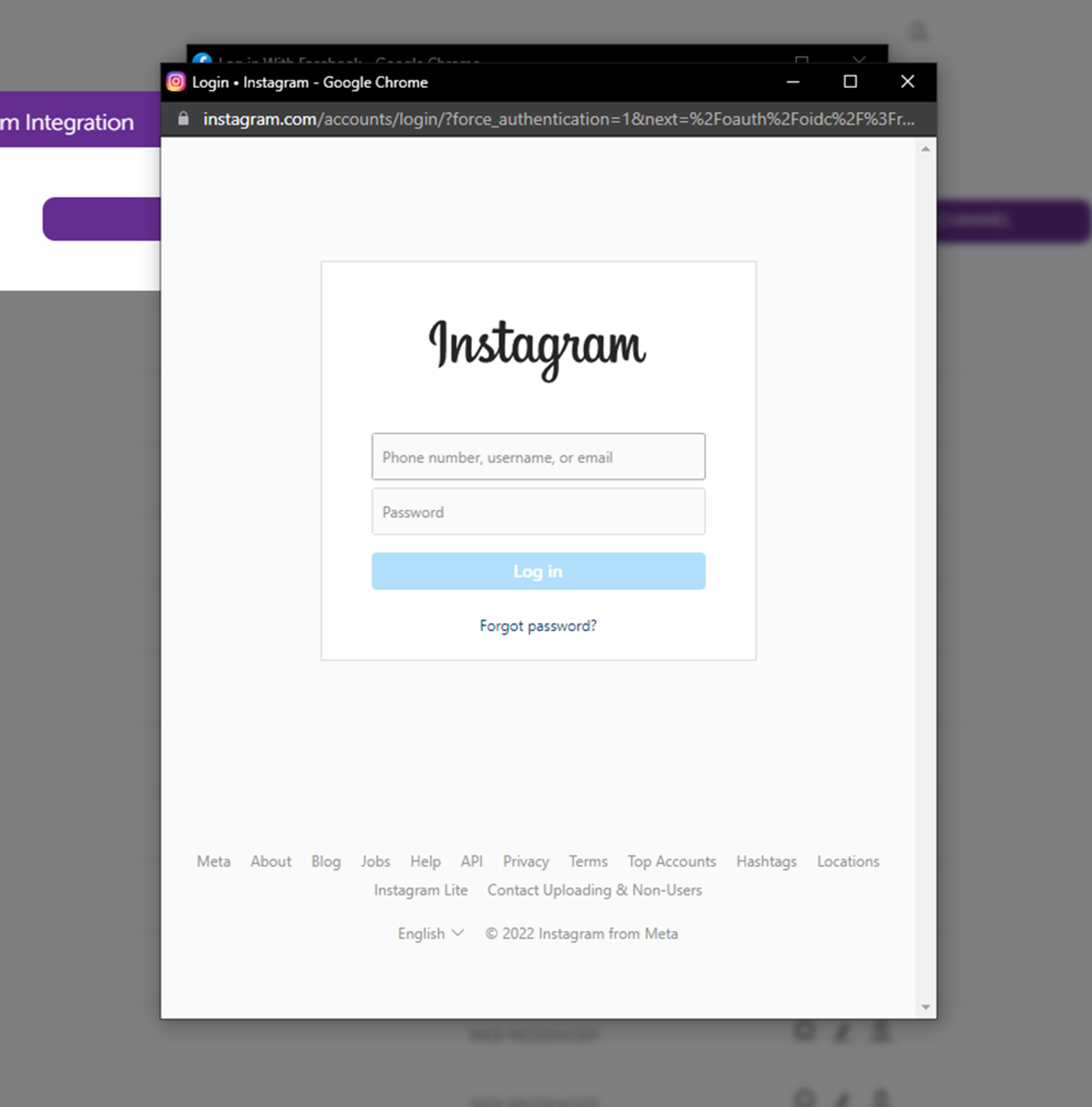
- Log in to Instagram.
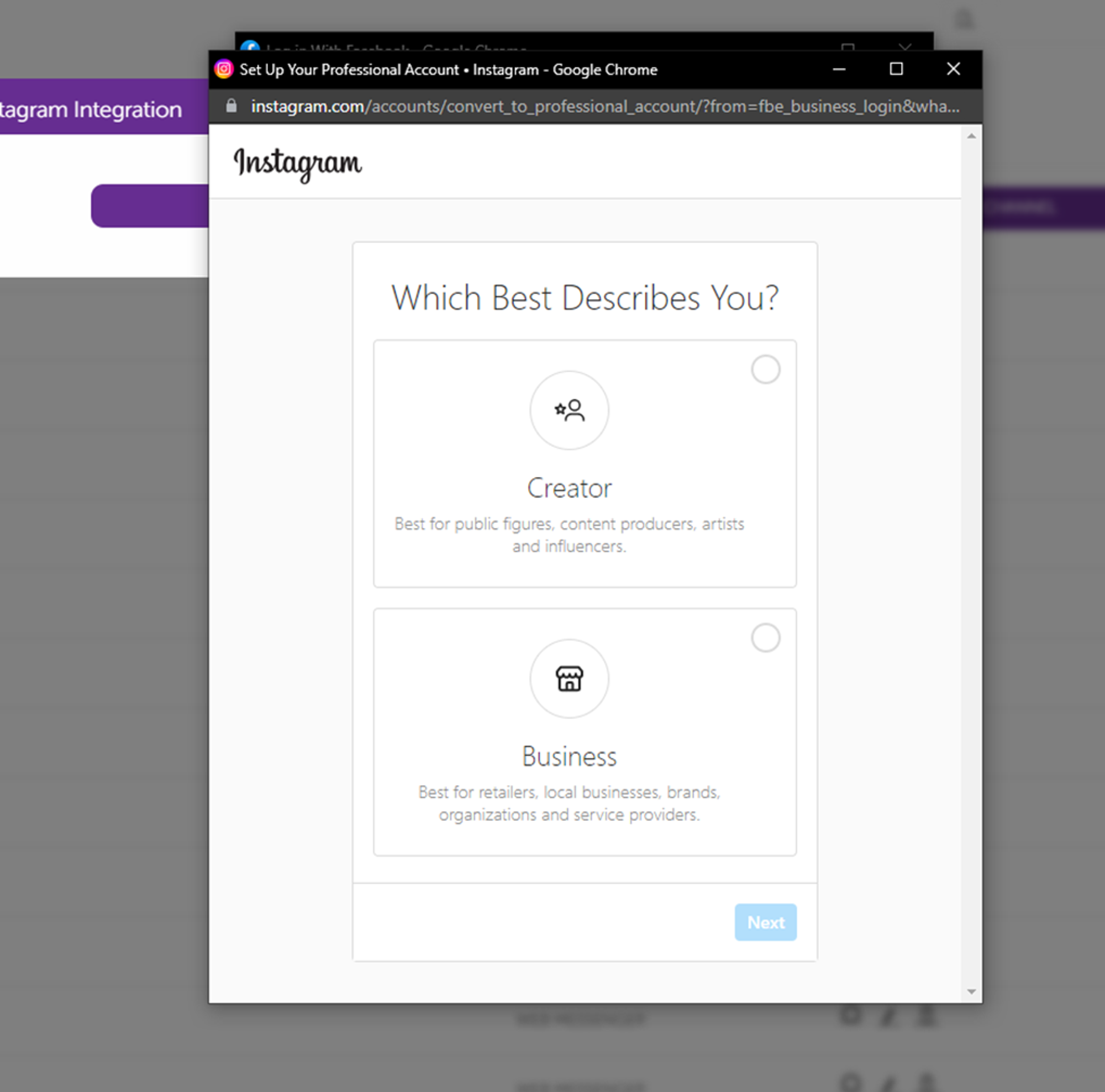
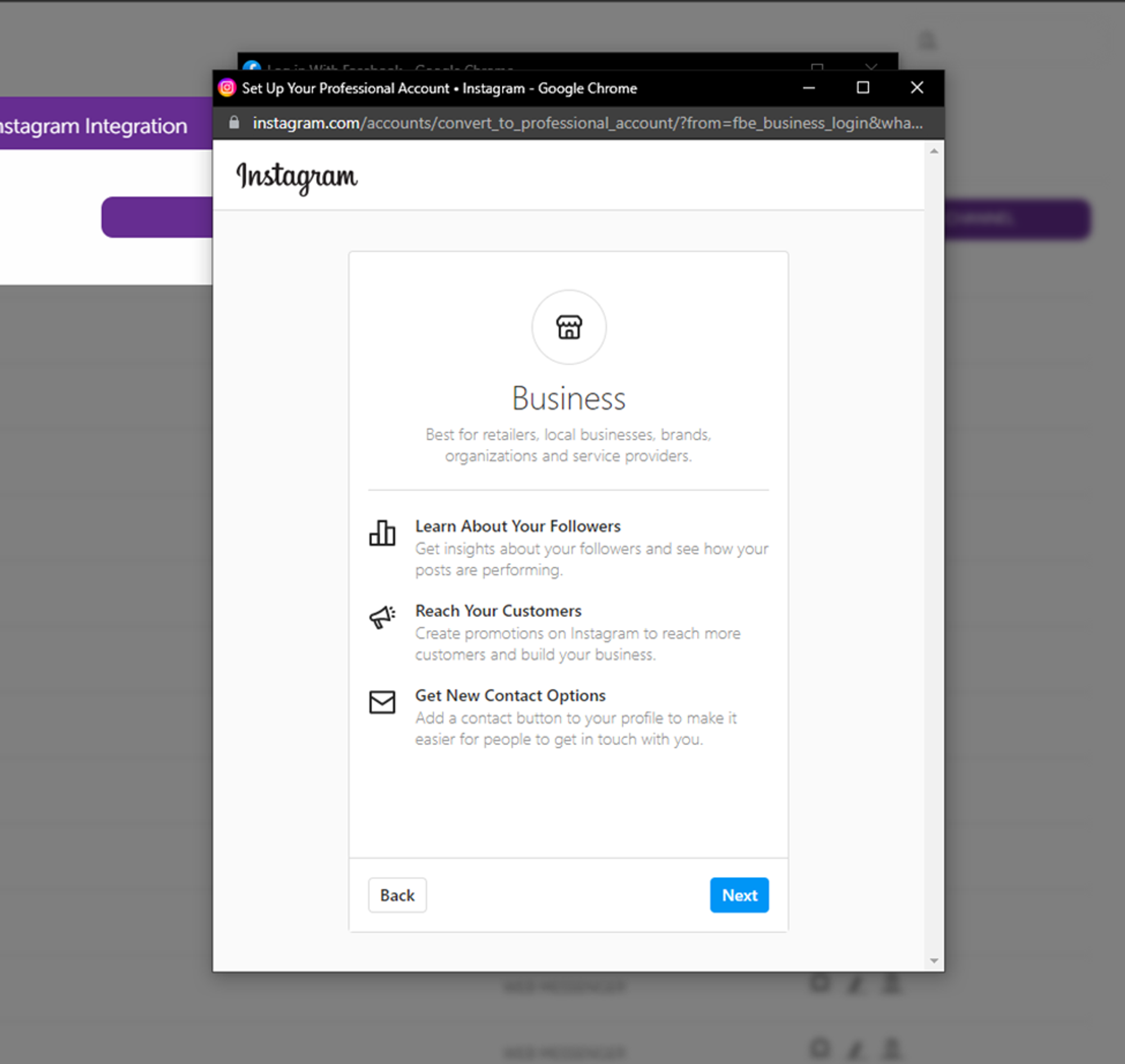
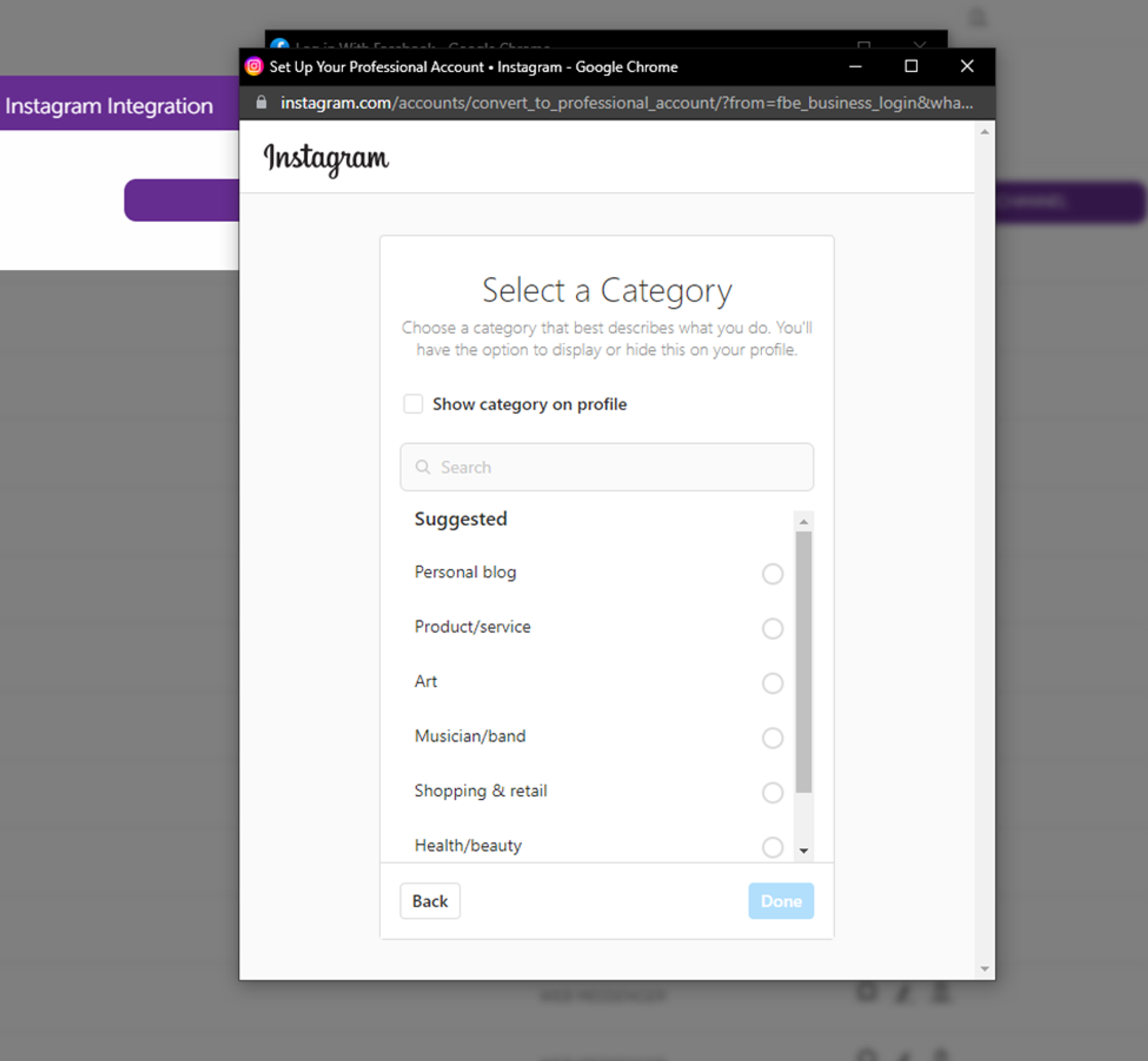
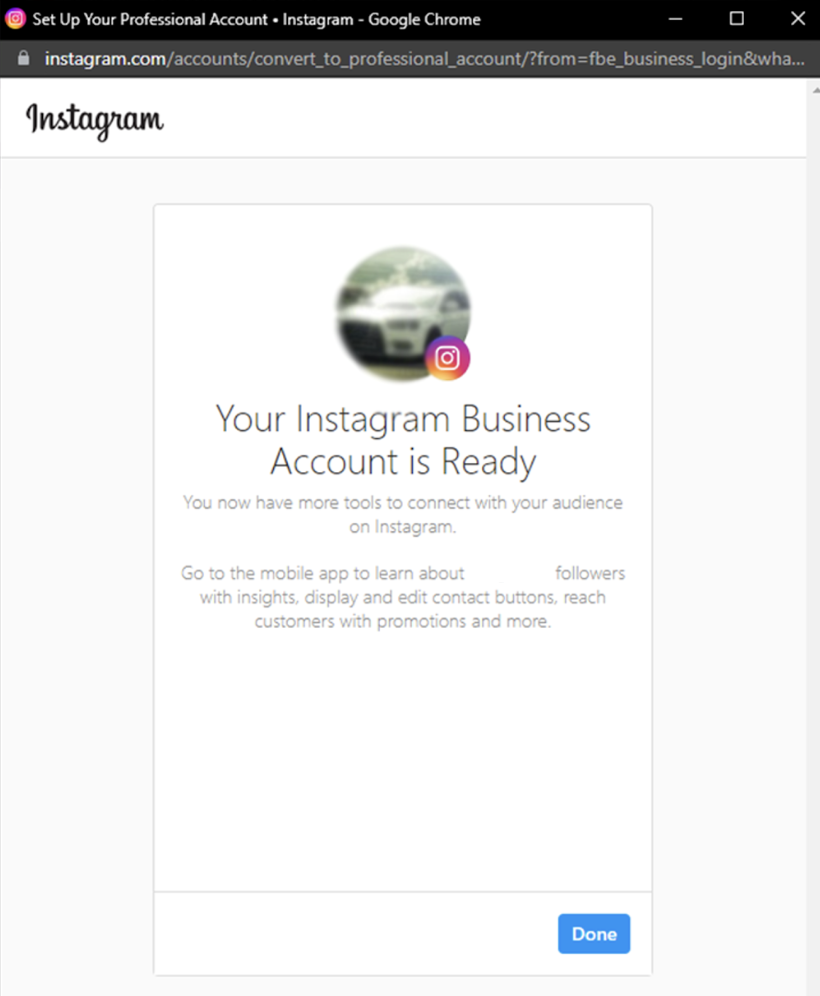
- You should set up your Instagram as a professional account. If your account is already professional, these screens will not be shown, and you can go to the next step. If your account is not professional, follow the flow and turn your account into a professional account. You can see a sample flow in the images below.
- At this stage, you will see the pages you have on your Facebook account. If you have none, you can click the Create a new page button and follow the flow to create a page for your business.
- Once the page is ready, select the page for your business and click the Continue button.
If you already have an Instagram account linked to a Facebook page, you will not see steps 9, 10, and 11; in that case, you can continue to step 12.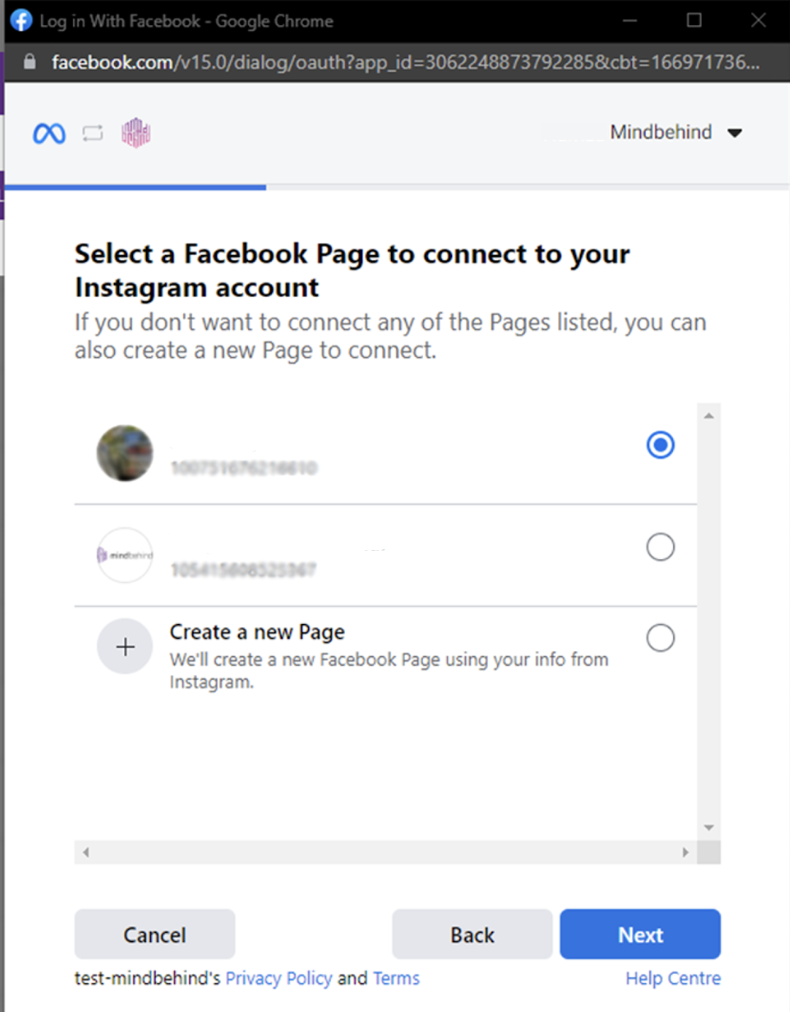
- Connection review will link the Facebook page with your Instagram account. If you see the correct Facebook page and Instagram account, click the Next button. “Allow access to messages” should be kept; otherwise, the feature will not work.
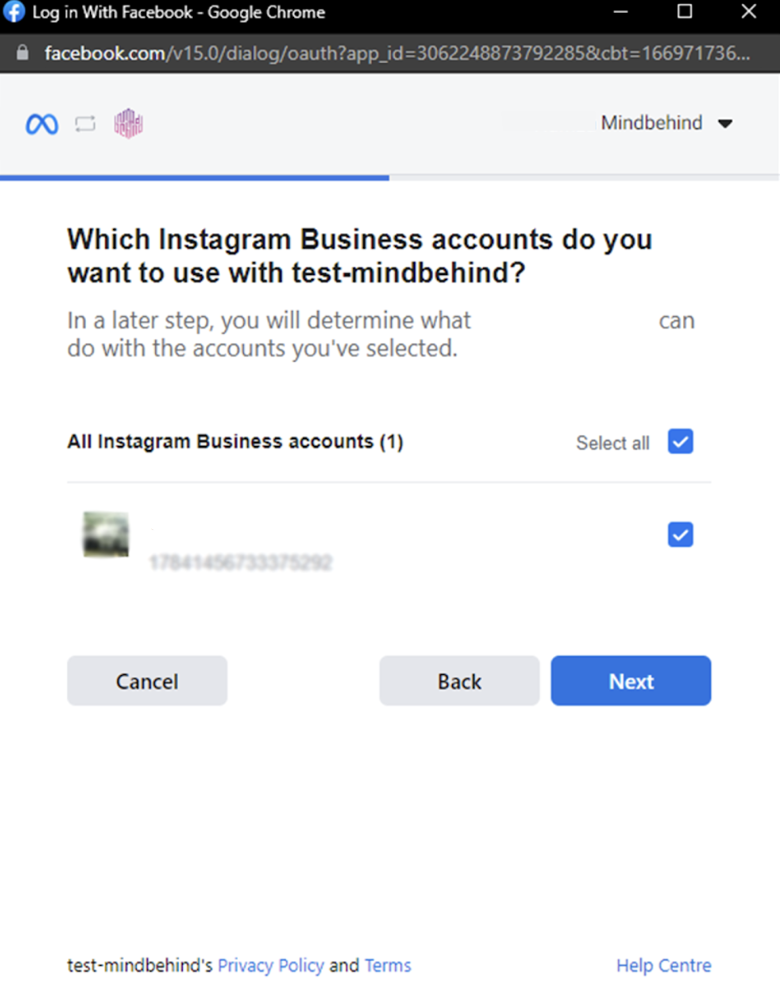
- Select the Instagram Business account you want to give access to.
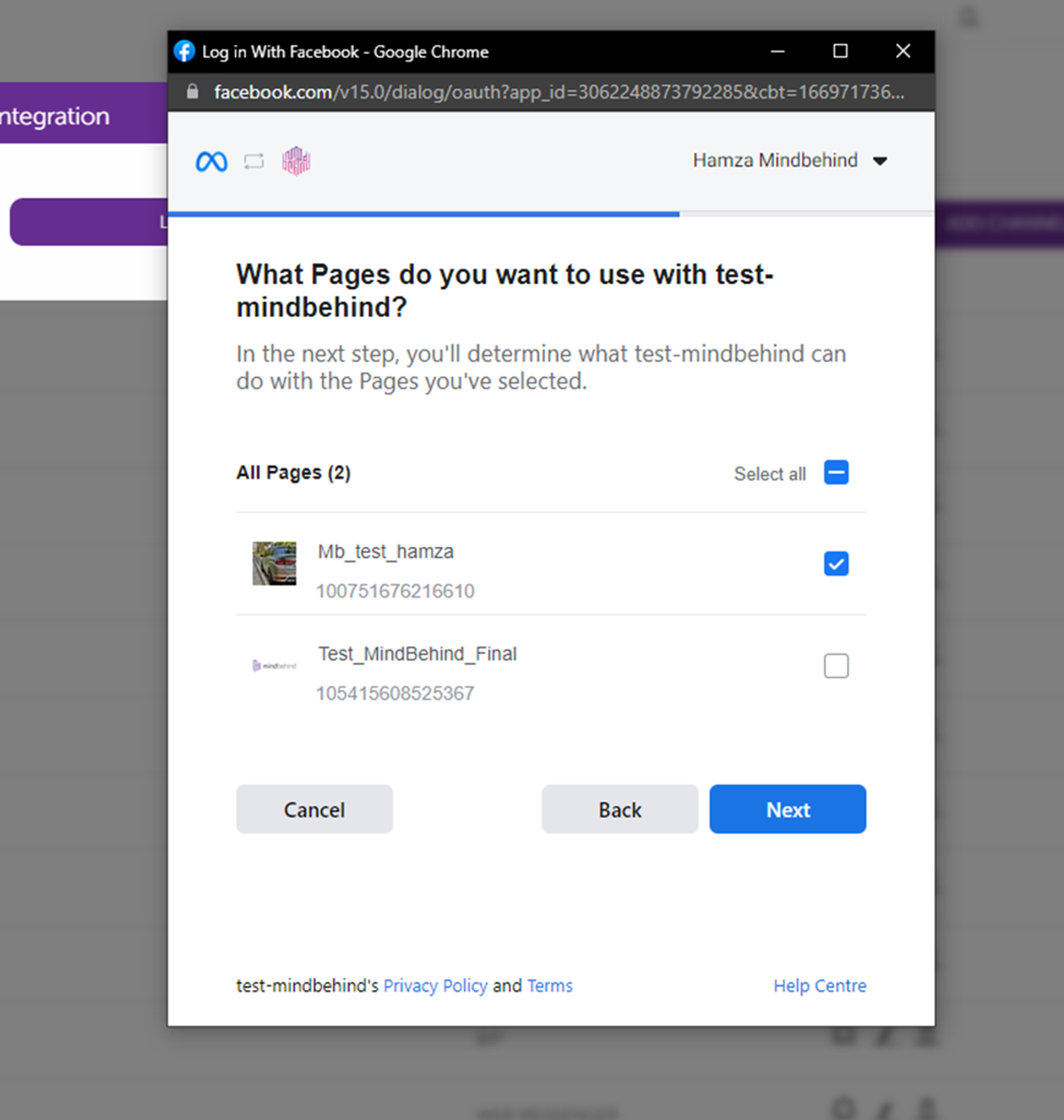
 13. Select the Facebook pages you want to give access to. The selected pages should be the ones that have been linked previously.
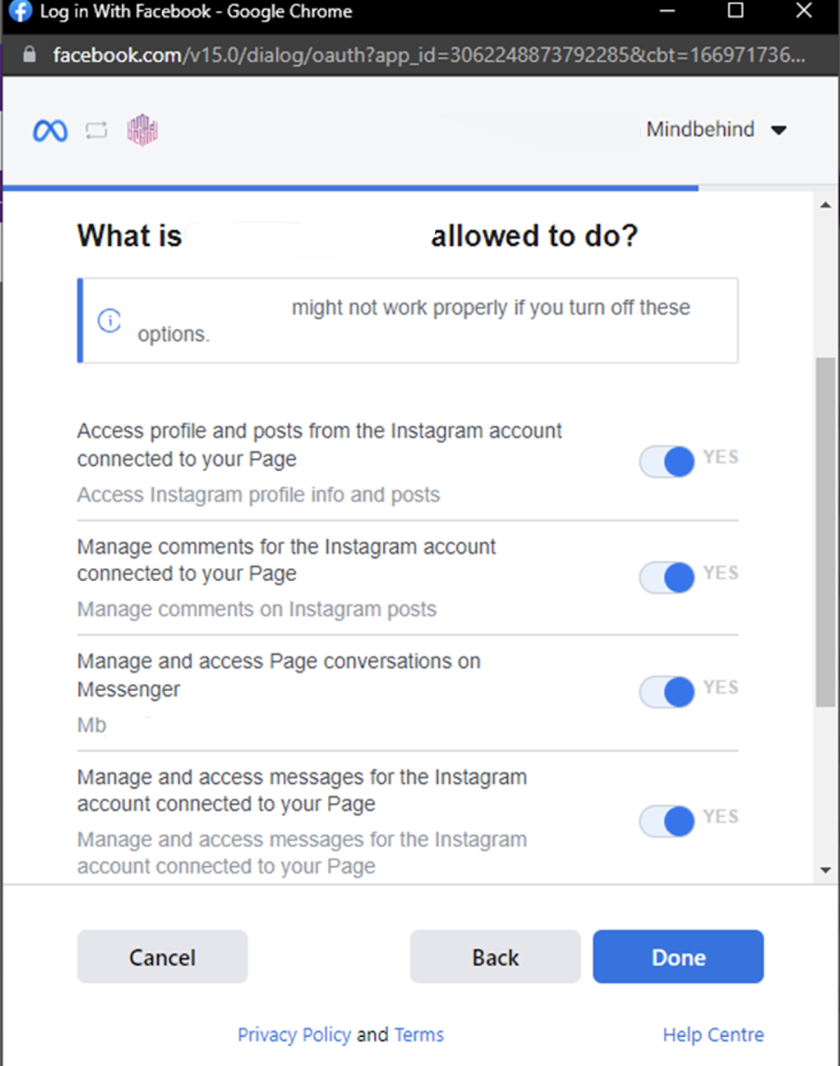
  14. Click the Done button after keeping all the permissions on.
  15. Click the OK button to finish the process on the Meta side.
 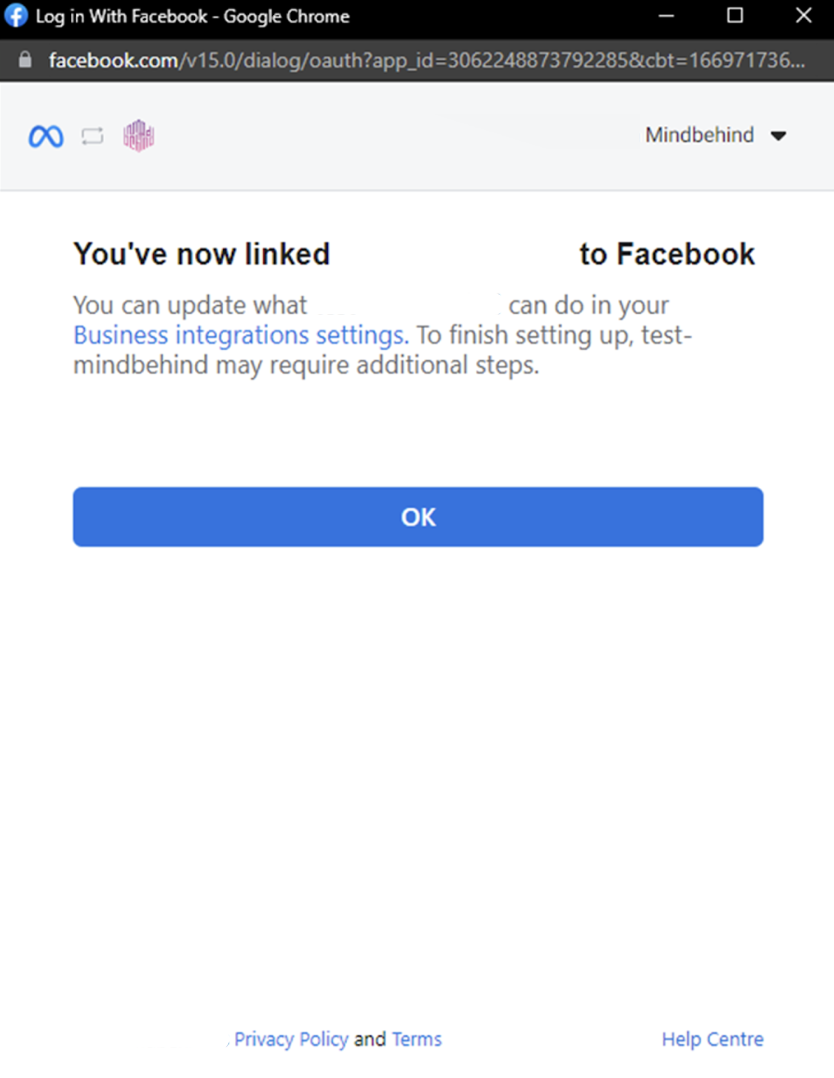 16. Select the relevant page and click the Save button. The channel will be added to the list under the Channels tab on the company profile.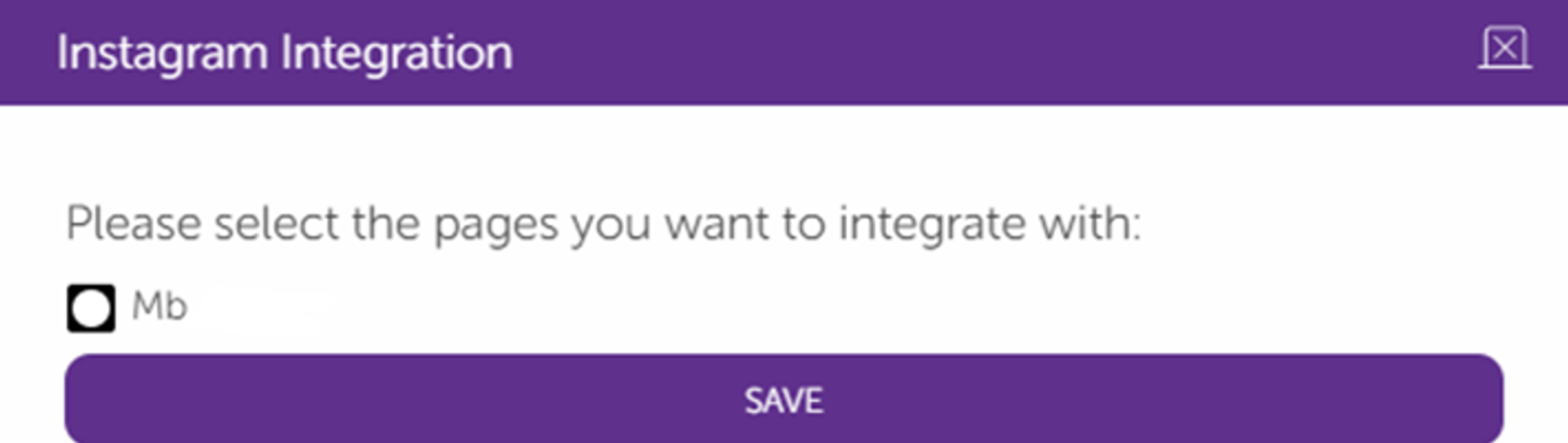
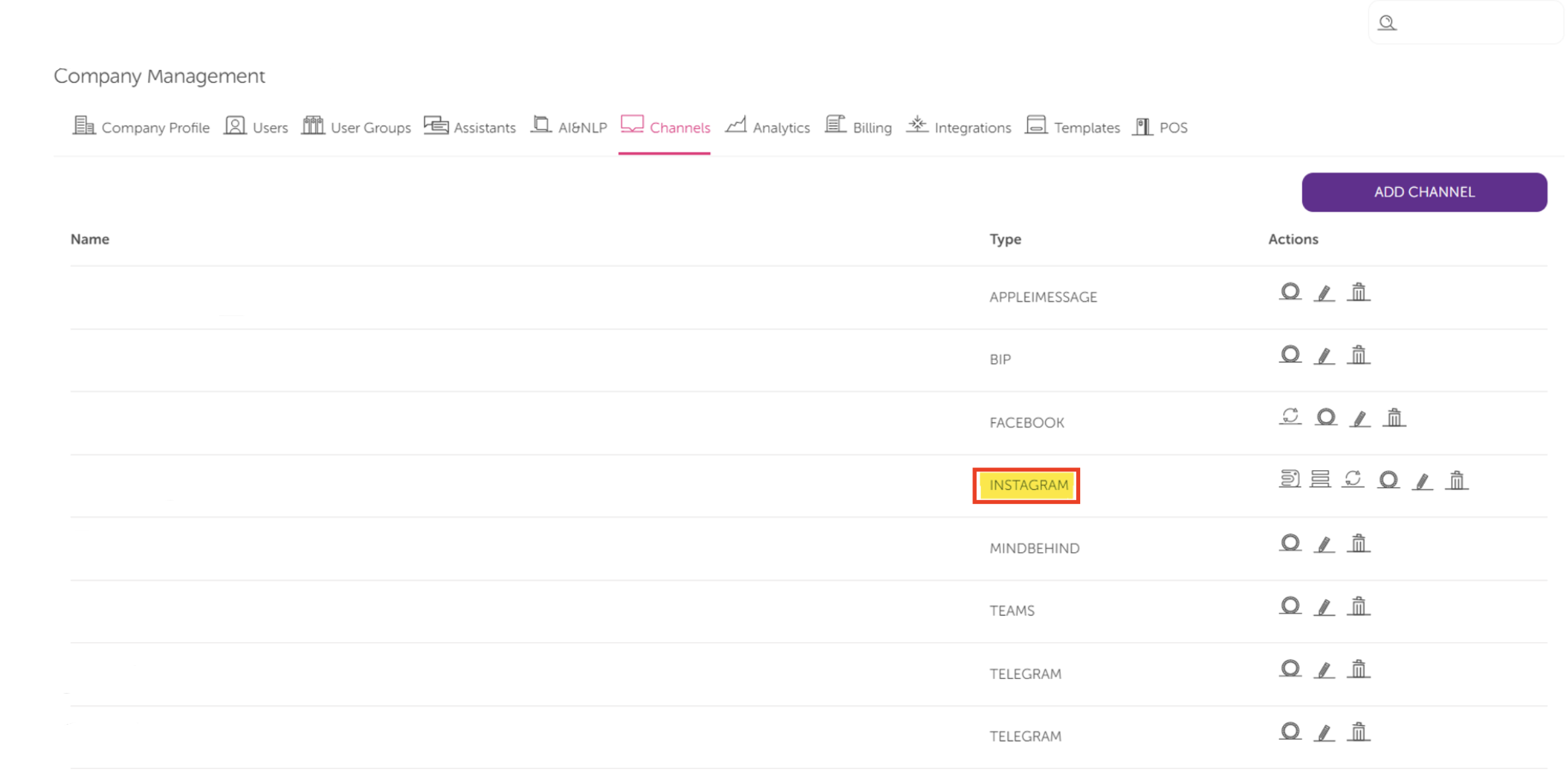
Congratulations! You have added the Instagram channel successfully.