Creating a lookup table involves defining a schema, uploading data, and setting up bindings to connect the table to your user data.
Step 1: Navigate to Lookup Tables
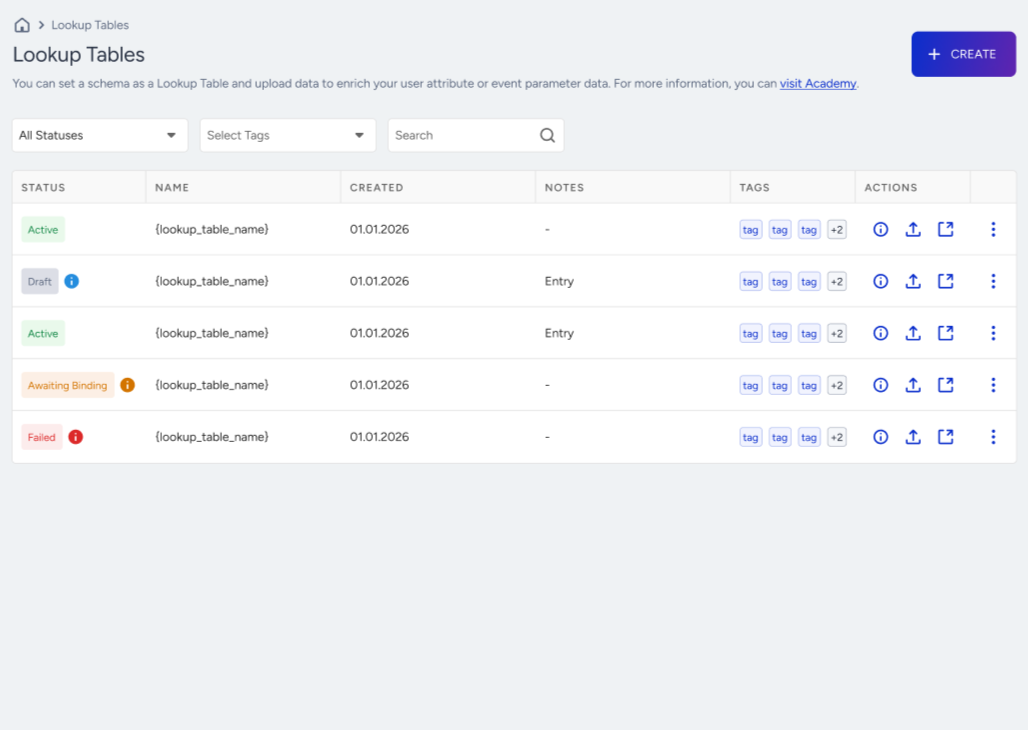
Navigate to Components > Attributes and Events > Lookup Tables.
Click the Create button.
Step 2: Define schema
Before uploading data, define the structure of your lookup table.
You can define the schema in two ways:
Upload a CSV file: The system detects columns and data types from your file.
Define manually: Add columns one by one, specifying the name and data type.
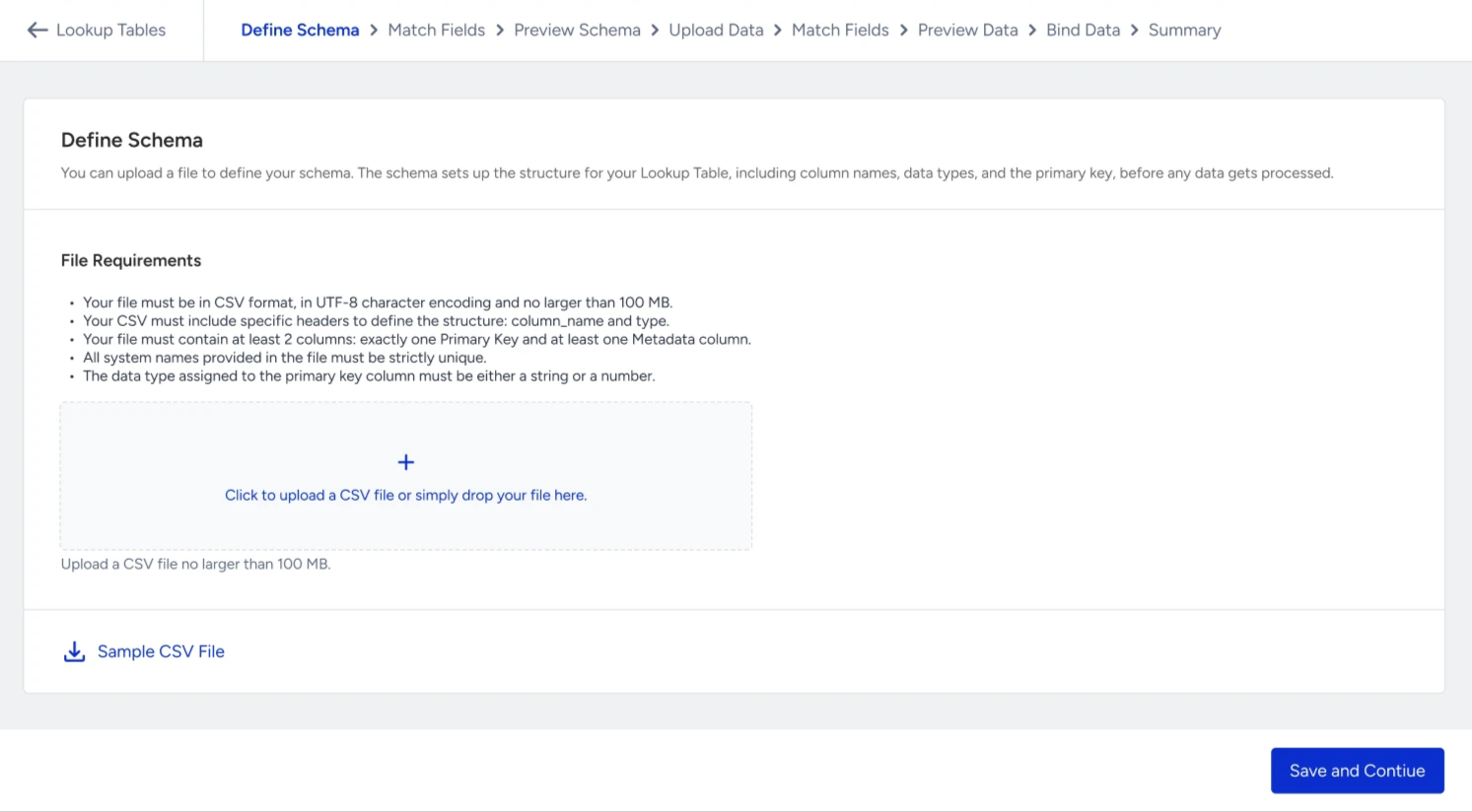
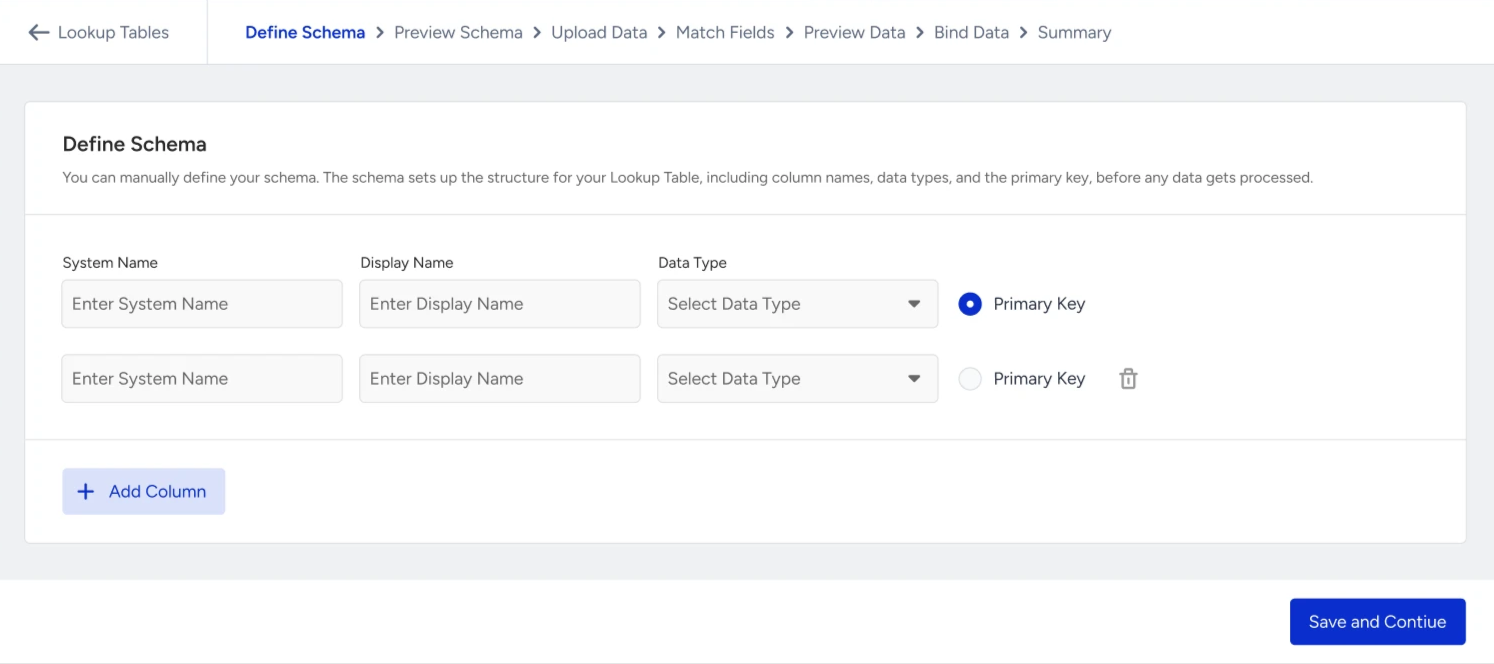
Each lookup table requires:
A table name (system name)
At least two columns: one primary key and at least one metadata column
Exactly one primary key; the first column, which uniquely identifies each row
Supported data types
Type | Description | Example value |
|---|---|---|
String | Text values up to 1,024 characters | “London” |
Number | Integer or decimal numbers | 29.99 or 42 |
Boolean | True or False values | true |
Datetime | ISO datetime string or unix timestamp | "2026-04-15T10:00:00Z" |
URL | Valid web link, format-validated | "https://example.com/store/1" |
Strings | Array of text values | ["premium", "loyal"] |
Numbers | Array of numeric values | [101, 202, 303] |
Primary key rules
The primary key:
Must be of type String or Number
Must contain unique values across all rows
Cannot be null or empty
Cannot be updated or deleted after the table is created
Step 3: Upload data (CSV)
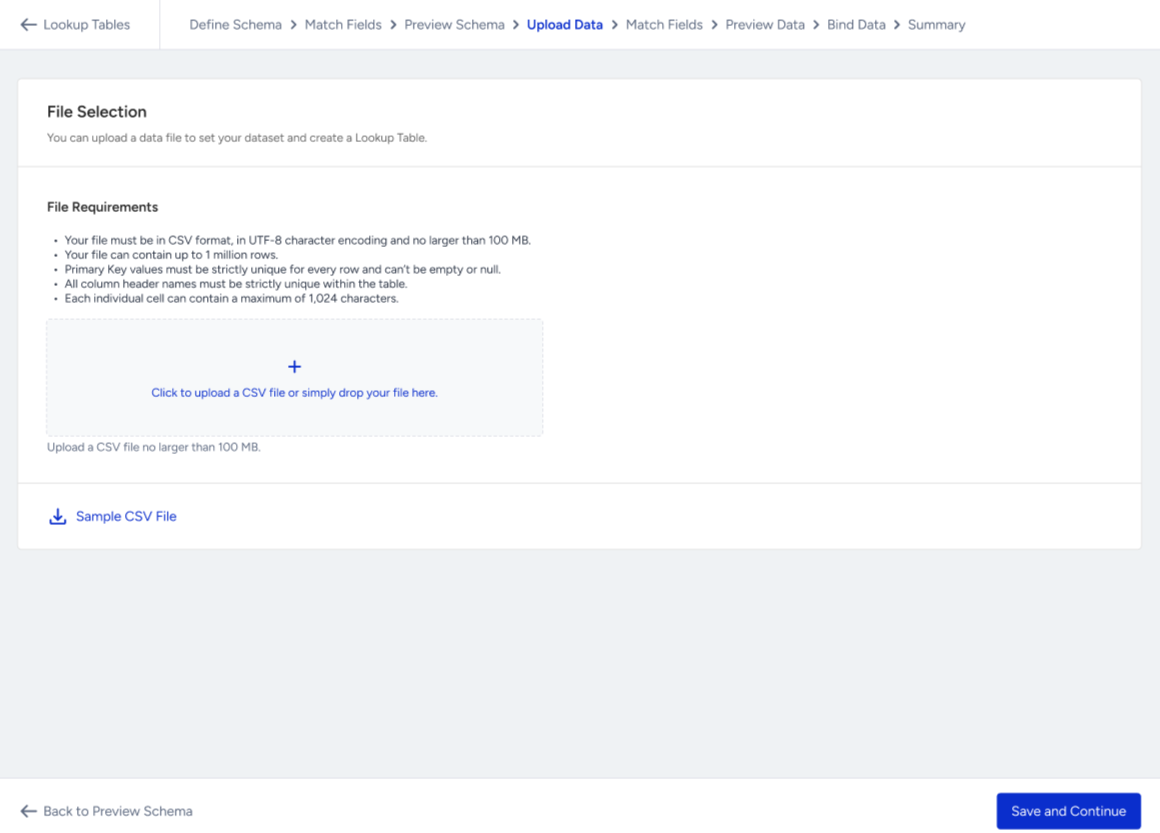
After defining the schema, upload a CSV file with your data.
The system will:
Display file details (file size, row count, detected column headers).
Verify the primary key column.
Validate format, data types, and size limits.
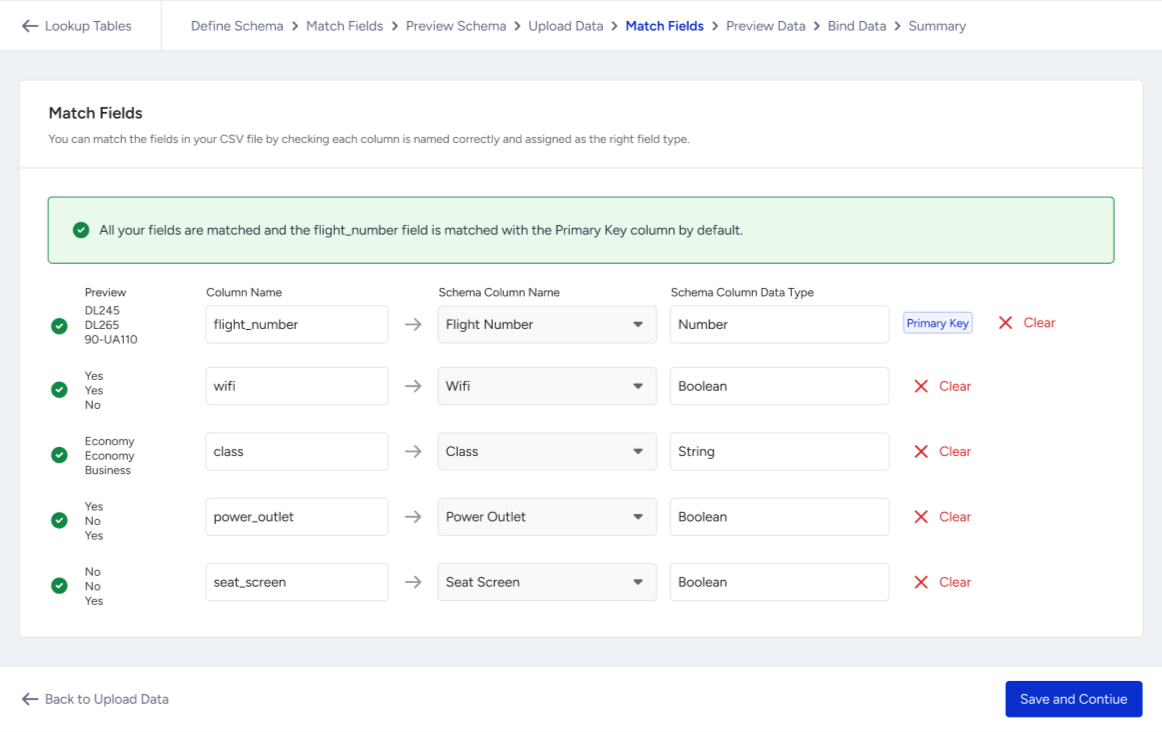
Show warnings for any columns in the CSV that are not defined in the schema.
Column matching
If the CSV contains columns that were not defined in the schema:
These columns will not be available for segmentation or personalization.
You can go back and update the schema, or continue with the current definition.
Step 4: Preview and validate
Before publishing, review a preview of your data:
Table preview with sample rows
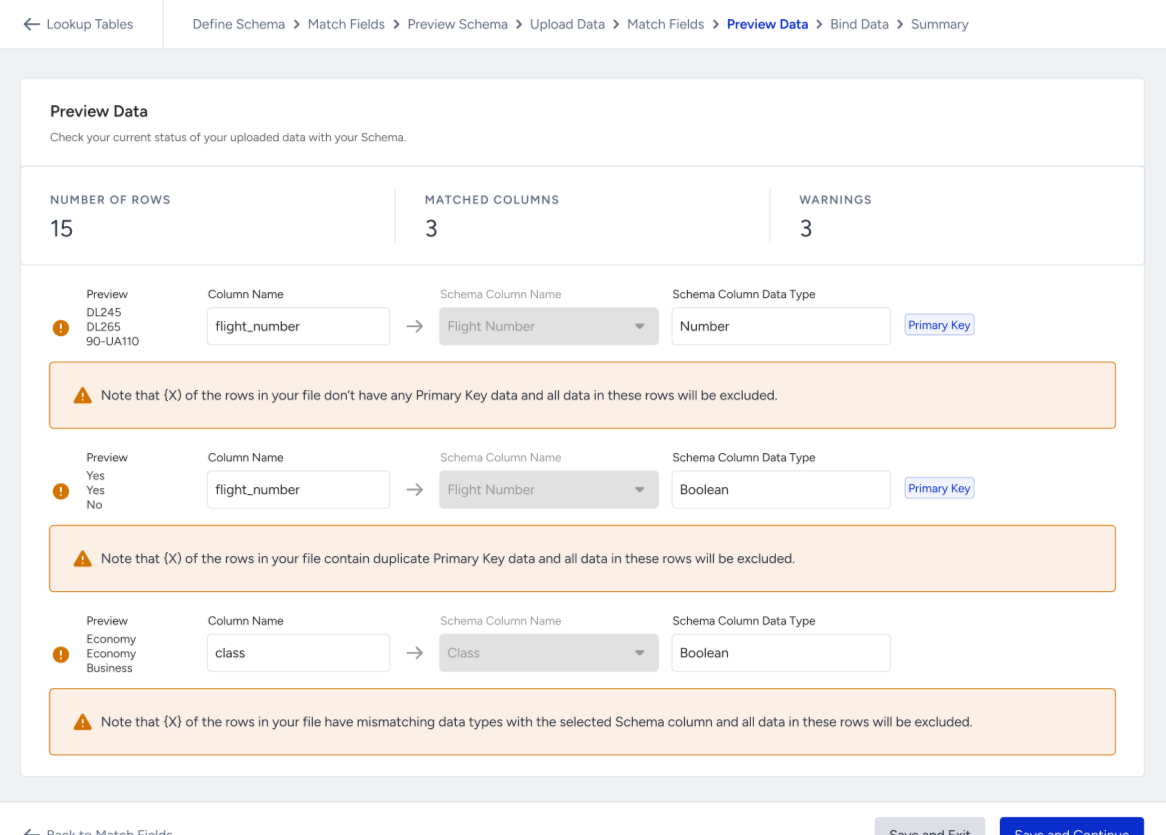
Inline warnings and errors for:
Missing or duplicate primary keys
Invalid values
Type mismatches between uploaded data and the defined schema
If your uploaded data contains more than 10,000 rows, the preview screen will display the number of rows, matched columns, and warnings. After the preview, an issues file will be sent to you containing all detected errors across the full dataset. You can also access and download this issue file from the Upload History page at any time.
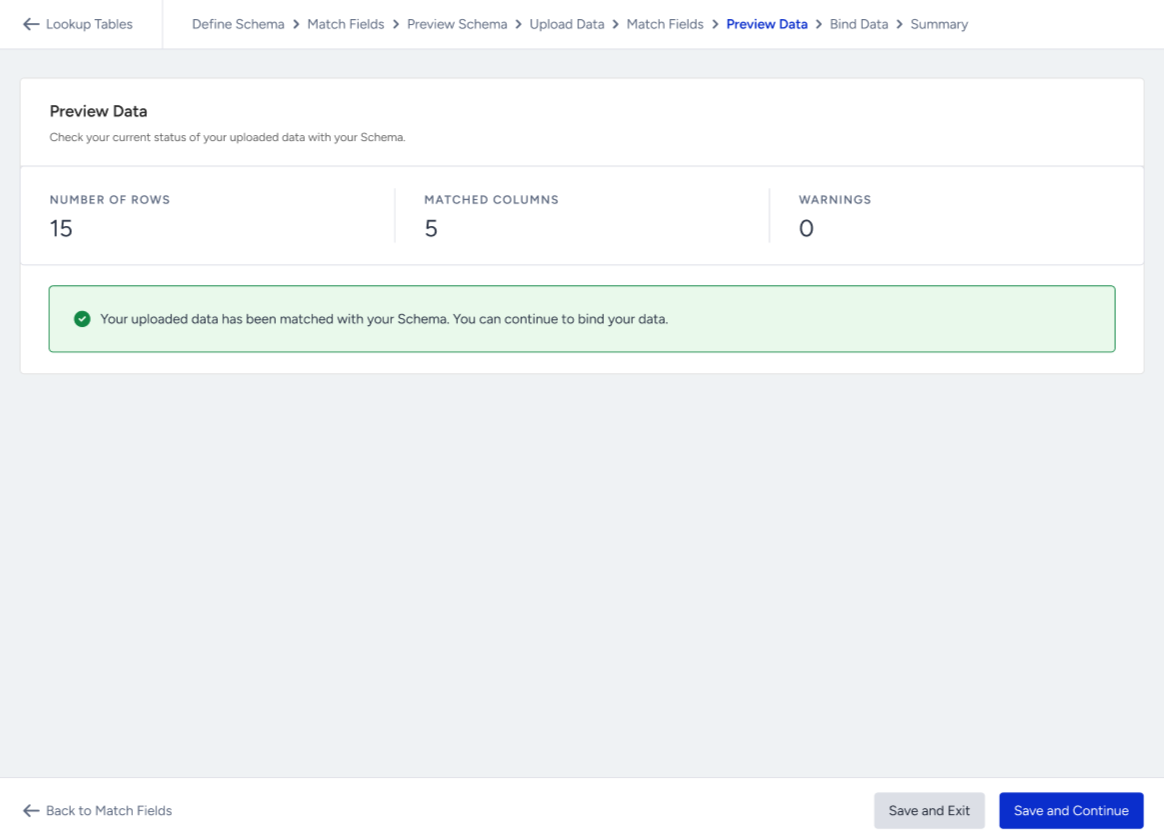
If your uploaded data contains 10,000 rows or fewer, all errors will be visible directly in the preview data screen; no separate issues file is needed.
In both cases, when errors are detected, you have two options:
Skip errors and continue: The system will process only valid rows; rows with errors will be excluded.
Go back to the data upload step: Fix the errors in your file and re-upload the corrected version.
Step 5: Set up binding
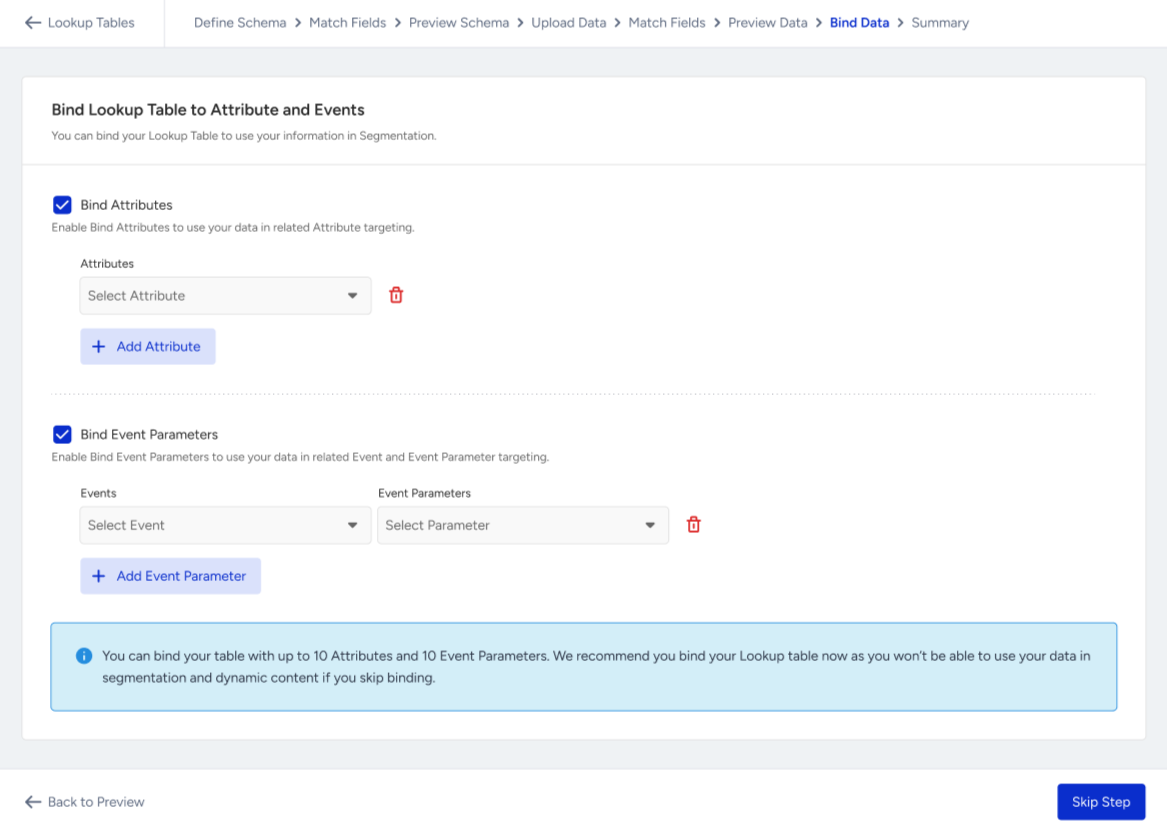
A Lookup Table becomes usable only after its primary key is bound (mapped) to one or more:
User profile attributes (e.g., store_id on a user profile)
Event parameters (e.g., flight_number in a purchase event)
These bindings define how lookup rows are connected to user data at activation time.
Binding rules
The bound attribute or event parameter must exist in metadata.
The data type must match the primary key type.
Each table supports up to 10 attribute bindings and 10 event parameter bindings.
Step 6: Publish
Once the schema, data, and bindings are configured:
Click Publish to make the lookup table active.
Data becomes available for segmentation and personalization within 15–60 minutes.
You will be notified by email when the table is ready to use.
After creating a lookup table, you can view its details on the Schema Overview page.
The overview displays:
Table name, status, and description
Schema information (column names, data types, primary key)
Binding information (connected attributes and event parameters)
Data statistics (row count, last updated time, source)
Manage Lookup Tables
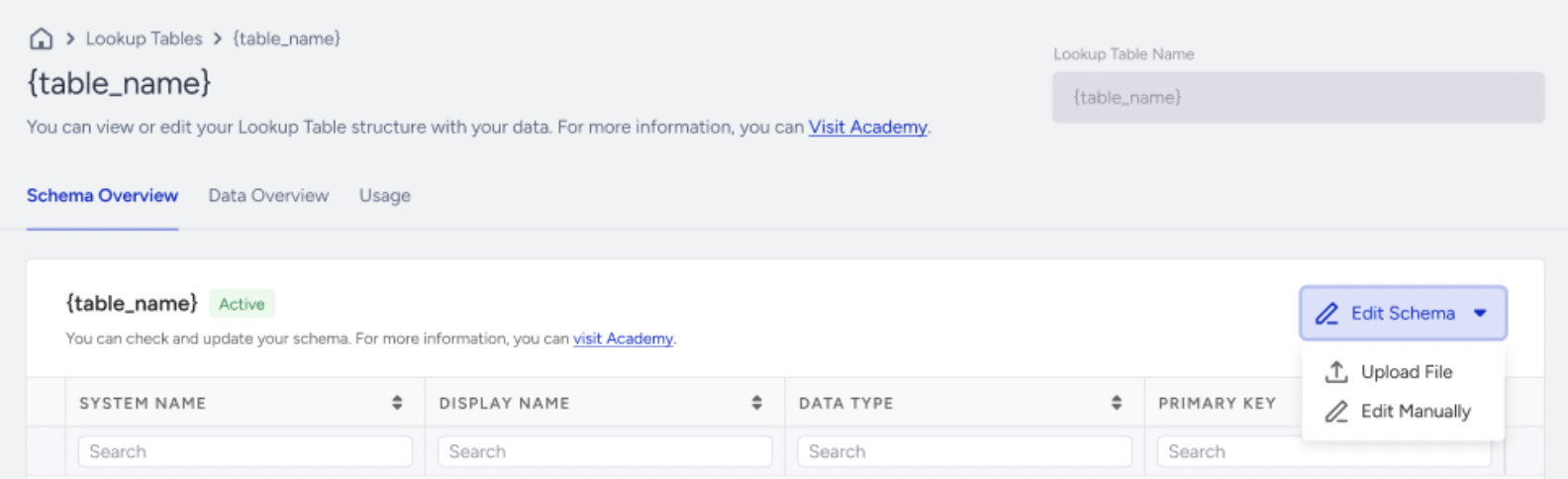
Edit schema
You can modify the schema of an existing lookup table to add new columns or update column definitions.
To edit a schema:
Navigate to the lookup table's Overview page.
Click Edit Schema.
Add or modify columns as needed.
Save changes.
Important notes:
The primary key column cannot be changed or deleted after creation.
Adding new columns does not affect existing data; new columns will have empty values until data is re-uploaded.
Removing a column from a re-upload does not delete the existing column, previous values are preserved.
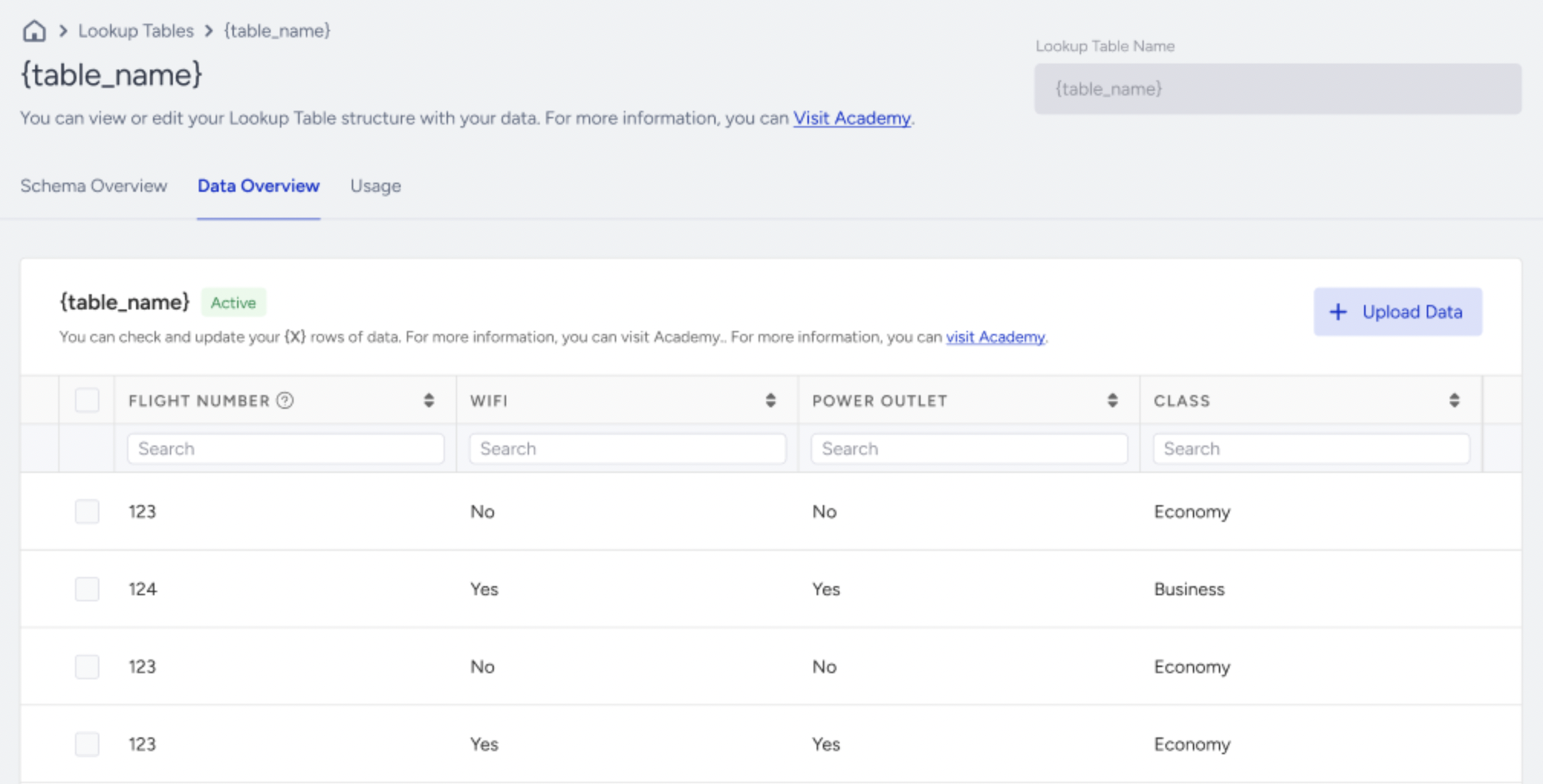
Edit data
You can update the data in a lookup table by re-uploading a CSV file or via API.
Updates follow a primary-key-based upsert model:
Existing rows are updated with new values.
New rows are added.
Rows not present in the new upload are preserved.
Edit binding
You can add, remove, or modify bindings between the lookup table and user attributes or event parameters.
The bound attribute or event parameter must exist in metadata.
The data type must match the primary key type.
Each table supports up to 10 attribute bindings and 10 event parameter bindings.
Delete a Lookup Table
Deleting a lookup table is a high-risk operation. The system checks for active dependencies before allowing deletion.
If the table is not used in any active campaign or segment:
Deletion is allowed after confirmation.
If the table is used in active campaigns or segments:
Deletion is blocked.
A dependency list is displayed showing affected campaigns and segments.
You must pause or stop the dependent items before deleting.
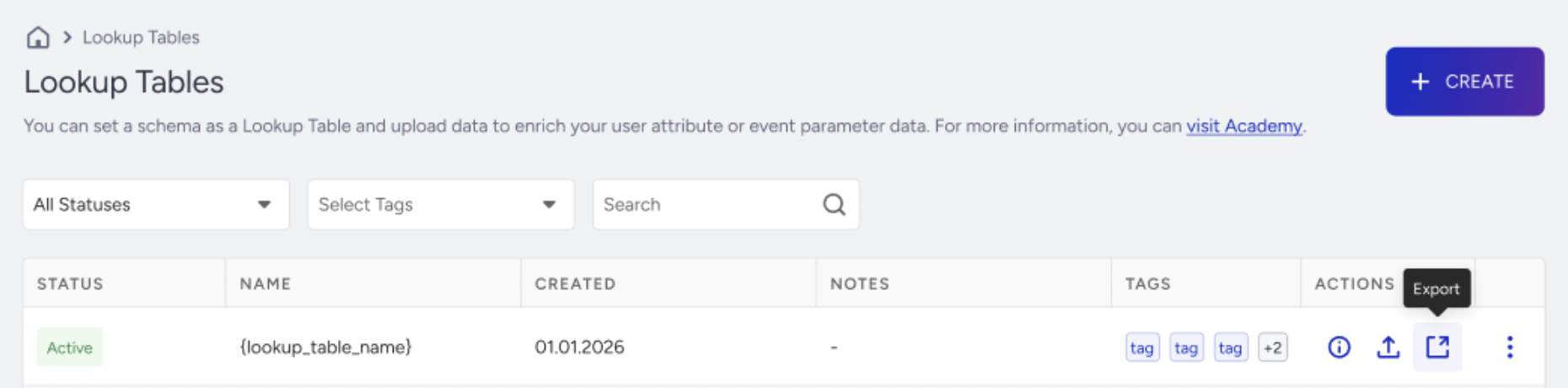
Export data
You can export the data of a Lookup Table from the InOne panel. There is a daily limit of 1 export per table. Once you have exported a table's data, wait until the next day before exporting it again.
Lookup Table statuses
Status | Description |
|---|---|
Draft | The table schema is defined but not yet published |
Processing | Data is being ingested or updated |
Active | The table has been successfully processed and is available for use |
Failed | The upload or update did not complete successfully |
Awaiting Binding | The table is inactive, and metadata is not available for segmentation or personalization, but the table can be updated or re-uploaded |