IP allowlisting enables you to control access to your MindBehind Live workspace based on network location. After you configure it, only users connecting from approved IP addresses can log in, even if they have valid credentials.
This setup is useful for teams that operate from fixed office networks or use a company VPN, as it restricts access to trusted locations.
If you do not configure any IP groups, no restrictions are applied, and all users can log in as usual.
How does the IP allowlisting work?
When a user attempts to log in to MindBehind Live, the platform checks if their IP address is included in your approved list.
Situation | What Happens |
|---|---|
No IP groups configured | Everyone can log in normally |
User is on an approved IP | Login proceeds as normal |
User is on a non-approved IP (single company) | Login is blocked |
User is on a non-approved IP (multiple companies) | Companies that are blocked from are greyed out; they are redirected to a company where their IP is allowed |
Set up IP groups
You can organize your approved IP addresses into named groups, such as one for your office network and another for your VPN.
Create a new IP group
Navigate to MindBehind Live > Company Management.
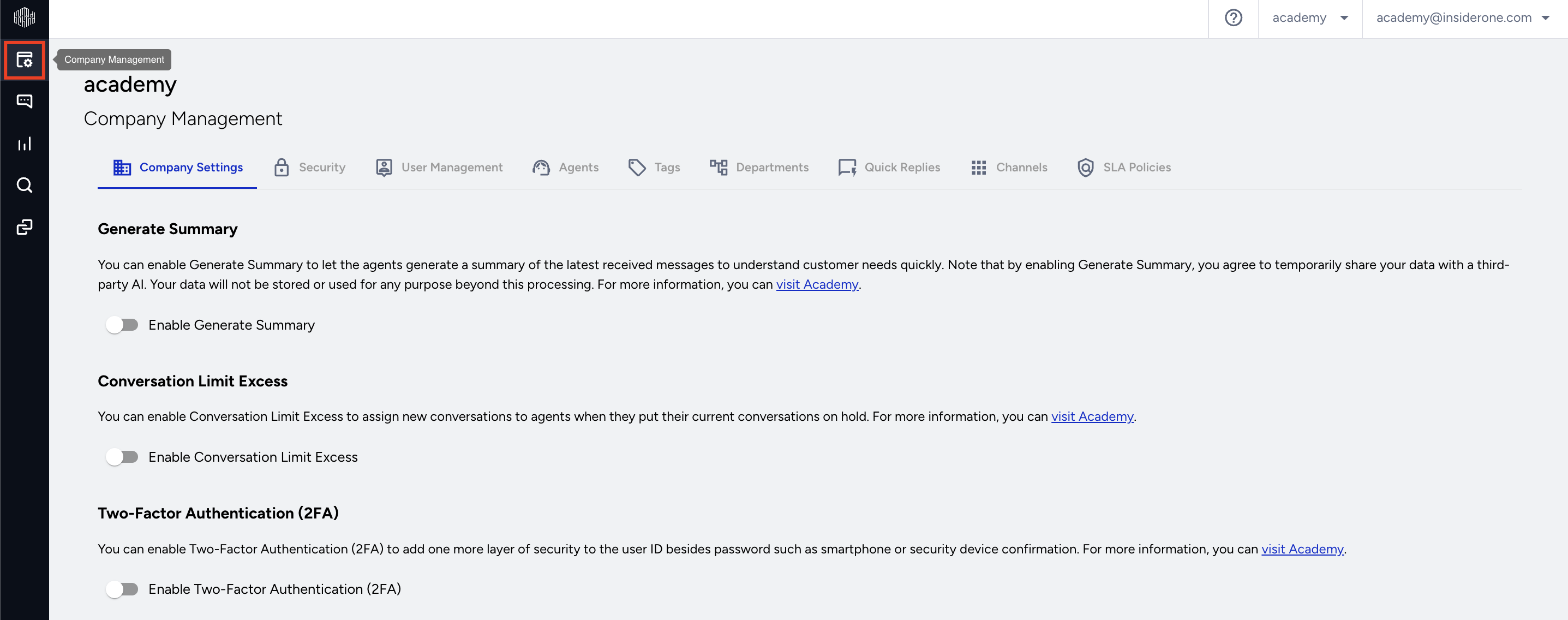
Click the Security tab.
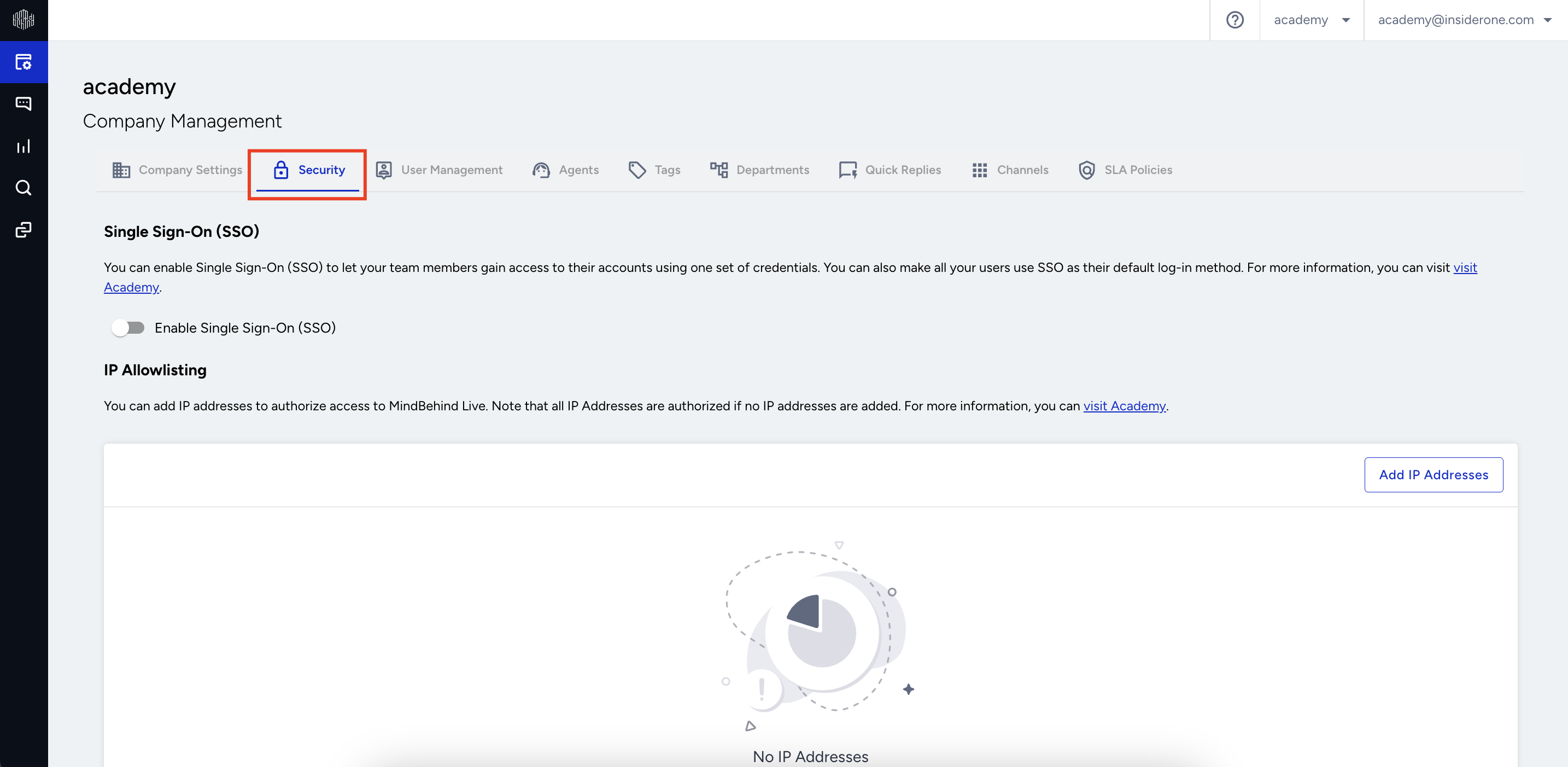
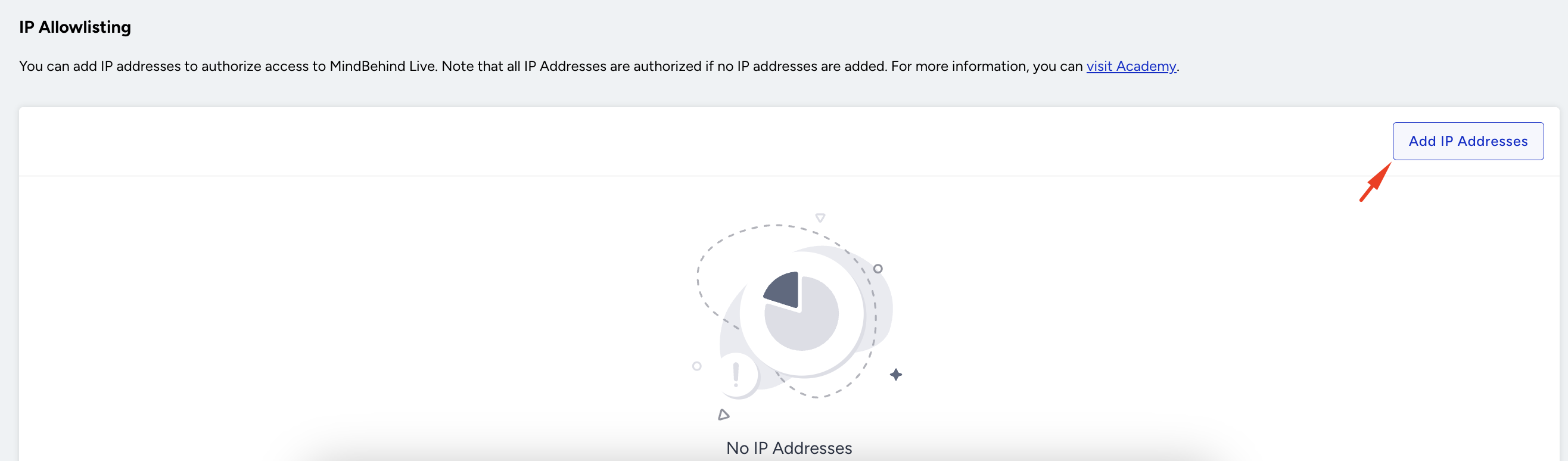
Under the IP Allowlisting section, click the Add IP Addresses button.
In the panel that opens:
Enter an IP Group Name (for example, "Office Network", "VPN", or "Backup Connection"). The name must be unique within your company and can be up to 100 characters.
Add IP addresses in the IP Addresses field. Press Enter, Tab, comma, or space after each entry.
Click Add My IP Address option to automatically add your current IP address.
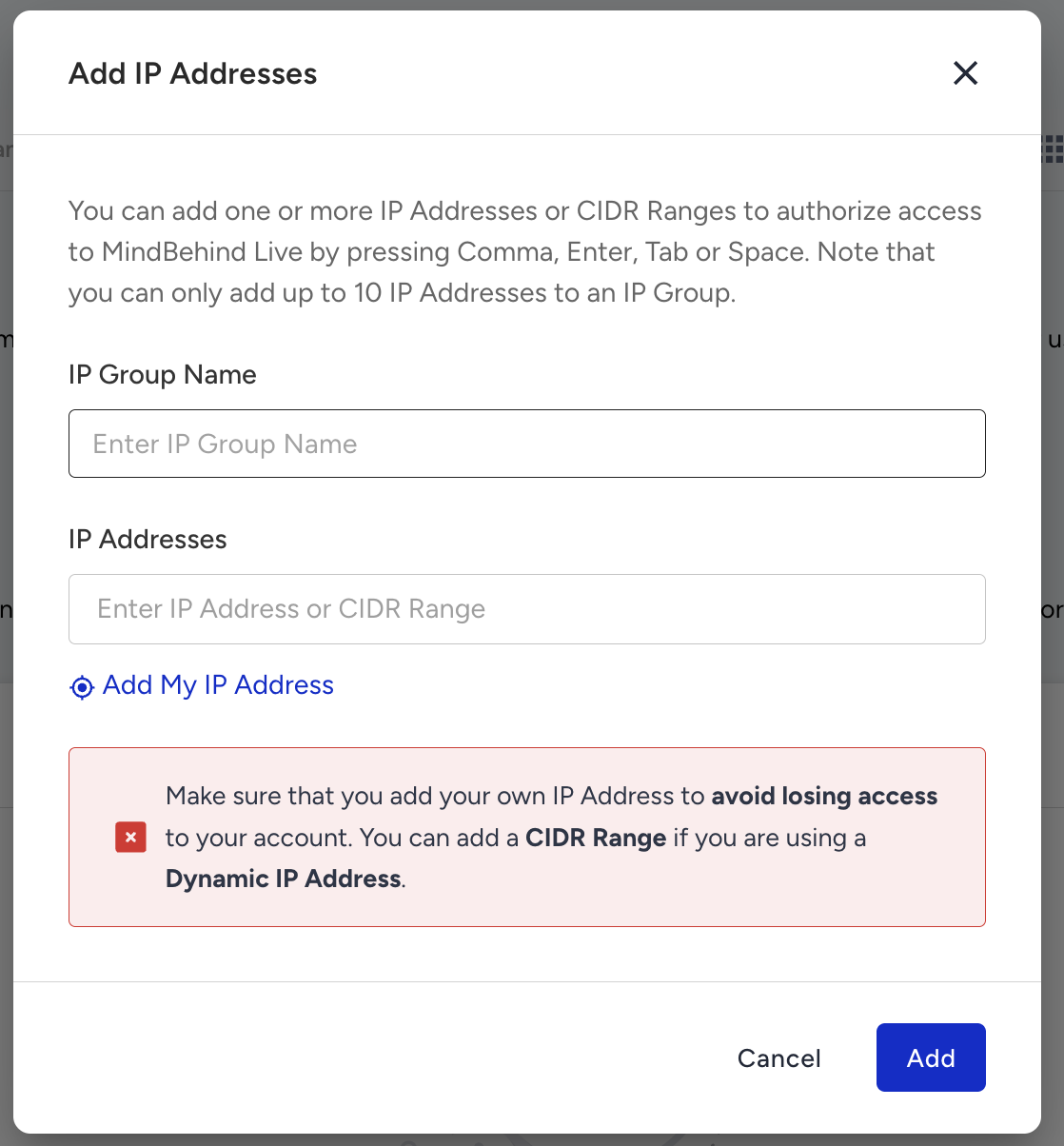
Click Add.
Always include your own IP address before saving. If you forget, you may lose access to your account immediately after saving.
Edit an IP group
Click the pencil icon next to the group you want to update, make your changes, and save.
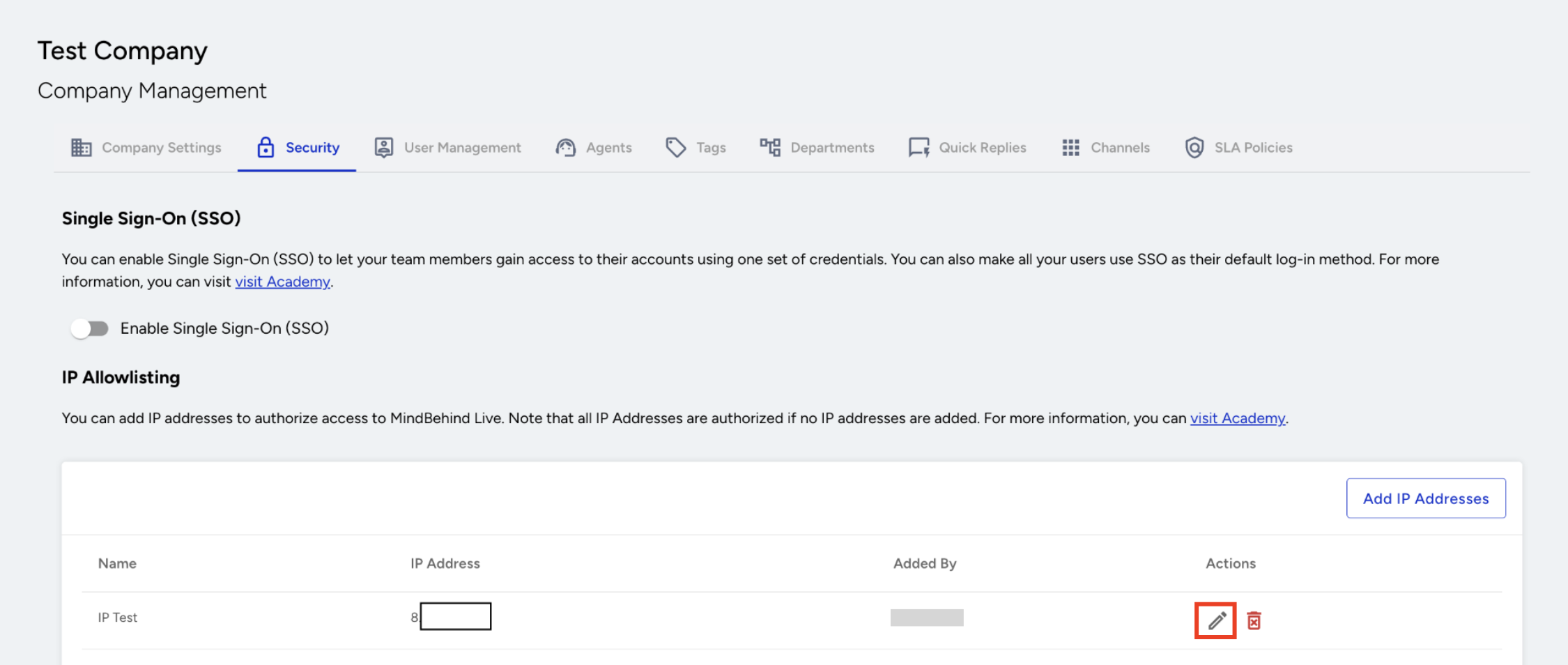
Delete an IP group
Click the trash icon next to the group. Before confirming, pay attention to the warning:
If this is your only IP group, deleting it will remove all restrictions and open access to everyone.
If your own IP address is in this group, deleting it may lock you out.

What IP formats are supported?
You can add individual IP addresses or entire IP ranges using CIDR notation.
Format | Example | Description |
|---|---|---|
Single IPv4 | 203.0.113.45 | One specific IPv4 address |
Single IPv6 | 2001:db8::1 | One specific IPv6 address |
IPv4 range (CIDR) | 203.0.113.0/24 | A range of IPv4 addresses |
IPv6 range (CIDR) | 2001:db8::/32 | A range of IPv6 addresses |
If you add an IP in an unsupported format, it will be highlighted in red, and you won't be able to save until it's corrected. If you add a duplicate, it will be highlighted in yellow.
Each group can hold up to 10 IP addresses or ranges.
Who Can Manage IP groups?
Action | Admin | Department Administrator | Agent |
|---|---|---|---|
View IP groups | Yes | No | No |
Create IP groups | Yes | No | No |
Edit IP groups | Yes | No | No |
Delete IP groups | Yes | No | No |
Frequently Asked Questions
Q: What happens if I don't set up any IP groups?
A: Nothing changes; the platform stays open to all users. IP restrictions only apply once you've created at least one group.
Q: Can I add a range of IP addresses instead of individual ones?
A: Yes. Using CIDR notation (e.g., 203.0.113.0/24), you can approve an entire address range at once. This is helpful for larger office networks where many users share the same network but use different individual addresses.
Q: I use a VPN. Which IP address should I add?
A: When you're connected to your VPN, click Add My IP Address — the platform will detect and fill in your VPN's IP automatically. If you also need access from your office or home network, create separate groups for each.
Q: Does this work alongside SSO?
A: Yes. IP allowlisting works on top of your existing login method, whether that's username/password or SSO. A successful login still requires the user's IP to be on the approved list.
Q: Will my existing IP groups be affected if the feature is temporarily disabled?
A: No. Your IP groups are saved and will remain in place. If the feature is re-enabled, your restrictions will be activated again automatically.
Q: Can I add private or internal IP addresses?
A: No. Private network ranges (such as 192.168.x.x, 10.x.x.x) and loopback addresses (127.0.0.1) are not accepted. Only public IP addresses can be added.
Troubleshooting
I'm locked out of my own account
What happened: Your IP address wasn't included in any active IP group before saving.
What to do:
Ask another Admin on your account to log in and add your IP address to an existing group.
If all admins are locked out, contact MindBehind Support to temporarily lift the restriction.
A team member can't log in even though they're in the office
What to do:
Ask them to check their public IP address at a site like whatismyip.com.
Compare that address against your configured IP groups.
If the address isn't listed, add it or update the relevant group.
If your office uses a shared internet connection, all users may appear to come from the same IP. In this case, adding that single IP (or the network range) is sufficient for everyone