You cannot make any changes to External Platform Integrations without having either an Administrator or an Editor with PII access in InOne. Refer to User Roles for further information.
Google Analytics 4 (GA4) is an analytics service that helps you have customer-centric measurement and engagement across your websites and apps. The transition from Universal Analytics (UA) to Google Analytics 4 (GA4) is a significant shift in the analytics landscape. GA4 is Google's next-generation analytics platform, designed to provide more flexibility and insights into user behavior across different platforms and devices.
Transitioning from Universal Analytics (UA) to Google Analytics 4 (GA4) is advisable for several reasons:
User-Centric Focus: GA4 adopts a user-centric approach, providing a more comprehensive understanding of user behavior across platforms and devices.
Event-Driven Model: GA4 gives you detailed information on what users are doing, thanks to its event-driven approach, which is different from UA's session-based method.
Cross-Platform Tracking: GA4 is great at bringing together data from websites, mobile apps, and various platforms. It gives you a unified look at how users engage across different devices.
Machine Learning and AI Integration: GA4 incorporates machine learning and artificial intelligence, empowering you with predictive metrics and insights for informed decision-making.
Future-Proofing: Google has signaled GA4 as the future of analytics, with ongoing updates and features likely to be focused on this platform. Transitioning early ensures you stay ahead of the curve.
Overall, migrating to GA4 positions you to leverage advanced analytics capabilities and adapt to the evolving landscape of digital measurement.
For further reading, you can refer to Insider One's blog post.
This integration is only for Insider One's Web Suite campaign events. If you also want to track analytics for Messaging channels, you can use UTM tracking. If you do, be sure to consult the Possible Reasons for UTM Tracking Discrepancy Between Google Analytics and InOne article.
The following questions are answered in this article to better understand how to configure GA4 Integration on Google Tag Manager (GTM) to send events to the new Google Analytics for Insider One campaign events (e.g., impressions, clicks):
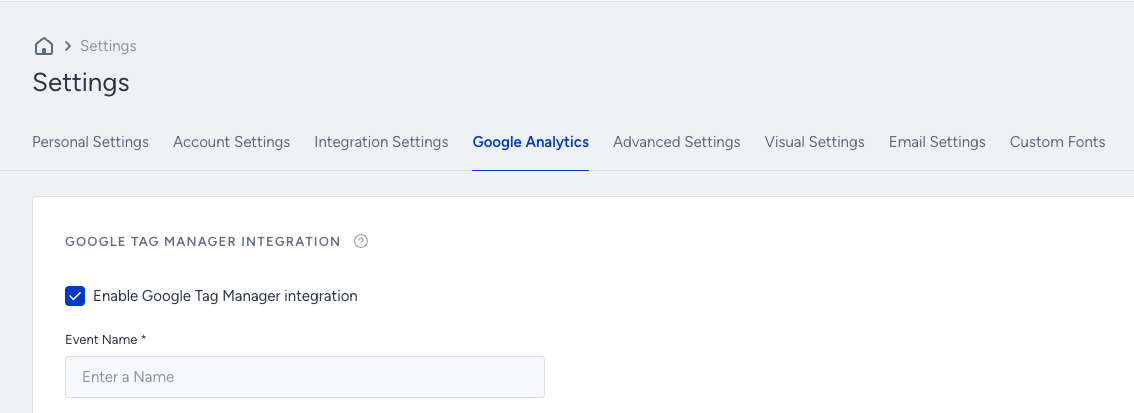
As the prerequisite, make sure you enable Google Tag Manager integration for Insider One from the InOne panel by navigating through Settings > InOne Settings > Google Analytics.
How to create a tag for GA4 configuration
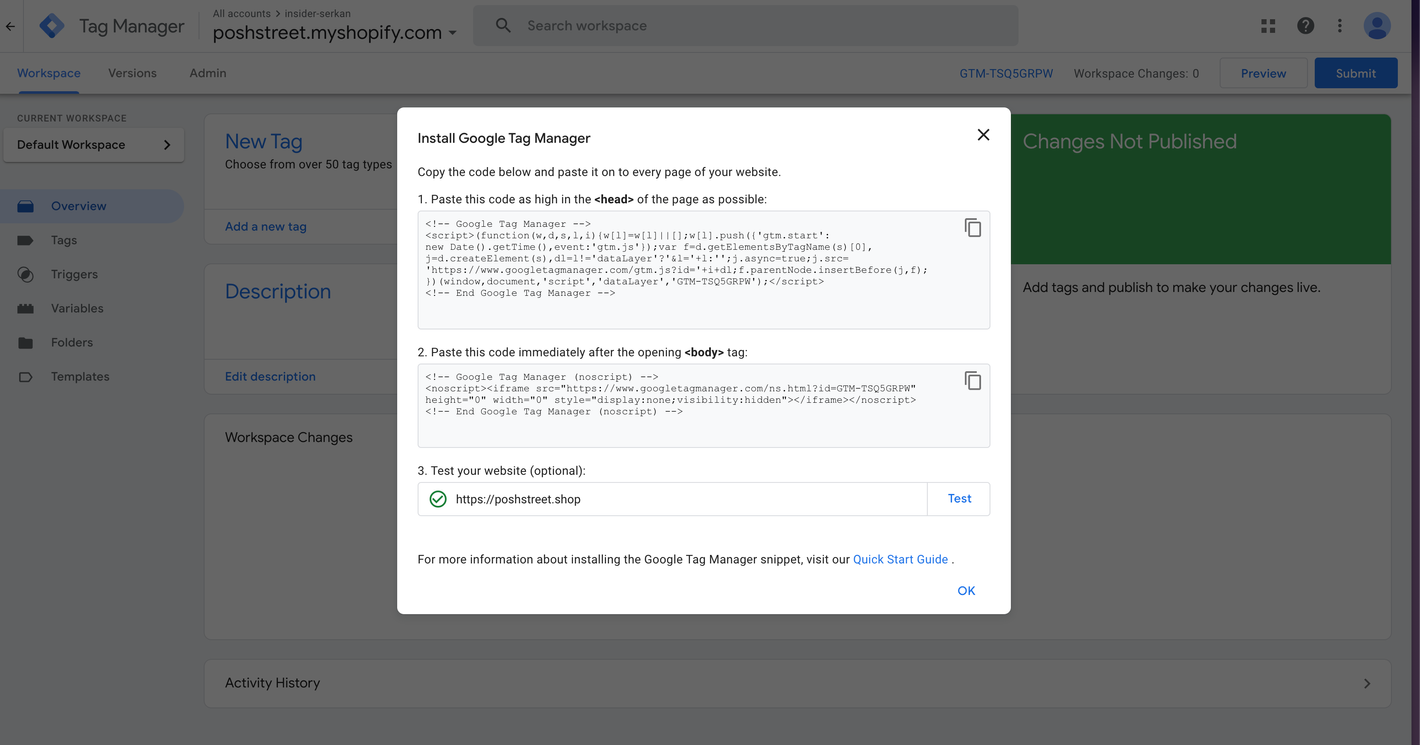
To install Google Tag Manager (GTM) on your website, paste the two scripts that Google Tag Manager will generate for you onto every page of your website.
These scripts are unique to your account and website. They will automatically be prompted to you by GTM when you first log into GTM. You can also find them in the “GTM-[yourcode]” button/section from the Banner menu.
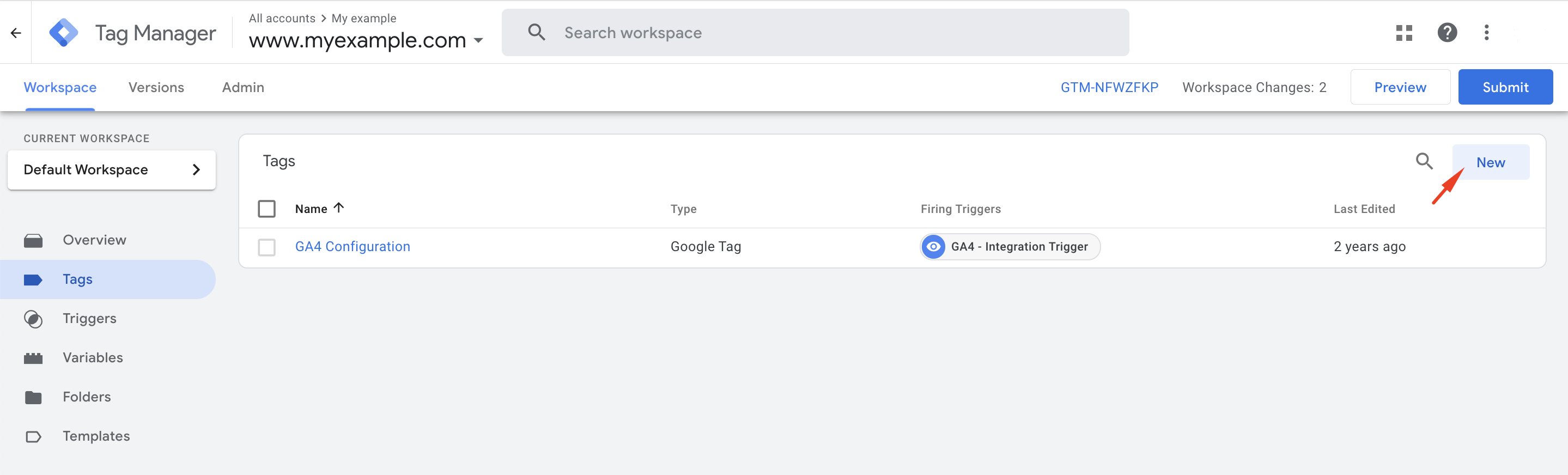
Go to Tags from the left menu and create a new tag.
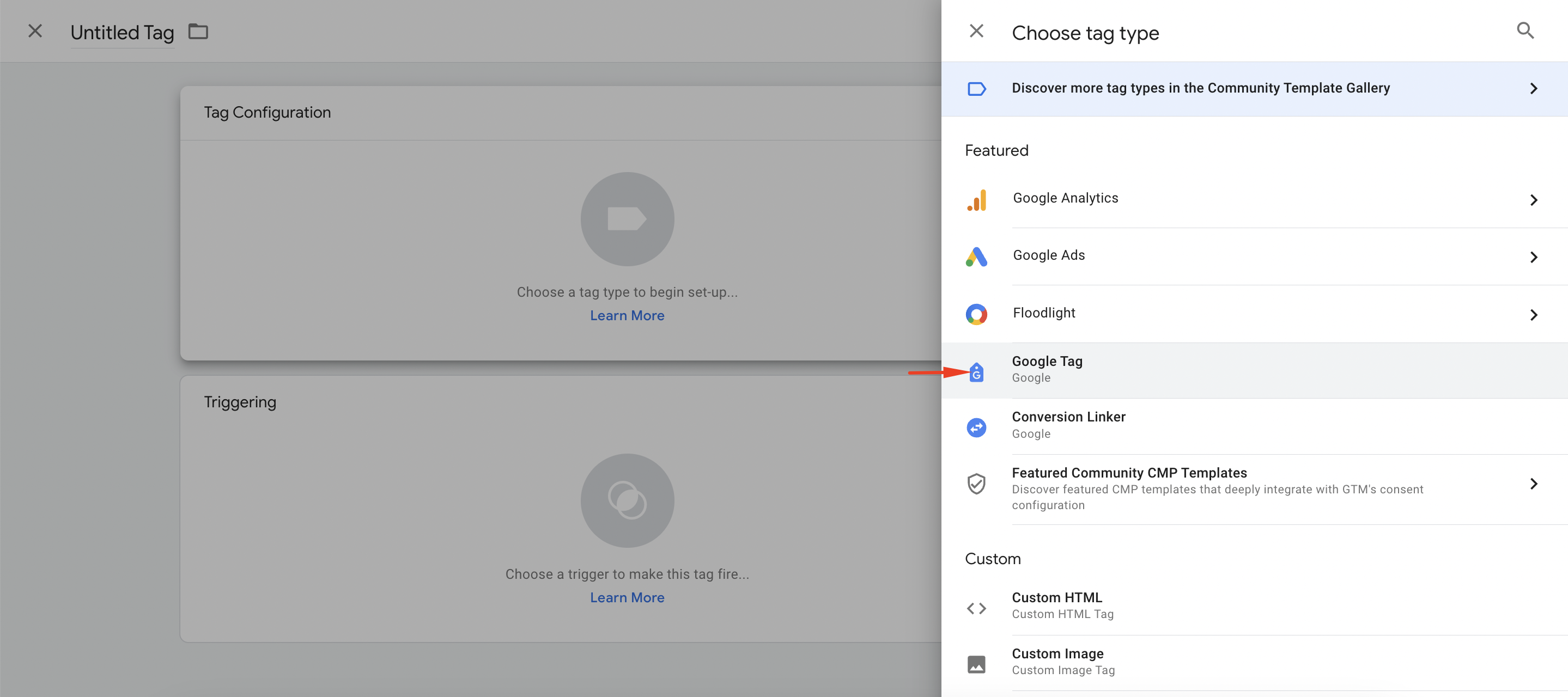
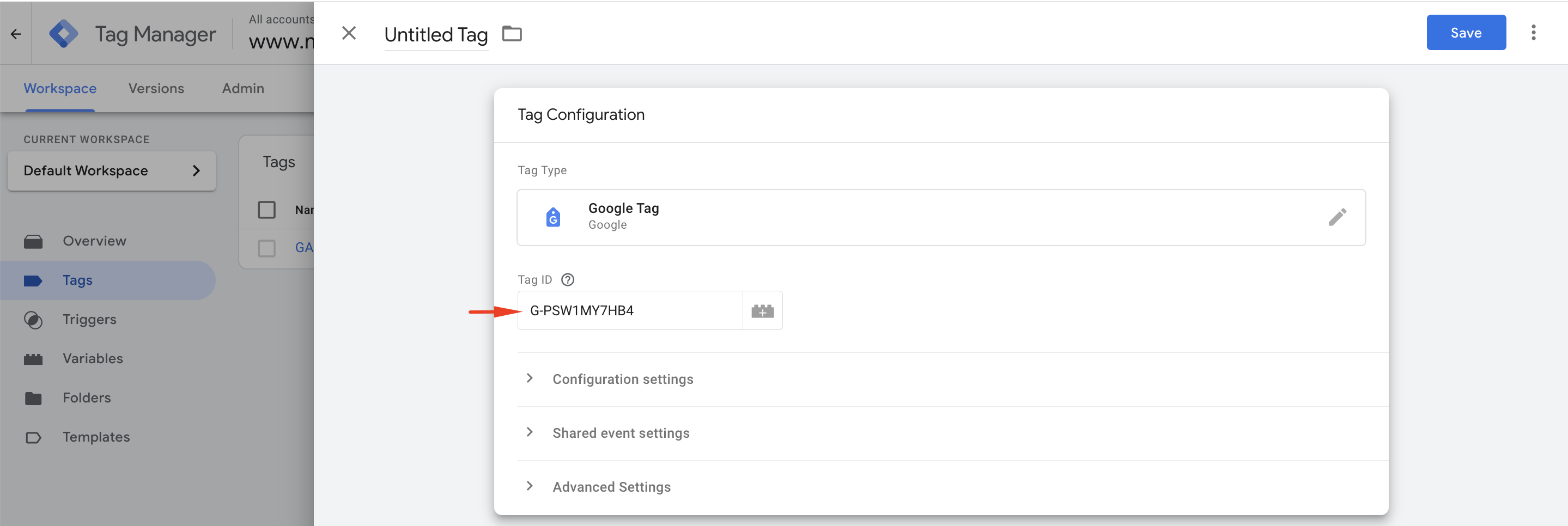
To create a tag, select Tag Configuration first. Then, choose the tag type as Google Tag.
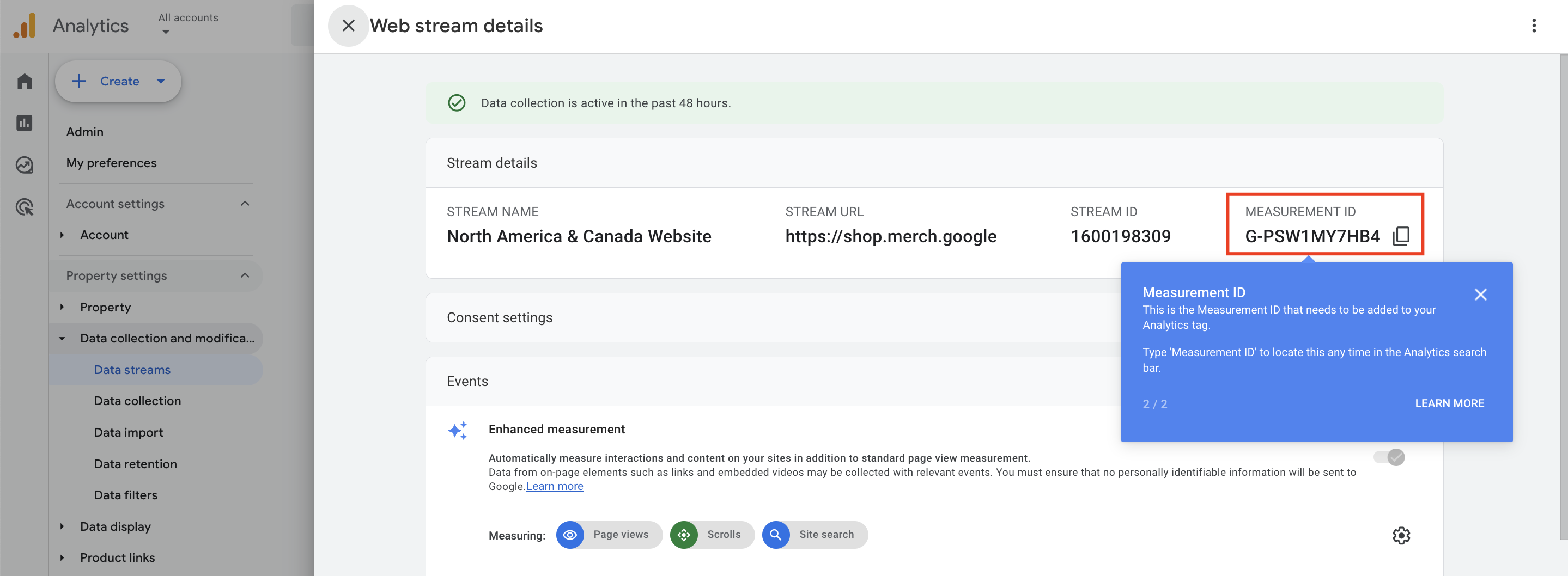
Paste the “Measurement ID” that you can get from Google Analytics Data Streams into the “Tag ID” field you see in this section.
To find the Measurement ID, navigate to GA4 panel > Admin > Data Collection and Modification > Data Streams > Your Domain.
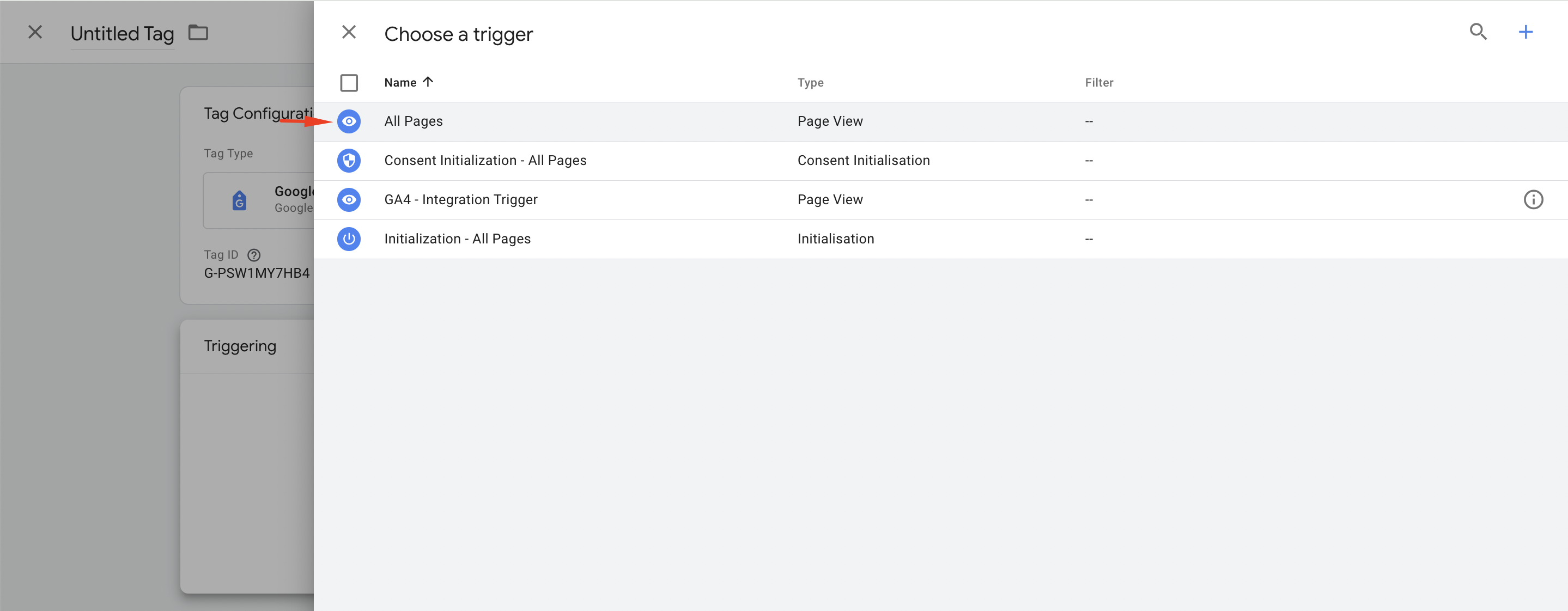
Click on the "Triggering" section for the tag you are creating, and select "All Pages" option for triggering.
Click the Save button to save your configuration.
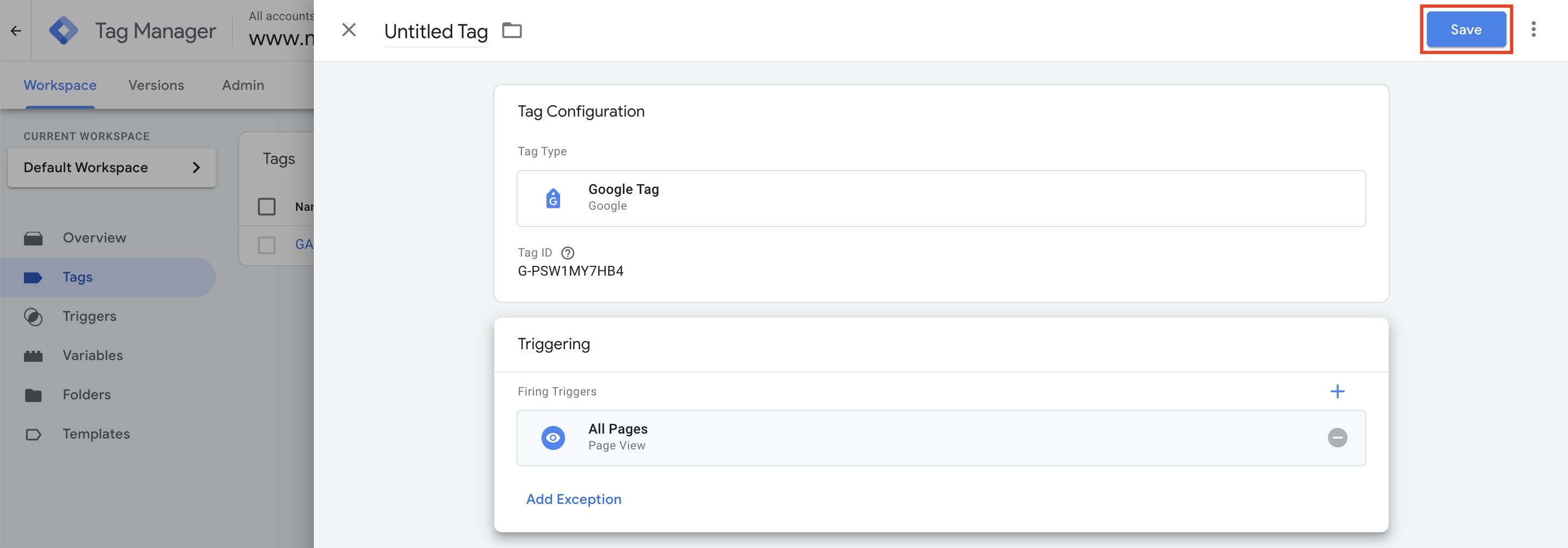
This configuration will provide the connection between Google Tag Manager and Google Analytics 4. Next, you need to create an event tag for your configuration.
How to create an event tag for your configuration
This tag enables you to send your Insider One events to GA4.
On the Google Tag Manager panel, follow the same steps above to create a new tag for the Event and select Google Analytics: GA4 Event.
.gif)
Paste the "Measurement ID", which is the same Measurement ID you got from GA4 panel > Admin > Data Collection and Modification > Data Streams > Your Domain, into the "Measurement ID" field here. When you enter the correct ID, you will see the "Google tag found in this container" message, indicating that Google Tag Manager verifies it.
In the same section, enter “INSIDER” as the Event Name.
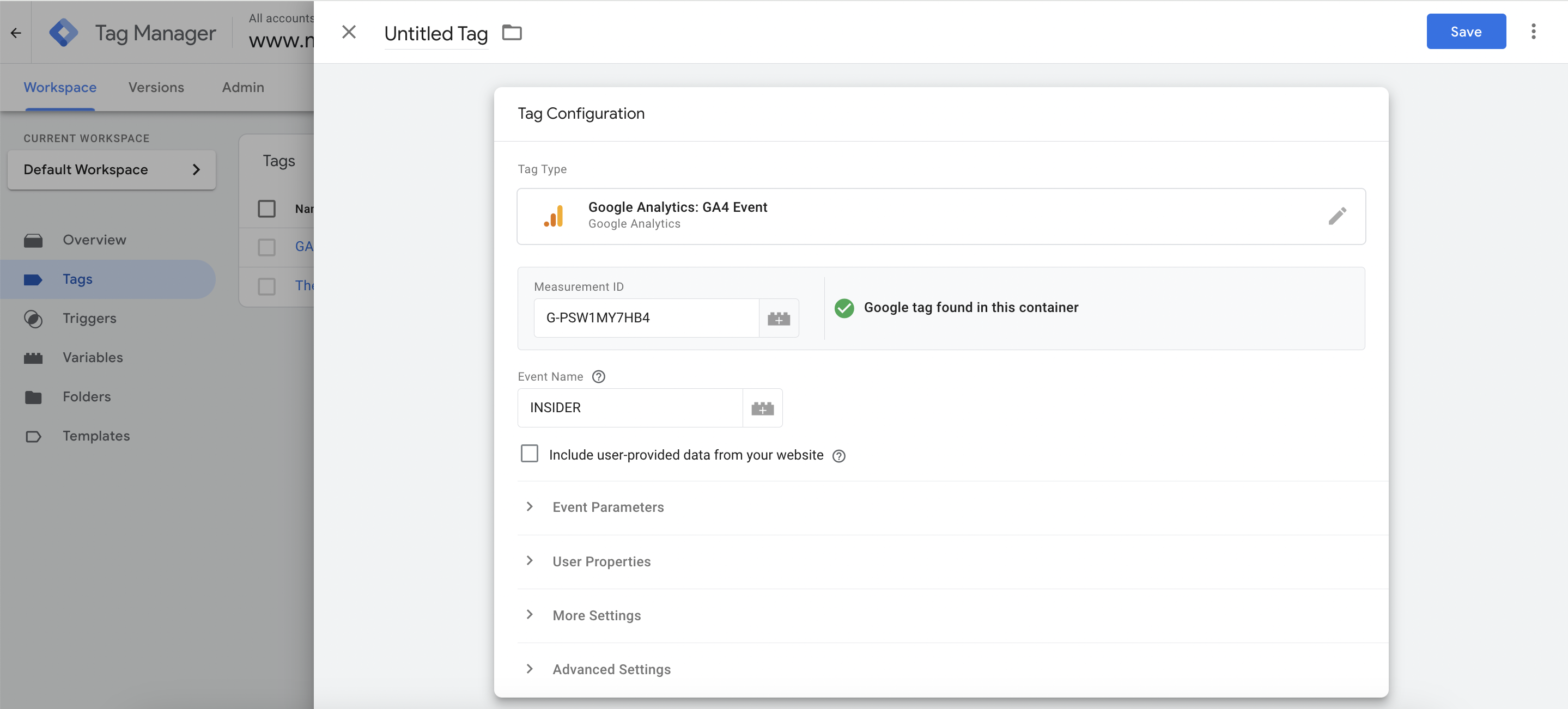
The event name on GA4 should precisely match the event name used in the InOne panel. Consistency in event naming is crucial for accurate tracking and analysis.
Go to the Event Parameters and click the Add Parameter button.
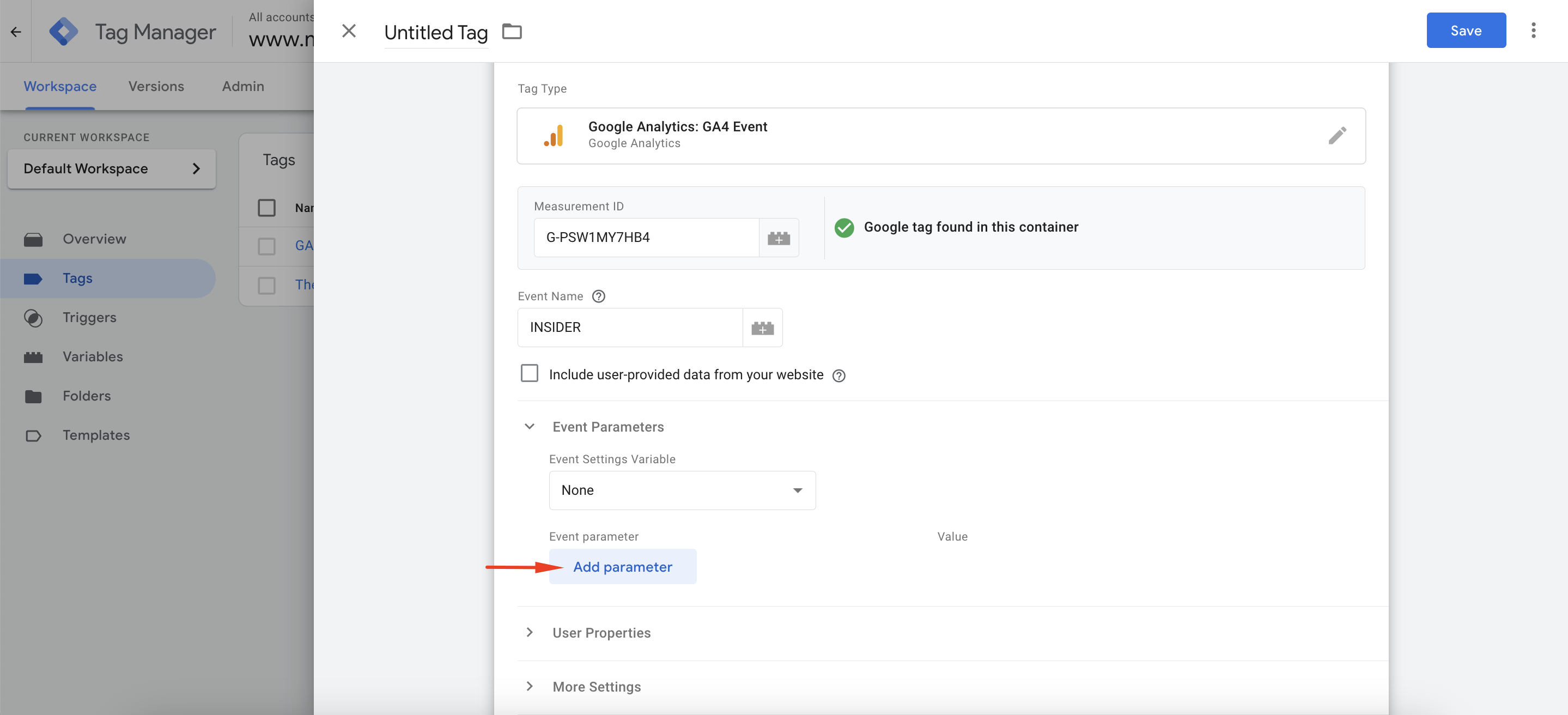
In the Event parameter field, click the +(plus) button.
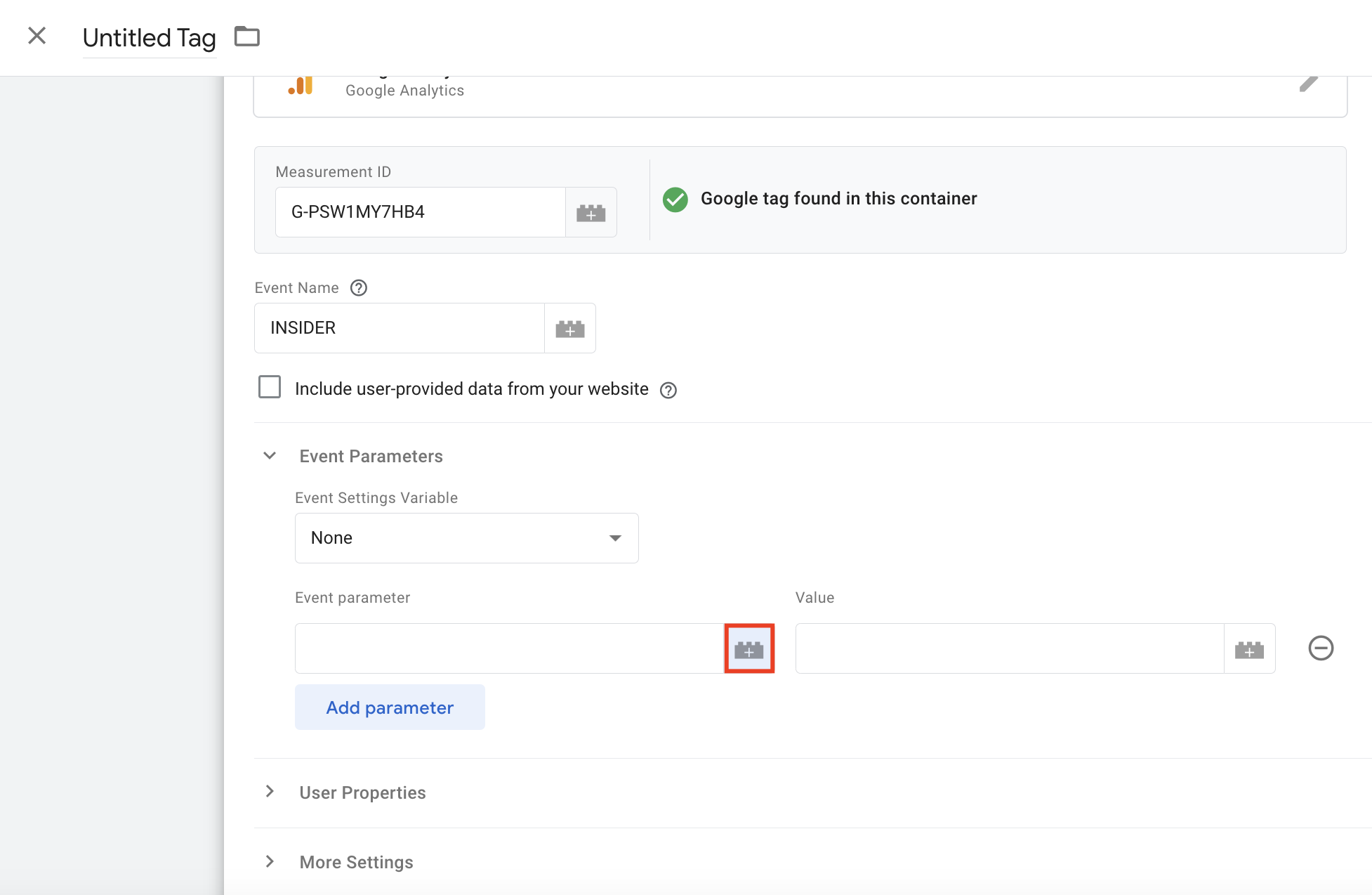
Click the + (plus) button.

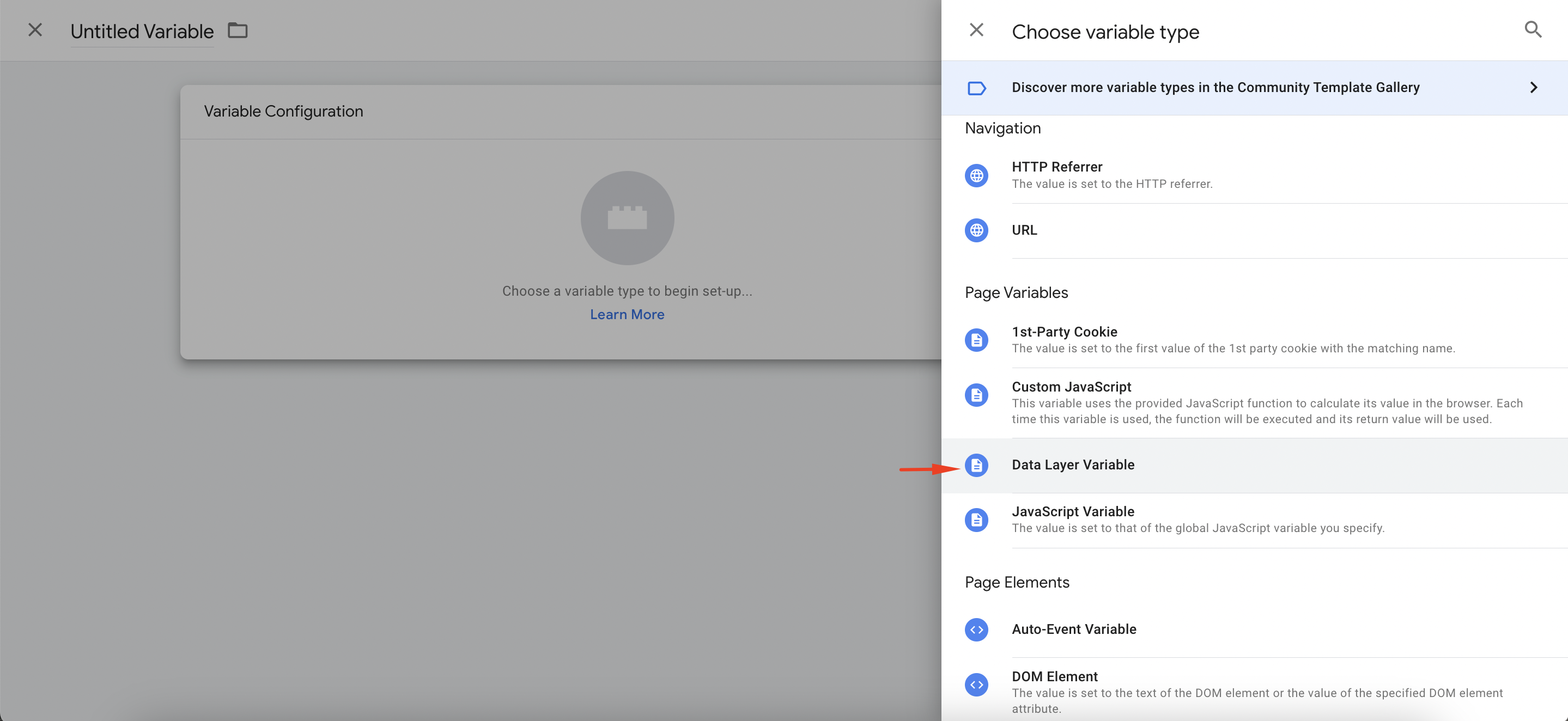
You will land on the "Variable Configuration" section. In this section, add custom event parameters as “Data Layer Variable". After configurations, save it.
Double-check the event variable names by comparing the names and values for the events in the "Tag Configuration" section in GTM and the Google Analytics > GTM Integration section in the InOne panel. To check the event name in the InOne panel, navigate to Settings > InOne Settings > Google Analytics.
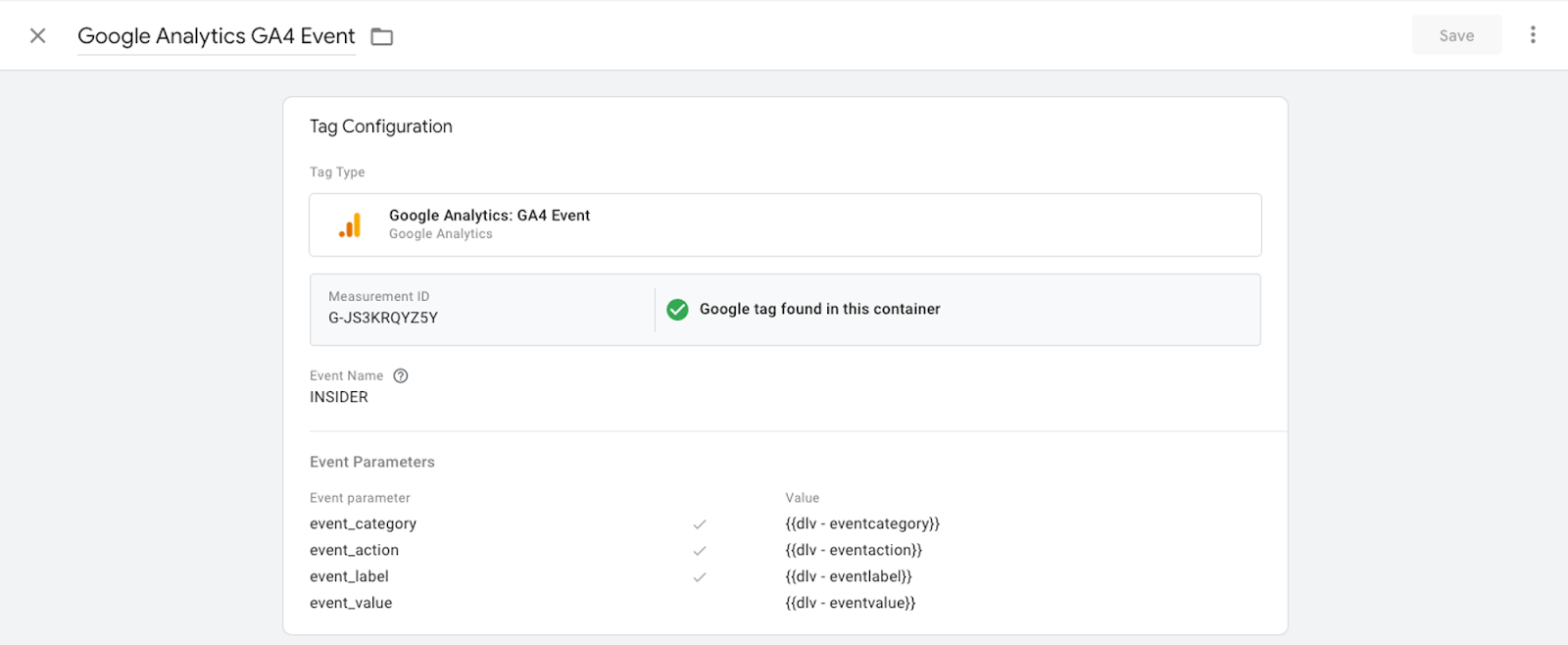
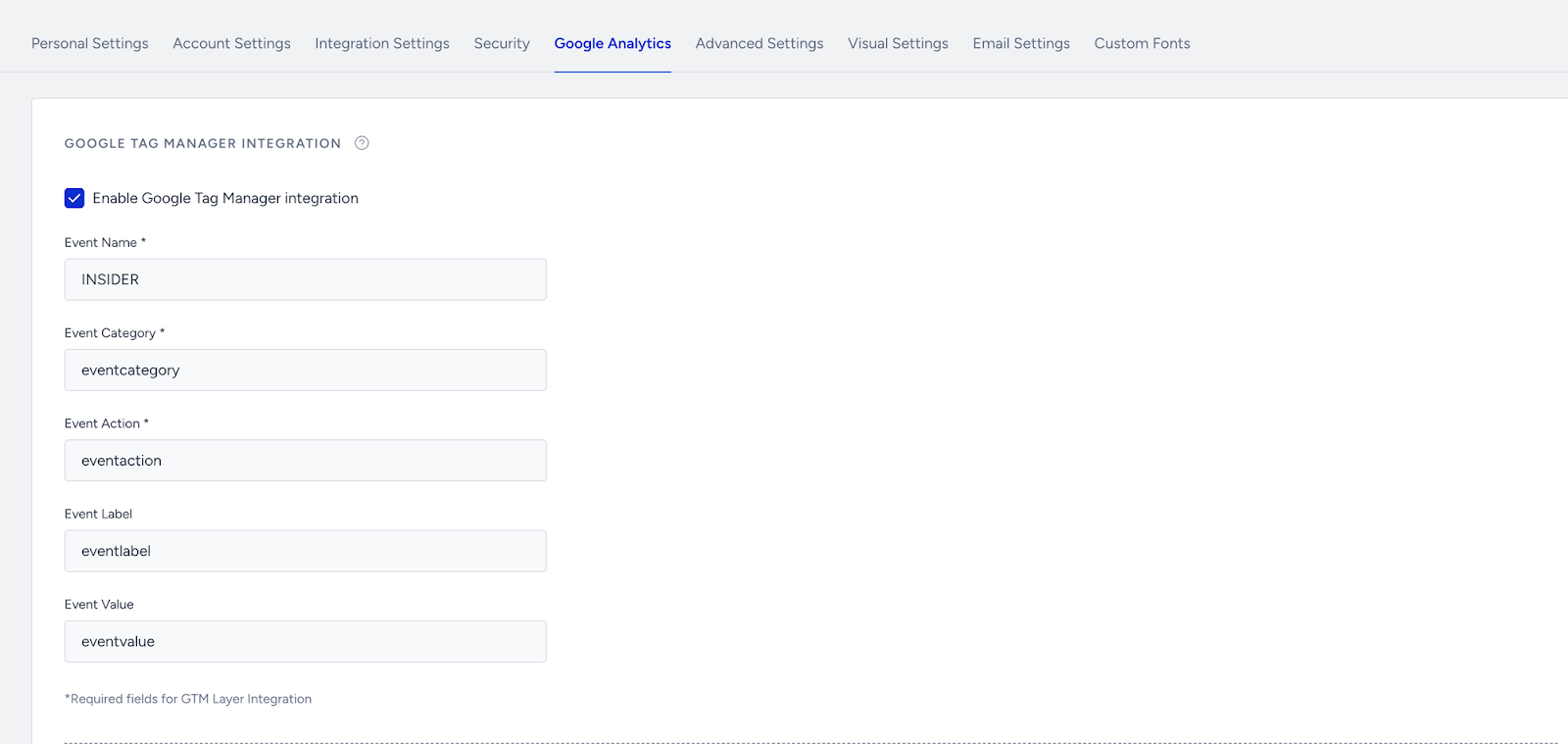
Names of the Google Analytics event variables in the InOne panel, and the “variable names” entered here, should precisely match.
Ensure that the naming conventions align seamlessly between GA4 and the InOne panel to facilitate seamless data integration and reporting. Any discrepancies in event names might lead to misinterpretations or incomplete analytics insights
To capture additional data related to specific events you created, you can use the custom dimensions. To add custom dimensions, navigate to the "Custom Dimensions" section and click the Create Custom Dimensions button.
Click the + (plus) button on the "Triggering" section to create a custom event for Insider One events.
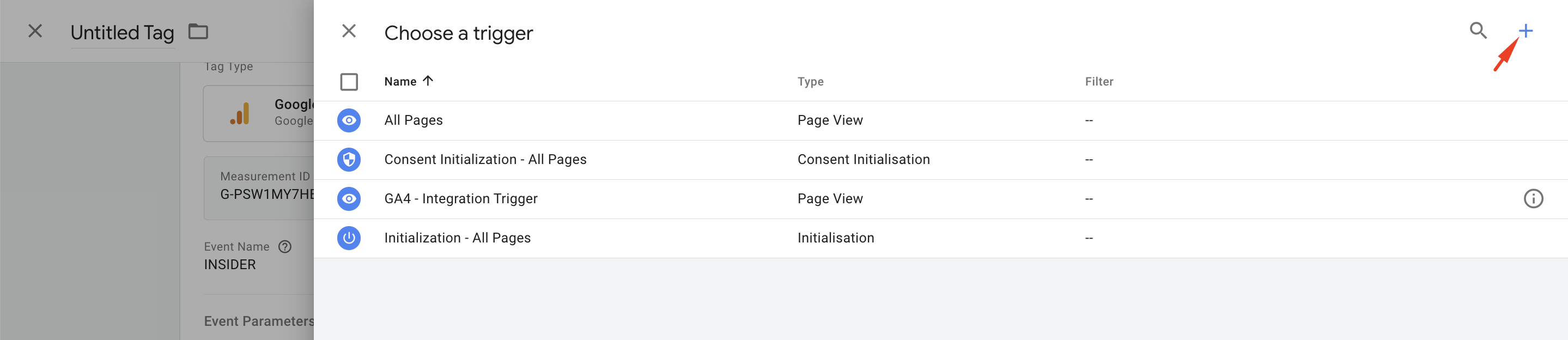
Select "Custom Event" and enter INSIDER as the Event Name. Make sure you select the "All Custom Events" option for the Custom Event.
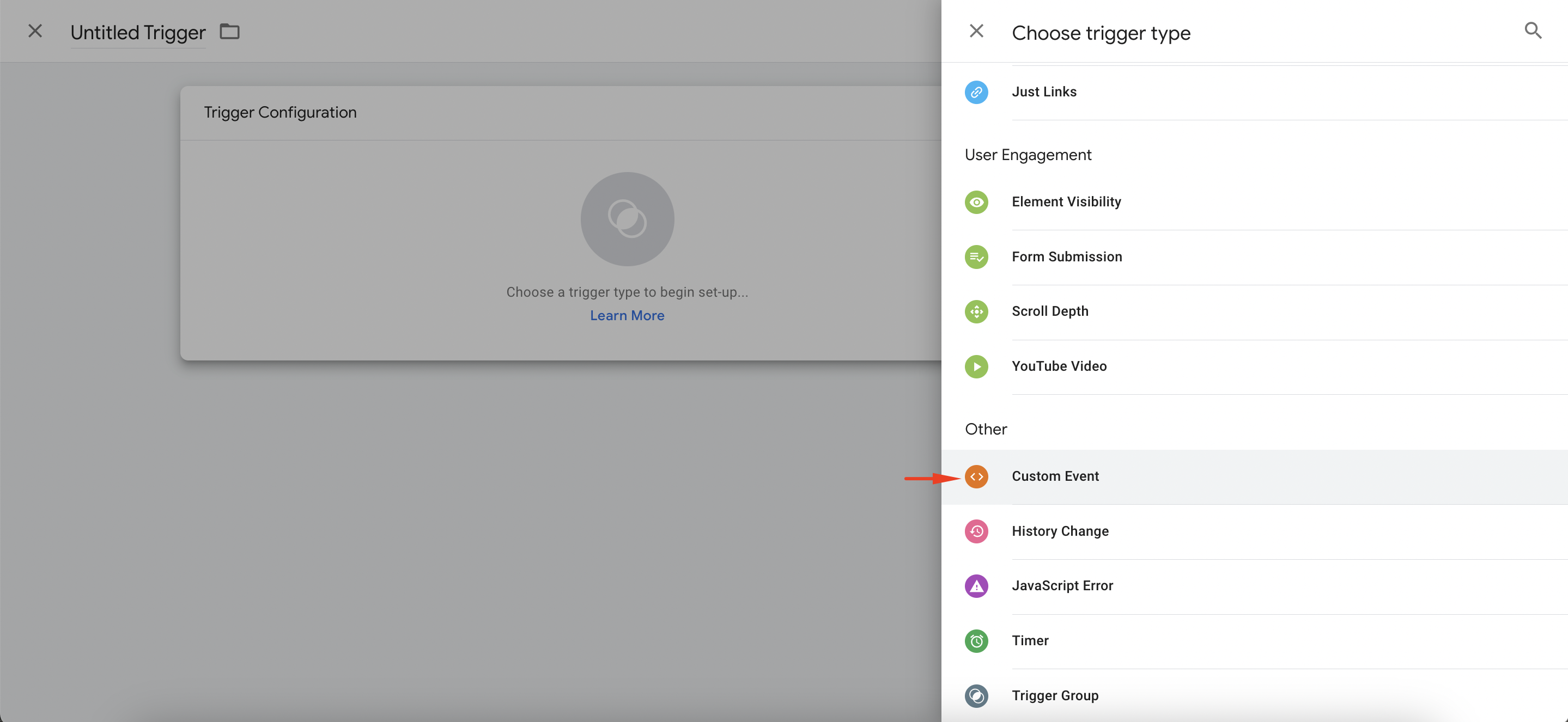
Note that INSIDER is the name given to the same event within the InOne panel and was previously entered as the name for the same event in the "Tag Configuration" section.
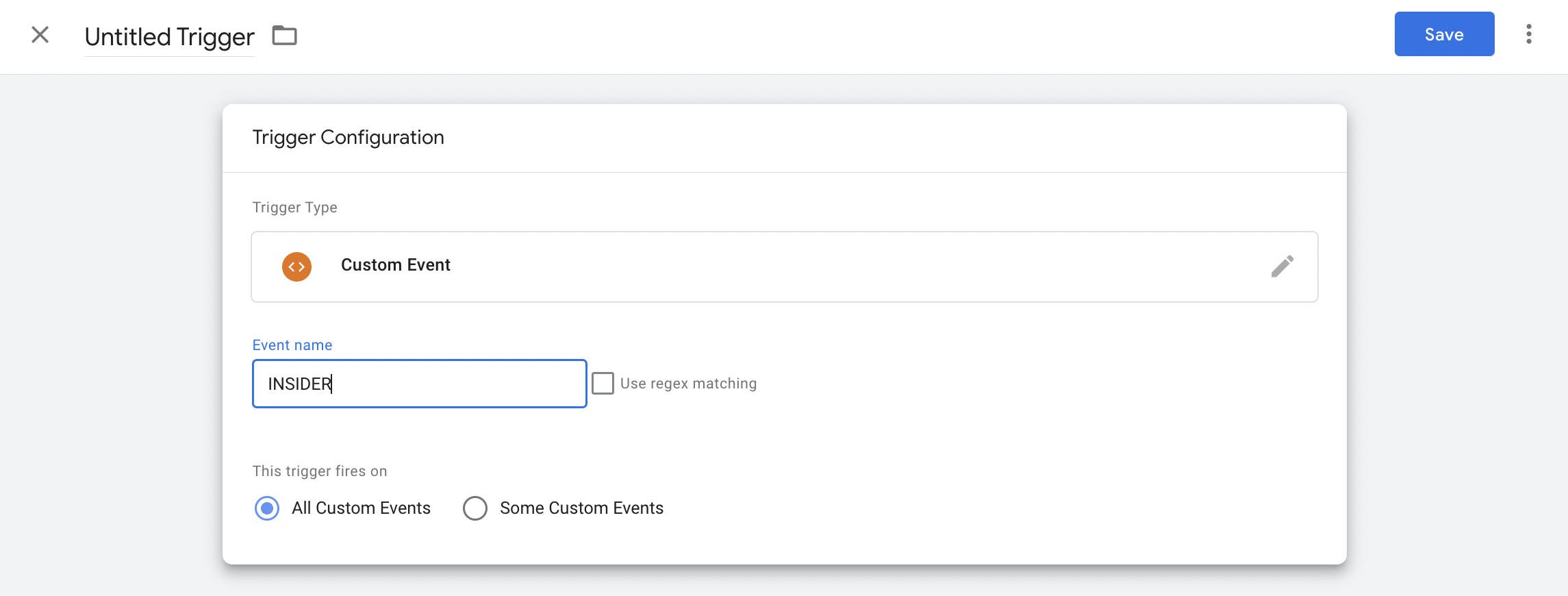
Click the Save button to save your configurations. This will take you to the main dashboard, where you will see the Submit button in the top-right corner of the screen.
Then, click the Submit button to publish these configurations/updates.
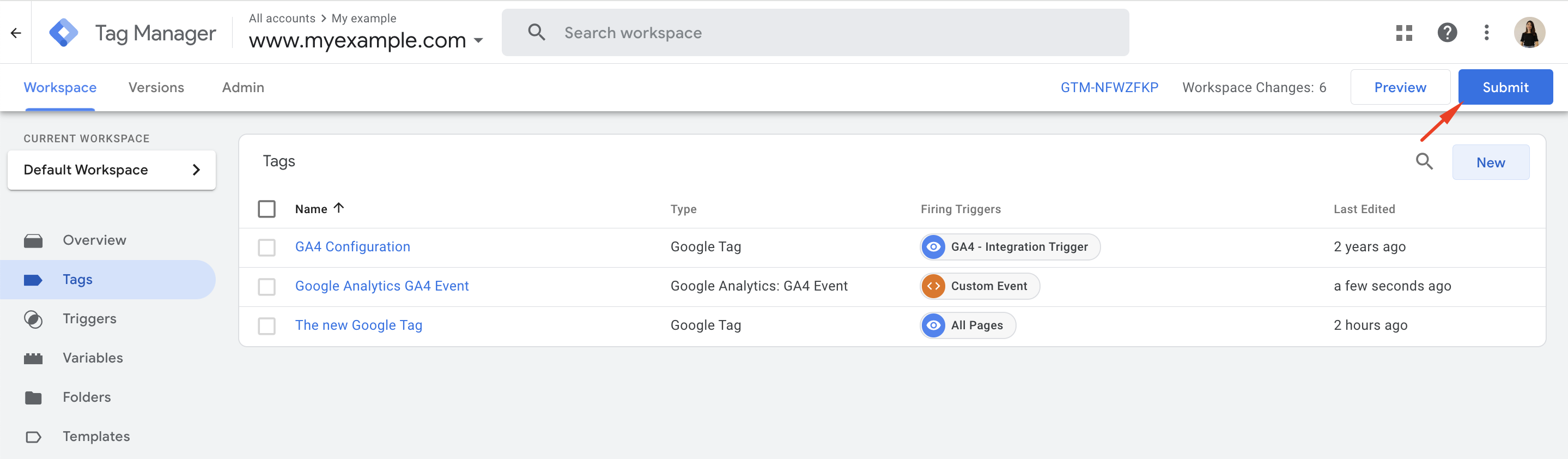
This will complete the Google Analytics 4 and Insider One integration. You can now start monitoring all your Insider One events (data) in your Google Analytics 4 panel to measure the performance of your marketing campaigns.
How to observe eventlabel in different groups
Since it is the campaign data, you don't need to do something different to get the eventlabel for Variation Group, Control Group, or the event you set.
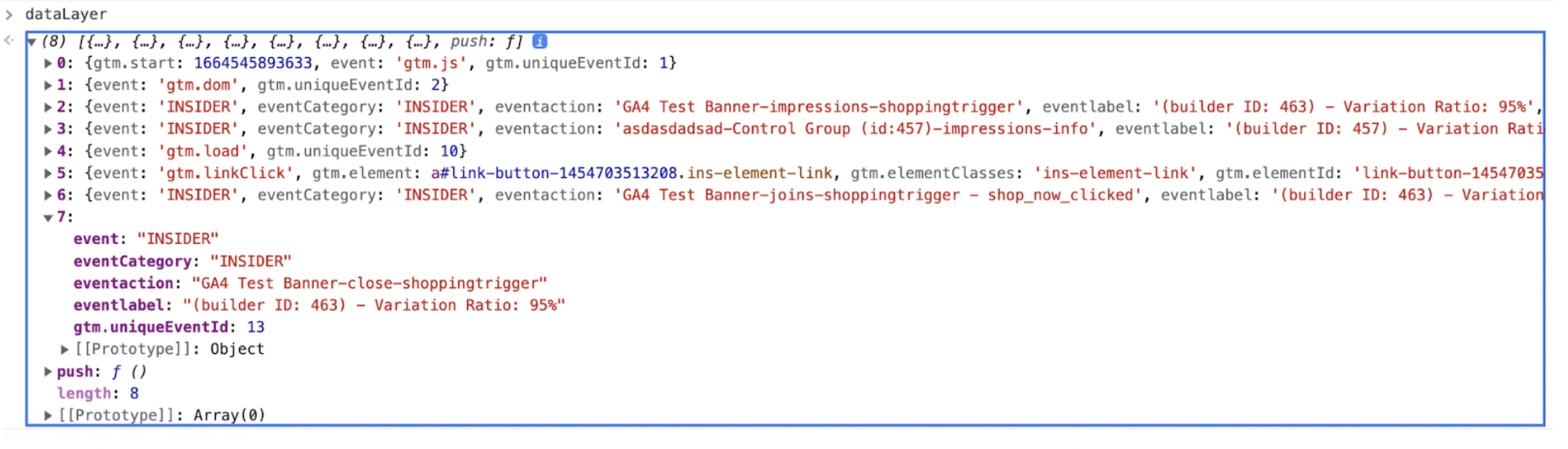
For example, you can see the eventlabel of the variation group below on a visible campaign.
.png)
You can see below the eventlabel of the control group when the campaign is not visible to the user.
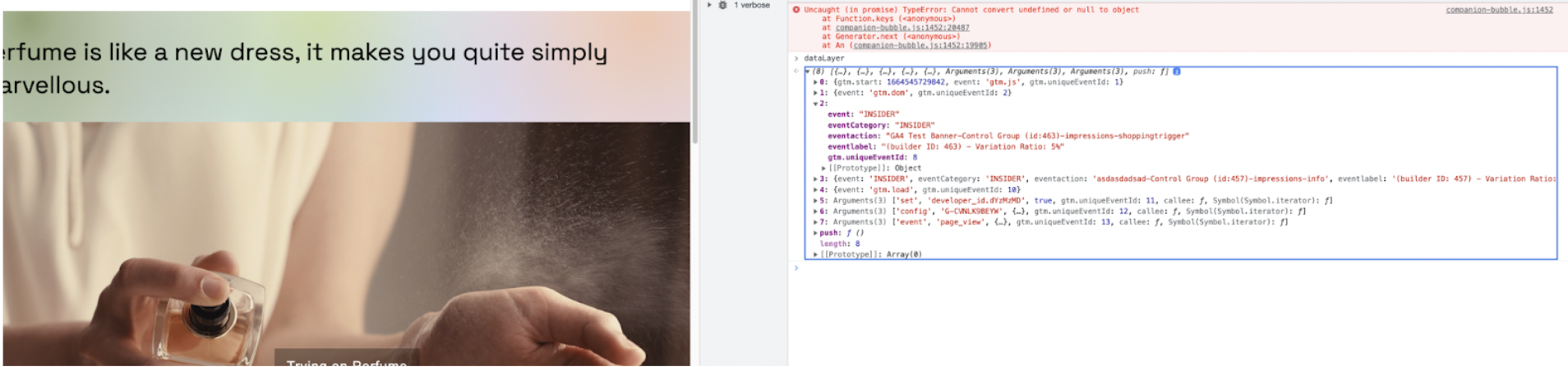
In the example below, you can see a GA event added via template, which is shop_now_clicked.
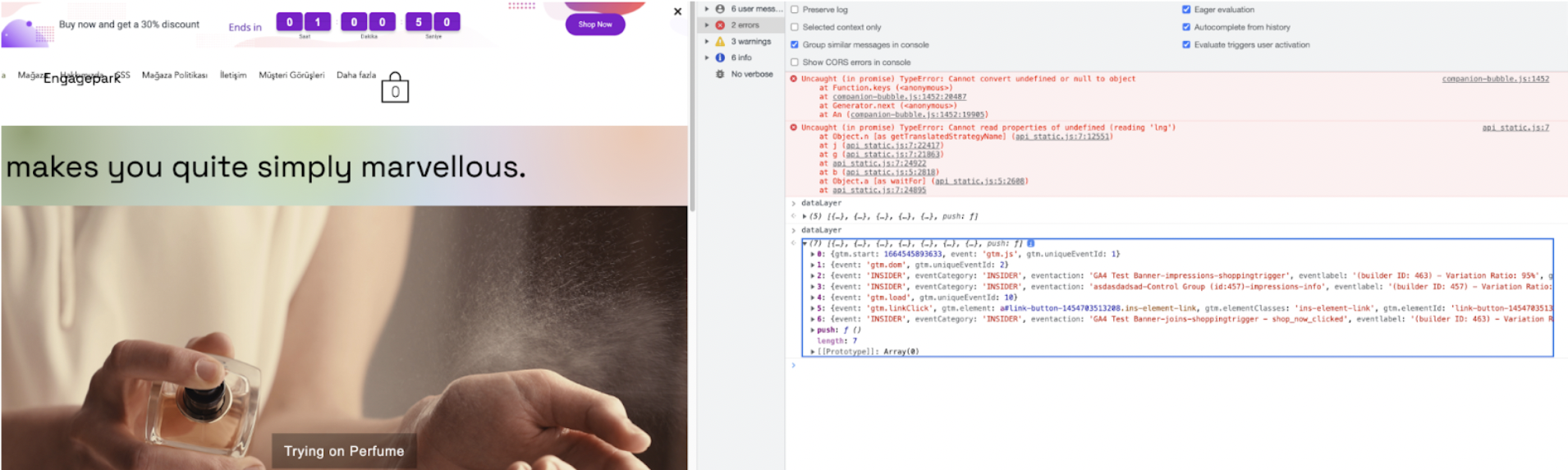
In the example below, you can see the close click event data.
How to enable data stream for campaigns
After completing the integration, you need to select which campaign data you want to send to Google Analytics. To do this, navigate to Components > Attributes and Events > Google Analytics Events and choose the metrics you want to send for the respective campaigns.
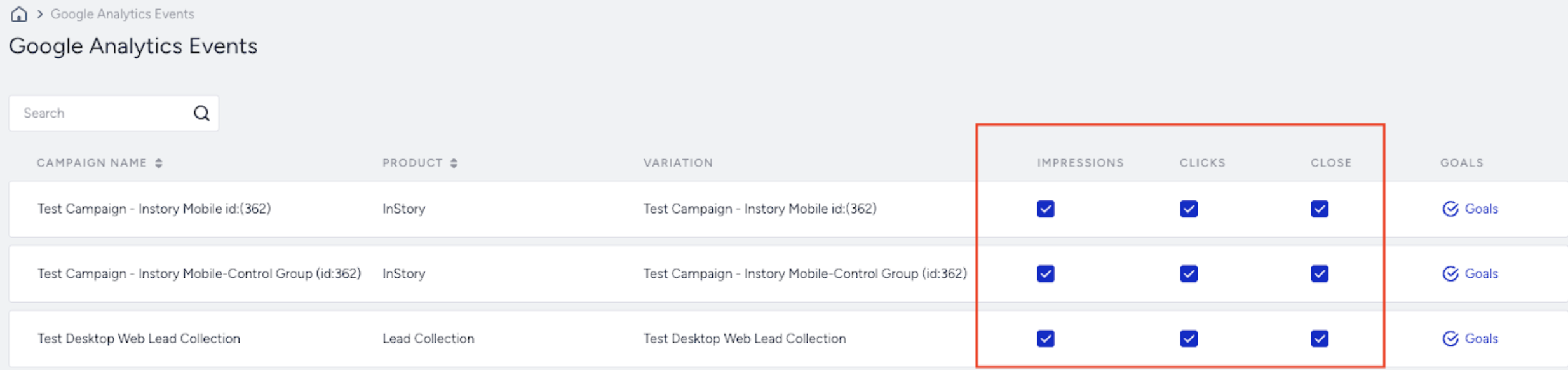
Keep in mind that data will only be sent after you enable the data stream. This means you won't be able to send historical data if you don't enable the stream immediately after the campaign launches.
How to check the GA4 integration
You can check the steps below to see whether you have configured the GA4 integration successfully.
1. Firstly, to determine which GA4 account you are in, you can extract the tid from the requests that contain the Insider One event in 'collect?v' requests, similar to checking in Universal Analytics. The crucial point here is that the tid should start with 'G-'. In GA4, you look for an ID starting with 'G-', while in Universal Analytics, you look for an ID starting with 'UA-'.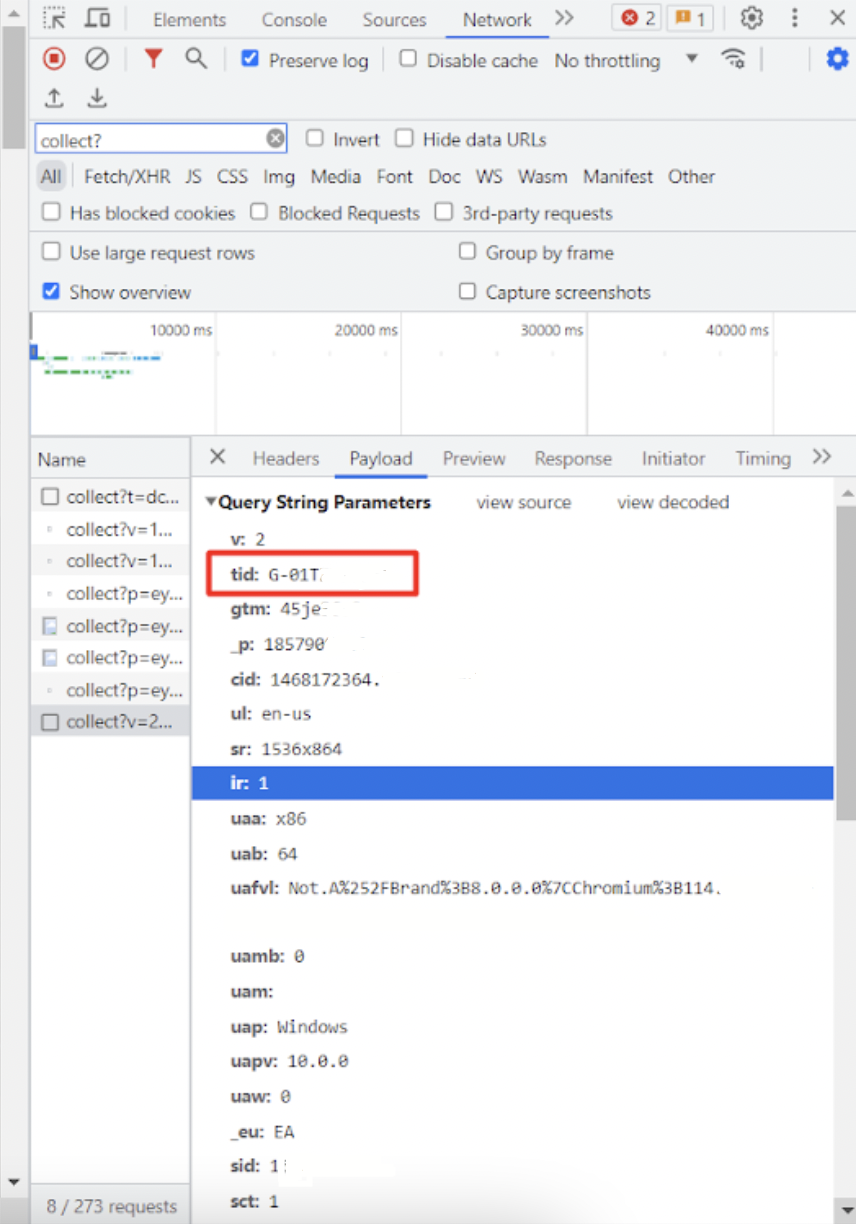
If any of the Insider One API or collect?v requests are affected by the "blocker advertising" you use for events; you need to address this using "blocker performance." Otherwise, your statistics might come in incomplete or incorrect. You'll have to block this blocker or handle it through GA4 settings to exclude/include.
2. Check whether a GA4 Configuration has been created within Google Tag Manager. In this step, verify if the Config file created includes the correct Tag Configuration, Measurement ID, and Trigger for Page View.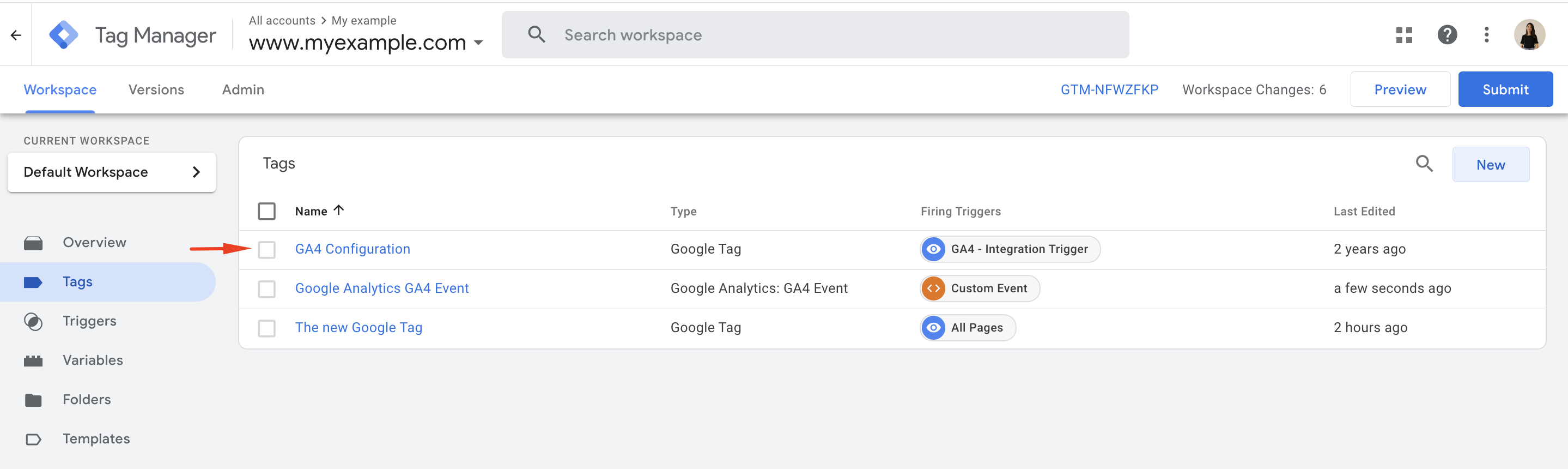
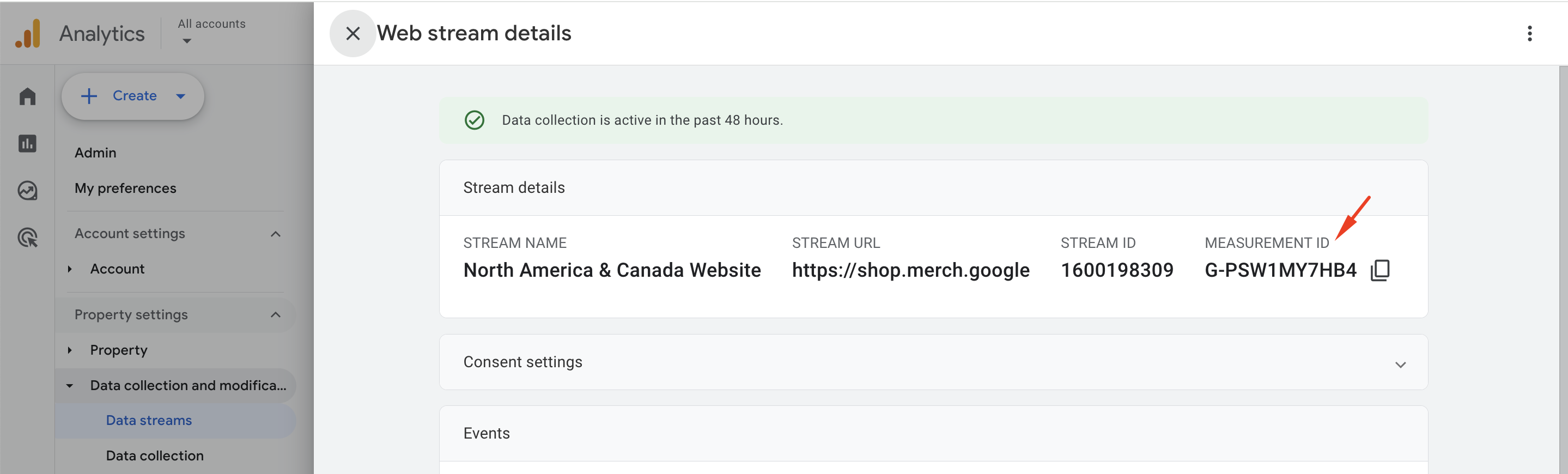
To ensure the correct Measurement ID has been added, you can go to the Admin section on the Analytics page and check the Web Streams Details within Data Streams.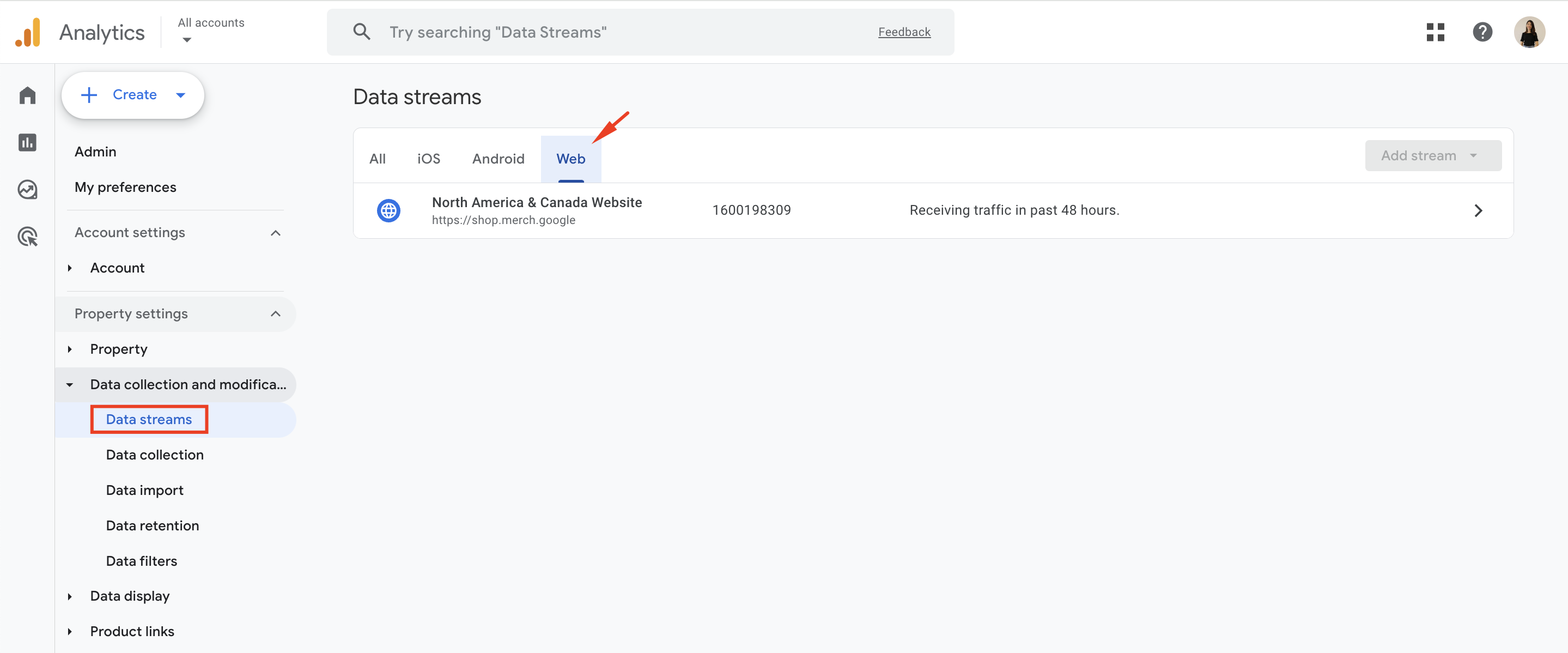
Check within the Trigger Configuration that 'Page View' is selected and ensure that 'All Page Views' is also selected.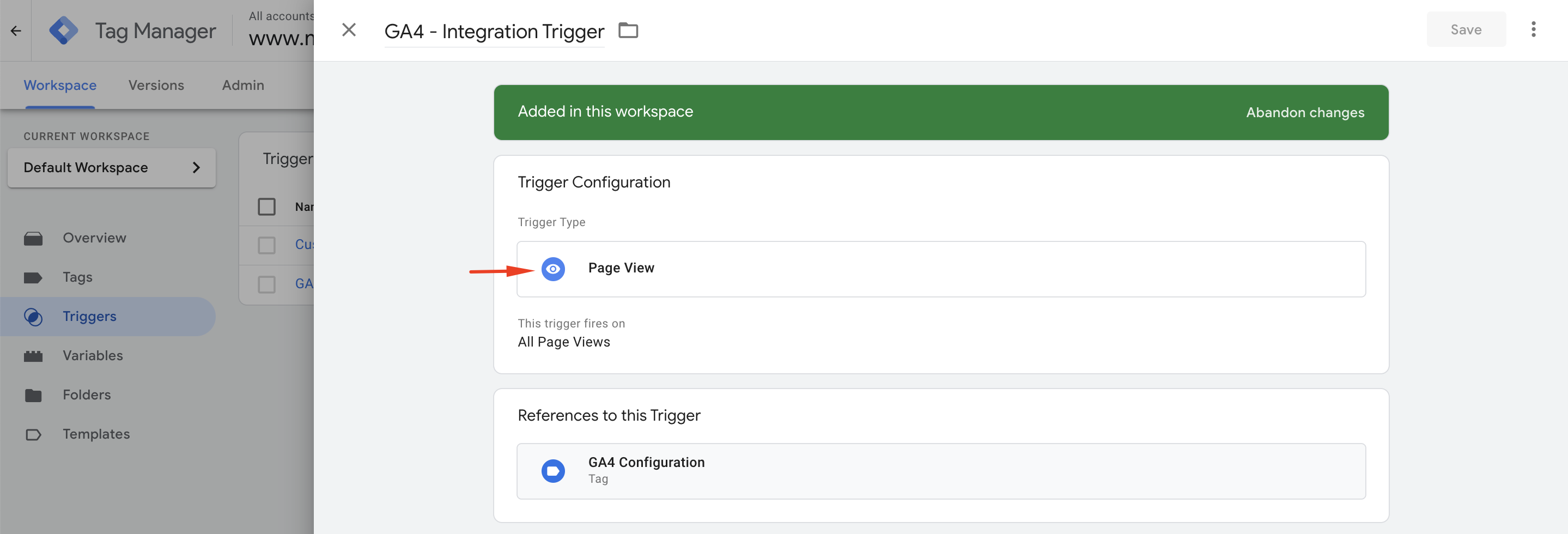
3. After these steps, verify whether Insider One events have been correctly added and check if the Event integration in Tag Configuration has been set up correctly.
The crucial point here is that INSIDER should be added in the Event Name field.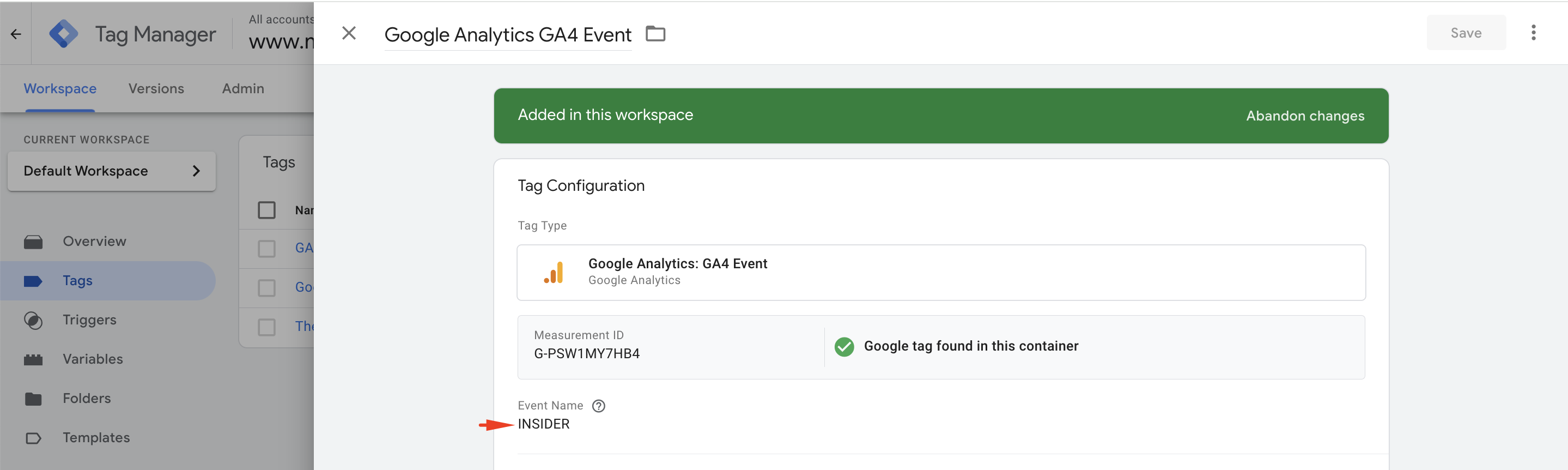
The value within {{}} curly brackets should match the name of the event file added in the Variable file.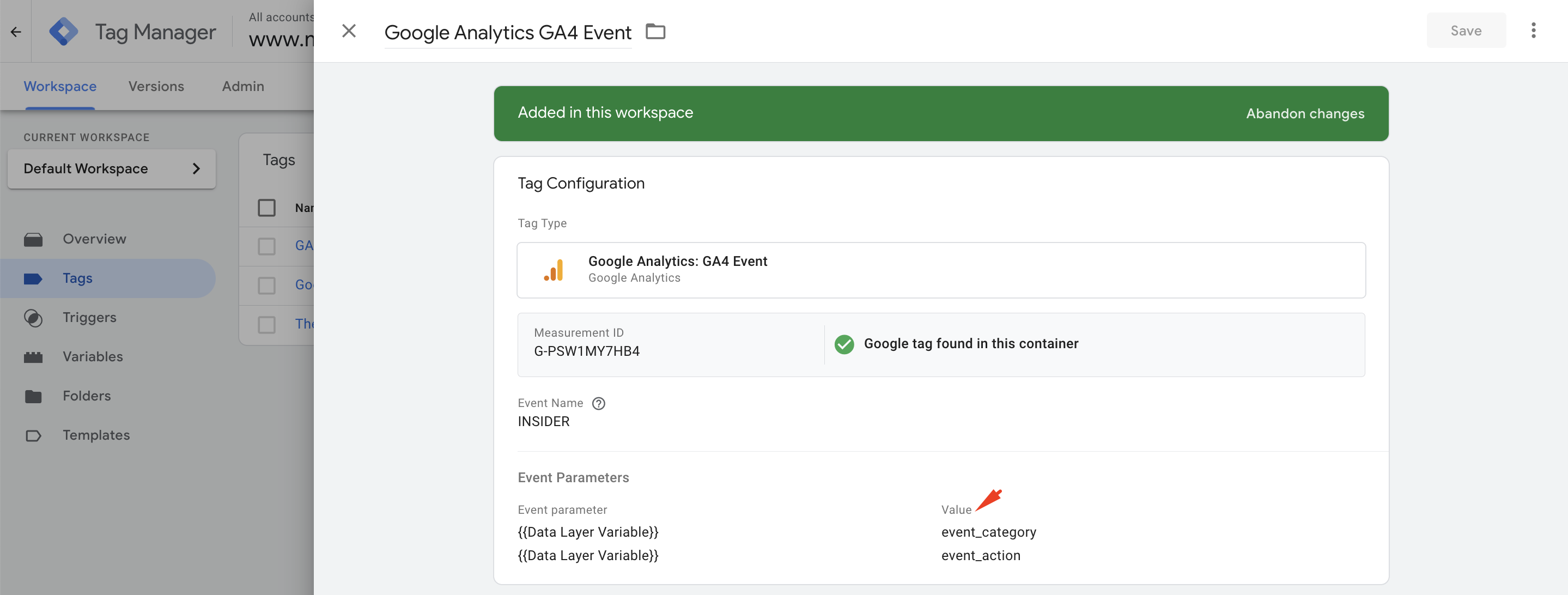

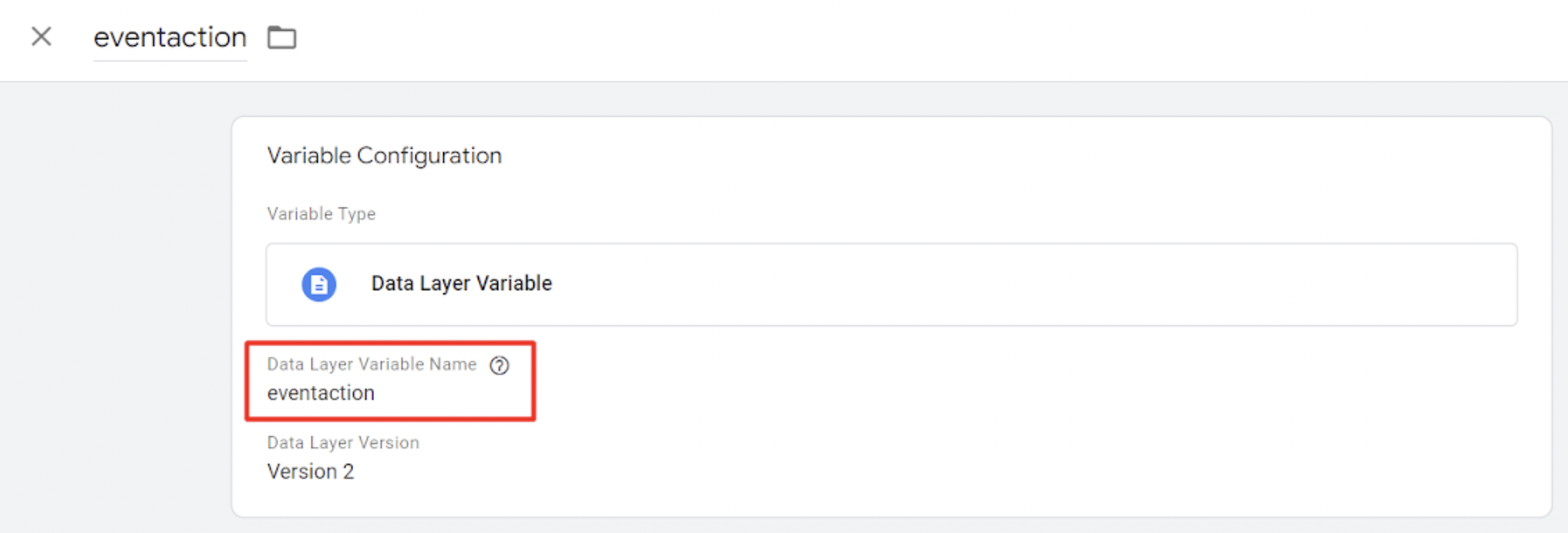
4. Check that the Event Parameters added in the Event integration are correctly included in the Variable file.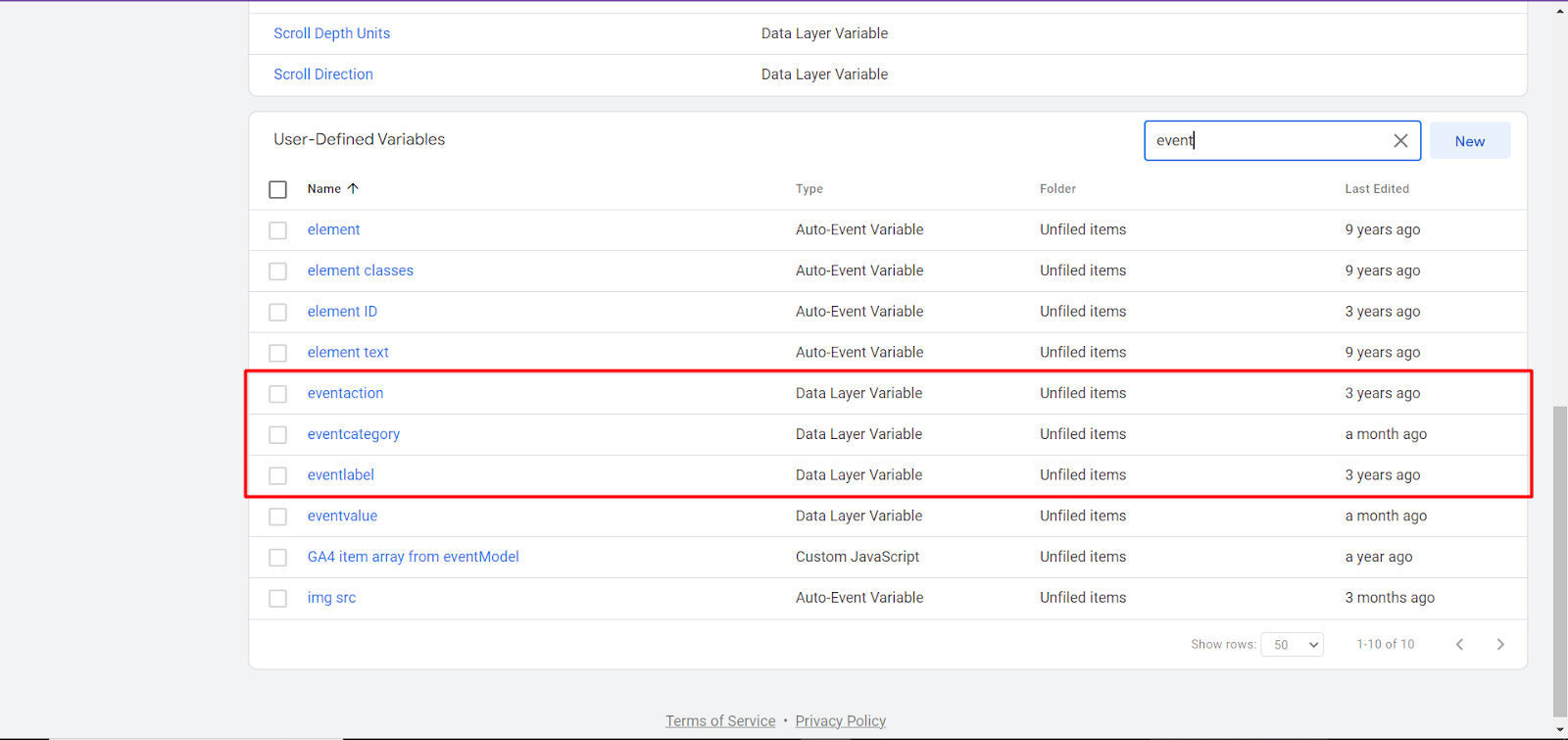
One crucial point is that the version should be Version2.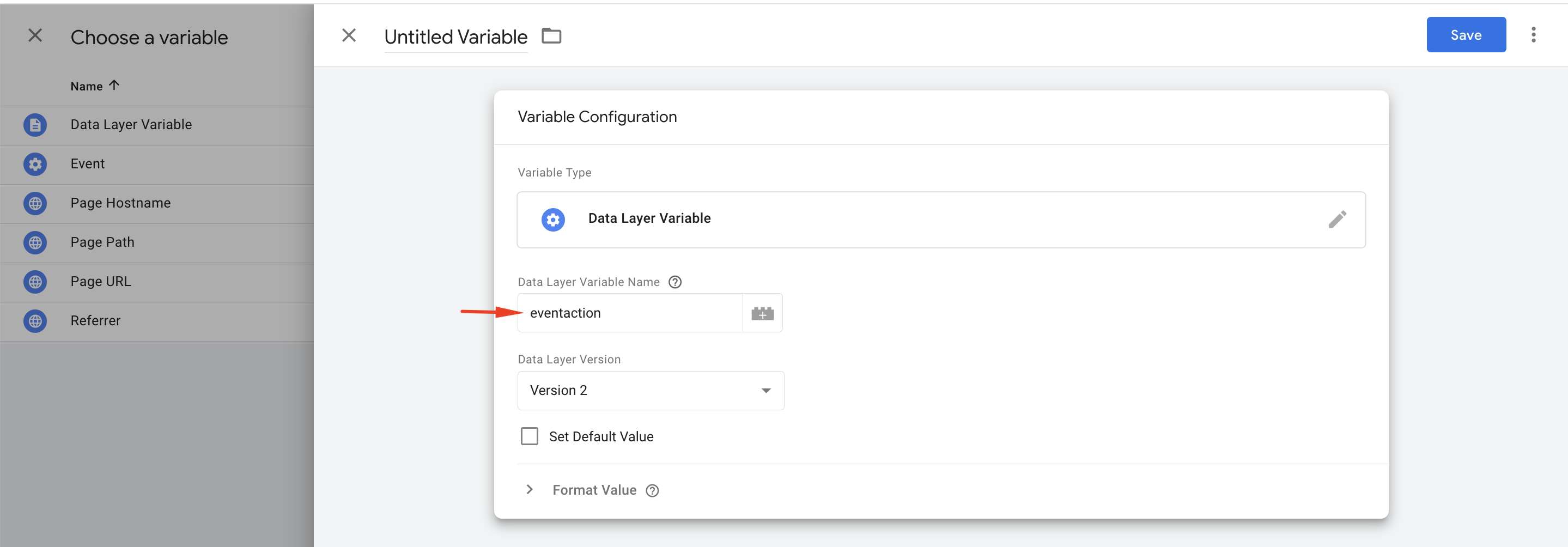
Also, check that the integration of Insider events in the GTM setup matches how it's done in the InOne panel and Data Layer Variable Name.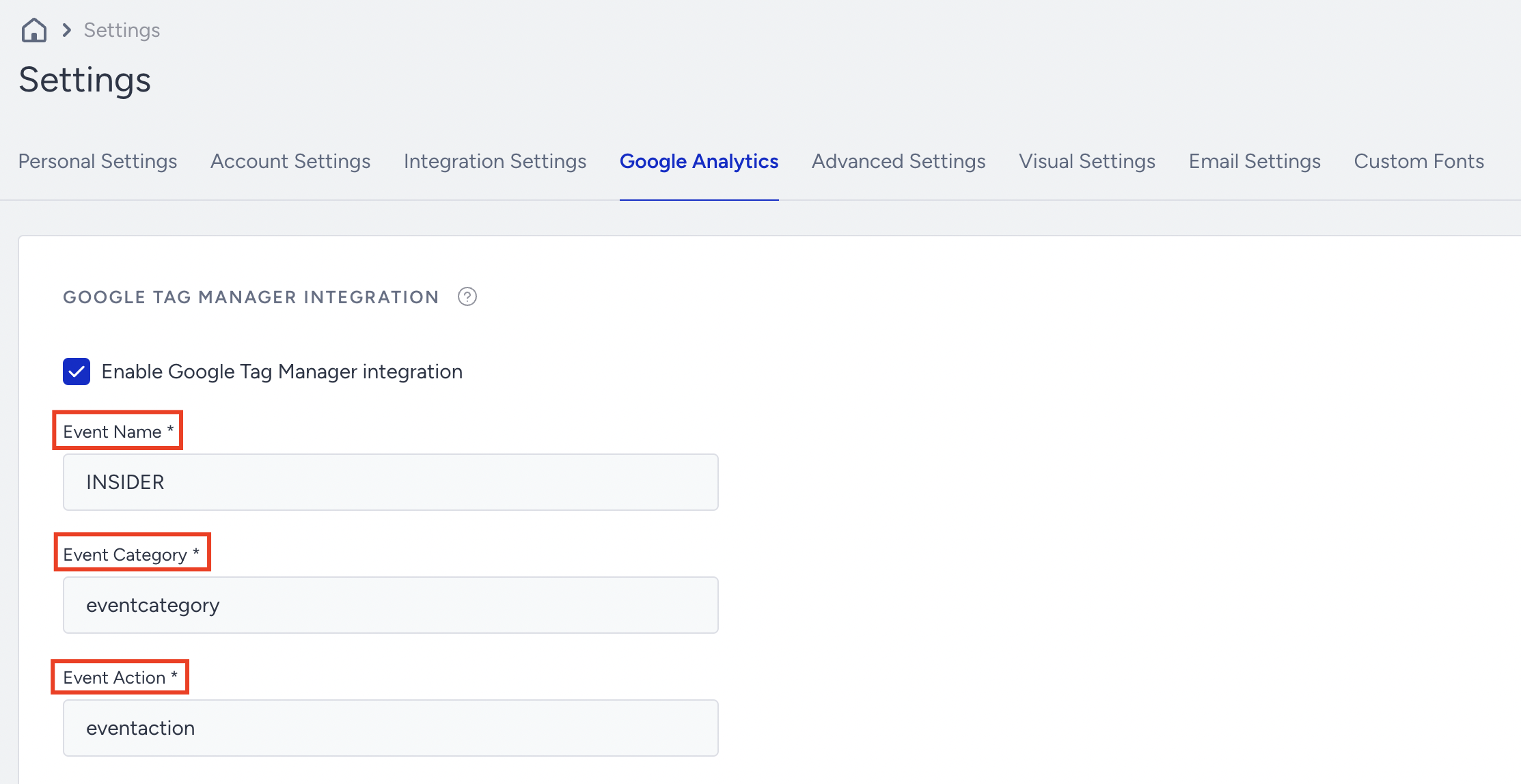
5. You must manually add these events to Custom Definitions in the GA4 admin panel.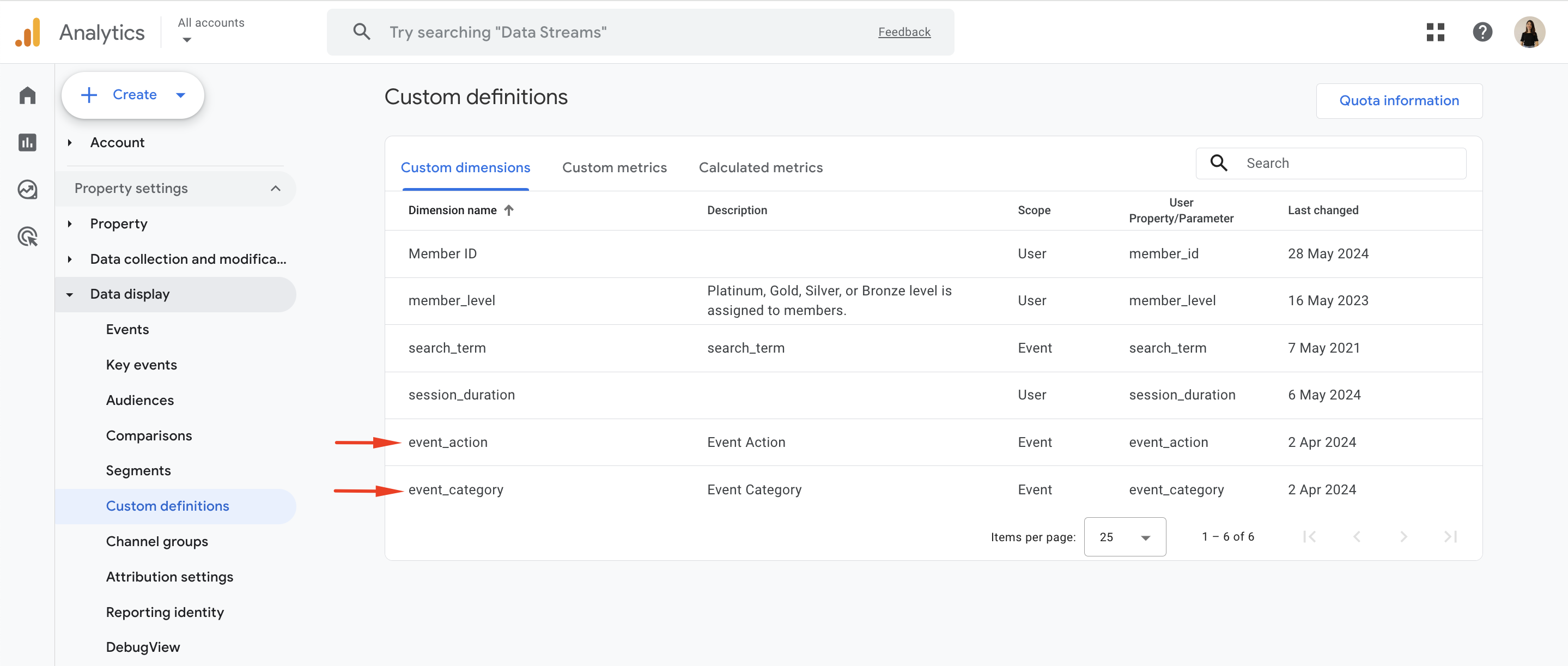
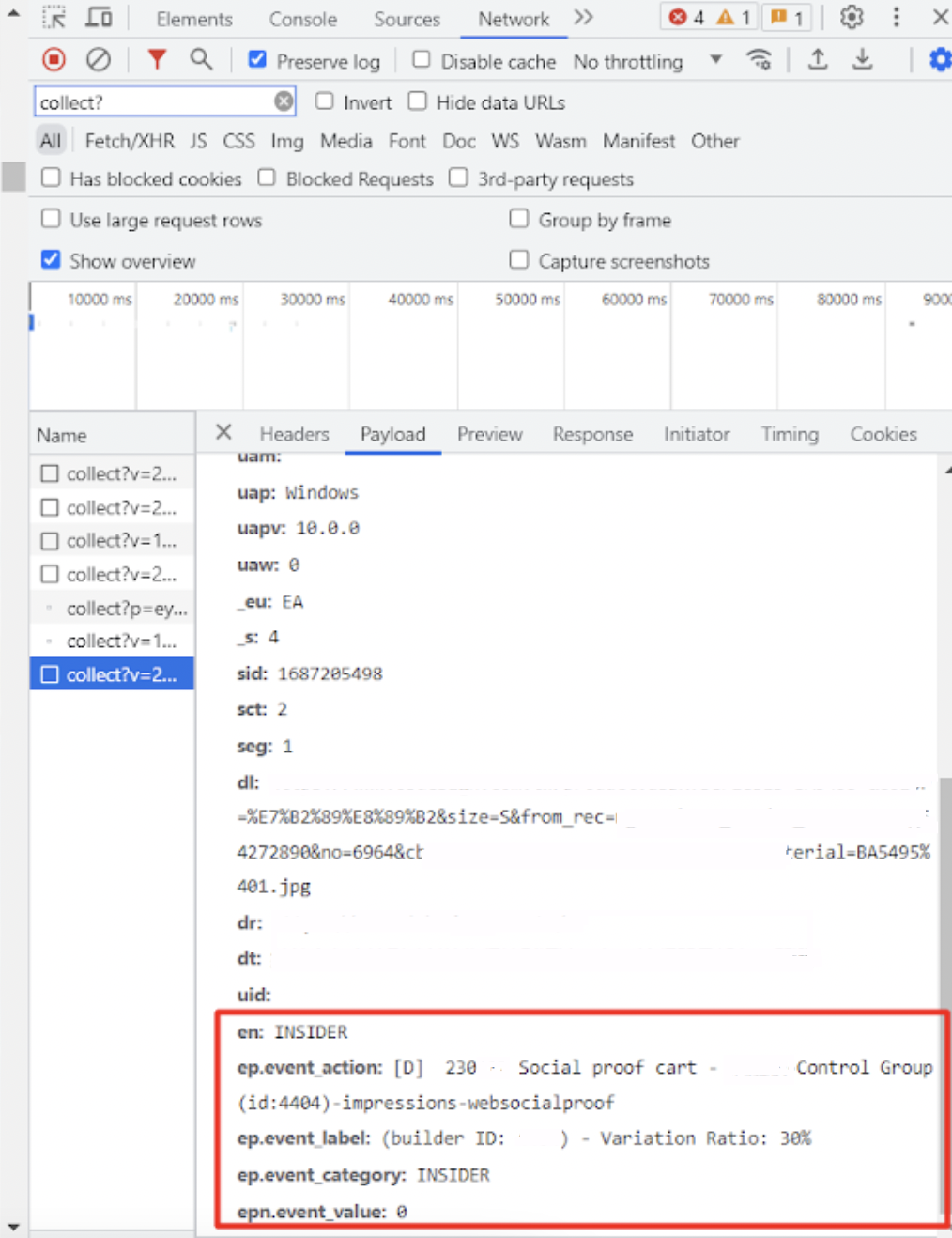
6. If you have done everything correctly up to this point, after publishing your integrations, you should be able to see Insider One events in 'collect?p' requests or by writing 'datalayer' in the Console.
How to check your campaigns
If the above steps are correct, you can see 'Insider' events when you search under Life Cycle > Engagement > Events in the Reports page.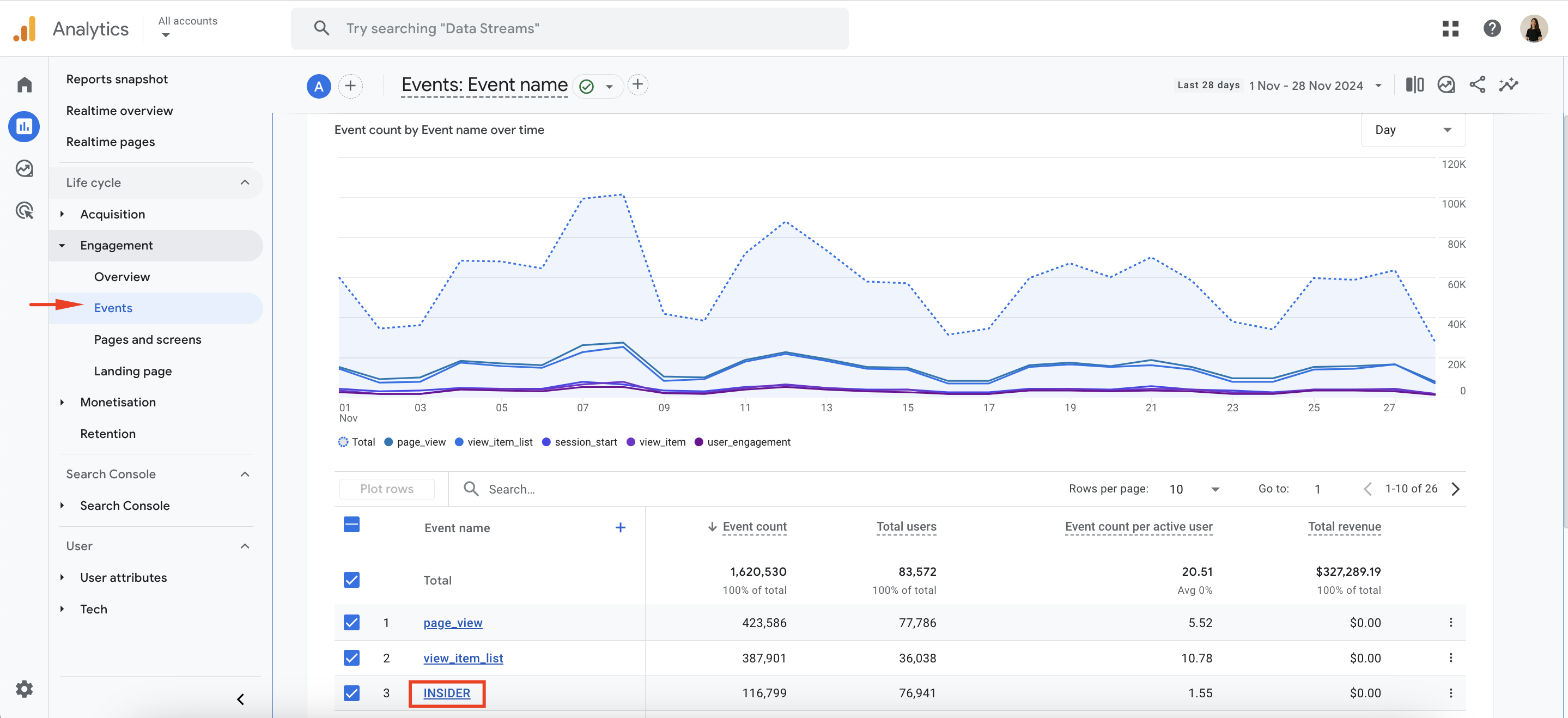
If you want to view it on a campaign basis, you can check by adding the custom events you added using the + (plus) button.
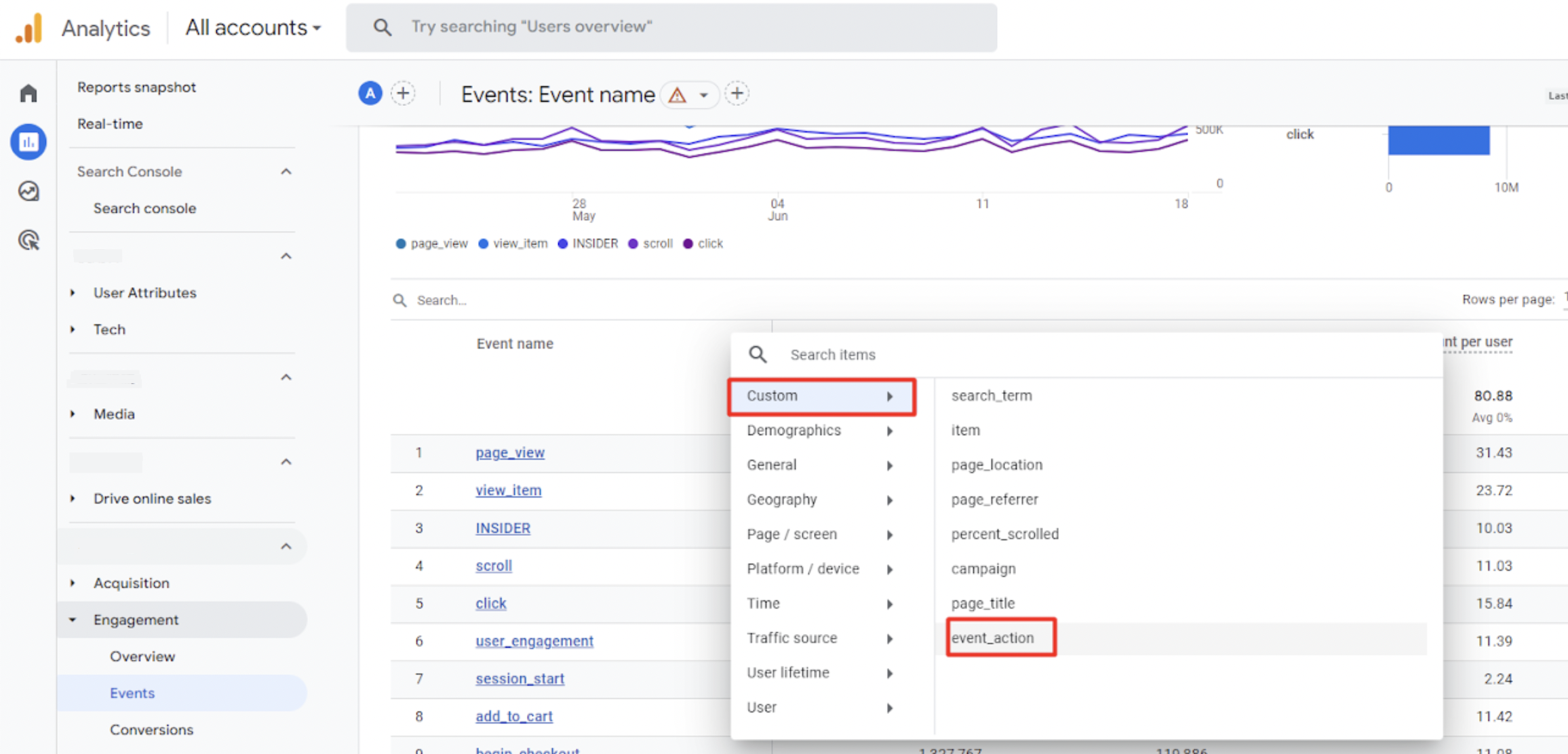
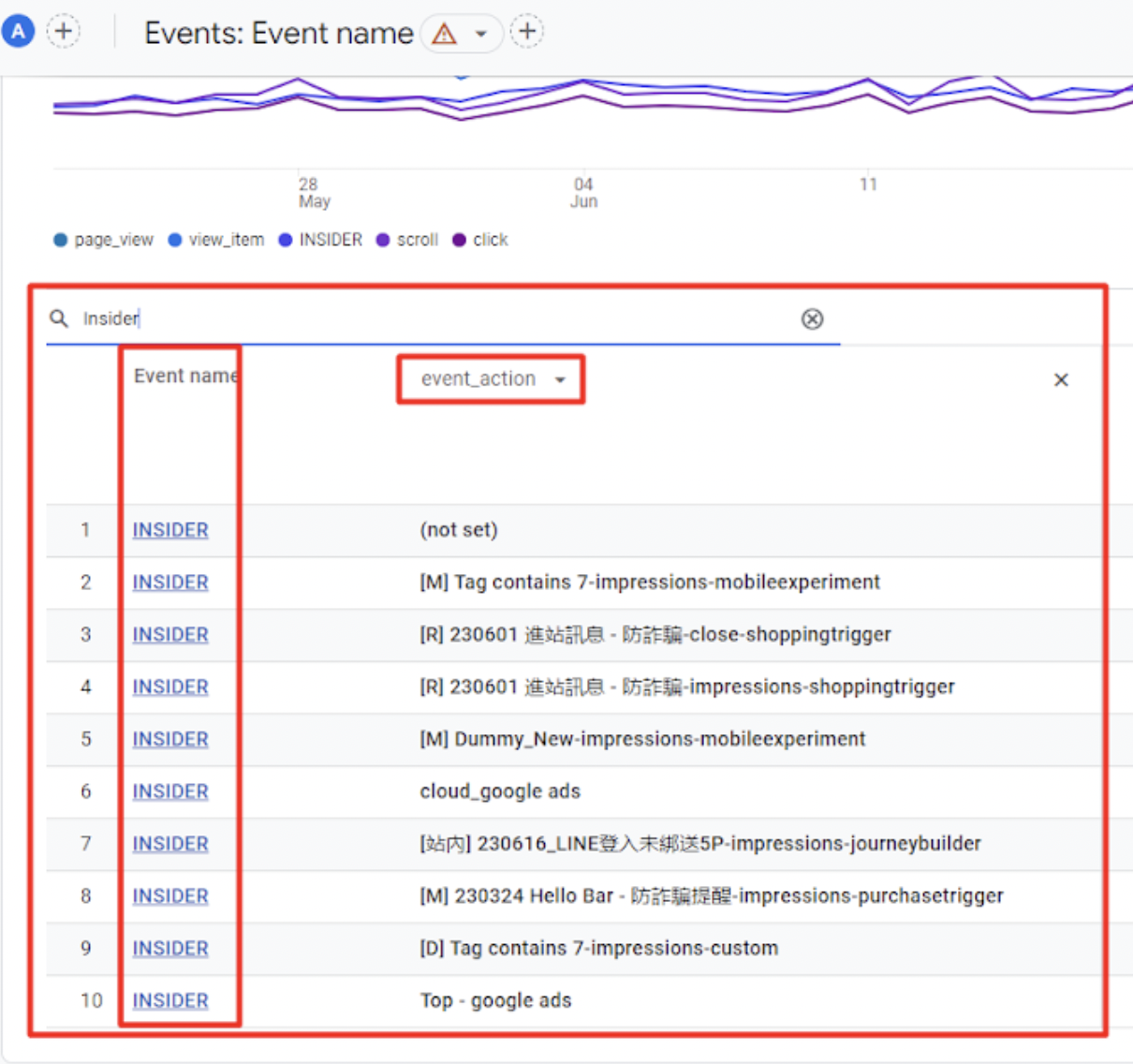
To see revenue values for Insider One campaign events in the GA4 reports section, you need to mark the INSIDER event as a key event. For more information on key events (previously known as conversions), please refer to Google’s documentation.
You can view products checked with the UTM parameter (web_push, email, etc.) under Acquisitions in User Acquisitions within the First User Primary Channel Group.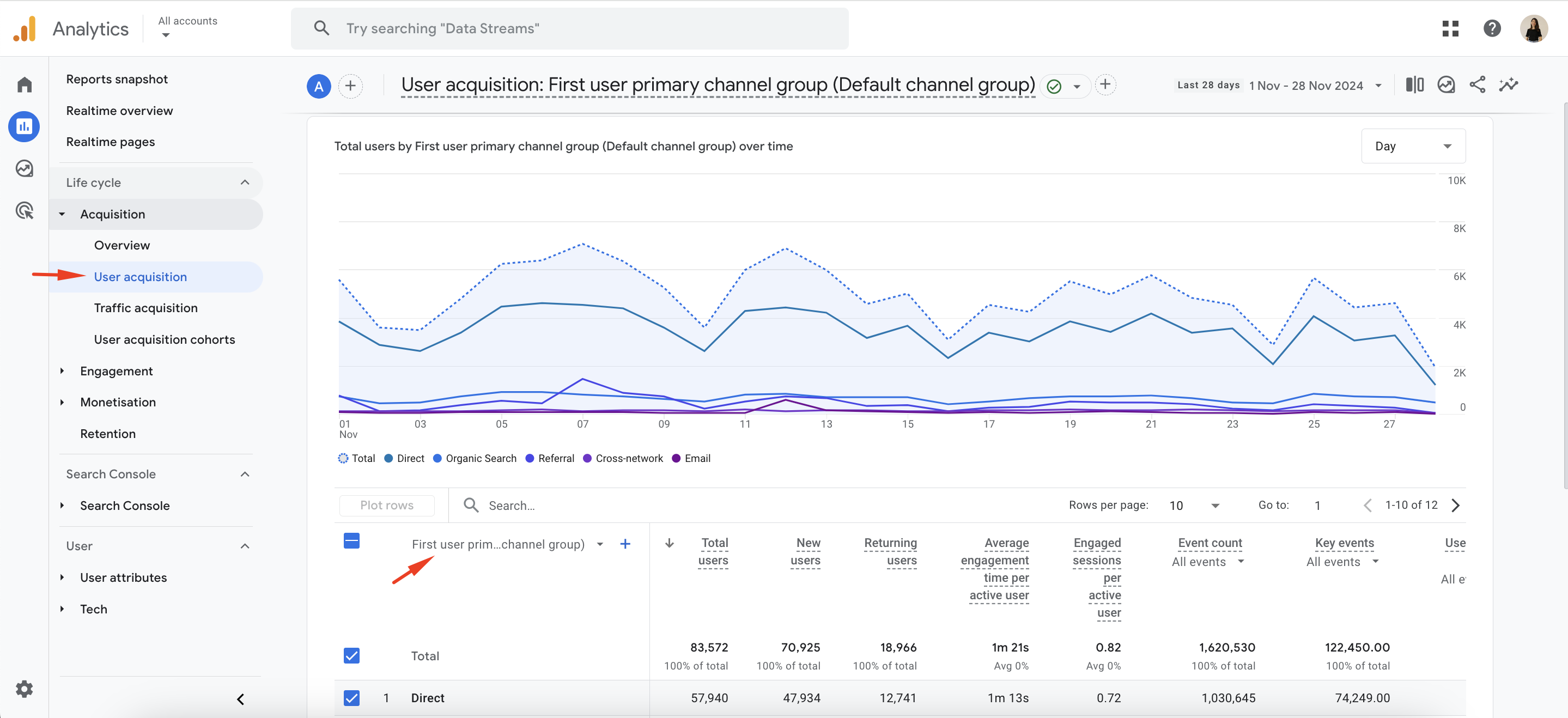
It's crucial to remember that in campaigns tracked with UTM parameters, even without integration, if you see 'source=insider' in the UTM link, you should be able to track it in GA/GA4.
If you experience any data discrepancies in UTM tracking, refer to Possible Reasons for UTM Tracking Discrepancy Between Google Analytics and Inone Analytics.
Additionally, observing the campaign reflected in the real-time report within the GA4 means the integration is successful.
Insider sends impression and join events for onsite campaigns and appends UTM parameters to URLs for traffic-directing campaigns, indicating to GA that the user is coming from Insider One. The GA integration manages revenue attribution. Importantly, Insider One does not transmit revenue to GA for events other than impressions and joins. If other events not associated with Insider One also lack revenue attribution, it prompts a thorough check of the entire integration.