Custom goal types define what action or condition Insider tracks when evaluating a custom goal. When you create a custom goal, you select one of eight goal types and configure it with the required parameters.
The goal types fall into two families:
Event Goal: Evaluated server-side against the events that already flow into your Unified Customer Database (UCD).
Standard goal types: Pageviews, Clicks, Rules, Product Success, Product Category Success, Bounce, and Add to Cart. These are evaluated in the user's browser.
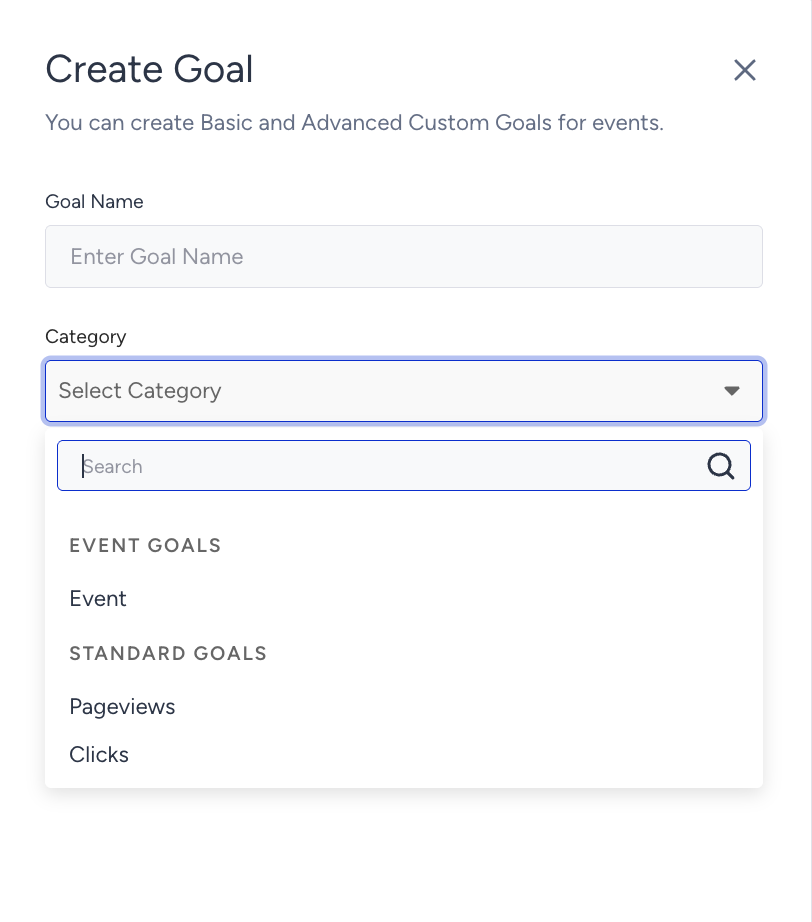
Event Goal
Tracks an event that already flows into your Unified Customer Database (UCD) and attributes it to the campaign. Use this goal type when the action you want to measure is already an event on your site, such as item_added_to_cart or sign_up_confirmation, or when you need to tell apart conversions that followed a click on the campaign from conversions that followed a view of it.
Example: Event Goal - Cart Page View
Available events
The following standard events are available:
item_added_to_cart
confirmation_page_view
purchase_cancelled
sign_up_confirmation
listing_page_view
product_detail_page_view
cart_page_view
other_page_view
item_added_to_wishlist
item_removed_from_wishlist
wishlist_page_view
wishlist_cleared
All of your custom events are also available in the same list. You can add up to 10 event goals to the same campaign.
If a user sees or clicks your campaign, the attribution window starts, and the goal event triggers shortly afterward (e.g., within 10 seconds), the impression or click event associated with the attribution window might not match the goal event. As a result, the conversion may not be tracked for that campaign. This is a known limitation called a “race condition”.
Standard Goals
Pageviews
Tracks the number of pageviews on a specific URL within the Goal Conversion Duration period, starting from when the campaign receives an impression.
Configuration:
Enter the URL you want to track and select a match type:
Match Type | Behavior |
|---|---|
Contains | Matches any URL that includes the specified parameter |
Simple | Matches any URL that begins with the specified string |
Exact | Matches only the exact URL entered |
Example: Pageviews - Deals page - mywebsite.com/deals - Exact
The Pageviews goal is triggered every time a page is refreshed. Each refresh counts as a new pageview conversion.
Clicks
Tracks clicks on a specific page element within the Goal Conversion Duration period, starting from when the campaign receives an impression.
Default Clicks goal vs. custom Clicks goal type:
The default Clicks goal tracks any click on the campaign itself. The custom Clicks goal type tracks clicks on any element anywhere on your website. Use this goal type when you want to measure interaction with a specific button, link, or UI element rather than the campaign.
Configuration:
Name your click goal.
Click Assign to navigate to the page where the element you want to track is located.
Click on the element to select Track clicks.
Rules
Tracks any custom condition defined by a previously created rule or a new rule created during goal setup.
Configuration:
Select or create a rule, then set the match type:
True: The goal is counted when the rule condition is met.
False: The goal is counted when the rule condition is not met.
Example: Rules - My rule goal - {ruleName} - true
Product Success
Tracks purchases of a specific product, identified by its product ID. Use this goal type when you want to measure how many users purchased a particular product as a result of the campaign.
A conversion is counted when the user adds the product to their cart and completes the purchase.
Configuration:
Enter the product ID and set the match type to True.
Example: Product Success - Product goal - SKU1234 - true
Find the product ID:
This goal type requires the product ID to be set in your system rules. To verify the product ID on a product page, open the browser console on that page and run:
Insider.systemRules.call('getCurrentProduct').id;Run this as a setup verification step to confirm the correct ID before saving the goal.
Product Category Success
Tracks purchases within a specific product category. Use this goal type when you are running a category-level campaign and want to measure how many users purchased from that category as a result.
This goal applies to product pages only. It does not track cart or purchase pages.
Configuration:
Enter the product category name and set the match type to True.
Example: Product Category Success - Product category goal - Dresses - true
Find the product category:
This goal type requires the product category to be set in your system rules. To verify the category value on a product page, open the browser console on that page and run:
Insider.systemRules.call('getProductCategories');Run this as a setup verification step to confirm the correct category name before saving the goal.
Bounce
Tracks users who leave the page without interacting with it or visiting another page after viewing the campaign.
This goal is only counted when the campaign is displayed on the landing page and receives an impression. If the campaign is displayed on any other page type, the Bounce goal will not be counted.
When you select Bounce as your conversion criteria, campaign analytics displays conversions as bounce counts and the conversion rate as bounce rate.
Bounce Rate formula:
Bounce rate = (sessions that leave without interaction / total sessions) x 100
Add to Cart
Tracks the number of times a product is added to the shopping cart after the campaign receives an impression. Counts all add-to-cart actions across the website within the Goal Conversion Duration period, regardless of which page the campaign is displayed on.
Conversion count behavior:
Each add-to-cart action increases the conversion count. If a product is removed from the cart or its quantity is decreased, the conversion count decreases accordingly.
This goal type requires an add-to-cart trigger set in your system rules. To verify the trigger is firing correctly, open the browser console and run:
Insider.systemRules.call('spAddToCart')Run this as a debugging step if add-to-cart conversions are not being recorded as expected.