Expressions

Prev Next

Expressions are formulas used to create new attributes by combining one or more existing ones. These calculated attributes offer deeper insights and support advanced segmentation, personalization, and reporting.

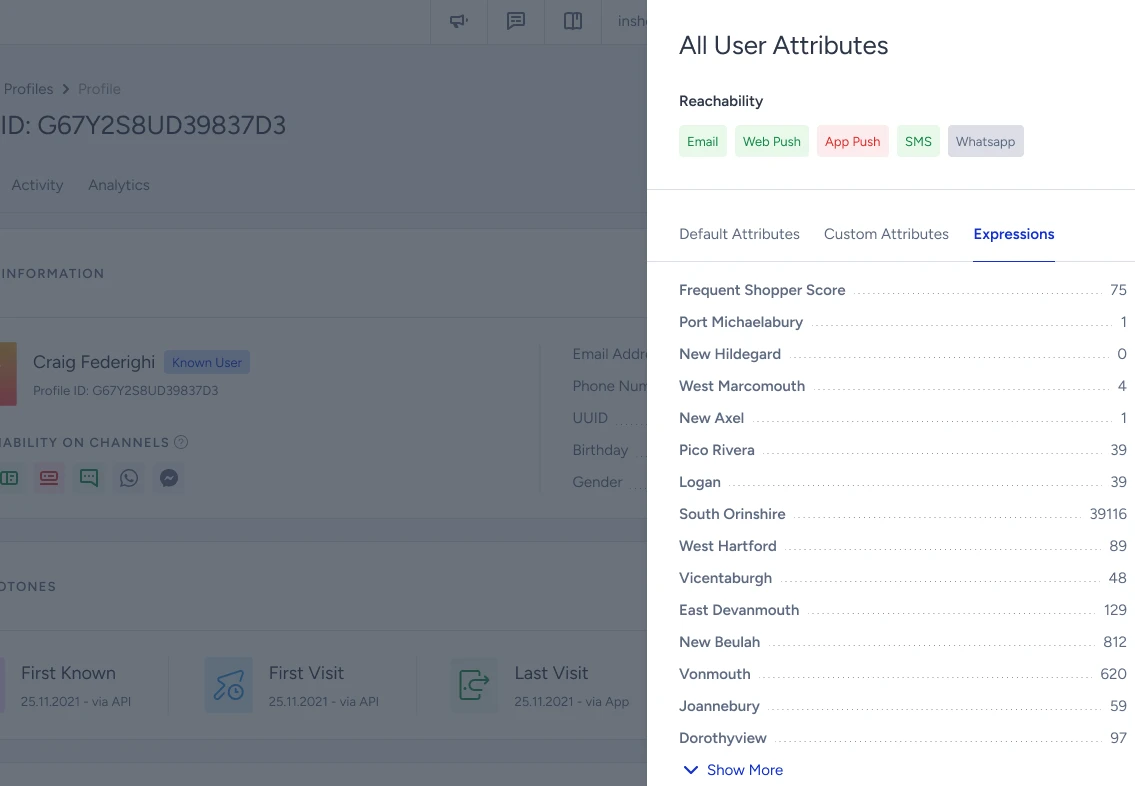
Once created, expressions appear as calculated attributes within the relevant customer or event profiles and can be used across multiple modules on the Insider’s InOne platform.

Use Cases

Expressions are especially powerful when deeper data manipulation or aggregation is needed. Common use cases include:

  • Deriving new insights from existing data

  • Creating more precise user segments

  • Powering advanced personalization and automation strategies

Let’s say you want to create a calculated attribute that shows how many days have passed since a user’s Loyalty Activation Date.

Here’s how it works:

  • The system compares the current date (today) with the user’s Loyalty Activation Date, which is an existing custom attribute.

  • If both dates are valid, it calculates the difference in days and stores it as a new calculated attribute.

Example:

  • Today’s date: June 1, 2025

  • Loyalty Activation Date: May 1, 2025

  • Calculated difference: 31 days

This value (31) will appear on the user’s profile under the name of the expression you created. You can use it like any other attribute—for segmentation, targeting, or reporting purposes.

If you want to create a new attribute that shows where each store is located, including the country, create an expression like this:

Now, each store's profile will have a new calculated attribute with a value that combines the store’s city with the country “Türkiye”.

Create an Expression

To create a new expression:

  1. Navigate to Components > Attributes and Events > Expressions.

  2. Click the Create button to define a new expression.

  3. Construct your formula using the available elements.

Expressions consist of 3 main components:

1. Attributes

Attributes serve as the input values used within your expression. These may include:

  • Default Attributes: System-defined attributes available, such as age or creation date.

  • Custom Attributes: User-defined attributes created on the Insider’s InOne panel to meet specific business. needs.

2. Functions

Functions operate on attribute values and return calculated results based on the defined logic. These are grouped into several categories. Currently, functions are applicable to attributes with the following data types: number, string, and date & time.

Function

Data Type

Description

Max(A, B)

Numbers

Returns the greater of the two input values

Min(A, B)

Numbers

Returns the lesser of the two input values

Ceil(A, B)

Numbers

Rounds the value upward to the nearest integer, such as ceil(1.4) = 2

Floor(A)

Numbers

Rounds the value downward to the nearest integer, such as floor(1.9) = 1

Round(A)

Numbers

Rounds the value mathematically to the nearest whole number, such as round(1.5) = 2

Abs(A)

Numbers

Returns the absolute value of A, removing any negative sign

Avg(A, B, ...)

Numbers

Calculates the average of input values

Length(A)

String

Returns the number of characters in a string or values in a list

Left(A, N)

String

Returns the first N characters from the beginning of the string

Right(A, N)

String

Returns the last N characters from the end of the string

Lower(A)

String

Converts all characters in the string to lowercase

Upper(A)

String

Converts all characters in the string to uppercase

Concat(A, B)

String

Joins two or more strings into a single string. For more than two values, nest the function, such as concat(concat(A, B), C)

Trim(A)

String

Removes leading and trailing spaces from a string

Year(A)

Date and Time

Extracts the year from a datetime attribute

Quarter(A)

Date and Time

Returns the quarter of the year from a datetime value

Month(A)

Date and Time

Returns the month number from a datetime

Day of Month(A)

Date and Time

Extracts the day from a date

Hour(A)

Date and Time

Extracts the hour from a timestamp

Minute(A)

Date and Time

Extracts the minute

Second(A)

Date and Time

Extracts the second

Date Difference(A, B)

Date and Time

Returns the difference between two dates

Now()

Date and Time

Returns the current timestamp

Format DateTime(A, format)

Date and Time

Formats a datetime attribute according to the specified format

To Timezone(A, tz)

Date and Time

Converts a timestamp to the specified timezone

3. Operators

Use basic arithmetic operators (+, -, *, /) along with attributes and functions to construct your expression. You need to type the operators manually using your keyboard. You also need to use parentheses for order of operations or to define negative numbers, such as (-1).

You can write the formula in two different ways:

  • Manually type the formula.

  • Click the attribute boxes and choose the default or custom attribute.

Once your expression is ready, click the Save button. The expression will appear on the Expression listing page and will be applied across all relevant profiles.

Use Expressions across InOne

You can use the created expressions anywhere attributes are supported:

  • As filters in dynamic segmentation

  • As dynamic content in campaign personalization

  • In data comparison modules

Expressions can be selected from the attribute list in any of these modules. If an expression named expression_name has a value of X for a profile, it can be referenced in any dynamic content block across your campaign when you select it from the dynamic content dropdown.

Expressions are currently available for segmentation in Web Push, App Push, WhatsApp, SMS, Email, and Architect.

Use Expressions in Dynamic Content

You can also use expressions in a dynamic segment as an attribute filter. Suppose a profile is assigned the expression expression_name with a value of 30. To personalize an email with this data, simply select the expression_name attribute from the dynamic content dropdown within your campaign. The system will automatically display the correct value based on each user’s profile.

Expression-based logic is currently available only in the Email product.

Editing and deleting expressions, selecting PII attributes, and using boolean logic are currently not supported.